

Create an External Client App
Salesforce issues OAuth credentials through an External Client App, which replaces the
older Connected App for new registrations.
Sign in to Salesforce
Sign in to your Salesforce account for a production or
Developer Edition org, or your Salesforce sandbox account
for a sandbox.
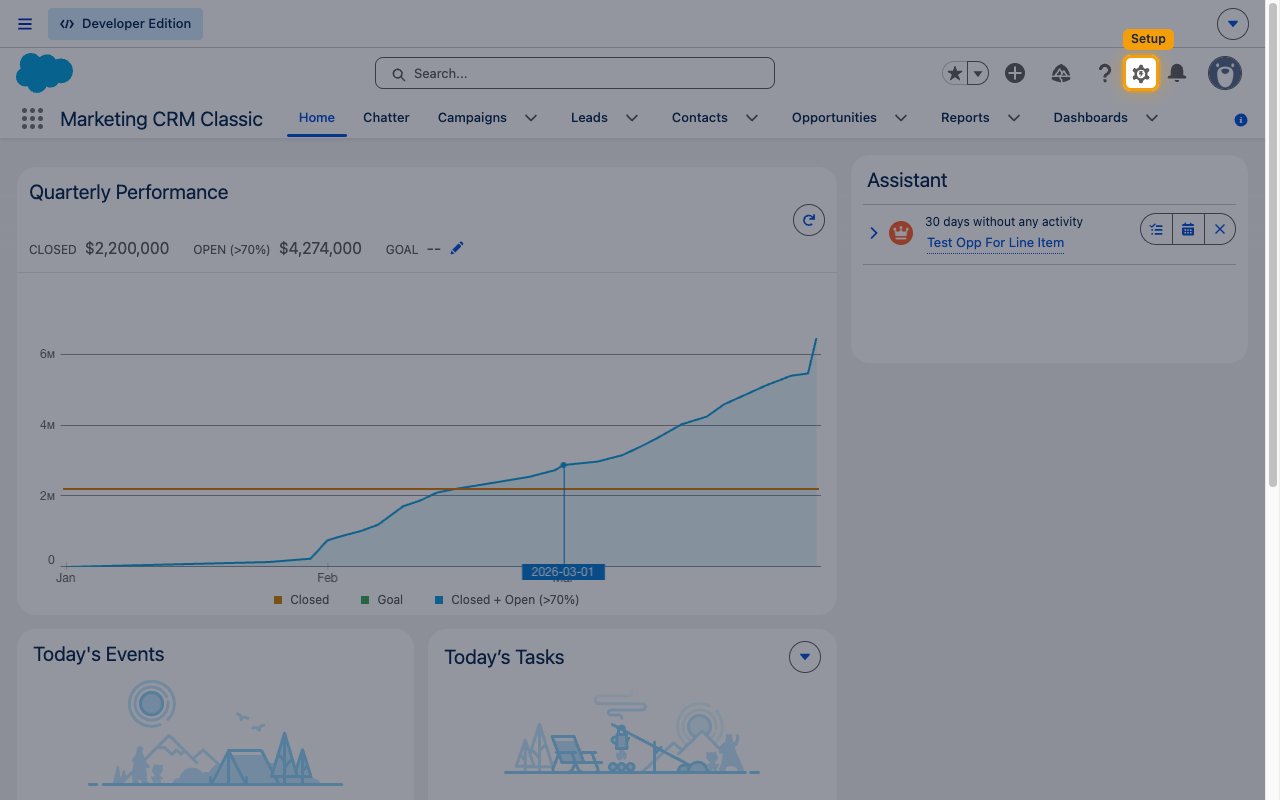
- Click the gear icon labeled Setup in the top-right corner.
Open External Client App Manager
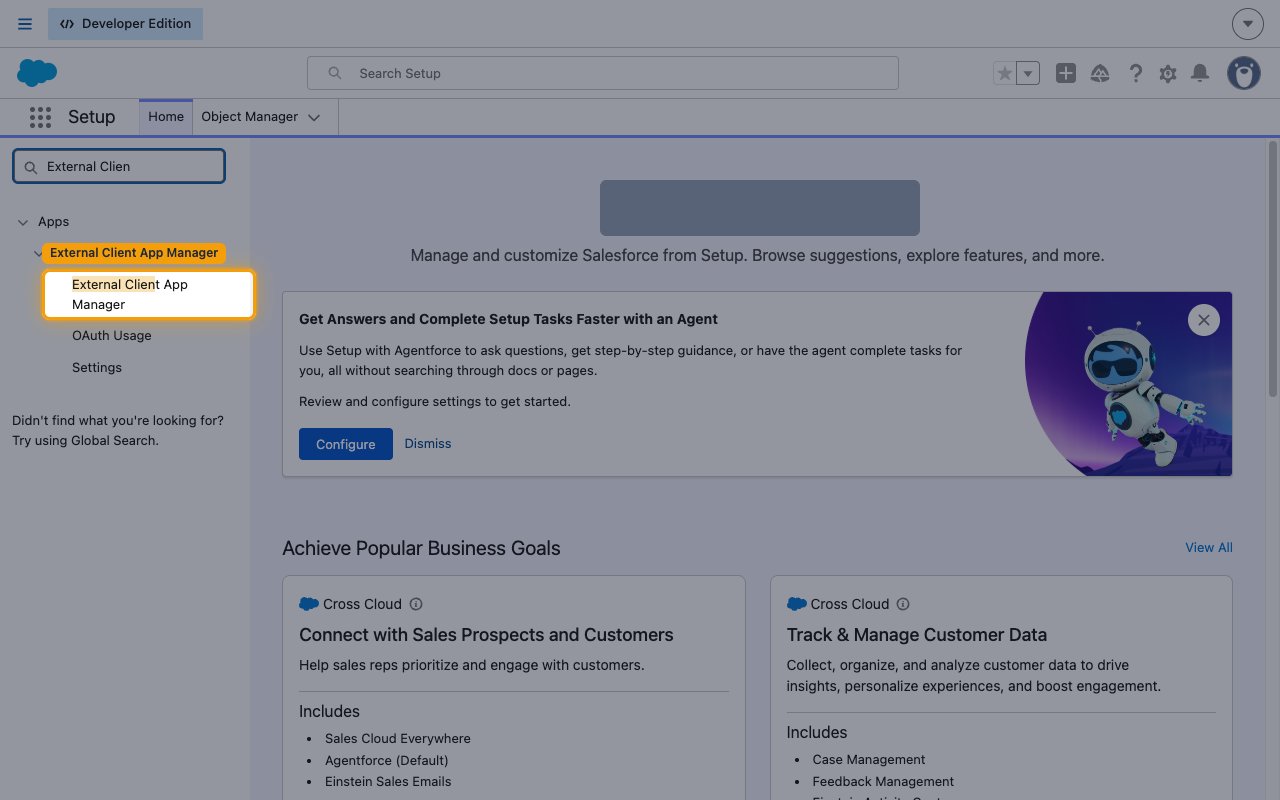
In the Quick Find box in the left sidebar, enter External Client and select
External Client App Manager under Apps > External Client Apps.
Start a new app
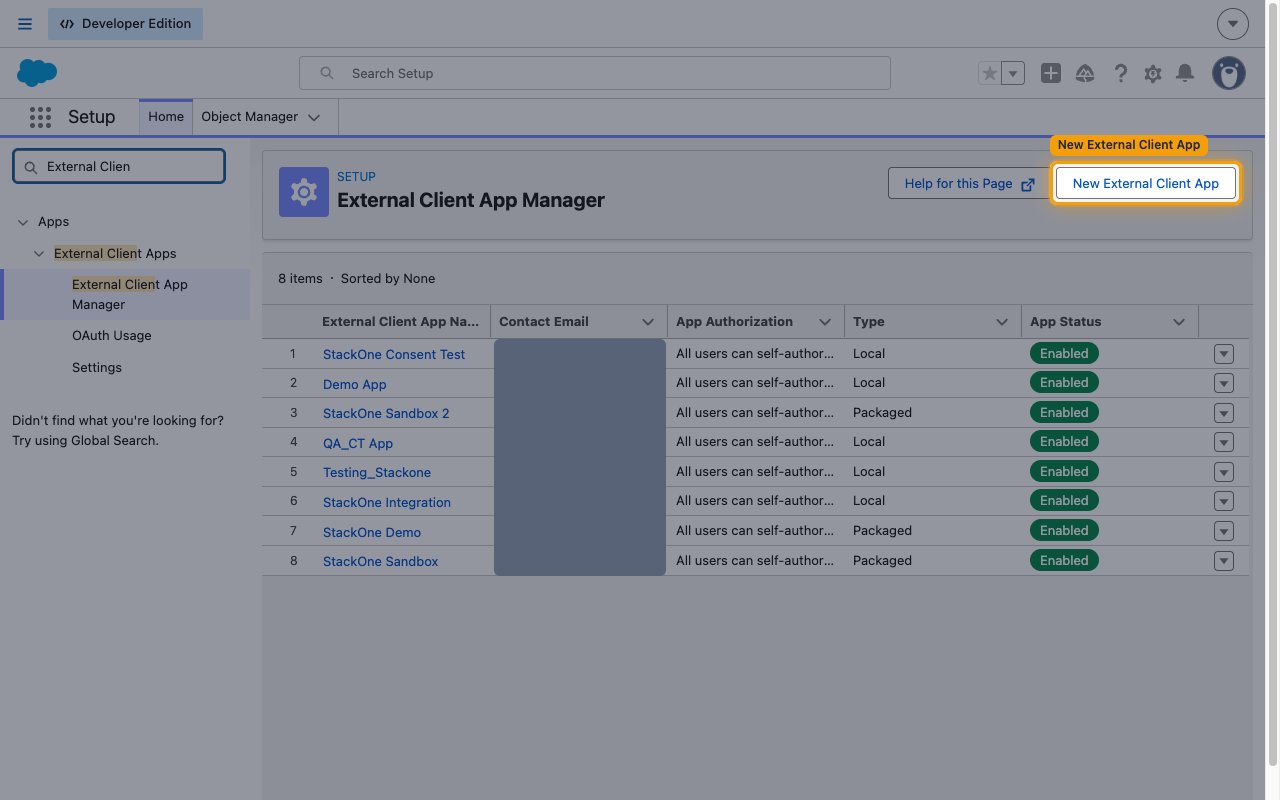
Click New External Client App in the top-right corner.
Enter the basic information
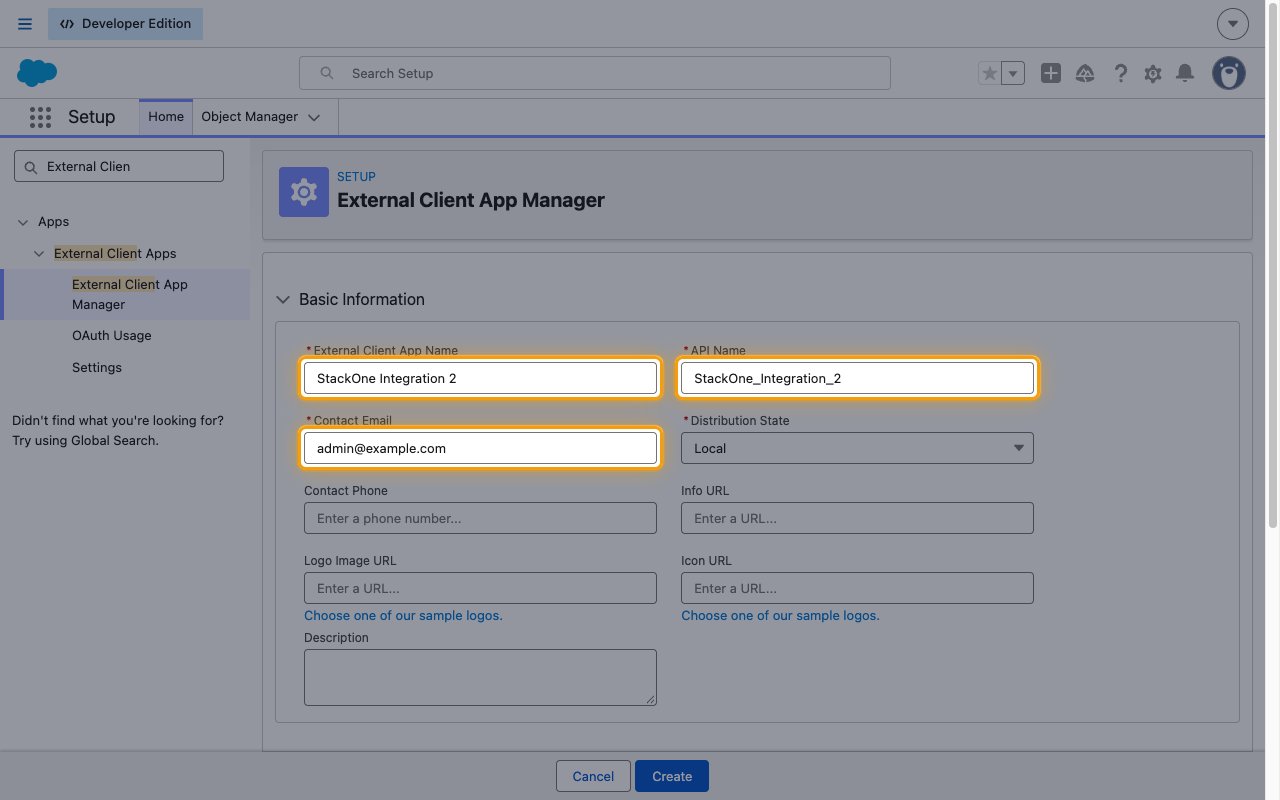
Complete the Basic Information section.
- External Client App Name:
StackOne Integration - API Name: filled in automatically from the app name
- Contact Email: your administrator email address
- Leave Distribution State set to Local.
Configure OAuth settings
Turn on OAuth for the app, point it at StackOne, and grant the scopes the connector needs.
Enable OAuth and set the callback URL
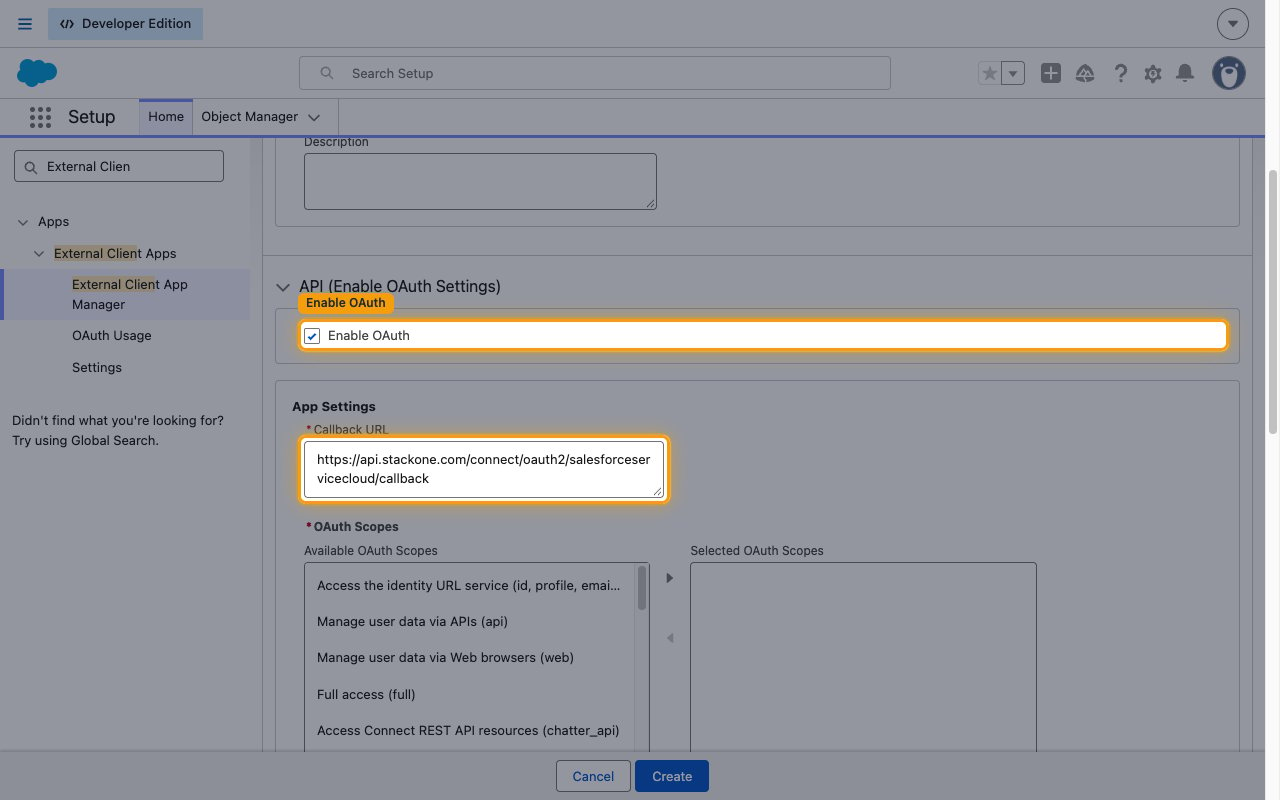
Open the API (Enable OAuth Settings) section and select Enable OAuth. Under
App Settings, enter the StackOne callback URL.
- Callback URL:
https://api.stackone.com/connect/oauth2/salesforceservicecloud/callback
Select the OAuth scopes
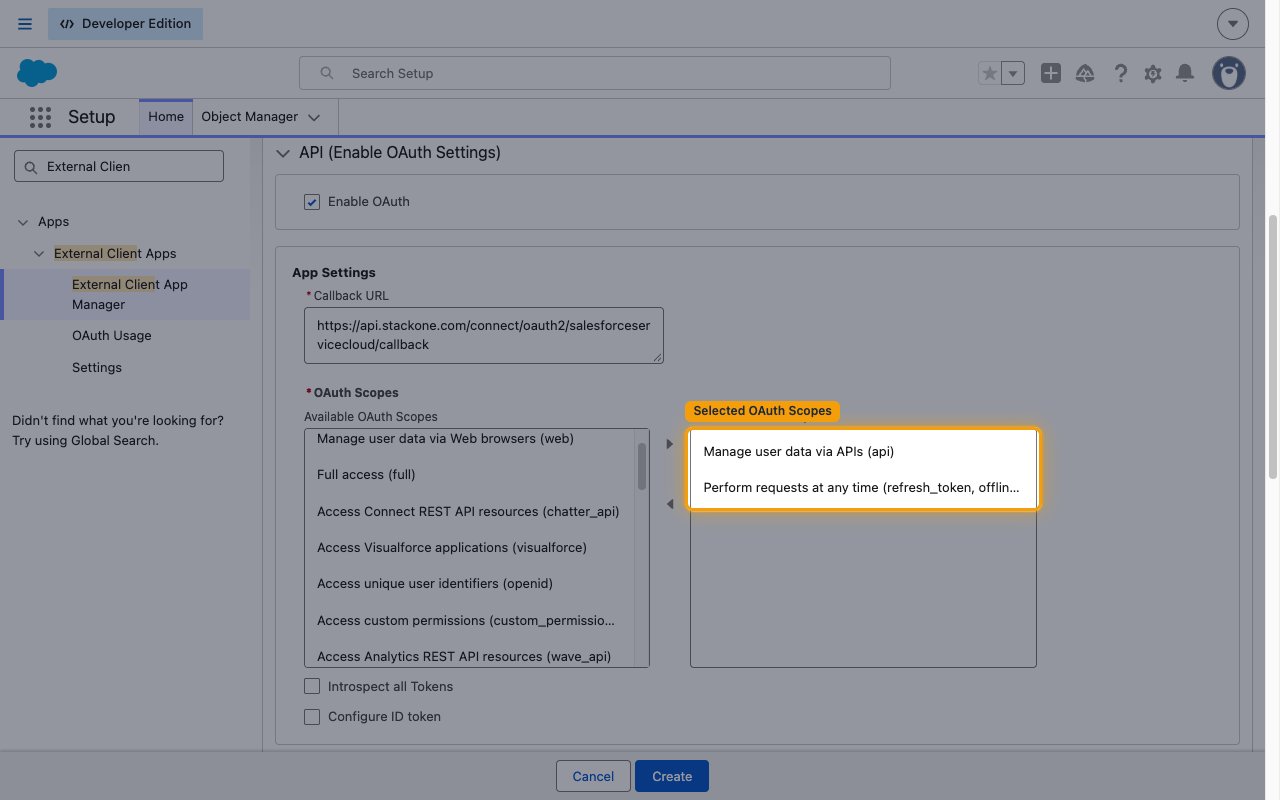
Move the scopes your use case needs from Available OAuth Scopes to
Selected OAuth Scopes. The connector’s three default scopes come from two entries in
this list, because Salesforce groups refresh_token and offline_access into one option.
Select Manage user data via APIs (api) and
Perform requests at any time (refresh_token, offline_access).
Confirm the security settings
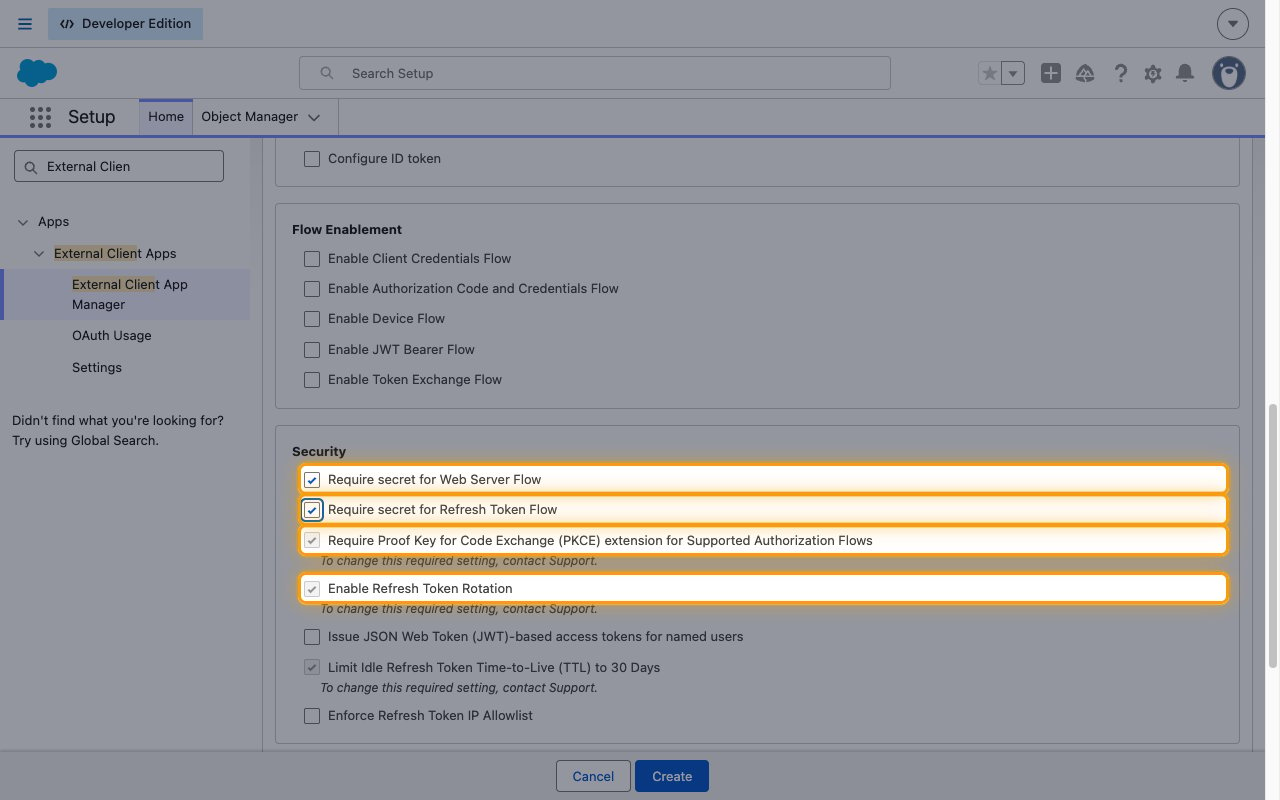
In the Security section, select Require secret for Web Server Flow and
Require secret for Refresh Token Flow if they are not already selected.
StackOne sends a client secret on every token request.
- Leave Require Proof Key for Code Exchange (PKCE) extension for Supported Authorization Flows selected.
- Leave Enable Refresh Token Rotation selected.
- Note: Salesforce marks PKCE, refresh token rotation and Limit Idle Refresh Token Time-to-Live (TTL) to 30 Days with “To change this required setting, contact Support.” StackOne supports all three.
Create the app
Click Create at the bottom of the page. Salesforce opens the app’s detail page.
- Note: A new app can take several minutes to become active, and token requests fail until it does.
Set the refresh token policy
The refresh token policy decides how long a connected account keeps working before the end
user has to authorize again.
Open the OAuth policies
On the app’s detail page, open the Policies tab, expand OAuth Policies, then
click Edit.
Choose a refresh token policy
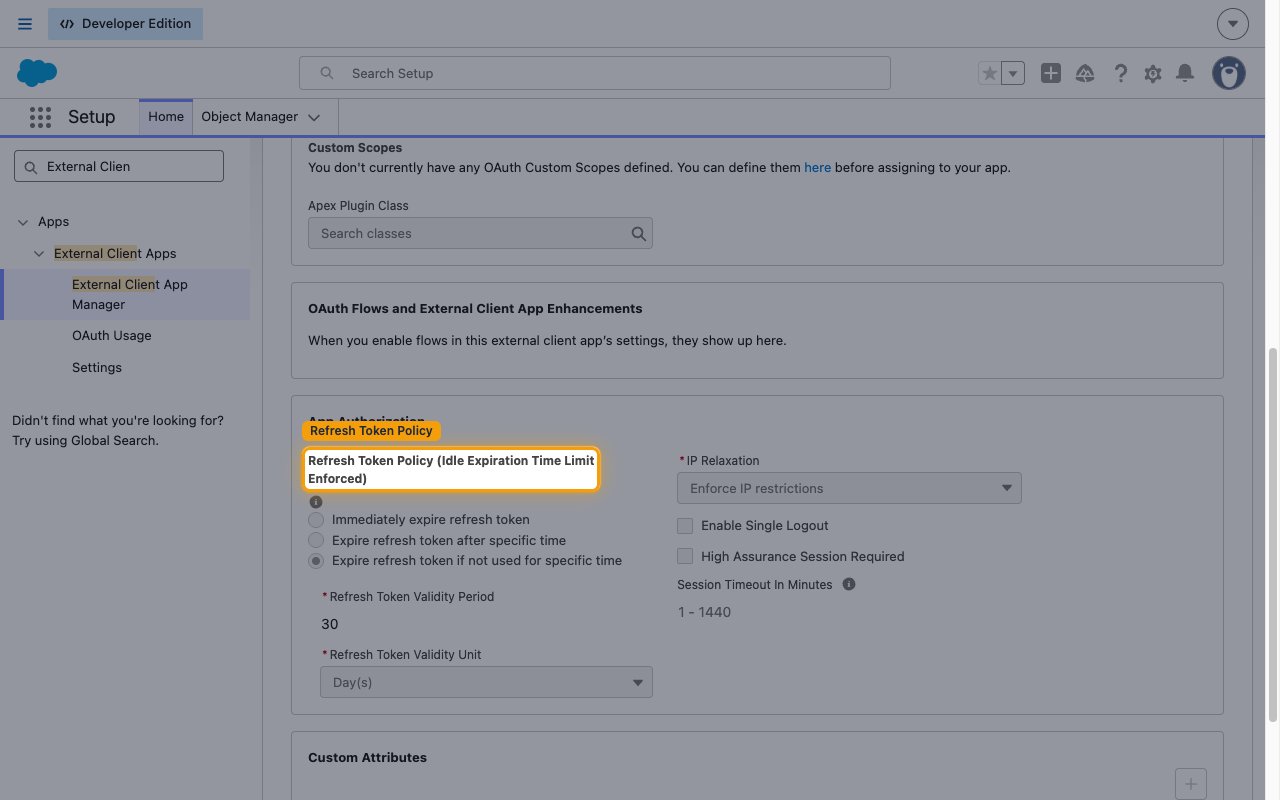
Under Refresh Token Policy (Idle Expiration Time Limit Enforced), pick the option that
matches how long your connections should last. Which options appear depends on whether
Salesforce has enforced the 30-day idle refresh token limit on your org.
- Refresh token is valid until revoked: the longest-lived choice, and the one to pick when you see it. The refresh token stays valid until an administrator revokes it. Salesforce hides this option once the 30-day idle refresh token limit is enforced, and converts the policy to Expire refresh token if not used for specific time at 30 days.
- Expire refresh token if not used for specific time: what a new app gets when the idle limit is enforced. Refresh Token Validity Period is capped at
30Day(s). The window slides, so every use resets it, and StackOne refreshes often enough to stay inside it. - Expire refresh token after specific time: set an absolute lifetime. Once it elapses, the end user must authorize again.
- Immediately expire refresh token: not usable with StackOne, because no refresh token survives the first exchange.
- Save the policy. Changes apply to new authorizations; existing connections keep their original token lifetime.
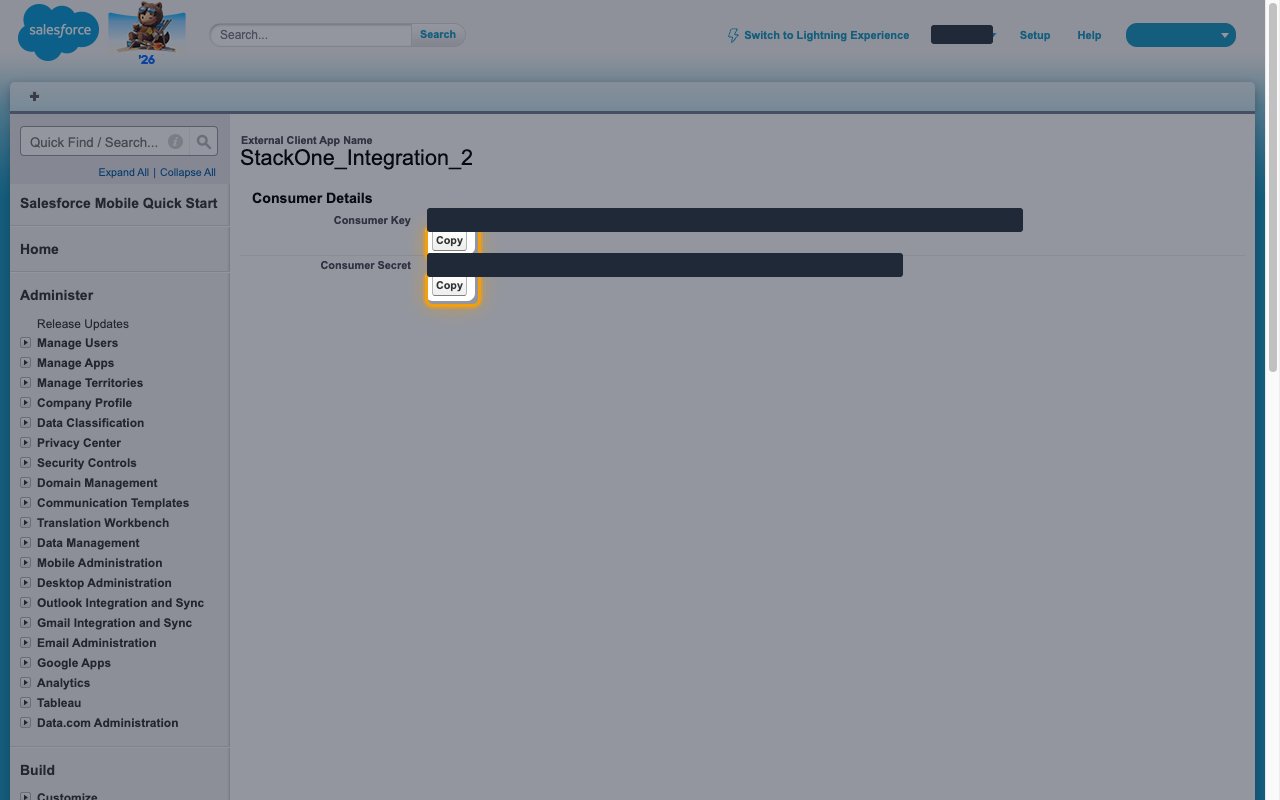
Copy the consumer credentials
The Consumer Key and Consumer Secret are the Client ID and Client Secret you enter in the
StackOne Connector profile.
Open the consumer details
On the app’s detail page, open the Settings tab, expand OAuth Settings, and click
Consumer Key and Secret.
- Salesforce may ask you to verify your identity with an emailed code or your authenticator app.
Copy the key and secret
On the Consumer Details page, click Copy beside each value and store them securely
for use later.
- Consumer Key is your Client ID (Consumer Key) in the StackOne Connector profile.
- Consumer Secret is your Client Secret (Consumer Secret) in the StackOne Connector profile.
- Treat the Consumer Secret like a password. Salesforce lets you reopen this page later, so the value is recoverable, but anyone holding it can call your org with the scopes you granted.
Select an environment
Salesforce exposes two sign-in hosts, and the environment you pick in the StackOne Connector
profile has to match your org type.
- Production: live production orgs and free Developer Edition orgs, which both sign in at
https://login.salesforce.com - Sandbox: test and staging copies of a paid production org, which sign in at
https://test.salesforce.com - If you are unsure, check your org URL. A sandbox URL contains
.sandbox.my.salesforce.com; Developer Edition and production URLs do not.
Customize the OAuth scopes
Leave the OAuth Scopes field in the StackOne Connector profile empty to use the defaultsapi refresh_token offline_access. Enter a space-separated list to narrow or extend them.
- Always include
refresh_tokenoroffline_access, or Salesforce issues no refresh token and the connection fails. - Every scope you enter must also be in Selected OAuth Scopes on the External Client App.
Creating the StackOne Connector Profile
To create the Connector Profile in StackOne for Salesforce Service Cloud:Open the connector
Choose actions and events
- Click Add Profile.
- If the connector offers more than one authentication method, set the Auth Method filter to OAuth 2.0.
- Select the actions, and any events, to enable for this Connector Profile.
- Click Continue.
Set up authentication
- Select Authentication Type as OAuth 2.0.
- Fill out the fields using details retrieved from your provider:
- Client ID (Consumer Key)
- Client Secret (Consumer Secret)
- OAuth Scopes (Optional)
- Click Create Profile.