

Generate an API key
Resend authenticates requests with a secret API key that you create in the Resend dashboard.
1
Sign in to Resend
Sign in to your Resend account, then open API keys in the left sidebar.
2
Create a new key
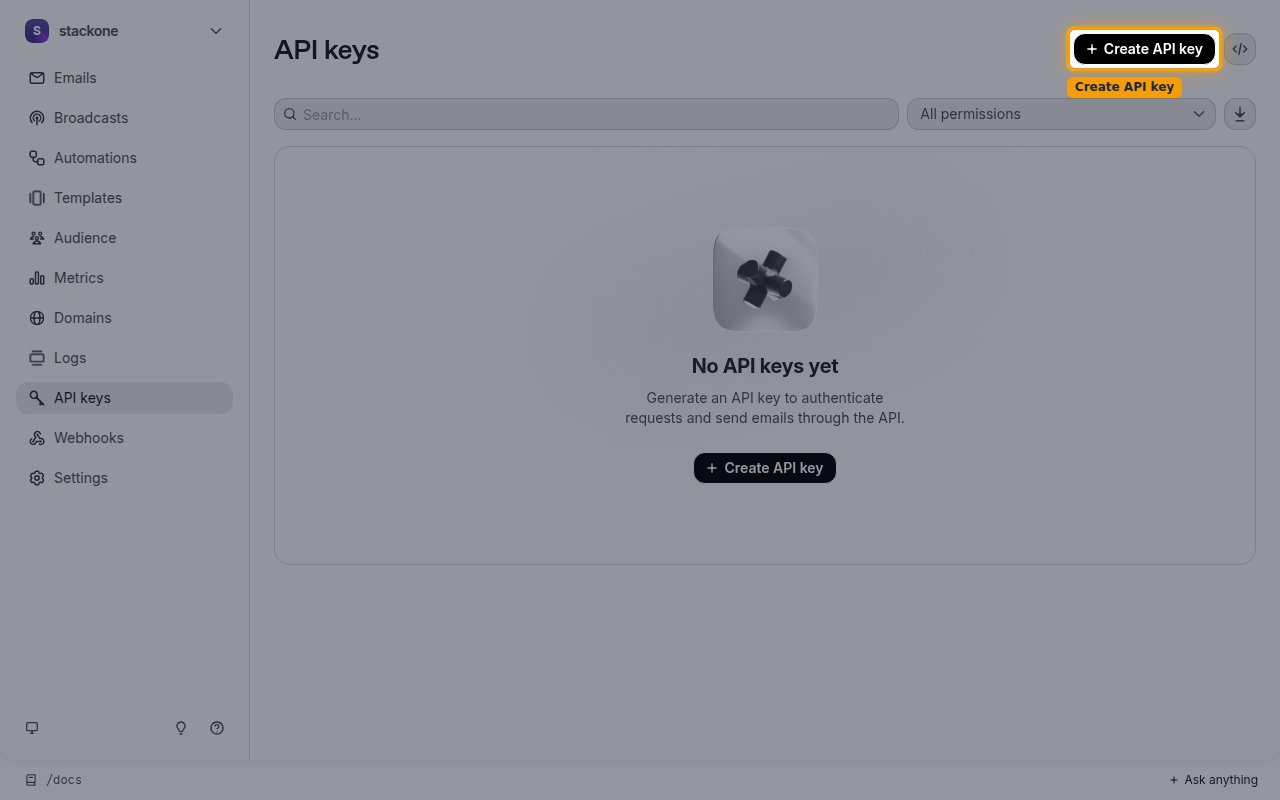
On the API keys page, click Create API key.
3
Configure the key
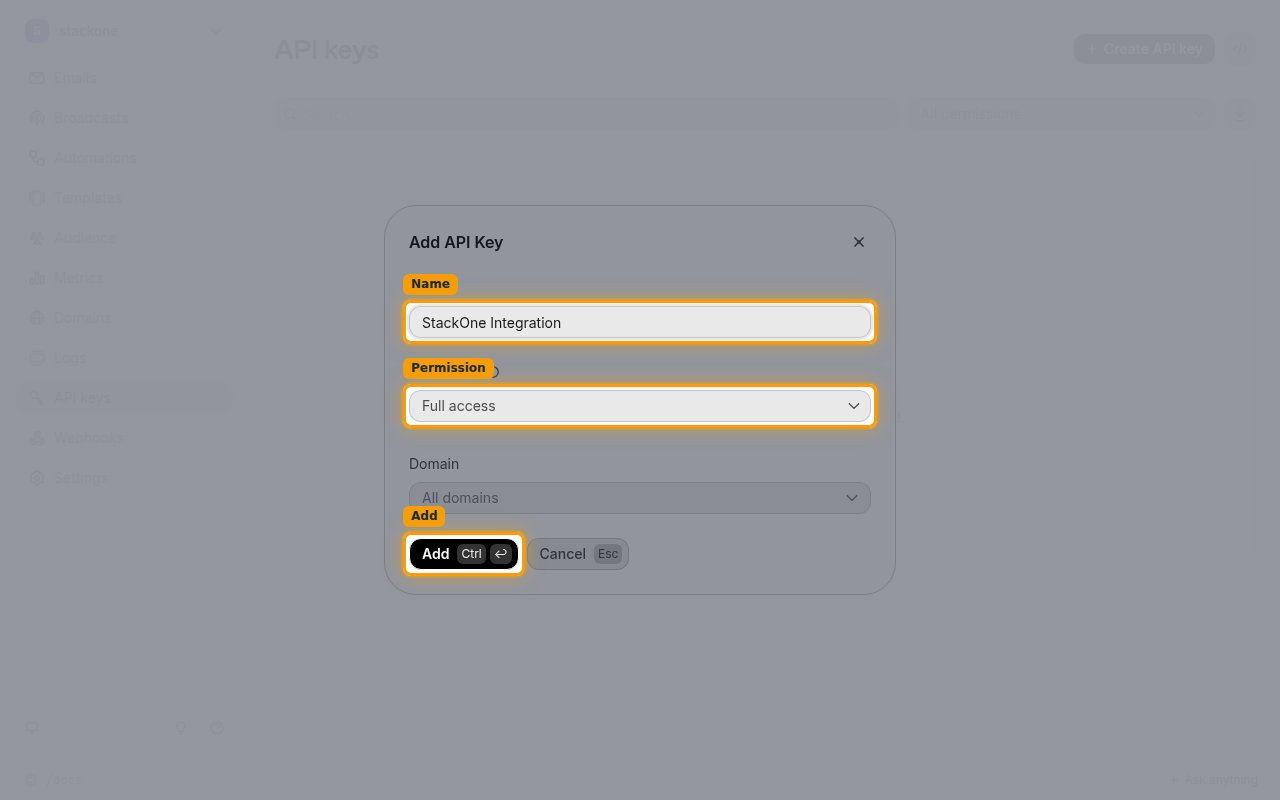
In the Add API Key dialog, enter a name in the Name field, then choose a Permission.
- Select Full access so StackOne can manage domains, contacts, broadcasts, and other resources — not only send email.
- Choose Sending access instead if the key should only send emails, and optionally use the Domain menu to restrict it to a single domain.
- Click Add to generate the key.
4
Copy the API key
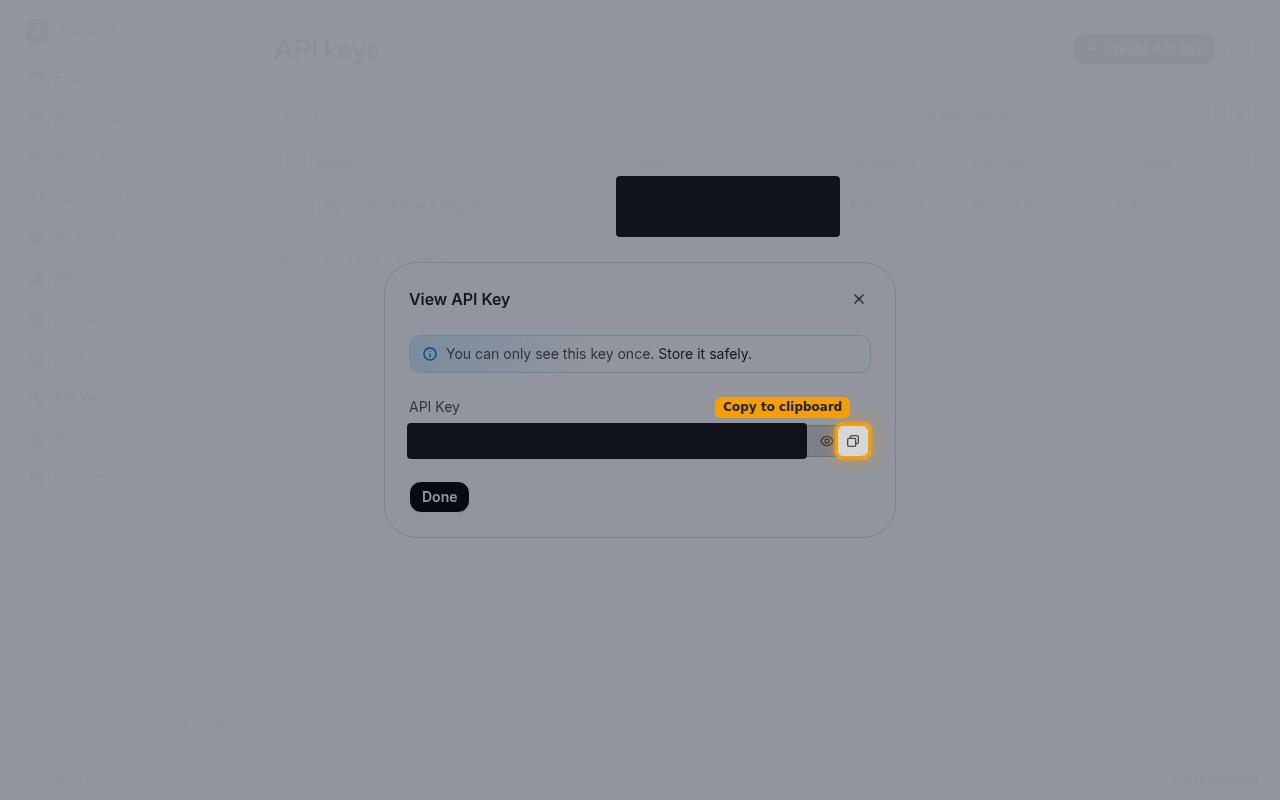
In the View API Key dialog, click Copy to clipboard, then paste the value into the API Key field in StackOne Hub.
- The key is shown only once — You can only see this key once. Store it safely. — and cannot be retrieved later.
- Click Done to close the dialog.
Linking the Account from the Hub
1
Navigate to the Hub
Use one of the three Linking Account Methods to access the Hub.
2
Fill out the fields
Fill out the following fields using details from your provider:
- API Key
3
Connect
- Click Connect
- If applicable, the provider will redirect you to a sign-in or authorization page. Complete the provider’s authorization flow.
- Once authorization is successful, you will see a confirmation popup
If the account linking is successful, you will see the newly linked account on your Accounts page.