

Generating an API key
A Reclaim API key authenticates StackOne with the Reclaim API. The key acts with the full access of the Reclaim user who creates it, so generate it from the account StackOne should work with.
1
Sign in to Reclaim
Sign in to your Reclaim account.
- Open the Reclaim developer settings page. It is not linked from the Reclaim menus, so open it from this link.
2
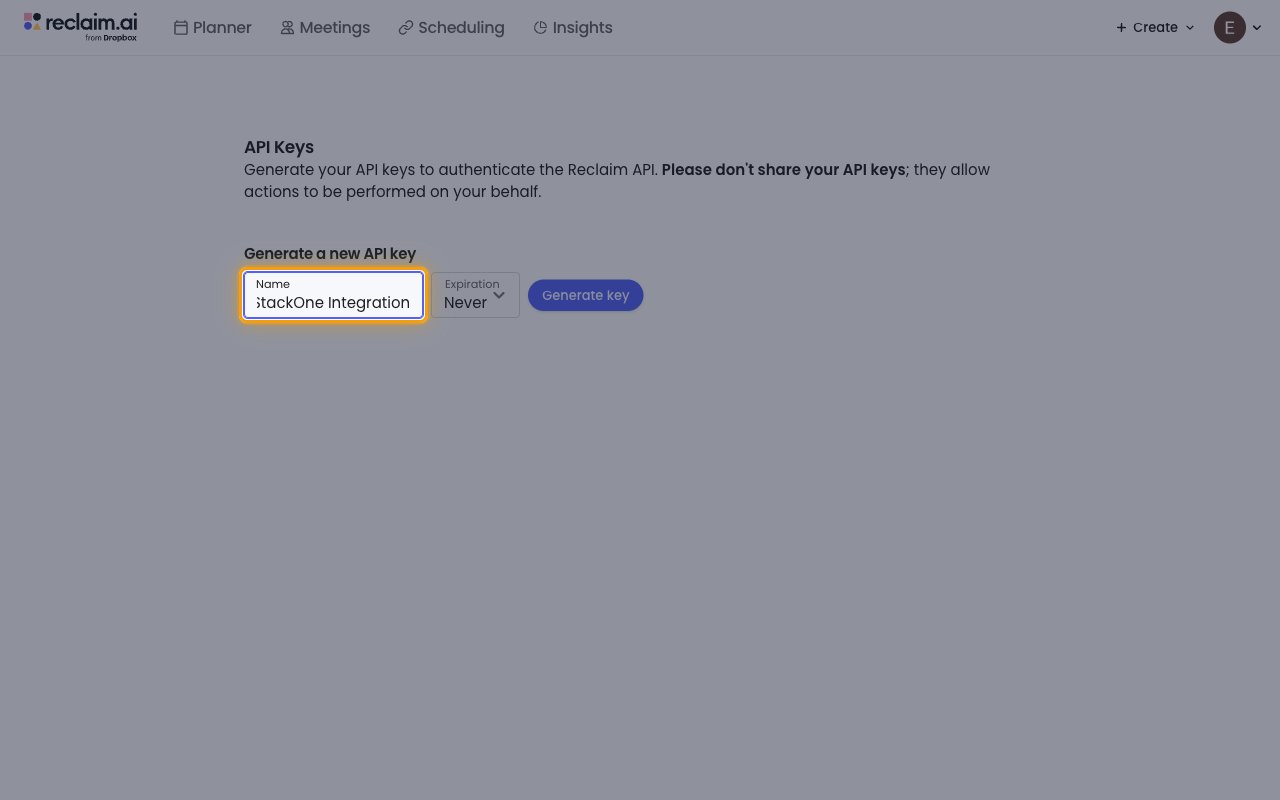
Enter a key name
Under Generate a new API key, type a name in the Name field.
- Name:
StackOne Integration
3
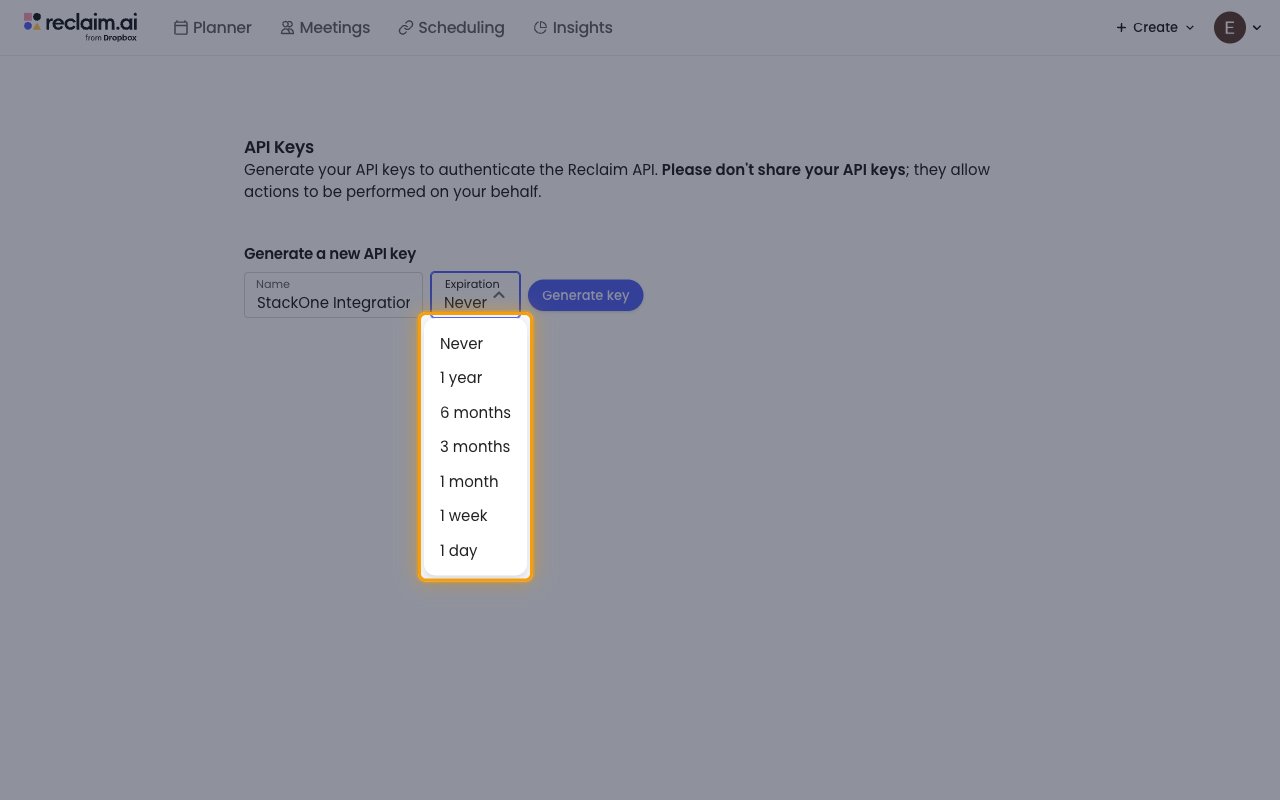
Choose an expiration
Open the Expiration dropdown and choose how long the key stays valid.
- Options: Never, 1 year, 6 months, 3 months, 1 month, 1 week, 1 day
- A key set to Never keeps working until you revoke it. A shorter expiration limits how long a leaked key stays usable, but you then need to generate a new key before the old one expires.
4
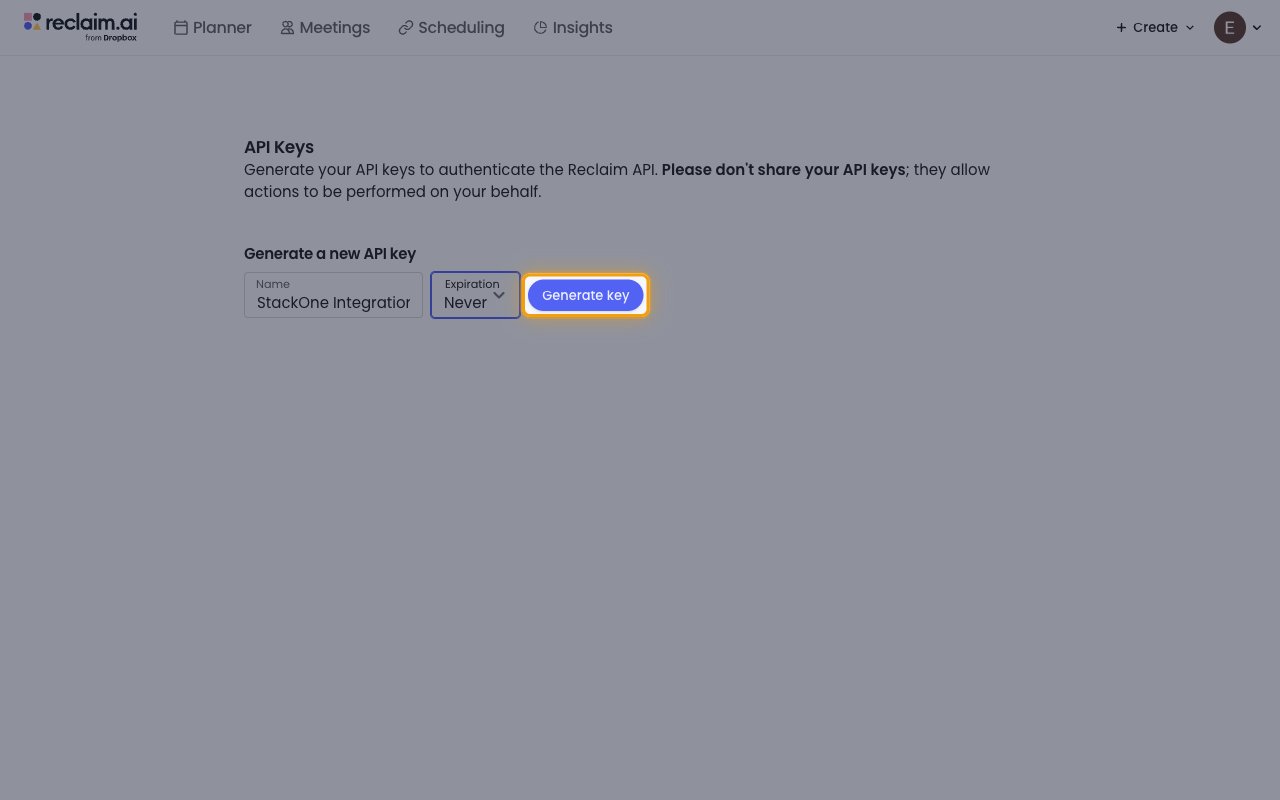
Generate the key
Click Generate key.
5
Copy the key
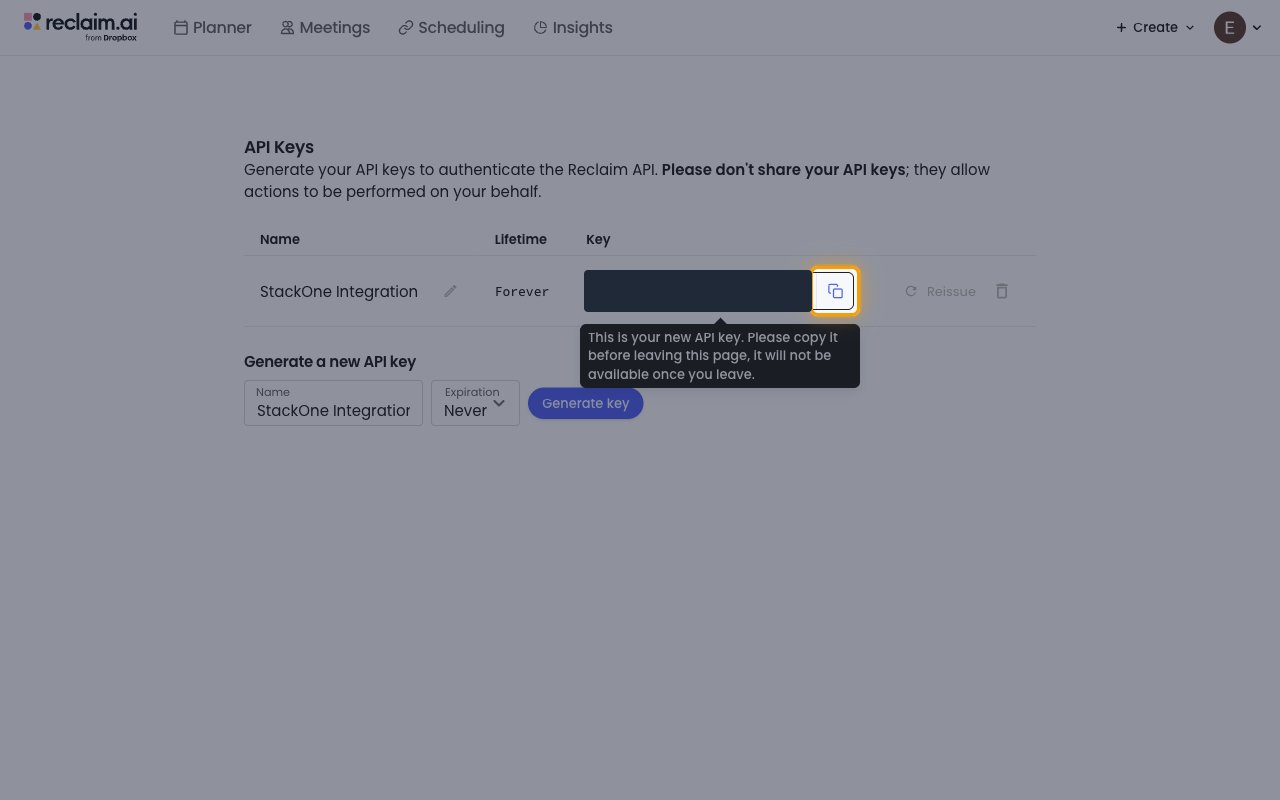
The new key appears in the Key column of the API Keys table. Click the Copy button next to it and store the key securely for use later.
- The key is shown only once. Reclaim warns: “This is your new API key. Please copy it before leaving this page, it will not be available once you leave.”
- Copy the API Key across.
Link the Account
1
Connect
- Click Connect.
- If applicable, the provider will redirect you to a sign-in or authorization page. Complete the provider’s authorization flow.
- Once authorization is successful, you will see a confirmation popup.
2
Use Actions
Connect an AI platform to the linked account’s actions. See AI Platforms.Other ways to call actions are listed in Protocols & SDKs.