

Navigate to the API Keys Page
Log in to your Rally account and navigate to the API Keys management page.
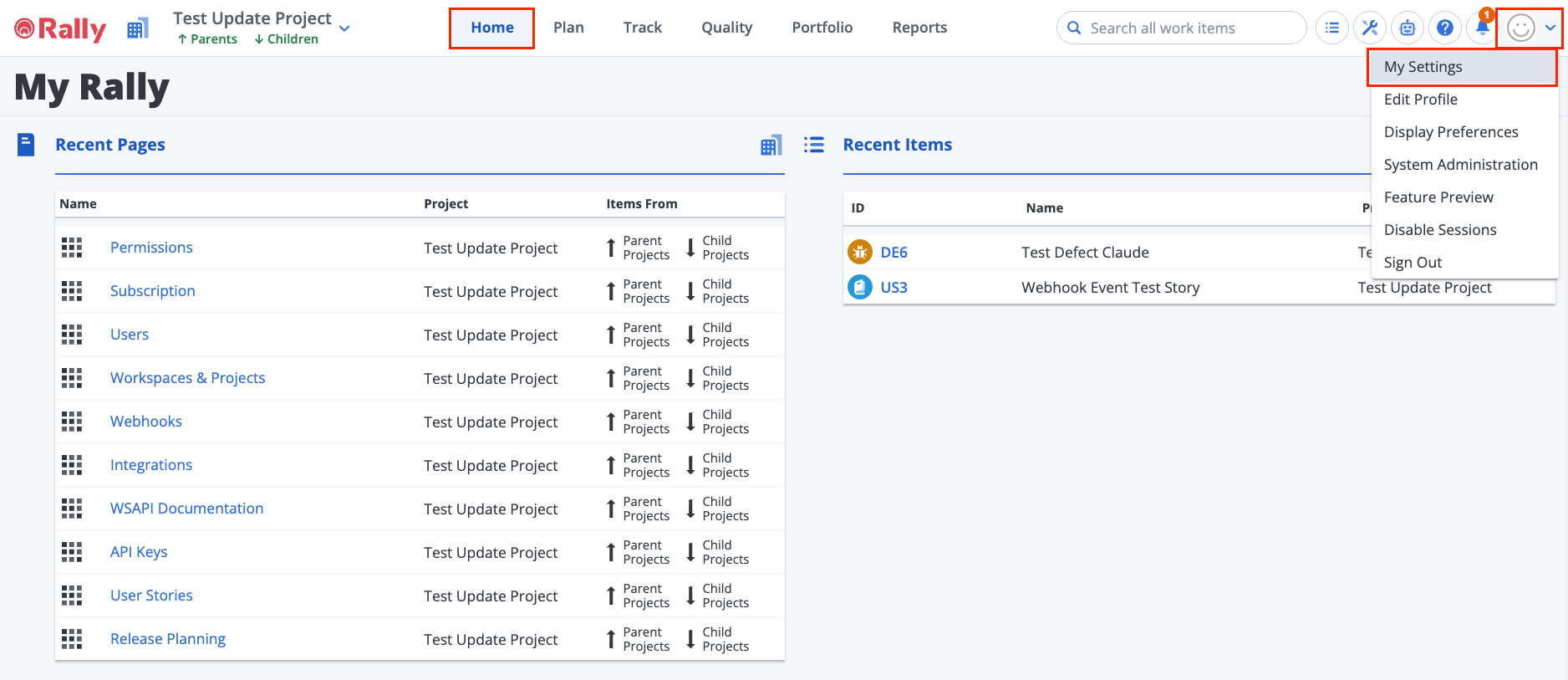
Open Your Account Settings
From the Rally dashboard, click the Avatar icon in the top-right corner and select My Settings from the dropdown menu.
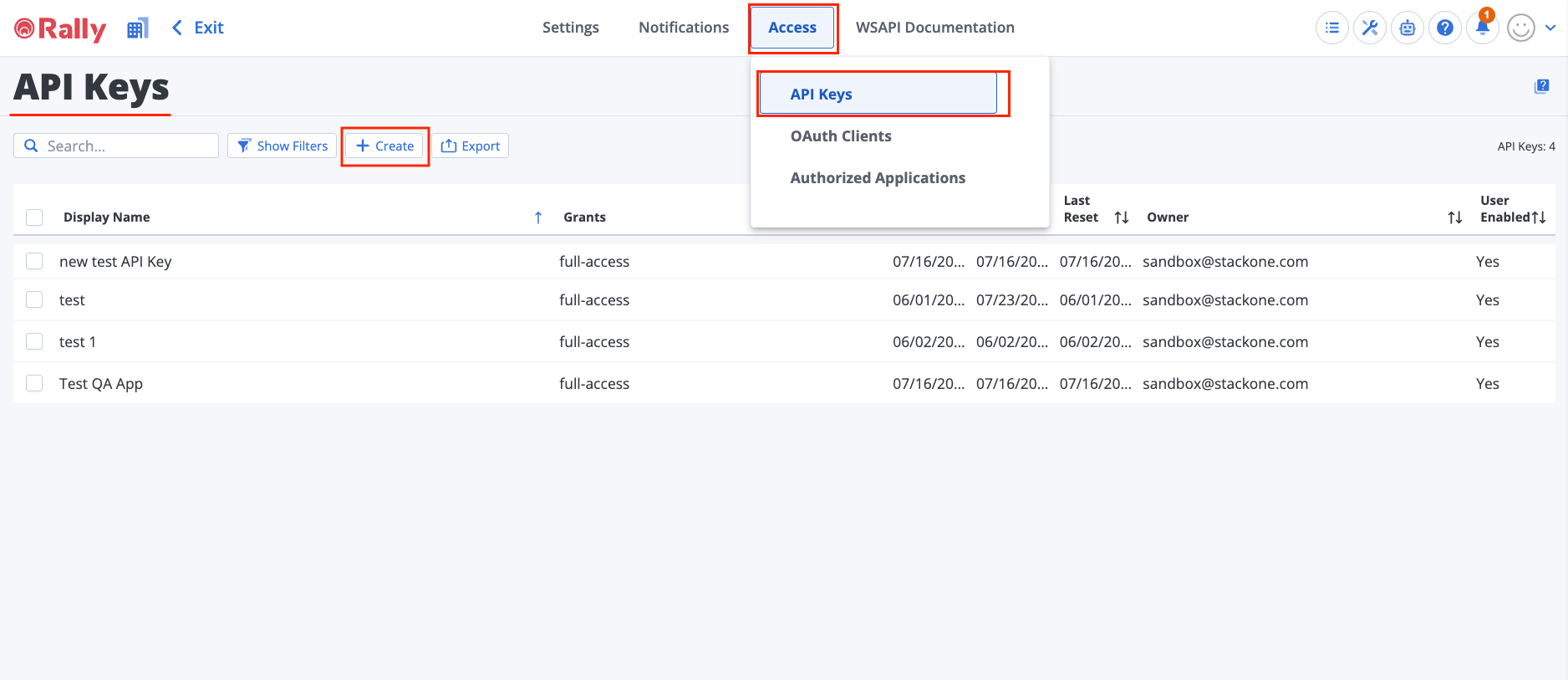
Open the API Keys Page
Navigate to the API Keys page. You can access it directly at https://rally1.rallydev.com/login/accounts/index.html#/keys.
Create and Copy Your API Key
On the API Keys page, create a new API key with full access permissions.
Create a New API Key
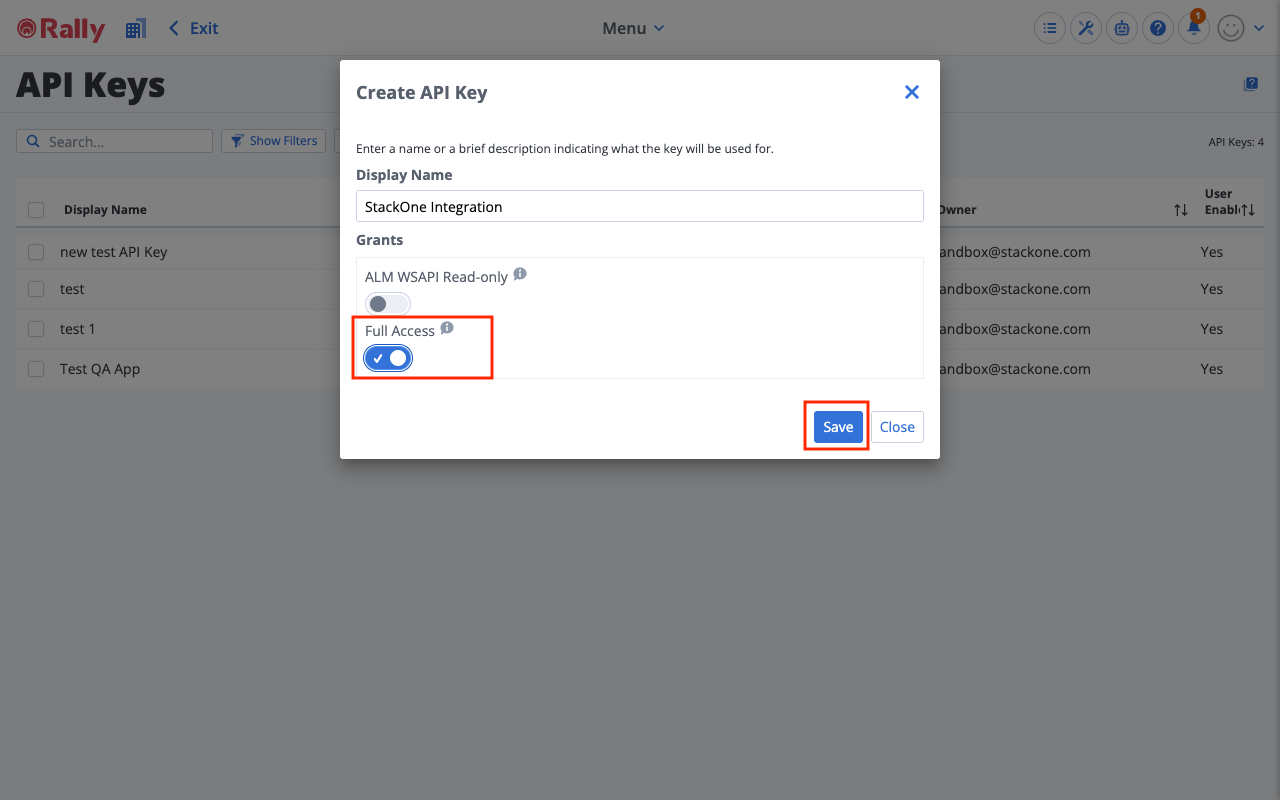
Click the + Create button to open the Create API Key dialogue.
- Click the + Create button on the API Keys page
- Enter a Display Name (e.g., StackOne Integration)
- Toggle the Full Access switch to enable full read and write permissions
- Click Save to generate the API key
Copy the API Key
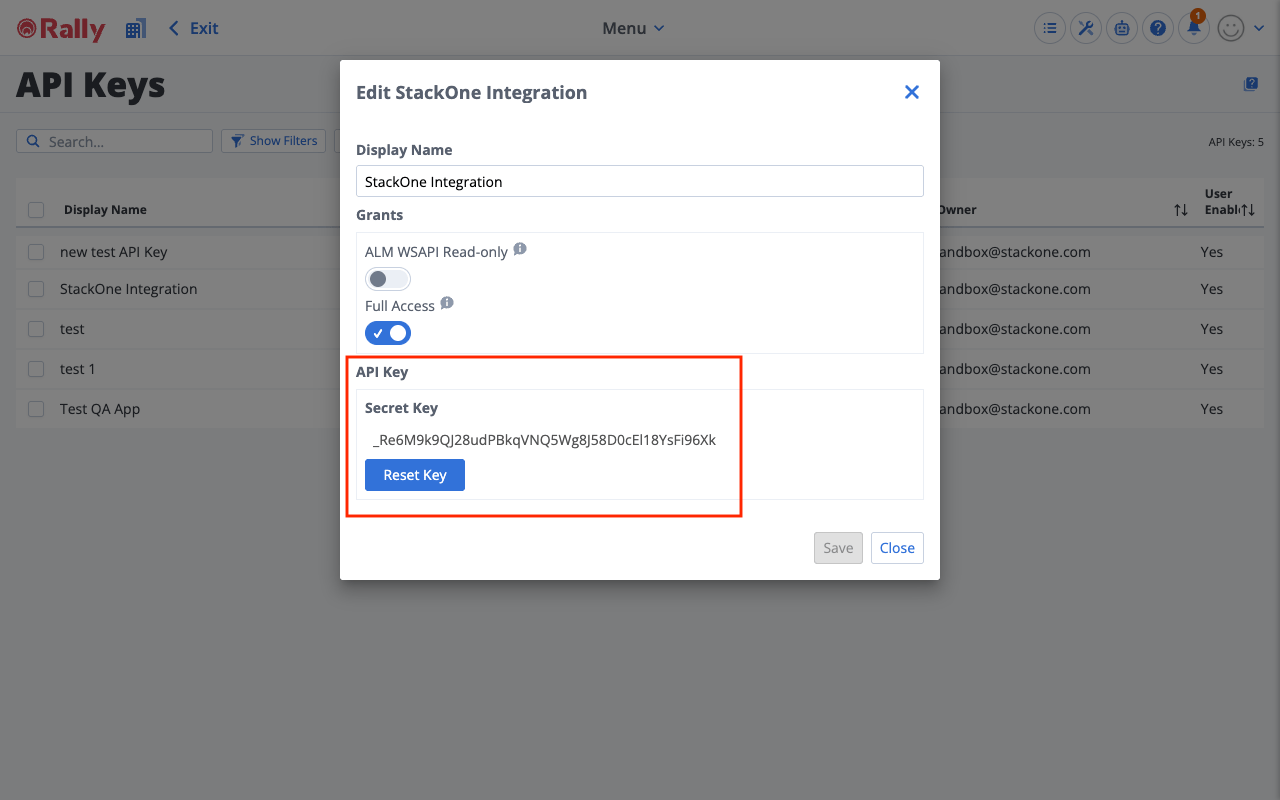
After saving, the dialogue displays the generated Secret Key. Copy it and store it securely.
- Copy the Secret Key shown in the dialogue — it is prefixed with an underscore (
_) - Store the key securely. You will need it when connecting Rally in StackOne
- To regenerate an existing key, select the key on the API Keys page, click Edit, then click Reset Key in the dialogue (this invalidates the previous key)
- Click Close to close the dialogue
Linking the Account from the Hub
Navigate to the Hub
Fill out the fields
- API Key
Connect
- Click Connect
- If applicable, the provider will redirect you to a sign-in or authorization page. Complete the provider’s authorization flow.
- Once authorization is successful, you will see a confirmation popup
If the account linking is successful, you will see the newly linked account in your Accounts page.
Next Steps
Webhooks setup
Configure receiving Events for Rally into StackOne.