

Prerequisites
The connector should already be set up, with a Connector Profile and a Linked Account. See Getting Started on the Pushwoosh connector page.Stream Pushwoosh events to StackOne
This connector uses manual webhooks. Pushwoosh’s Event streaming integration sends message statistics and post events to the StackOne Native Webhook URL over HTTP.
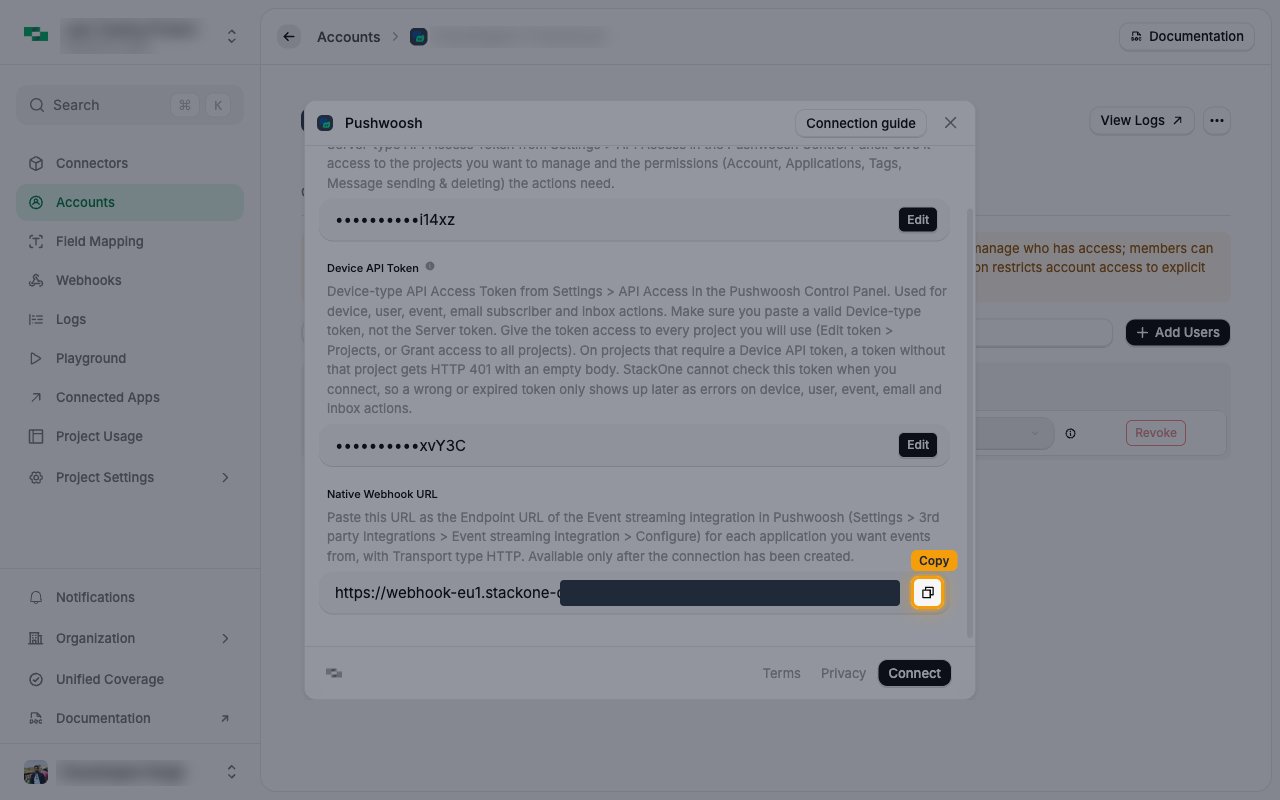
Copy the Native Webhook URL
The Native Webhook URL is generated once the Pushwoosh account has been linked. Open the linked account’s connection form in StackOne Hub.
- Scroll to Native Webhook URL.
- Click the copy button next to the value.
- The URL carries a token that identifies the linked account. Treat it like a password and share it only with Pushwoosh.
Open the Event streaming integration
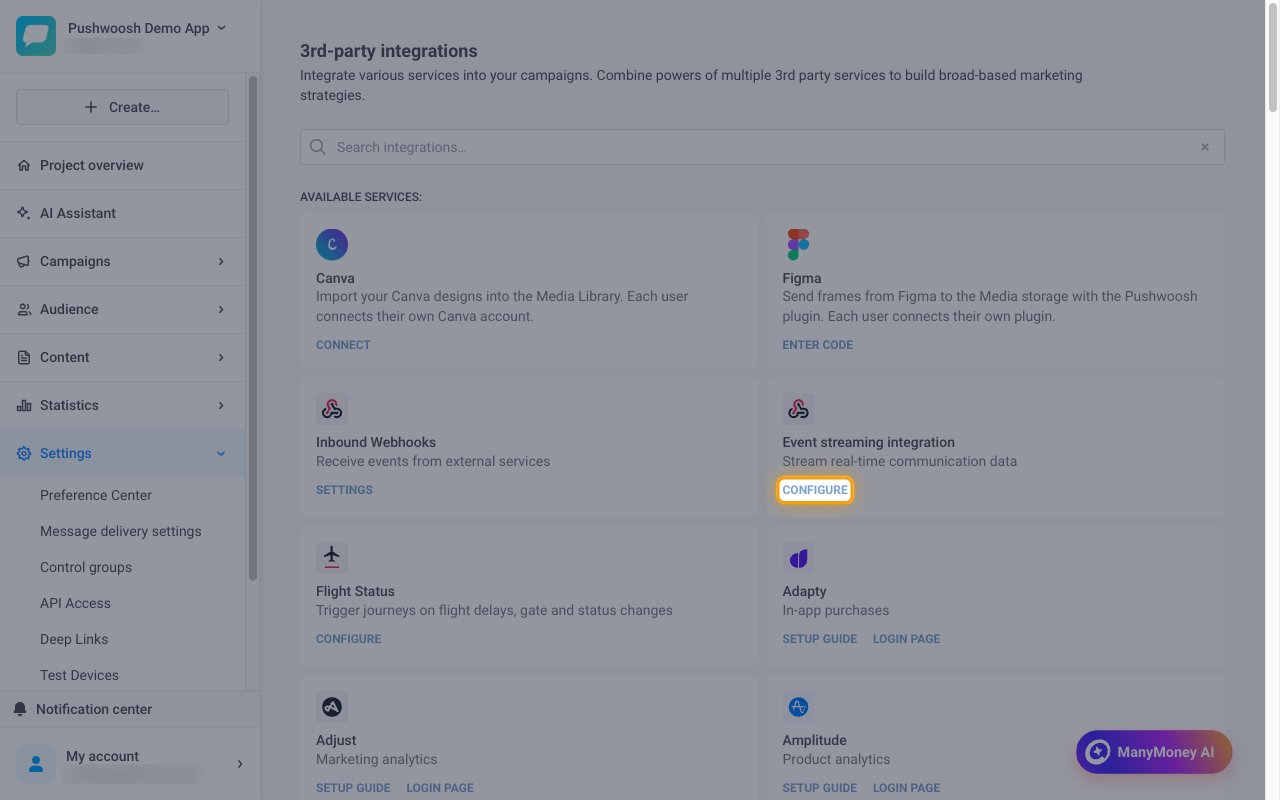
Sign in to your Pushwoosh Control Panel and open the project you want events from. Go to the project’s 3rd-party integrations page (Settings > 3rd party integrations, or https://app.pushwoosh.com/applications/{application code}/integrations).
- On the Event streaming integration card, click Configure.
Enter the endpoint URL
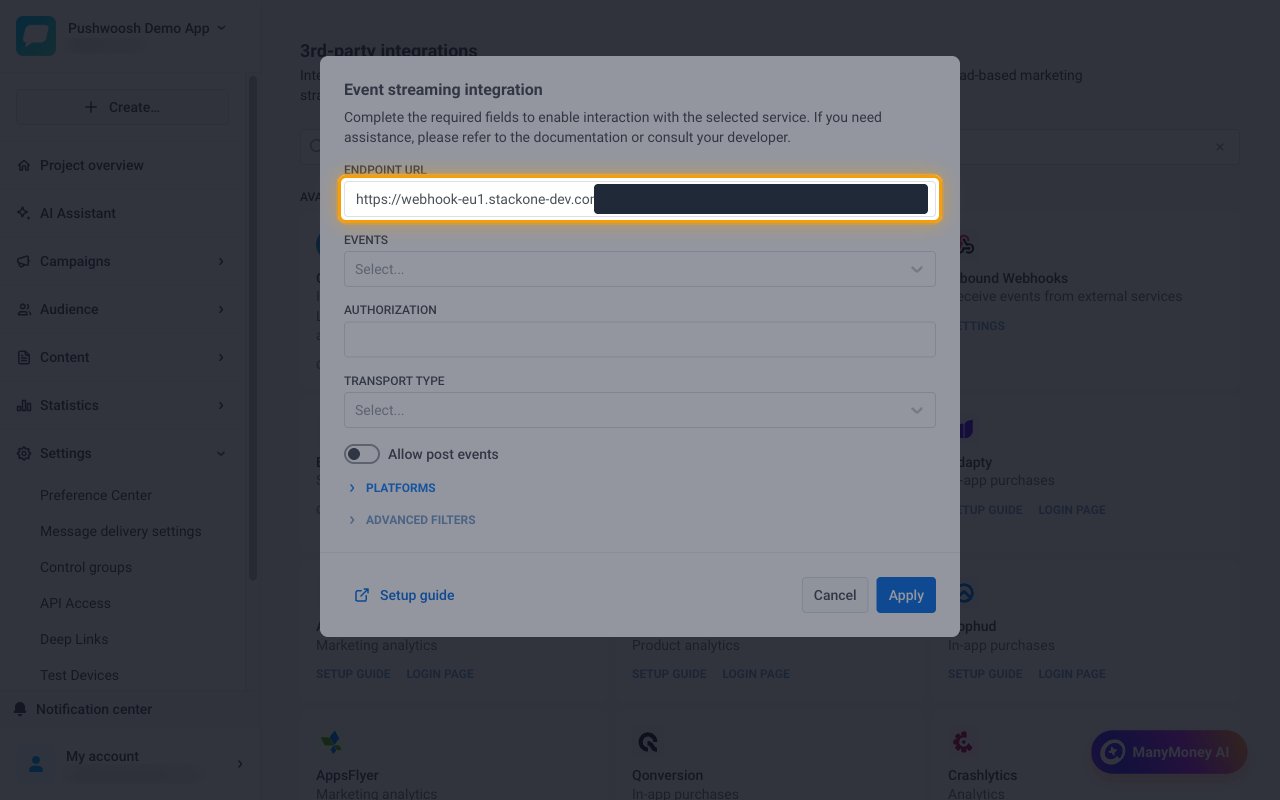
Paste the StackOne Native Webhook URL into Endpoint URL.
- Leave Authorization empty. The Native Webhook URL already identifies the linked account.
Select the events
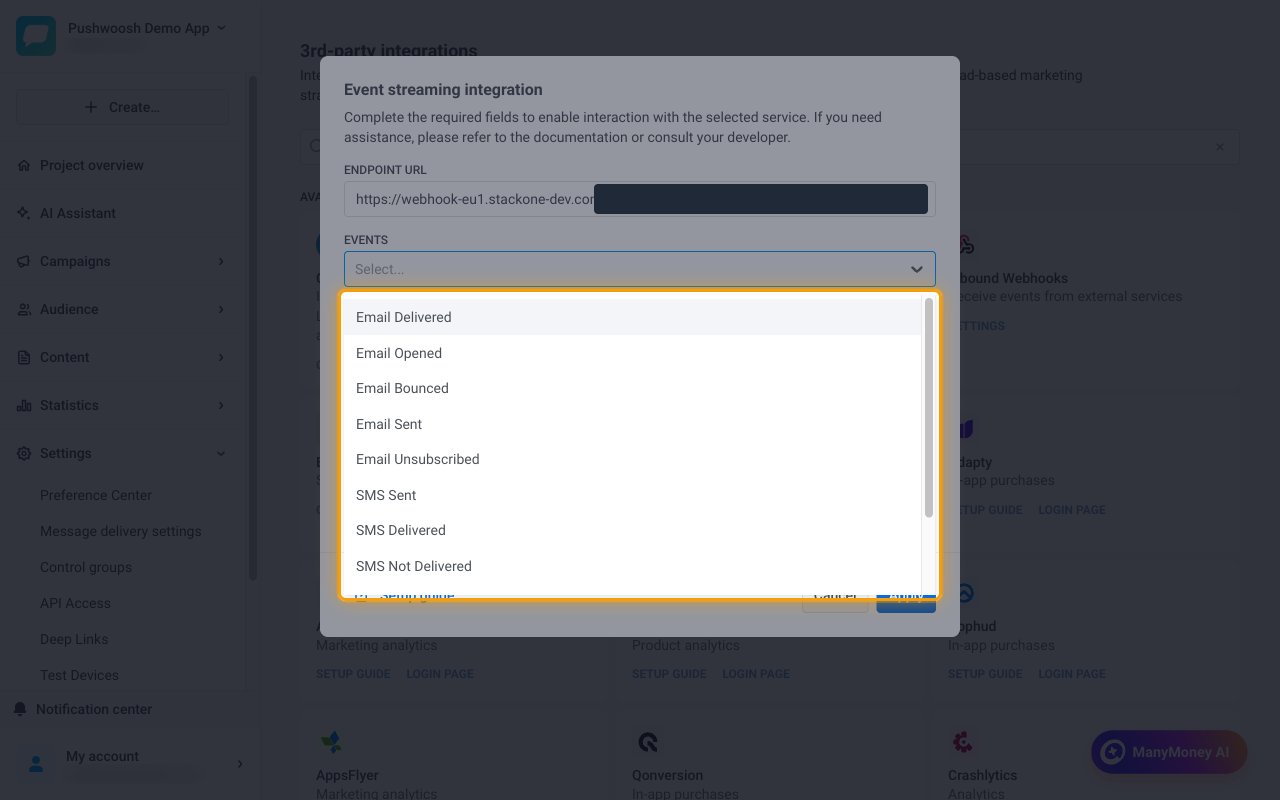
Open Events and select every event you want StackOne to receive.
- Available events: Email Delivered, Email Opened, Email Bounced, Email Sent, Email Unsubscribed, SMS Sent, SMS Delivered, SMS Not Delivered, Push Sent, Push Opened, Push Delivered
Set the transport type
Open Transport Type and select HTTP.
- StackOne receives HTTP deliveries only. Do not select gRPC.
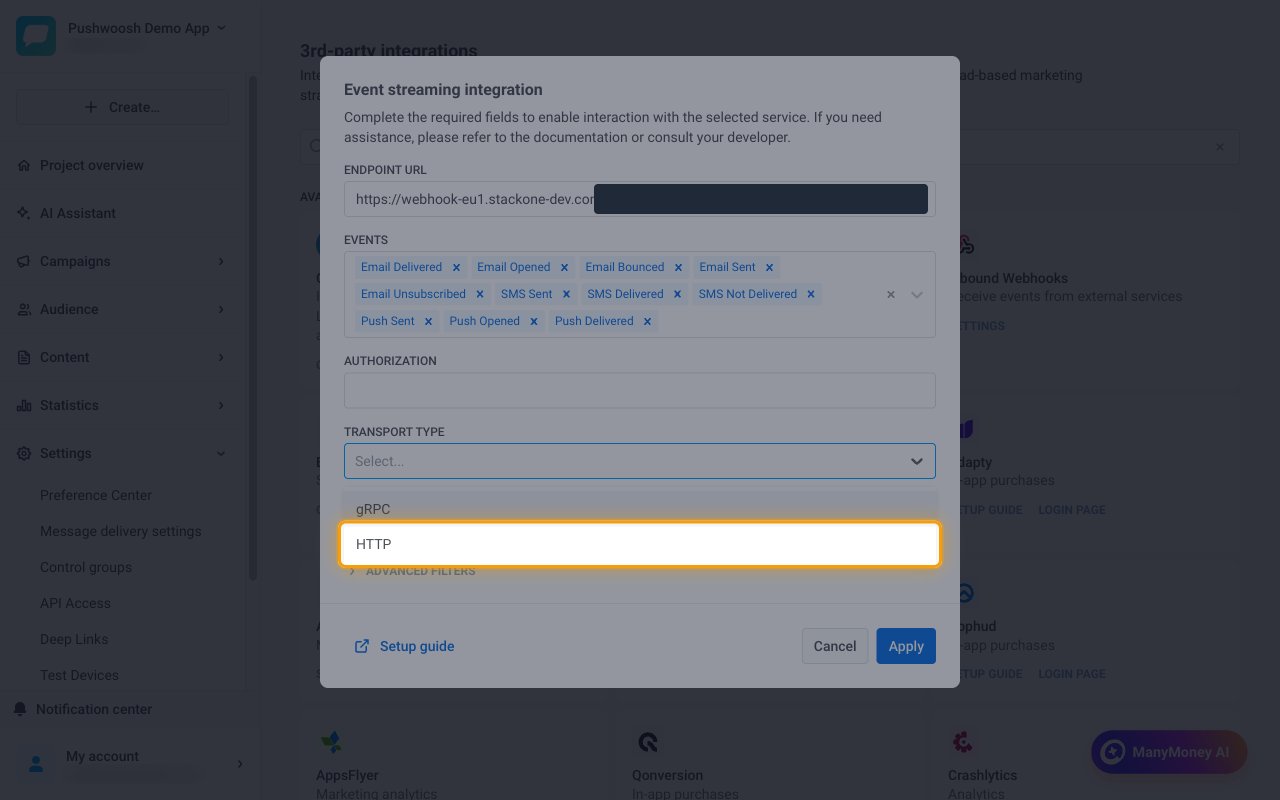
Add post events
Post events are events recorded in Pushwoosh through the SDK or the postEvent API, such as PW_DeviceRegistered. Skip this step if you only need message events.
- Turn on Allow post events.
- Open Post events and select the post events you want StackOne to receive.
- A post event appears in Post events only after it has been recorded at least once for the project. Come back and add the in-app post events once in-app messages have been shown and clicked.
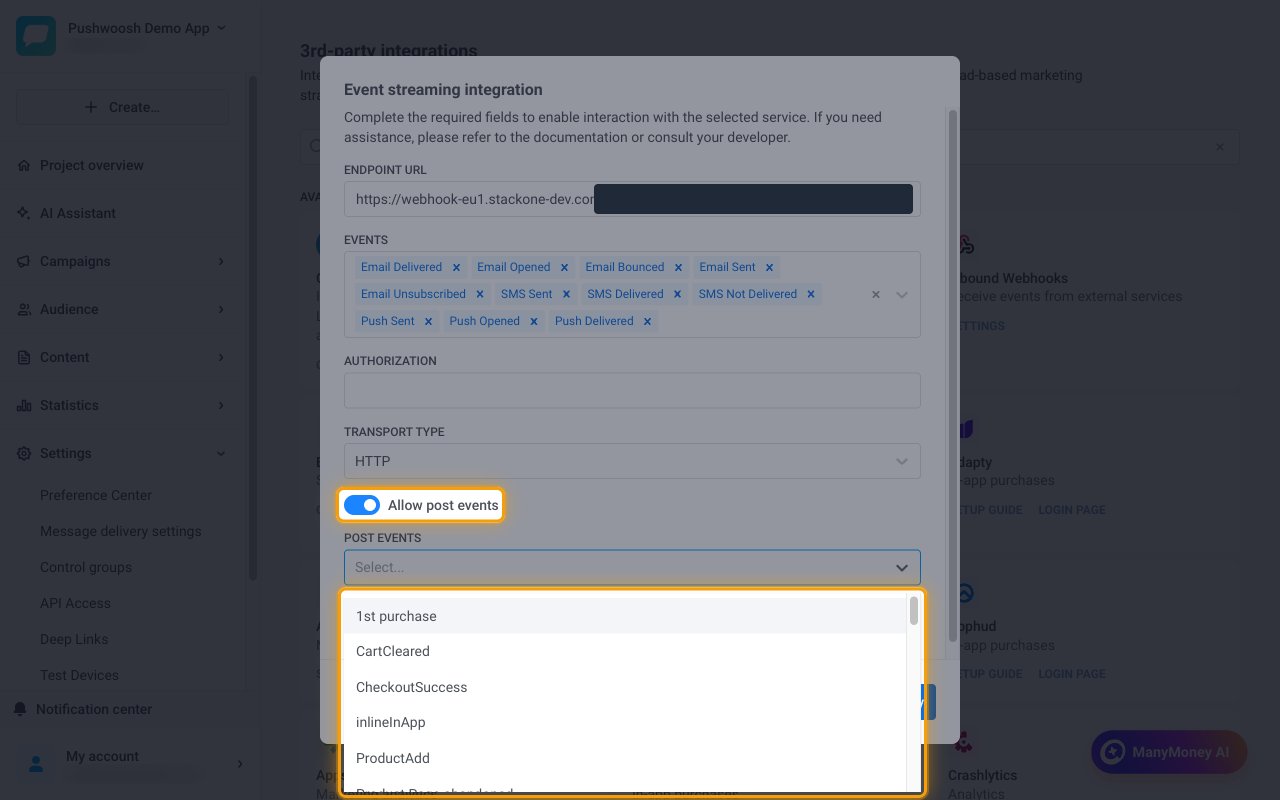
Select the platforms
Expand Platforms and click Select all, or select only the platforms you want events from.
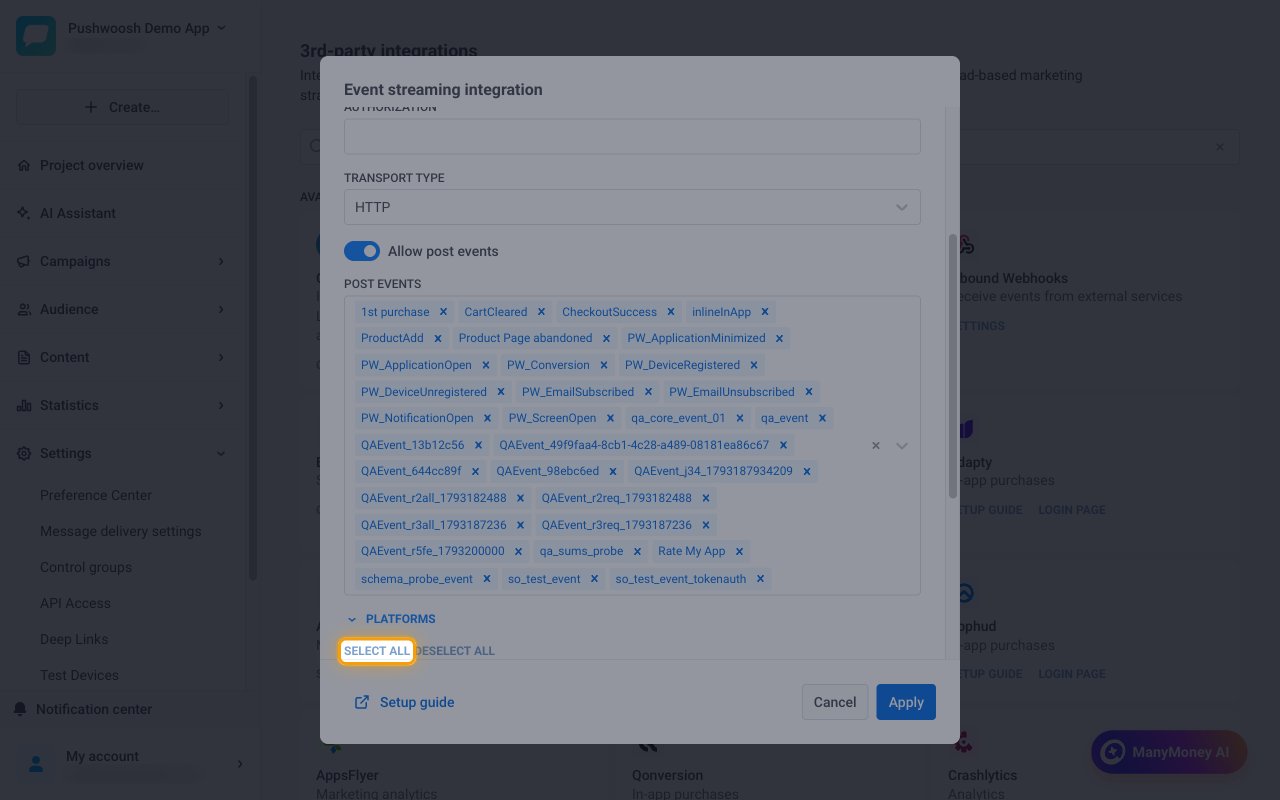
Apply the integration
Click Apply. The integration moves to CONNECTED SERVICES with the status CONNECTED.
- Changes take effect within 15 minutes.
- If StackOne does not accept deliveries for 24 hours, Pushwoosh pauses the integration and emails the account owner. Click Apply again on the integration to resume it.
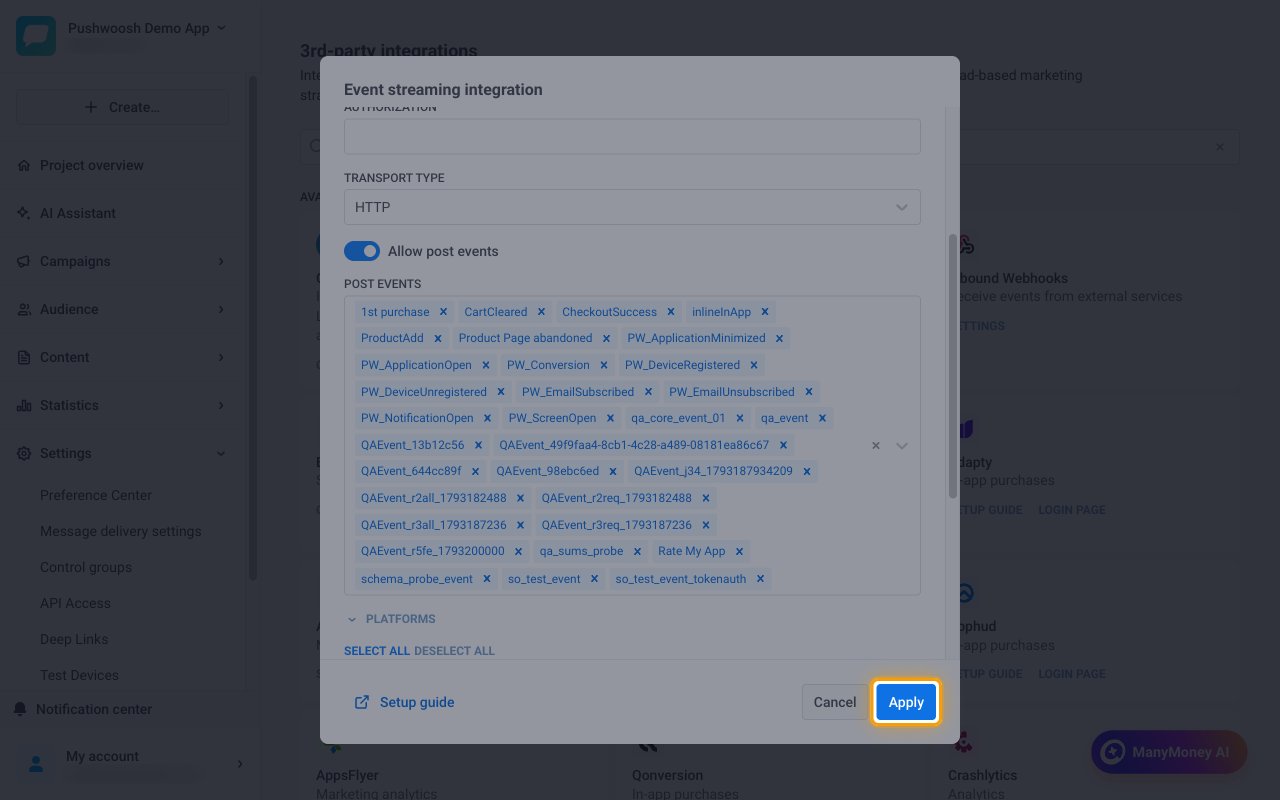
Available webhook events
The following Pushwoosh events can be enabled. Only events turned on in StackOne are delivered to your webhooks, and Pushwoosh sends only the events selected in the Event streaming integration.
Review the push events
Events related to push notifications.
- Push Sent (
Push Sent) — Fired when Pushwoosh sends a push notification to a device - Push Delivered (
Push Delivered) — Fired when a push notification is delivered to a device - Push Opened (
Push Opened) — Fired when a user opens a push notification
Review the email events
Events related to email messages.
- Email Sent (
Email Sent) — Fired when Pushwoosh sends an email - Email Delivered (
Email Delivered) — Fired when an email is delivered to the recipient’s mail server - Email Opened (
Email Opened) — Fired when a recipient opens an email - Email Bounced (
Email Bounced) — Fired when an email bounces with a permanent error - Email Unsubscribed (
Email Unsubscribed) — Fired when a recipient unsubscribes through an email
Review the SMS events
Events related to SMS messages.
- SMS Sent (
SMS Sent) — Fired when Pushwoosh sends an SMS - SMS Delivered (
SMS Delivered) — Fired when an SMS is delivered to the recipient - SMS Not Delivered (
SMS Not Delivered) — Fired when an SMS fails to deliver
Review the post events
Events recorded through the Pushwoosh SDK or the postEvent API. Each must be selected under Post events in Pushwoosh.
- In-App Shown (
PW_InAppShow) — Fired when an in-app message is shown to a user - In-App Clicked (
PW_InAppClicked) — Fired when a user clicks an in-app message - Device Registered (
PW_DeviceRegistered) — Fired when a device registers for push notifications - Device Unregistered (
PW_DeviceUnregistered) — Fired when a device unregisters from push notifications - Custom Event (any other post event, for example
PW_ApplicationOpen) — Fired for any other selected post event, such as a custom event recorded with thepostEventAPI
Delivery format
Details of how Pushwoosh delivers events to StackOne.
Expect batched payloads
Each request body is a JSON object with an events array. Pushwoosh sends a batch once 100 events are queued or one hour after the previous batch, so a single event can take up to an hour to arrive. StackOne routes each event in the batch to its own handler by its event_name.
- StackOne processes at most 50 events from a single request and acknowledges the rest without processing them. Pushwoosh batches can hold 100 events, so high-volume projects can lose events.
- Pushwoosh retries a failed delivery after 1, 3 and 8 seconds and then drops the batch.
- Each event carries a unique
uuid, which StackOne uses as the event ID.