

Generating a Device API token
A Device API token lets StackOne call the Pushwoosh Device API (devices, device tags, users, events, email subscribers and inbox) for the projects you grant it.
Sign in to Pushwoosh
Sign in to your Pushwoosh account and open the project you want to connect.
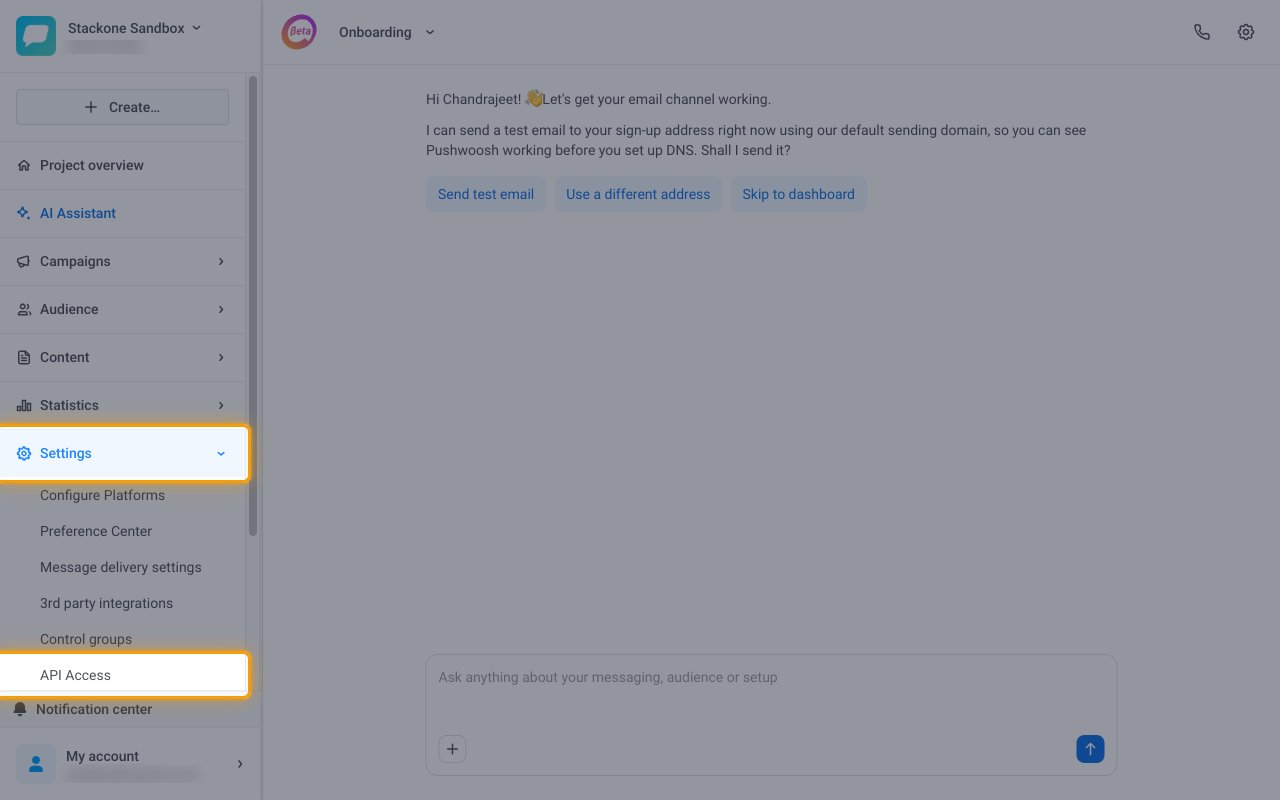
- In the left sidebar, expand Settings and click API Access.
Open the token generator
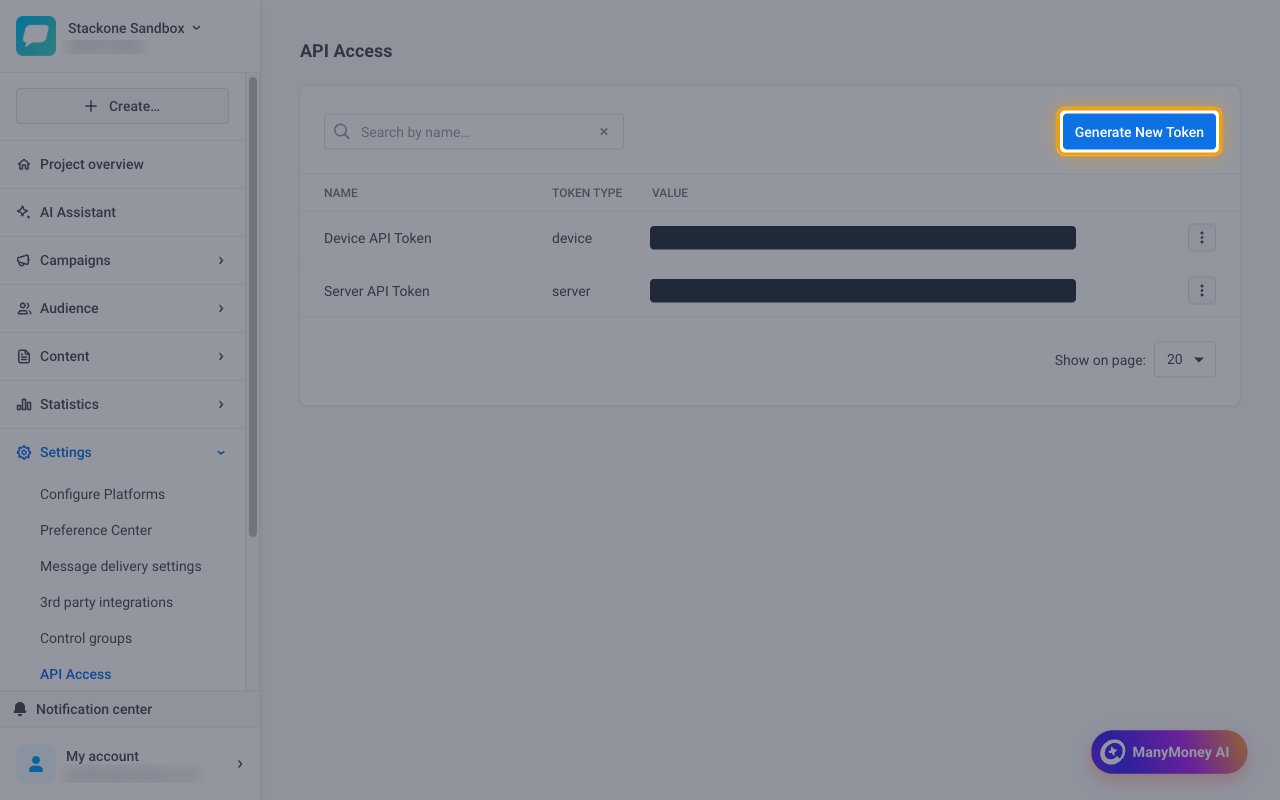
On the API Access page, click Generate New Token.
Create a device token
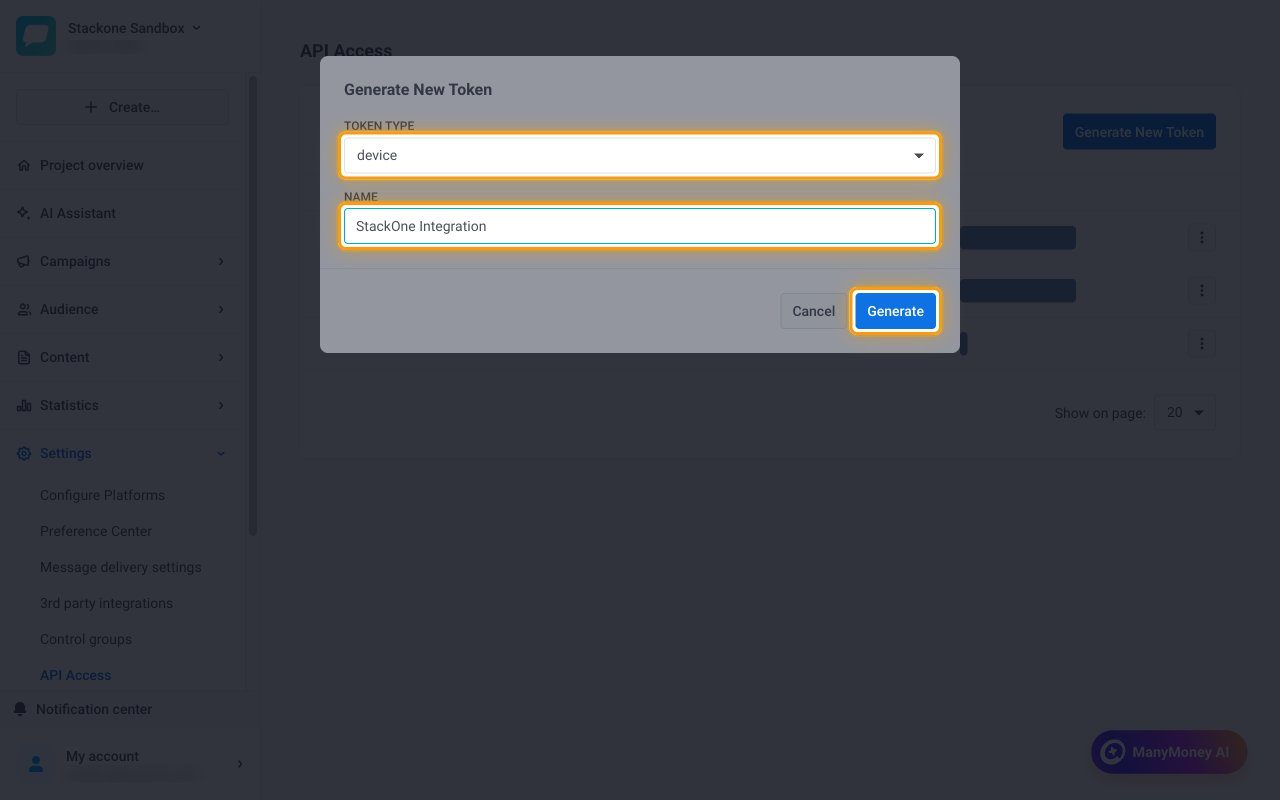
Fill in the Generate New Token form.
- Token type:
device - Name:
StackOne Integration - Click Generate.
Granting project access
A new token has no project access until you assign it.
Open the token settings
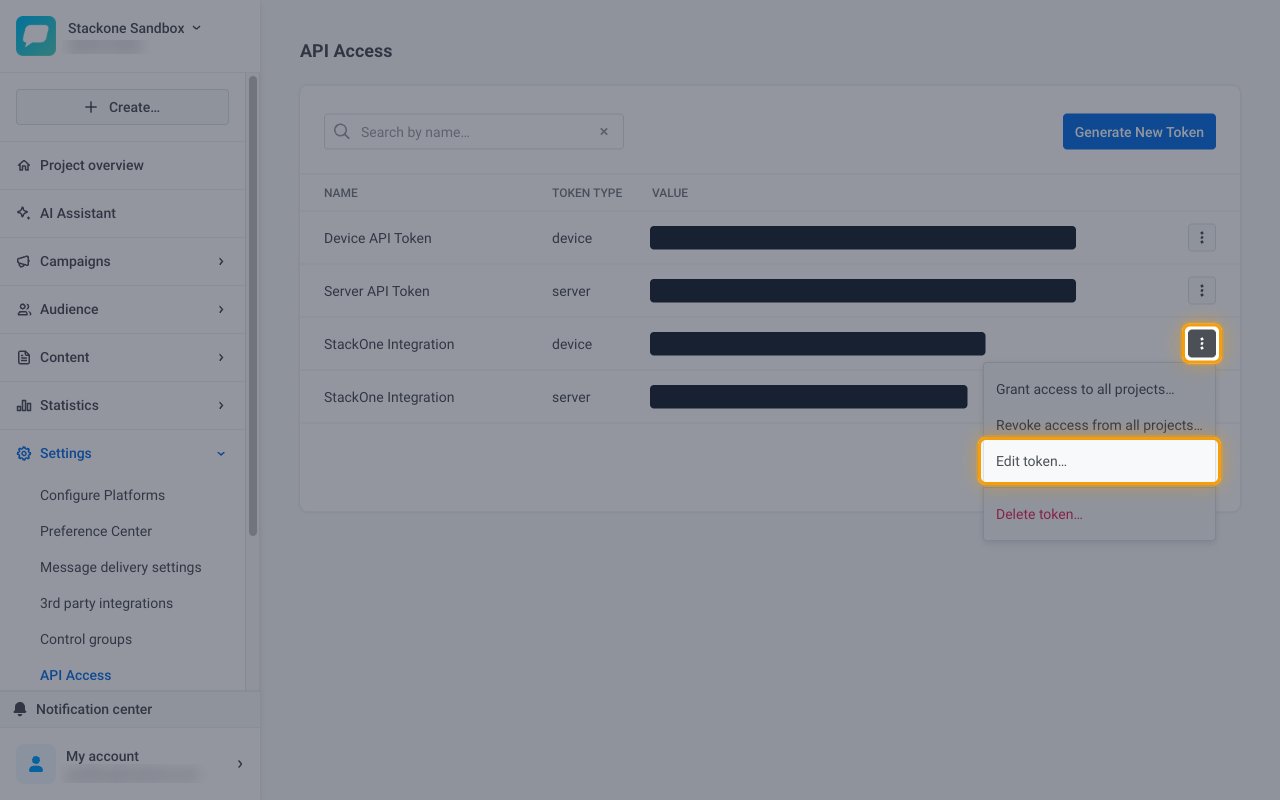
In the token list, click the three-dot menu on the StackOne Integration row with token type device and select Edit token….
Select projects and save
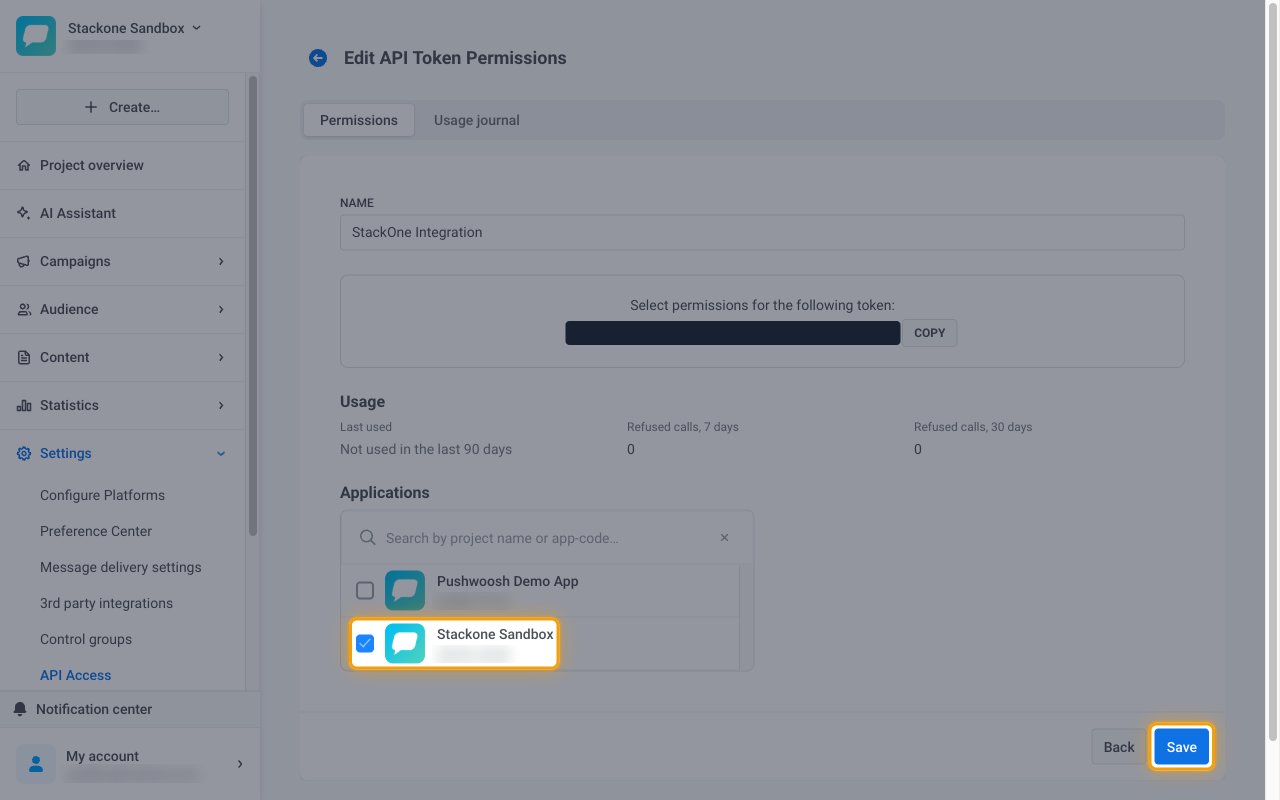
On the Edit API Token Permissions page, tick every project StackOne should reach under Applications, then click Save.
- Use Grant access to all projects… in the row menu instead if StackOne should reach every project in the account.
Copying the token
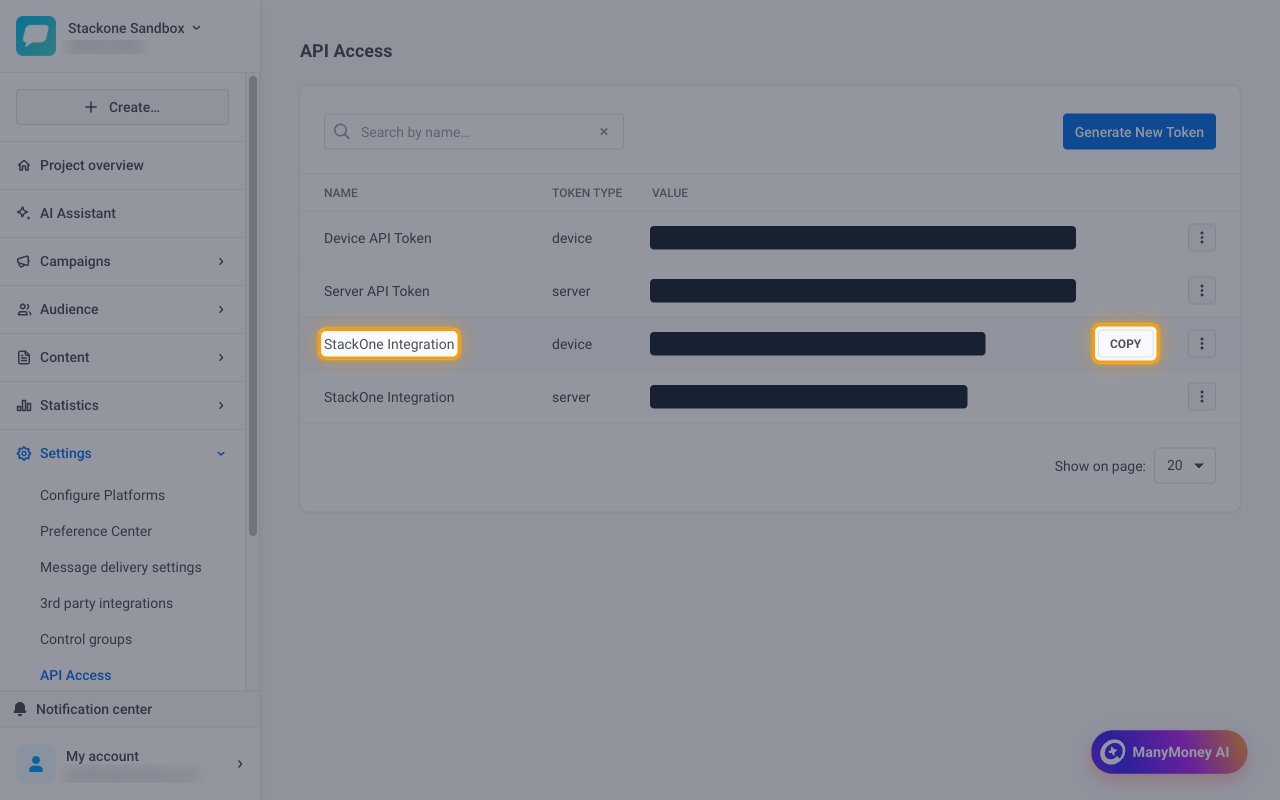
Return to Settings > API Access to copy the token value.
Copy the Device API token
Hover over the StackOne Integration row with token type device and click Copy.
- Paste it into the Device API Token field in StackOne Hub.
- Check that you copied the row with token type
device, not the server token. StackOne cannot check this token when you connect. - Treat the token like a password. Anyone who has it can call the Pushwoosh Device API for the selected projects, so store it securely for use later.
Linking the Account from the Hub
Navigate to the Hub
Fill out the fields
- Device API Token
Connect
- Click Connect
- If applicable, the provider will redirect you to a sign-in or authorization page. Complete the provider’s authorization flow.
- Once authorization is successful, you will see a confirmation popup
If the account linking is successful, you will see the newly linked account on your Accounts page.
Next Steps
Webhooks setup
Configure receiving Events for Pushwoosh into StackOne.