

Generate your Polymer API key
Polymer Hire authenticates the Customer API with a single Bearer API key managed in your account settings. You will sign in, open your API key settings, generate a key, and copy it into the StackOne connection form.
Sign in to Polymer
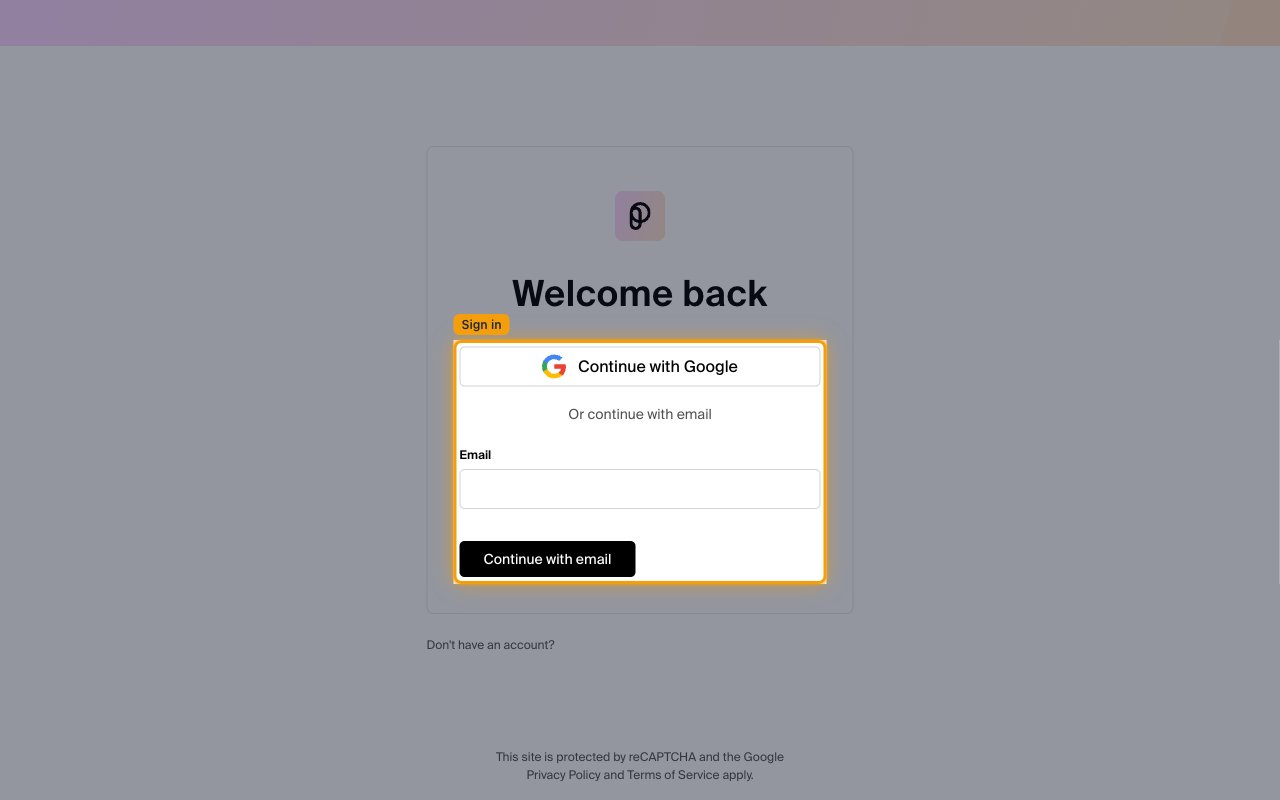
Go to the Polymer Hire dashboard and sign in to your account. Click Continue with Google, or enter your work email under Email and click Continue with email.
Open your API key settings
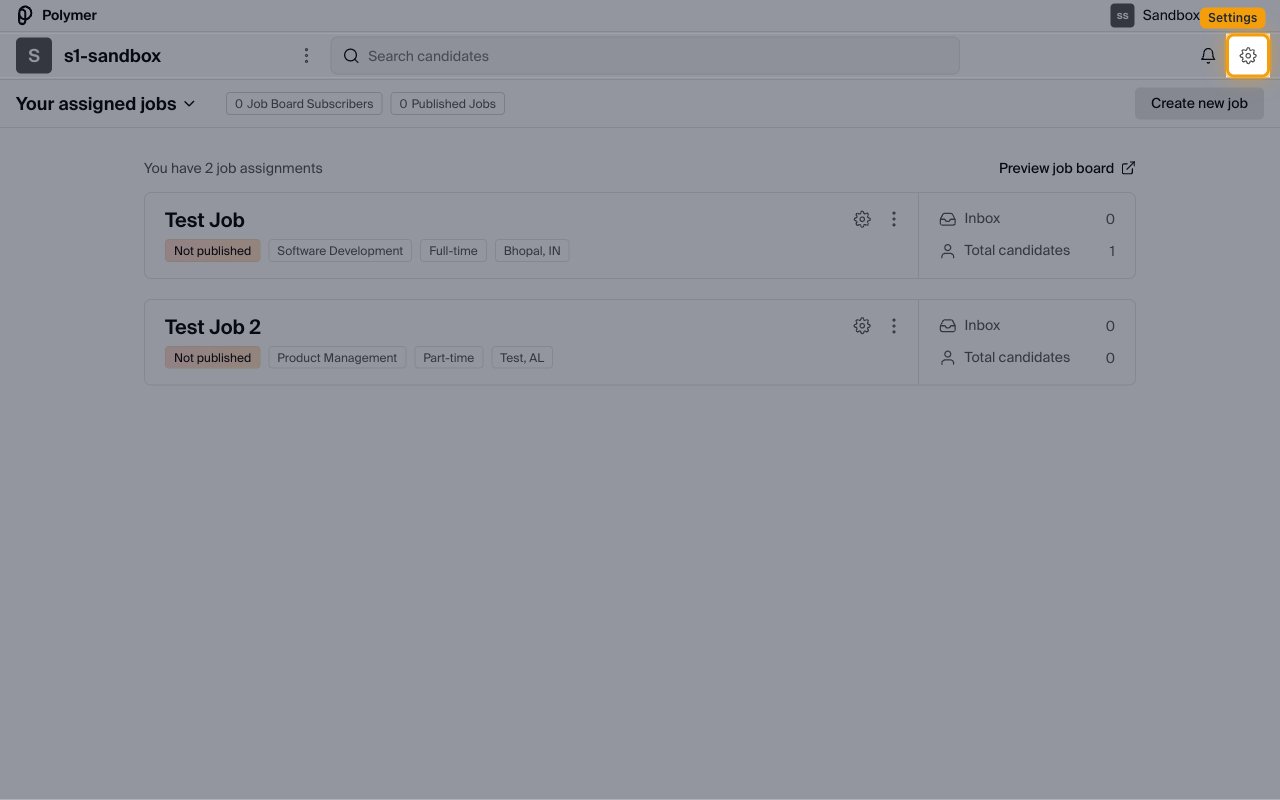
Click the settings (gear) icon in the top-right of the navigation bar to open App settings, then select Your API key from the left menu. You can also go directly to the Your API key settings page.
Generate an API key
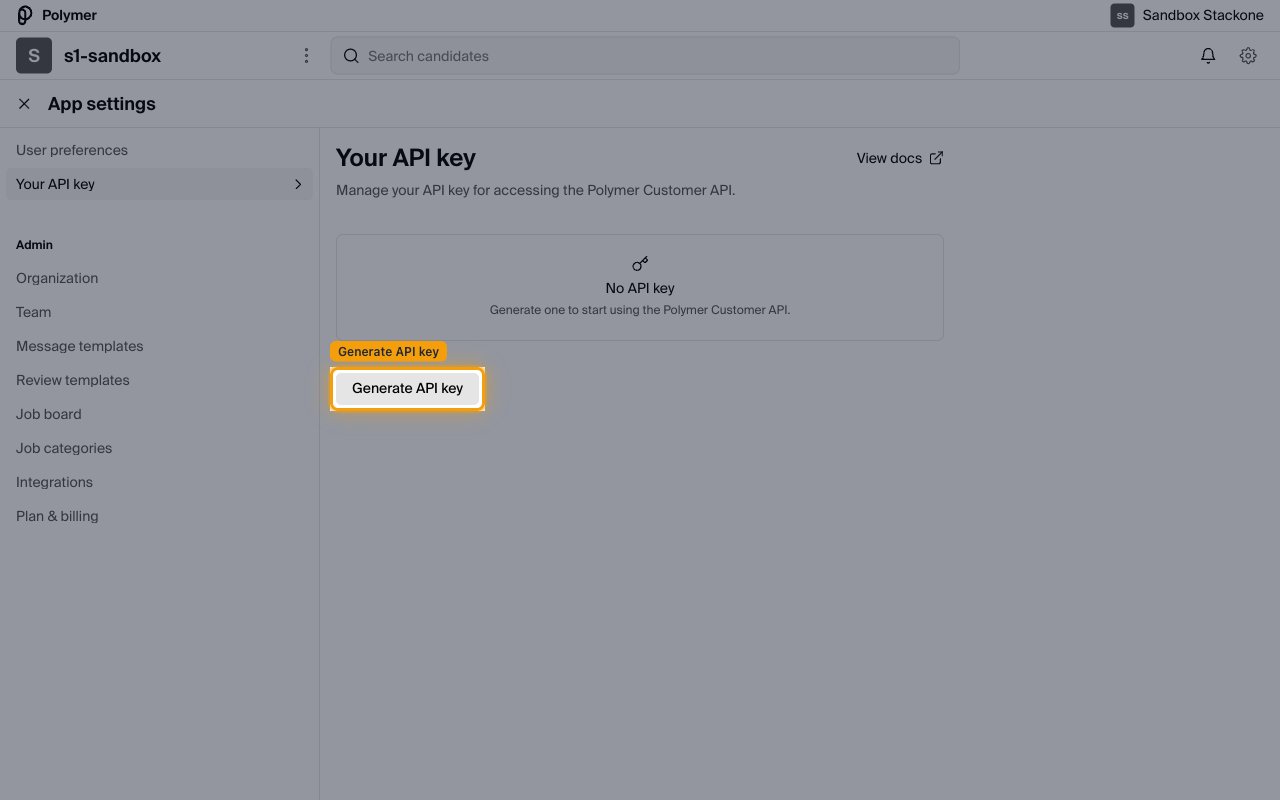
On the Your API key page, if you do not have a key yet it shows No API key. Click Generate API key to create one.
Copy your API key
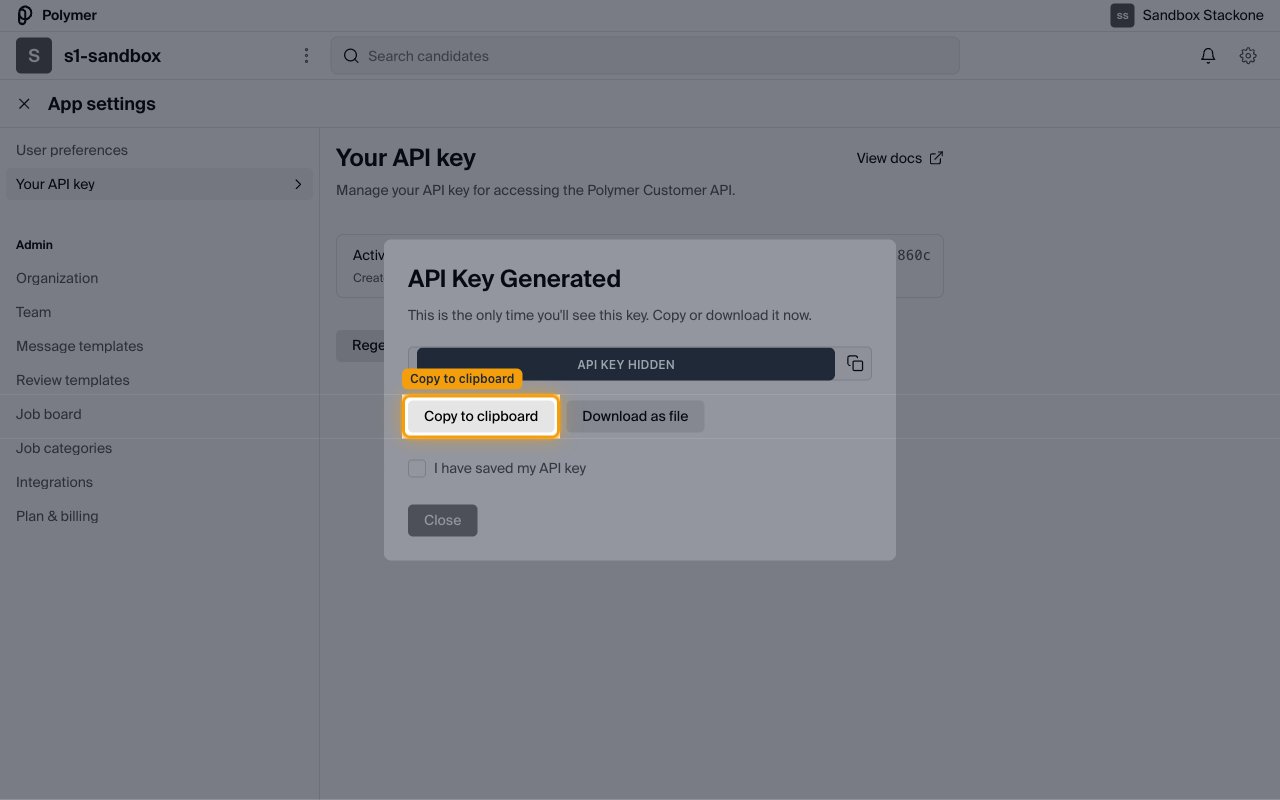
The API Key Generated dialog appears. Click Copy to clipboard (or Download as file) and paste the key into the API Key field on the StackOne connection form. Then tick I have saved my API key and click Close.
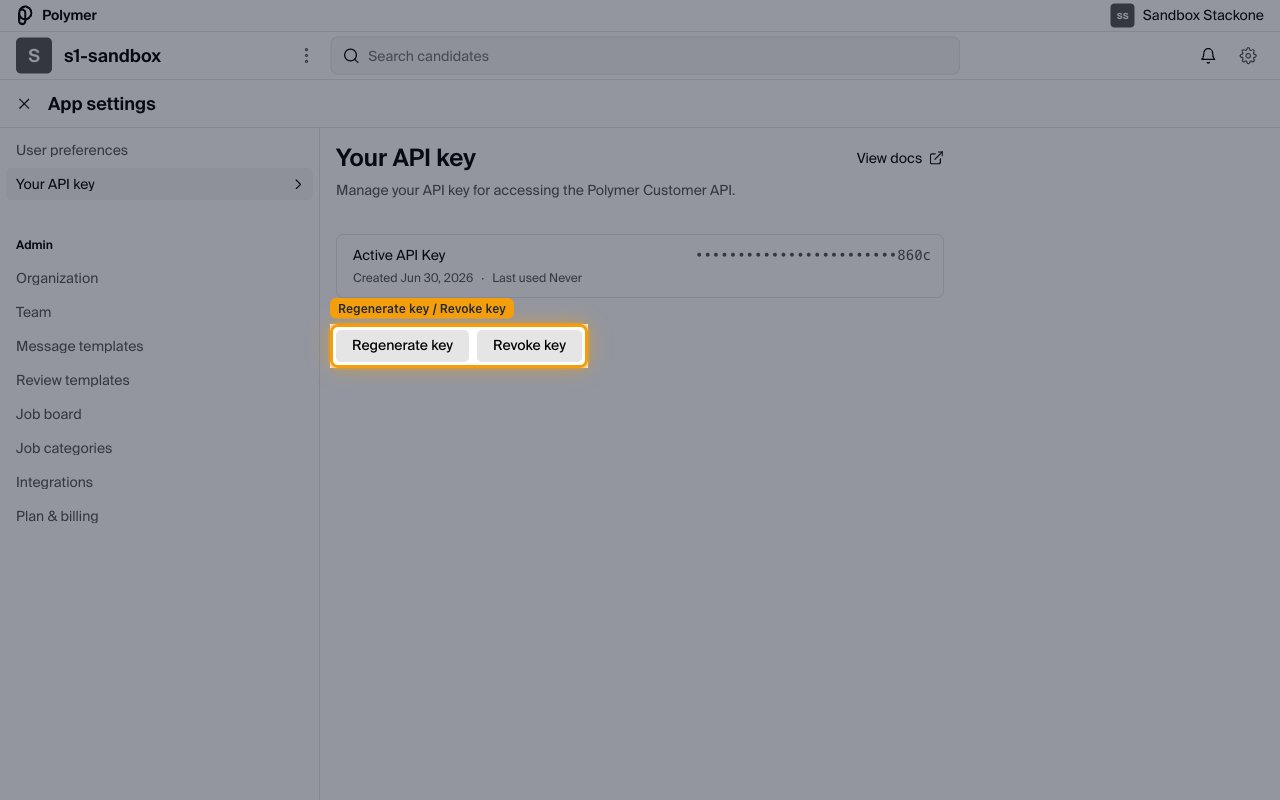
- As the dialog warns, “This is the only time you’ll see this key. Copy or download it now.” The full key cannot be retrieved later — afterwards the page shows only the last characters (for example ••••860c).
Review your active key
Once a key exists, the page shows it as Active API Key with its creation date. Use Regenerate key to replace it (this immediately invalidates the previous key, so update any existing integrations) or Revoke key to disable a key you no longer need.
Linking the Account from the Hub
Navigate to the Hub
Fill out the fields
- API Key
Connect
- Click Connect
- If applicable, the provider will redirect you to a sign-in or authorization page. Complete the provider’s authorization flow.
- Once authorization is successful, you will see a confirmation popup
If the account linking is successful, you will see the newly linked account in your Accounts page.
Next Steps
Webhooks setup
Configure receiving Events for Polymer into StackOne.