

Creating an API application
Planday exposes its API through an app you create in your own Planday portal. Creating the app registers StackOne’s redirect URL and defines which data the integration may reach.
Sign in to Planday
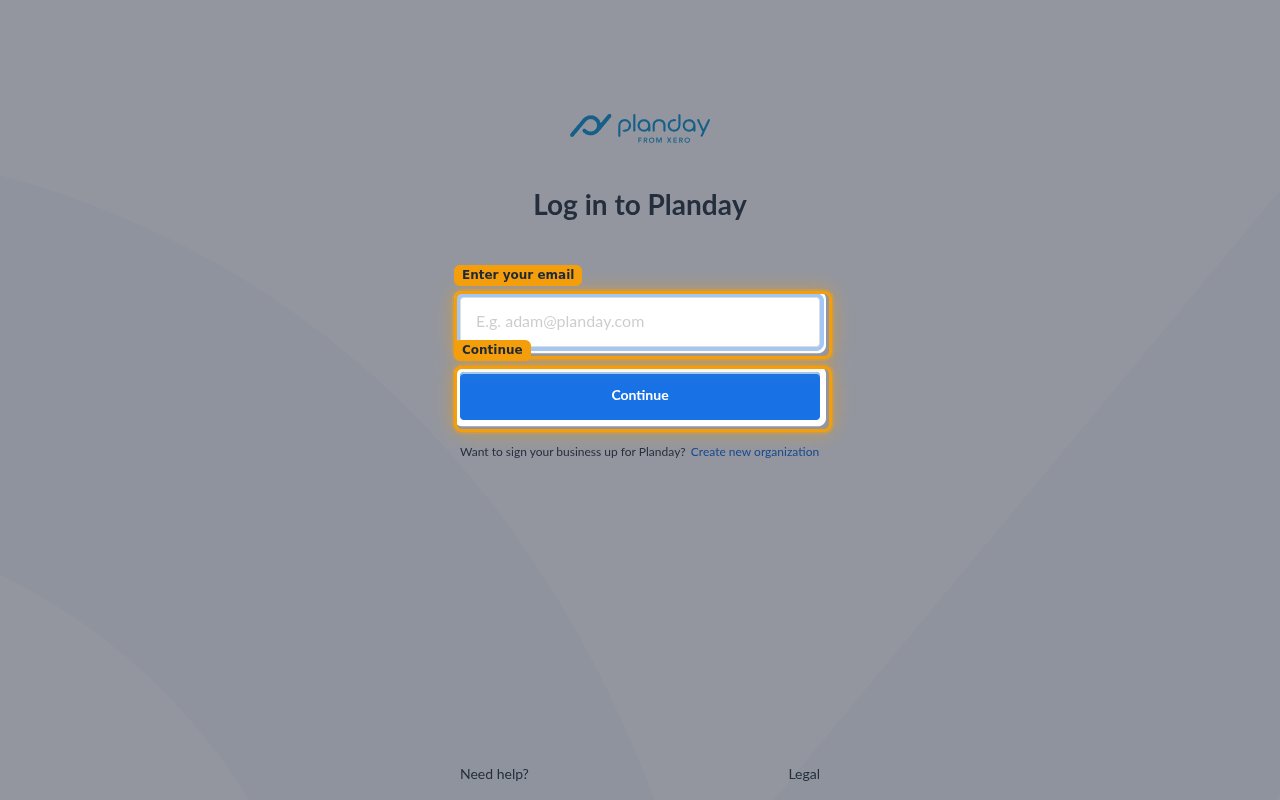
Sign in to your Planday account.
- Type your email address under Enter your email and click Continue. Planday resolves your company portal from your email address and signs you in there.
- Portal address format:
https://{yourcompany}.planday.com - If your business is not on Planday yet, use Create new organization on the same page before you continue.
Open Planday settings
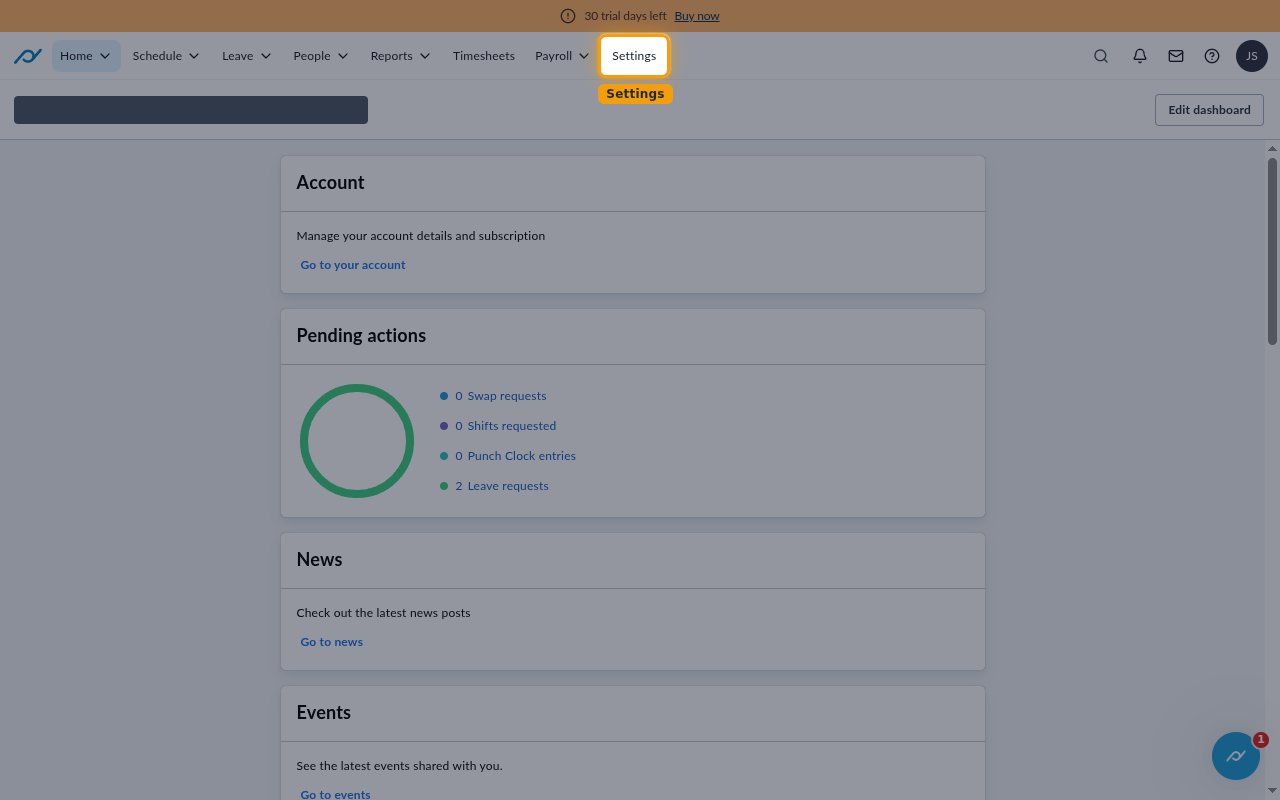
Click Settings in the top navigation bar.
Open API access
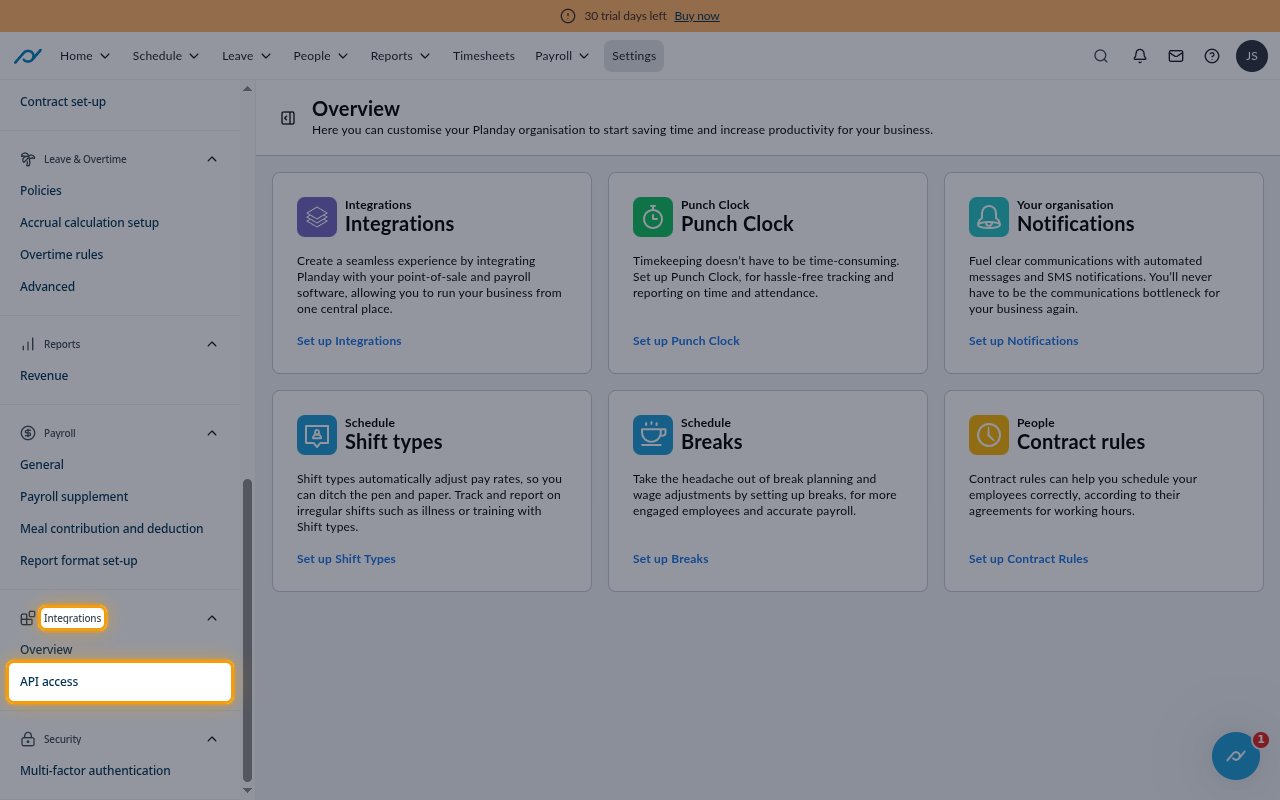
In the left sidebar, select API access under Integrations.
- The Integrations group sits near the bottom of the sidebar, below Payroll — scroll the sidebar down to reach it.
- Do not use the Integrations card on the Settings Overview page. That card opens the integrations overview, not API access.
Create a new app
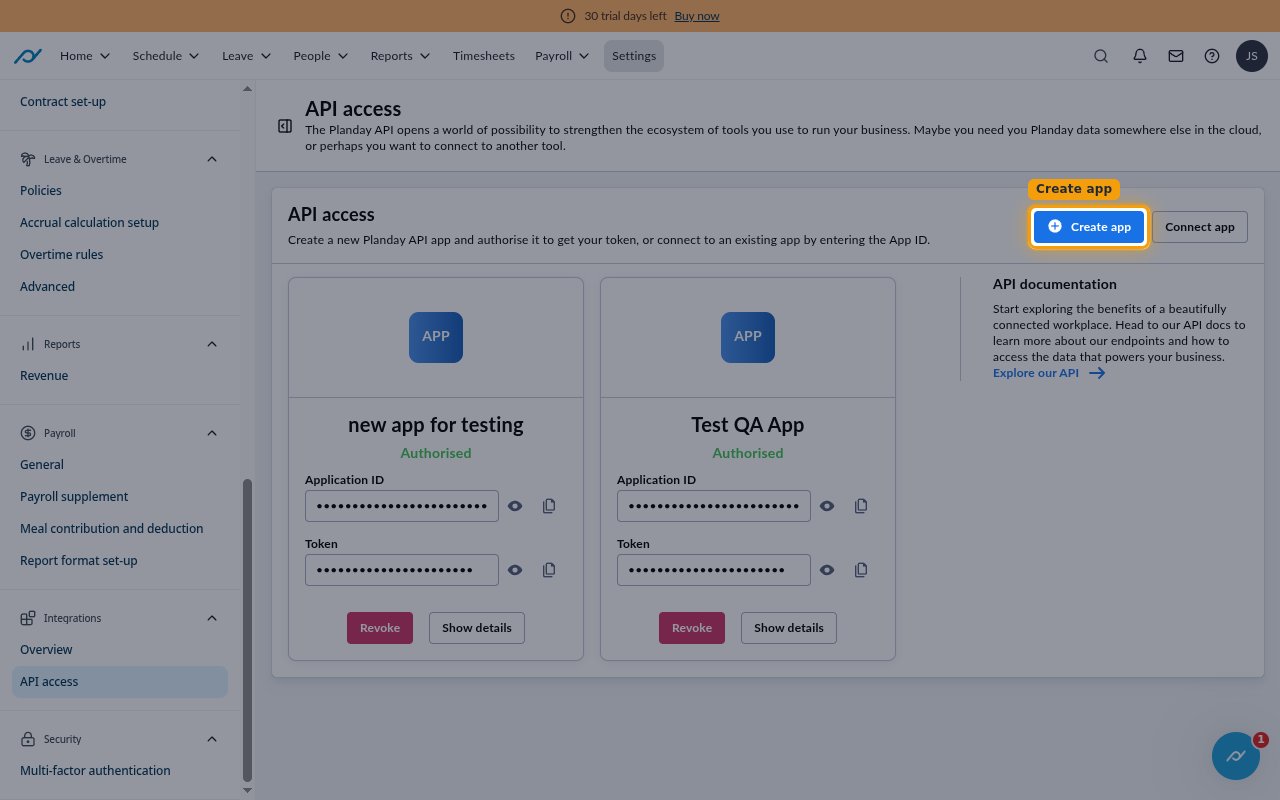
On the API access page, click Create app.
- Use Connect app only to connect to an app that already exists.
Fill in the application details
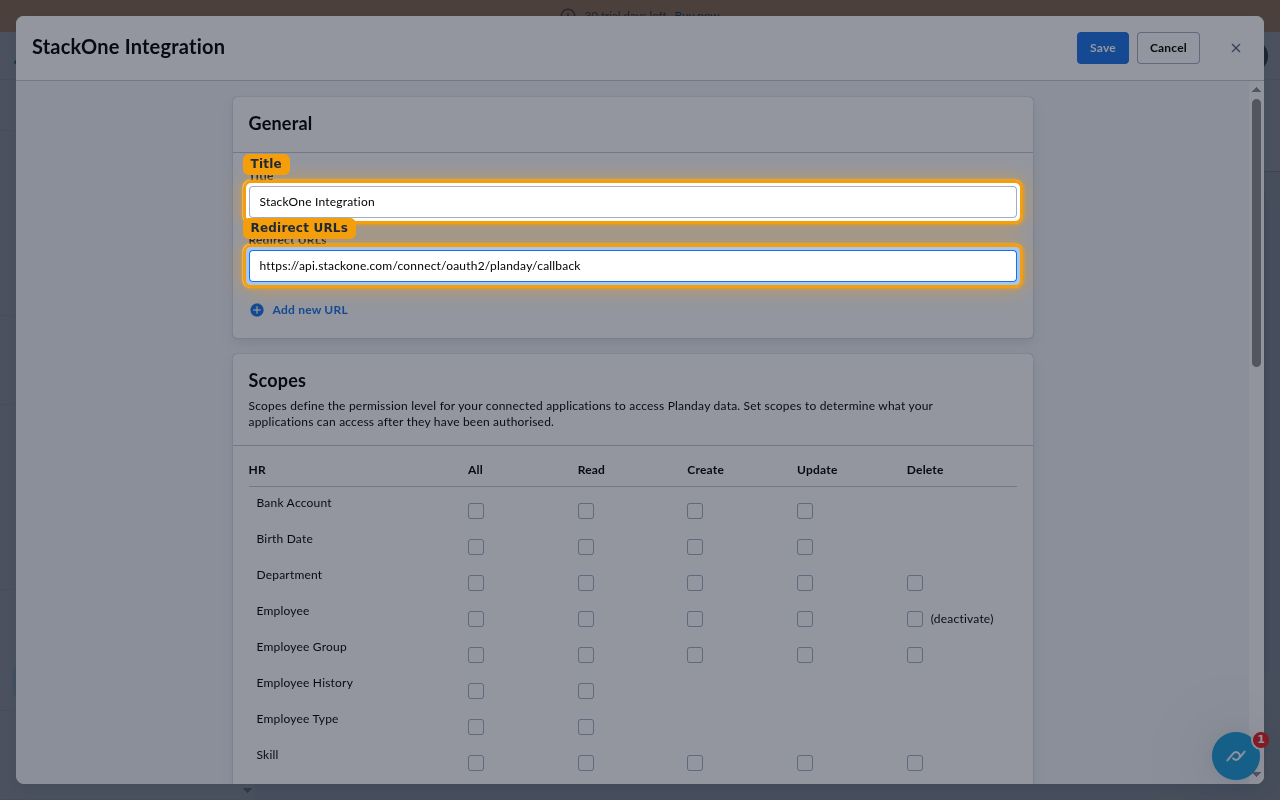
Complete the General section of the New Application dialog.
- Title:
StackOne Integration - Redirect URLs:
https://api.stackone.com/connect/oauth2/planday/callback - Use Add new URL only if you need to register more than one redirect URL.
Configuring scopes
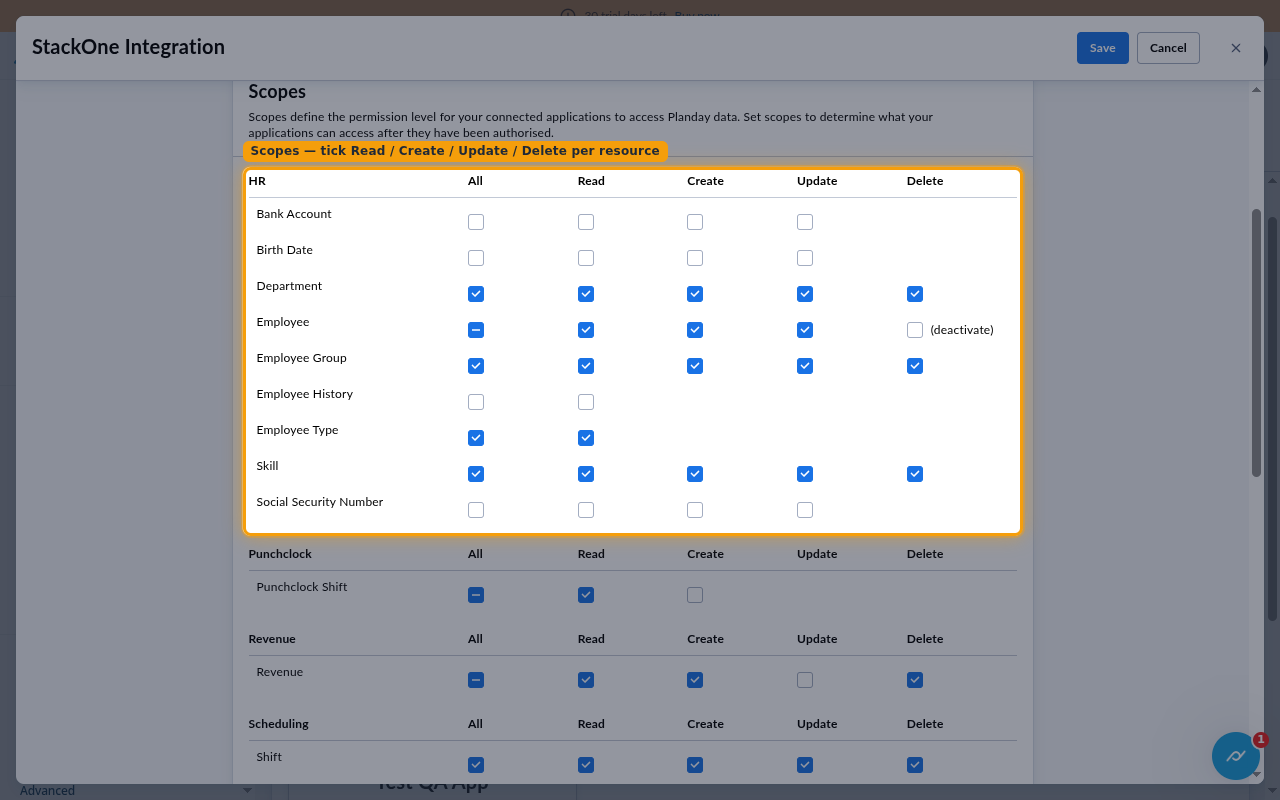
Scopes define the permission level for your connected applications to access Planday data. The Scopes section of the New Application dialog lists every resource as a row, with All, Read, Create, Update and Delete columns.
Select the permissions to grant
Choose the scopes StackOne should request. Each scope corresponds to one resource row and one column in the Planday Scopes grid.
Select the matching boxes in the grid
Tick the columns listed below on each resource row. Ticking All on a row selects every column that row offers.
- Department — Read, Create, Update, Delete
- Employee — Read, Create, Update
- Employee Group — Read, Create, Update, Delete
- Employee Type — Read
- Skill — Read, Create, Update, Delete
- Punchclock Shift — Read
- Revenue — Read, Create, Delete
- Shift — Read, Create, Update, Delete
- Shift Position — Read, Create, Update, Delete
- Shift Type — Read, Create, Update
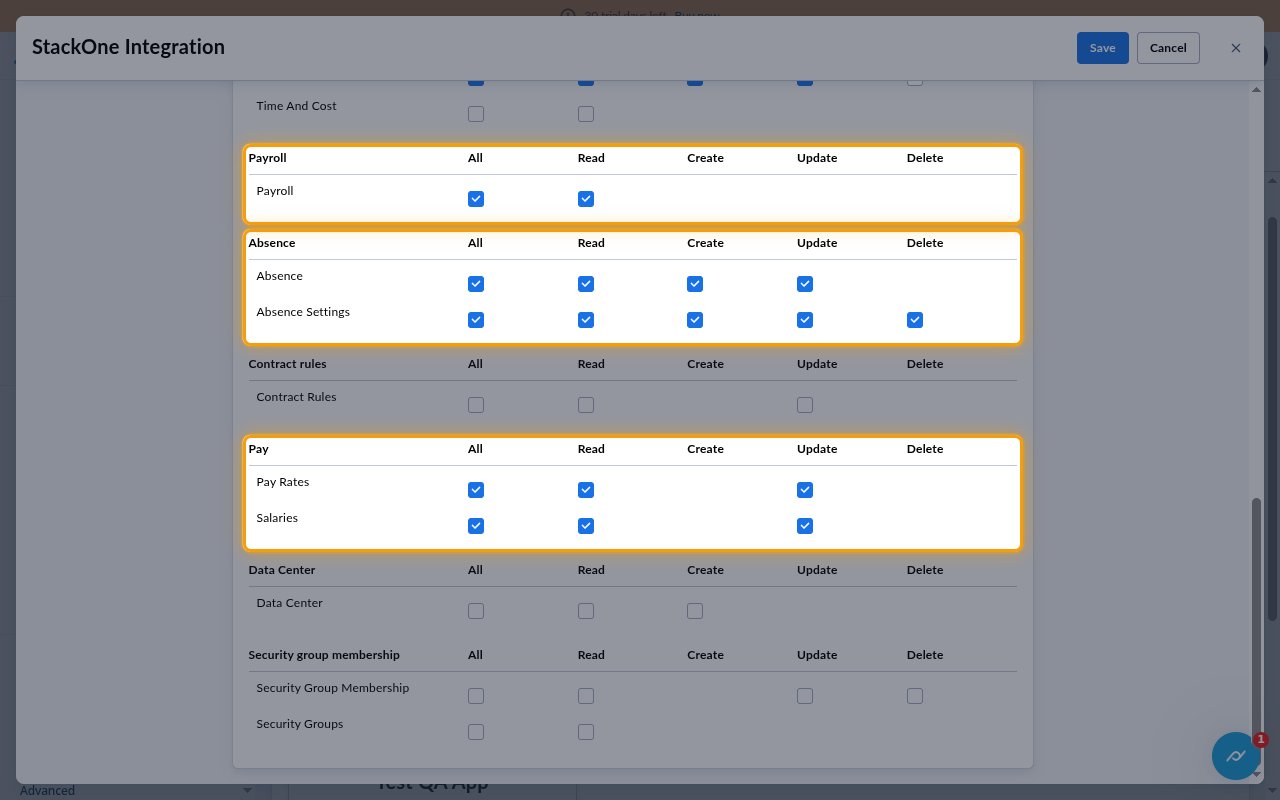
- Payroll — Read
- Absence — Read, Create, Update
- Absence Settings — Read, Create, Update, Delete
- Pay Rates — Read, Update
- Salaries — Read, Update
Verify no other resources are selected
Grant only the permissions the integration needs, and leave every other row unticked.
- Under HR, leave Bank Account, Birth Date, Employee History and Social Security Number clear.
- Leave Time And Cost, Contract Rules, Data Center, Security Group Membership and Security Groups clear.
- The (deactivate) box on the Employee row is not required.
Save the application
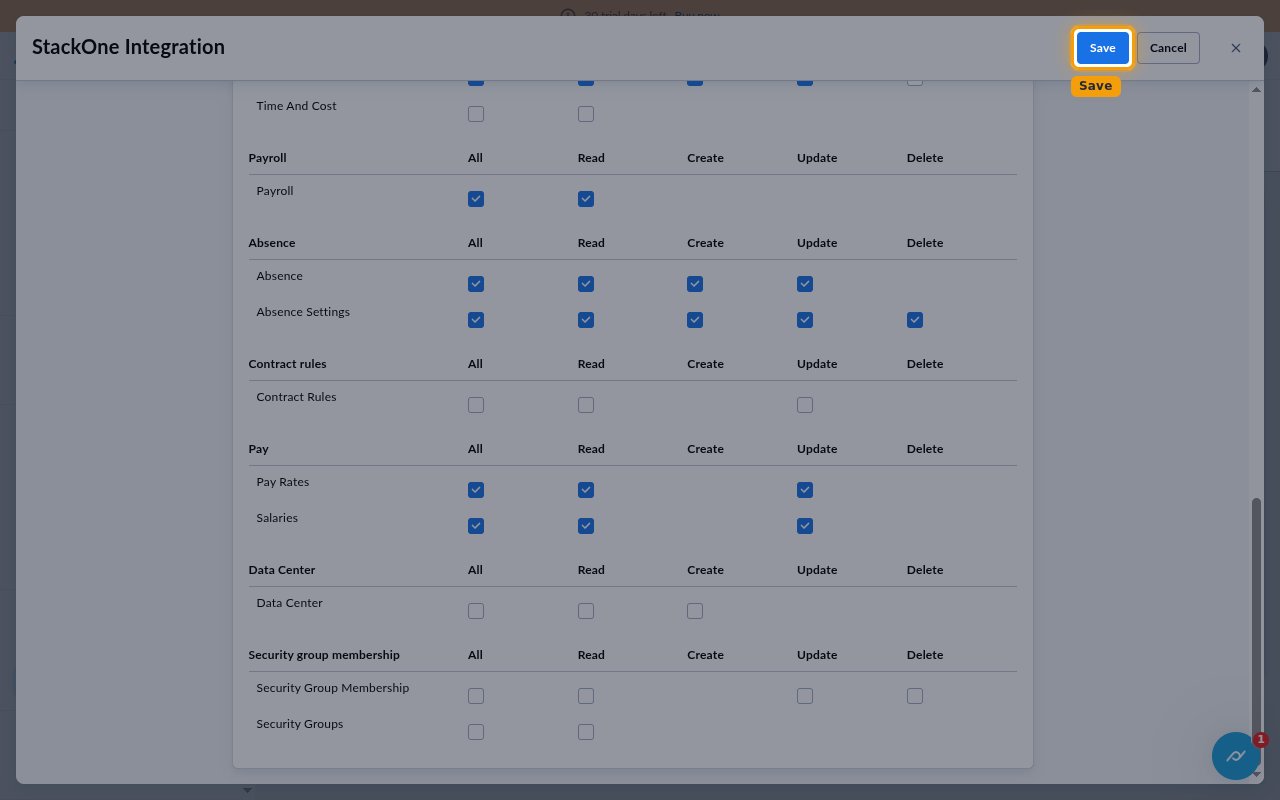
Click Save at the top of the New Application dialog.
- Set the scopes before you authorize the app. On an app that has already been authorized, Show details presents the scopes read-only.
Authorizing the application
A new app is created without a token. Authorizing it grants the permissions you selected and issues the token StackOne uses to call the Planday API.
Authorize the new app
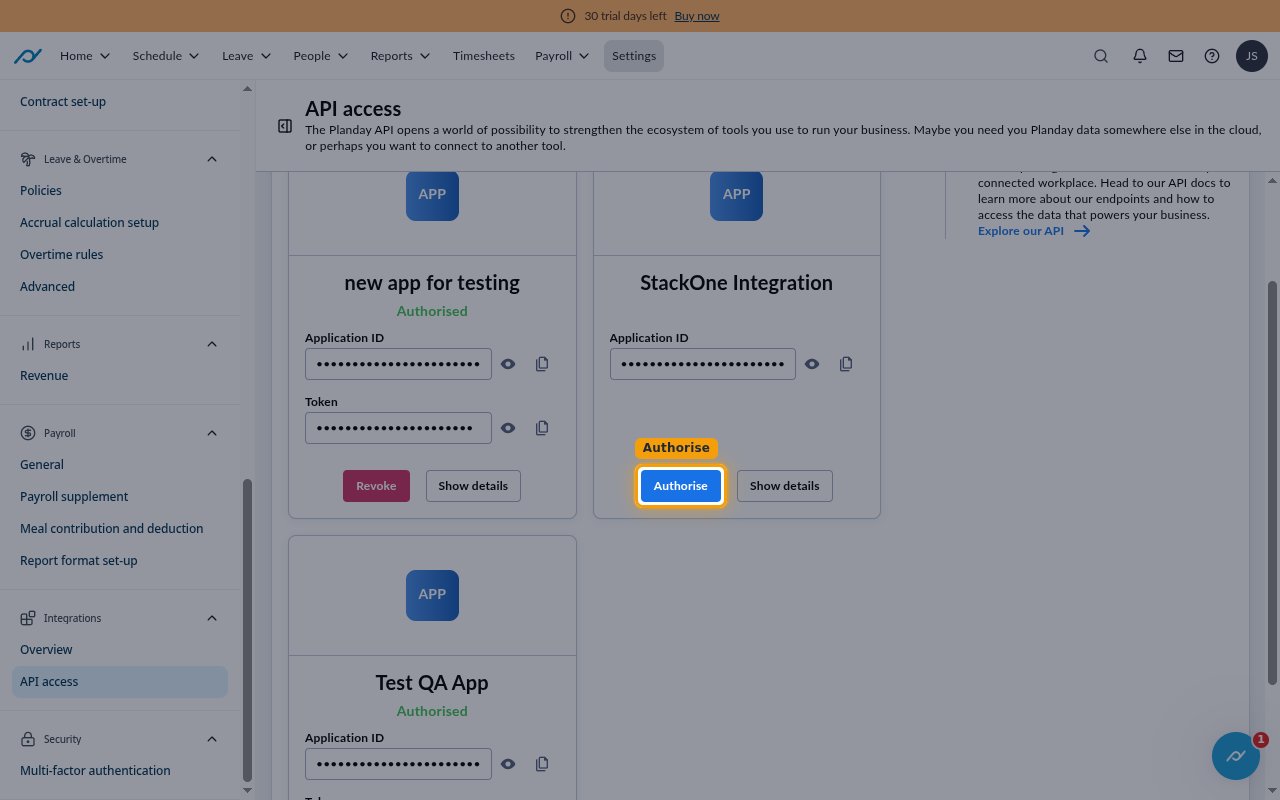
On the API access page, find the StackOne Integration tile and click Authorise.
- Until the app is authorized, the tile shows an Application ID but no Token.
Confirm the requested permissions
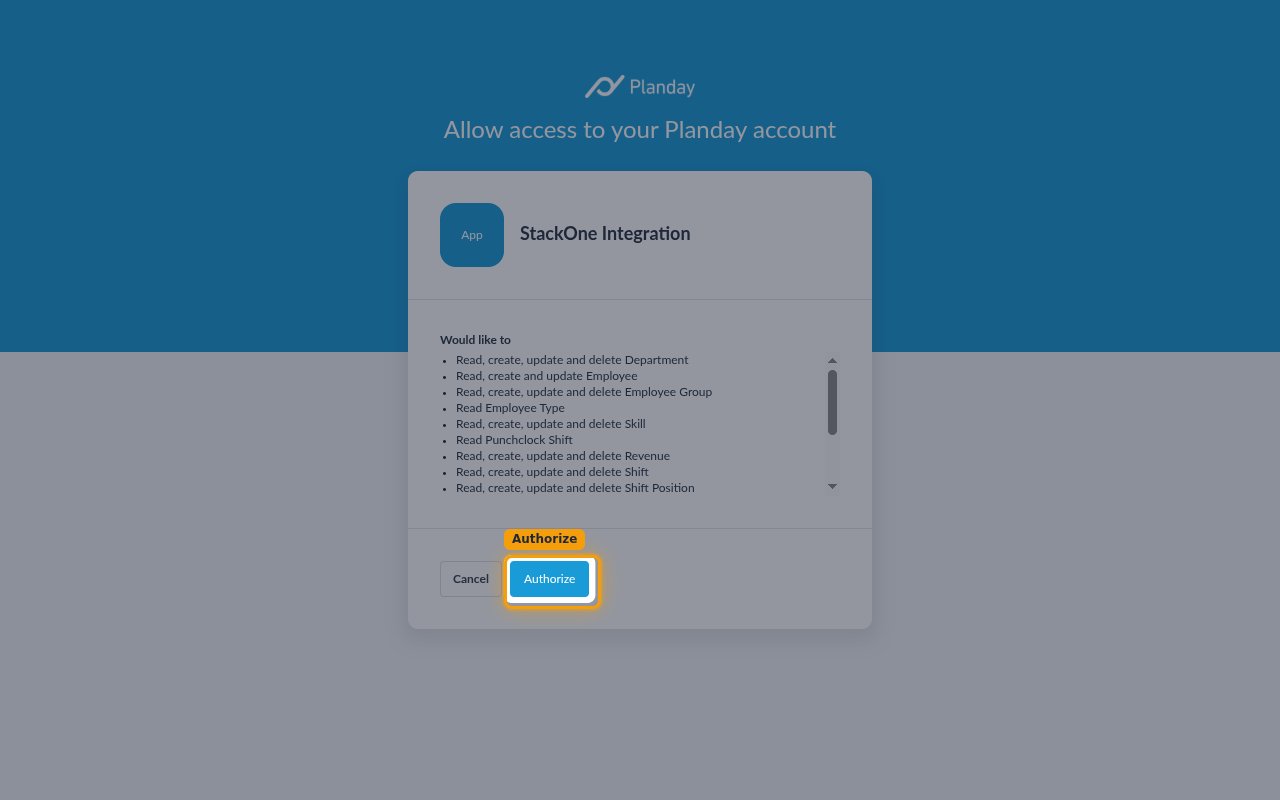
Planday shows Allow access to your Planday account listing everything the app Would like to do. Review the list and click Authorize.
- The tile then reads Authorised, and a Token appears below the Application ID.
Retrieving your credentials
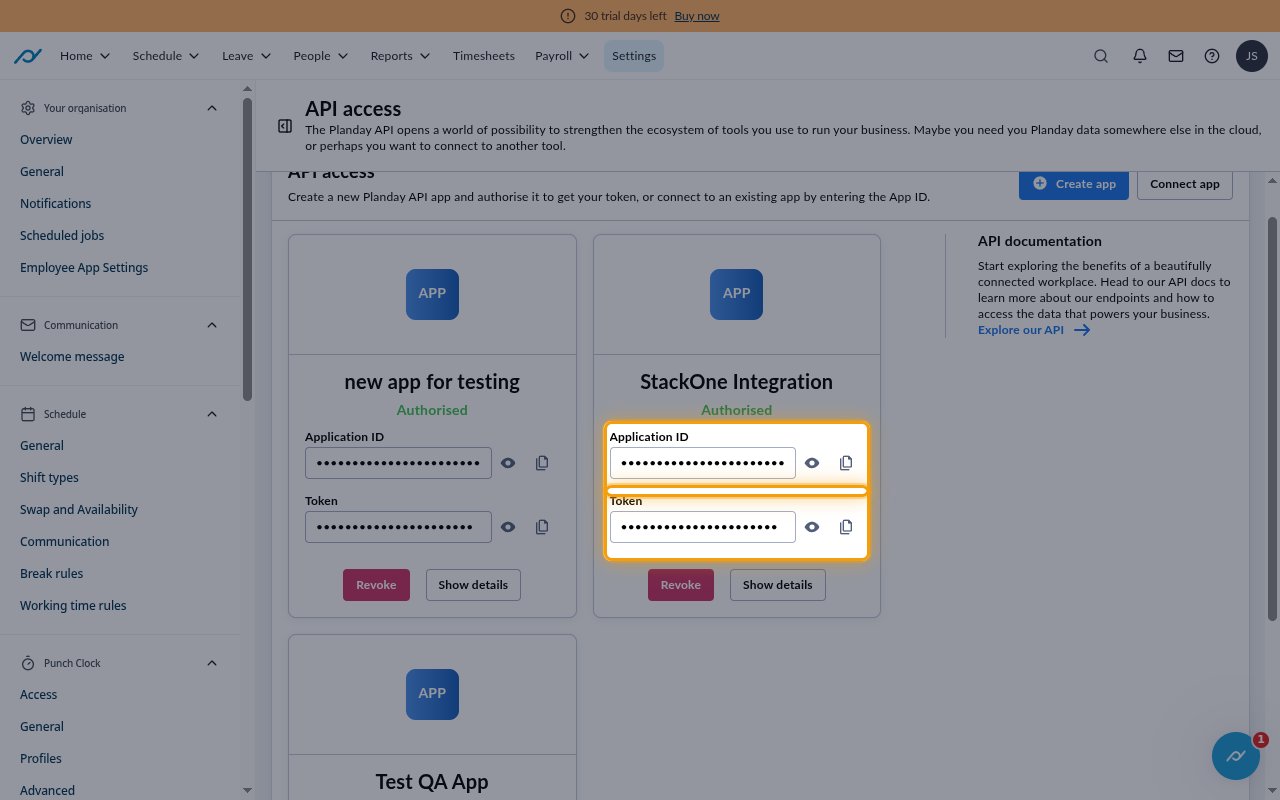
The authorized tile holds the only value StackOne needs — the Application ID, which is your OAuth Client ID. Planday apps use the OAuth 2.0 authorization code flow without a Client Secret, so there is no secret to copy.
Copy the Application ID (your Client ID)
On the StackOne Integration tile, copy the Application ID — this is your Client ID — and store it securely for use later.
- It is a 36-character UUID. Paste it into the Client ID (Application ID) field in the StackOne Connector profile.
- Click the copy icon beside the field to copy its value, or the eye icon to reveal it first.
- The Token on the tile is not a Client Secret. It is a refresh token for Planday’s own refresh-token flow. StackOne obtains its own token when you authorize the connection, so do not copy it into StackOne.
- Revoke on the tile withdraws the authorization and breaks the connection.
- Scopes in the StackOne Connector profile is optional. Leave it empty to request the connector’s full scope list, or enter a space-separated subset — it must always include
openidandoffline_access.
Creating the StackOne Connector Profile
To create the Connector Profile in StackOne for Planday:Open the connector
Choose actions and events
- Click Add Profile.
- If the connector offers more than one authentication method, set the Auth Method filter to OAuth 2.0.
- Select the actions, and any events, to enable for this Connector Profile.
- Click Continue.
Set up authentication
- Select Authentication Type as OAuth 2.0.
- Fill out the fields using details retrieved from your provider:
- Client ID (Application ID)
- Scopes (Optional)
- Click Create Profile.