

Pick a Sandbox institution
Plaid Sandbox simulates real banks. Each simulated bank has an ID that starts with ins_, and the institution you pick decides which kinds of accounts the connection links.
- Copy one of these Institution ID values across.
ins_109508: First Platypus Bankins_109509: First Gingham Credit Unionins_109510: Tattersall Federal Credit Unionins_109511: Tartan Bankins_109512: Houndstooth Bank- The full list, with the products each institution supports, is in the Plaid Sandbox institutions docs. The institution must support every product in your Products list.
Copy the Sandbox test credentials
Sandbox Username and Sandbox Password are a simulated bank login used to sign in to the Sandbox institution. They are not your Plaid Dashboard login.
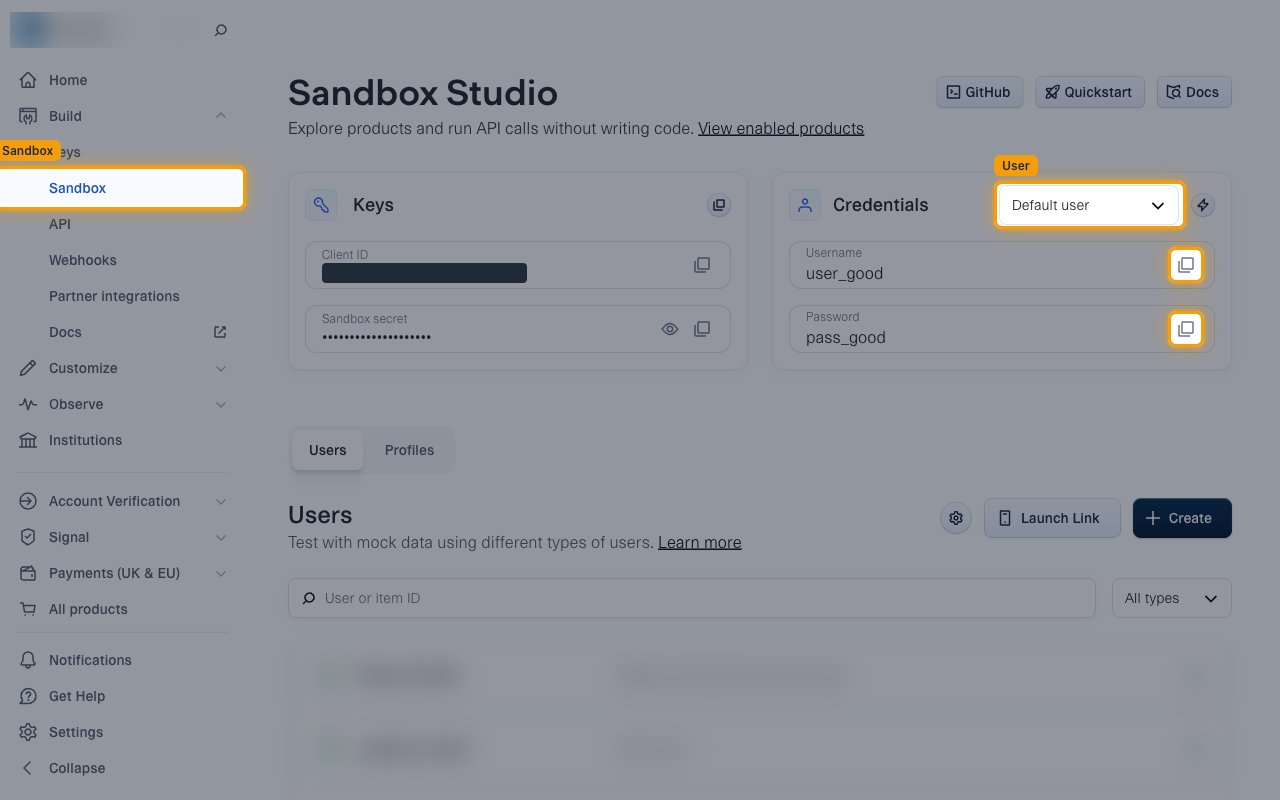
Open Sandbox Studio
In the Plaid Dashboard left sidebar, under Build, click Sandbox to open Sandbox Studio.
- In the Credentials box, pick a test user from the User list. Default user works for most products.
- Click Copy next to Username and copy the Sandbox Username across.
- Click Copy next to Password and copy the Sandbox Password across.
- Other test users for specific scenarios are listed in the Plaid Sandbox test credentials docs.
Choose the Products
A Plaid product is a group of related API endpoints. The products you list are enabled on the Sandbox bank link this connection creates, and they decide which actions work. Enter one or more products, separated by spaces, for example transactions auth identity.
Check the supported products
This connection supports the following products. Leave Products blank to enable all of them.
transactions: transactions and recurring transactions.auth: account and routing numbers.identity: account holder names, emails, phone numbers and addresses.investments: holdings and investment transactions.liabilities: credit card, student loan and mortgage details.assets: asset reports.statements: bank statements.income_verification: bank income.- The institution you picked must also support every product you list, otherwise Plaid rejects the connection.
Select the products for your actions
Pick only the products that back the actions you plan to run, and copy the Products list across.
Check the values Plaid rejects
Plaid rejects balance and enrich as products, and income is a legacy product no action reads.
balance: included on every bank link automatically. Run the balance action on any connection.enrich: needs no bank link. The enrich action sends your own transaction data.income: the Income actions use Plaid’sincome_verificationproduct instead.
Fill the Statements dates
Fill both dates when Products is blank or includes statements. Leave them empty otherwise, because they are ignored.
- Format:
YYYY-MM-DD - Example: Start Date
2025-01-01, End Date2025-12-31 - Fill both Statements Start Date and Statements End Date. Plaid rejects the connection when only one is filled.
- The end date cannot be in the future, and it cannot be earlier than the start date.
Fill the Client User ID
Income data belongs to a Plaid User (a person), not to the bank link. When Products includes income_verification, StackOne creates a Plaid User from the Client User ID, links the Sandbox bank to it and attaches simulated bank income.
- Enter your own stable ID for this person, for example their ID in your system. StackOne sends it to Plaid as the User’s
client_user_id. Do not use an email, phone number or other personal data. - Fill it when Products is blank or includes
income_verification. Without it the connection fails. - Reusing a Client User ID on another connection reuses the same Plaid User.
Limitations
Check these before you rely on this connection.
- Only bank income is supported. The income history is fixed at 90 days and cannot be changed from the connection. Payroll income is not supported, because Plaid accepts it only when
income_verificationis the only product. - When Products includes
income_verification, the connection creates the Plaid User from the Client User ID only. No identity details (name, date of birth, address) are sent, so set them later with Update User if a flow needs them.
Link the Account
Connect
- Click Connect.
- If applicable, the provider will redirect you to a sign-in or authorization page. Complete the provider’s authorization flow.
- Once authorization is successful, you will see a confirmation popup.
Use Actions
Next Steps
Webhooks setup
Configure receiving Events for Plaid into StackOne.