

Find your subdomain
Your Pinpoint subdomain identifies your company’s Pinpoint account. It is the part of the address before .pinpointhq.com when you are signed in to Pinpoint.
- Format:
https://{subdomain}.pinpointhq.com - Example:
https://acme.pinpointhq.comgives the subdomainacme - Enter it in the Subdomain field in StackOne Hub.
Generating an API key
Create a Pinpoint API key for StackOne.
Sign in to Pinpoint
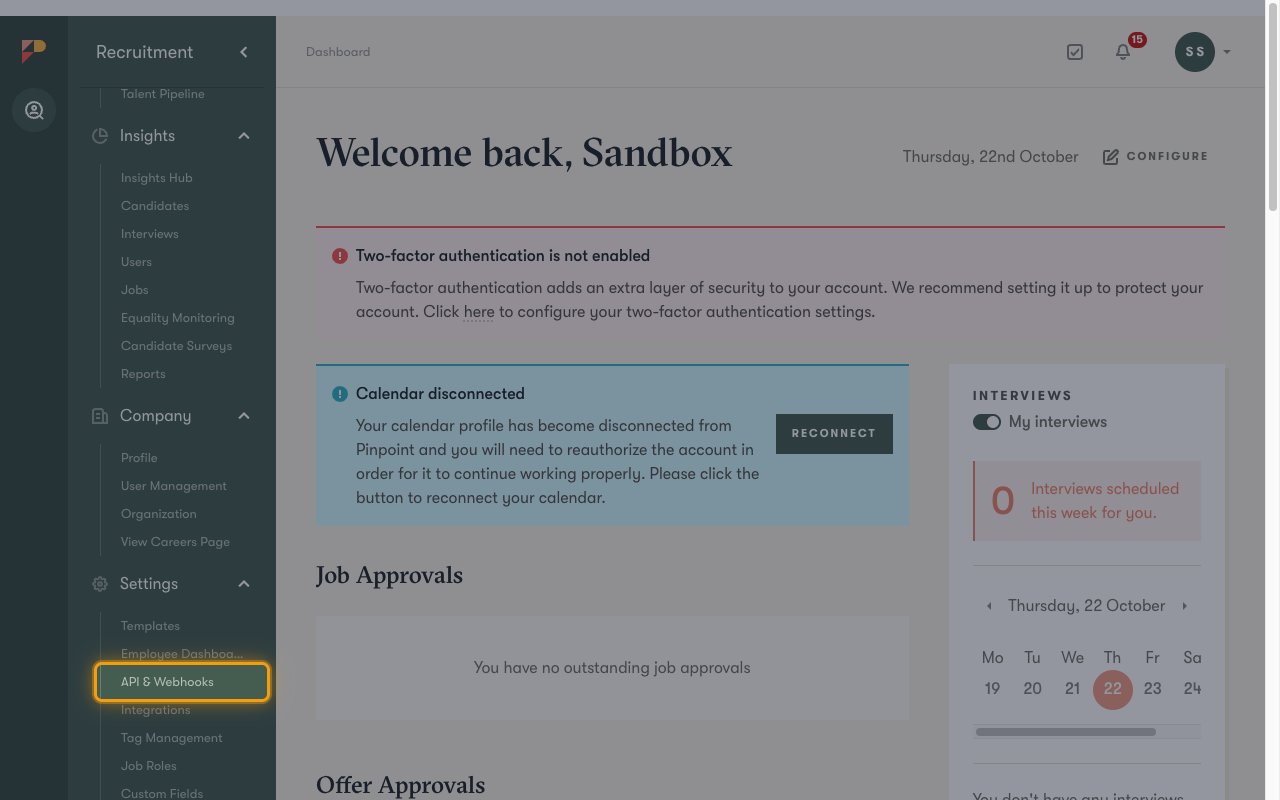
Open the API keys
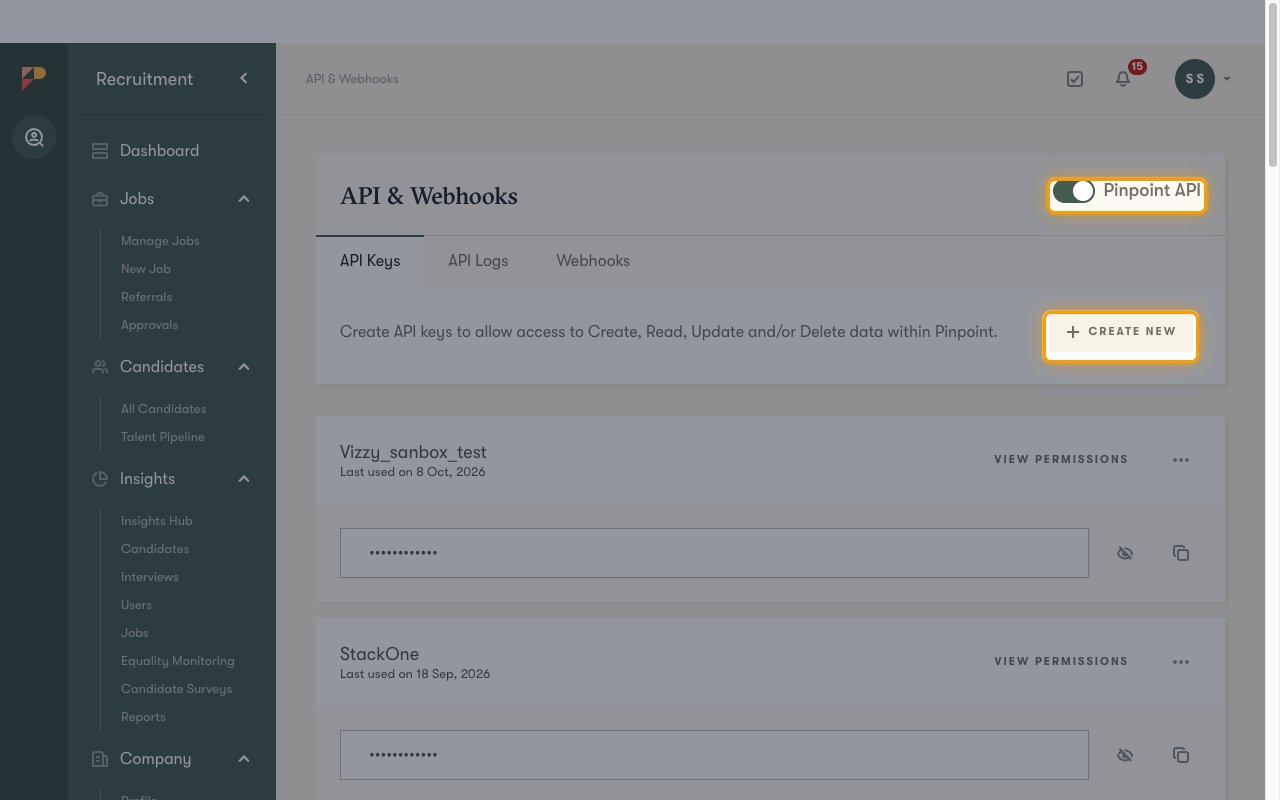
On the API Keys tab, make sure the Pinpoint API toggle in the top-right corner is on, then click Create new.
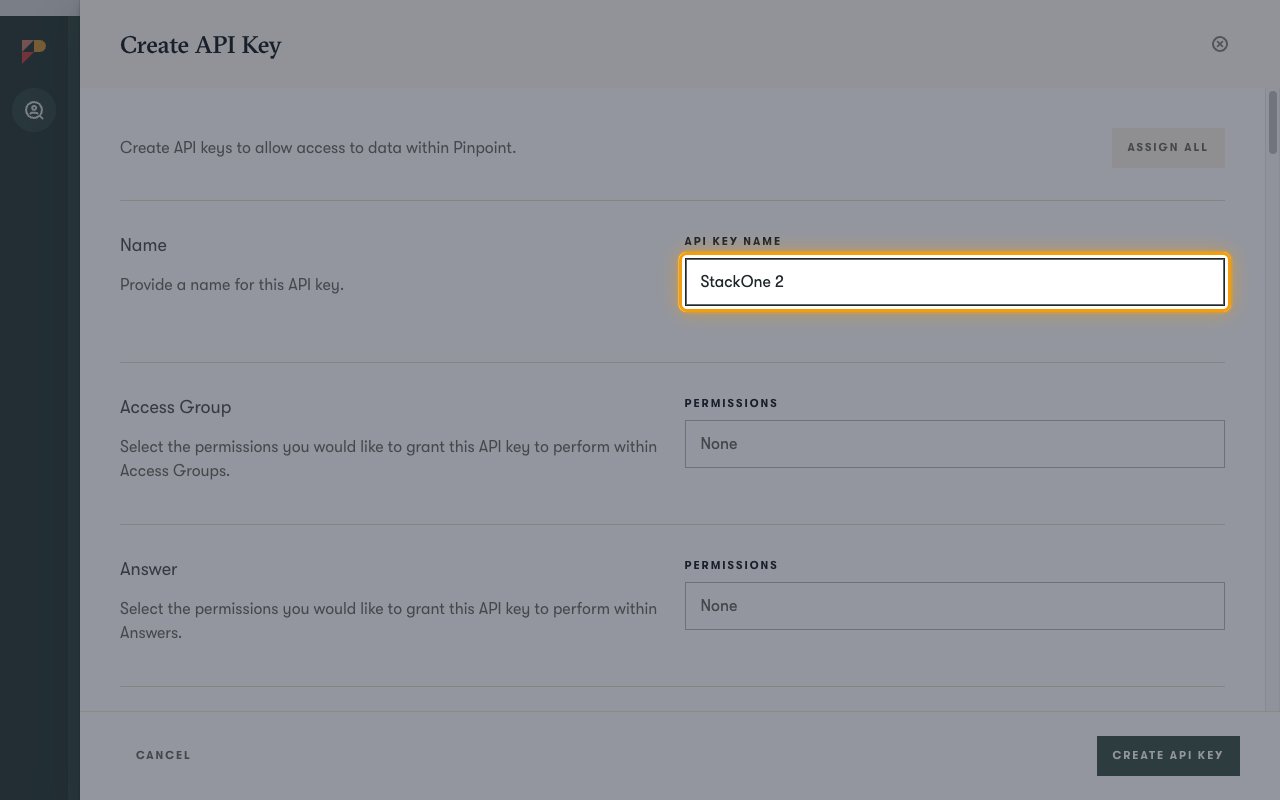
Name the API key
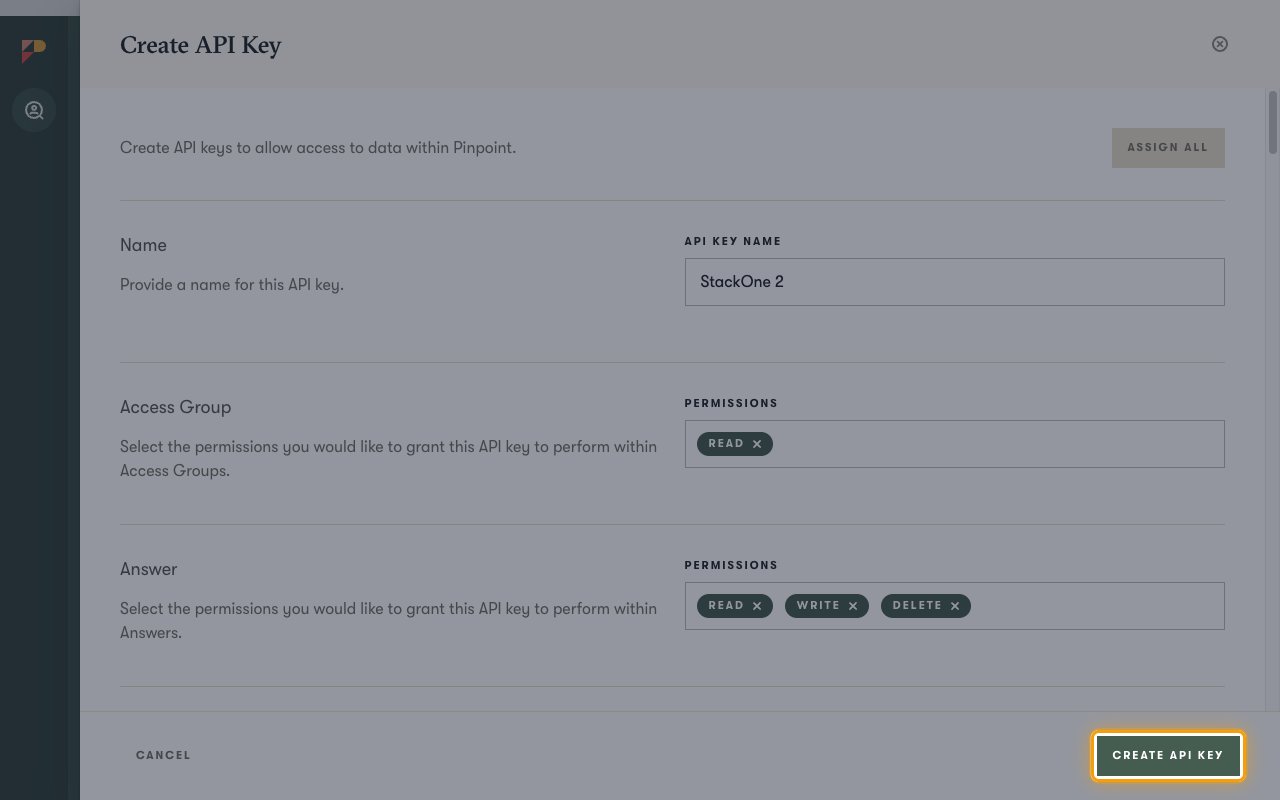
In the Create API Key panel, enter a name for the key under Name, for example StackOne.
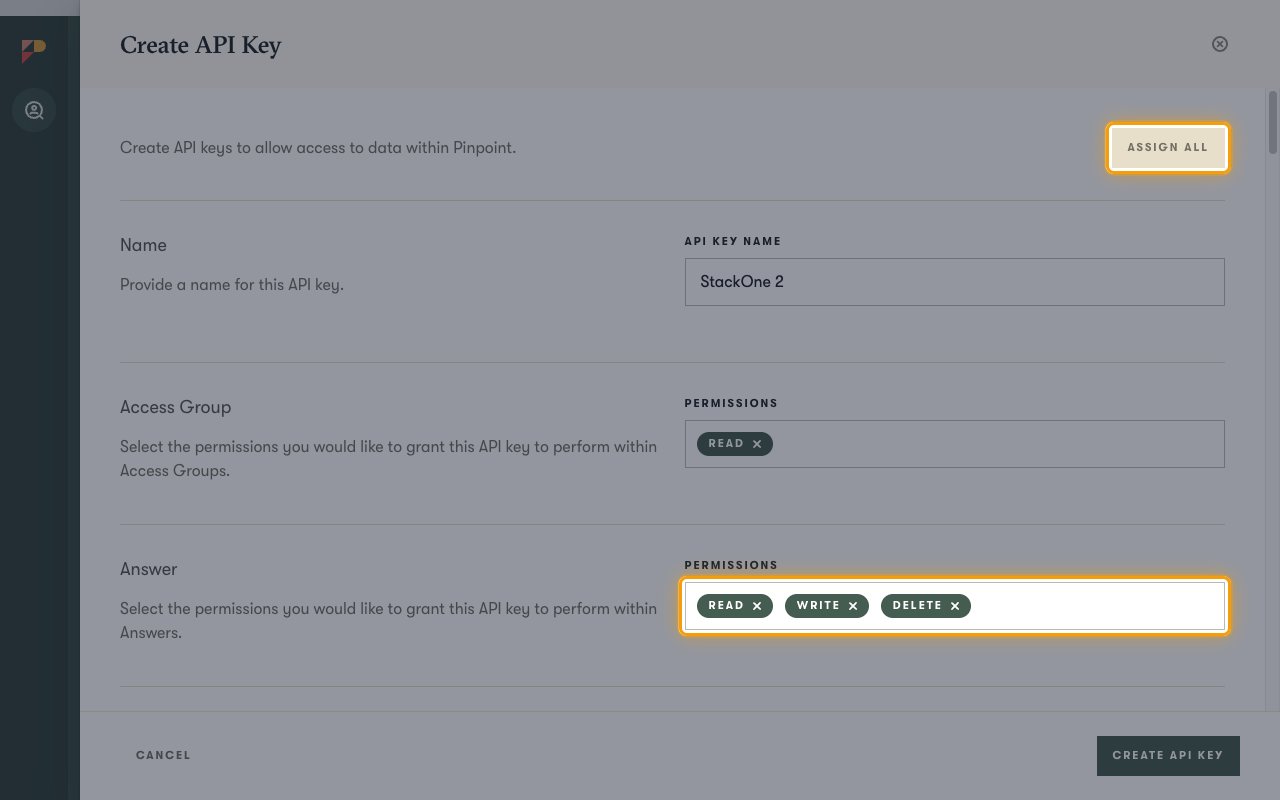
Assign permissions
Each Pinpoint resource has its own Permissions field. Click Assign all to give the key full access, so every StackOne action works.
- For read-only access, set only Read on each resource instead.
- Actions on a resource with no permission fail with an authorization error.
Create the API key
Scroll to the bottom of the panel and click Create API key.
Copy the API key
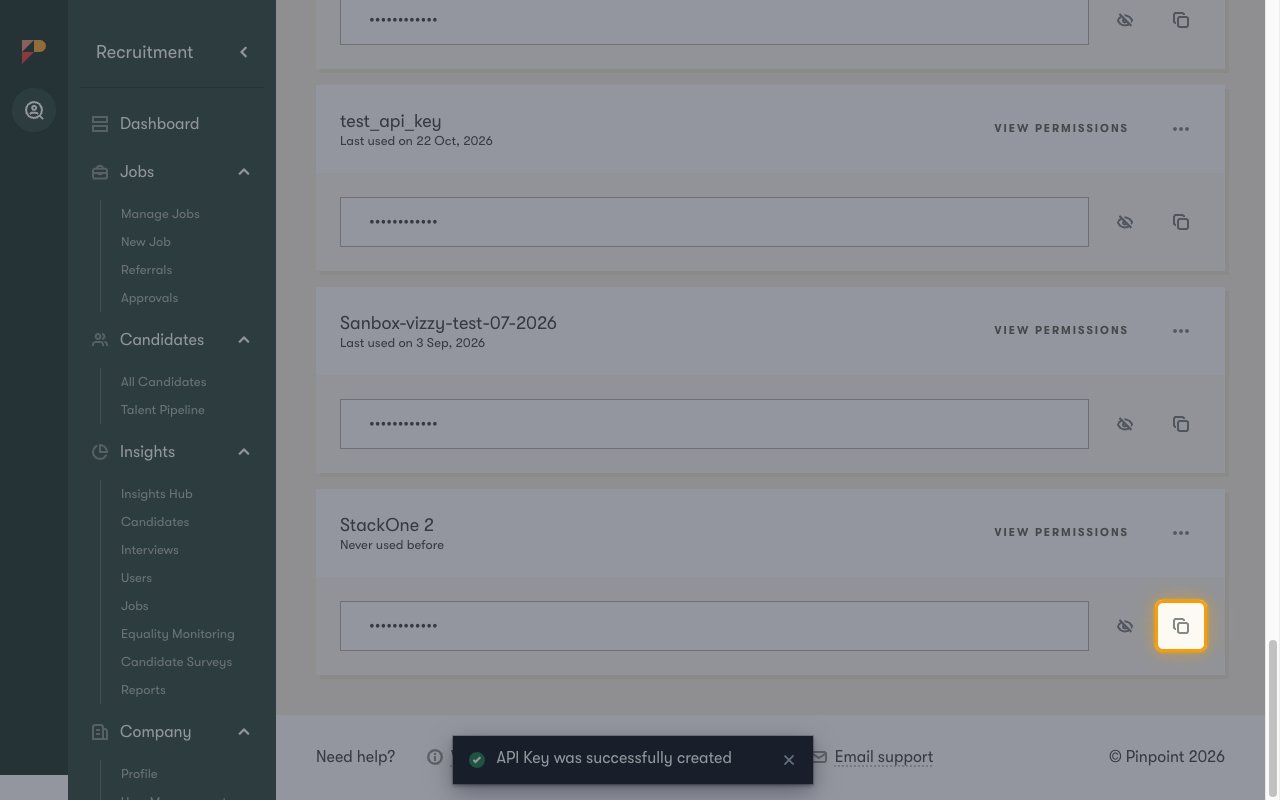
The new key appears at the bottom of the API Keys list. Click the copy icon next to it, then paste the value into the API Key field in StackOne Hub. Store it securely for use later.
Native Webhook URL
Native Webhook URL is filled in by StackOne once the account is connected; you do not enter it. It is only needed if you set up Pinpoint webhooks, as described in the webhook setup guide.
Link the Account
Connect
- Click Connect.
- If applicable, the provider will redirect you to a sign-in or authorization page. Complete the provider’s authorization flow.
- Once authorization is successful, you will see a confirmation popup.
Use Actions
Next Steps
Webhooks setup
Configure receiving Events for Pinpoint into StackOne.