

Create a Worker application
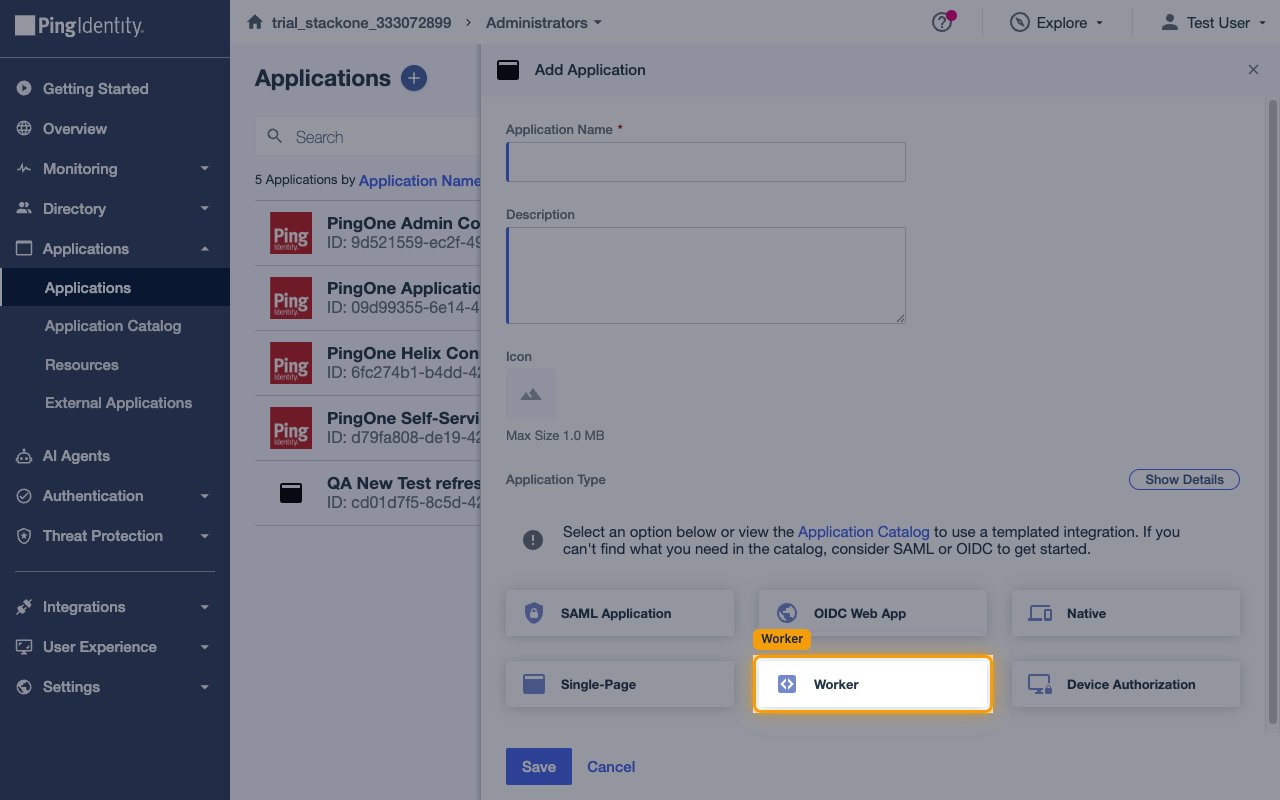
Register a new Worker application in the PingOne Admin Console of the environment you want to connect. Worker is the only application type that can call the PingOne Management API.
Create the Worker application
Sign in to the Admin Console from the PingOne sign-on page, confirm the environment in the breadcrumb at the top of the page, then open Applications > Applications.
- Click the Add (+) button in the top-right corner of the Applications page.
- Application Name:
StackOne Integration - Application Type: Worker
- Click Save.
Enable the application
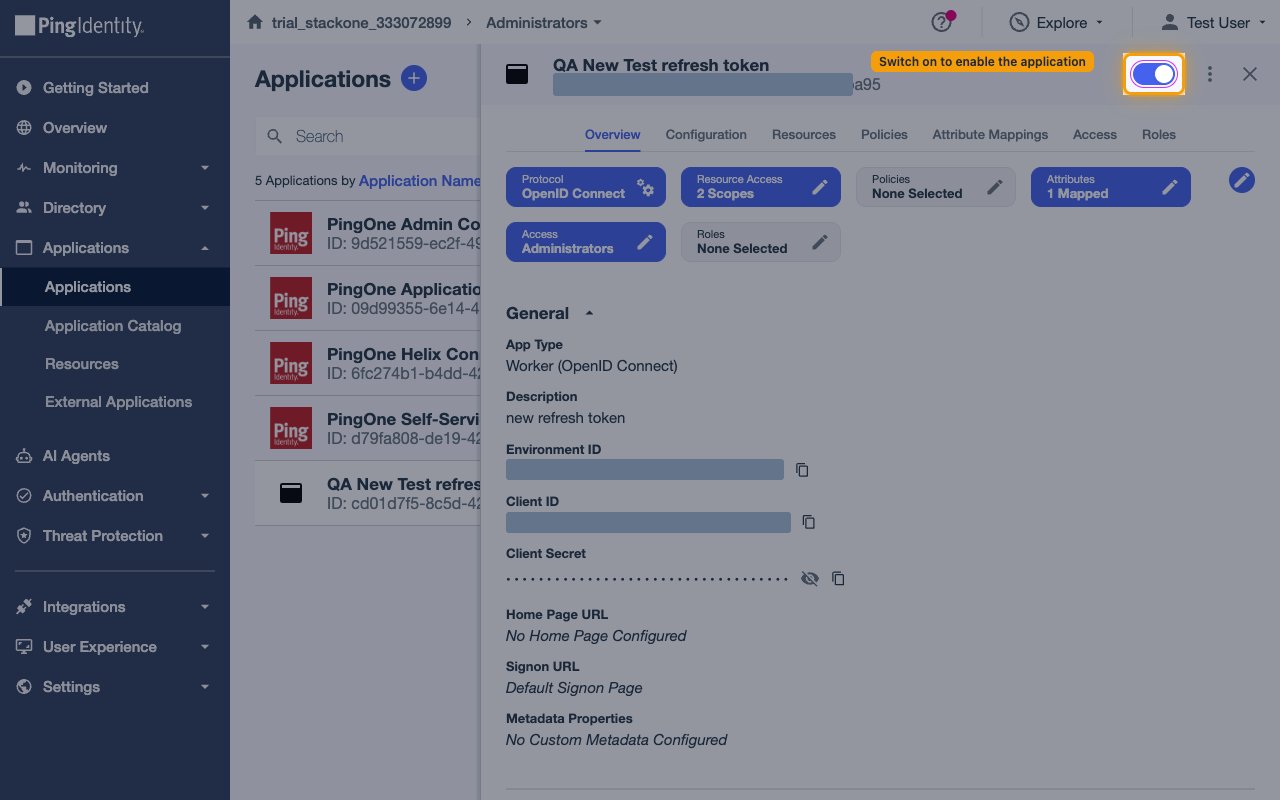
At the top of the application panel, switch the enablement toggle on. A newly created Worker application is disabled by default.
Copy the Client ID, Client Secret and Environment ID
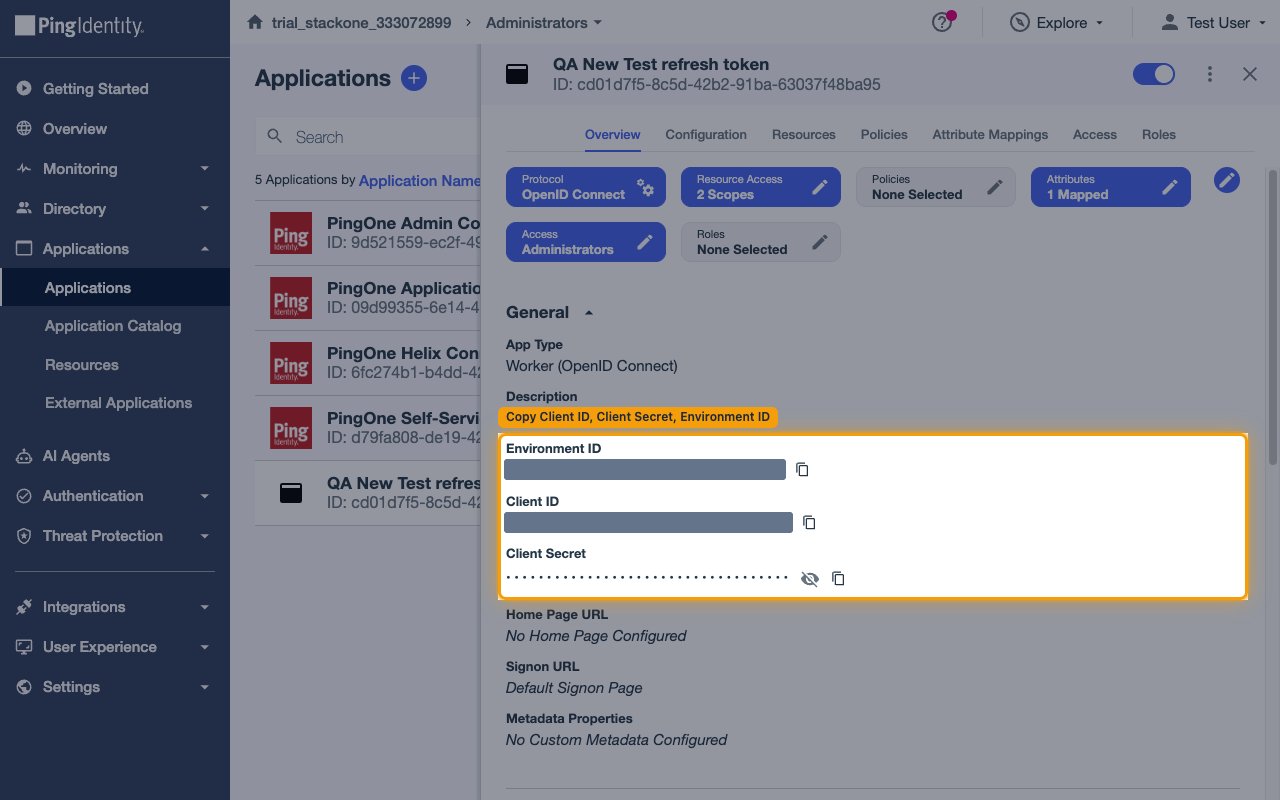
Open the Overview tab. Under General you will find the three values you enter when linking.
- Copy the Environment ID across.
- Copy the Client ID across.
- Click the eye icon to reveal the Client Secret, then copy it across.
Select the region
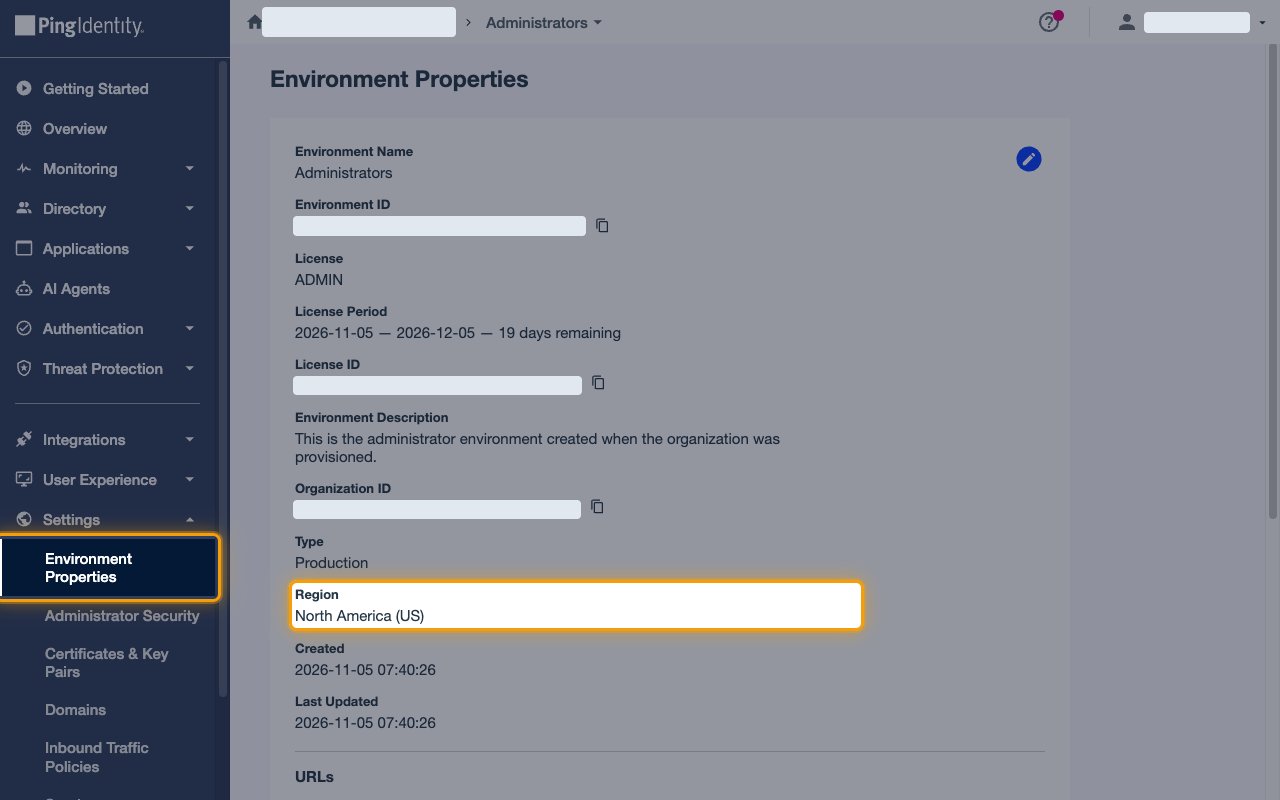
Go to Settings > Environment Properties and read the Region value, then select the matching option in Region.
- Example: a Region of
North America (US)means you select North America
Configure OIDC settings
Open the Configuration tab and click the pencil (edit) icon in the top-right to edit the OIDC Settings.
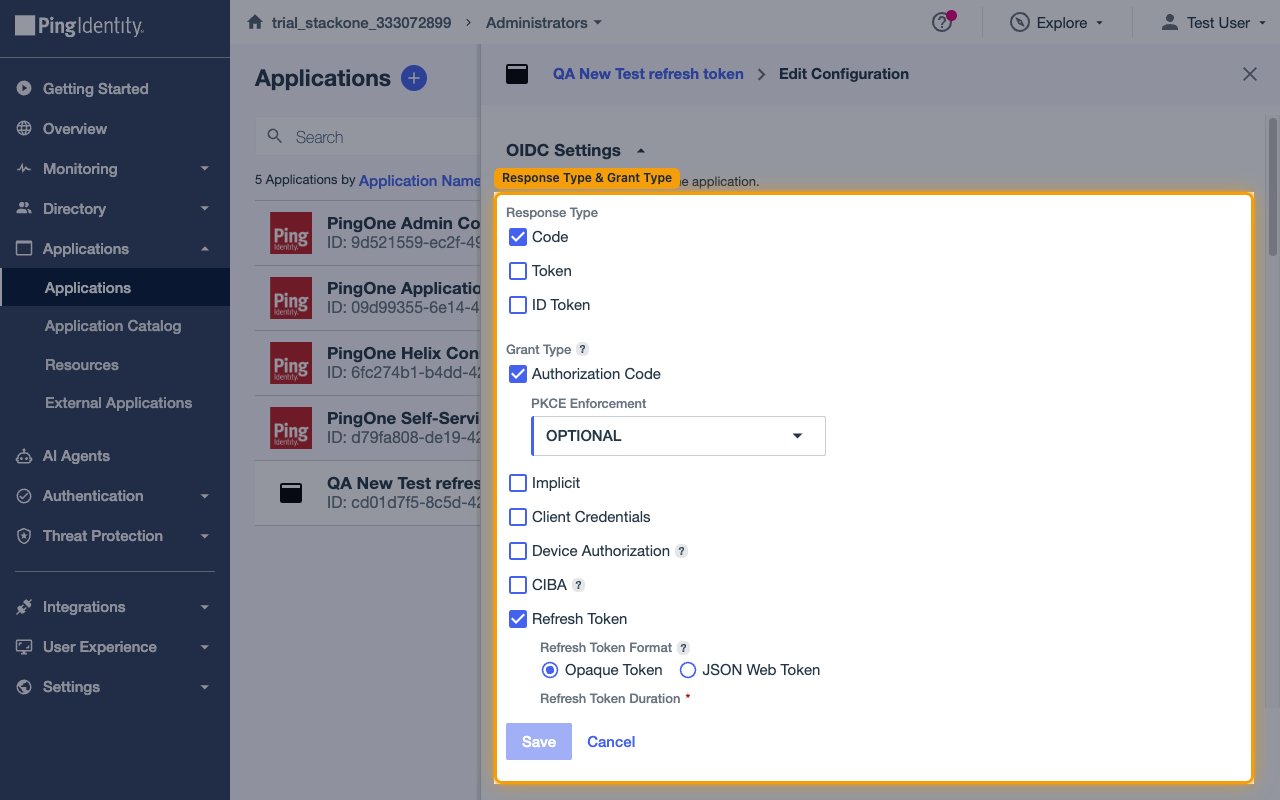
Set the response type and grant types
Under OIDC Settings:
- Response Type: check Code
- Grant Type: check Authorization Code and Refresh Token
- PKCE Enforcement: leave as OPTIONAL
Set the redirect URI and token authentication method
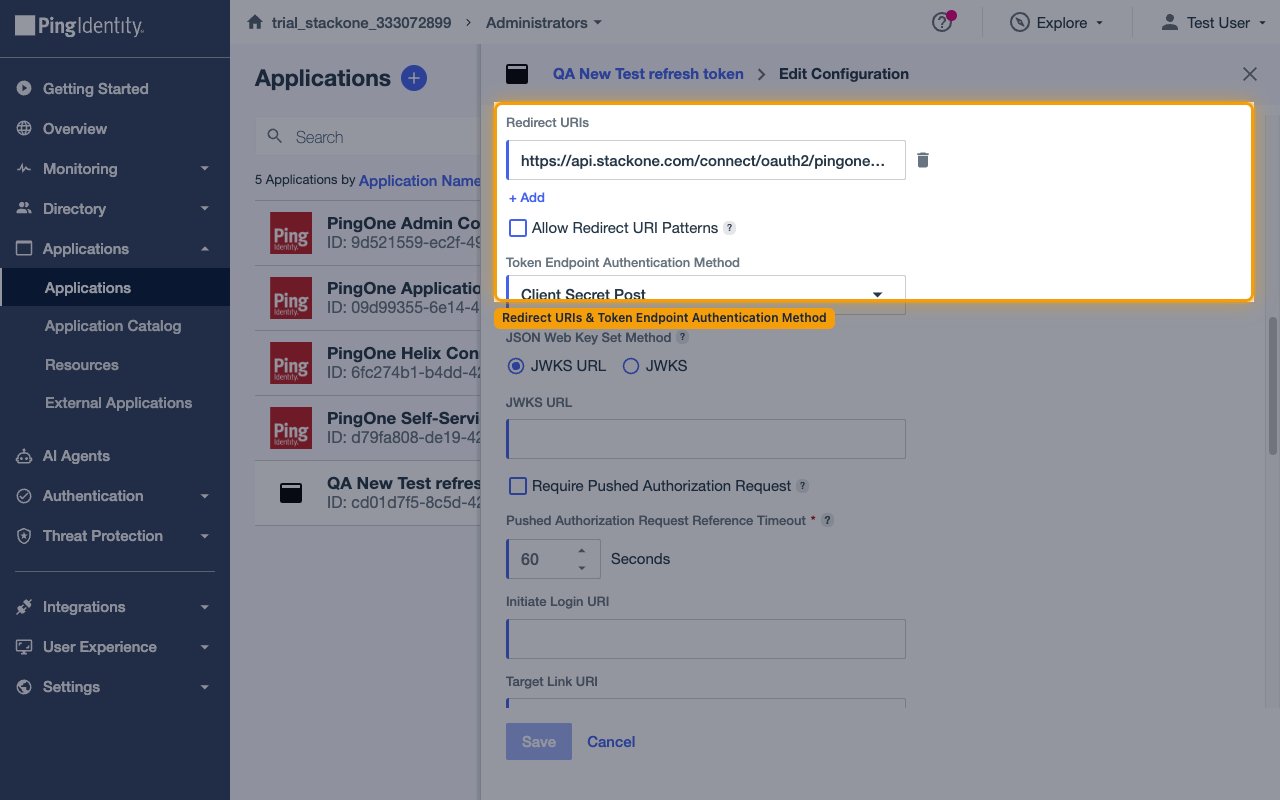
Still in the OIDC Settings edit panel:
- Under Redirect URIs, click + Add and enter the Callback URL StackOne shows you.
- Token Endpoint Authentication Method: Client Secret Post
- Click Save.
Restrict application access and sign in
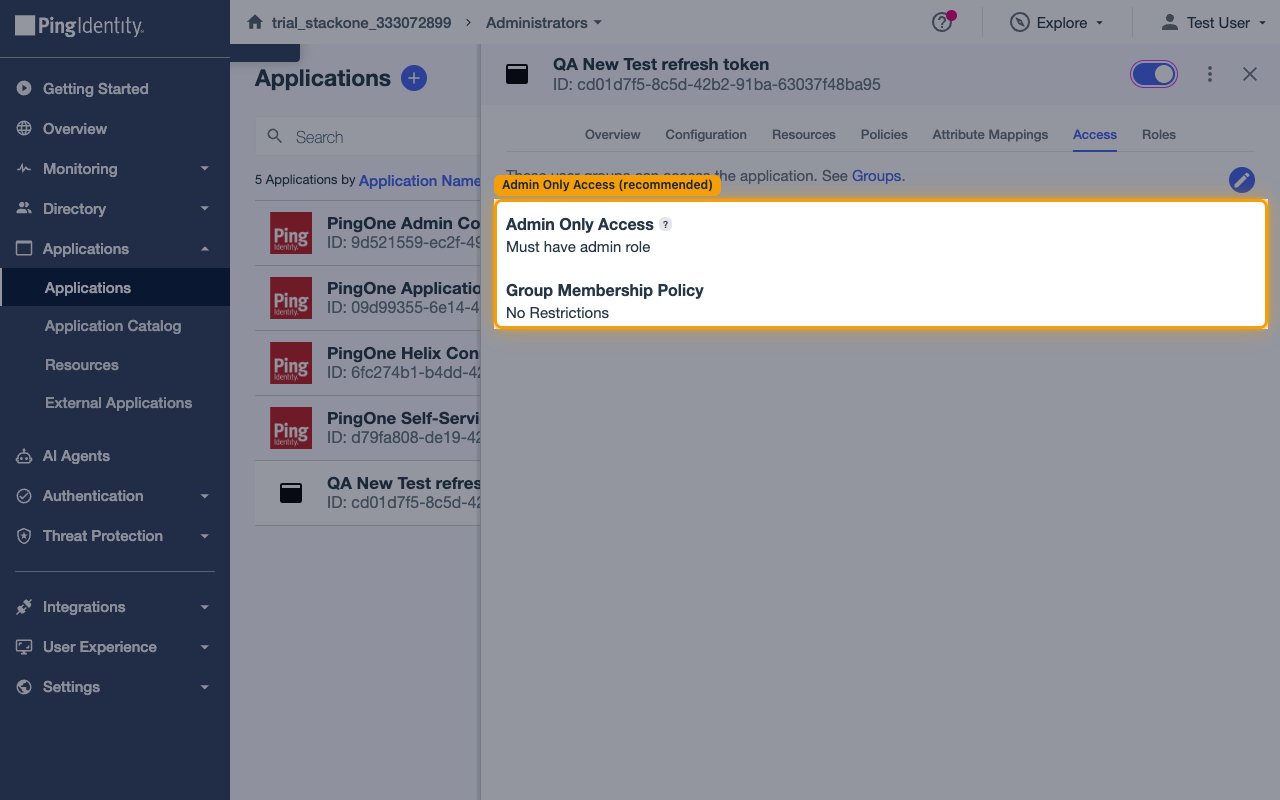
Open the Access tab, click the pencil (edit) icon and enable Admin Only Access. Then sign in with a PingOne user that holds an admin role for the environment.
Assign an Admin Role to the Signing-In User
With the Authorization Code grant, PingOne authorizes Management API calls based on the signing-in user’s roles, not the application’s roles.
Grant an admin role
Identify the PingOne user who will sign in during the StackOne connection flow.
- In the left navigation, go to Directory and click Users.
- Select the account you plan to use.
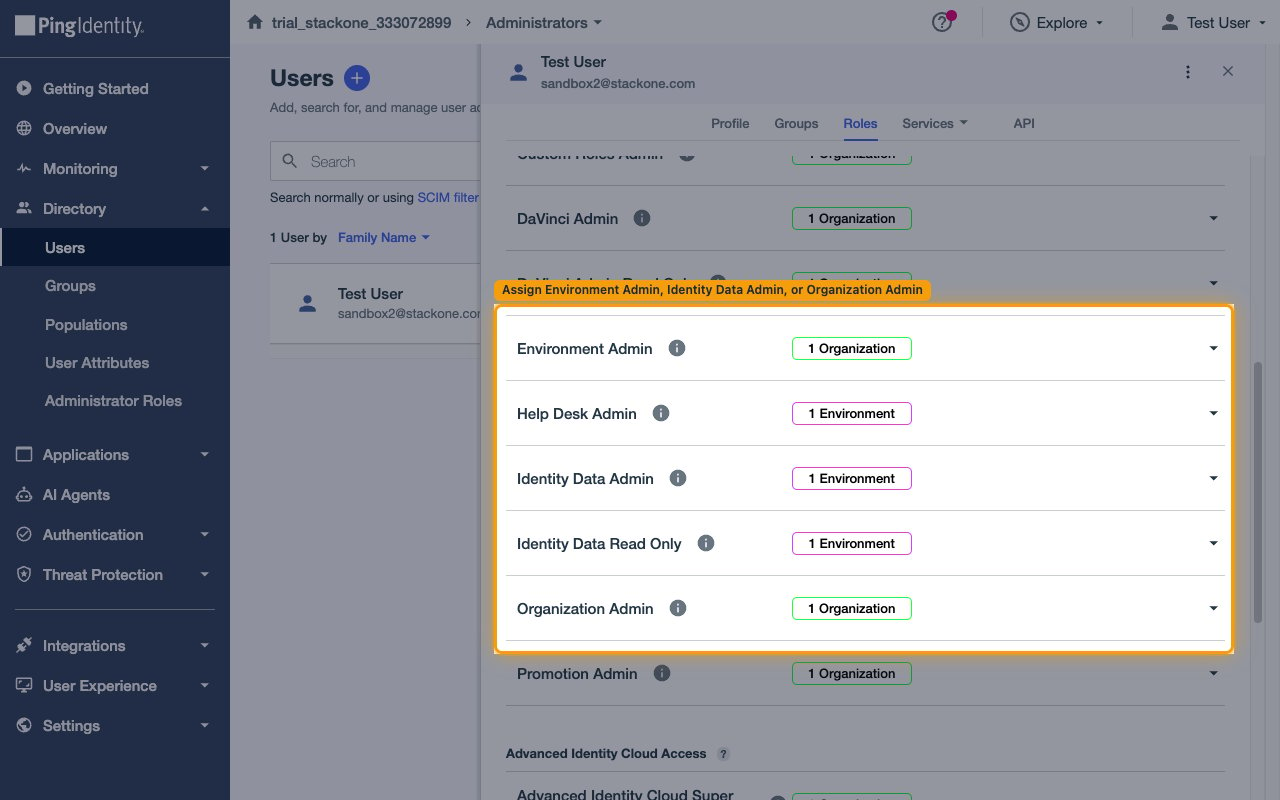
- Open the Roles tab on the user panel.
- Locate the role you want and assign it at the appropriate scope.
- For full Management API coverage — assign Organization Admin at the organization scope, or Environment Admin at the environment scope. Either covers all actions.
- For identity-only access — assign Identity Data Admin at the environment scope. This covers users, groups, populations, applications, and MFA devices, but not sign-on policies, password policies, identity providers, or certificates.
Link the Account
Connect
- Click Connect.
- If applicable, the provider will redirect you to a sign-in or authorization page. Complete the provider’s authorization flow.
- Once authorization is successful, you will see a confirmation popup.
Use Actions
Next Steps
Webhooks setup
Configure receiving Events for PingOne into StackOne.