

Create a Worker application
StackOne connects as a PingOne Worker application, and its access follows the roles you grant it.
Create the application
Sign in to the PingOne admin console for North America, or the console for your region: Europe, Canada, Singapore, or Australia. Then go to Applications > Applications.
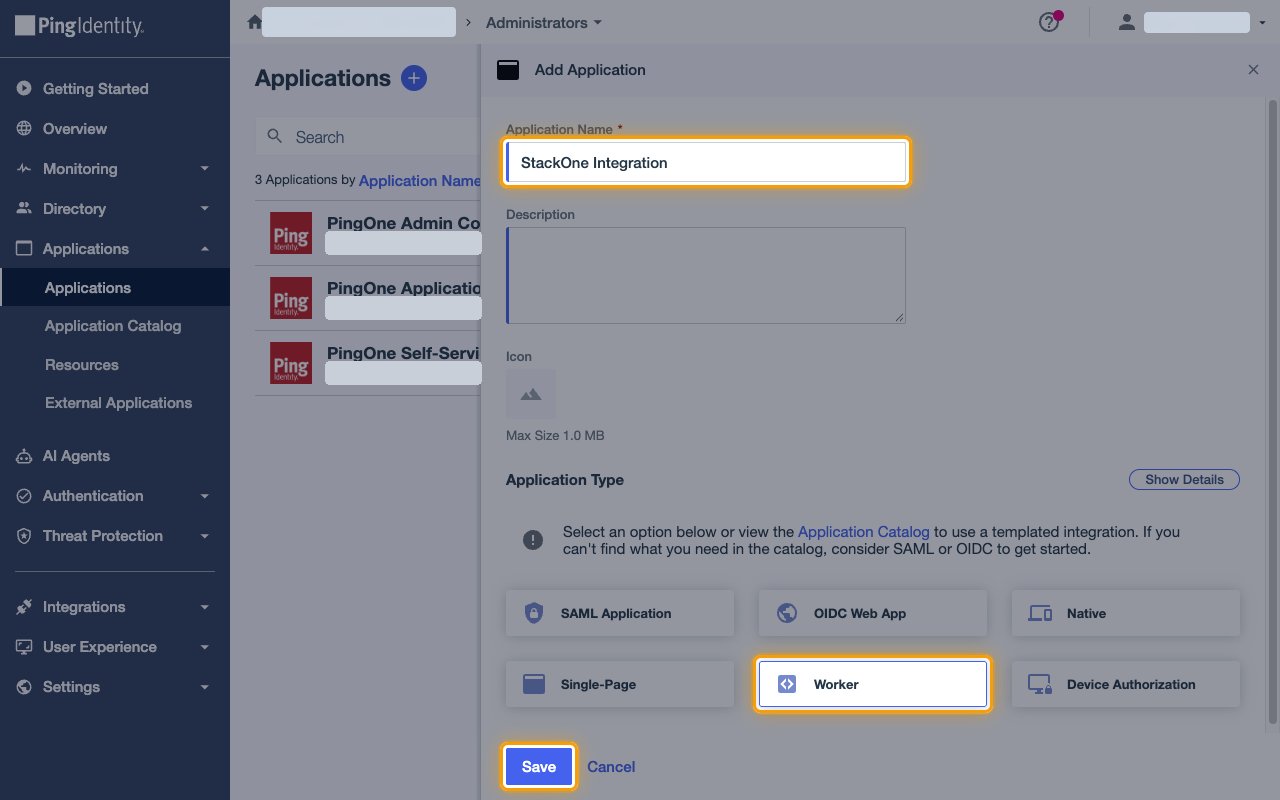
- Click the plus icon next to Applications.
- Application Name:
StackOne Integration - Application Type: Worker
- Click Save.
Grant the Environment Admin role
Worker applications have no roles by default. PingOne opens the new application on its Roles tab.
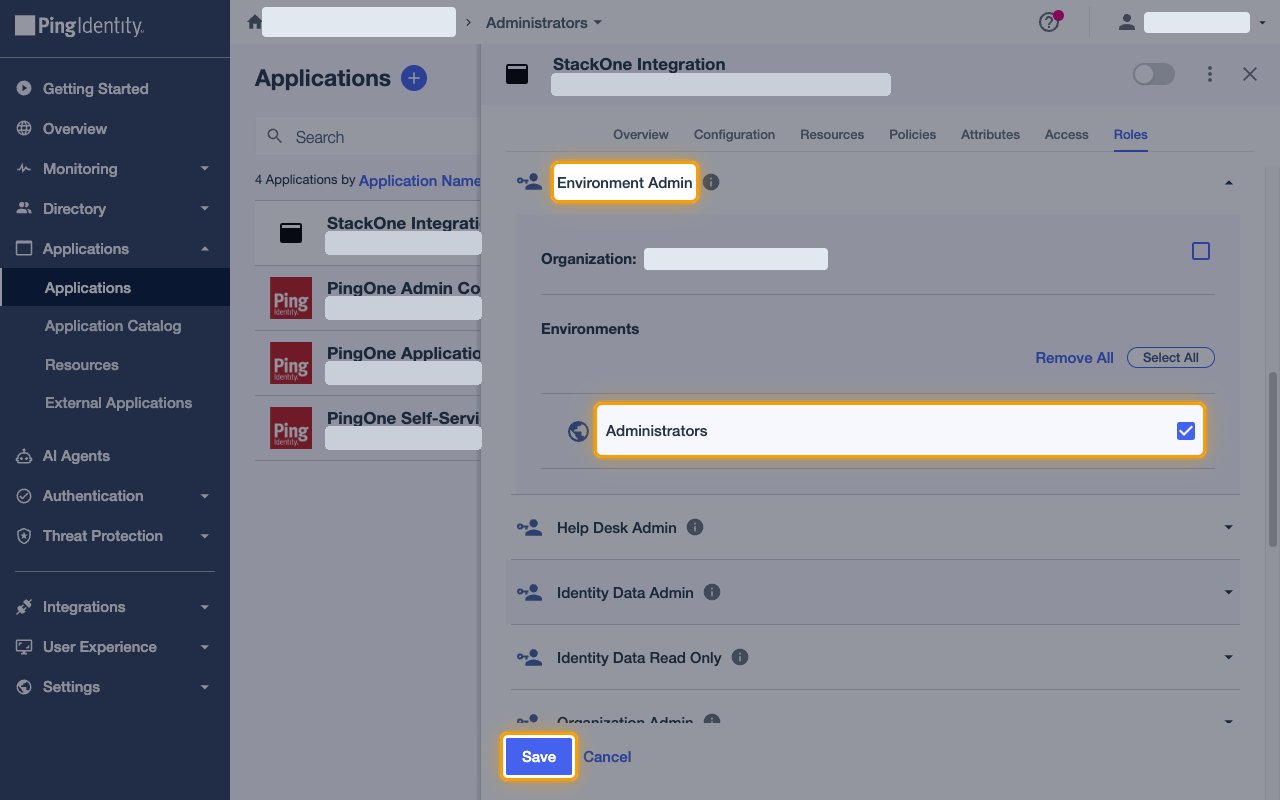
- Click Grant Roles.
- On the Available responsibilities tab, expand Environment Admin.
- Under Environments, select the environment you are connecting.
Grant the Identity Data Admin role
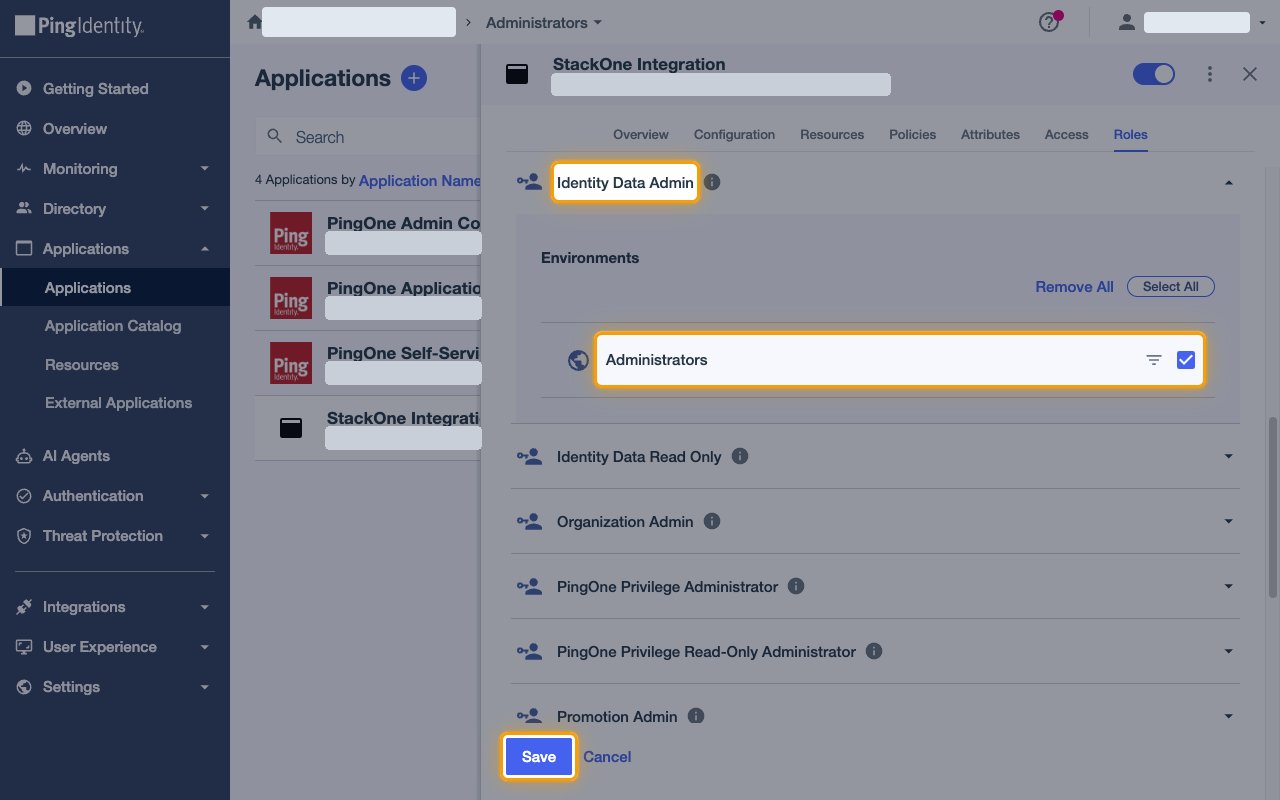
User data needs its own role, so grant Identity Data Admin in the same panel.
- Expand Identity Data Admin.
- Under Environments, select the same environment.
- Click Save.
Enable the application
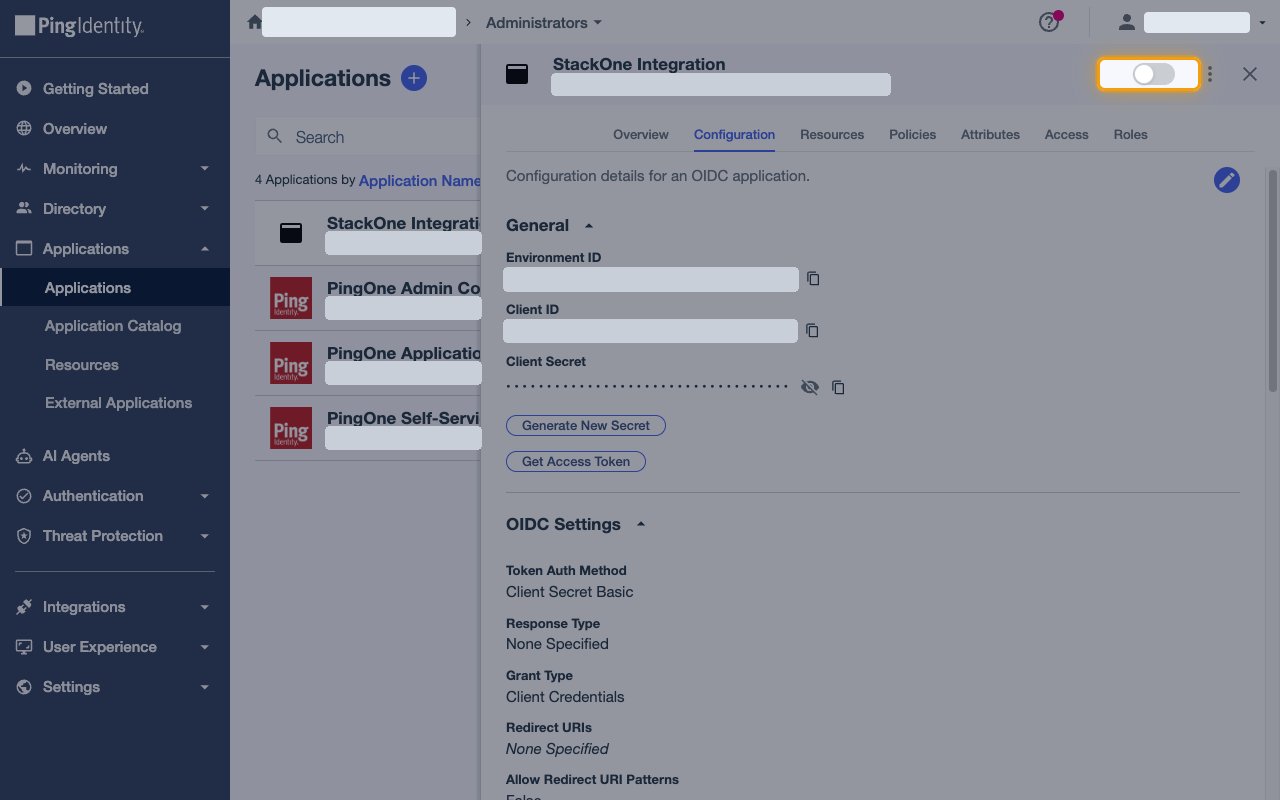
Click the toggle at the top of the application’s details panel so it turns blue.
Copy the credentials
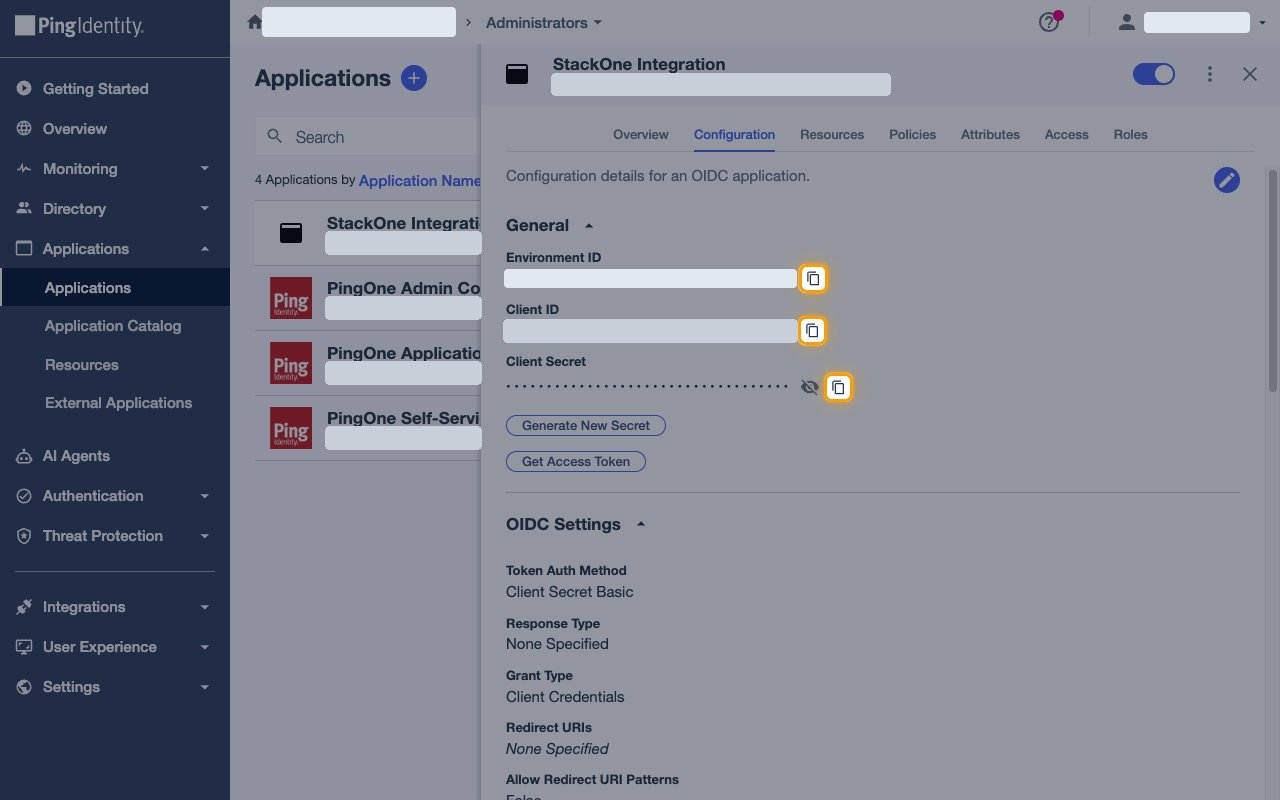
Open the Configuration tab. Keep Grant Type as Client Credentials and Token Auth Method as Client Secret Basic.
- Copy the Environment ID across.
- Copy the Client ID across.
- Copy the Client Secret across.
Find your region
The region is the PingOne geography your environment is hosted in.
Select the region
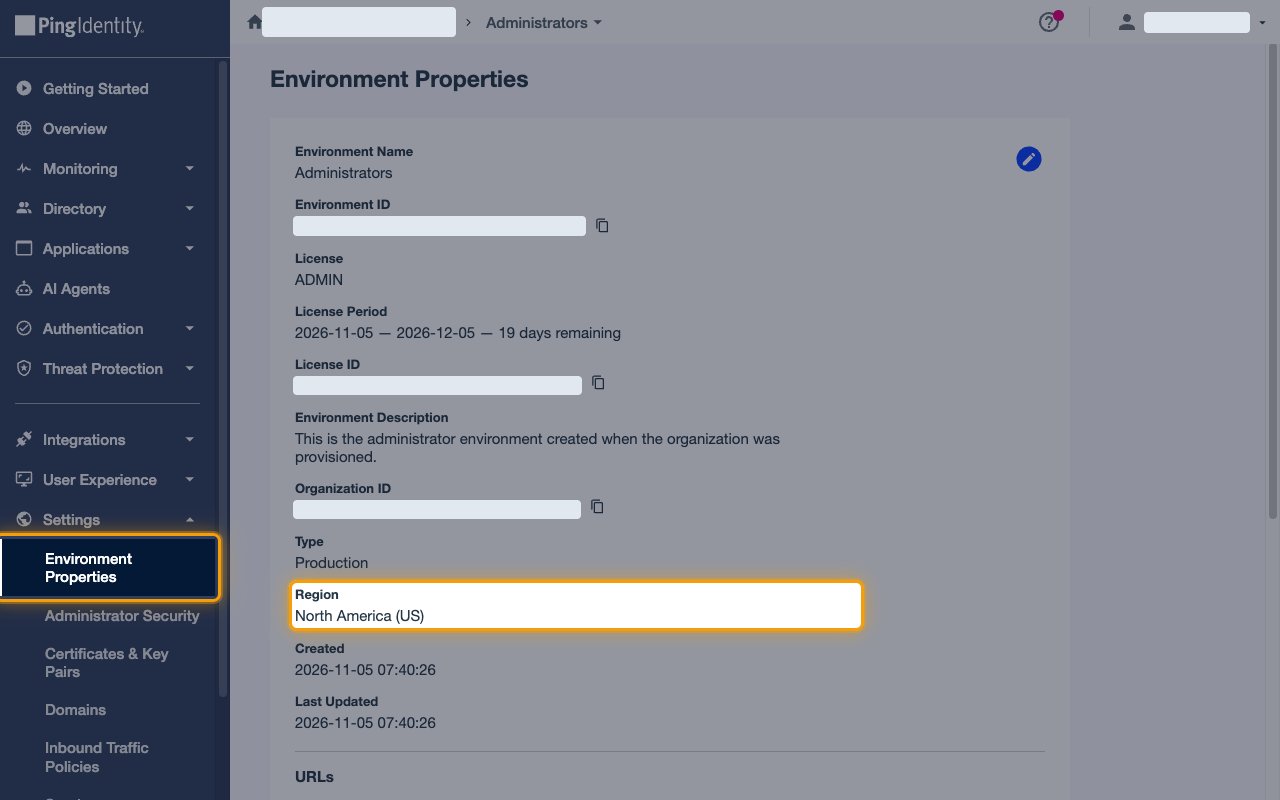
Go to Settings > Environment Properties and read the Region value.
- Select the matching option from the Region list.
- Example: a Region of
North America (US)means you select North America
Link the Account
Connect
- Click Connect.
- If applicable, the provider will redirect you to a sign-in or authorization page. Complete the provider’s authorization flow.
- Once authorization is successful, you will see a confirmation popup.
Use Actions
Next Steps
Webhooks setup
Configure receiving Events for PingOne into StackOne.