

Prerequisites
The connector should already be set up, with a Connector Profile and a Linked Account. See Getting Started on the Pardot connector page.Send Account Engagement prospect activity to StackOne
Account Engagement delivers events through External Actions attached to assets as completion actions. Each one calls a Salesforce Flow, which POSTs to StackOne through a Named Credential. Build the chain once, then attach the completion action to every form, file, custom redirect and email you want covered.
Copy the Native Webhook URL from StackOne
On this connection in StackOne, copy the read-only Native Webhook URL from the Linked Account. It identifies this Account Engagement business unit, so treat it as a secret.
Copy the Webhook Auth Token from StackOne
From the same Linked Account, copy the read-only Webhook Auth Token. The Named Credential URL field rejects query strings, so this token travels in the Authorization header instead of the URL.
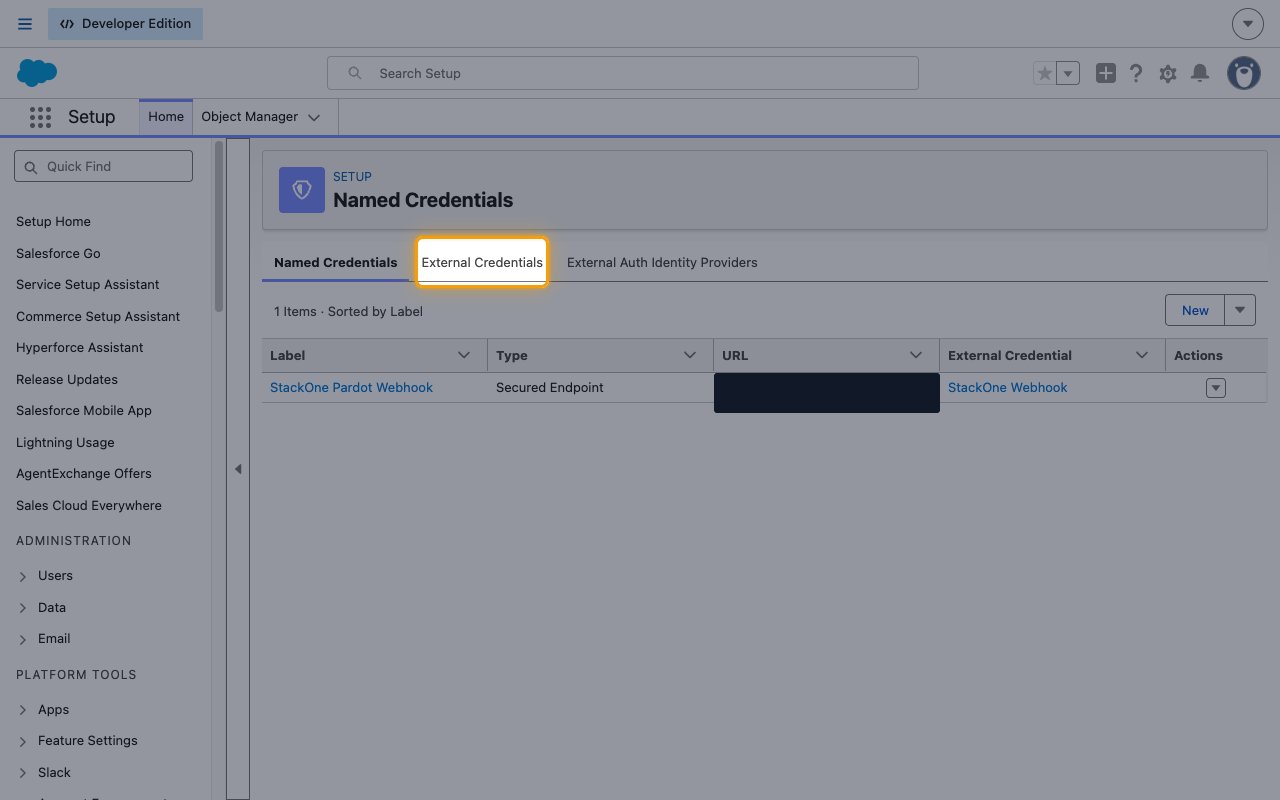
Open the External Credentials tab
In Salesforce Setup, navigate to Security > Named Credentials, then open the External Credentials tab and click New. HTTP Callout cannot set request headers itself, so the header has to come from the credential.
Add the principal and the Authorization header
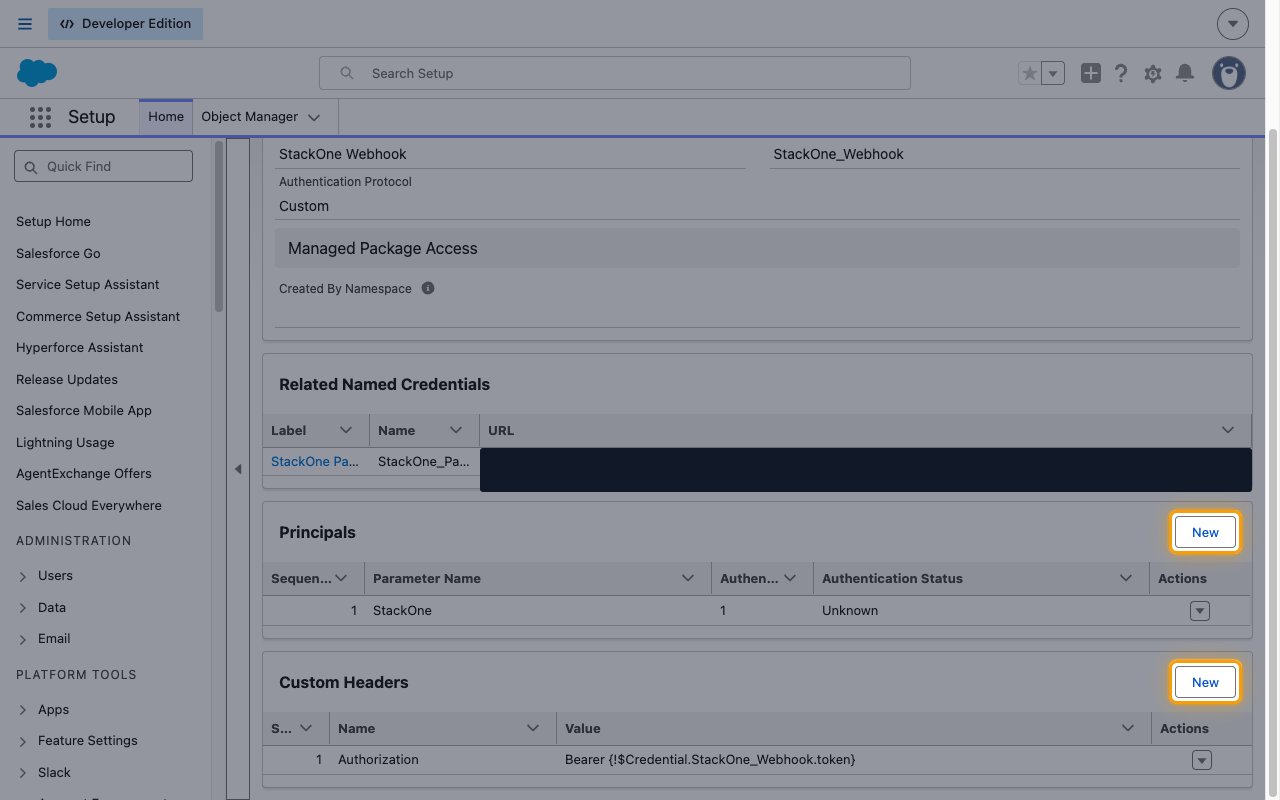
Create the credential, then add a principal to hold the token and a custom header to send it.
- Label:
StackOne Webhook - Authentication Protocol: Custom
- Save, then under Principals click New. Name it
StackOne, set Sequence Number to1. - On that principal add an Authentication Parameter named
tokenwith the Webhook Auth Token as its value. - Back on the External Credential, add a Custom Header with Name
Authorizationand ValueBearer {!$Credential.StackOne_Webhook.token}.
Grant your user access to the External Credential
A principal is unusable until a permission set grants access to it. Without this the callout fails to authenticate.
- In Setup > Permission Sets, open (or create) a permission set and go to External Credential Principal Access.
- Add the
StackOneprincipal, and assign the permission set to yourself and to the B2BMA Integration User.
Create a Named Credential pointing at StackOne
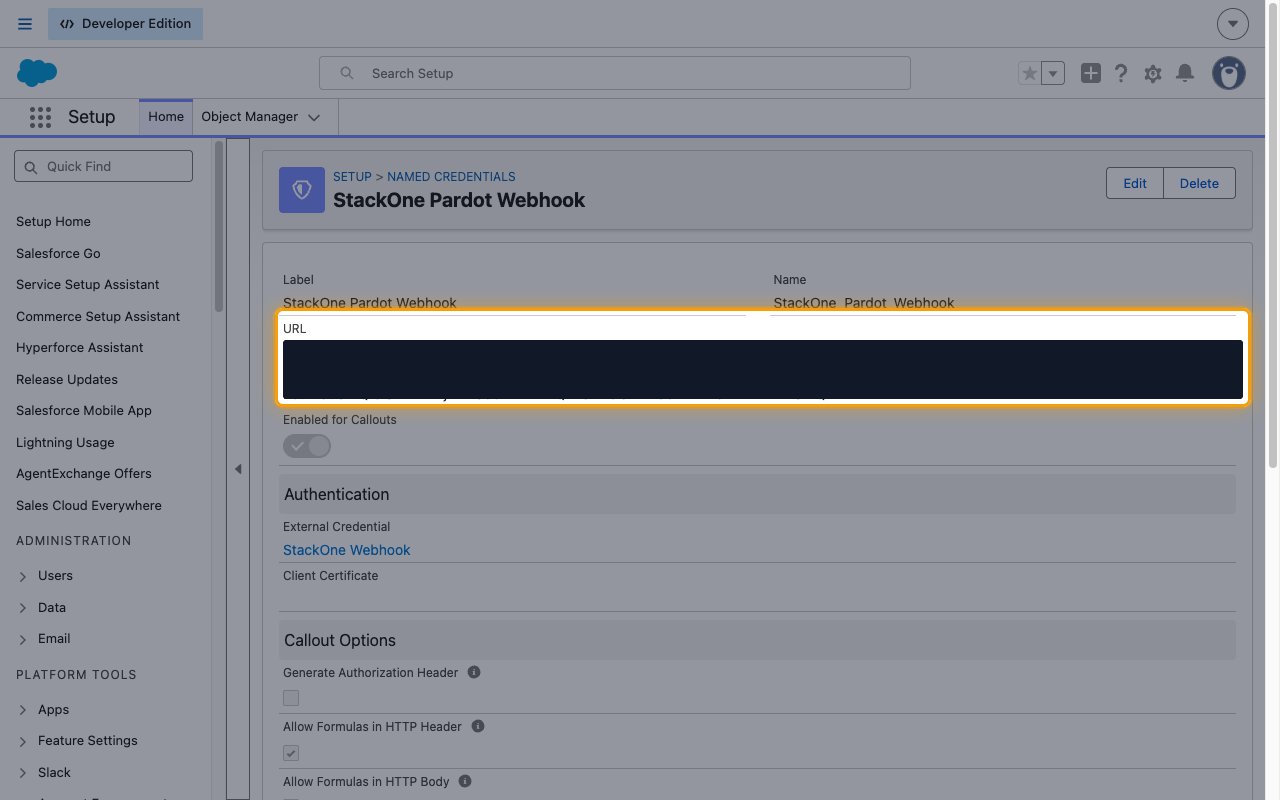
On the Named Credentials tab click New, and paste the Native Webhook URL into URL. Select the External Credential from the previous step.
- The URL field accepts a path but rejects a query string — paste the URL exactly as StackOne shows it.
- Enable Allow Formulas in HTTP Header so the Authorization header formula resolves.
Build an Autolaunched Flow with an HTTP Callout
In Setup > Flows, create an Autolaunched Flow. Add an Action element and click Create HTTP Callout. Select the Named Credential, choose POST, and leave the URL path as /.
Paste this as the Sample JSON Request. Salesforce reads it to generate the request body and one Flow input variable per key, so every field you want to send must appear here:
Paste {"status": "OK"} as the Sample JSON Response.
Fill each payload field from its source
Every key above becomes a Flow input variable, and the four groups are filled in different places. Only event affects routing; a Flow leaves blank Text variables as JSON null, which StackOne accepts, so you can ship fields you do not fill yet.
- Routing —
eventis the only field StackOne matches on to pick a handler. Leave the Flow variable empty; each Action Type supplies the value as a static default, so it cannot be mistyped per asset. - Timestamp —
occurredAt. Set it in the Flow from{!$Flow.CurrentDateTime}. Account Engagement has no timestamp merge field — it exposes only{{Current_Day}},{{Current_Month}}and{{Current_Year}}as separate parts. - Prospect record —
prospectId,email,firstName,lastName,company,title,phone,country,ownerEmail,accountName. Each Action Type fills these from HML merge fields; the mappings are listed in the Action Type step below. - Asset id —
formId,formHandlerId,fileId,redirectId,emailId,assetId. Exactly one applies per event — see the next step. - Do not add an
eventIdfield. Account Engagement exposes no activity or delivery id, so StackOne derives the event’s record id from the asset id instead.
Pick the asset id field that matches each event
The asset id becomes the event’s record id in StackOne — the id of the thing that was acted on, which is what you use to look the record up through the API. Keep all six keys in the Sample JSON Request, then have each Action Type fill only the one matching its event and leave the others empty.
- On a form submission action, fill
formIdwith the id of the Pardot form. - On a form handler action, fill
formHandlerIdwith the id of the form handler that received the post. - On a file download action, fill
fileIdwith the id of the tracked file. - On a custom redirect action, fill
redirectIdwith the id of the tracked link. - On an email link click action, fill
emailIdwith the id of the email. - For any other event, fill
assetIdinstead — that is the generic field the catch-all handler reads. - Leave all six empty on an unsubscribe action. An opt-out changes the prospect rather than the email, so StackOne uses
prospectIdas the record id. - If the matching field arrives empty, StackOne falls back to
prospectIdso the event still carries a usable id.
Grant the B2BMA Integration User access to the Flow
External Actions run as the B2BMA Integration User, which has no access to your Flow by default. Without this step the action fails silently at execution time.
- In Setup > Permission Sets, open the B2BMA Integration permission set and grant access to the Autolaunched Flow.
- If your invocable action uses Apex, also open Setup > Apex Classes > your class > Security and move B2BMA Integration User into Enabled Profiles.
Create the Marketing App Extension
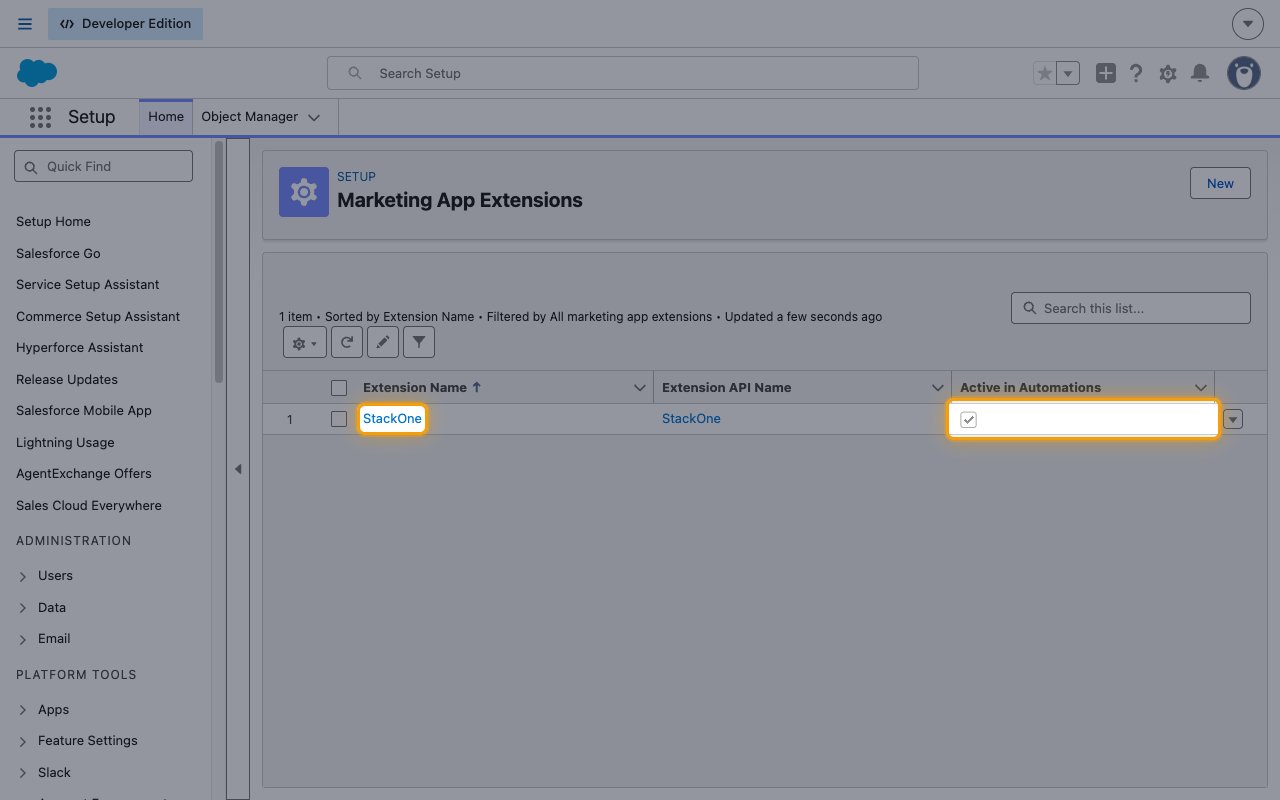
In Salesforce Setup, navigate to Account Engagement > Marketing App Extensions and click New. Select Active in Automations — actions do not fire while it is off.
- This extension is permanent — once created it cannot be deleted, so name it deliberately.
Assign the extension to your business unit
On the extension’s Related tab, add a Business Unit Assignment for each business unit that should use it. The same tab holds the Action Types you add next.
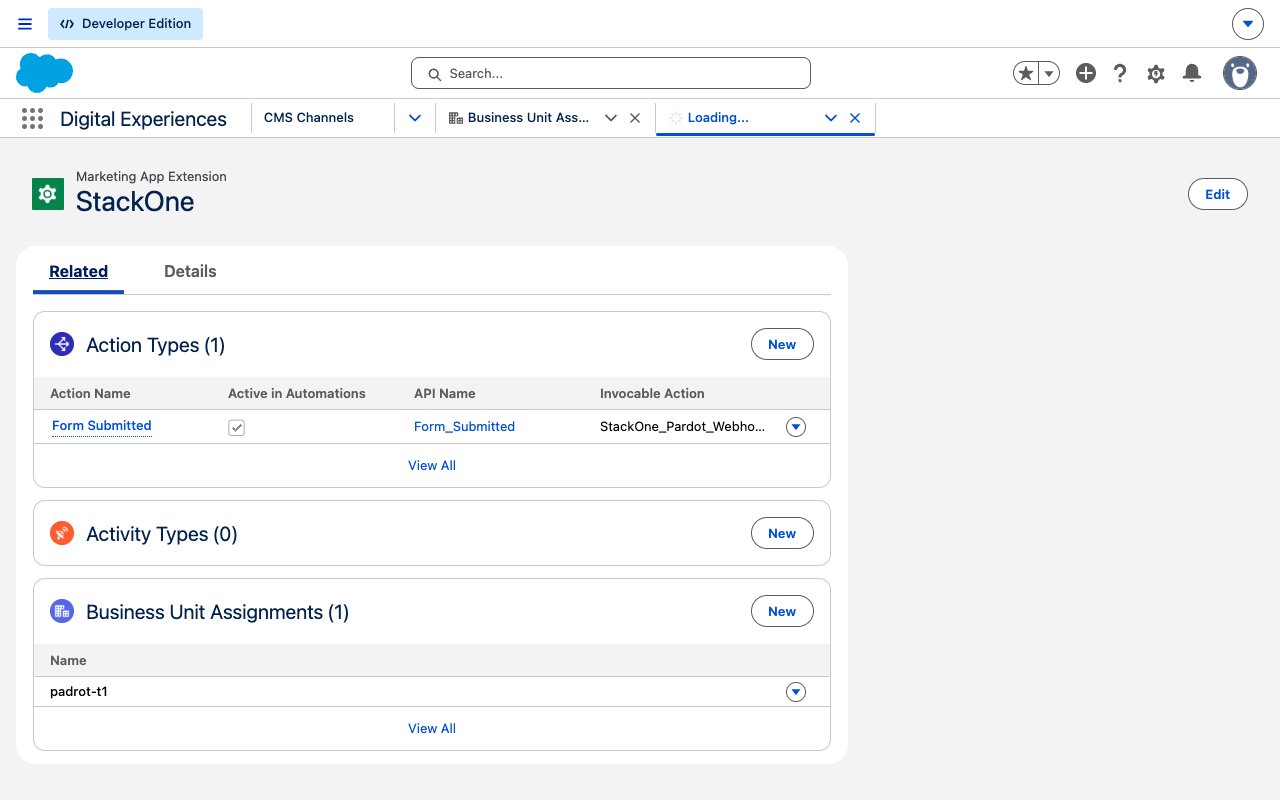
Add one Action Type per event
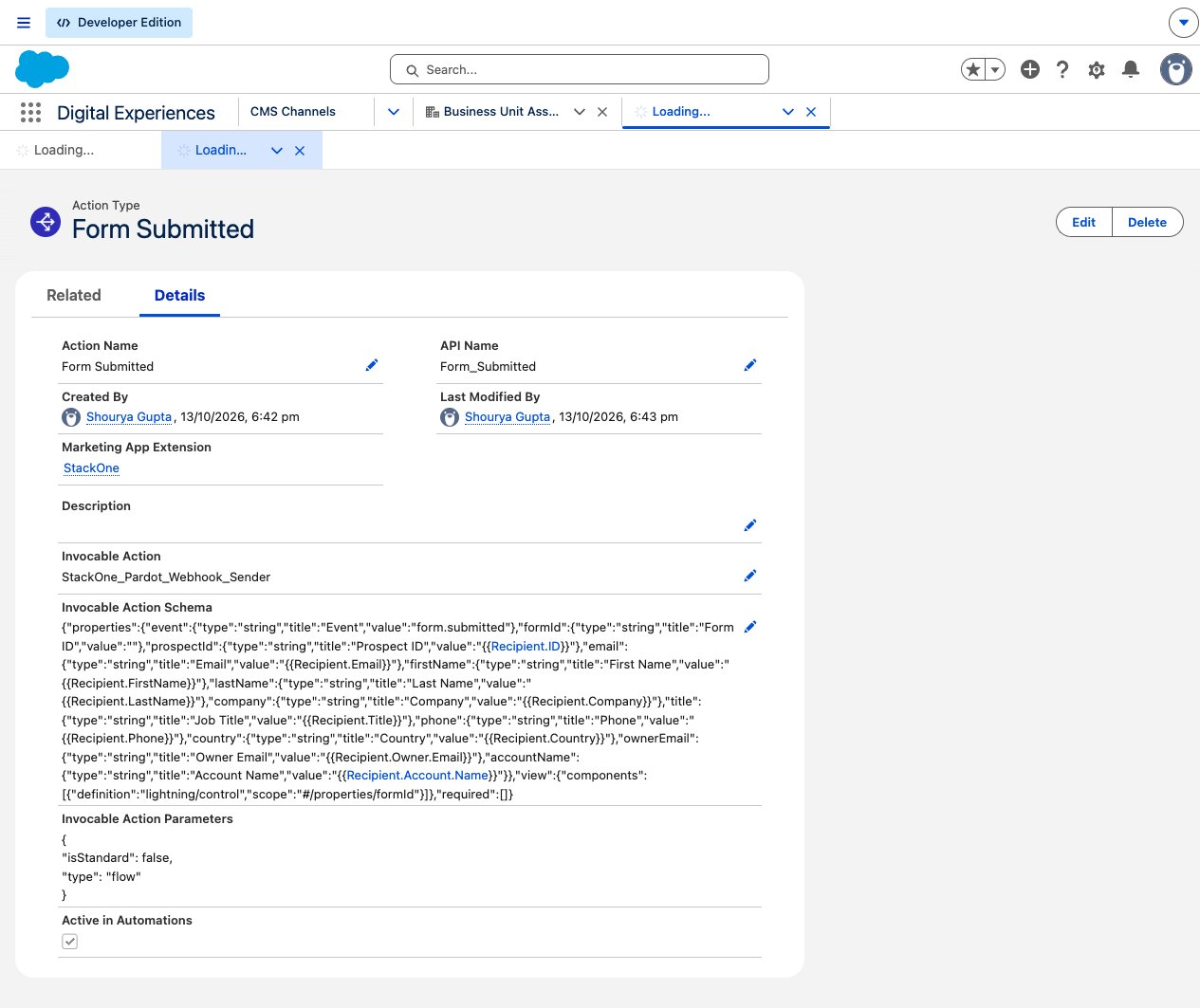
Add a separate action type for each event, all pointing at the same Autolaunched Flow. Putting event in the schema’s Properties section only — never in View — makes it a static default that cannot be mistyped by whoever attaches it to an asset.
- Create one action per value:
form.submitted,form_handler.submitted,file.downloaded,custom_redirect.clicked,email.clicked,email.unsubscribed. - In each action’s Invocable Action Schema, keep all three sections — Properties, View and Required — even when a section is empty.
- Put
eventin Properties with its value set to that action’s event name, and leave it out of View so it stays fixed. - Add the asset id field that matches the event —
formId,formHandlerId,fileId,redirectIdoremailId— and reference it from View so the admin attaching the action can fill it in. That id becomes the event’s record id in StackOne. - Map each remaining field to its HML merge field. Every value below is documented in Handlebars Merge Fields in Account Engagement:
prospectId={{Recipient.ID}}·email={{Recipient.Email}}·firstName={{Recipient.FirstName}}·lastName={{Recipient.LastName}}company={{Recipient.Company}}·title={{Recipient.Title}}·phone={{Recipient.Phone}}·country={{Recipient.Country}}ownerEmail={{Recipient.Owner.Email}}·accountName={{Recipient.Account.Name}}- A further 40
{{Recipient.*}}fields are available (full prospect record, 6 Owner fields, 23 Account fields) — add any your downstream needs. Whatever the Flow sends is passed through verbatim into the event payload. - Select Active in Automations on the action type as well — actions do not fire until it is on for both the action and the extension.
- Target a response under 2 seconds. External Actions do not retry on a slow response.
Test the chain before attaching it
Run the Flow on its own first. A completion action gives no error feedback in Account Engagement, so a broken chain is silent — testing here is the only place a failure is visible.
- In Setup > Flows, open your Autolaunched Flow and click Debug.
- Enter a value for each input variable, including the asset id, and run it.
- A working chain returns HTTP
200with the body{"status": "OK"}from the callout. - A
401means the permission set does not grant the principal, or the Authorization header formula is wrong. - A
500from the callout means StackOne received the request but could not route it — check thateventmatches one of the event codes exactly. - The event appears on the StackOne connection within a second or two of a successful debug run.
Attach the External Action to your assets
In Account Engagement, open each asset, add a completion action, choose Execute External Action, and select the action matching that asset’s event.
- Available on forms, form handlers, files, custom redirects, emails and page actions. Not available on classic emails.
- On emails, choose the trigger — link clicks or unsubscribes.
- Repeat for every asset you want covered. There is no bulk option.
Available webhook events
These are the events this connector handles. Account Engagement only sends an event for an asset you have attached the matching External Action to, so the set you receive is the set you wire up.
Form events
Events fired when a prospect submits a form.
- Form Submitted (
form.submitted) — Fired when a prospect submits a Pardot-hosted form. The record id is the form id - Form Handler Submitted (
form_handler.submitted) — Fired when a prospect submits an external form wired to a Pardot form handler. The record id is the form handler id
Content events
Events fired when a prospect engages with tracked content.
- File Downloaded (
file.downloaded) — Fired when a prospect downloads a tracked Pardot file. The record id is the file id - Custom Redirect Clicked (
custom_redirect.clicked) — Fired when a prospect clicks a tracked custom redirect link, typically placed on an ad, social post or partner site. The record id is the custom redirect id
Email events
Events fired from enhanced emails. Classic emails do not support External Actions.
- Email Link Clicked (
email.clicked) — Fired when a prospect clicks a link in an enhanced email. The record id is the email id - Unsubscribed via Email (
email.unsubscribed) — Fired when a prospect unsubscribes through an enhanced email. The record id is the prospect id, because the opt-out changes the prospect rather than the email
Any other event
A catch-all so a chain built differently still delivers.
- Pardot Webhook (
pardot.event) — Fired for any External Action delivery whoseeventvalue does not match one of the events above, including email opens and page actions. The record id is theassetIdfield if the Flow sends one, otherwise the prospect id - Email opens are deliberately left to this handler rather than given their own event. Mailbox image pre-fetching inflates open counts, and every delivery counts against the 100,000 external actions per business unit per day — so opens can exhaust the cap without telling you much.
Delivery format
Details of how Account Engagement delivers these events to StackOne.
One event per request
Each completion action produces a single POST containing one event. Account Engagement does not batch events, and it does not retry a delivery that times out — so keep the Flow’s response under 2 seconds.
The payload is yours to define
Unlike most providers, the request body is generated from the Sample JSON Request you paste into the HTTP Callout, so the payload is a contract you control. StackOne routes on the event field and passes everything else through verbatim as the event data.
Read the delivered event
StackOne wraps what the Flow sent in a normalized envelope. A form.submitted delivery arrives like this:
- The
record_typefield carries the provider event code your Action Type set, unchanged. - The
record_idfield carries the asset id for that event — here the form id, which you can pass straight to the Pardot API. - The
event_dataobject is the entire body the Flow sent, verbatim, so any extra merge field you add shows up here. - Read
event_dateas the time StackOne received the delivery, not the time the prospect acted. The Flow’soccurredAtis preserved insideevent_data— order on that if you need the provider’s own timestamp.