

Create API User Credentials
To connect Oxylabs with StackOne, you need to create dedicated API user credentials from the Oxylabs dashboard. These are separate from your dashboard login credentials.
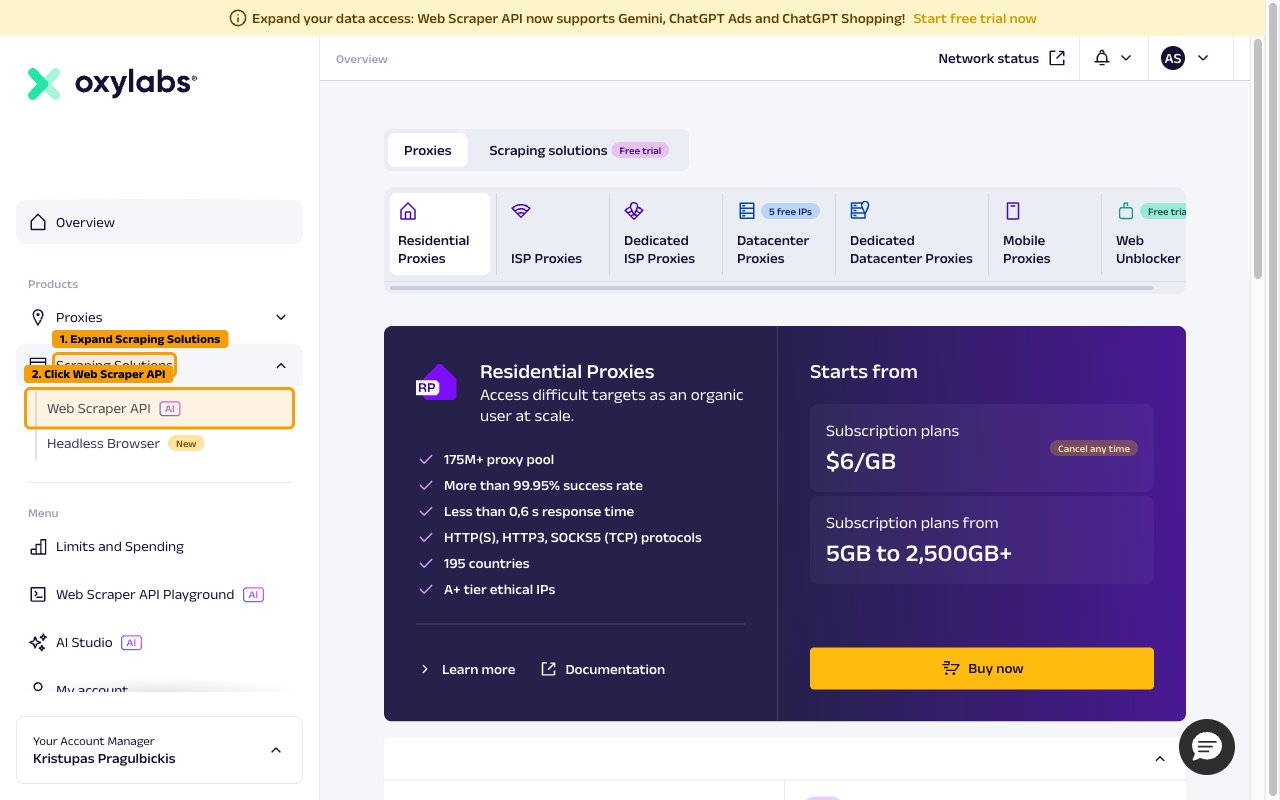
Navigate to Web Scraper API
Open the Web Scraper API product page in your Oxylabs dashboard.
- Log in to your Oxylabs dashboard.
- In the left sidebar under Products, expand Scraping Solutions.
- Click Web Scraper API.
Start the Web Scraper API Free Trial
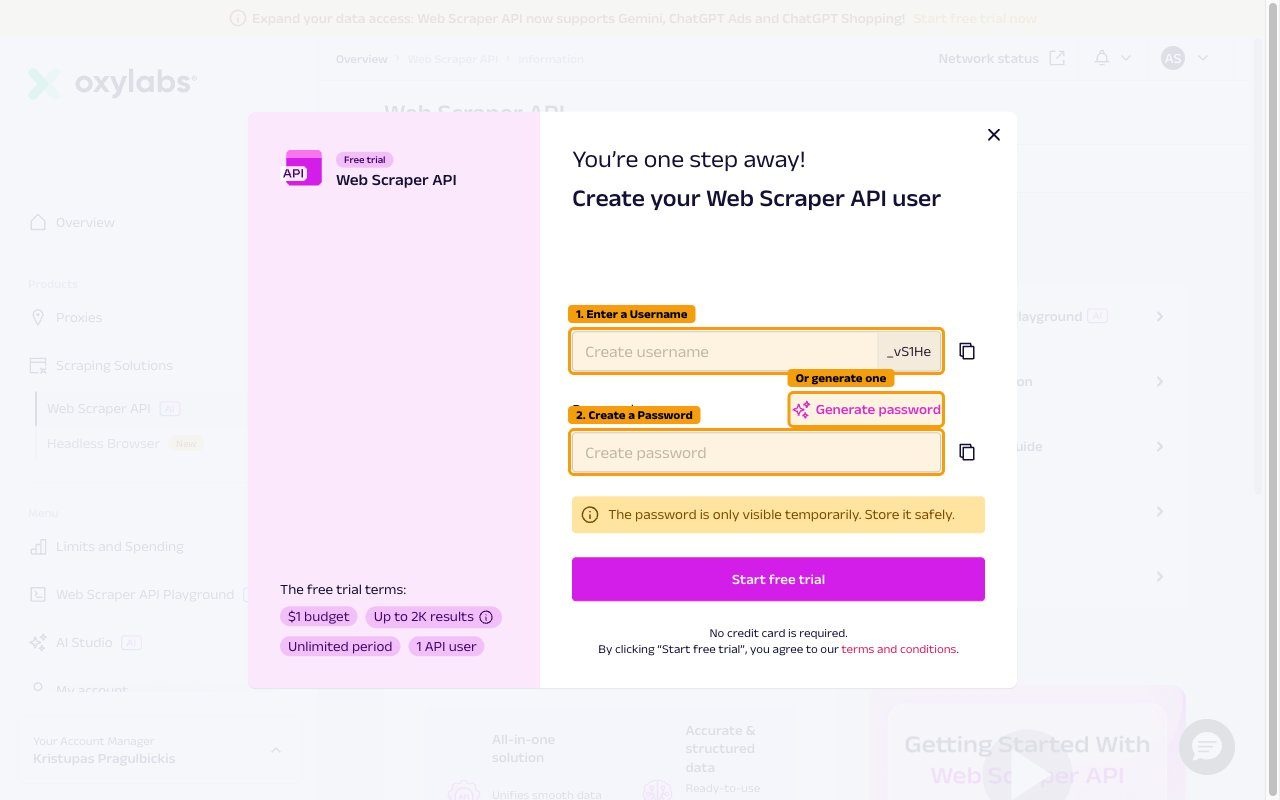
If you do not have an active Web Scraper API subscription, start a free trial to activate the product and create your first API user.
- On the Web Scraper API information page, click Start free trial.
- In the dialog that appears, type a name into the Username field, which shows Create username as its placeholder. A unique suffix is automatically appended to your username.
- Click Generate password to auto-generate a secure password, or type your own into the Password field, which shows Create password as its placeholder.
- Store the password securely — it is only visible temporarily.
- Click Start free trial to activate.
Copy Credentials from the Integration Section
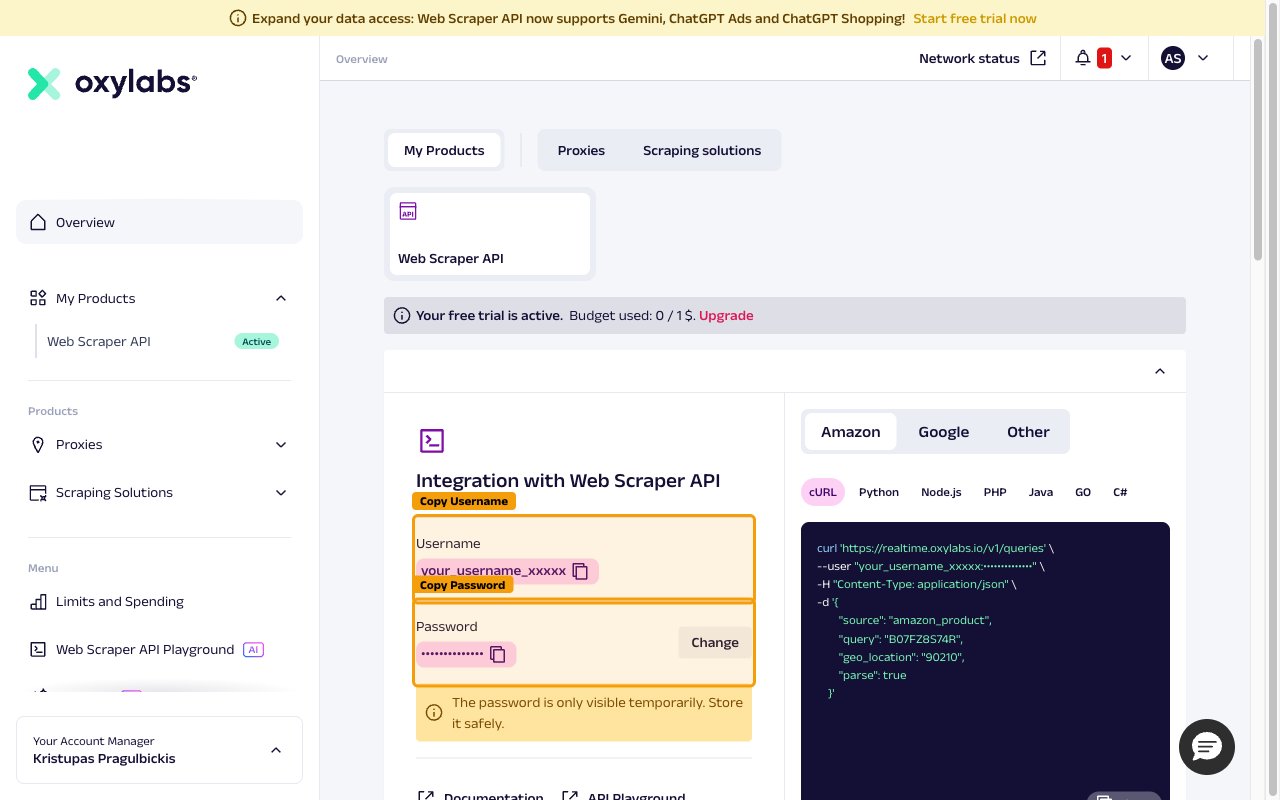
Closing the dialog returns you to the Web Scraper API overview page, where the Integration section displays the username and password of the API user you just created.
- On the Web Scraper API overview, scroll to the Integration with Web Scraper API section.
- Copy the Username (e.g.
your_name_xYz12) using the copy button. - Copy the Password using the copy button. The password is only shown temporarily after creation — store it securely.
Find Your API Users
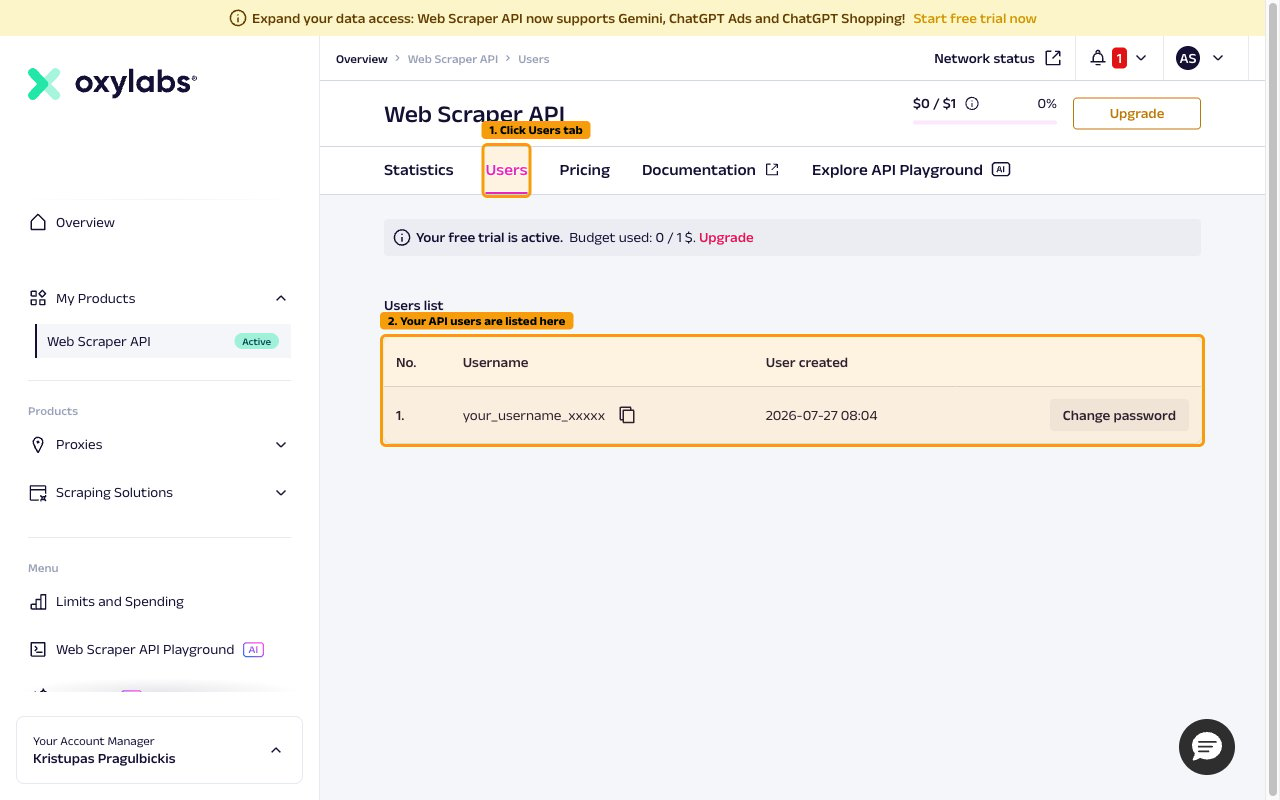
After activation, you can view and manage your API users from the Users tab.
- Navigate to Web Scraper API in the sidebar (it now appears under My Products with an Active badge).
- Click the Users tab to see your API users listed with their usernames.
- Use the copy button next to a username to copy it.
- Click Change password to reset a user’s password if needed.
Linking the Account from the Hub
Navigate to the Hub
Fill out the fields
- Username
- Password
Connect
- Click Connect
- If applicable, the provider will redirect you to a sign-in or authorization page. Complete the provider’s authorization flow.
- Once authorization is successful, you will see a confirmation popup
If the account linking is successful, you will see the newly linked account in your Accounts page.