

Collect your app credentials
OneSignal keeps credentials in two places. The App API Key and App ID live on the app’s Keys & IDs page and cover messaging, users, subscriptions, segments, templates and journeys. Start there.
Sign in to OneSignal
Open the OneSignal dashboard login page and sign in with the account that has access to the app you want to connect.
Select your app
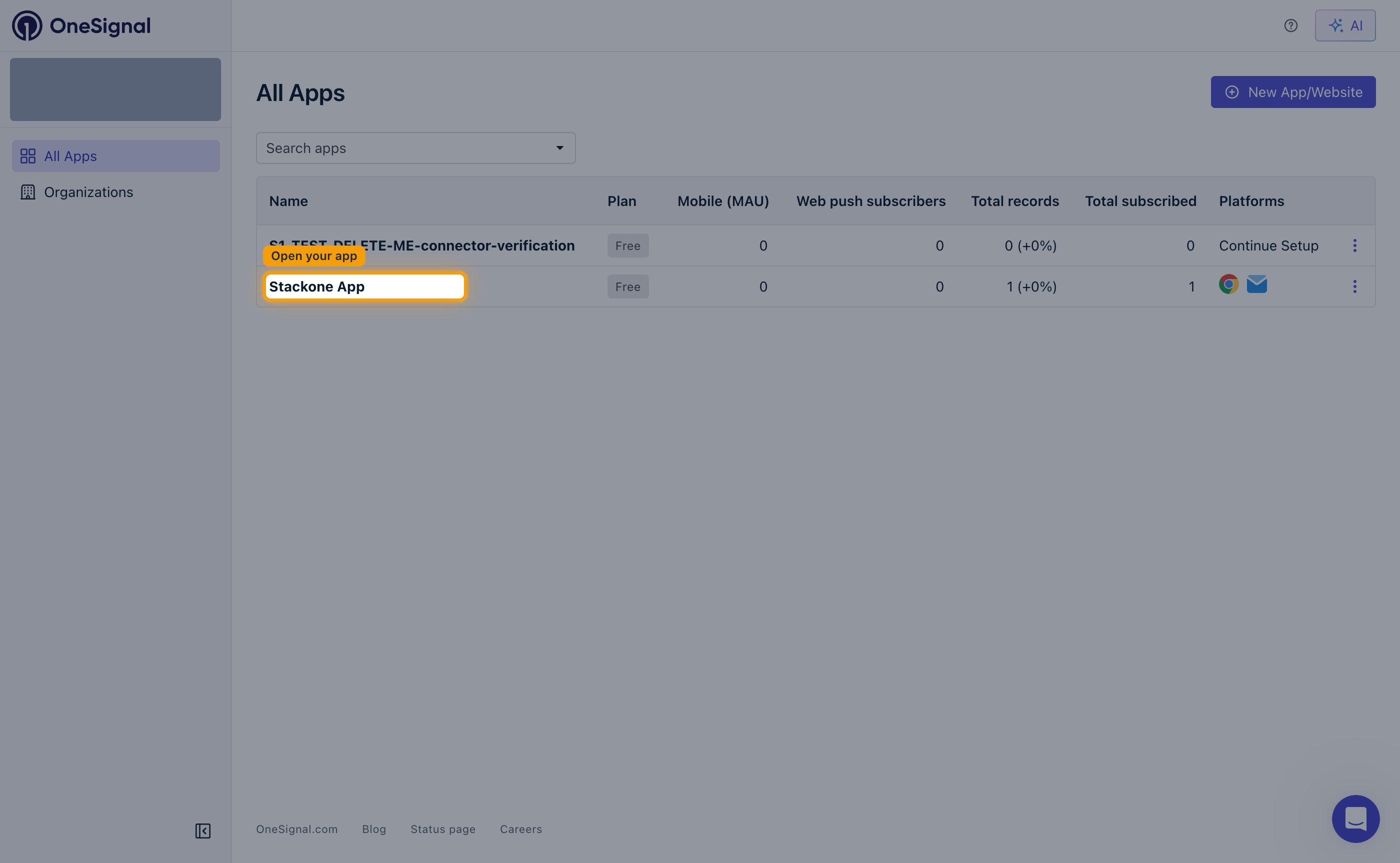
On the All Apps page, click the name of the app you want to connect in the Name column.
- Every credential on this page is scoped to the app you pick, so choose the app whose messages, users and segments StackOne should manage.
- If the All Apps page is empty, click New App/Website in the top right, name the app, choose its platform and finish the setup wizard, then open the new app from the All Apps page.
Open the Keys & IDs page
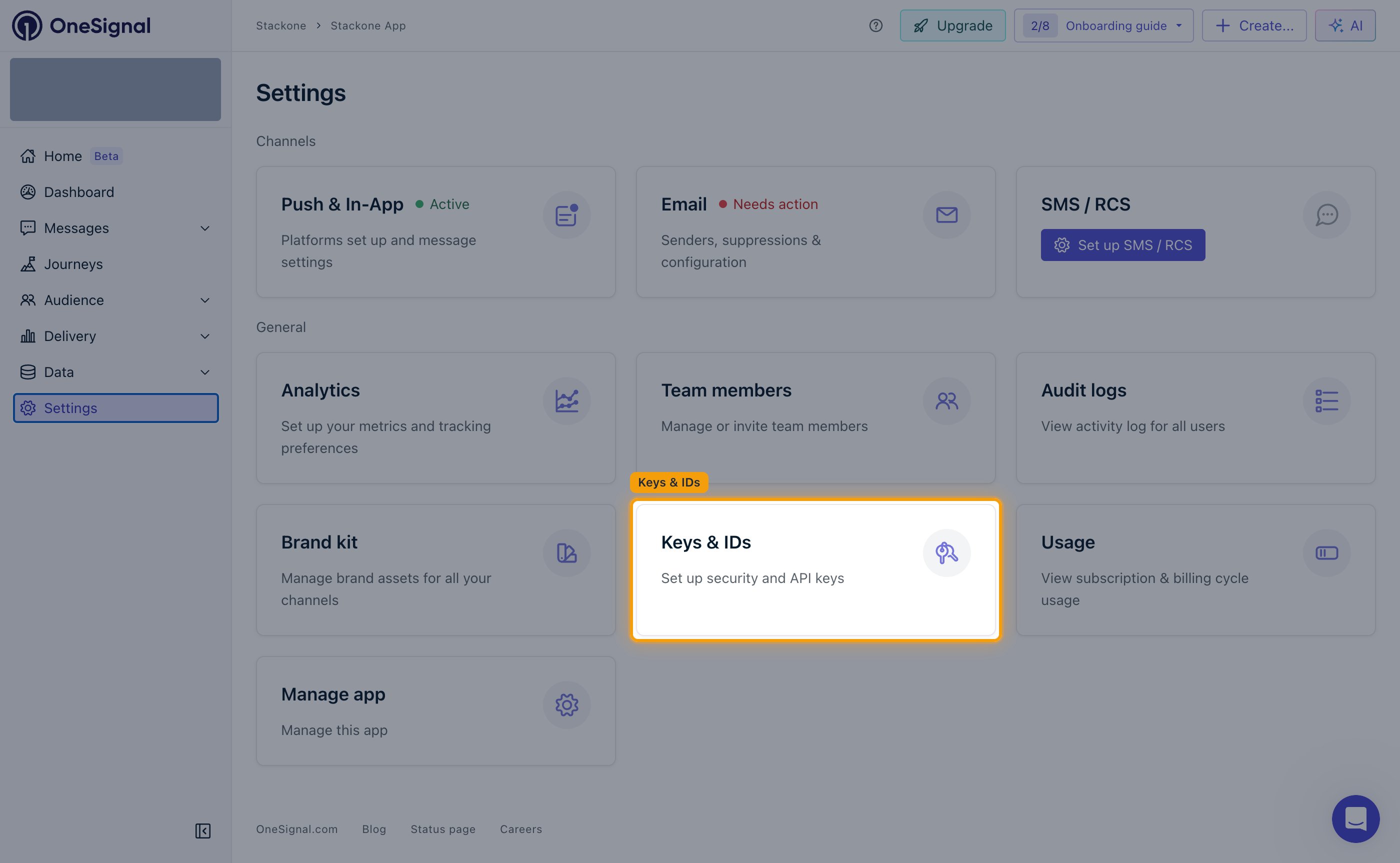
In the app’s left navigation, click Settings, then click the Keys & IDs card (Set up security and API keys) under General.
Copy the App ID
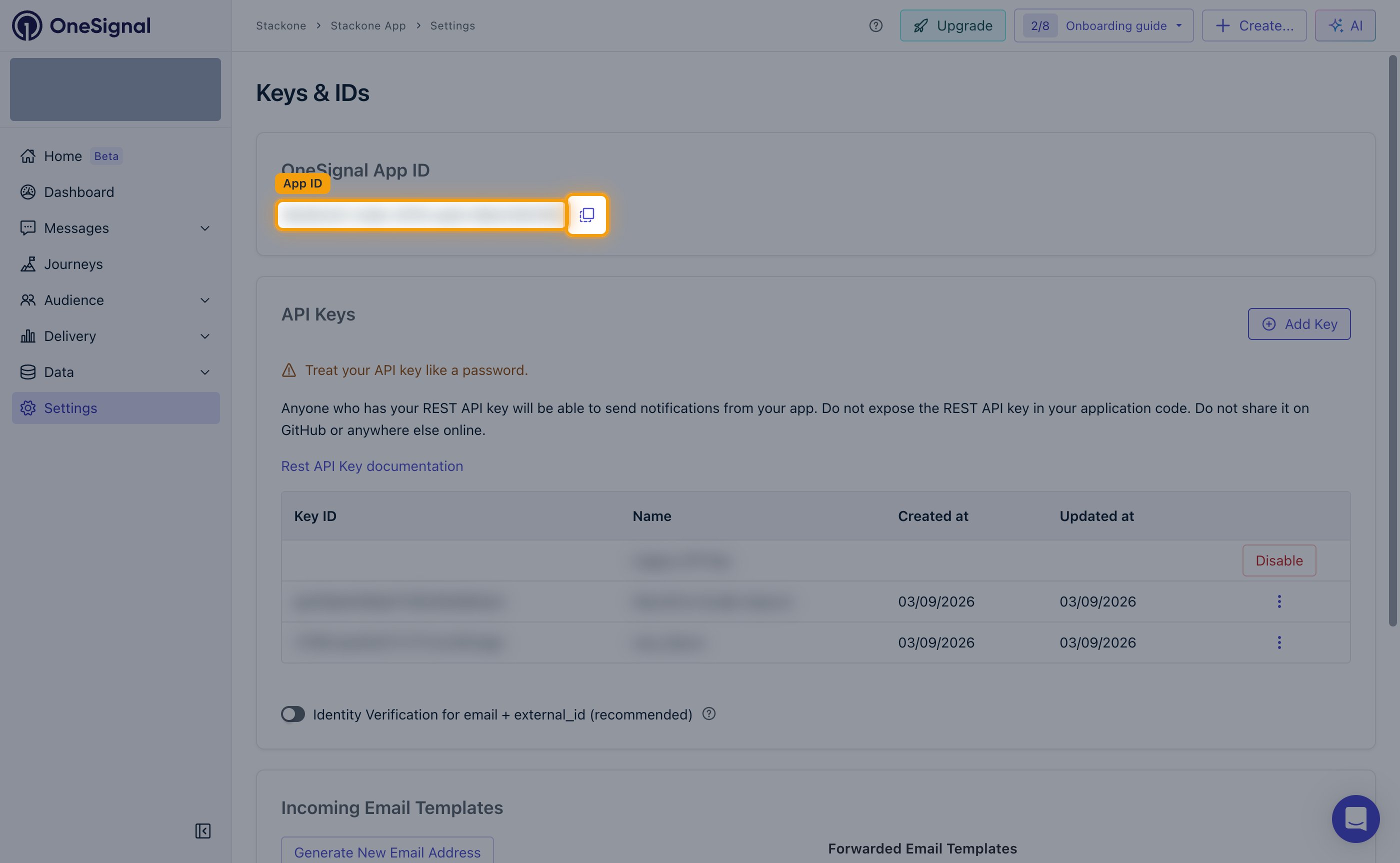
In the OneSignal App ID panel, click the copy icon next to the value to copy it. This is the value for the App ID field in StackOne Hub.
- Format: a UUID
- Example:
202d4f61-1ca9-42df-9d36-bb17d8123abc
Create an App API Key
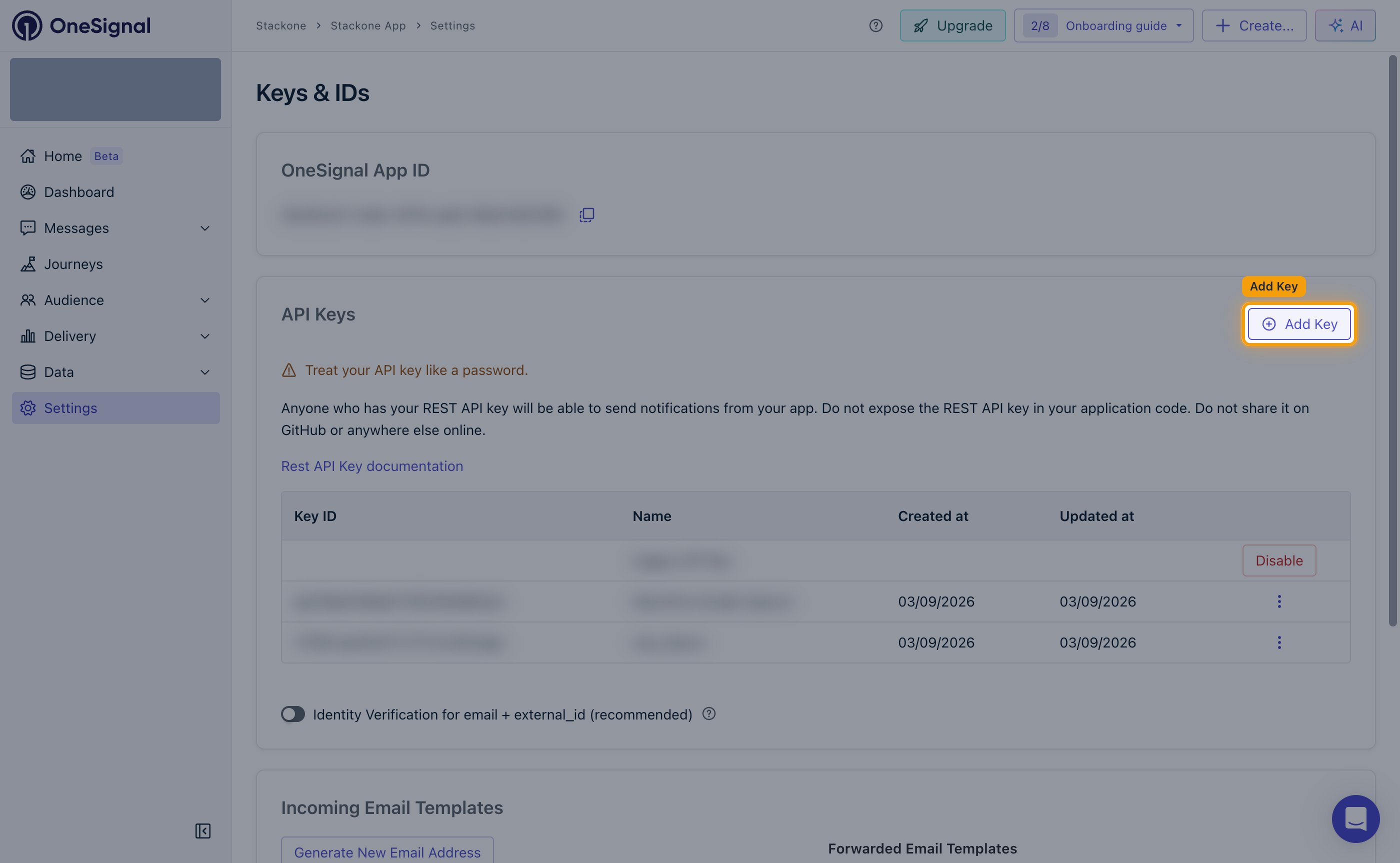
The API Keys table on the same page lists the app’s keys. Create a dedicated key for StackOne so you can rotate or disable it independently.
Add a new key
In the API Keys section, click Add Key.
Create the key
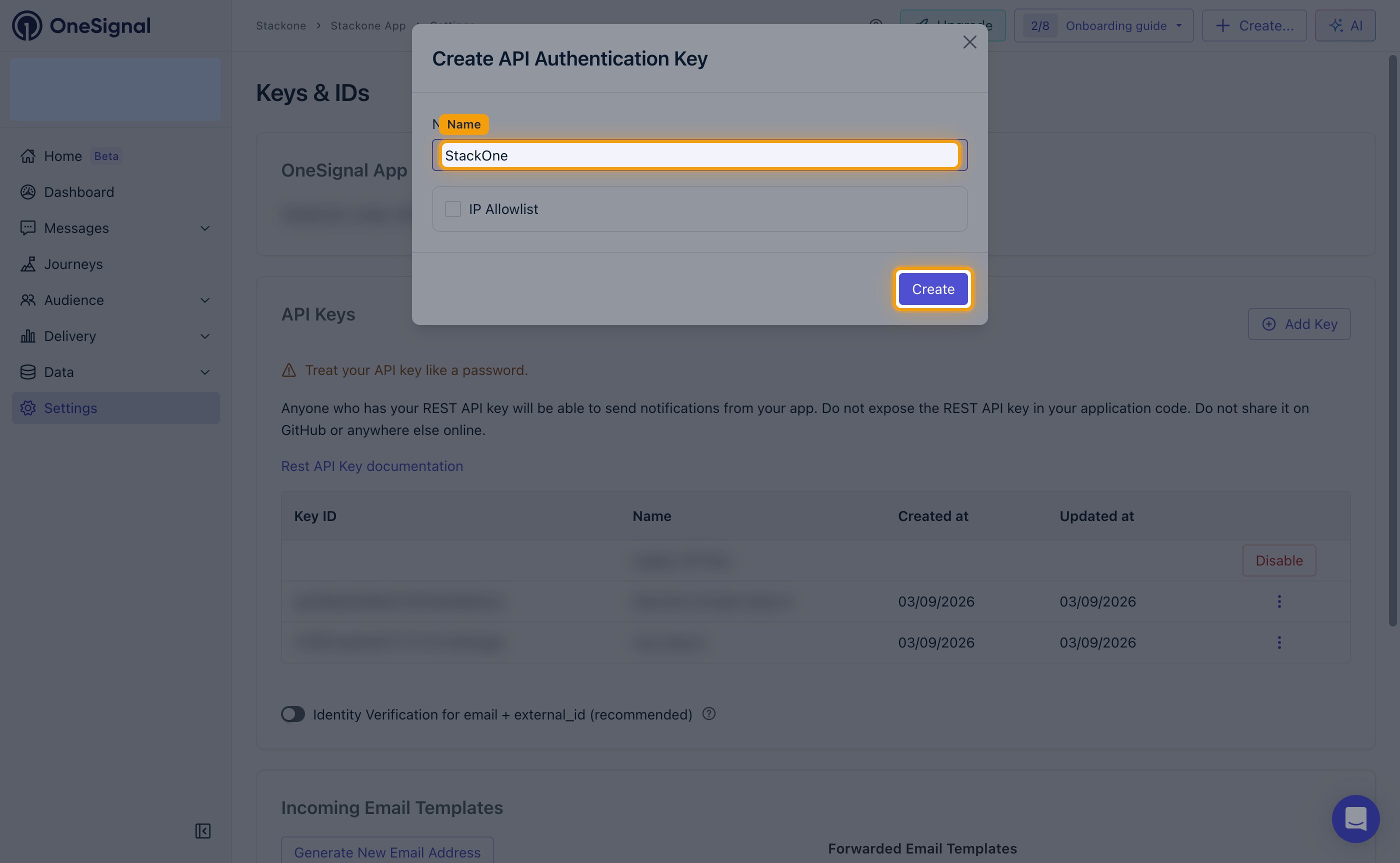
In the Create API Authentication Key dialog, type a name you will recognise, such as StackOne, into the Name field, then click Create.
- Tick IP Allowlist only if you want to restrict the key to specific IP addresses, and add the addresses StackOne calls from.
Copy the key before closing
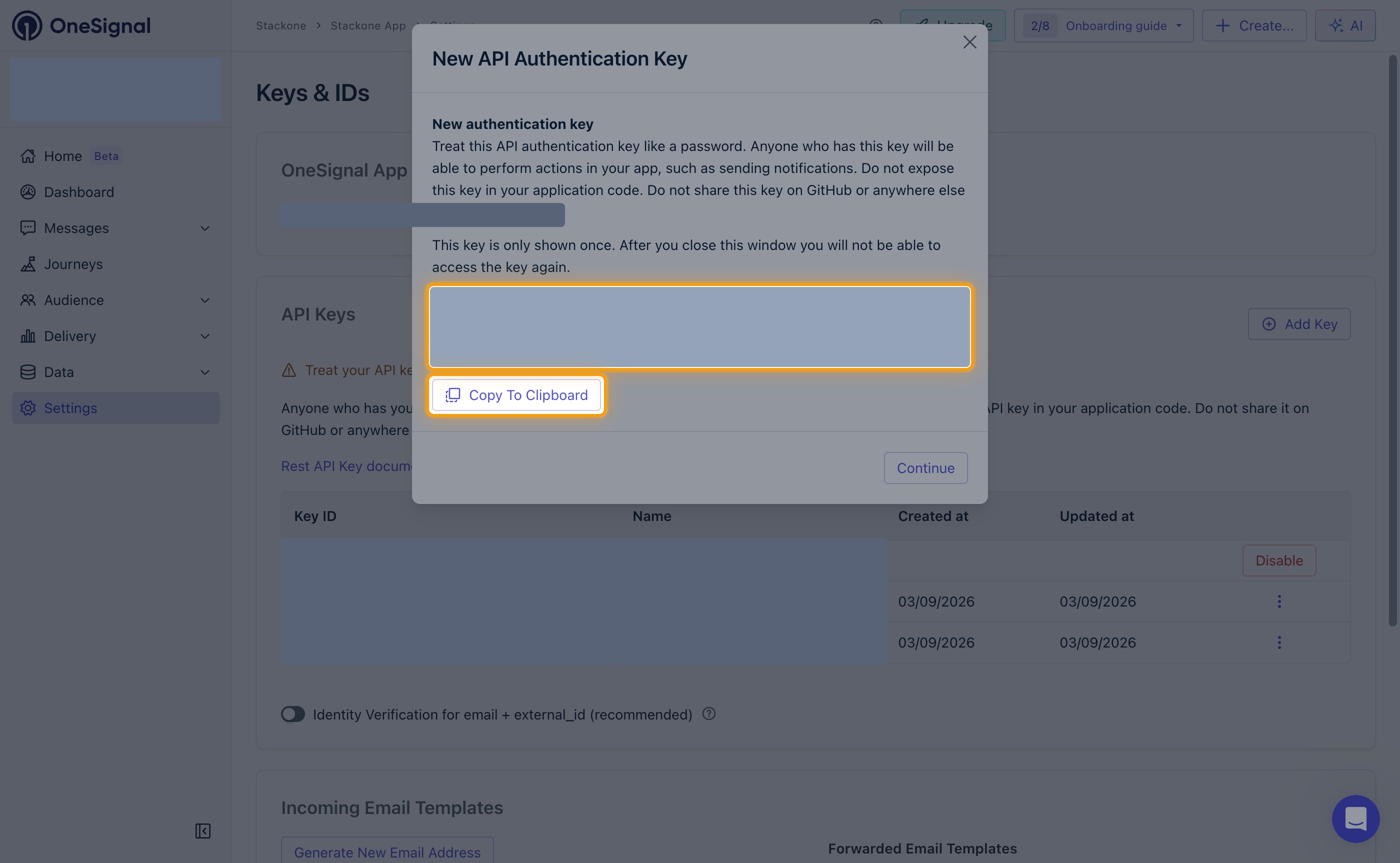
The New API Authentication Key window shows the key value once. Click Copy To Clipboard, paste the value somewhere safe, then click Continue. This is the value for the App API Key field in StackOne Hub.
- This key is only shown once. After you close this window you will not be able to access the key again.
- To replace a key you no longer have, create a new one with Add Key and use its value.
- Format: starts with
os_v2_app_
Add organization credentials
These two values are optional. Add them only if you need the actions that manage apps, app API keys or audit logs — everything else works with the app credentials alone.
Leave the app and go to the organization level
The Organizations link sits in the left navigation of the organization-level pages, so step out of the app first. Click All Apps in the left navigation (or the OneSignal logo in the top left) to return to the All Apps page, where Organizations appears below it.
Open the organization Keys & IDs page
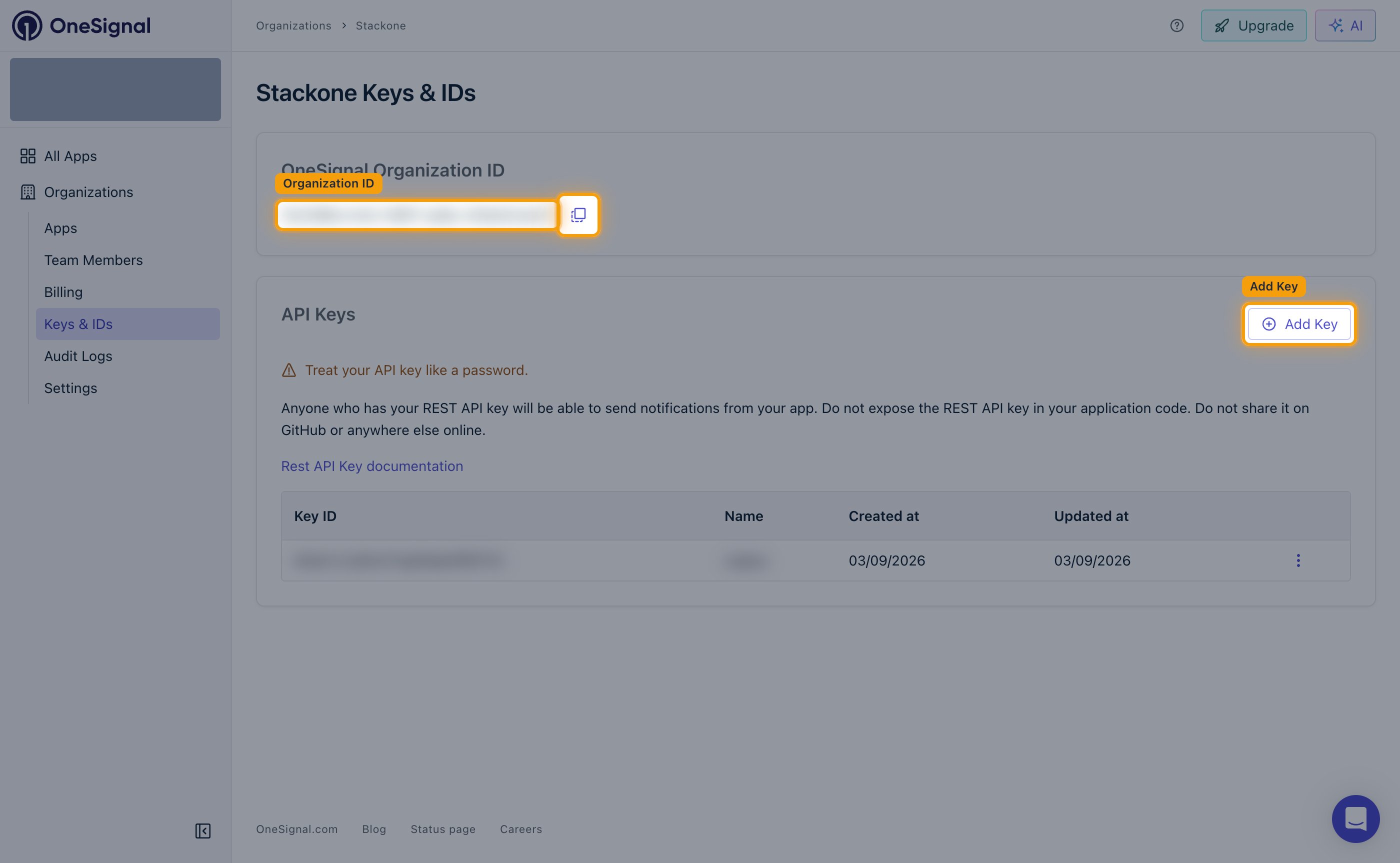
In the left navigation, click Organizations, select your organization, and click Keys & IDs. Copy the value in the OneSignal Organization ID panel for the Organization ID field, then click Add Key in the API Keys section to create an organization-level key for the Organization API Key field.
- The organization-level key is created and revealed exactly like the app key — name it, click Create, then click Copy To Clipboard before closing the window.
- Format of the Organization ID: a UUID
- Format of the Organization API Key: starts with
os_v2_org_ - Listing audit logs also requires an organization plan that includes audit logs — OneSignal rejects the request otherwise, even with a valid Organization API Key.
Enter the credentials in StackOne
Fill the connection fields in StackOne Hub with the values you just collected.
Fill the connection fields
Paste each value into its matching field in StackOne Hub.
- App API Key — the key value you copied from the New API Authentication Key window, starting with
os_v2_app_. - App ID — the UUID from the OneSignal App ID panel on the app’s Keys & IDs page.
- Organization API Key — optional. The key value you copied after clicking Add Key on the organization Keys & IDs page, starting with
os_v2_org_. Needed only for managing apps, app API keys and audit logs. - Organization ID — optional. The UUID from the OneSignal Organization ID panel. Needed only for listing audit logs.
Linking the Account from the Hub
Navigate to the Hub
Fill out the fields
- App API Key
- App ID
- Organization API Key (Optional)
- Organization ID (Optional)
Connect
- Click Connect
- If applicable, the provider will redirect you to a sign-in or authorization page. Complete the provider’s authorization flow.
- Once authorization is successful, you will see a confirmation popup
If the account linking is successful, you will see the newly linked account in your Accounts page.
Next Steps
Webhooks setup
Configure receiving Events for OneSignal into StackOne.