

Get your Okta credentials
Register an OAuth app in the Okta Admin Console and copy its credentials.
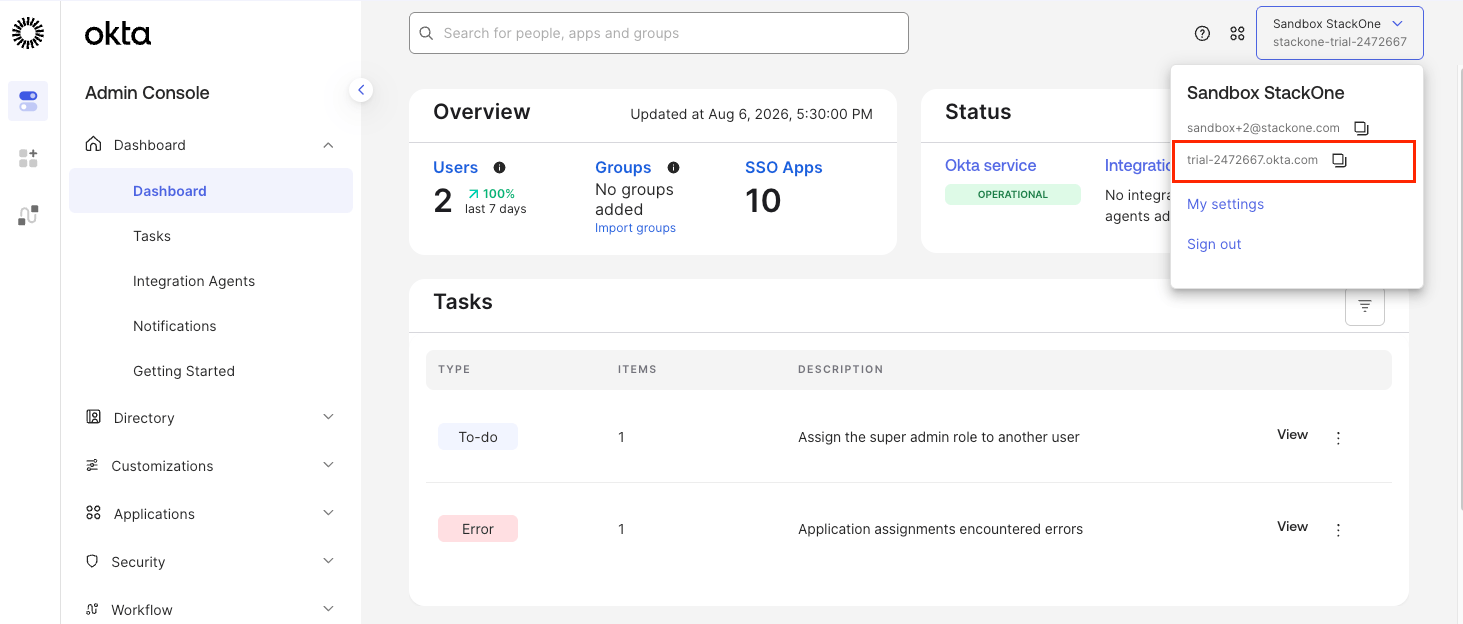
Find your Okta domain
Sign in to your Okta account.
- Click Admin in the top right corner.
- Click your organization name in the top right corner.
- Copy the Okta Domain shown under your email address across.
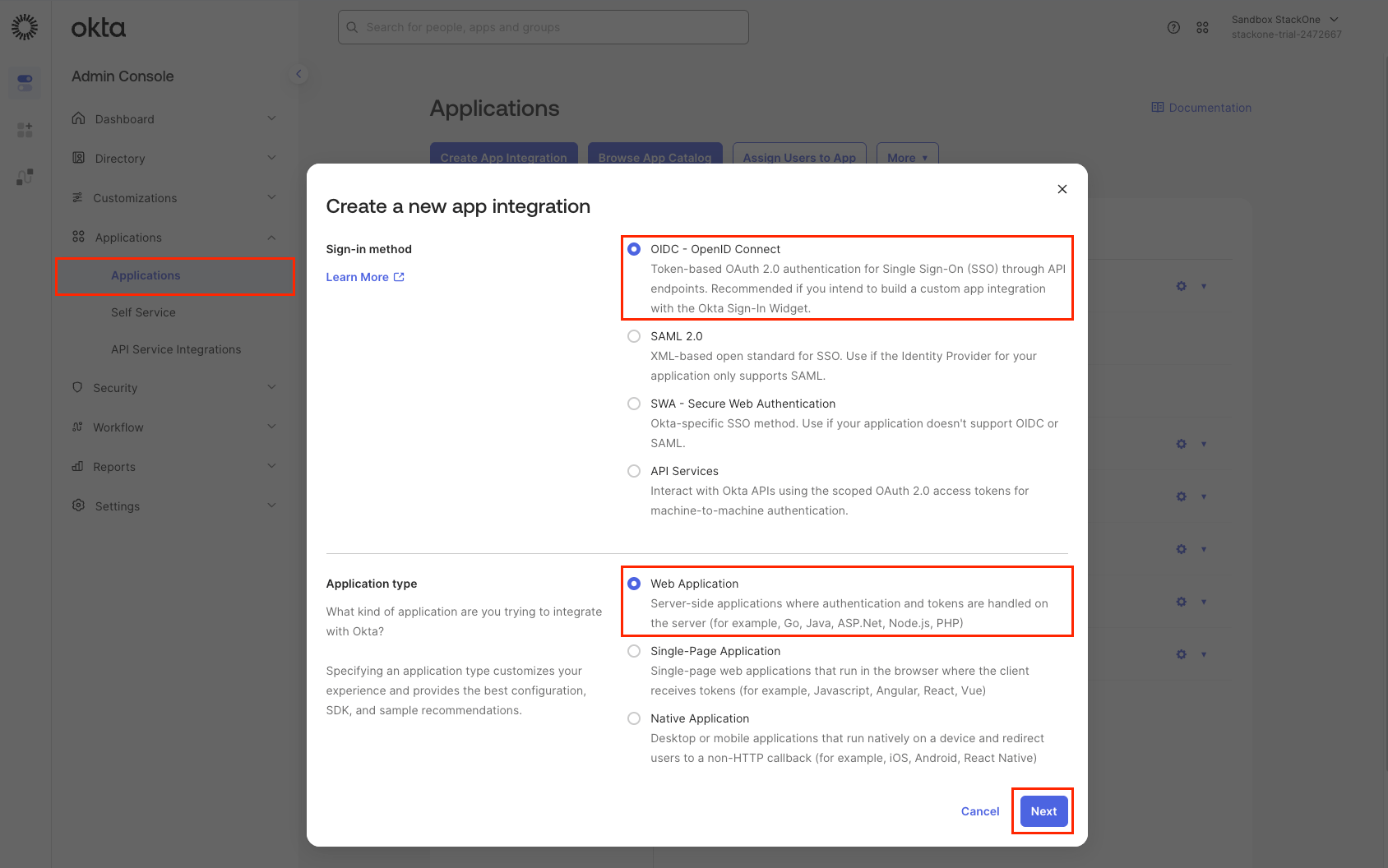
Start the OAuth app
In the Admin Console, open Applications > Applications.
- Click Create App Integration.
- Sign-in method: OIDC - OpenID Connect
- Application type: Web Application
- Click Next.
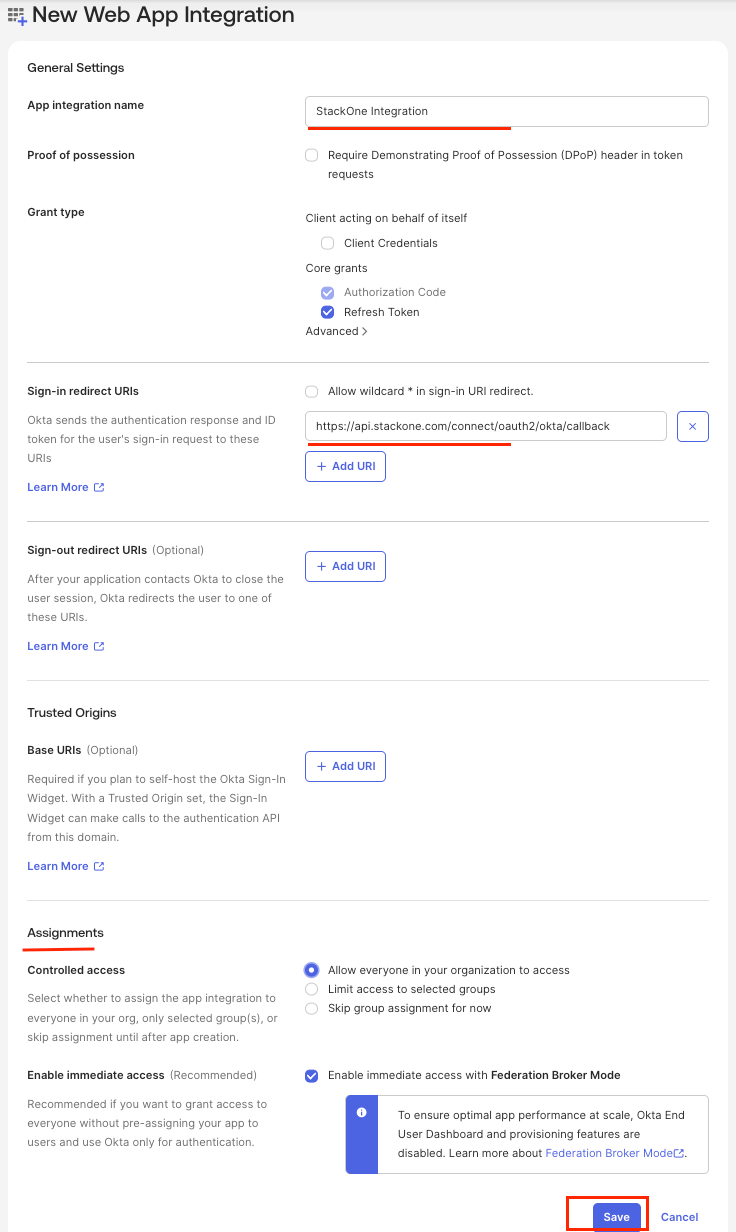
Configure the app settings
Fill in the new app integration form.
- App integration name:
StackOne Integration - Grant type: select Authorization Code and Refresh Token
- Sign-in redirect URIs: the Callback URL from your Connector Profile
- Assignments: Allow everyone in your organization to access, or assign specific groups or users
- Click Save.
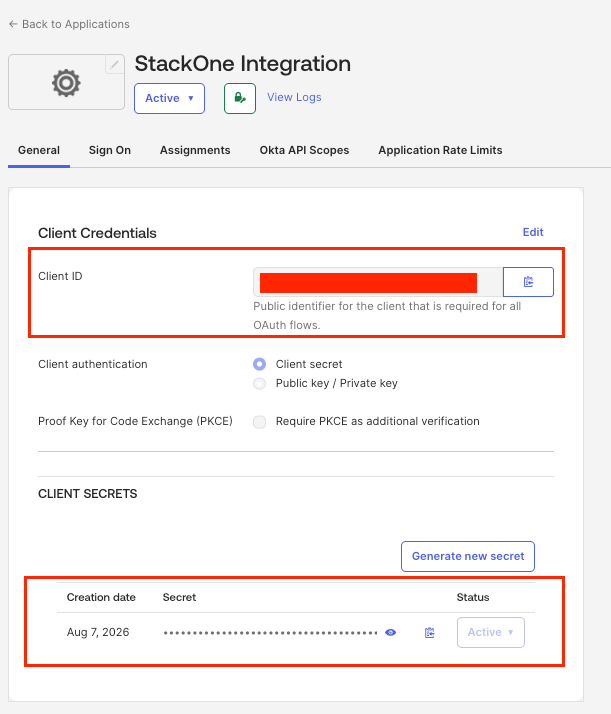
Copy the client credentials
The credentials are on the application’s General tab.
- Copy the Client ID across.
- Click the eye icon to reveal the Client Secret.
- Copy the Client Secret across.
Grant the API scopes
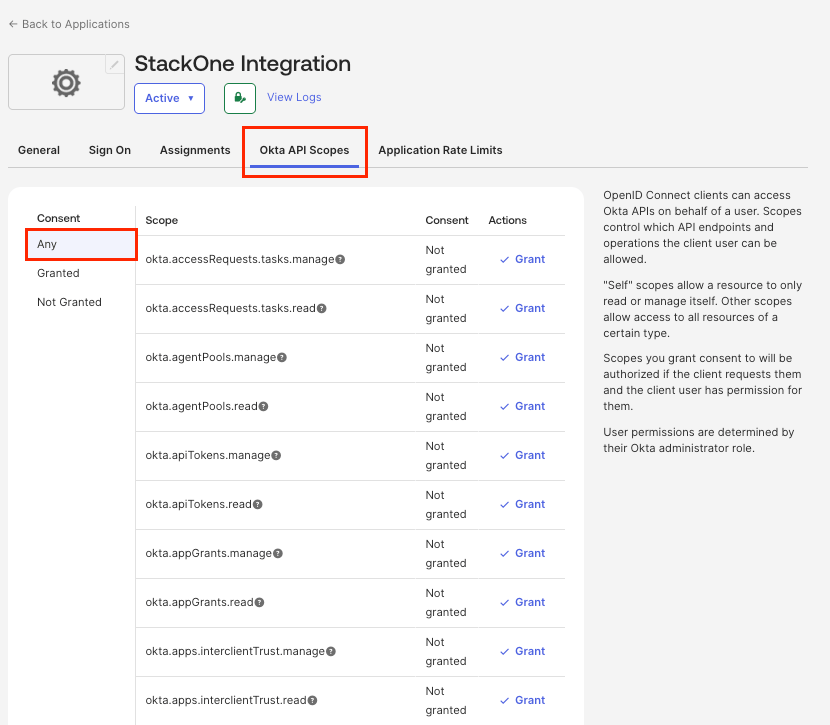
In the application, open the Okta API Scopes tab. See Okta OAuth 2.0 Scopes for details.openid is an OIDC scope, so the Okta API Scopes tab does not list it.
- Click Grant next to each
okta.*scope listed.
Realm access configuration
Realm scopes require an Okta Identity Governance, Secure Partner Access, or Advanced Directory Management subscription.
Verify your subscription
In the Admin Console, open Settings > Account.
- Check that your subscription tier includes realm management.
Security settings access
Authenticator actions work only on Okta Identity Engine orgs.
Link the Account
Connect
- Click Connect.
- If applicable, the provider will redirect you to a sign-in or authorization page. Complete the provider’s authorization flow.
- Once authorization is successful, you will see a confirmation popup.
Use Actions
Next Steps
Webhooks setup
Configure receiving Events for Okta into StackOne.