

Prerequisites
The connector should already be set up, with a Connector Profile and a Linked Account. See Getting Started on the MongoDB Atlas connector page.Copy your Native Webhook URL
Before configuring Atlas, copy the Native Webhook URL from this connection in StackOne Hub. This is the address Atlas posts alert events to — you will paste it into the Webhook integration in the next step, and every alert you route to it will be delivered here.
Create the Webhook integration in Atlas
Register the Native Webhook URL as a project Webhook integration so Atlas can deliver alert notifications to it.
Open Integrations and configure Webhook Settings
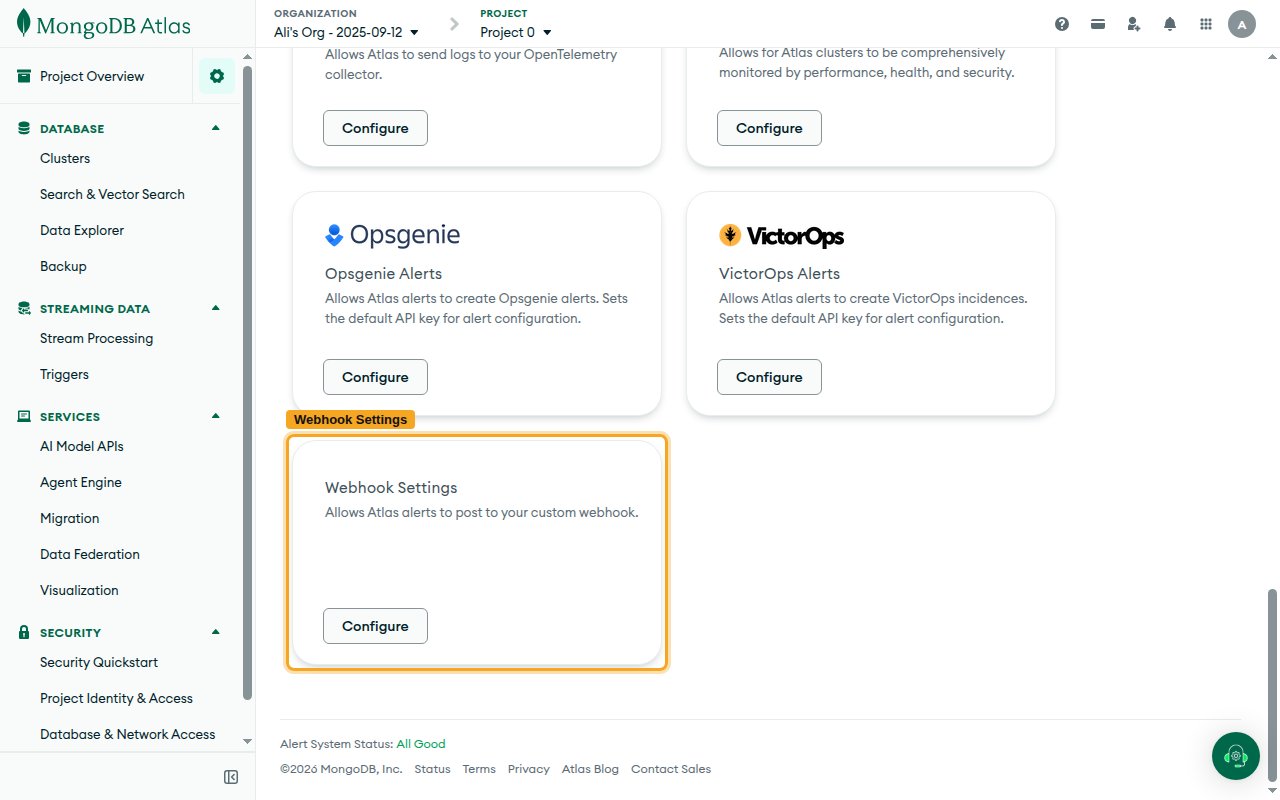
Sign in to MongoDB Atlas, select your project, open Project Settings, and select the Integrations tab. Find the Webhook Settings card (“Allows Atlas alerts to post to your custom webhook”) and click its Configure button.
Enter your Webhook URL and save
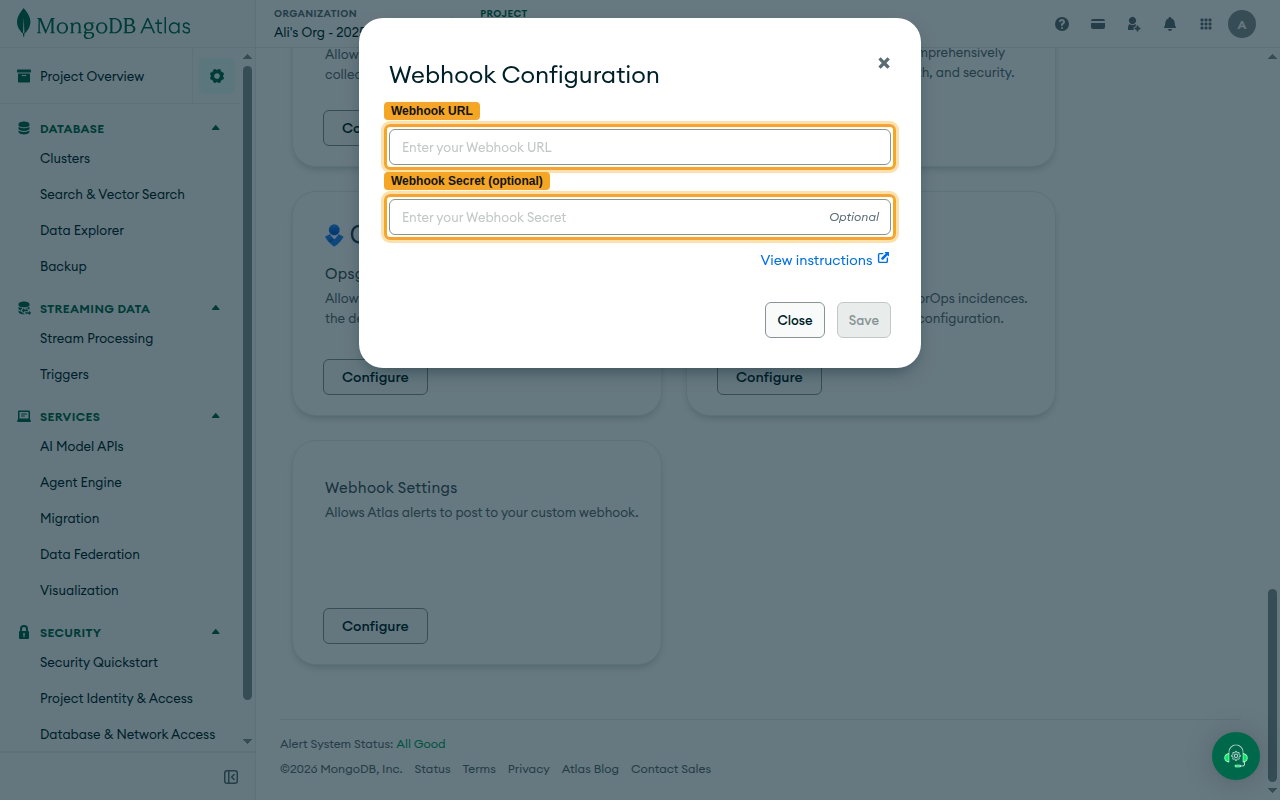
In the Webhook Configuration dialog, paste your Native Webhook URL into the Webhook URL field. Optionally enter a Webhook Secret — Atlas uses it to sign each delivery (the field is marked Optional). Click Save.
Add alerts that notify the webhook
The Webhook integration only receives alerts you route to it. Create or edit alert configurations so the events you care about are delivered to the webhook.
Add a new alert
Open Alerts for the project and click Add New Alert. In the Create a New Alert dialog, choose the Category and Condition/Metric to alert on (for example Host is down).
Add a Webhook notifier
Under Add Notification Method, click Add Notifier and choose Webhook as the notification type, then click Save. Repeat for each condition you want delivered — only alerts with a Webhook notifier are sent. See the Atlas webhook integration guide for details.
Available webhook events
Atlas delivers many alert types to a single webhook; StackOne routes each by its eventTypeName. Only alert types you enable with a Webhook notification are delivered.
Host and replica-set events
Availability and replication alerts for hosts and replica sets.
- Host Down (
HOST_DOWN) — Fired when Atlas cannot reach a host. - Host Recovering (
HOST_RECOVERING) — Fired when a host is in a recovering state. - No Primary (
NO_PRIMARY) — Fired when a replica set has no primary. - Replication Oplog Window Running Out (
REPLICATION_OPLOG_WINDOW_RUNNING_OUT) — Fired when the oplog window falls below the configured threshold.
Cluster and metric events
Cluster health and metric-threshold alerts.
- Outside Metric Threshold (
OUTSIDE_METRIC_THRESHOLD) — Fired when a monitored metric (for example disk or connections) crosses its configured threshold. - Cluster Mongos Is Missing (
CLUSTER_MONGOS_IS_MISSING) — Fired when a sharded cluster has no reachable mongos.
Billing and security events
Organization billing and user-security alerts.
- Credit Card About To Expire (
CREDIT_CARD_ABOUT_TO_EXPIRE) — Fired when the billing credit card is near expiry. - Users Without Multi-Factor Auth (
USERS_WITHOUT_MULTI_FACTOR_AUTH) — Fired when users lack multi-factor authentication.
Delivery format
Details of how Atlas delivers alert events to StackOne.
Alert payload and lifecycle
Each delivery is a JSON object matching the Atlas alert resource — top-level id, groupId, alertConfigId, eventTypeName, status (OPEN/CLOSED), created, and humanReadable, plus any cluster, host, or metric context. The lifecycle state (alert.open, alert.close, …) also arrives in the X-MMS-Event header.
Signature
Atlas signs every delivery with an X-MMS-Signature header — a Base64-encoded HMAC-SHA1 digest of the request body computed with the integration secret. StackOne does not verify or enforce this signature; the unique token in the Native Webhook URL is the authentication boundary, so keep that URL secret. If you need to validate the HMAC signature, do so downstream in your own event consumer.