

Prerequisites
The connector should already be set up, with a Connector Profile and a Linked Account. See Getting Started on the Monday.com connector page.Enable webhook events
StackOne creates the monday.com webhooks for you when the account is connected, and removes
them when it is disconnected. You do not paste a URL anywhere — you only tell StackOne which
boards to watch, and make sure the connection is allowed to manage webhooks.
Copy the board IDs into this connection
monday.com creates every webhook on a single board, so StackOne needs the ID of each board
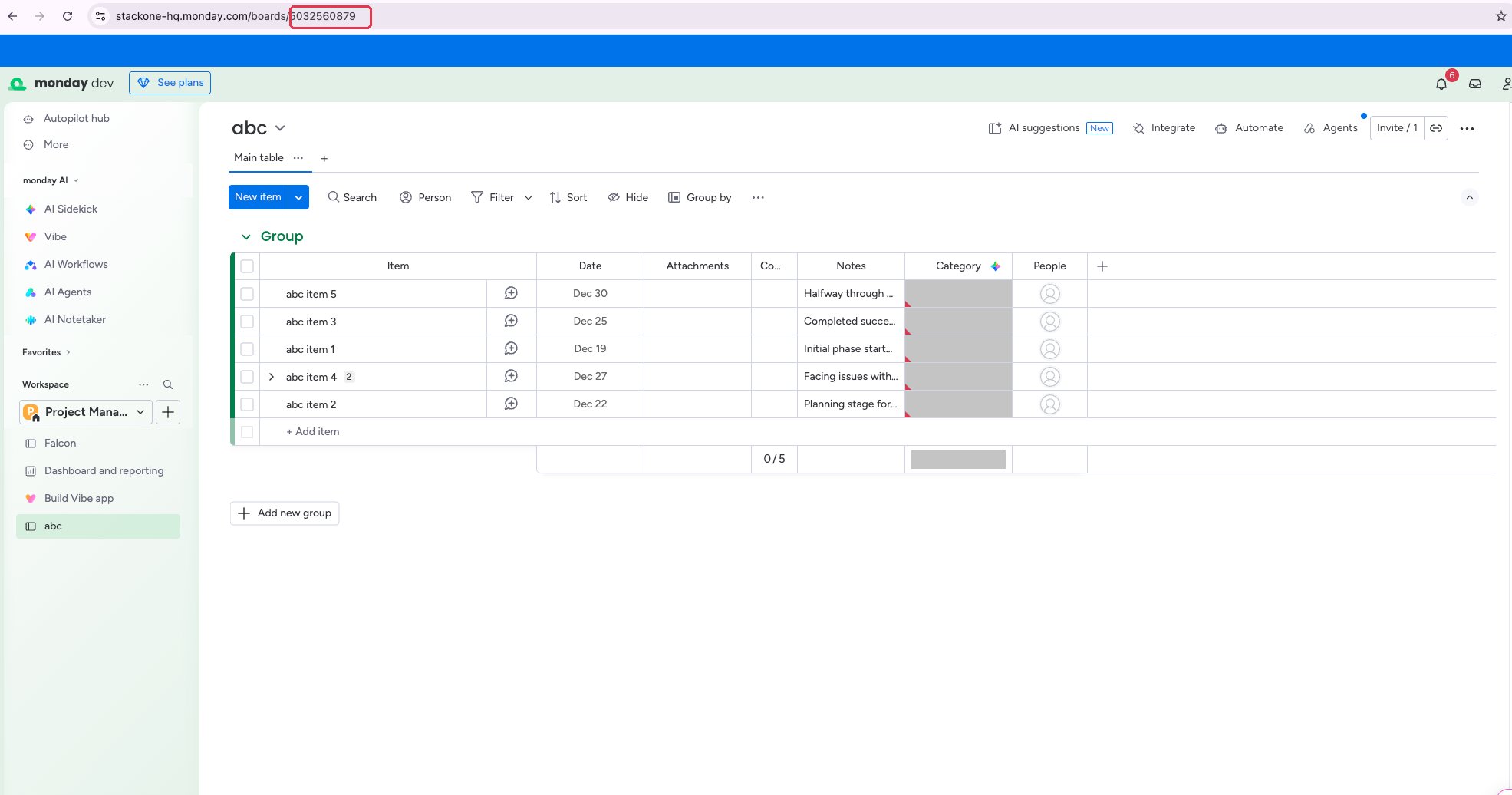
you want events from. Sign in to your monday.com account
and open a board. The board ID is the number at the end of the address.
- Format:
https://{account}.monday.com/boards/{board ID} - Repeat for every board you want events from.
- Enter the IDs in Webhook Board IDs on the connection, separated by commas, with no spaces.
- Example:
5032433907,5032438875
Find several board IDs at once
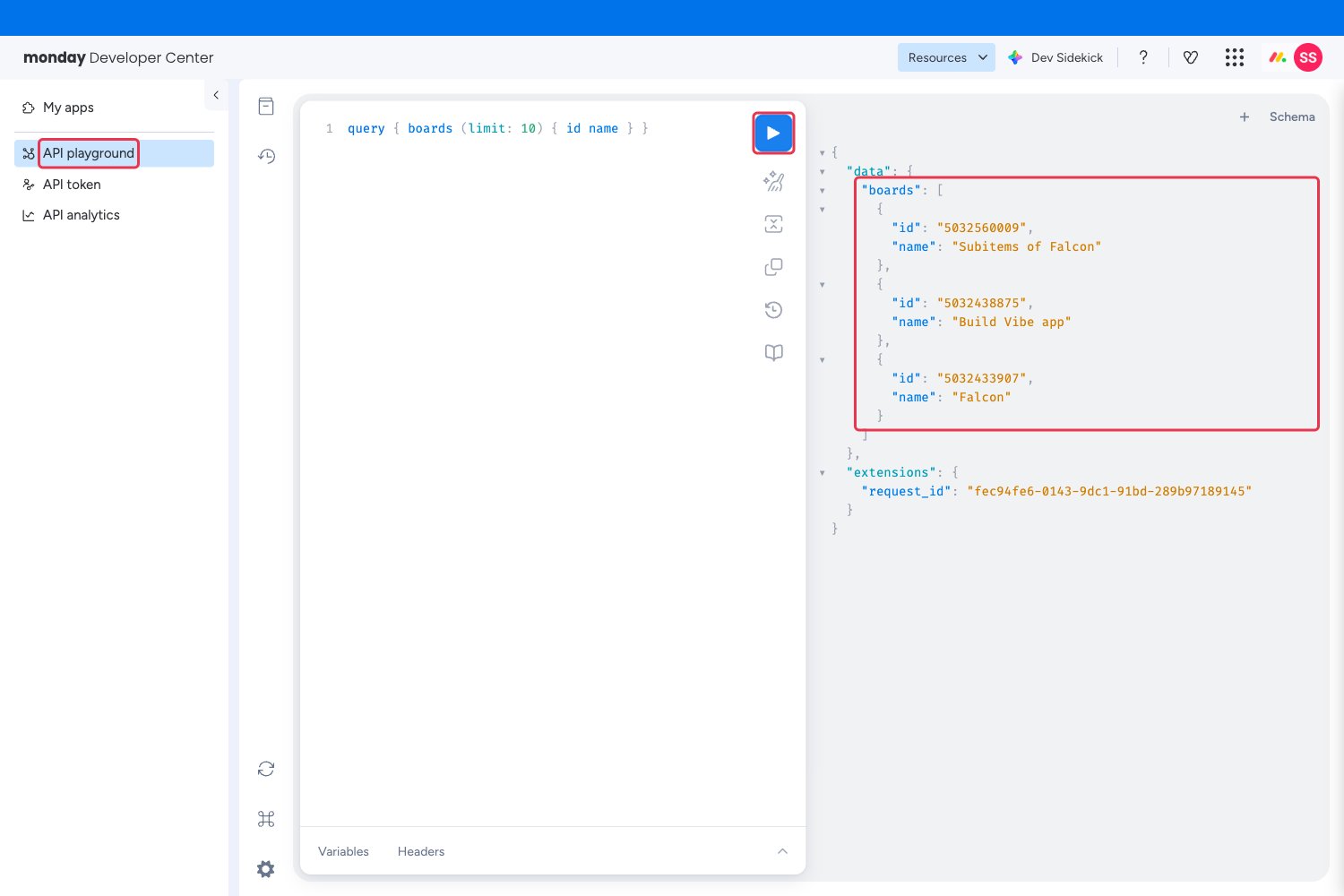
If you are listing many boards, the Developer Center can return every board ID with its
name in one query.
- Click your profile picture in the top right corner, then select Developers.
- Click API playground in the left sidebar.
- Run
query { boards (limit: 10) { id name } }and read the IDs from the response. - Ignore any board named Subitems of … — list the board holding the parent items instead.
Turn on subitems where you need subitem events
monday.com rejects the six subitem event subscriptions on a board that has no subitems
column. It does so silently — every other event is still created, so the board simply never
sends subitem events.
- Open a board listed in Webhook Board IDs and add one subitem to any item.
- Only the board holding the parent items needs this. Do not list the subitems board that monday.com creates alongside it.
Check the connection can manage webhooks
StackOne calls monday.com’s webhook API as the connected account, so that account has to be
allowed to create automations on each board.
- API Token connections: the token already carries your own permissions, so nothing more is needed.
- OAuth 2.0 connections: the app needs the
webhooks:readandwebhooks:writescopes. monday.com locks an app version’s scopes once it is promoted, so adding them means a new app version and reconnecting the account. - A board that refuses webhook creation is skipped and the rest still connect, so check each board you listed is receiving events.
Available webhook events
The following monday.com events can be enabled. Only events selected in StackOne are subscribed
— monday.com does not deliver events that are not subscribed.
Active check
Answered automatically, and never shown as an event you need to trigger.
- Active Check (
challenge) — monday.com’s URL verification challenge, sent once each time a webhook is registered. StackOne echoes it back automatically; monday.com refuses to store a subscription whose URL does not answer it.
Item events
Events on the items of a subscribed board.
- Item Created (
create_item) — Fired when an item is added to the board - Item Name Changed (
change_name) — Fired when an item is renamed - Item Archived (
item_archived) — Fired when an item is archived - Item Deleted (
item_deleted) — Fired when an item is deleted - Item Restored (
item_restored) — Fired when an archived item is restored from the board’s archive - Item Moved To Any Group (
item_moved_to_any_group) — Fired when an item moves from one group to another - Item Moved To Specific Group (
item_moved_to_specific_group) — Fired when an item moves into one named group. monday.com needs a group filter that StackOne cannot supply, so it stays switched off in monday.com — use Item Moved To Any Group and readdestGroupIdfrom the payload
Subitem events
Events on subitems. The board must have a subitems column before monday.com will accept these subscriptions.
- Subitem Created (
create_subitem) — Fired when a subitem is added under an item - Subitem Name Changed (
change_subitem_name) — Fired when a subitem is renamed - Subitem Column Value Changed (
change_subitem_column_value) — Fired when a column value changes on a subitem. monday.com accepts this subscription but does not currently deliver it - Subitem Moved (
move_subitem) — Fired when a subitem moves from one parent item to another - Subitem Archived (
subitem_archived) — Fired when a subitem is archived - Subitem Deleted (
subitem_deleted) — Fired when a subitem is deleted
Column events
Events on the columns of a subscribed board, and on the values in them.
- Column Value Changed (
change_column_value) — Fired when any column value changes on an item - Status Column Value Changed (
change_status_column_value) — Fired when a status column changes to one named label. monday.com needs a column and label filter that StackOne cannot supply, so it stays switched off in monday.com — use Column Value Changed and readcolumnIdfrom the payload - Specific Column Value Changed (
change_specific_column_value) — Fired when one named column changes. monday.com needs a column filter that StackOne cannot supply, so it stays switched off in monday.com — use Column Value Changed and readcolumnIdfrom the payload - Column Created (
create_column) — Fired when a column is added to the board
Update events
Events on the updates posted against items and subitems.
- Update Posted (
create_update) — Fired when an update is posted on an item - Subitem Update Posted (
create_subitem_update) — Fired when an update is posted on a subitem - Update Edited (
edit_update) — Fired when an existing update is edited - Update Deleted (
delete_update) — Fired when an update is deleted