

Choose the boards to receive webhook events from
monday.com creates every webhook on a single board, so StackOne needs to know which boards to
watch. Fill in Webhook Board IDs only if you are using webhook events — leave it empty
otherwise.
Copy the board IDs into this connection
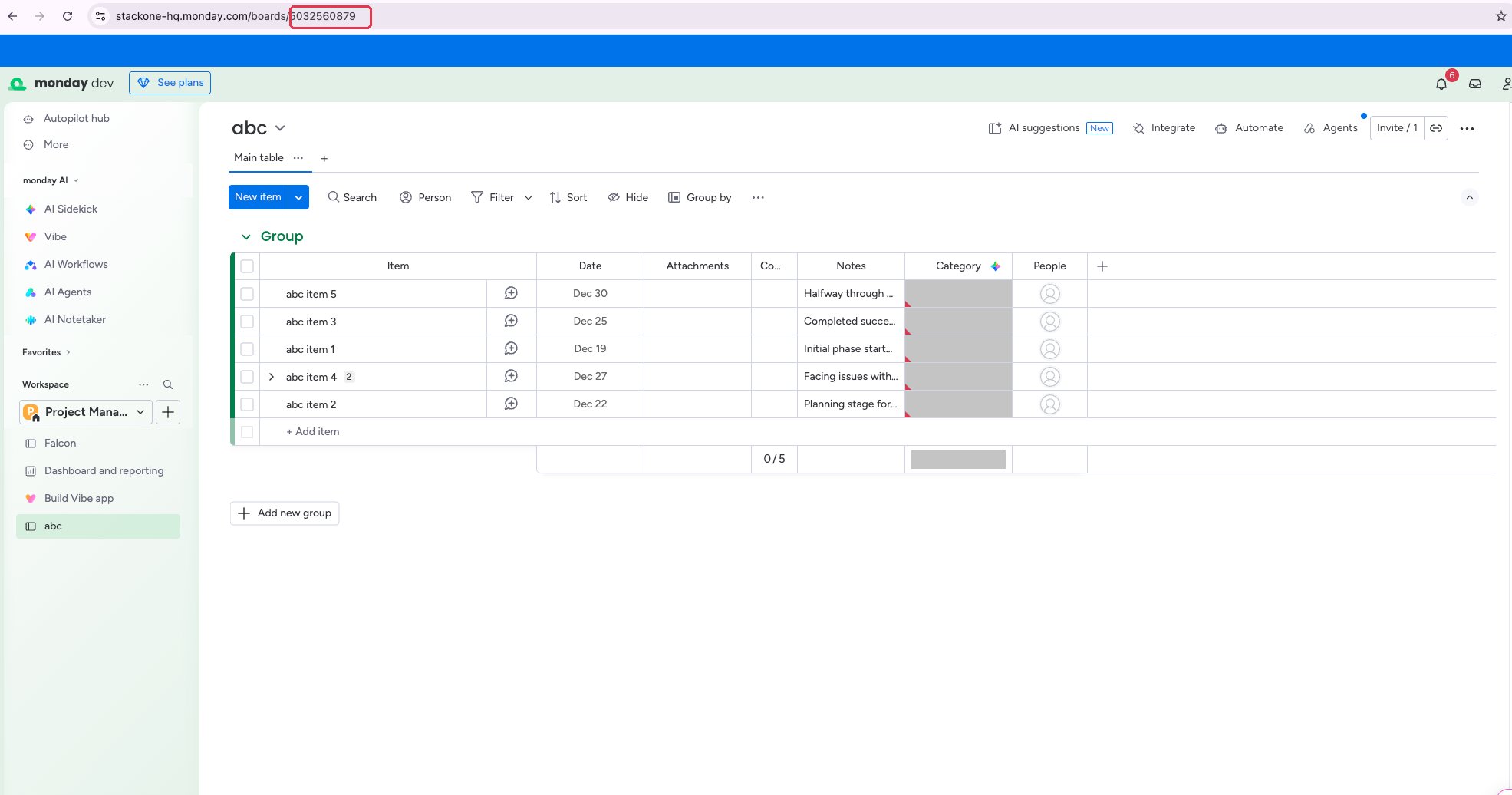
Sign in to your monday.com account and open a
board you want events from. The board ID is the number at the end of the address.
- Format:
https://{account}.monday.com/boards/{board ID} - Repeat for every board you want events from.
- Enter the IDs in Webhook Board IDs, separated by commas, with no spaces.
- Example:
5032433907,5032438875
Turn on subitems where you need subitem events
monday.com rejects the six subitem event subscriptions on a board that has no subitems
column, and it does so silently — the other events are still created, so the board simply
never sends subitem events.
- Open a board listed in Webhook Board IDs and add one subitem to any item.
- Only the board holding the parent items needs this. Do not list the subitems board that monday.com creates alongside it.
Check the app has the webhook scopes
Creating webhooks over OAuth needs the webhooks:read and webhooks:write scopes. If the
app was built before webhook support was added, its scopes are missing them.
- Ask the administrator who set up the Connector Profile to add both scopes to the app and reconnect this account.
- monday.com locks an app version’s scopes once it is promoted, so the change needs a new app version.
Link the Account
Connect
- Click Connect.
- If applicable, the provider will redirect you to a sign-in or authorization page. Complete the provider’s authorization flow.
- Once authorization is successful, you will see a confirmation popup.
Use Actions
Next Steps
Webhooks setup
Configure receiving Events for Monday.com into StackOne.