

Create a Service Account
Create a service account in your Mixpanel organization to authenticate API requests. The service account provides the Username and Secret used for authentication.
Open Settings
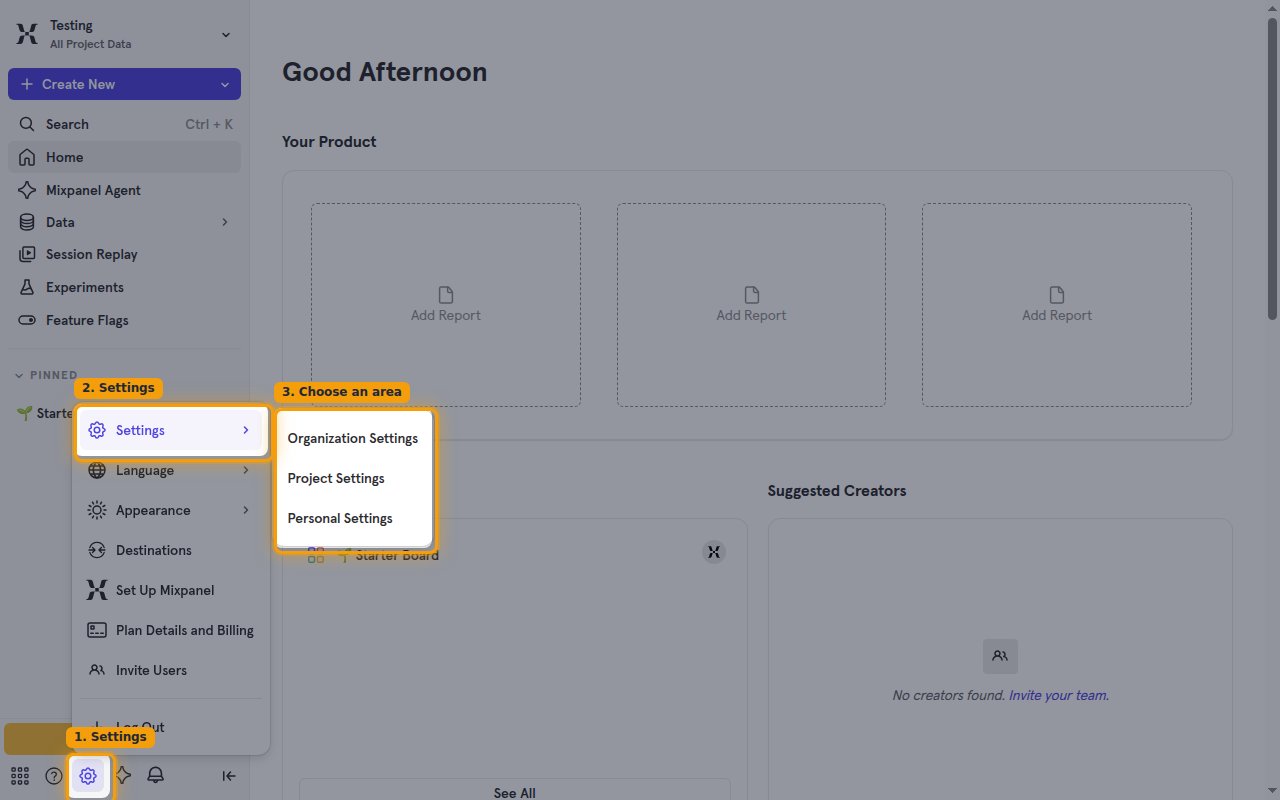
Sign in to your Mixpanel account, then open the settings menu.
- Click the Settings (gear) icon at the bottom of the left sidebar.
- Point at Settings in the menu — it expands into Organization Settings, Project Settings, and Personal Settings.
- Click Organization Settings (service accounts live at the organization level).
Open the Service Accounts page
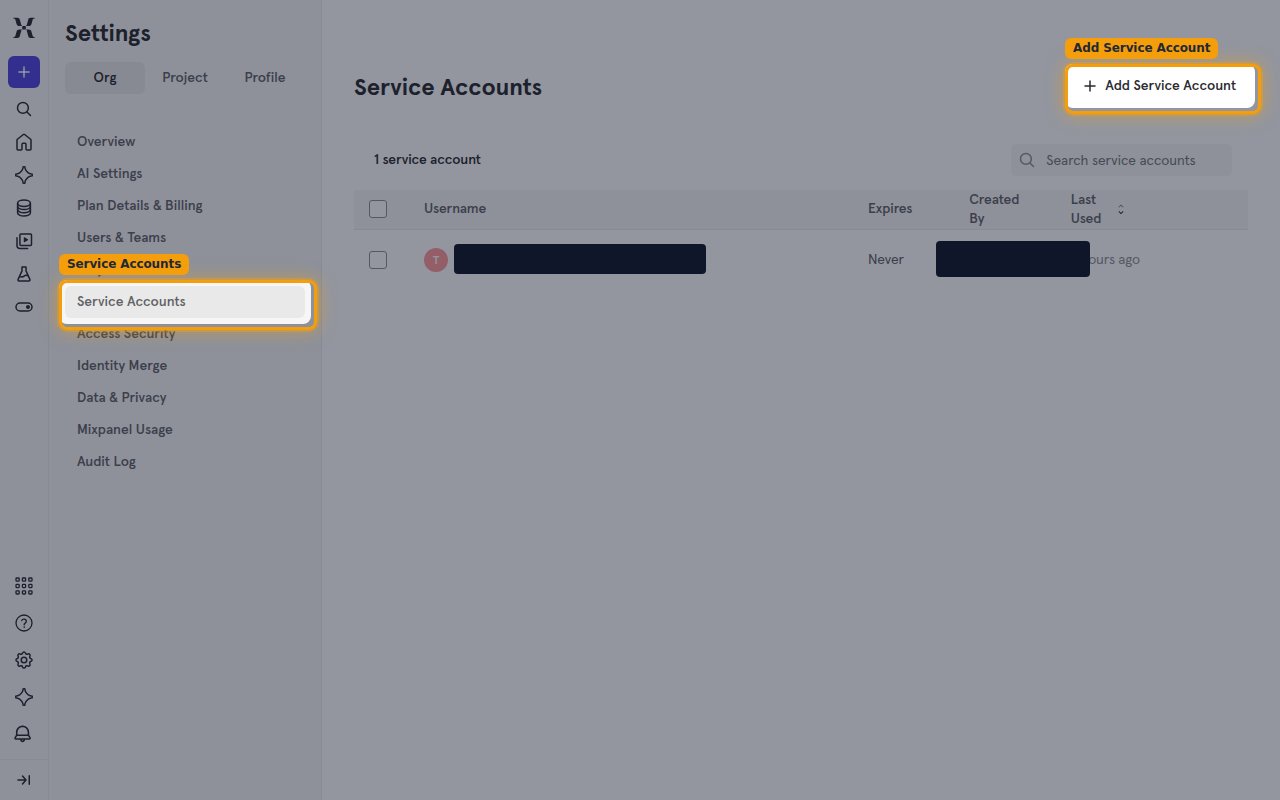
In Organization Settings, open the Service Accounts list.
- Click Service Accounts in the left sidebar.
- Click Add Service Account in the top-right corner.
Create a new service account
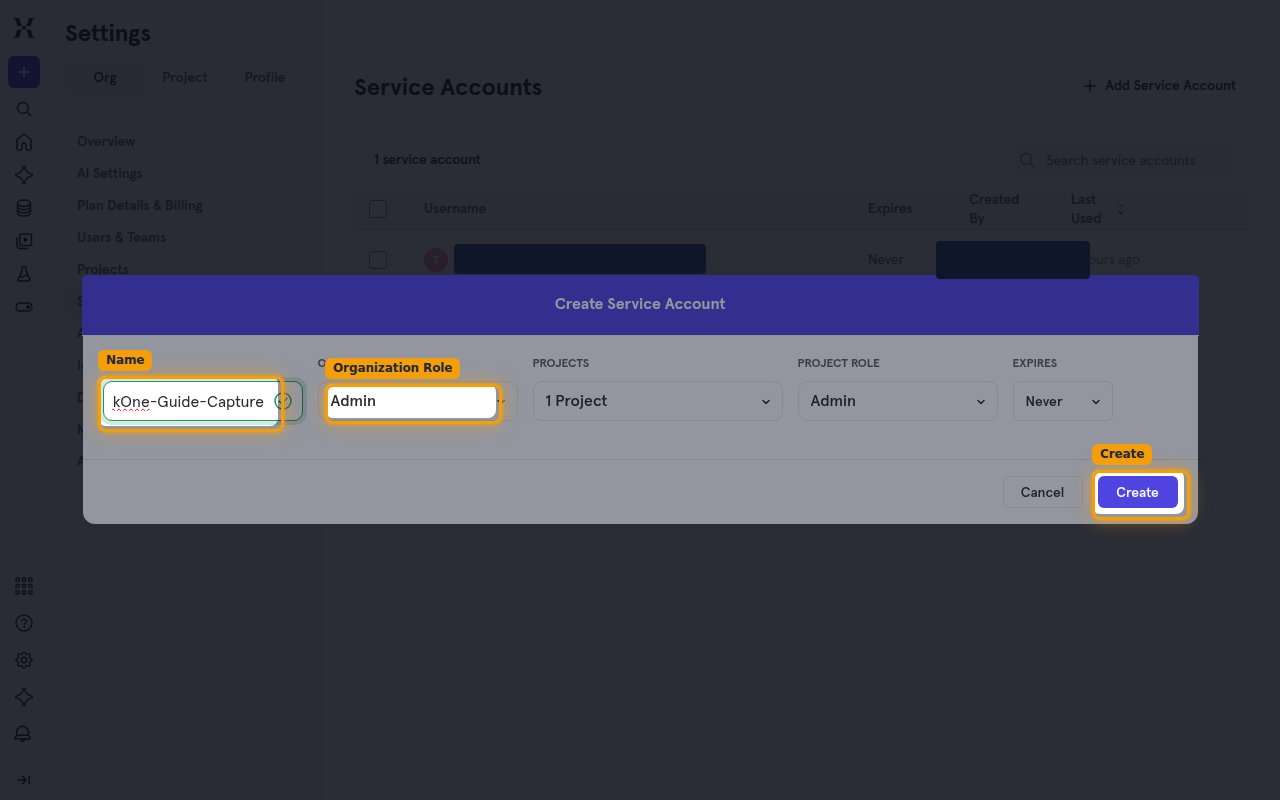
In the Create Service Account dialog, fill in the details for the new account.
- Enter a descriptive Name for the service account. Only letters, numbers, dashes, and underscores are allowed — spaces are rejected (e.g.
StackOne-Integration). - Choose an Organization Role — Admin is recommended for full API access.
- Under Projects, select the project(s) the service account can access.
- Choose a Project Role — Admin grants full access to the selected projects.
- Leave Expires set to Never, or pick an expiry if you want the credentials to expire automatically, then click Create.
Copy your credentials
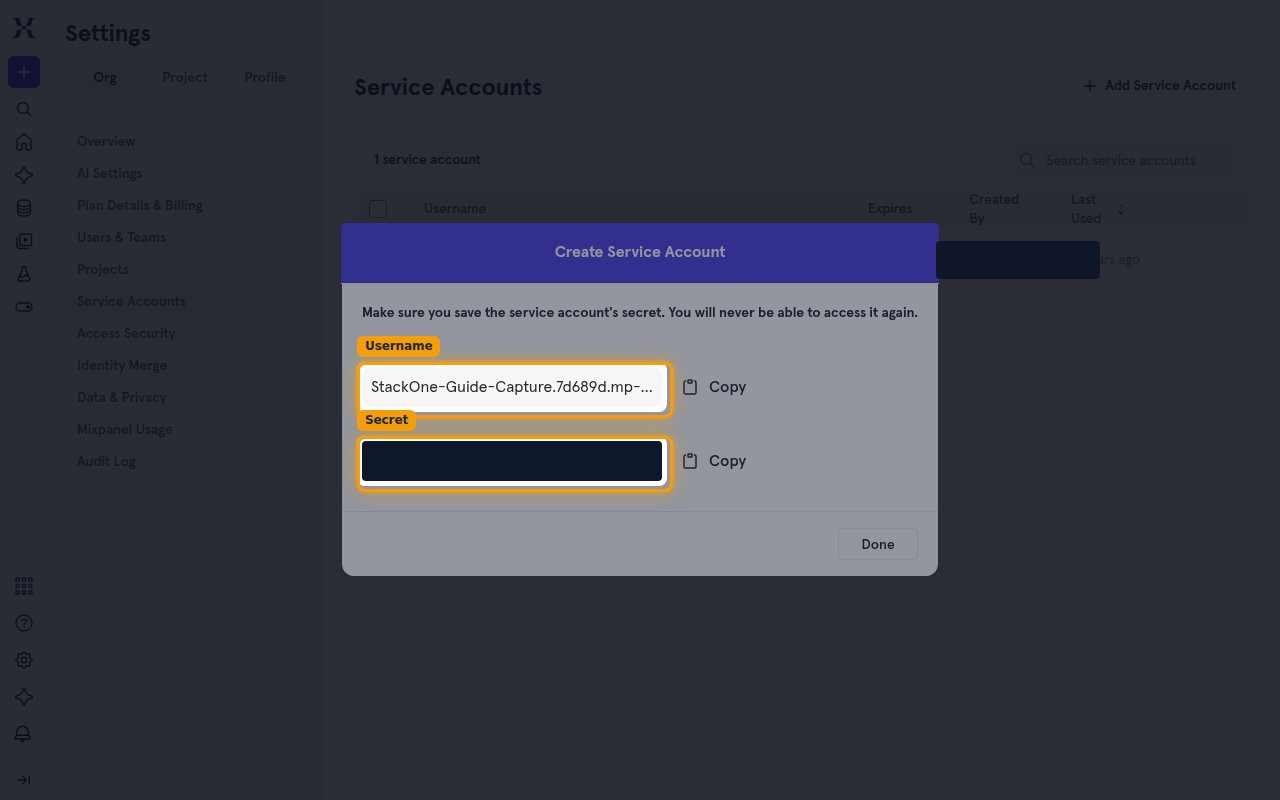
After clicking Create, Mixpanel displays the Username and Secret for the new service account. Copy both values using the Copy buttons before closing the dialog.
- Paste the Username into the Service Account Username field in StackOne Hub.
- Paste the Secret into the Service Account Secret field in StackOne Hub.
- The Secret is only shown once — the dialog warns Make sure you save the service account’s secret. You will never be able to access it again.
Find your Project ID
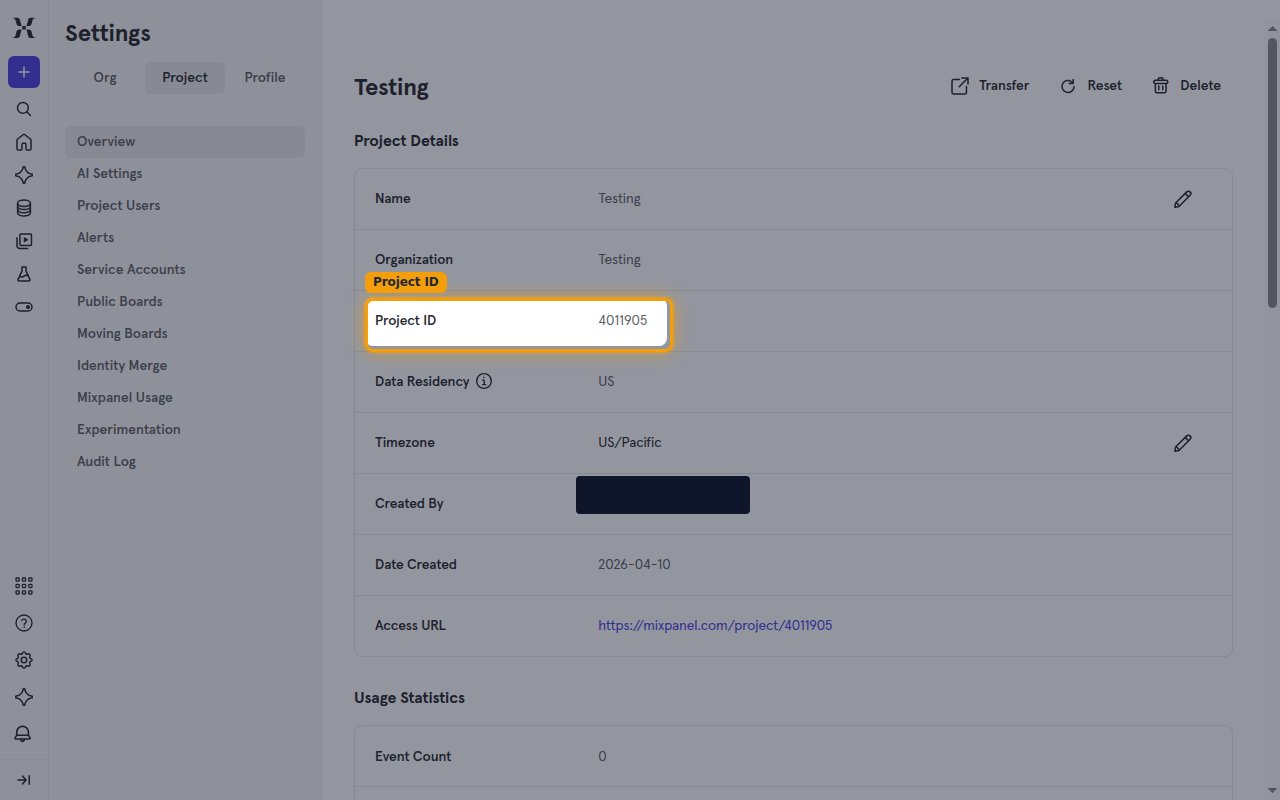
Your Project ID uniquely identifies your Mixpanel project for API requests.
Open the project overview
Open the Settings (gear) menu, point at Settings, and click Project Settings. On the Overview page, the Project ID is listed in the Project Details card.
- Copy the Project ID and paste it into the Project ID field in StackOne Hub.
- Format: a numeric identifier
- Example:
4011905
Find your Organization ID (optional)
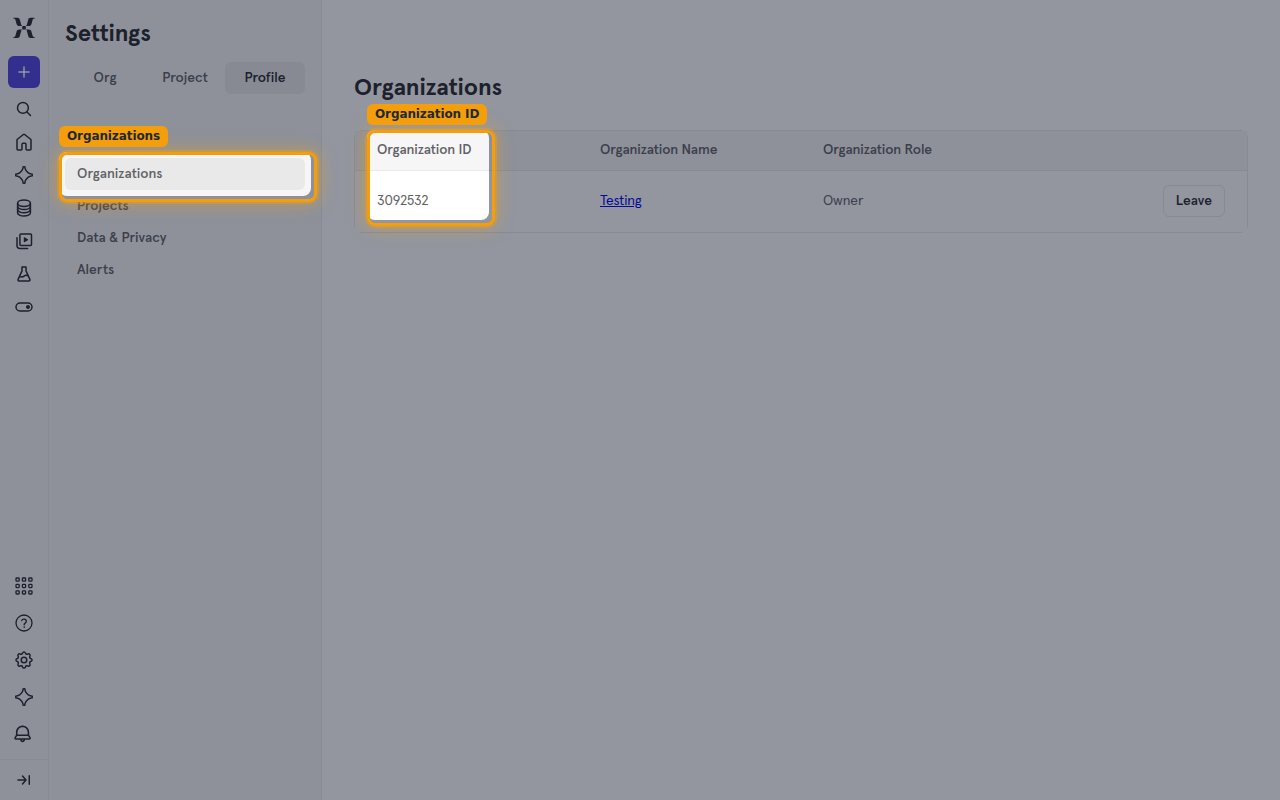
The Organization ID is only needed if you use the unified IAM actions (users, groups, roles, organizations, resource users). Leave the field blank if you do not use them. It is your organization’s numeric identifier — distinct from the Project ID.
- Open the Settings (gear) menu, point at Settings, and click Personal Settings, then click Organizations in the left sidebar.
- Copy the value in the Organization ID column for your organization and paste it into the optional Organization ID field in StackOne Hub.
- Format: a numeric identifier
- Example:
3092532
Find your Project Token
Your Project Token authorizes sending data to Mixpanel. It is only required for the ingestion actions that create or update user profiles, group profiles, and identities. It is distinct from the numeric Project ID.
Open the project overview
Open the Settings (gear) menu, point at Settings, and click Project Settings. On the Overview page, find the Access Keys card.
- Copy the Token from the Access Keys section and paste it into the Project Token field in StackOne Hub.
- Leave the Project Token field blank if you only use read, query, or IAM actions.
- Format: an alphanumeric string
- Example:
a1b2c3d4e5f6a7b8c9d0e1f2a3b4c5d6
Select your data residency region
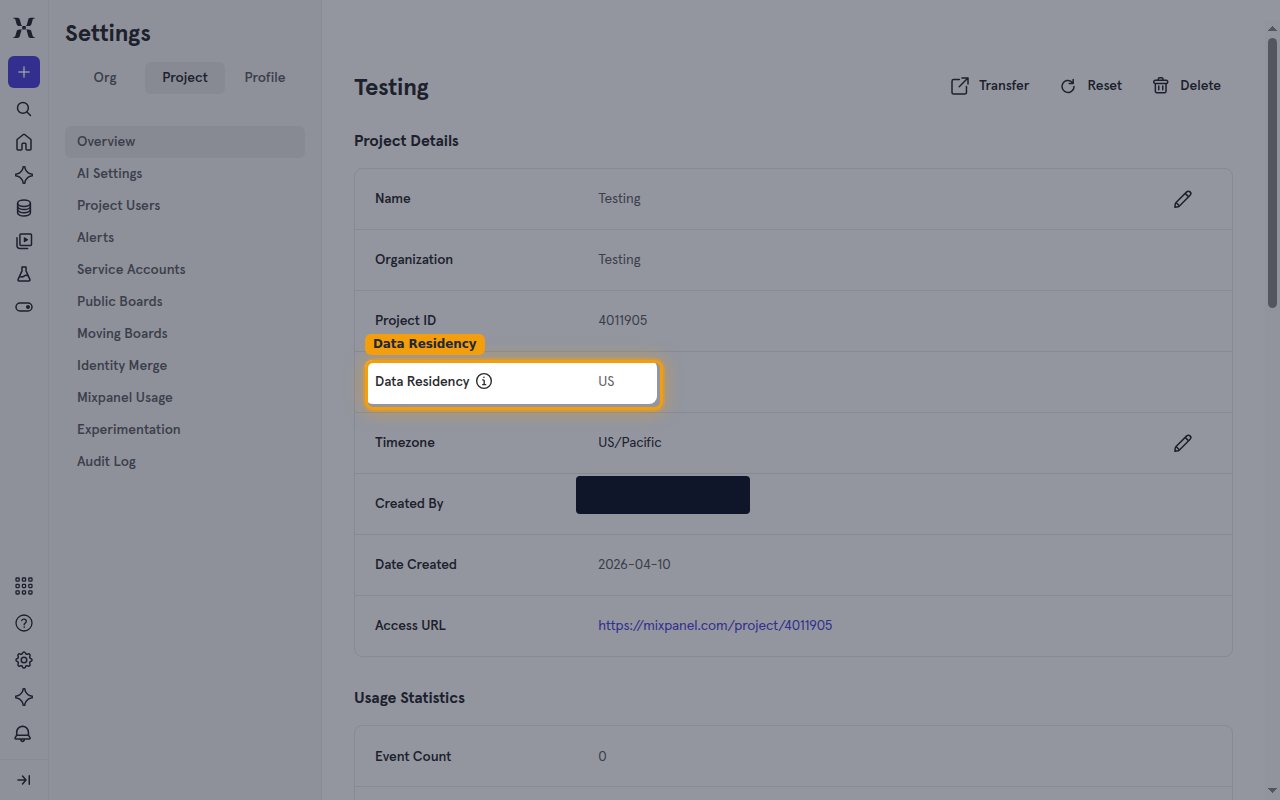
Select the data center region your Mixpanel project uses. Data residency is set when a project is created and cannot be changed.
Verify your project's data residency
Open the Settings (gear) menu, point at Settings, and click Project Settings — on the Overview page the Data Residency row appears directly in the Project Details card. Select the matching value in the Data Residency field in StackOne Hub.
- US Data Residency — default for most accounts (
mixpanel.com). - EU Data Residency — for projects with EU data residency enabled (
eu.mixpanel.com).
Linking the Account from the Hub
Navigate to the Hub
Fill out the fields
- Service Account Username
- Service Account Secret
- Project ID
- Project Token (Optional)
- Organization ID (Optional)
- Data Residency
Connect
- Click Connect
- If applicable, the provider will redirect you to a sign-in or authorization page. Complete the provider’s authorization flow.
- Once authorization is successful, you will see a confirmation popup
If the account linking is successful, you will see the newly linked account in your Accounts page.
Next Steps
Webhooks setup
Configure receiving Events for Mixpanel into StackOne.