

Registering an application
Register an application in Microsoft Entra ID so StackOne can call the Microsoft Graph security API without a signed-in user.
Sign in to Microsoft Entra
Sign in to your Microsoft Entra account.
- Navigate to Entra ID > App registrations.
- Click New registration.
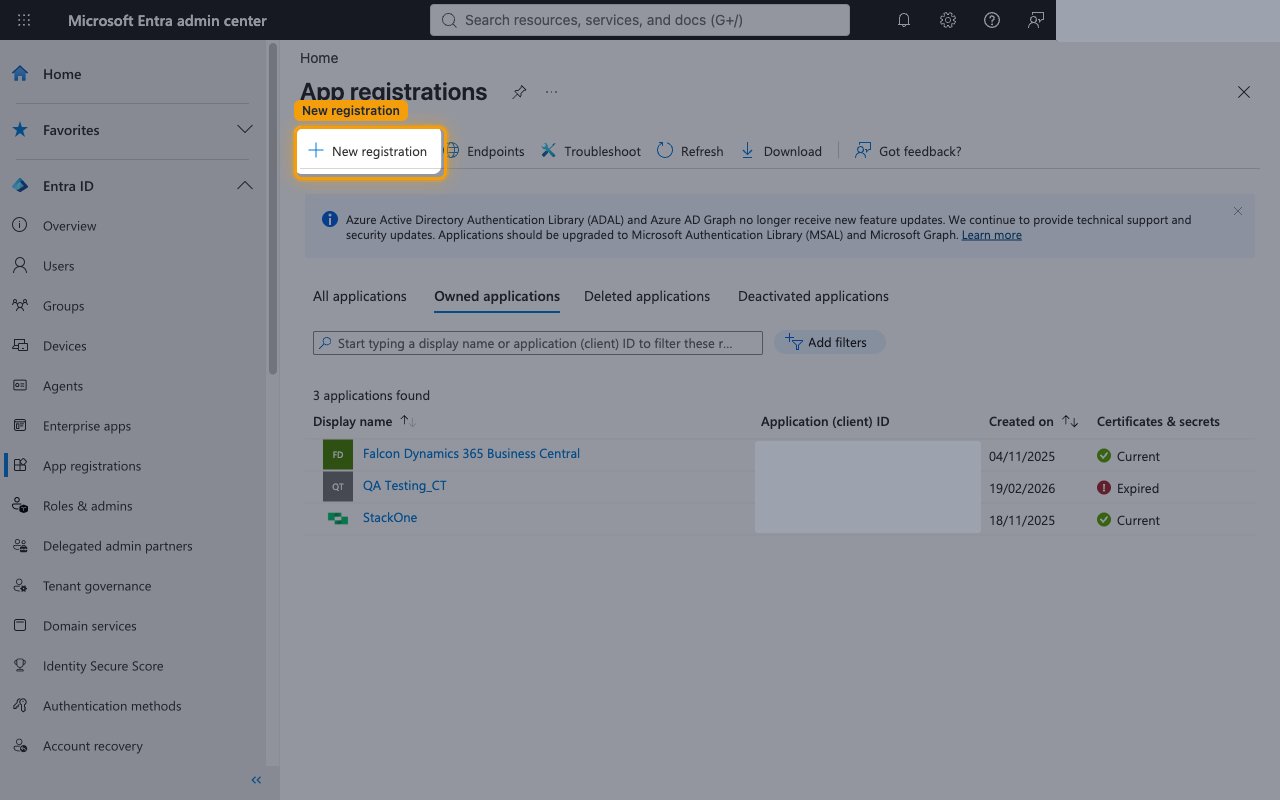
Register the application
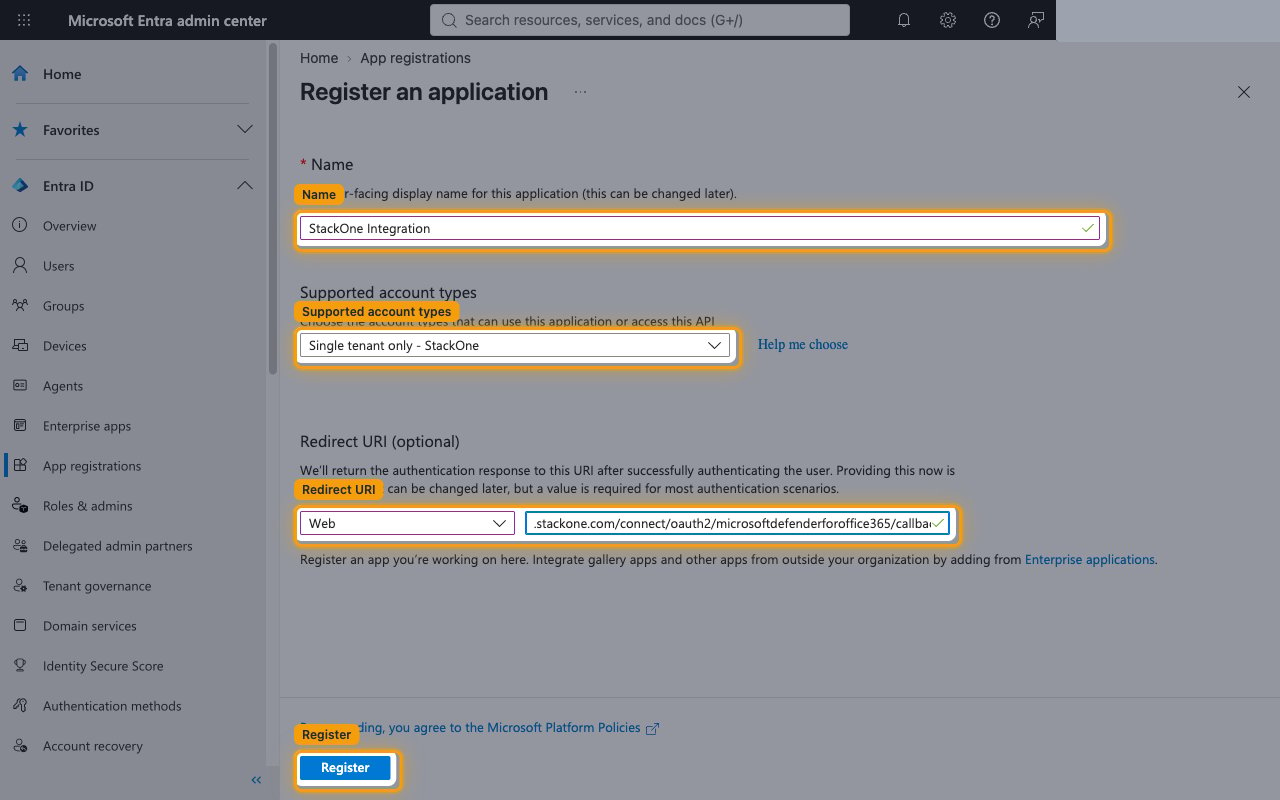
Complete the Register an application form.
- Name:
StackOne Integration - Under Supported account types, keep Single tenant only.
- Leave Redirect URI (optional) empty. Client credentials don’t use a redirect.
- Click Register.
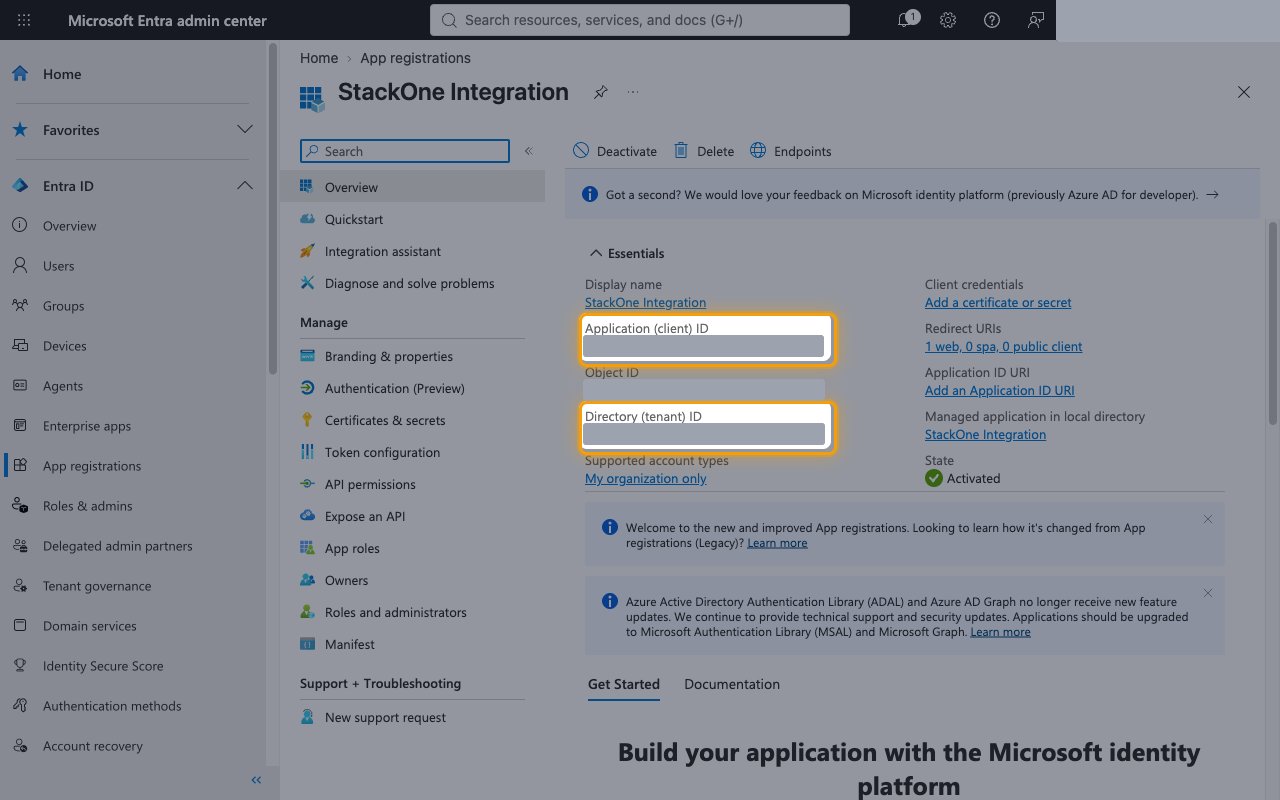
Copy the client and tenant IDs
On the app’s Overview page, copy the Application (client) ID and the Directory (tenant) ID.
- Paste the Application (client) ID into the Client ID field in StackOne Hub.
- Paste the Directory (tenant) ID into the Tenant ID field in StackOne Hub.
- Format: both are GUIDs such as
00000000-0000-0000-0000-000000000000
Creating a client secret
The client secret is the password StackOne uses to request access tokens for the app.
Open certificates and secrets
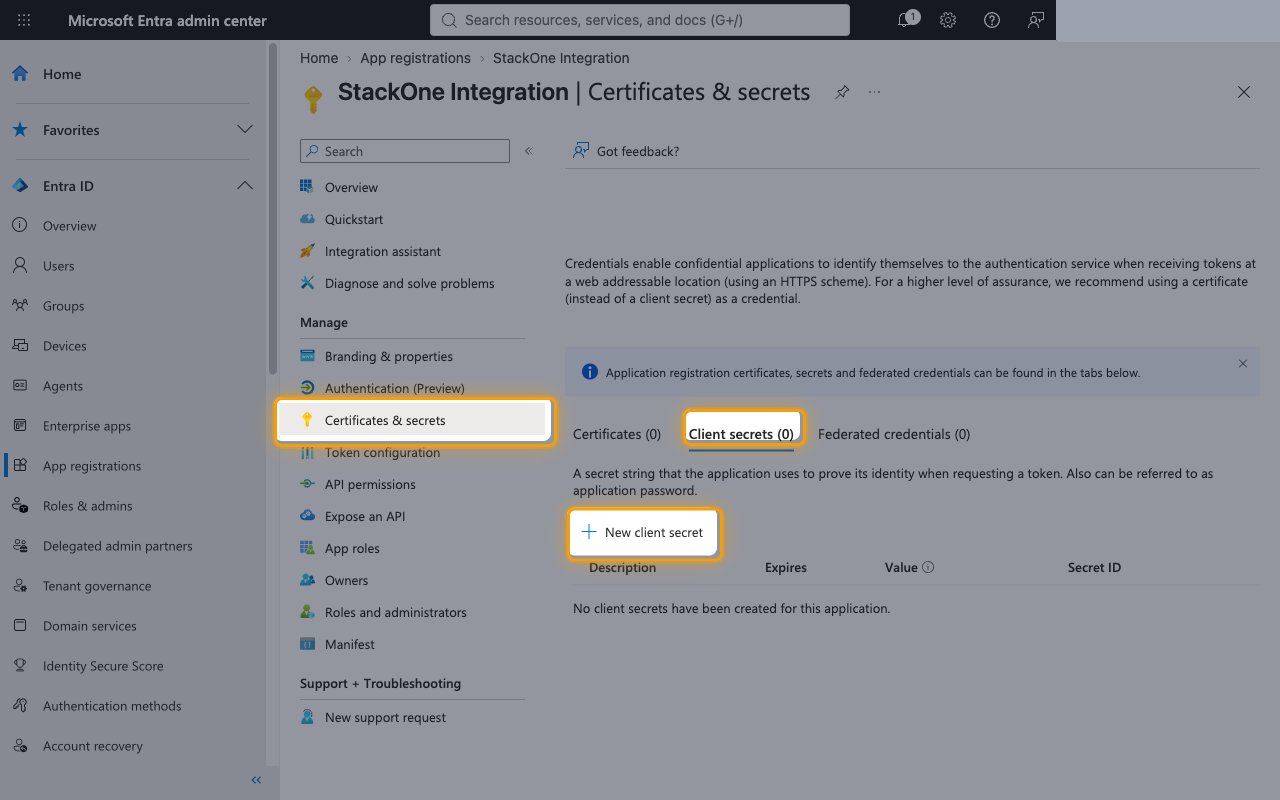
In the app’s left menu, click Certificates & secrets.
- Open the Client secrets tab.
- Click New client secret.
Add the client secret
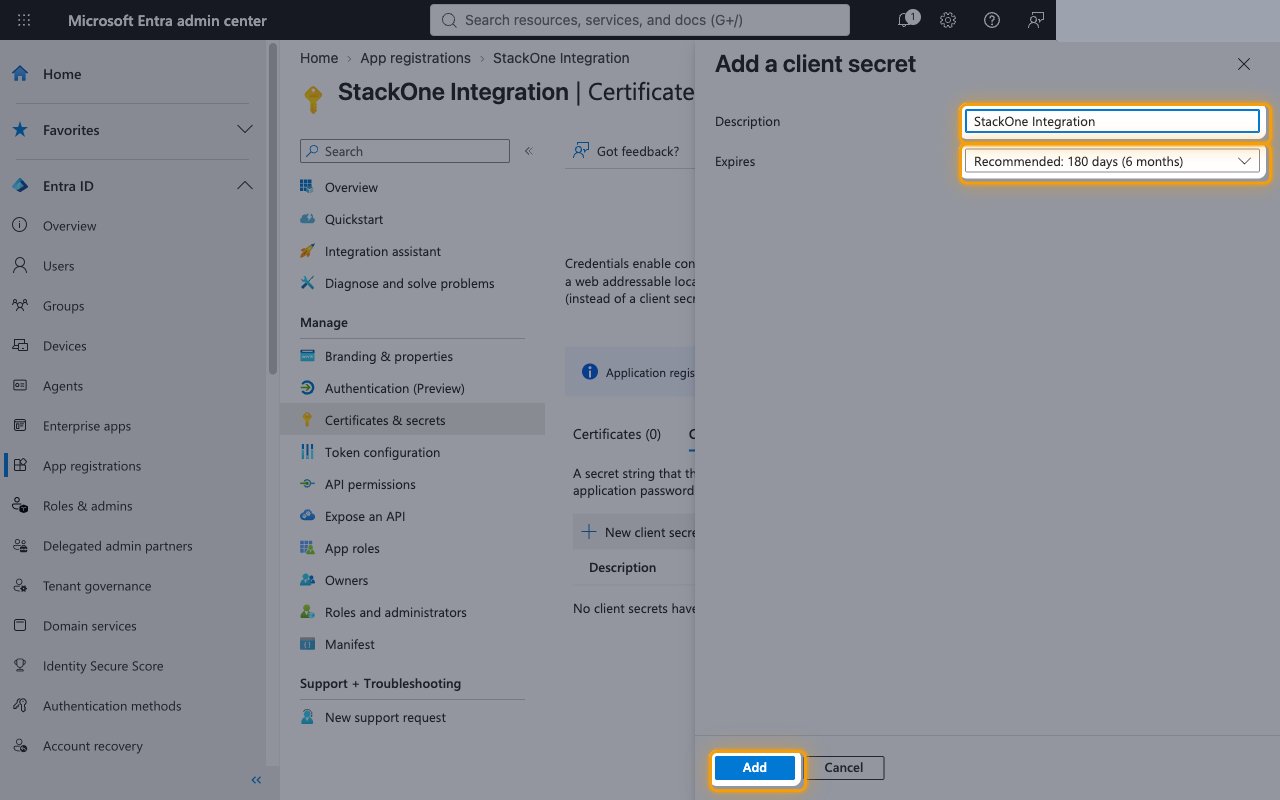
In the Add a client secret panel, enter a Description such as StackOne Integration.
- Choose an Expires period. You will need to create a new secret before it expires.
- Click Add.
Copy the secret value
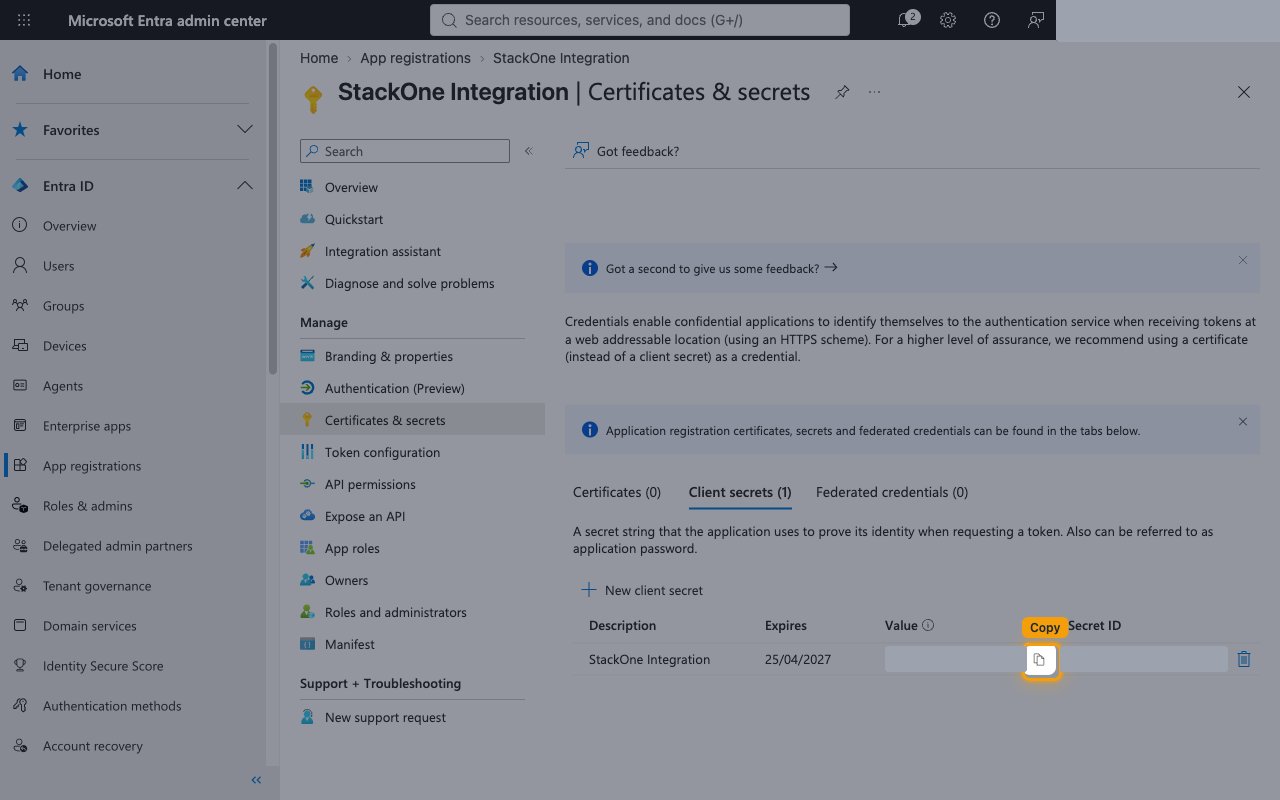
In the Value column, click the copy icon to copy the secret, and store it securely for use later.
- The secret Value is only displayed once and cannot be retrieved later. Copy the Value, not the Secret ID.
- Paste it into the Client Secret field in StackOne Hub.
Configuring API permissions
Grant the Microsoft Graph application permissions that the connector’s actions use.
Open API permissions
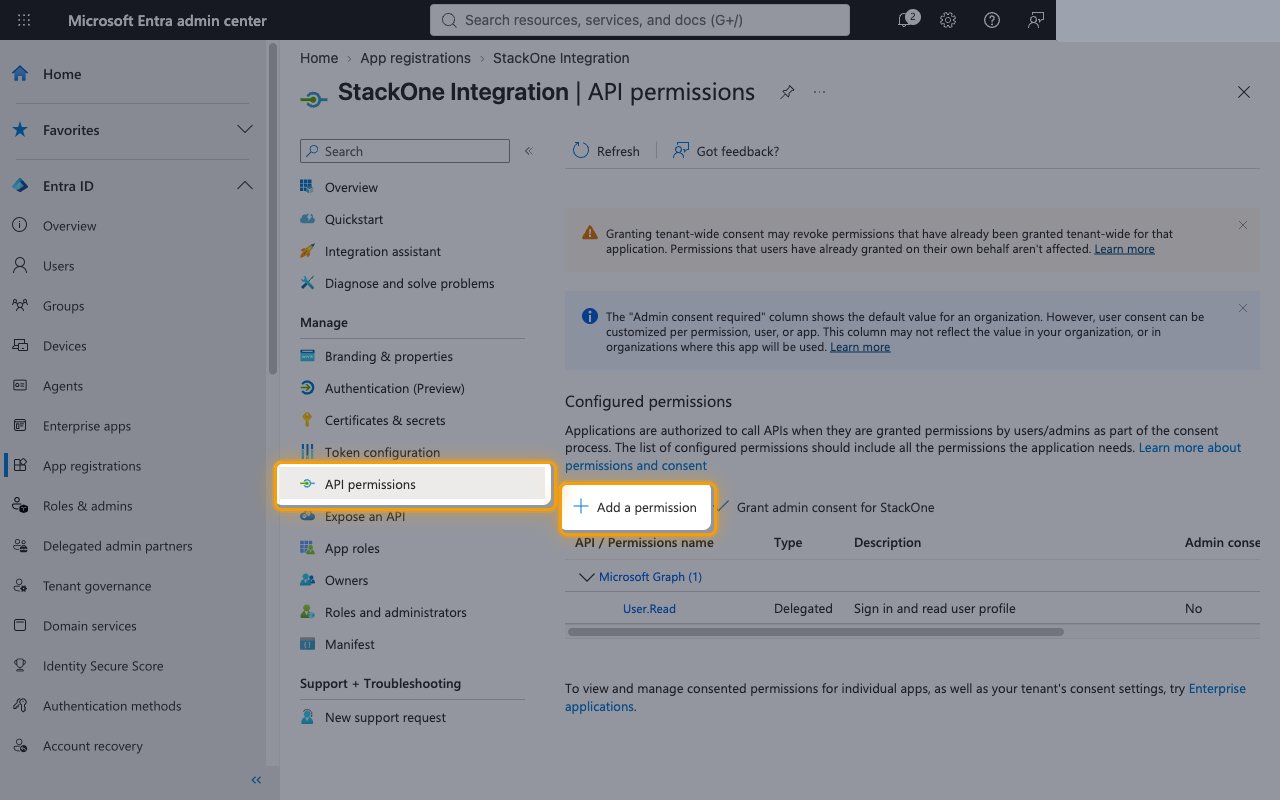
In the app’s left menu, click API permissions, then click Add a permission.
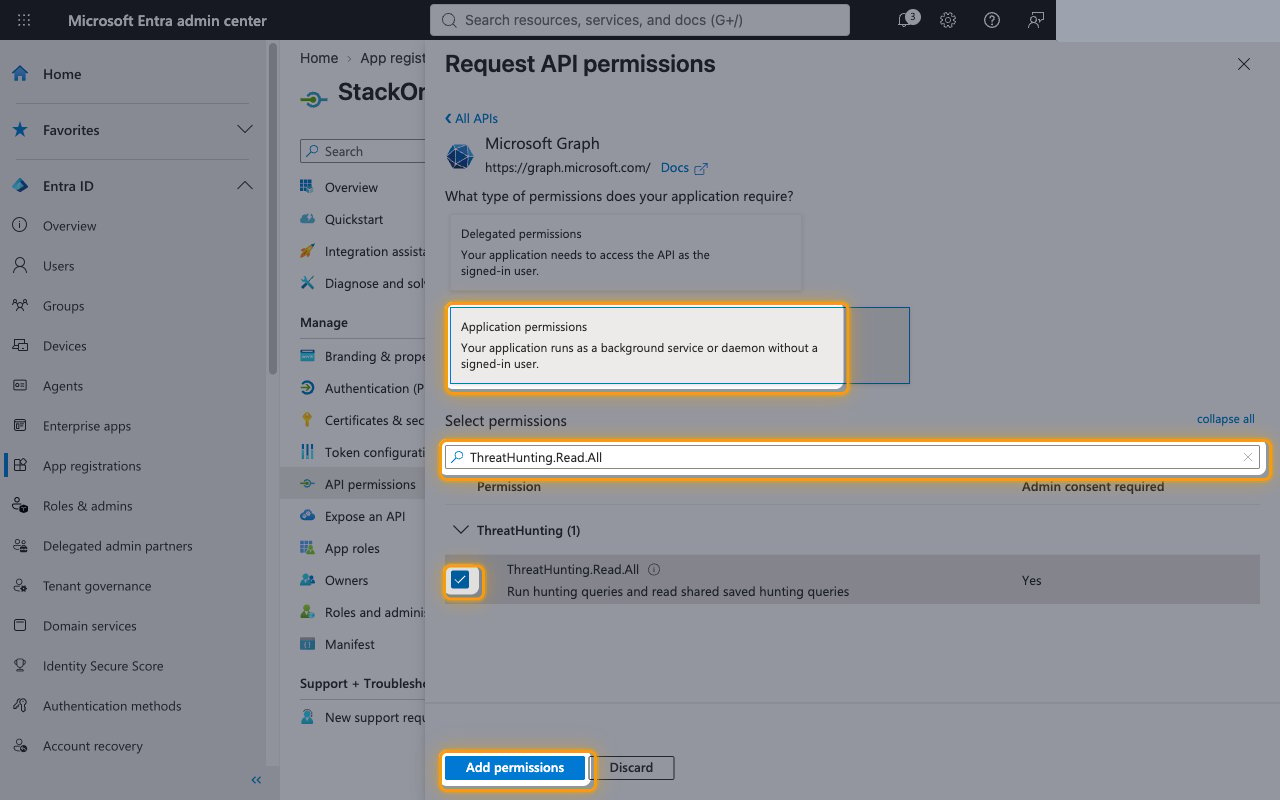
Choose application permissions
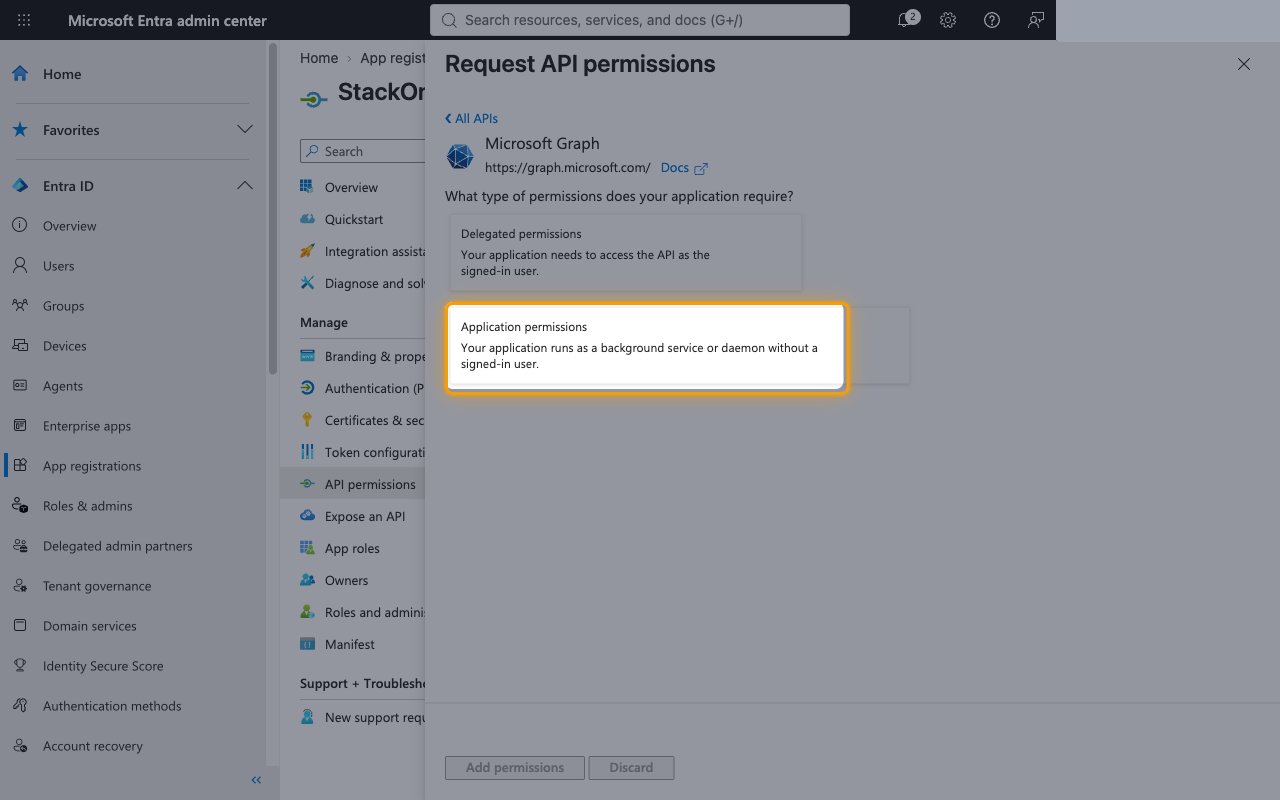
In the Request API permissions panel, click Microsoft Graph, then click Application permissions.
Select the permissions
Use Search permissions to find and check each permission your integration needs, then click Add permissions.
Grant admin consent
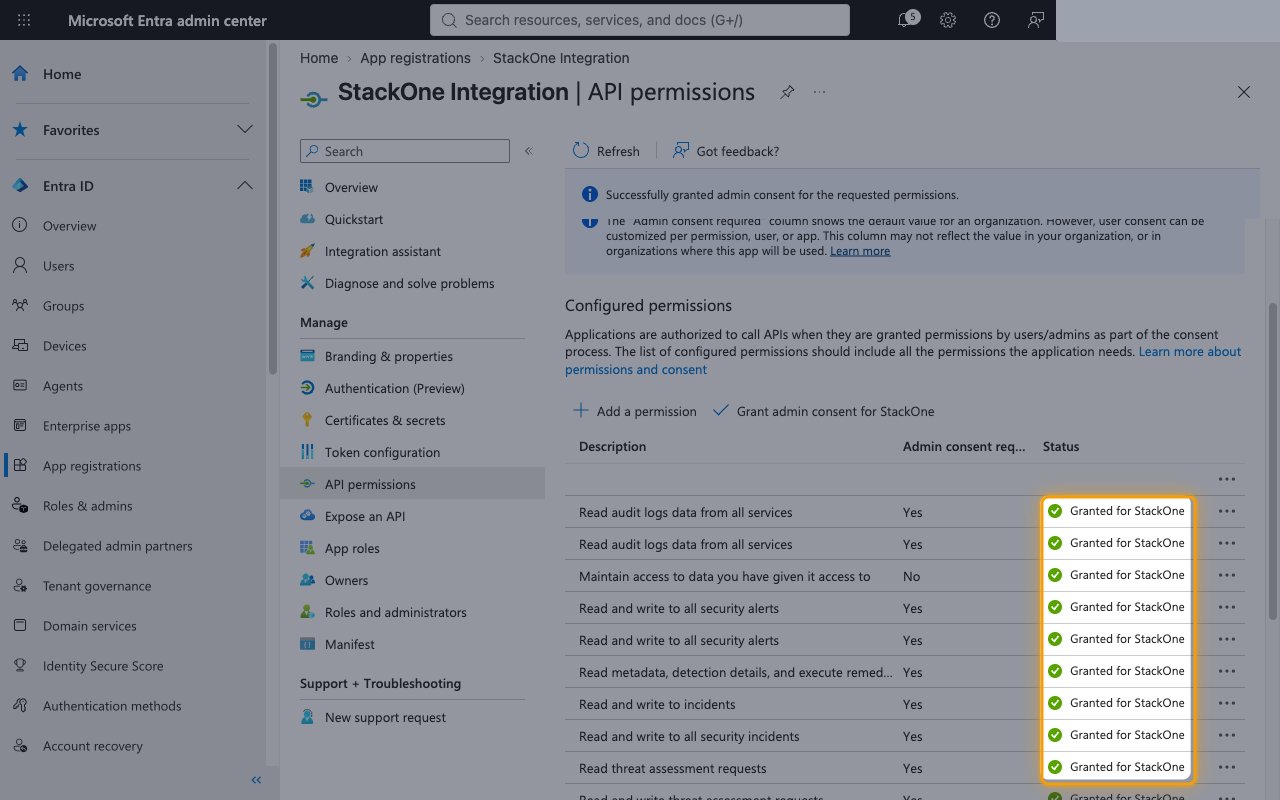
On the API permissions page, click Grant admin consent for your organization, then click Yes to confirm.
- Every permission’s Status should show Granted for your organization.
- Application permissions only take effect after admin consent is granted.
Linking the Account from the Hub
Navigate to the Hub
Fill out the fields
- Tenant ID
- Client ID
- Client Secret
Connect
- Click Connect
- If applicable, the provider will redirect you to a sign-in or authorization page. Complete the provider’s authorization flow.
- Once authorization is successful, you will see a confirmation popup
If the account linking is successful, you will see the newly linked account on your Accounts page.