

Prerequisites
The connector should already be set up, with a Connector Profile and a Linked Account. See Getting Started on the MeetGeek connector page.Send MeetGeek events to StackOne
MeetGeek sends one notification per recording, once its analysis has finished. Each StackOne connection has its own webhook address, which you paste into the MeetGeek account you linked. MeetGeek supports only one webhook address per account, so this replaces any address already configured there.
Copy the Native Webhook URL from StackOne
You can find the Native Webhook URL in the StackOne Hub or on the Linking Account form during account connection or linking.
- Copy the value from the Native Webhook URL field.
- The address identifies the account on its own, so there is no routing identifier to complete afterwards.
Open Integrations in MeetGeek
Sign in to your MeetGeek account using the same account you linked to StackOne.
- Click Integrations under PRODUCTIVITY in the left-hand navigation, or open the MeetGeek integrations page directly.
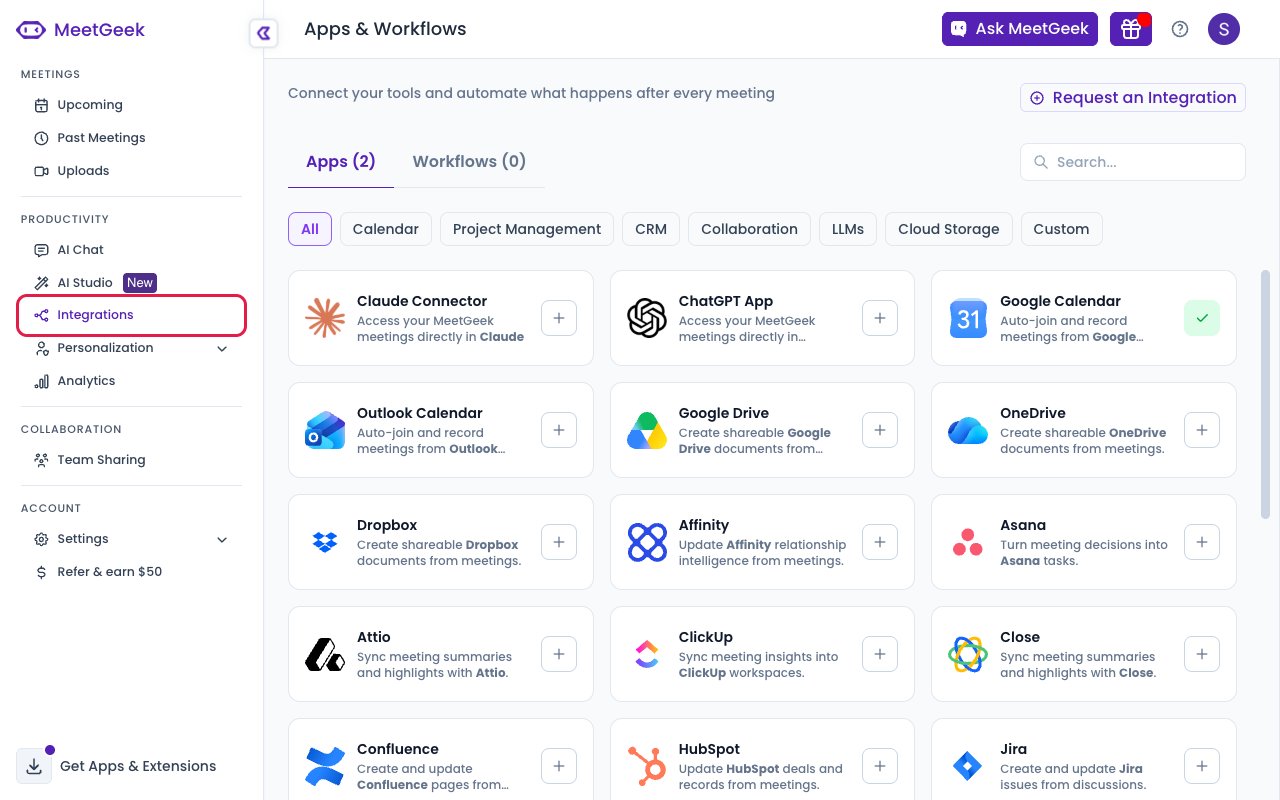
Open the MeetGeek API app
The Apps & Workflows page opens on the Apps tab.
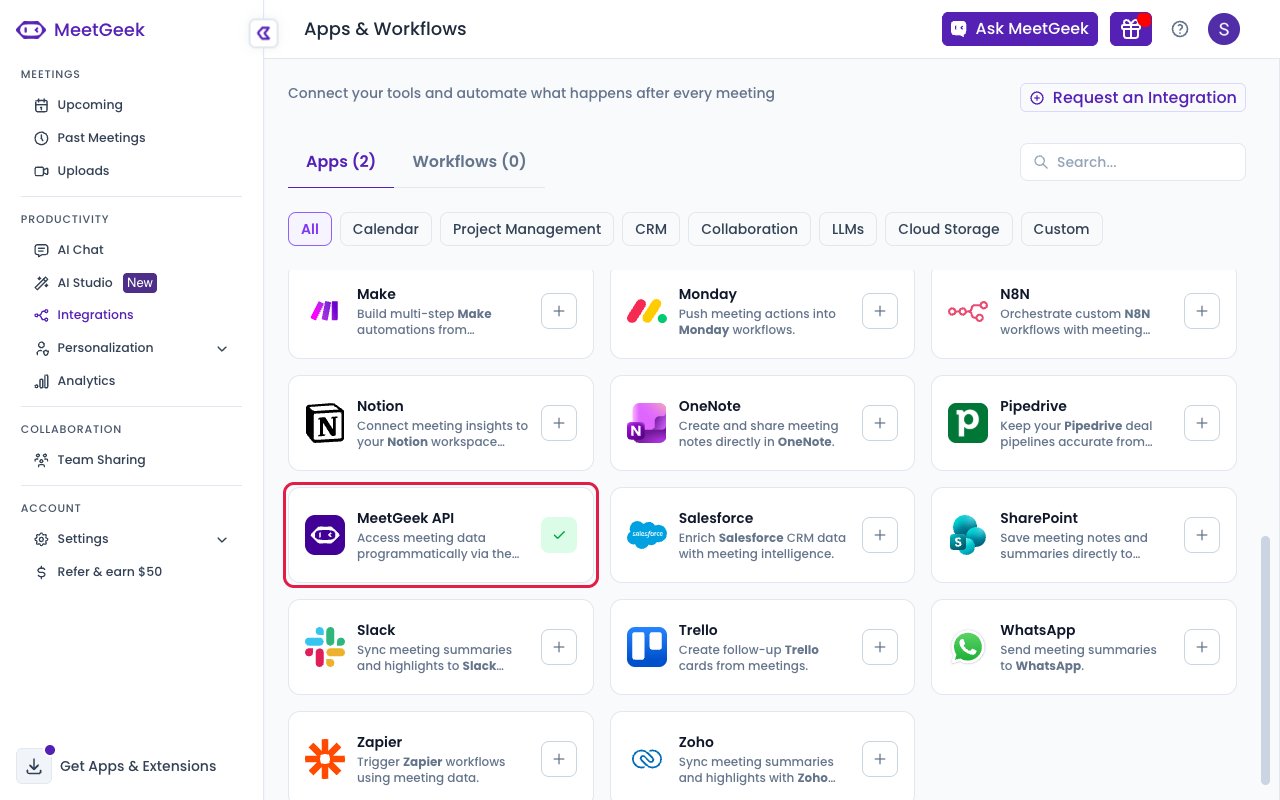
- Locate the MeetGeek API card — “Access meeting data programmatically via the MeetGeek public API”.
- If the card is not visible, use the search box in the top right-hand corner to filter for
MeetGeek API. - Click the card to open its settings panel.
Paste the Native Webhook URL
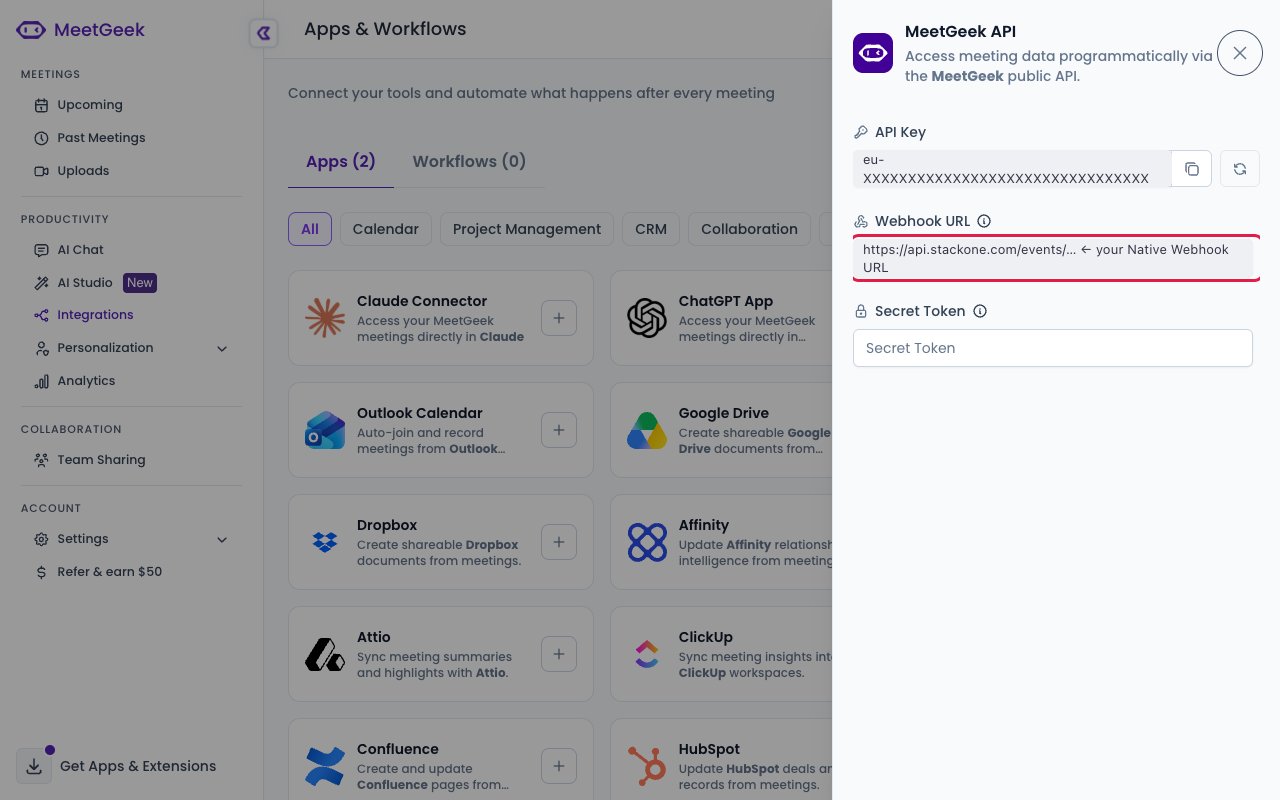
The settings panel opens on the right, below the API Key field.
- Paste the Native Webhook URL you copied from StackOne into the Webhook URL field.
- Click outside the field. The value is saved as soon as the field loses focus, so there is no Save button to press.
- To stop delivery at any time, clear the field. MeetGeek then sends no notifications at all.
Available webhook events
The following MeetGeek events can be enabled. Only events selected in StackOne are delivered. MeetGeek has no event picker of its own — it sends every notification to the address you configured, and StackOne forwards only the events you have enabled.
Meeting analysis events
Events reporting the outcome of MeetGeek’s analysis of a recording.
- Meeting Analysed (
meeting.analyzed) — Fired when MeetGeek finishes analysing a recording, whether it came from a meeting its notetaker attended or from an uploaded file. Carries the meeting ID, so the transcript, summary, highlights and insights can be retrieved immediately. - Meeting Analysis Failed (
meeting.analysis_failed) — Fired when MeetGeek cannot analyse a recording, for example because the file could not be downloaded or was not an audio or video file. MeetGeek does not identify which recording failed, so this event carries no meeting ID.