

Retrieve your API key
MeetGeek authenticates with a static API key sent as a bearer token. The key lives on the MeetGeek API app under Integrations and never expires. Public API access is included on every plan, including the free Basic plan.
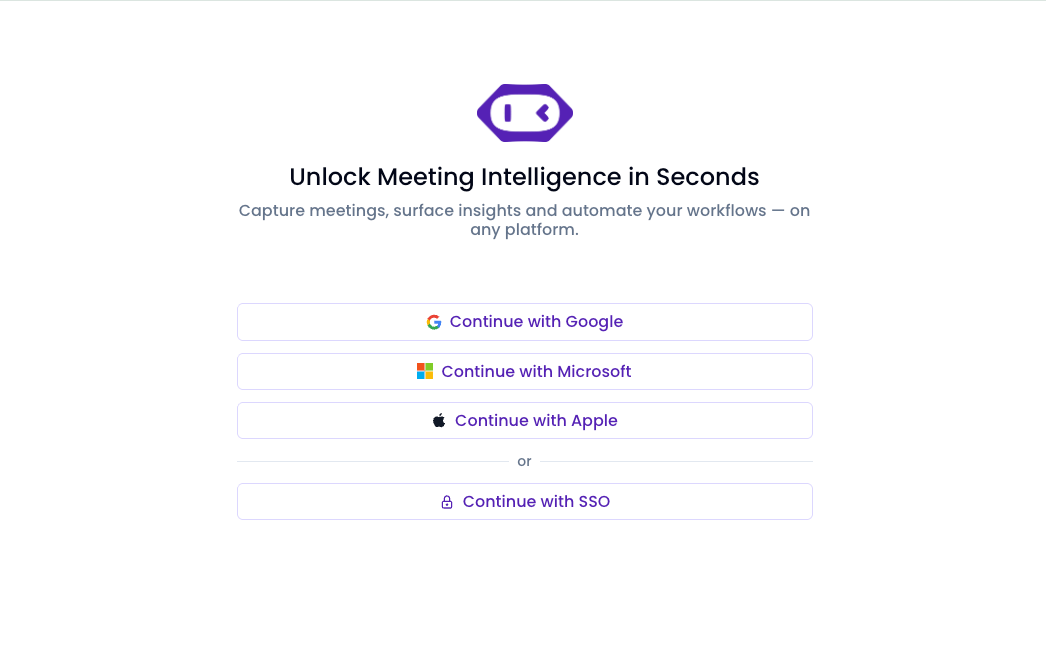
Sign in to MeetGeek
Sign in to your MeetGeek account.
Open Integrations
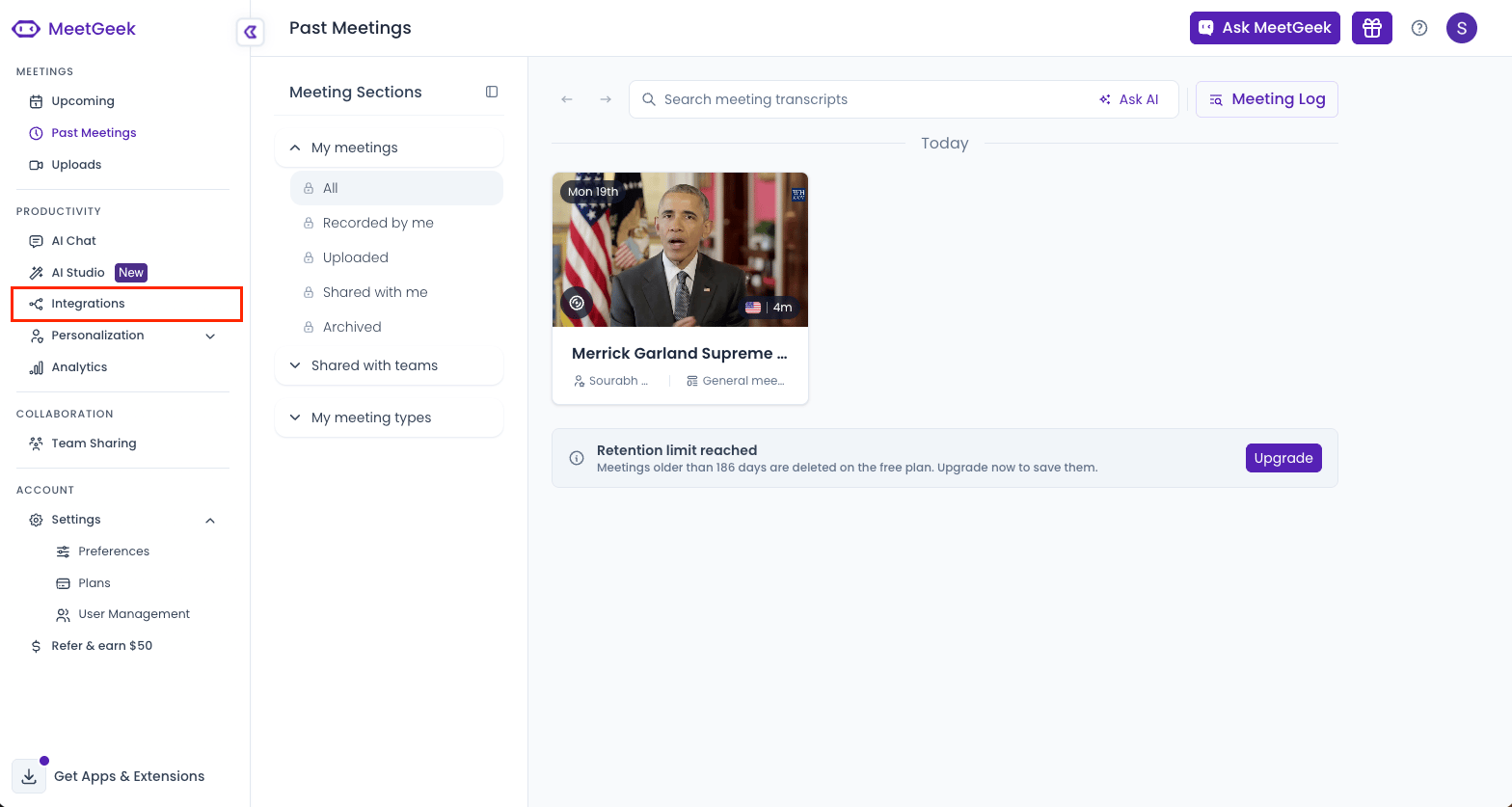
Open the integrations area of your workspace.
- Click Integrations under PRODUCTIVITY in the left-side navigation, or open the MeetGeek integrations page directly.
Open the MeetGeek API app
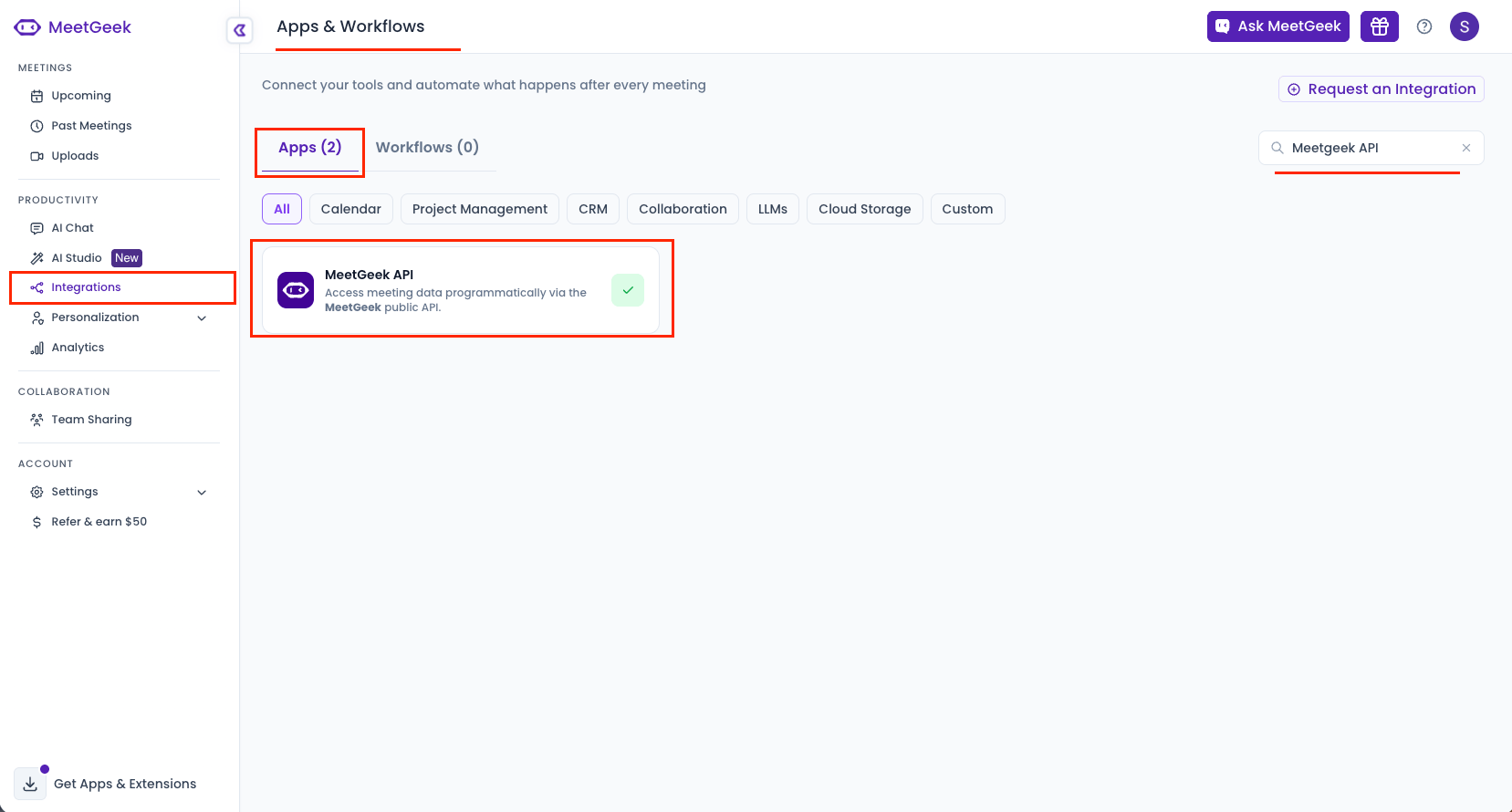
The Apps & Workflows page opens on the Apps tab.
- Stay on the Apps tab and find the MeetGeek API card — “Access meeting data programmatically via the MeetGeek public API”.
- Use the search box in the top right to filter for
MeetGeek APIif the card is not visible. - Click the card to open its settings panel.
Copy the API key
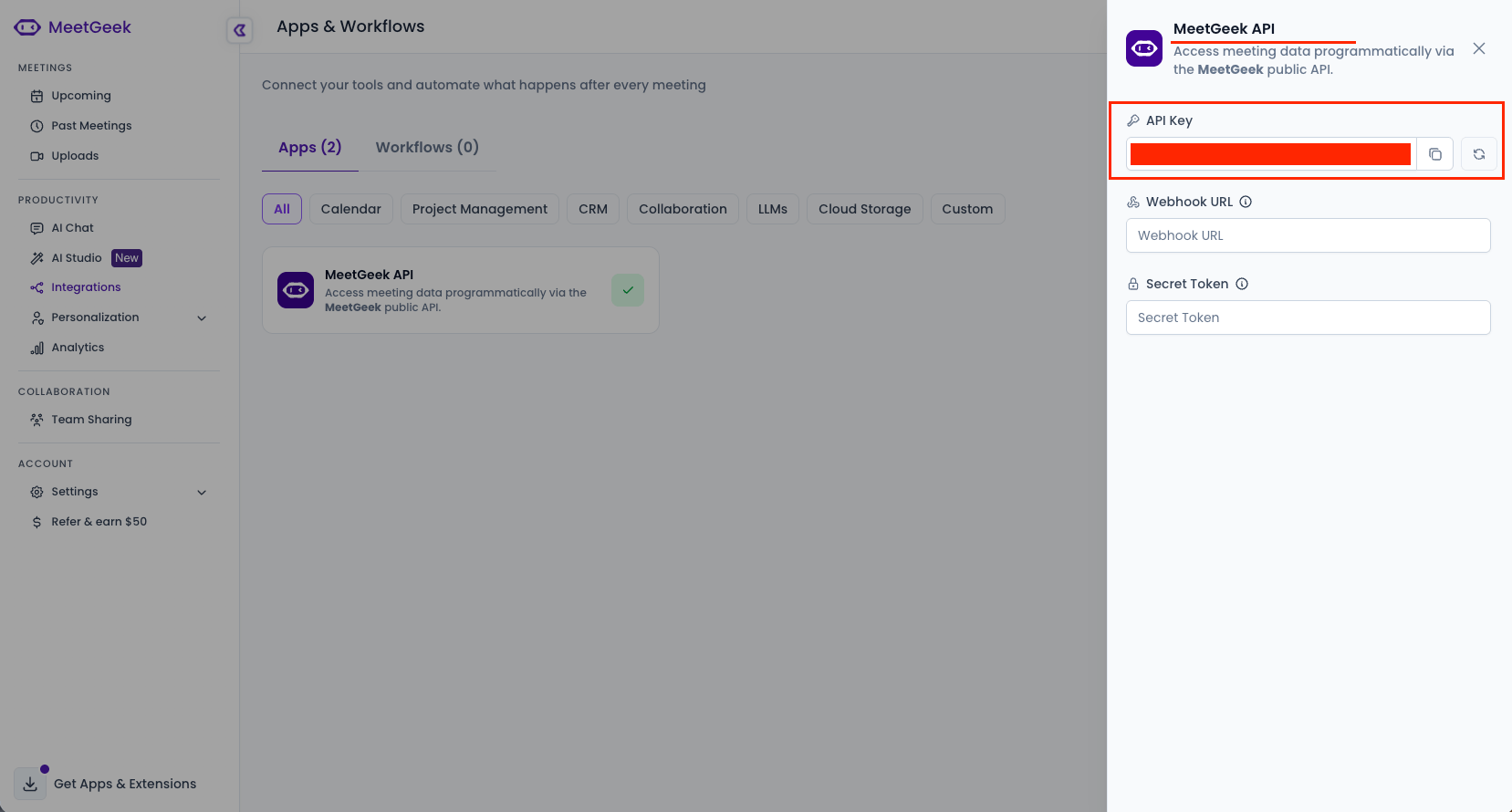
The settings panel opens on the right with the key already generated — there is nothing to create.
- Click the copy icon next to the API Key field.
- Paste the value into the API Key field in StackOne.
- The refresh icon beside it regenerates the key. Only use it if the current key is compromised — regenerating invalidates the old key and breaks any integration still using it.
- Leave Webhook URL and Secret Token empty. They are for MeetGeek’s own outbound webhooks and are not used by this connection.
Select your data region
API keys are region-specific. In StackOne, set Data Region to the region your MeetGeek workspace was provisioned in. If you are unsure, start with Default (Europe) — an incorrect region returns an authentication error.
Linking the Account from the Hub
Navigate to the Hub
Fill out the fields
- API Key
- Data Region
Connect
- Click Connect
- If applicable, the provider will redirect you to a sign-in or authorization page. Complete the provider’s authorization flow.
- Once authorization is successful, you will see a confirmation popup
If the account linking is successful, you will see the newly linked account in your Accounts page.
Next Steps
Webhooks setup
Configure receiving Events for MeetGeek into StackOne.