Prerequisites
The connector should already be set up, with a Connector Profile and a Linked Account. See Getting Started on the Matillion connector page.Webhook setup
This connector uses Manual Webhooks. Matillion (Data Productivity Cloud / Maia) has no webhook management API, so the notification is configured once in the Matillion UI using the StackOne webhook URL and the payload template below. Notifications fire only for scheduled or API-driven pipeline runs — runs started manually from Designer never generate notifications.
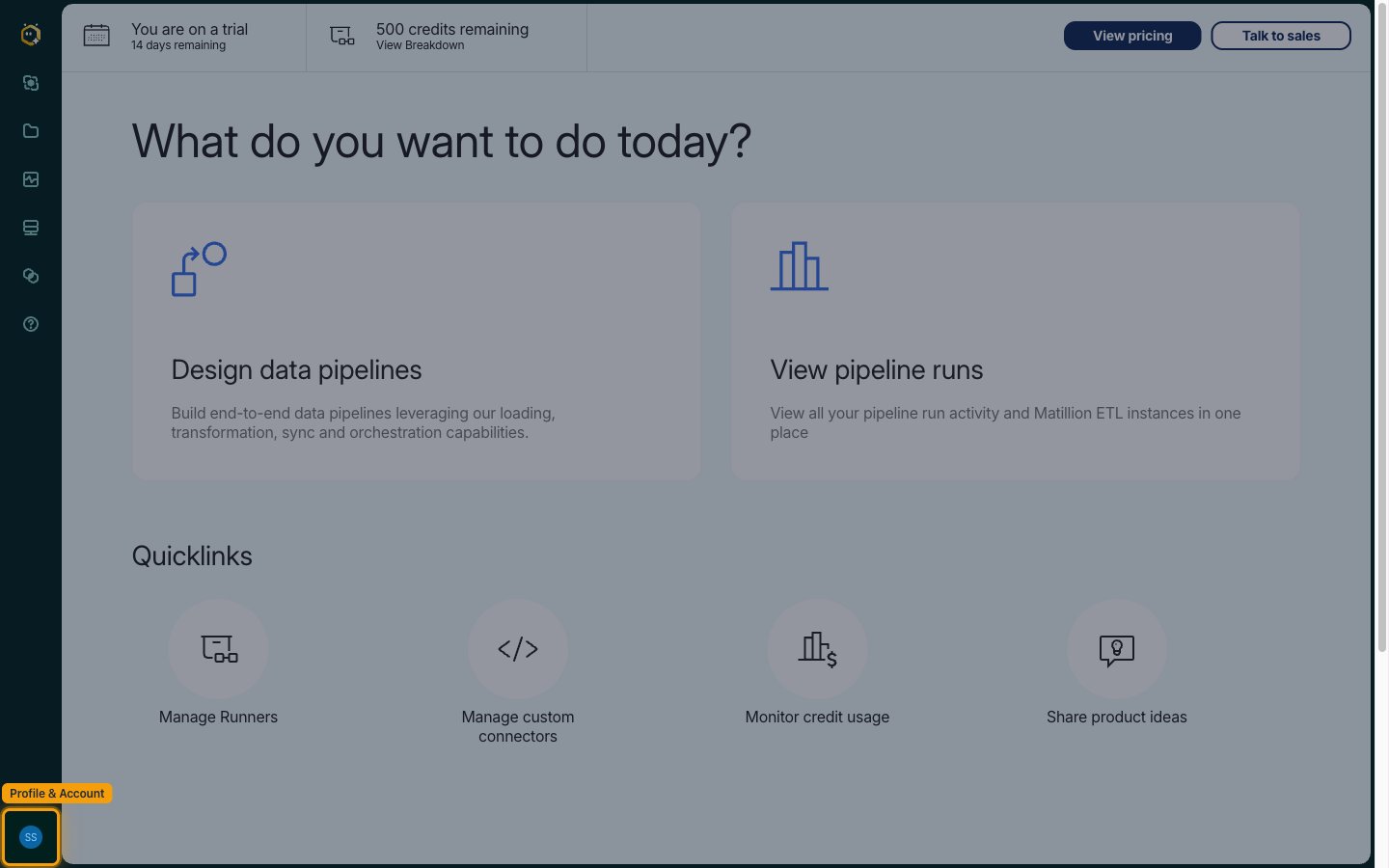
Open Profile & Account
Log in to Matillion and click Profile & Account at the bottom of the left navigation bar.
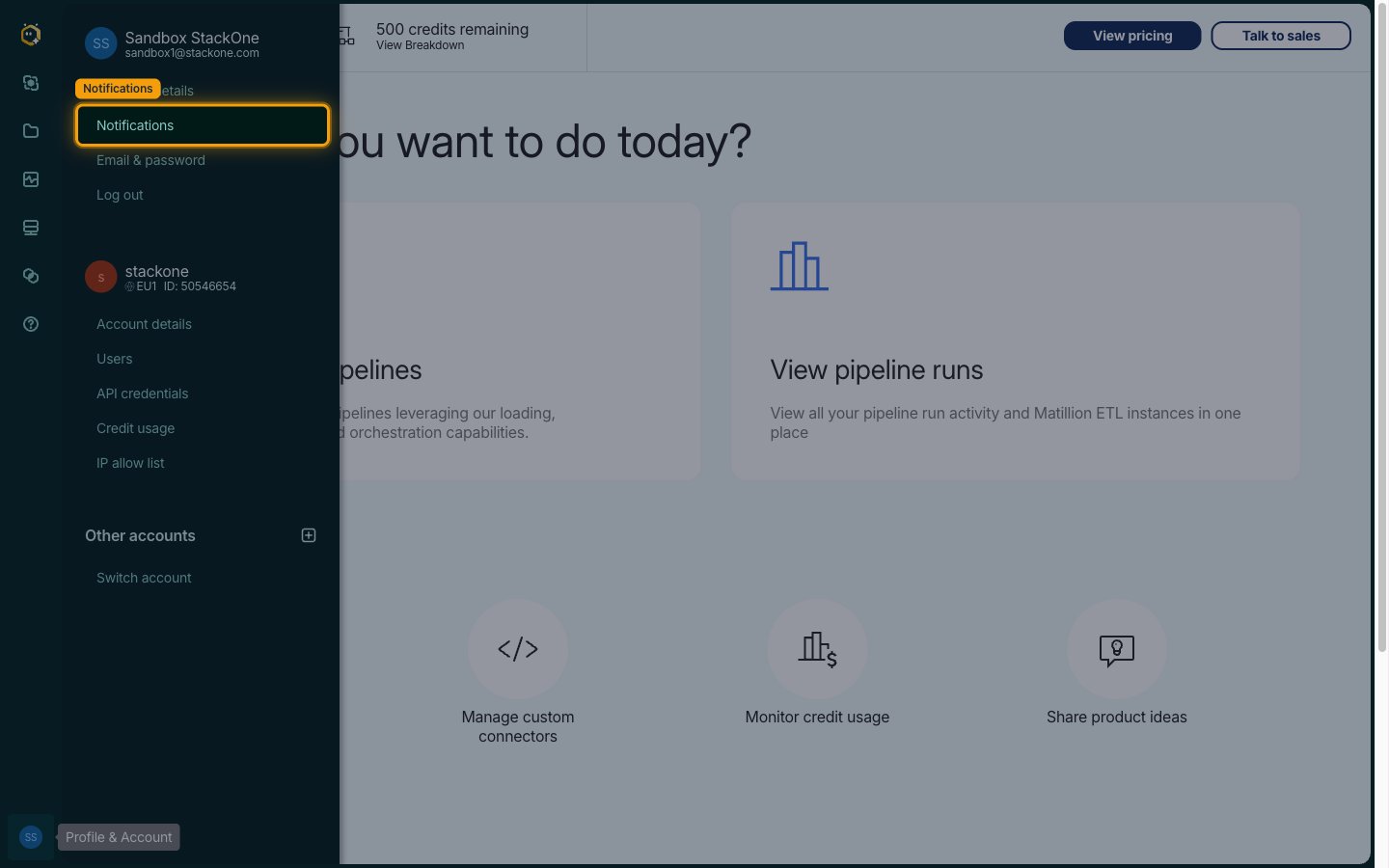
Open Notifications
In the menu that opens, click Notifications under your user section.
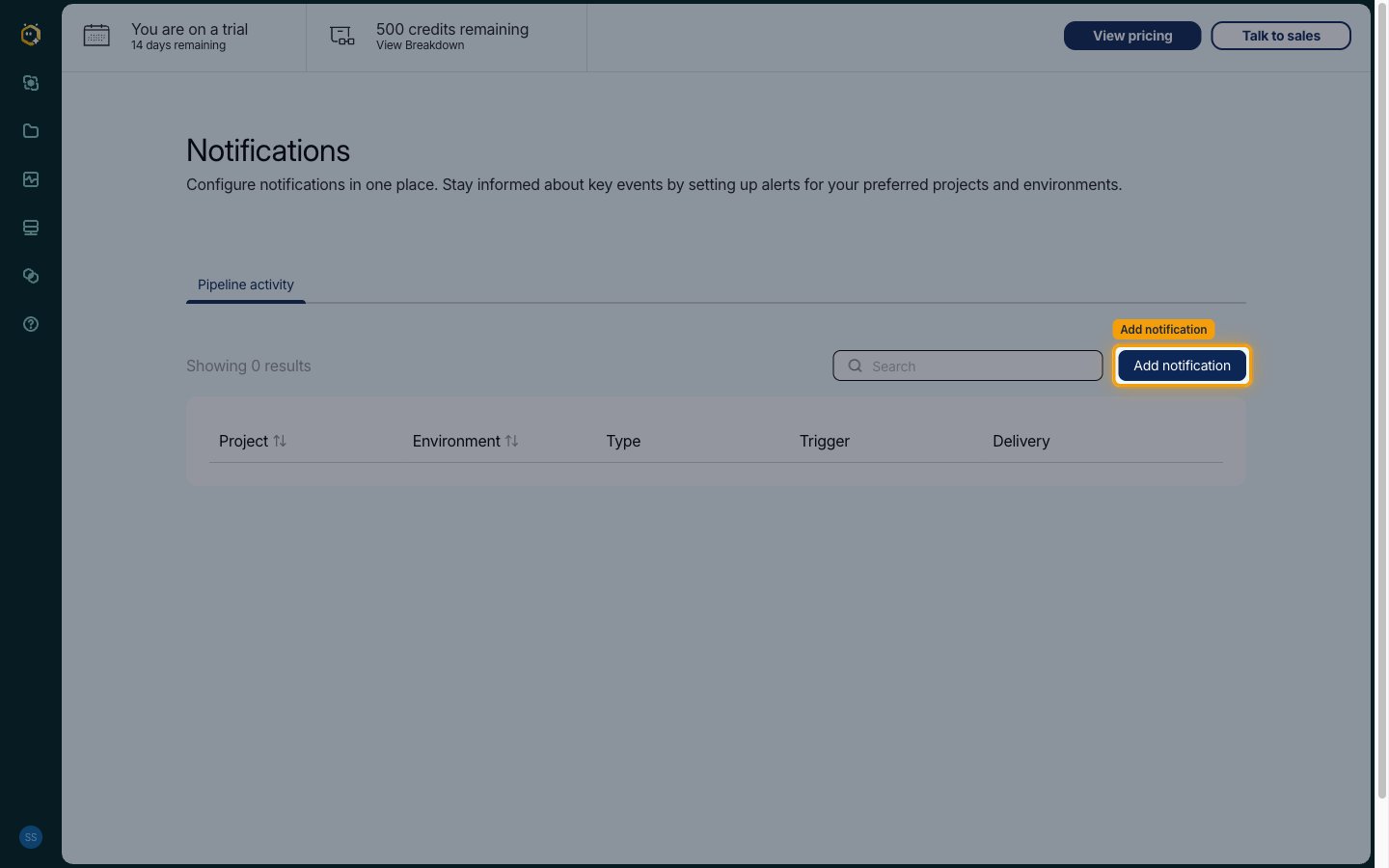
Add a notification
On the Notifications page, click Add notification.
Select scope
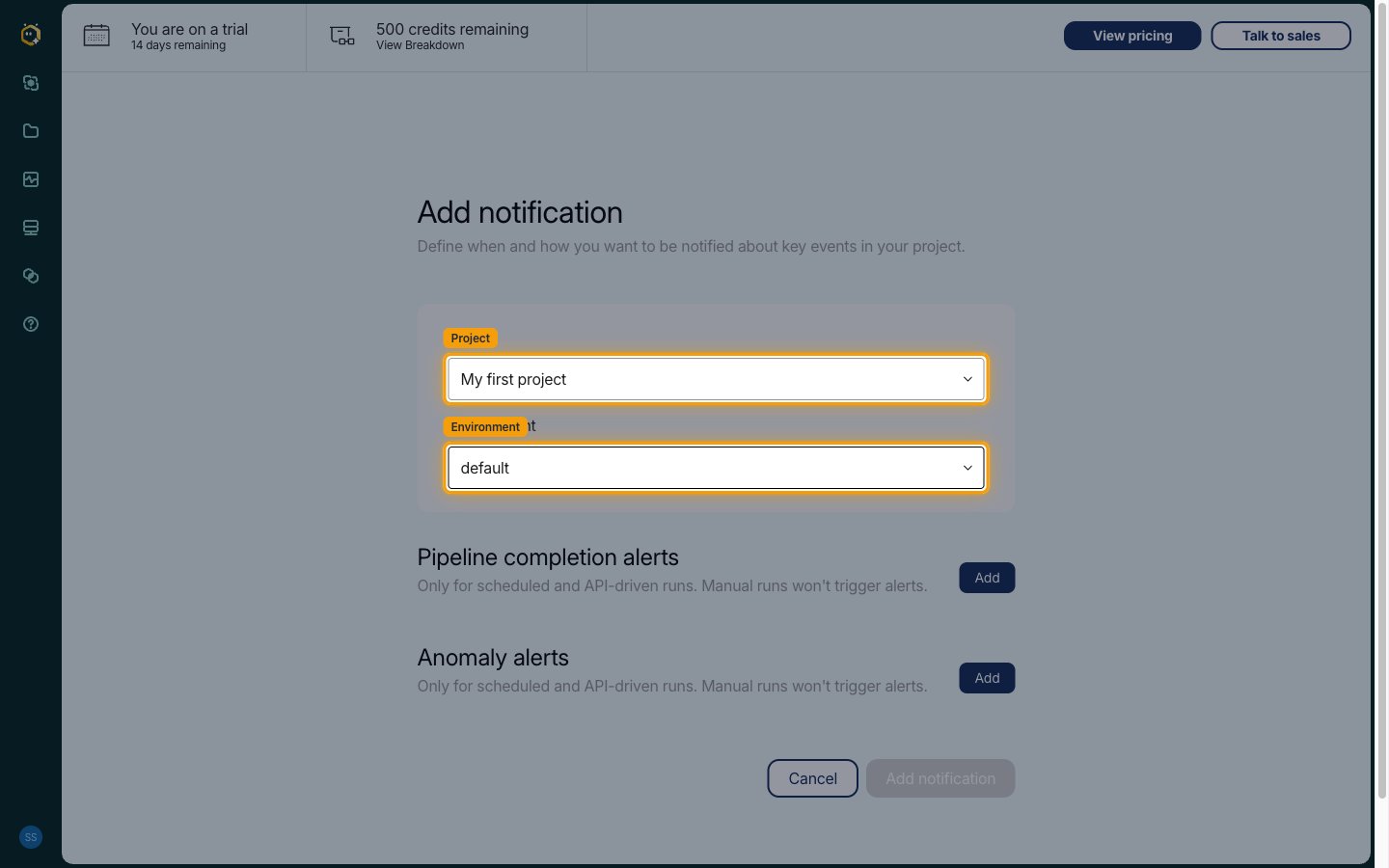
Select the Project and Environment you want StackOne to receive events for. To cover several projects, repeat this guide once per project/environment pair.
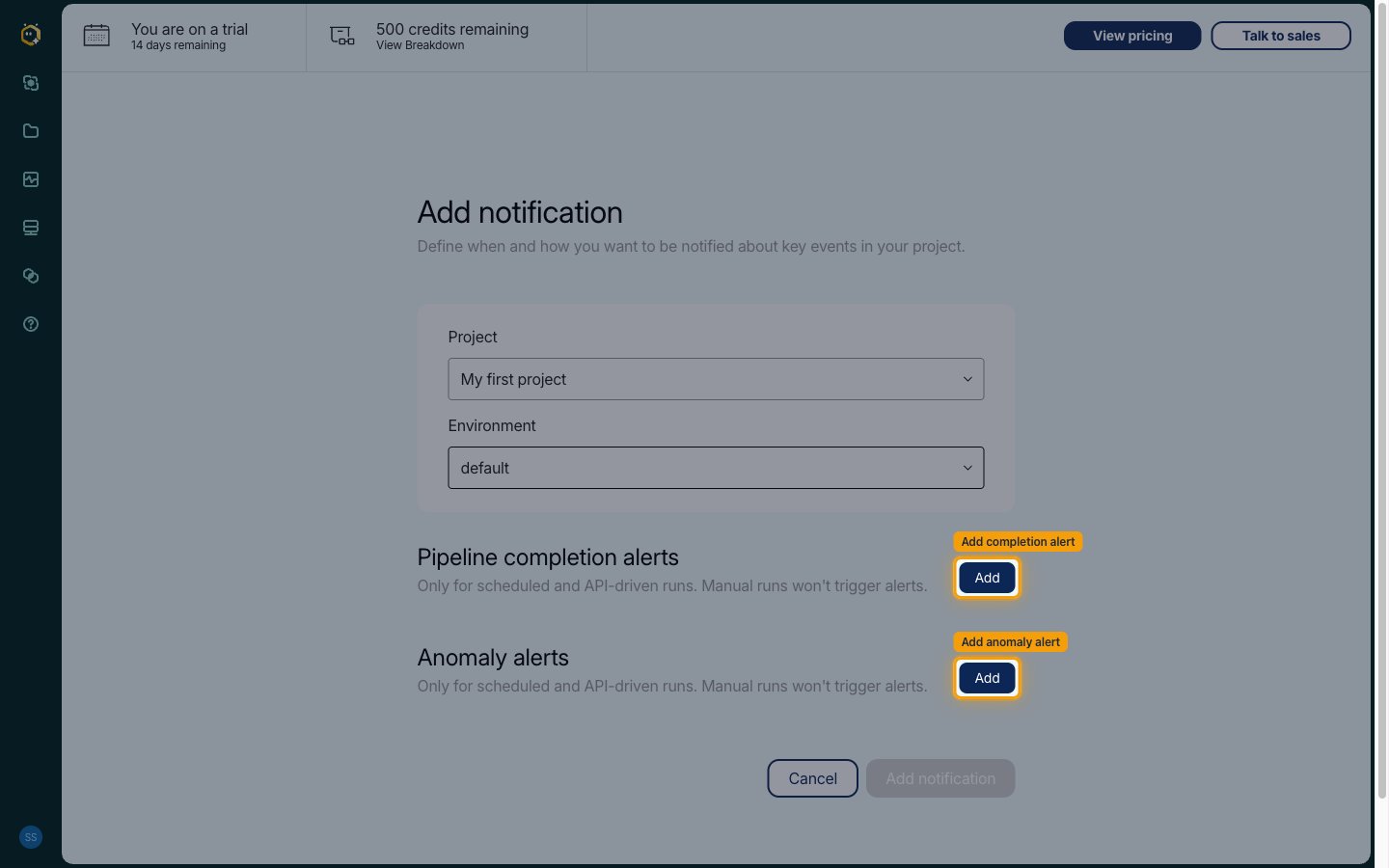
Add completion alerts
Under Pipeline completion alerts, click Add.
Choose triggers and Webhook delivery
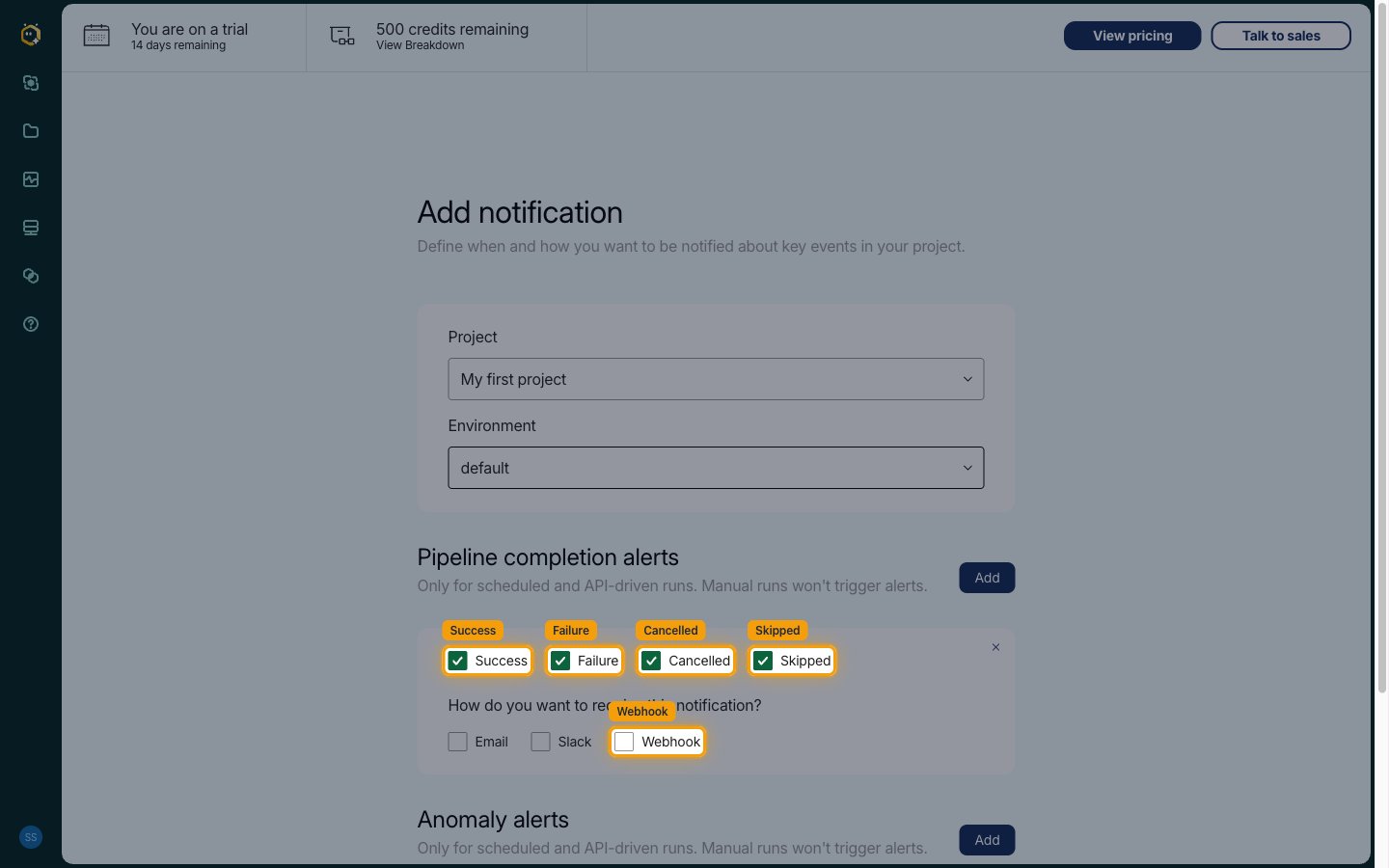
In the alert card, select the run outcomes to deliver, then under How do you want to receive this notification? tick Webhook.
- Select Success, Failure, Cancelled and Skipped to enable all completion events
- Tick Webhook as the delivery method
Fill in the webhook fields
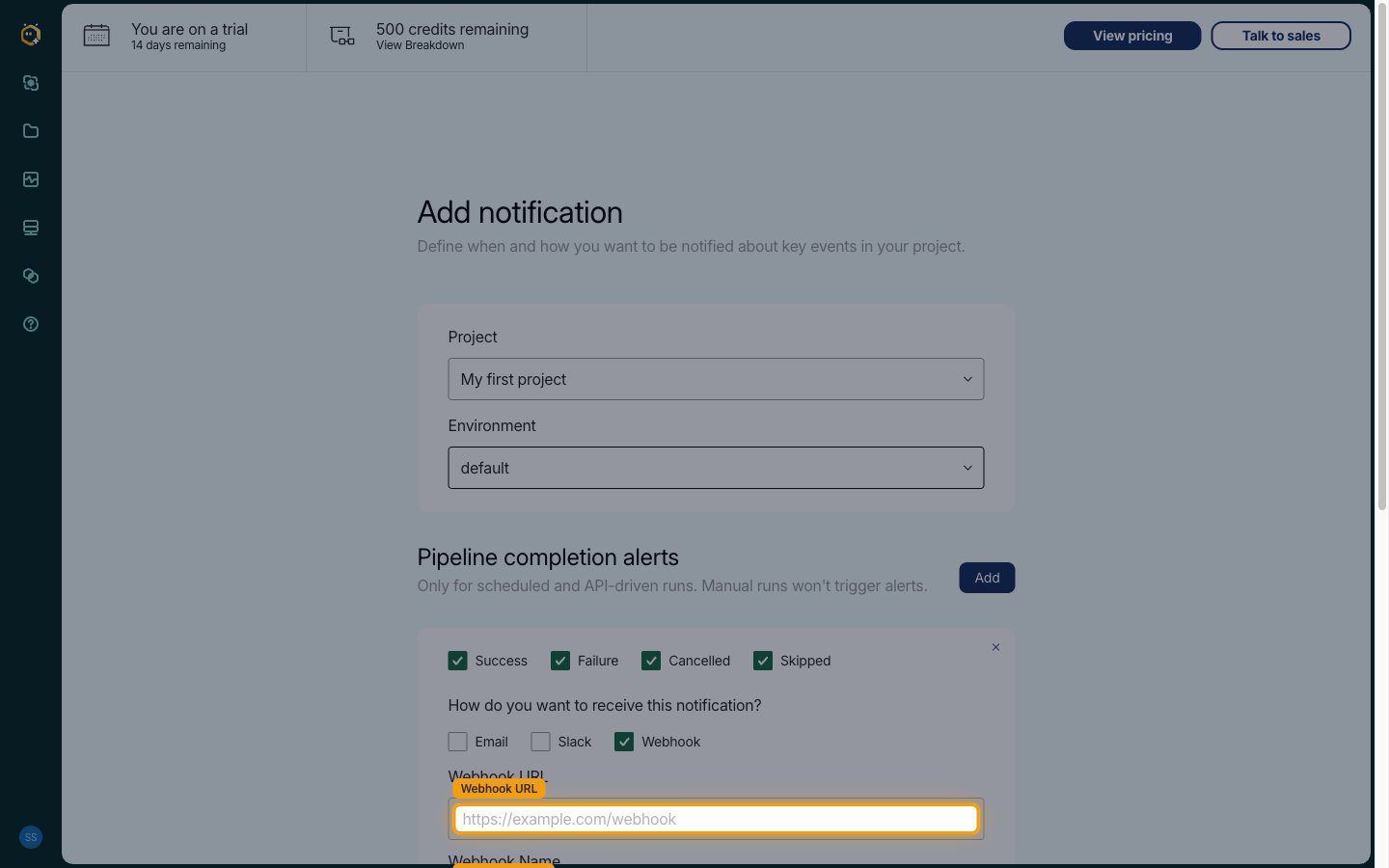
Three fields appear when Webhook is ticked.
- Webhook URL — paste the StackOne webhook URL for this connected account
- Webhook Name — any descriptive name, e.g.
StackOne - Payload Template — paste the template from the next step exactly as given
Paste the completion payload template
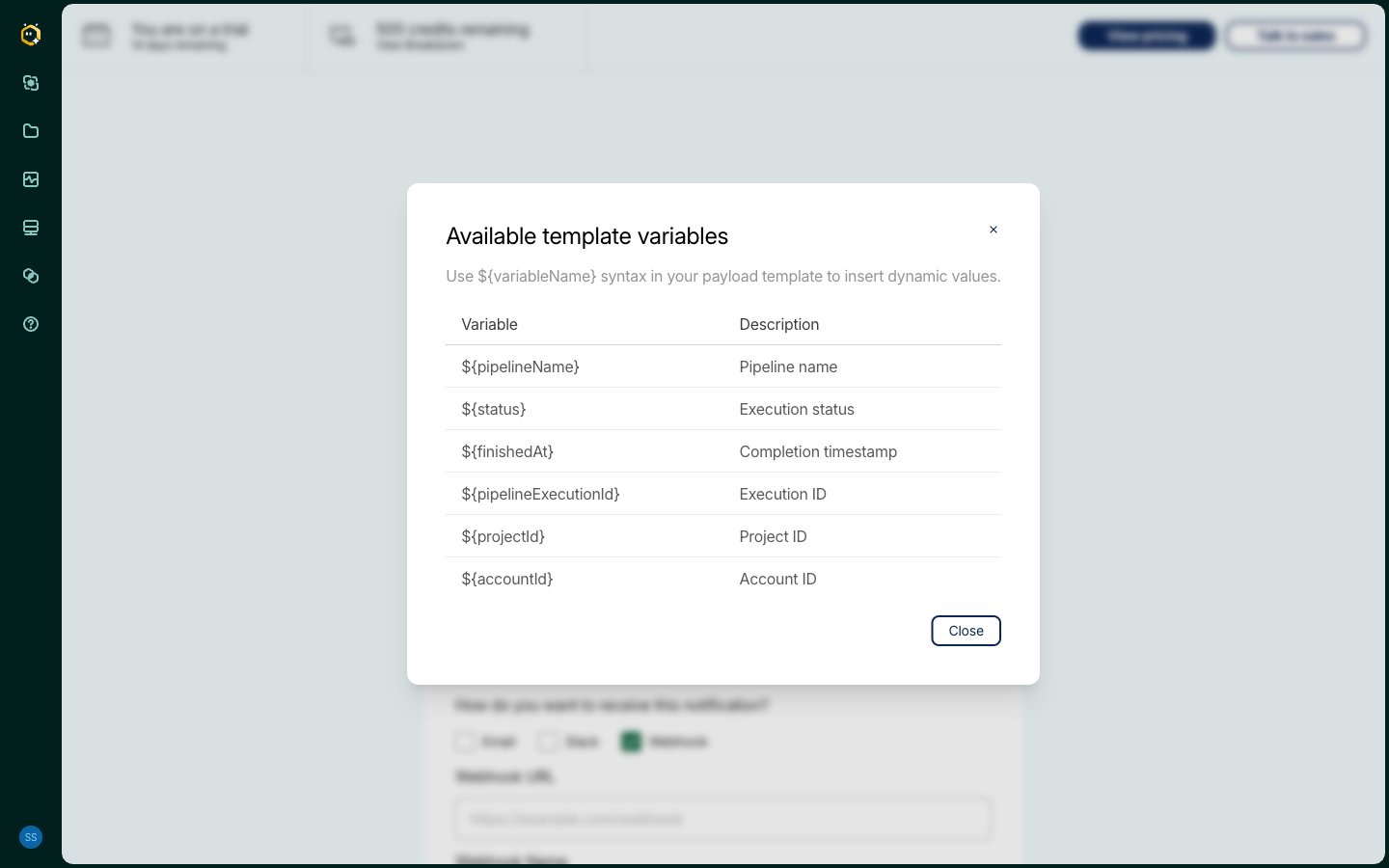
StackOne relies on this exact template to route events — paste it into Payload Template without modification (the View available variables link shows the supported placeholders):
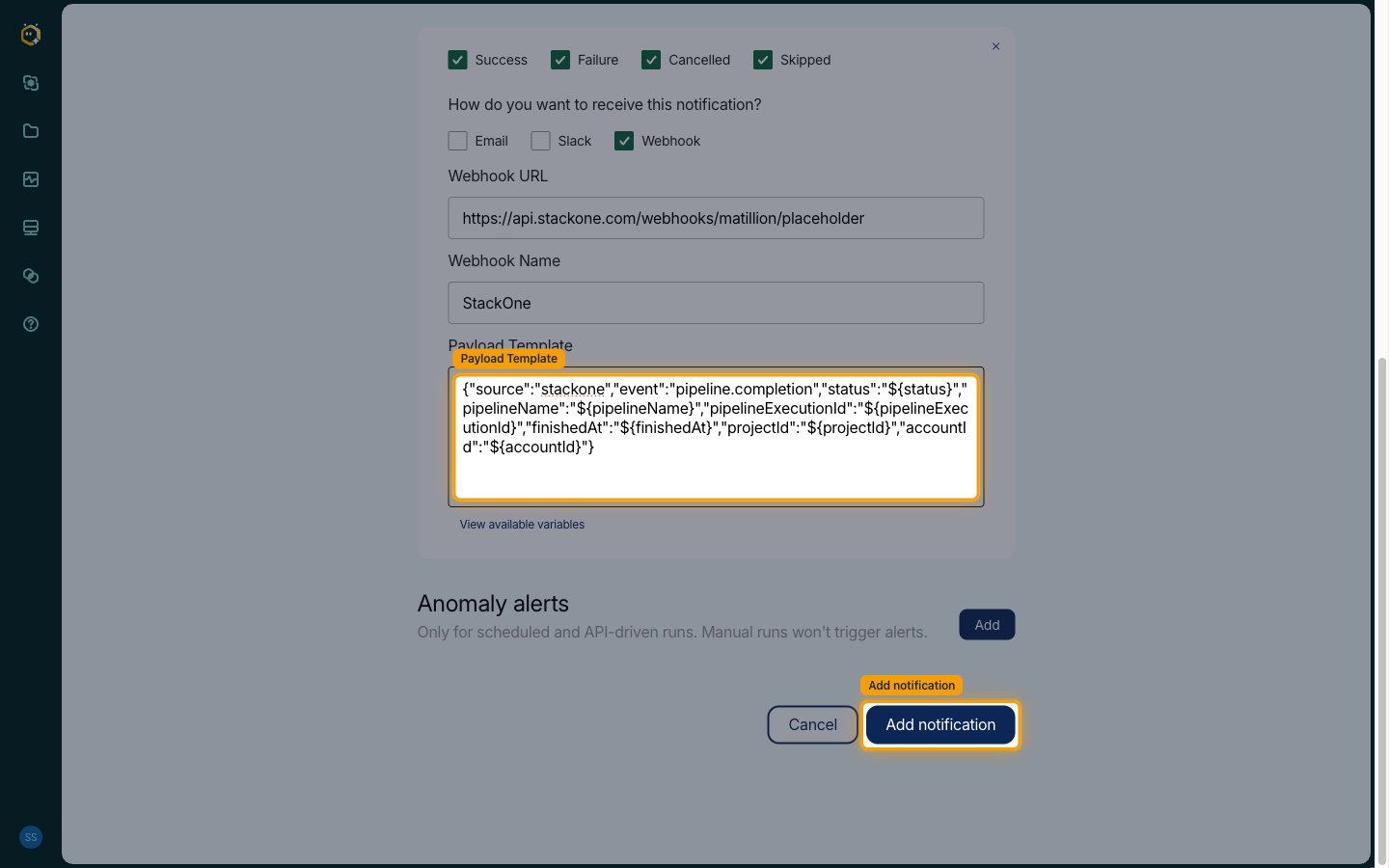
Save
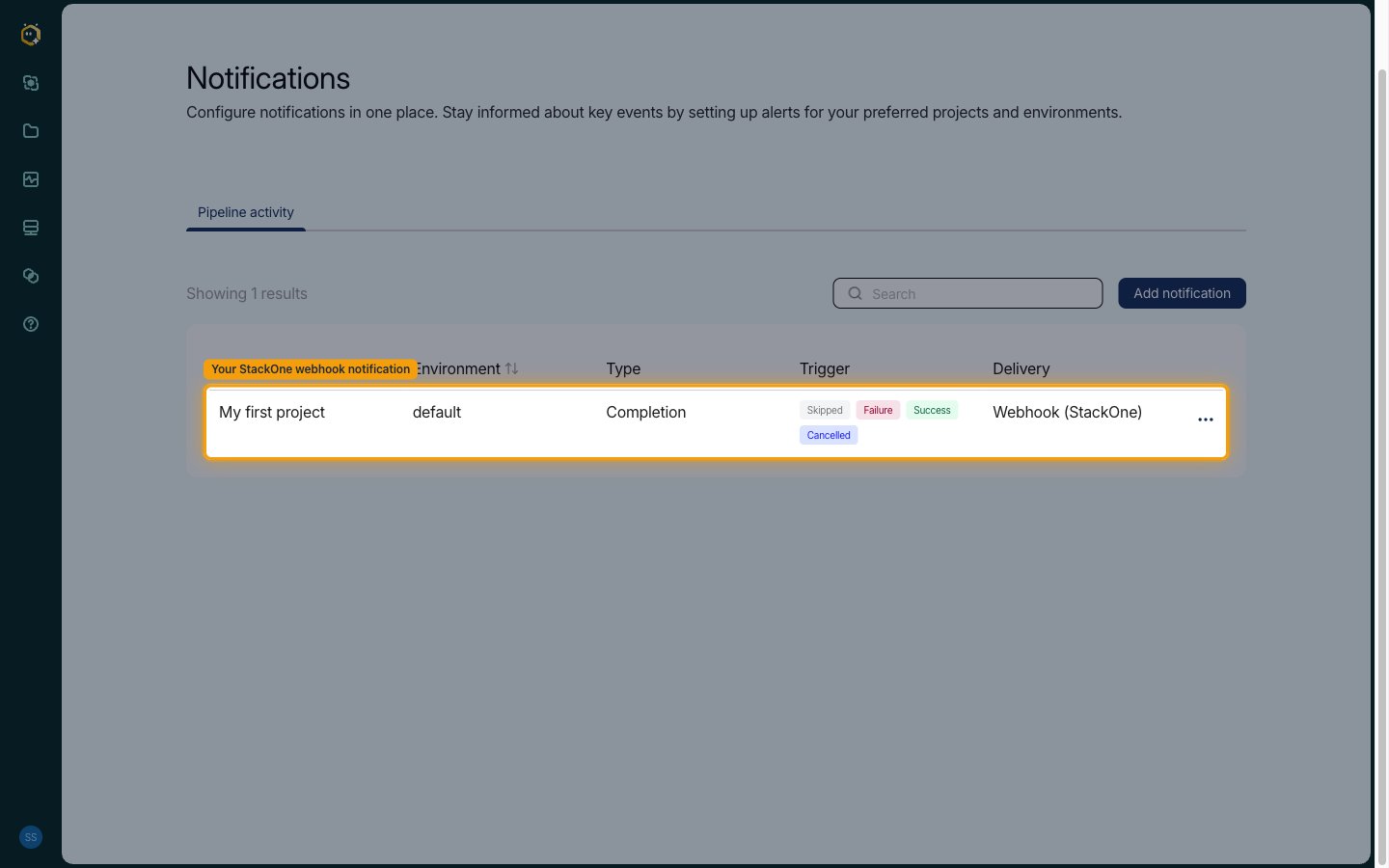
Click Add notification. The new notification appears in the list with Webhook delivery.
Optional — add anomaly alerts
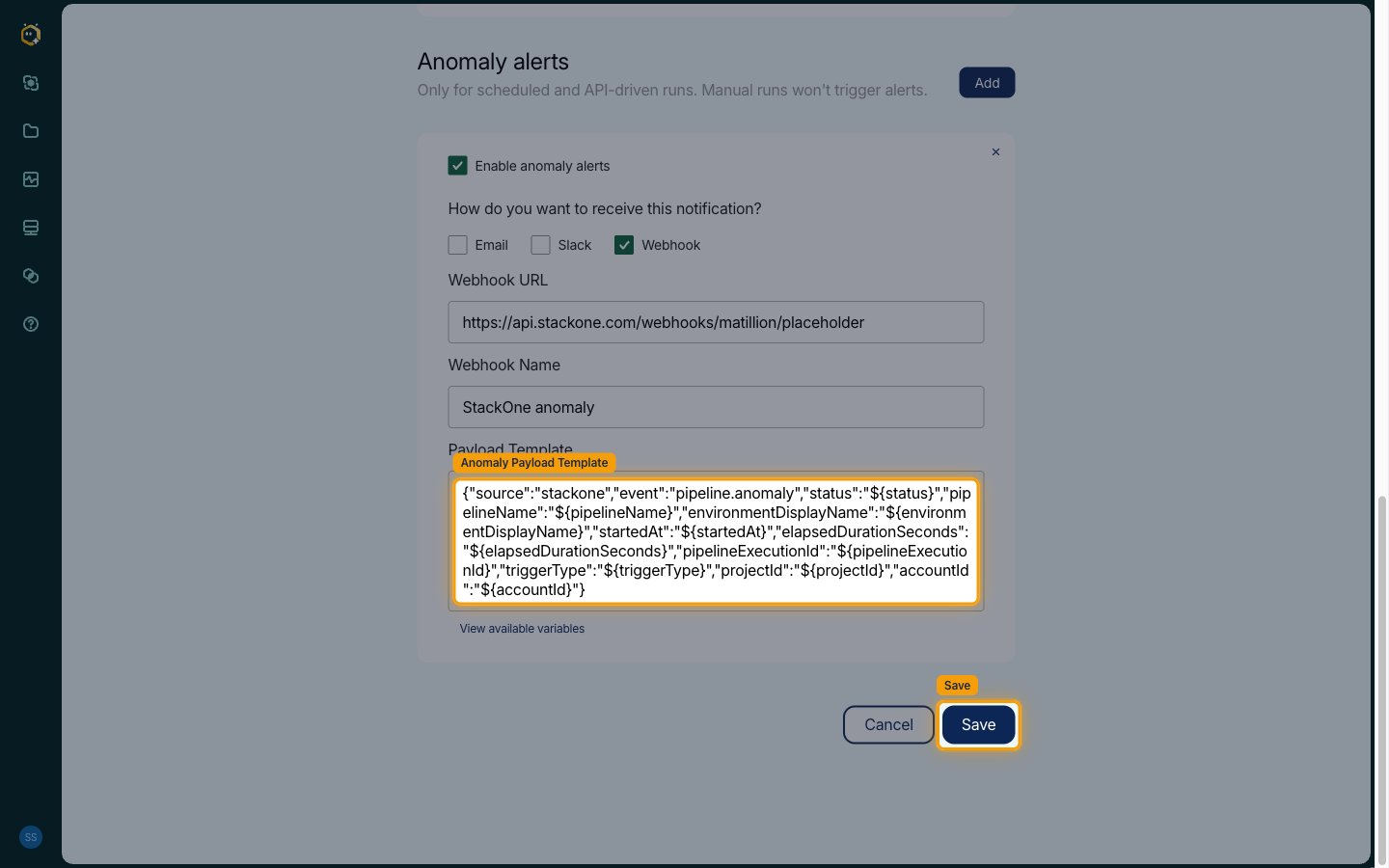
To also receive duration-anomaly events, click Add under Anomaly alerts (or edit the saved notification), tick Enable anomaly alerts, choose Webhook, fill the same Webhook URL, and paste this anomaly template instead, then click Save:
Available webhook events
The following events are emitted by this connector once the notification is configured.
Pipeline run events
Events describing the outcome of scheduled or API-triggered pipeline runs.
- Pipeline Run Succeeded (
pipeline_run.succeeded) — Fired when a pipeline run completes with status SUCCESS - Pipeline Run Failed (
pipeline_run.failed) — Fired when a pipeline run completes with status FAILED - Pipeline Run Cancelled (
pipeline_run.cancelled) — Fired when a pipeline run is cancelled - Pipeline Run Skipped (
pipeline_run.skipped) — Fired when a scheduled pipeline run is skipped - Pipeline Run Duration Anomaly (
pipeline_run.anomaly) — Fired when a run’s duration deviates significantly from its historical baseline (requires anomaly alerts enabled and a historical baseline)
Delivery format
Matillion renders the payload template on each delivery, substituting the ${variable} placeholders (the full list is behind View available variables on each alert card). Payloads are not signed (no HMAC or signature header) — the static "source":"stackone" field and the unguessable webhook URL identify legitimate deliveries. One HTTP POST is sent per pipeline run outcome.
Template variables
Completion alerts support ${pipelineName}, ${status}, ${finishedAt}, ${pipelineExecutionId}, ${projectId} and ${accountId}. Anomaly alerts additionally support ${environmentDisplayName}, ${startedAt}, ${elapsedDurationSeconds}, ${expectedUpperBoundSeconds}, ${expectedLowerBoundSeconds} and ${triggerType}.