

Generating an API key
An API key authenticates requests to Manufact Cloud.
1
Sign in to Manufact
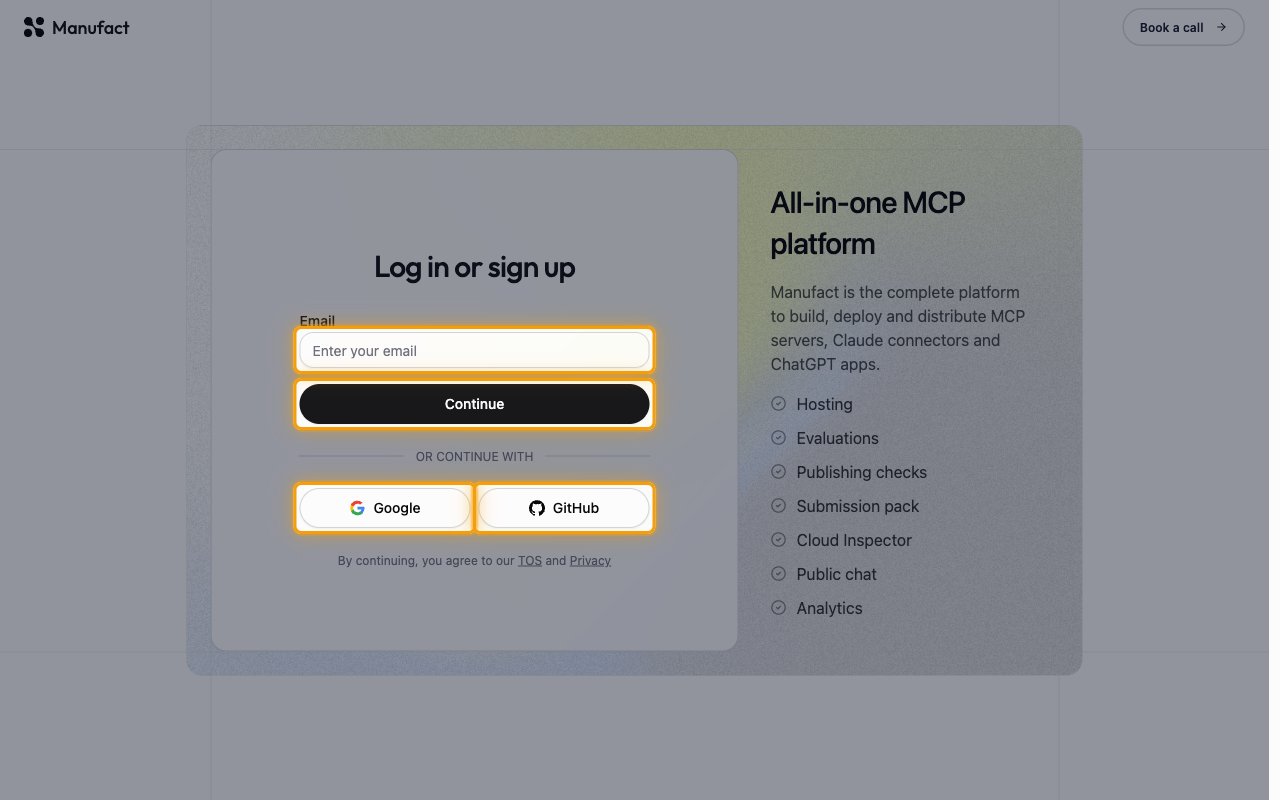
Sign in to your Manufact Cloud account.
- Enter your email address and click Continue, or use Google or GitHub.
2
Open the API Keys page
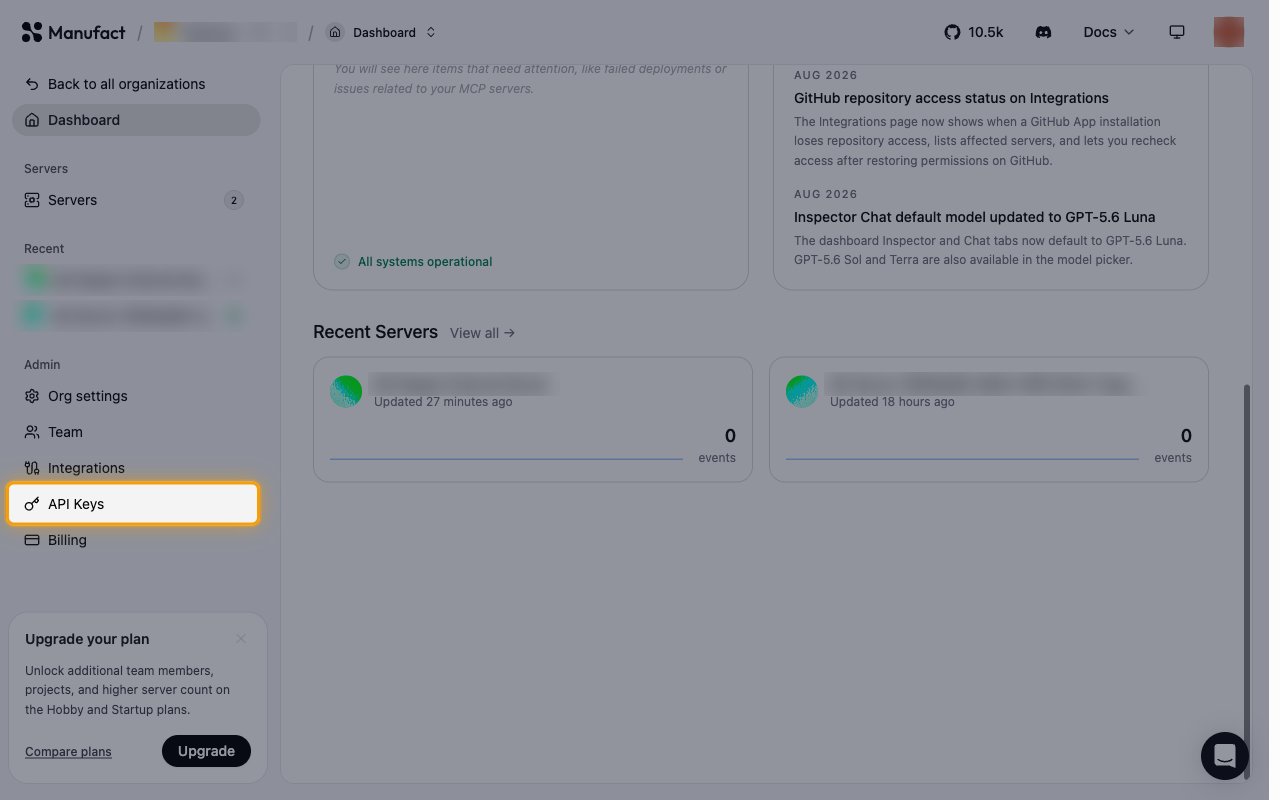
In the sidebar, under Admin, click API Keys.
- Keys belong to the organization shown in the breadcrumb at the top of the page.
- If you belong to more than one organization, click Back to all organizations and open the one you want the key to access before continuing.
3
Create a new key
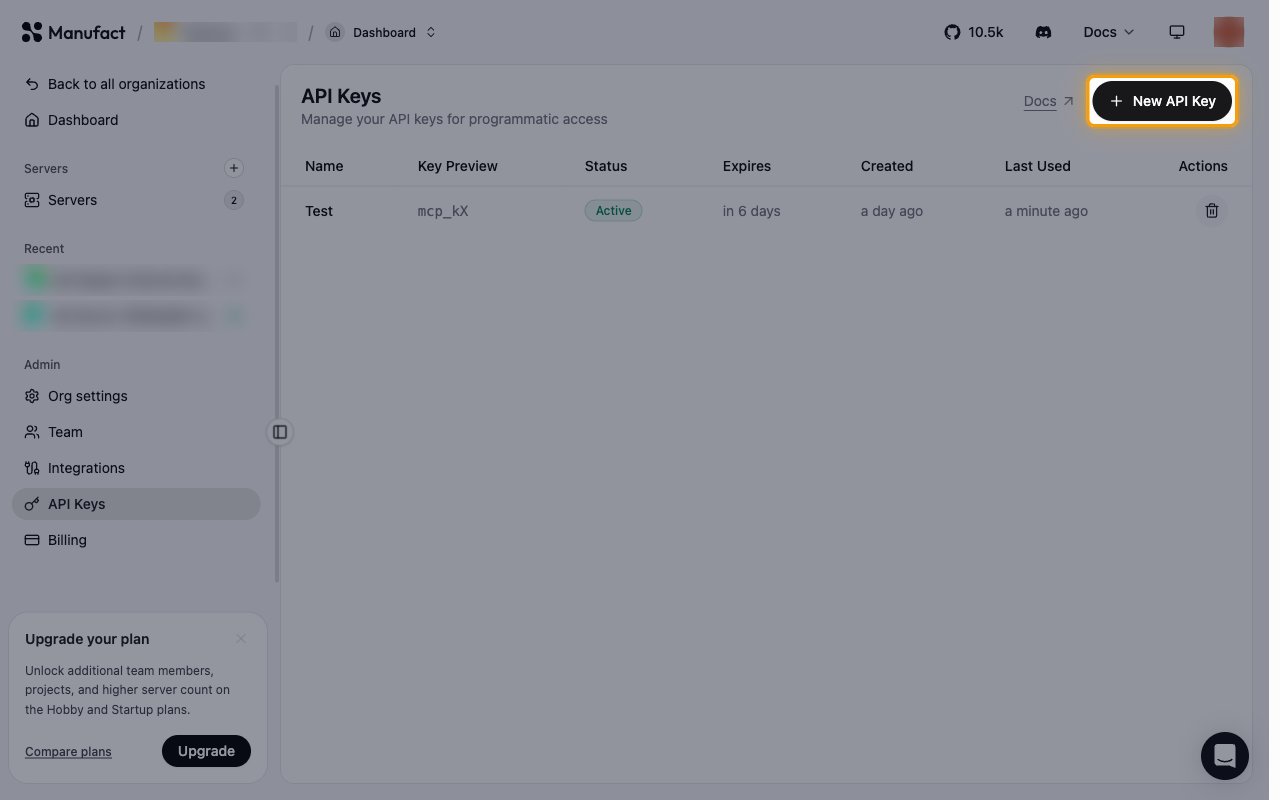
Click New API Key to open the Create API Key dialog.
- The table lists the keys that already exist, with Name, Key Preview, Status, Expires, Created and Last Used columns.
4
Name the key and set an expiration
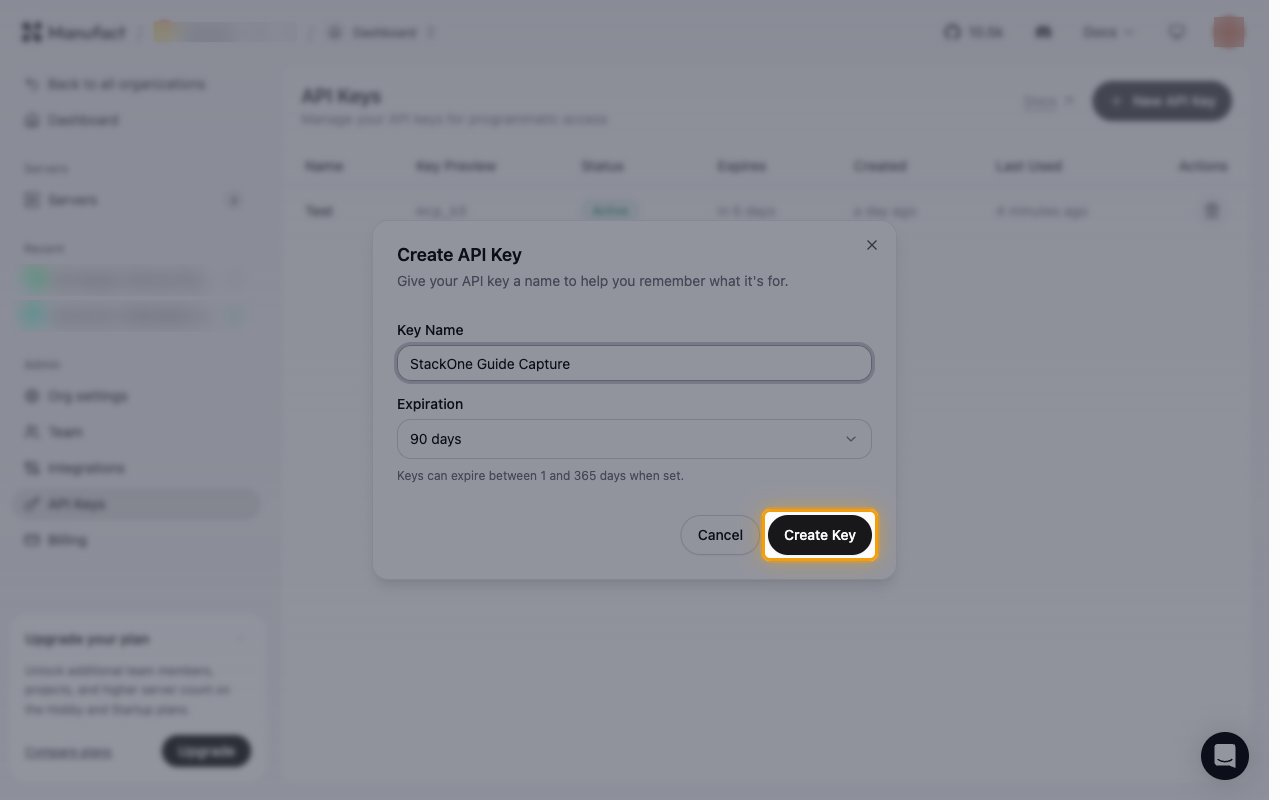
Fill in the dialog, then click Create Key.
- Key Name — a descriptive name, so that revoking the key later is unambiguous.
- Expiration — Never expires, 7 days, 30 days, 90 days or 365 days.
- Manufact notes that Keys can expire between 1 and 365 days when set.
- Prefer an expiration you can rotate over Never expires.
5
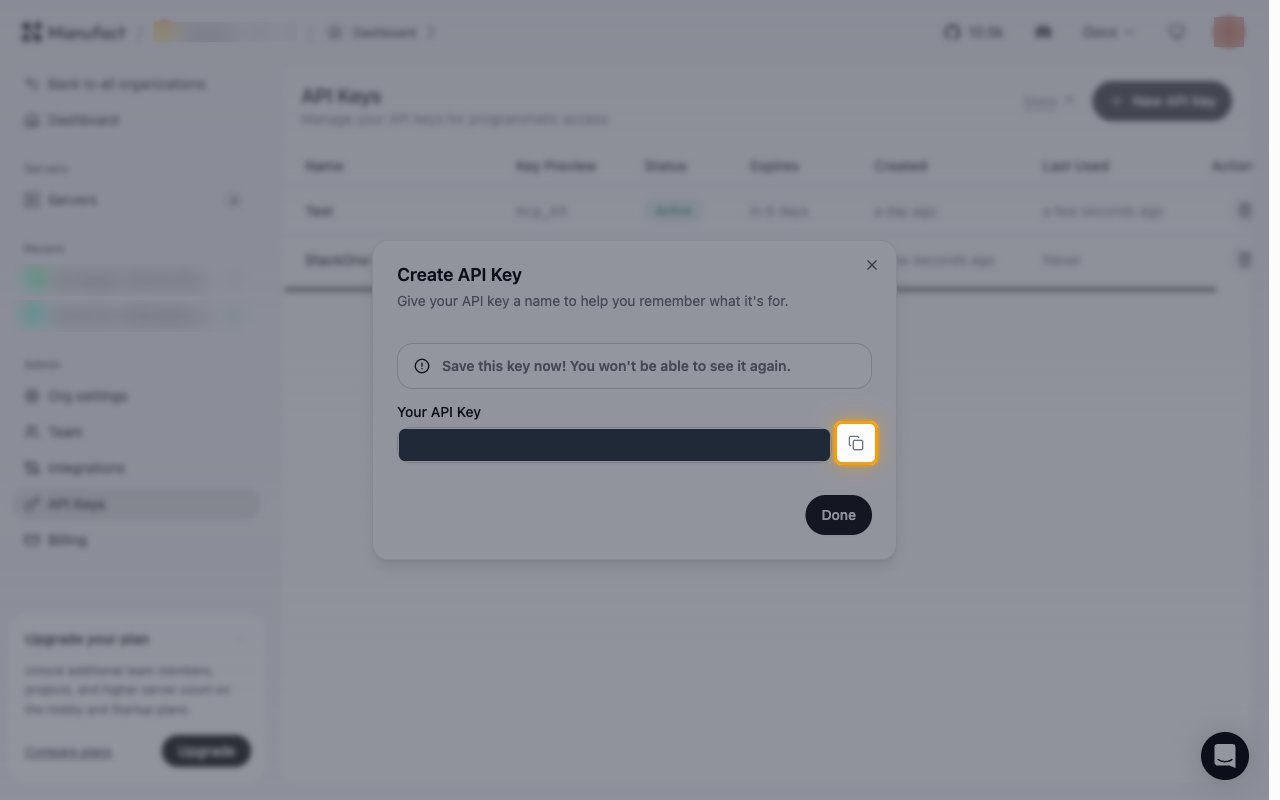
Copy the API key
The new key is displayed only once, under Your API Key.
- Click Copy, then click Done.
- Manufact warns Save this key now! You won’t be able to see it again.
- The key starts with
mcp_. - Store a copy in your secret manager, then paste it into the API Key field in StackOne Hub.
- Afterwards only a shortened value appears in the Key Preview column, so the key cannot be retrieved from Manufact.
Linking the Account from the Hub
1
Navigate to the Hub
Use one of the three Linking Account Methods to access the Hub.
2
Fill out the fields
Fill out the following fields using details from your provider:
- API Key
3
Connect
- Click Connect
- If applicable, the provider will redirect you to a sign-in or authorization page. Complete the provider’s authorization flow.
- Once authorization is successful, you will see a confirmation popup
If the account linking is successful, you will see the newly linked account on your Accounts page.