

Generate your MailerLite API token
MailerLite authenticates with an API token that you generate from your account. Sign in to your MailerLite dashboard, then follow the steps below to create a token and paste it into StackOne Hub.
Open the MailerLite API integration
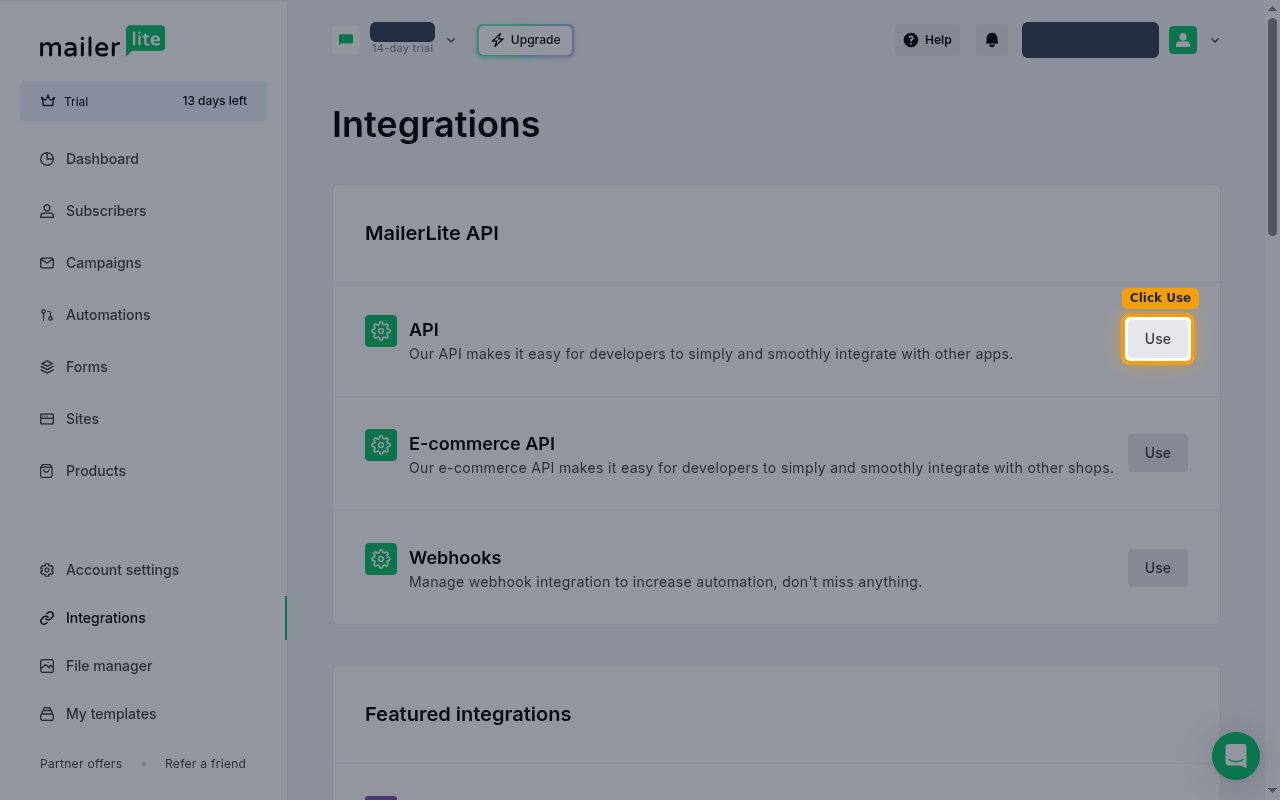
In the left sidebar, click Integrations. On the Integrations page, find the MailerLite API section and click Use next to API.
Generate a new API token
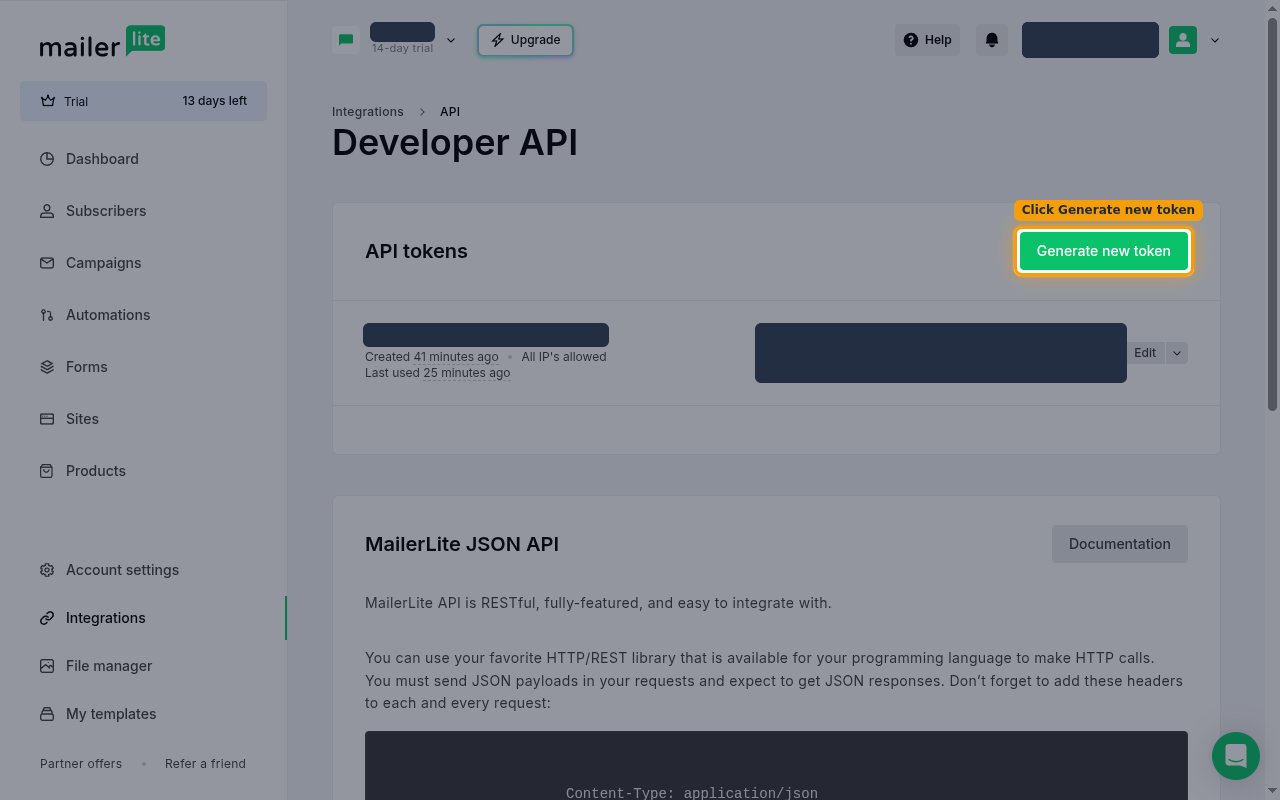
On the Developer API page, in the API tokens section, click Generate new token.
Enter a name and create the token
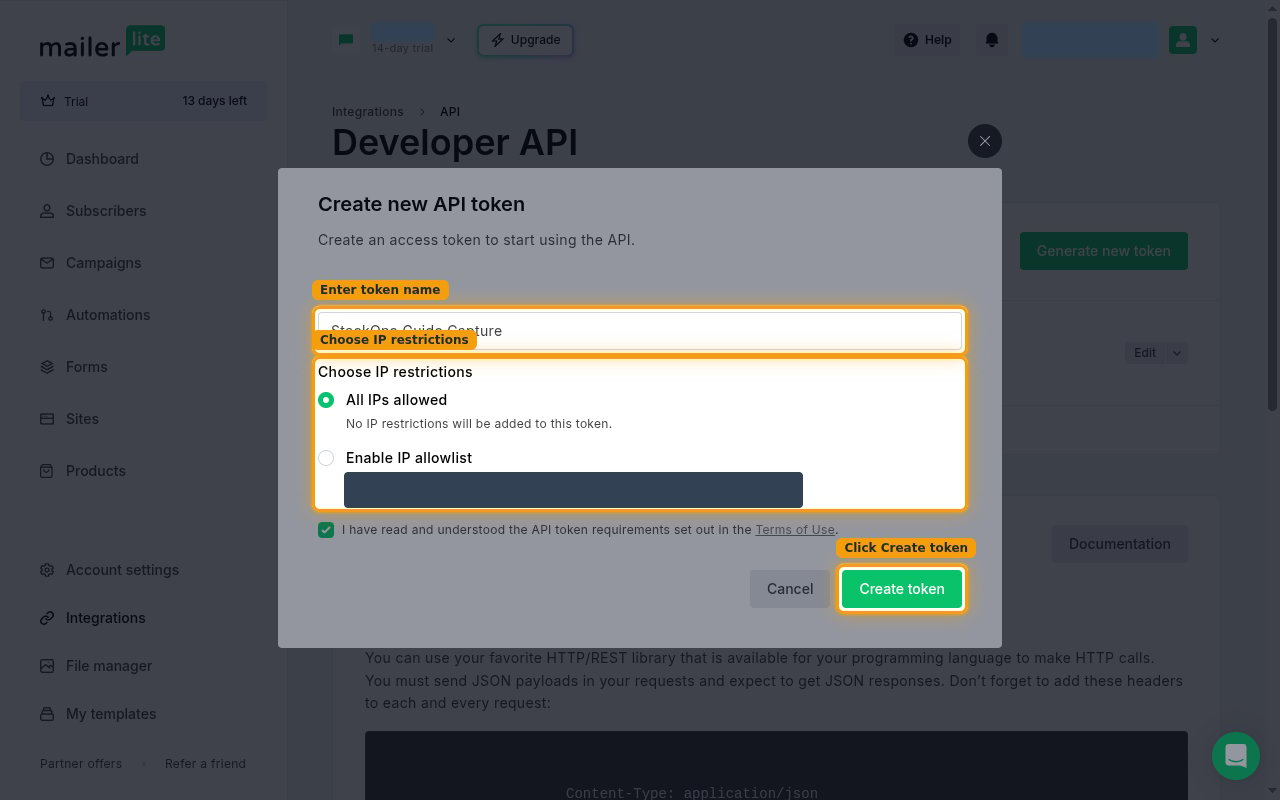
In the Create new API token dialog, type a name in Enter token name (for example, StackOne). Under Choose IP restrictions, leave All IPs allowed selected unless you want to restrict access to specific IPs via Enable IP allowlist. Tick the box to confirm you have read the Terms of Use, then click Create token.
Copy the API token
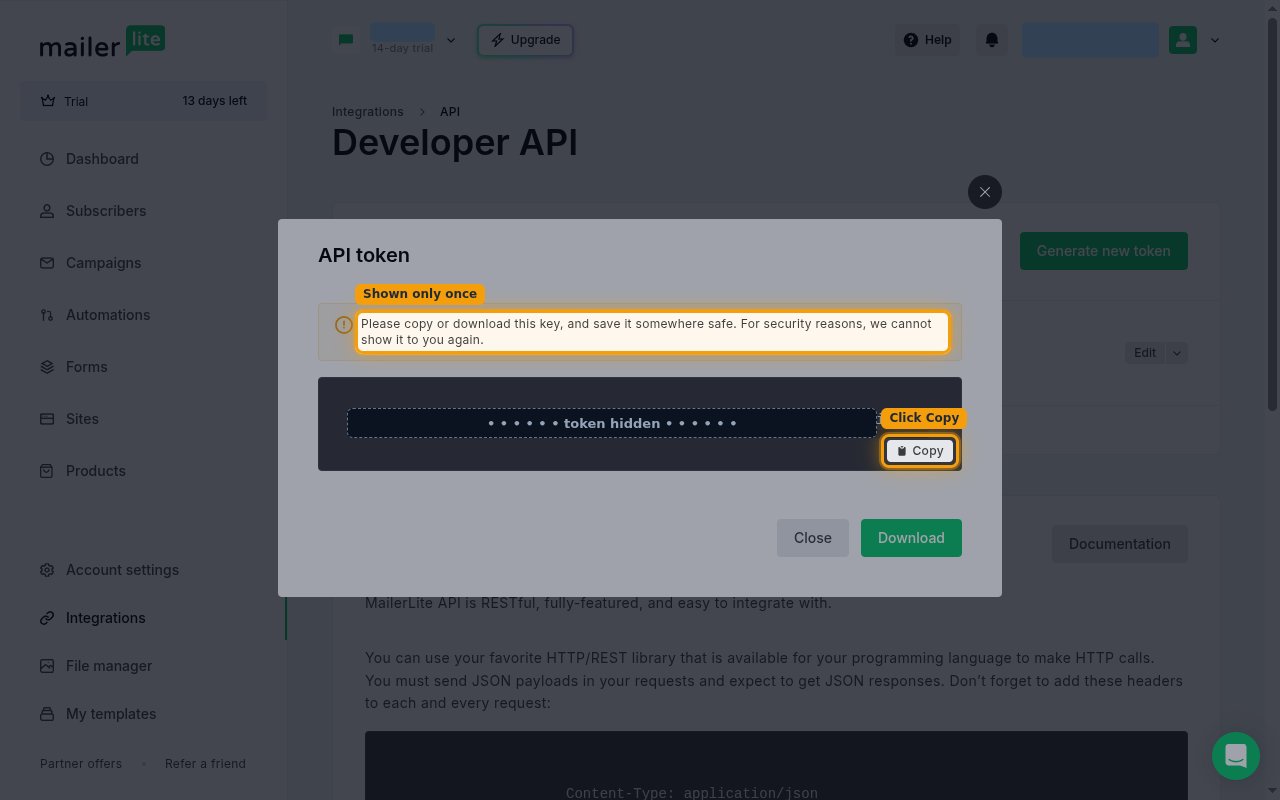
The API token is displayed. Click Copy to copy the value, then paste it into the API Token field in StackOne Hub.
- The token is only shown once — MailerLite states: Please copy or download this key, and save it somewhere safe. For security reasons, we cannot show it to you again. If you lose it, generate a new one.
- The token inherits the permissions of the MailerLite user who created it and stops working if that user is removed from the account.
Link the Account
Connect
- Click Connect.
- If applicable, the provider will redirect you to a sign-in or authorization page. Complete the provider’s authorization flow.
- Once authorization is successful, you will see a confirmation popup.
Use Actions
Next Steps
Webhooks setup
Configure receiving Events for MailerLite into StackOne.