

Read token
A read token gives read-only access to the telemetry of one Logfire project. Create it in the settings of the project you want to query.
1
Start a new read token
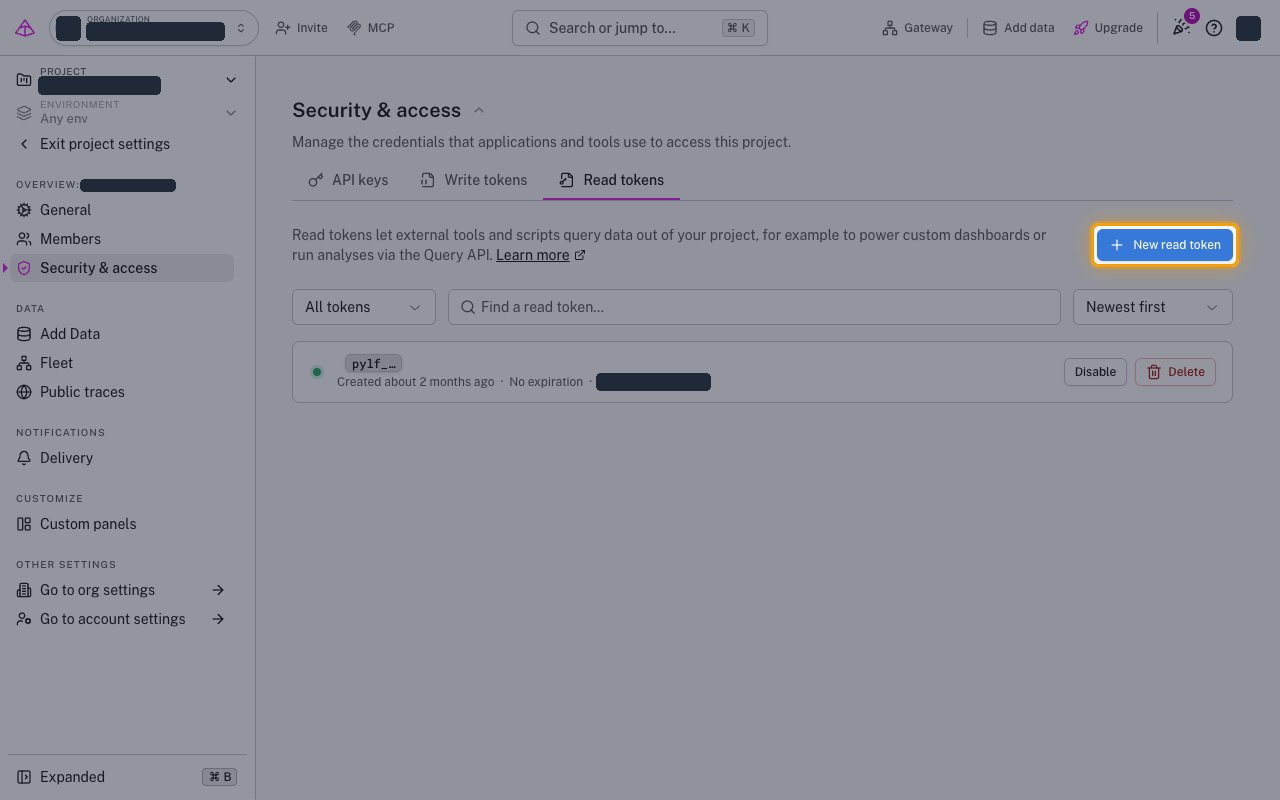
Sign in to the Logfire EU console, or the Logfire US console for the US region. On the Organization overview page, click Settings next to the project you want to query.
- In the sidebar, click Security & access.
- Click the Read tokens tab.
- If the Read tokens are now API keys dialog opens, click Continue to read tokens.
- Click New read token.
2
Create the read token
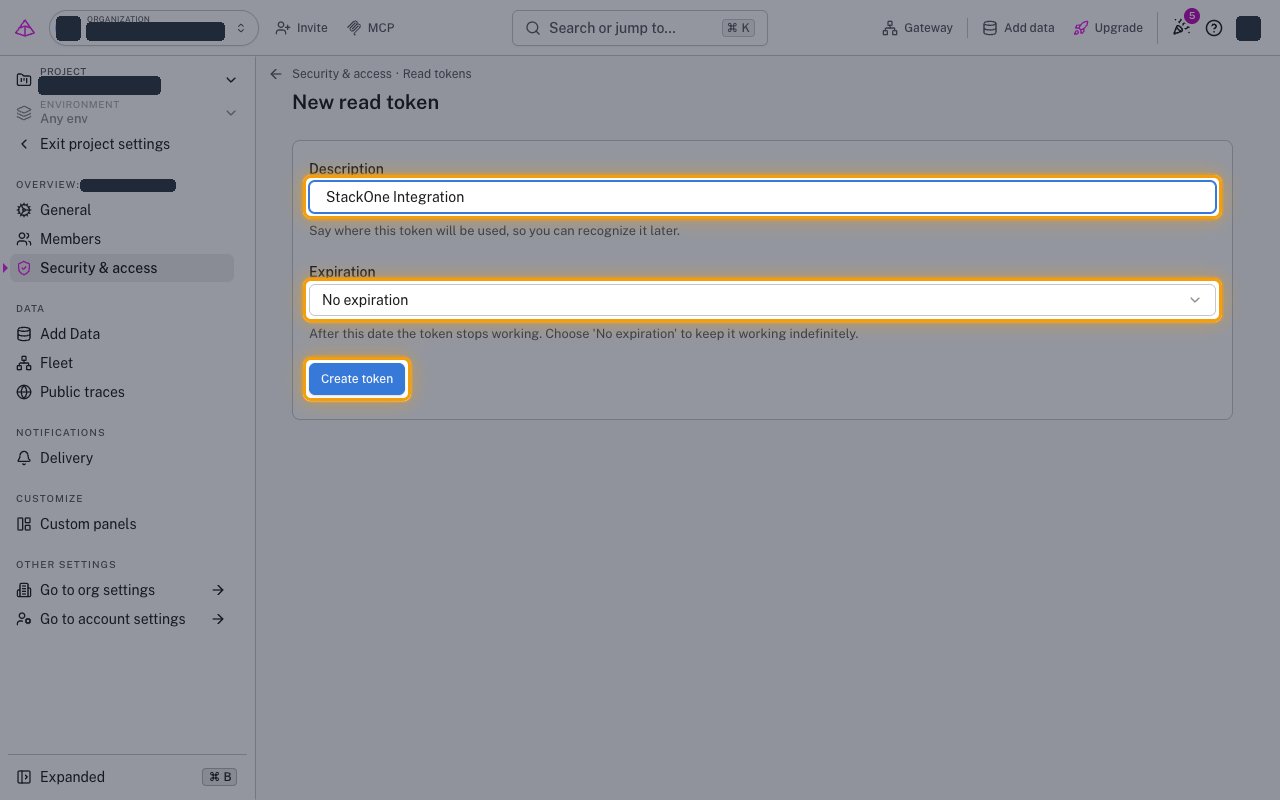
Fill in the New read token form.
- Description:
StackOne Integration - Expiration: No expiration, or the date your security policy requires
- Click Create token.
3
Copy the read token
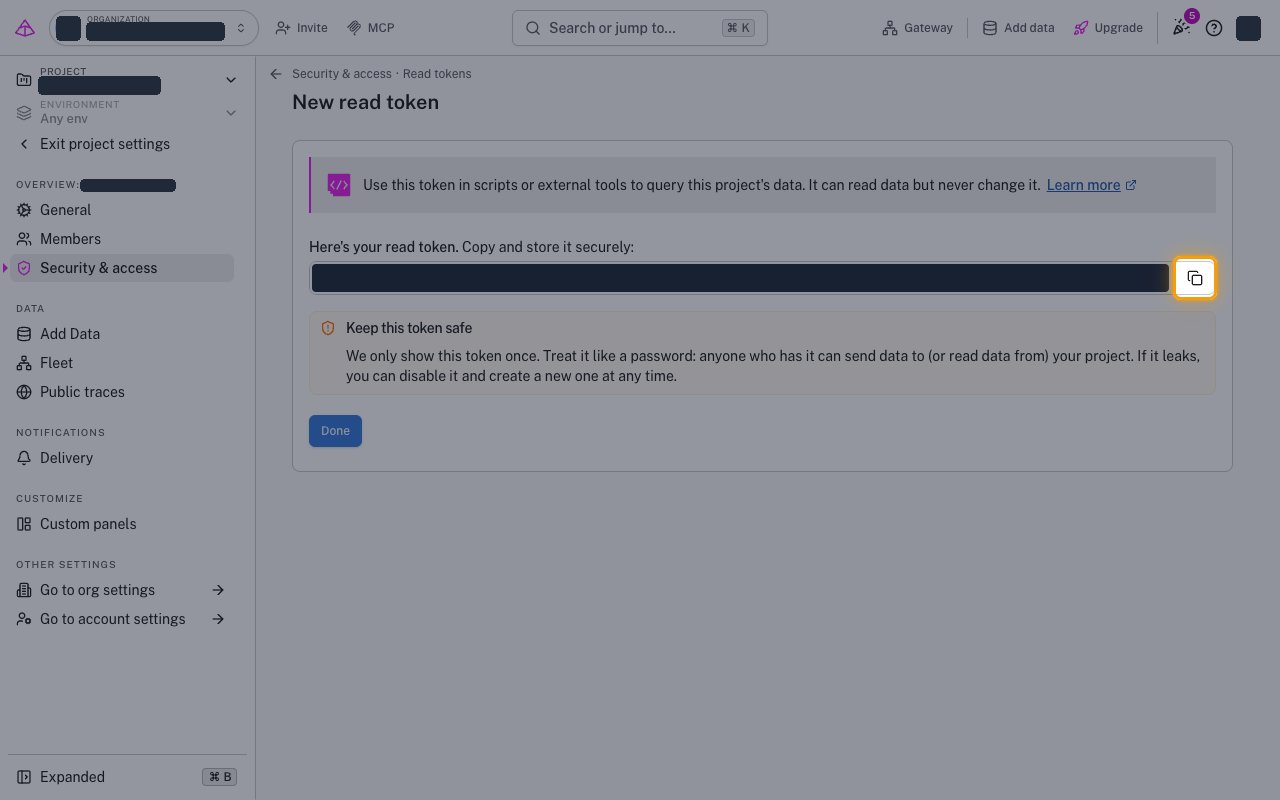
Click the copy button next to the token, then copy the Read Token across.
- The token is shown only once and cannot be retrieved later.
Find your API region URL
The API Region URL matches the region of the Logfire console you signed in to.
- Format:
https://api-{region}.pydantic.dev - Example: if your console is
https://logfire-us.pydantic.dev, your API Region URL ishttps://api-us.pydantic.dev
Link the Account
1
Connect
- Click Connect.
- If applicable, the provider will redirect you to a sign-in or authorization page. Complete the provider’s authorization flow.
- Once authorization is successful, you will see a confirmation popup.
2
Use Actions
Connect an AI platform to the linked account’s actions. See AI Platforms.Other ways to call actions are listed in Protocols & SDKs.