

Generating an access token
The Access Token is a LinkedIn OAuth 2.0 token for your own member account. LinkedIn’s token generator creates one for any app you manage.
Sign in to LinkedIn
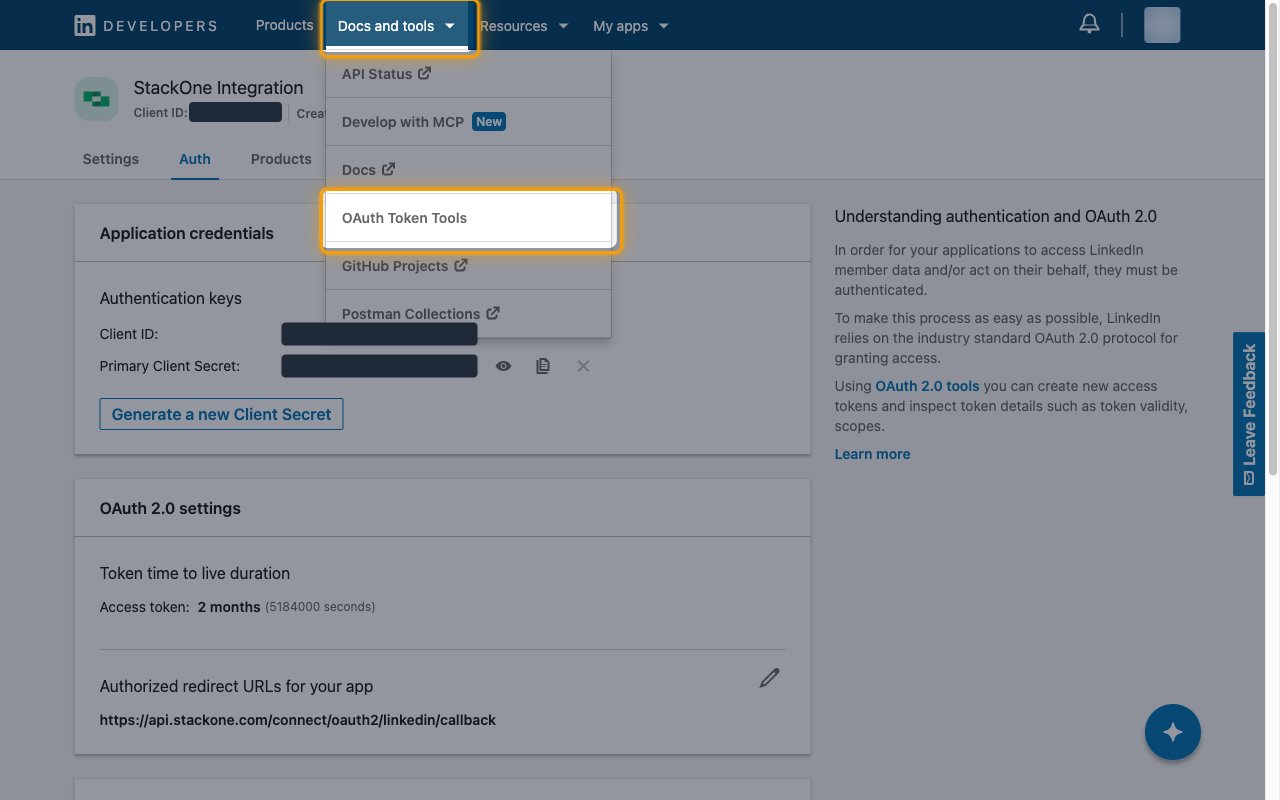
Open the token generator
On the OAuth 2.0 tools page, click Create token under Create a new access token.
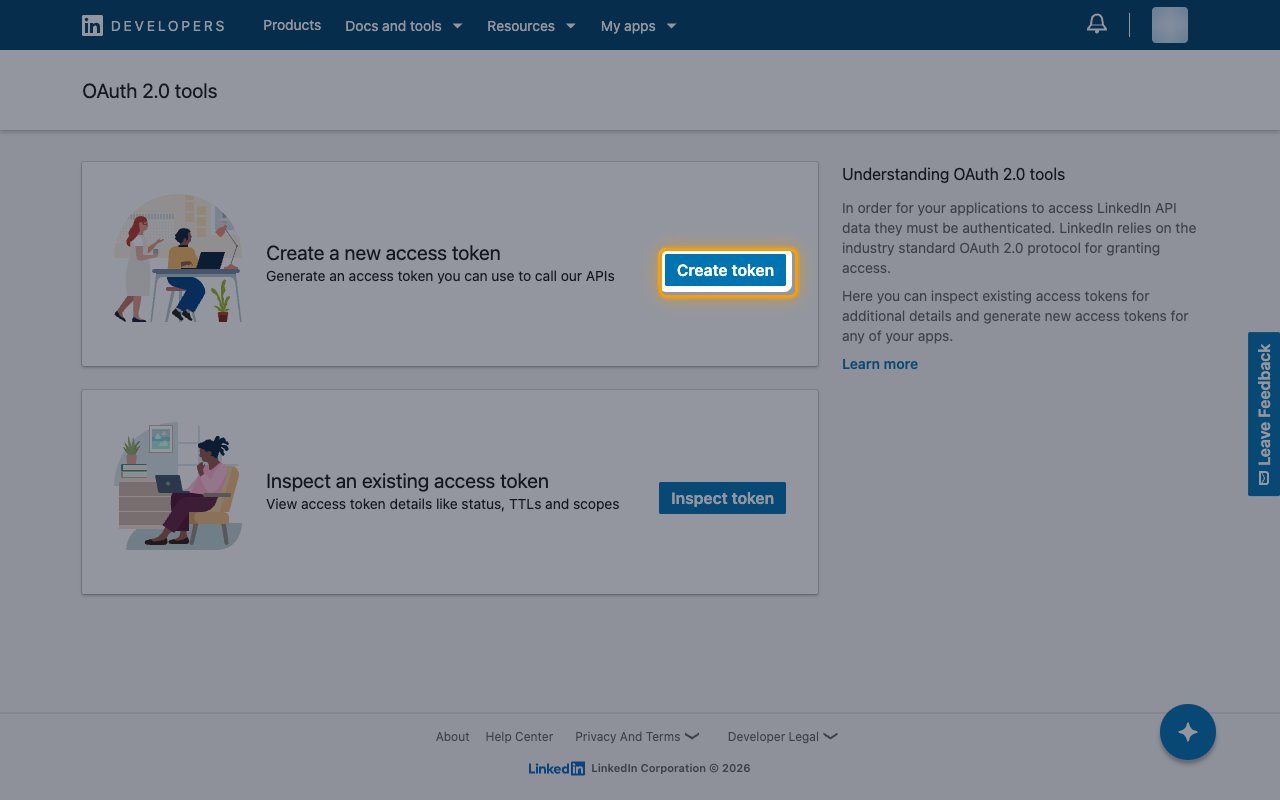
Select your app
Click Select app and choose the LinkedIn app you want the token for.
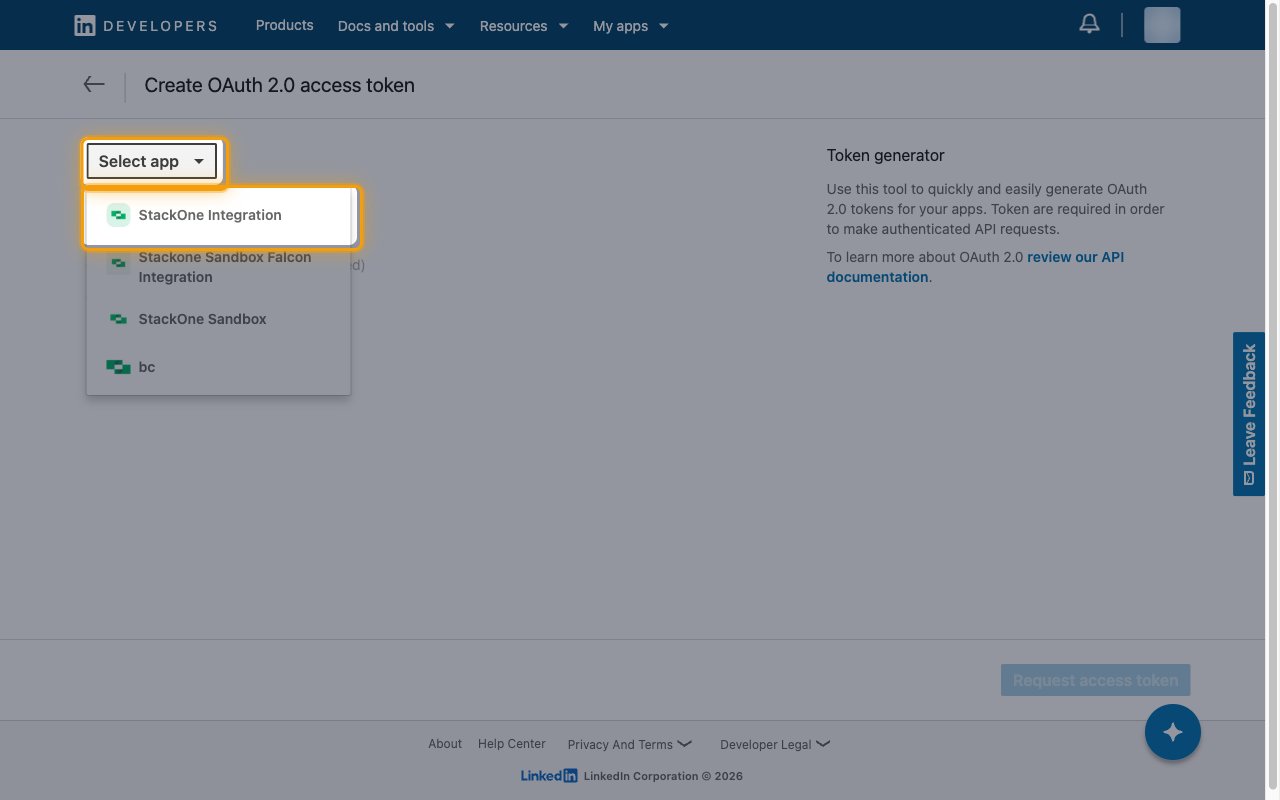
Verify the OAuth flow
Under Select OAuth flow:, keep Member authorization code (3-legged) selected.
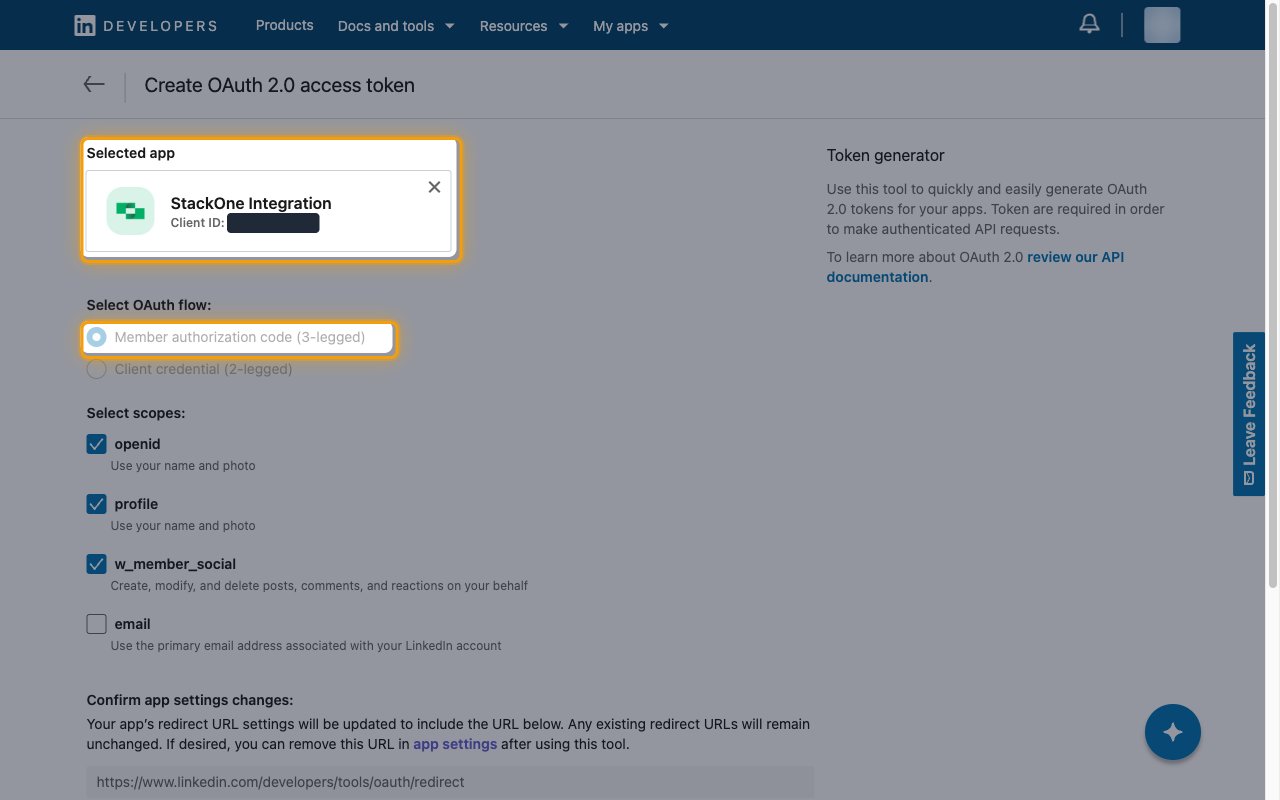
Select scopes and request the token
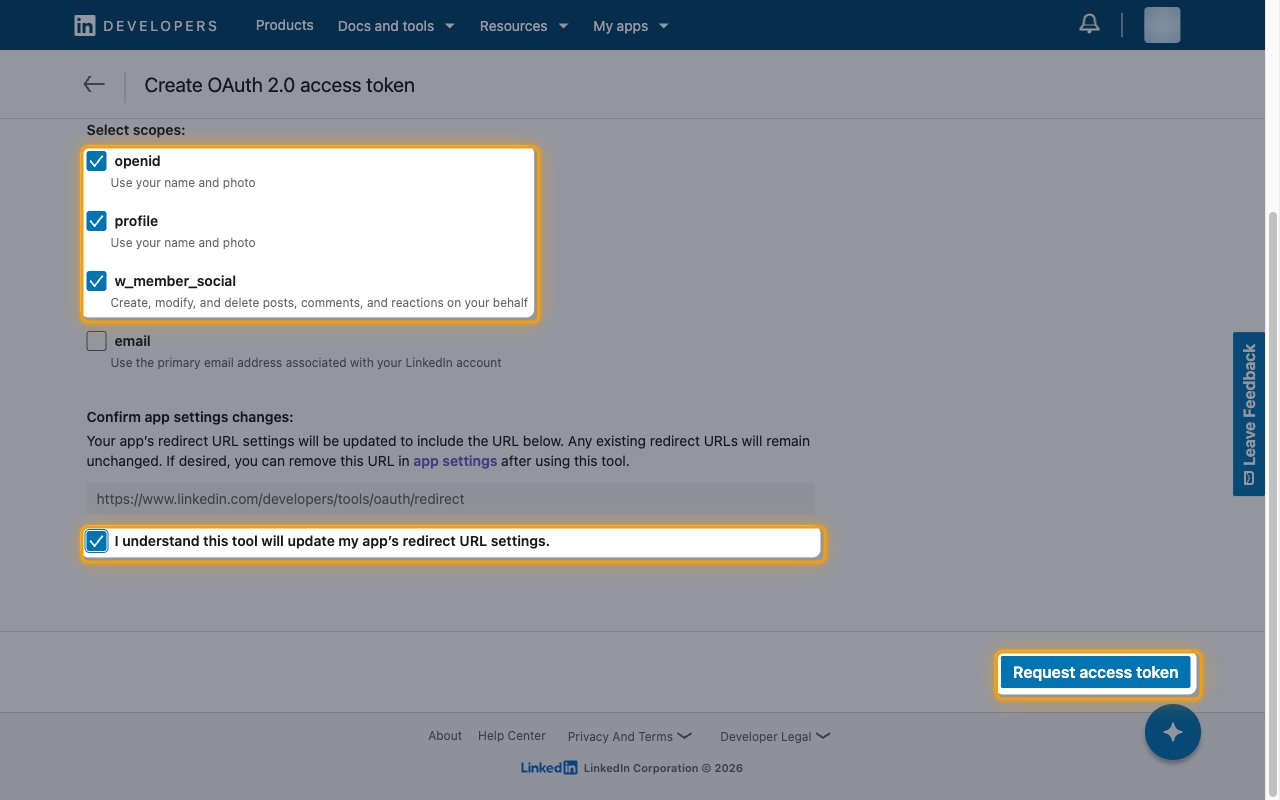
Under Select scopes:, select openid, profile and w_member_social.
- If your app has the Advertising API product, also select
r_basicprofile,r_organization_socialandw_organization_socialto use the actions that read posts, post as a Page or set sponsored content. - Under Confirm app settings changes:, select I understand this tool will update my app’s redirect URL settings. The tool adds
https://www.linkedin.com/developers/tools/oauth/redirectto your app’s redirect URLs. - Click Request access token.
Authorize the app
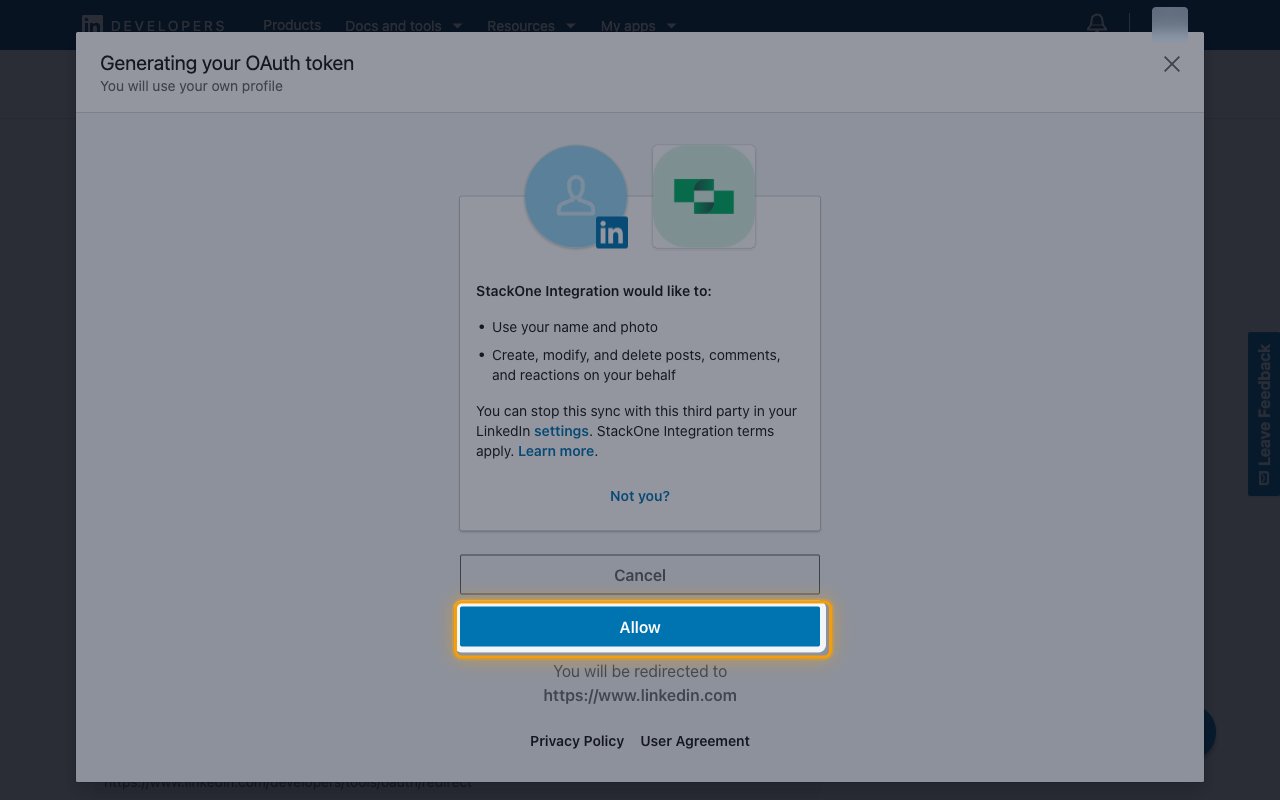
In the Generating your OAuth token dialog, review the permissions and click Allow.
Copy the access token
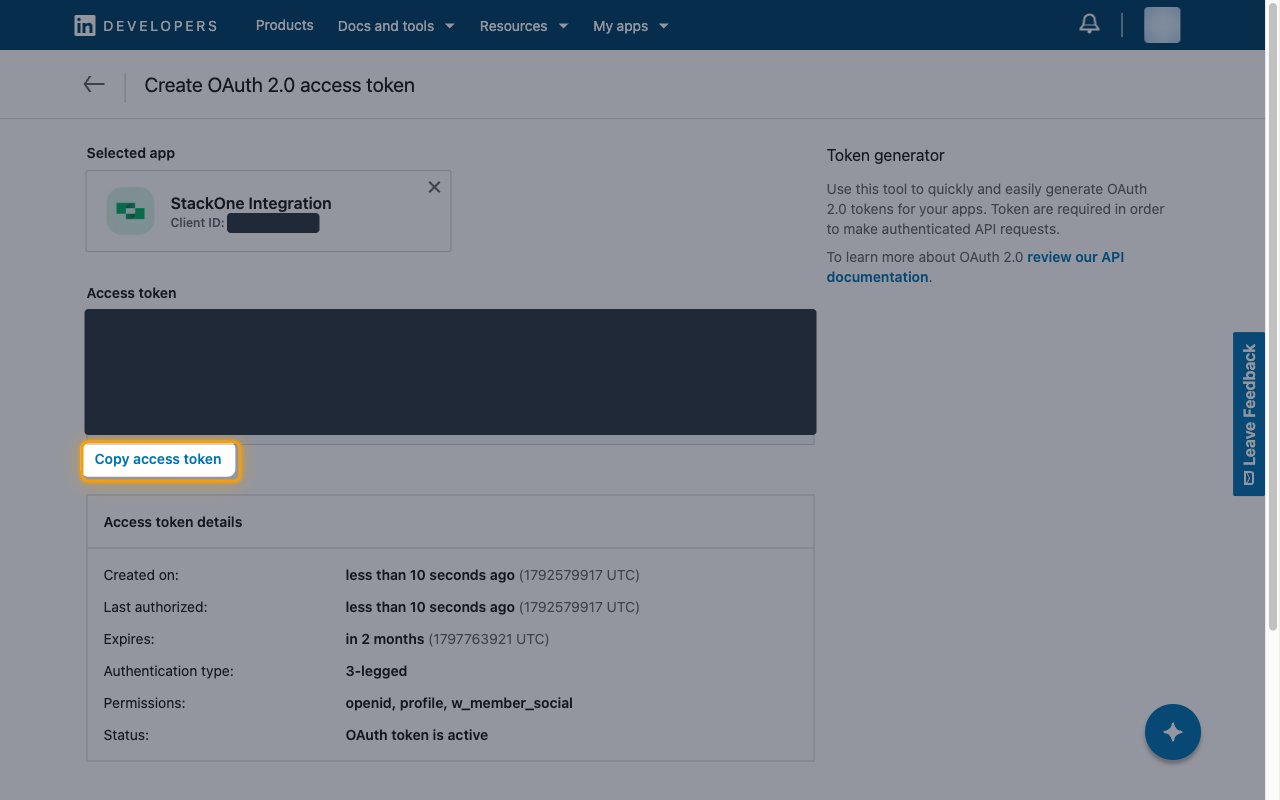
Click Copy access token and store the token securely for use later.
- Paste it into the Access Token field in StackOne Hub.
- Access token details shows when the token Expires:. Tokens from the generator last 2 months, so generate a new token and update StackOne Hub before then.
- Treat the token like a password. Anyone who has it can act on your LinkedIn account within the granted scopes.
Linking the Account from the Hub
Navigate to the Hub
Fill out the fields
- Access Token
Connect
- Click Connect
- If applicable, the provider will redirect you to a sign-in or authorization page. Complete the provider’s authorization flow.
- Once authorization is successful, you will see a confirmation popup
If the account linking is successful, you will see the newly linked account on your Accounts page.