

Generating an API key
API keys authenticate your organization’s requests to the Learning Commons Knowledge Graph REST API.
1
Sign in to Learning Commons
Sign in to your Learning Commons Platform account.
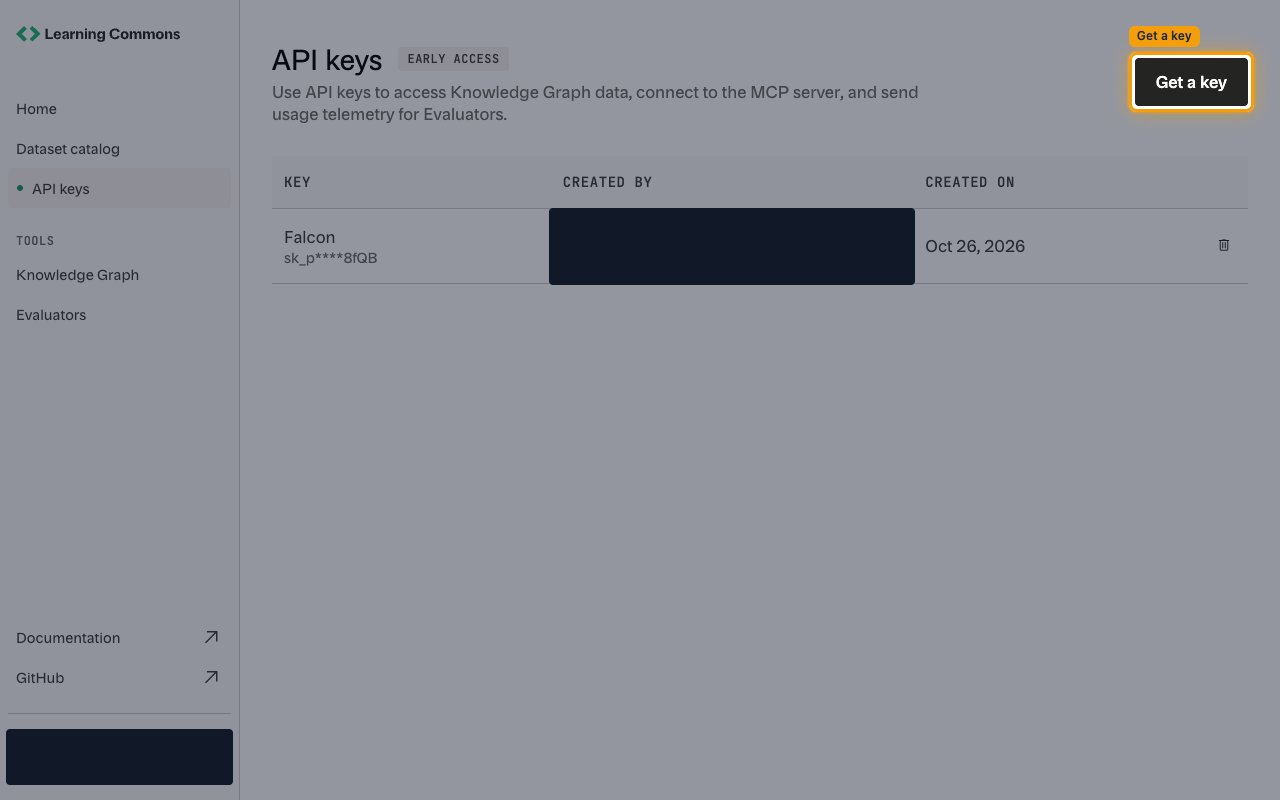
- Select API keys in the sidebar.
2
Create a new key
The API keys page lists every key that already exists for your organization, with its Key, Created by, and Created on details.
- Click Get a key.
3
Name your key
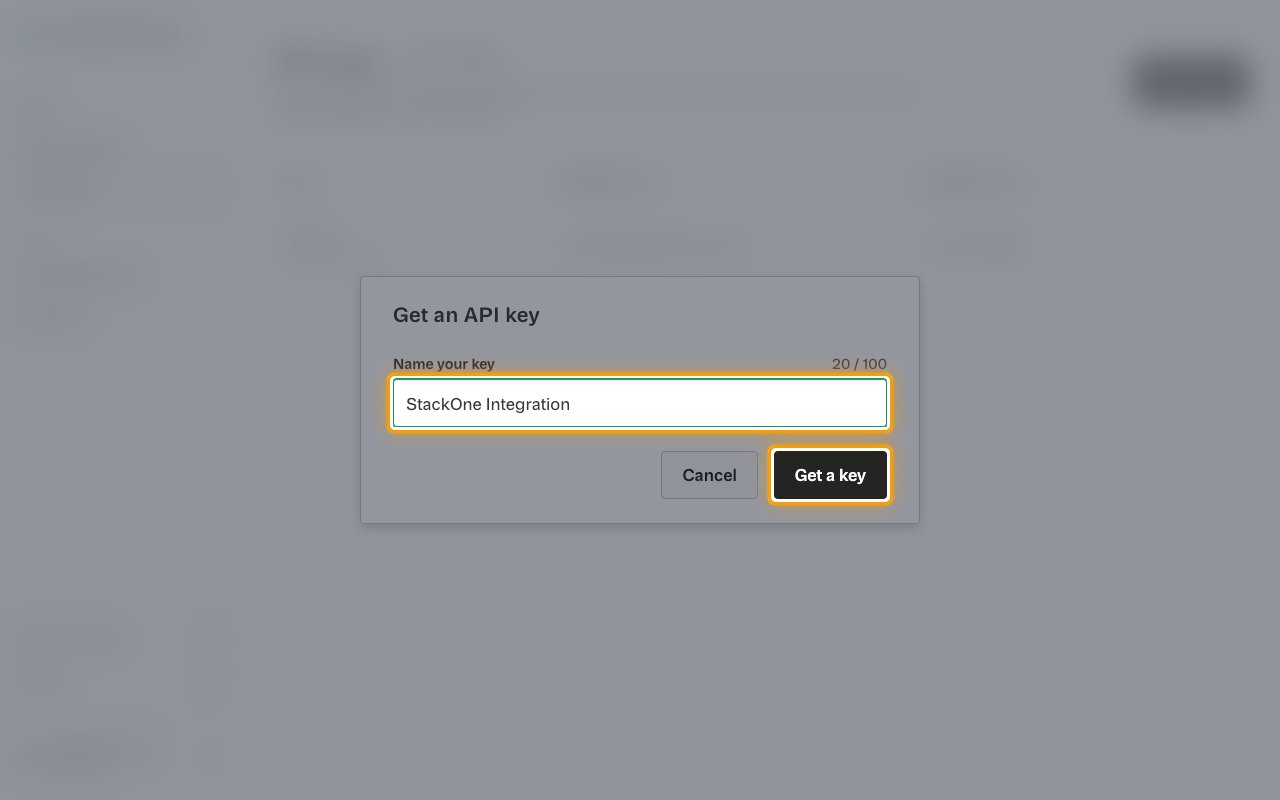
The Get an API key dialog asks for a label that identifies the key in the list.
- Enter a name your team will recognize in Name your key.
- Click Get a key to generate it.
4
Copy and store the key
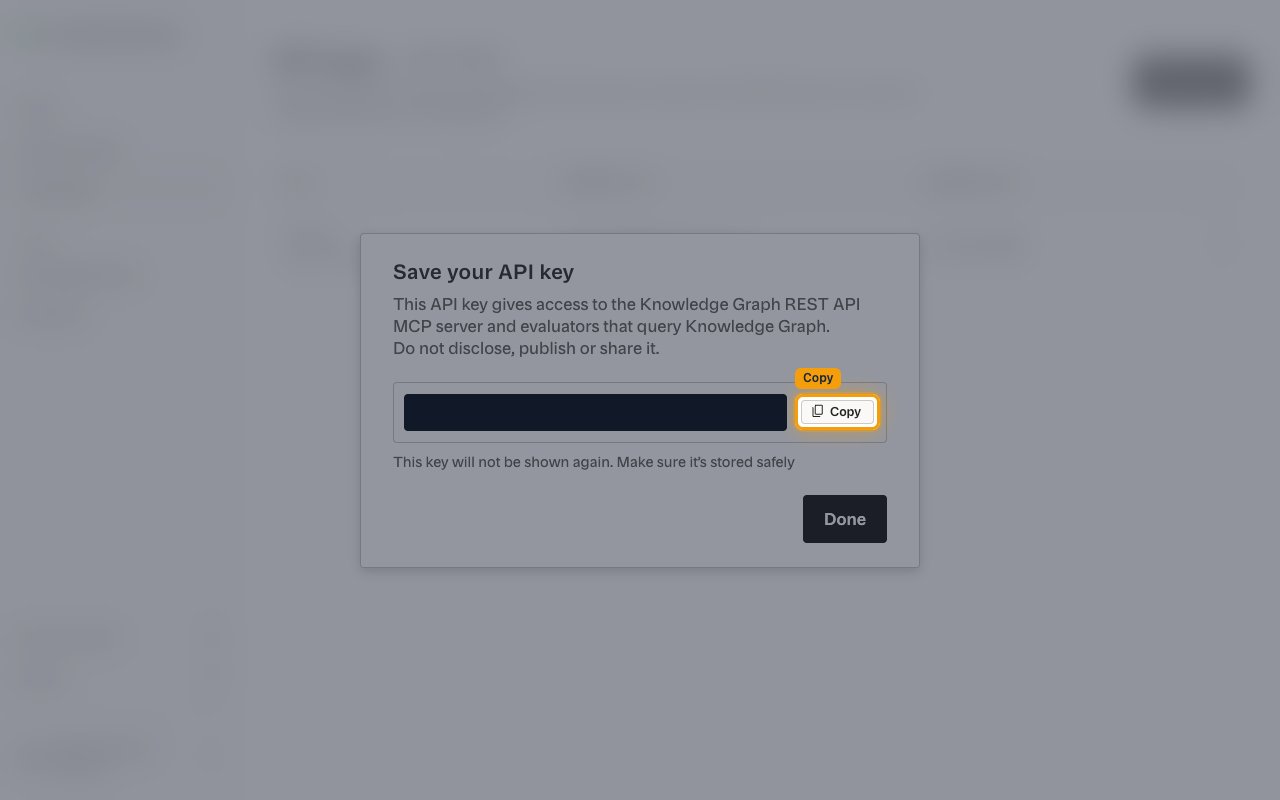
The Save your API key dialog shows the generated key once.
- Click Copy, then click Done to close the dialog.
- This key will not be shown again. Make sure it’s stored safely.
- Store the key securely for use later, and do not disclose, publish, or share it.
Providing your API key
The API Key field takes the key you copied from the Save your API key dialog.
- Paste it into the API Key field in StackOne Hub.
- Format:
sk_prod_{uuid}_{secret}
Linking the Account from the Hub
1
Navigate to the Hub
Use one of the three Linking Account Methods to access the Hub.
2
Fill out the fields
Fill out the following fields using details from your provider:
- API Key
3
Connect
- Click Connect
- If applicable, the provider will redirect you to a sign-in or authorization page. Complete the provider’s authorization flow.
- Once authorization is successful, you will see a confirmation popup
If the account linking is successful, you will see the newly linked account on your Accounts page.