

Create Lara Translate API credentials
Generate an Access Key ID and Access Key Secret from the Lara Translate dashboard, then paste them into StackOne Hub. The Free plan issues one credential instantly with no credit card required.
Sign in to Lara Translate
Sign in to your Lara Translate account at app.laratranslate.com.
Open the Profile menu
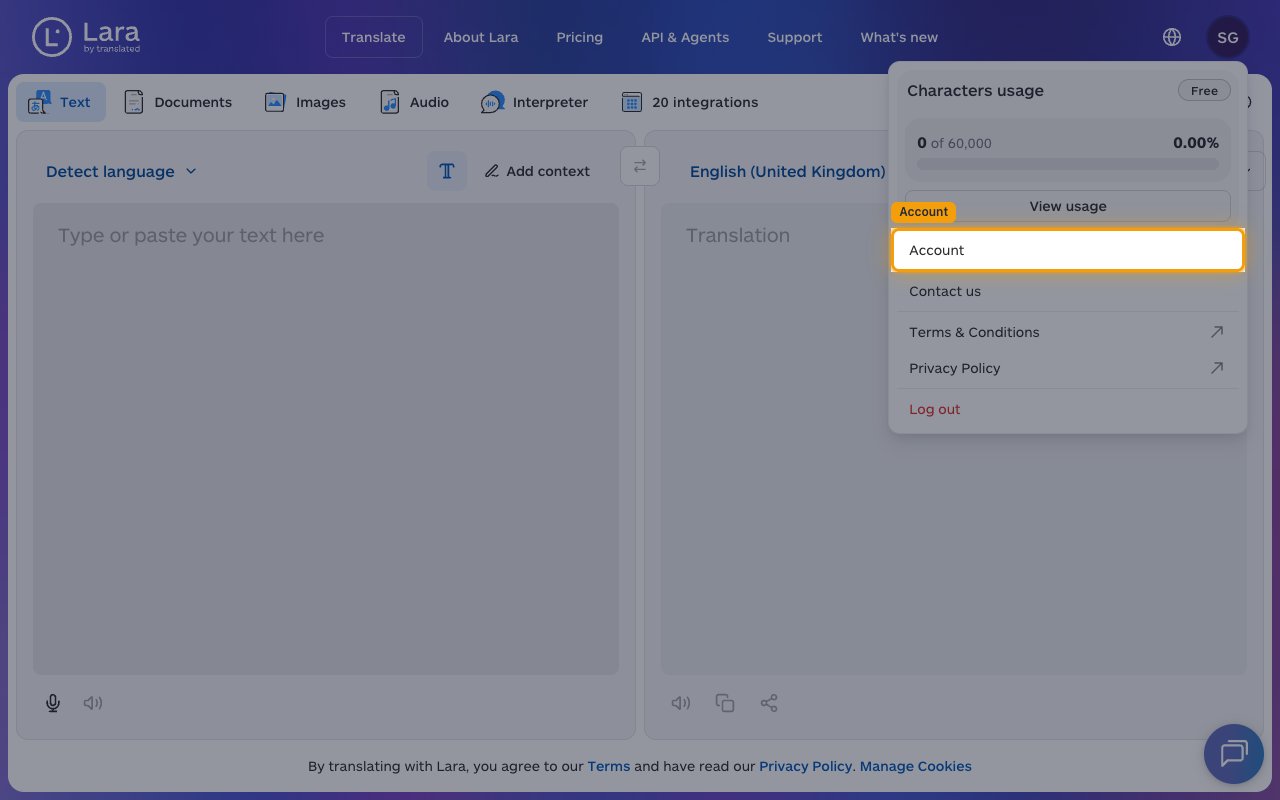
In the top-right of the dashboard, click your Profile menu (shown as your initials), then click Account.
Open API Credentials
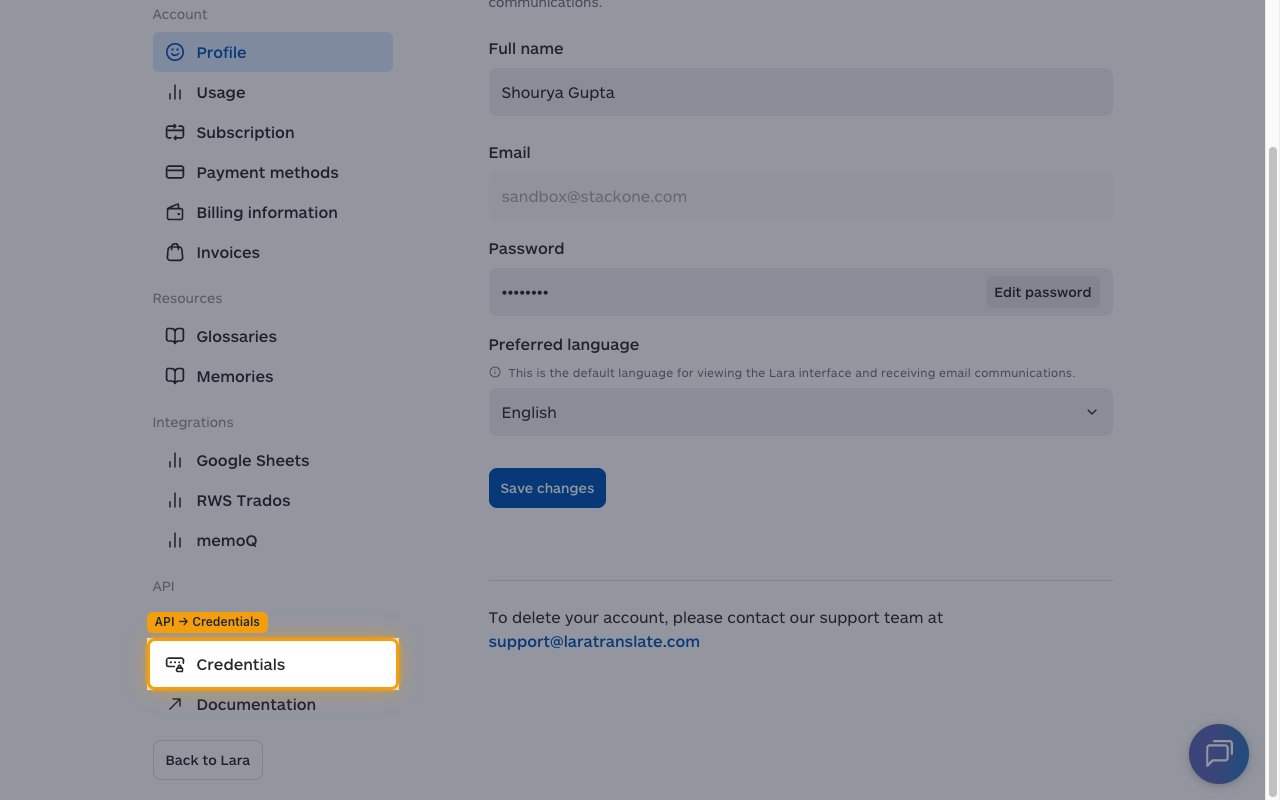
In the sidebar, under the API section, click Credentials to open the API Credentials page.
Create new credentials
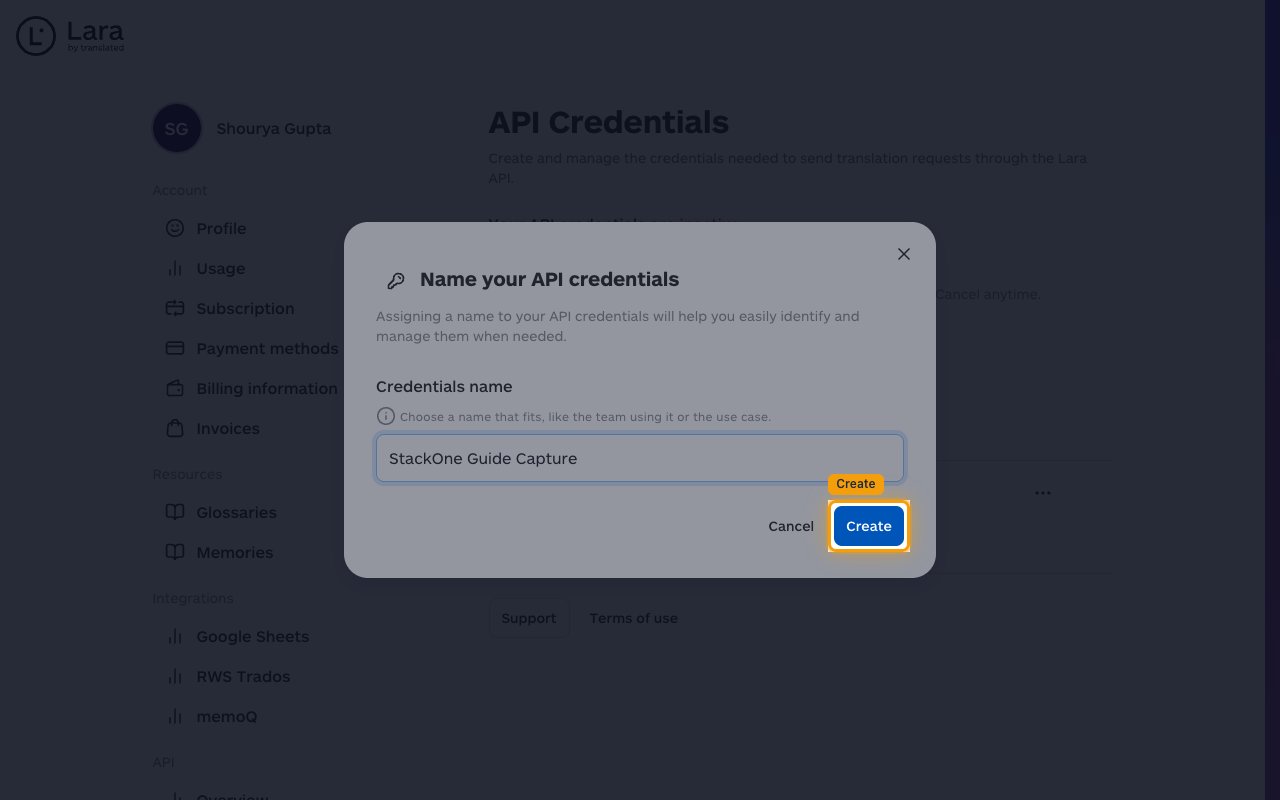
On the API Credentials page, click Create new credentials. In the Name your API credentials dialog, enter a name for the key in the Credentials name field (for example, StackOne), then click Create.
- The Free plan allows only 1 / 1 active credential — if the button is disabled, delete or replace the existing key from the Actions menu on its row first.
Save and copy your credentials
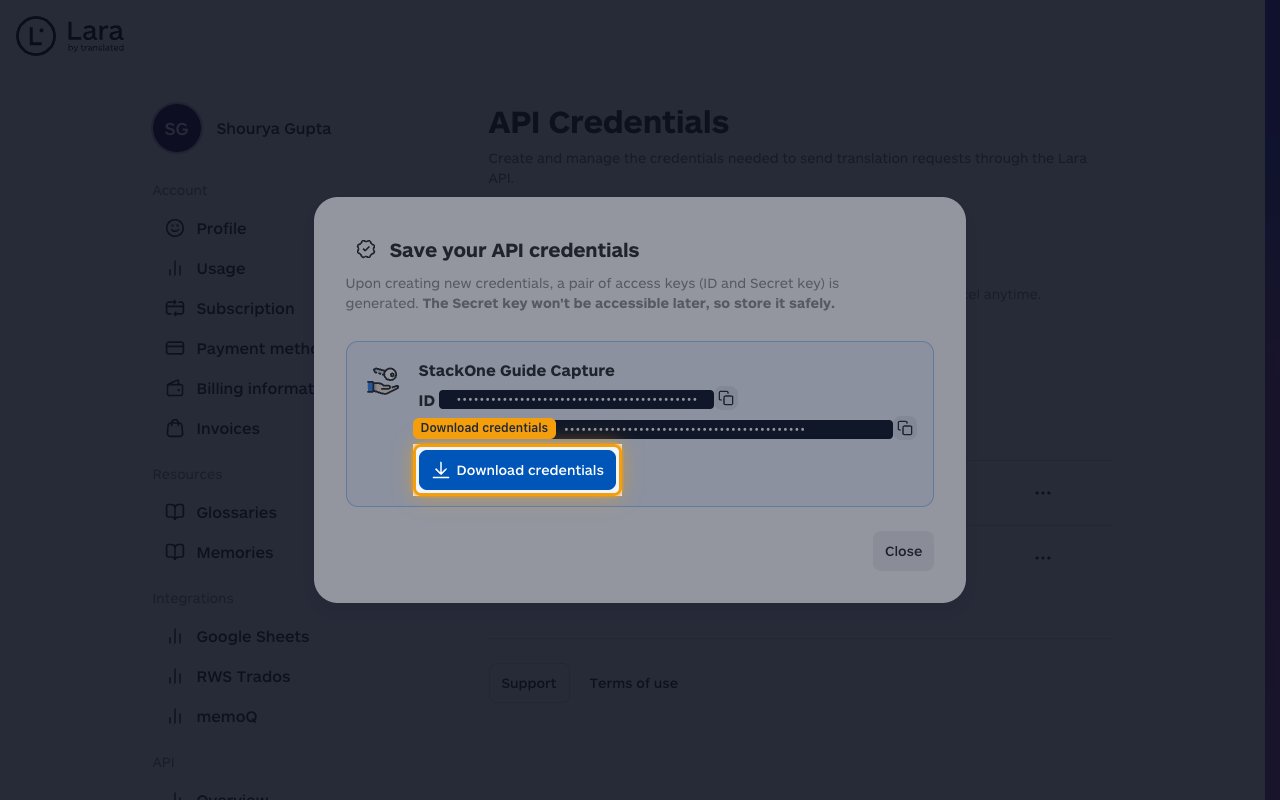
The Save your API credentials dialog shows the generated ID and Secret for the new key. Click Download credentials to save both values as a file.
- The Secret key won’t be accessible later — download the file before closing the dialog.
- Save the downloaded file in a secure secret store; if the Secret is lost, you must delete the key and create a new one.
Paste the credentials into StackOne Hub
Open the downloaded credentials file and copy each value into StackOne Hub:
- Access Key ID — the public identifier shown as ID in the dialog. Paste it into the Access Key ID field in StackOne Hub.
- Access Key Secret — the secret half shown as Secret in the dialog. Paste it into the Access Key Secret field in StackOne Hub.
Linking the Account from the Hub
Navigate to the Hub
Fill out the fields
- Access Key ID
- Access Key Secret
Connect
- Click Connect
- If applicable, the provider will redirect you to a sign-in or authorization page. Complete the provider’s authorization flow.
- Once authorization is successful, you will see a confirmation popup
If the account linking is successful, you will see the newly linked account on your Accounts page.
Next Steps
Webhooks setup
Configure receiving Events for Lara Translate into StackOne.