

Prerequisites
The connector should already be set up, with a Connector Profile and a Linked Account. See Getting Started on the Krisp connector page.Send Krisp meeting events to StackOne
Krisp sends AI Note Taker events (transcripts, notes, action items and recordings) to one webhook per Krisp user, configured in that user’s Krisp settings. Use the Krisp account you linked to StackOne with the Meeting Assistant — API Key method.
Copy the Native Webhook URL
You can find the Native Webhook URL in the StackOne Hub or on the Linking Account form during account connection or linking.
- Copy the value from the Native Webhook URL field.
Sign in to Krisp
Sign in to Krisp with the account you linked to StackOne.
Open settings
Click the settings icon at the bottom of the left sidebar.
Start a new webhook
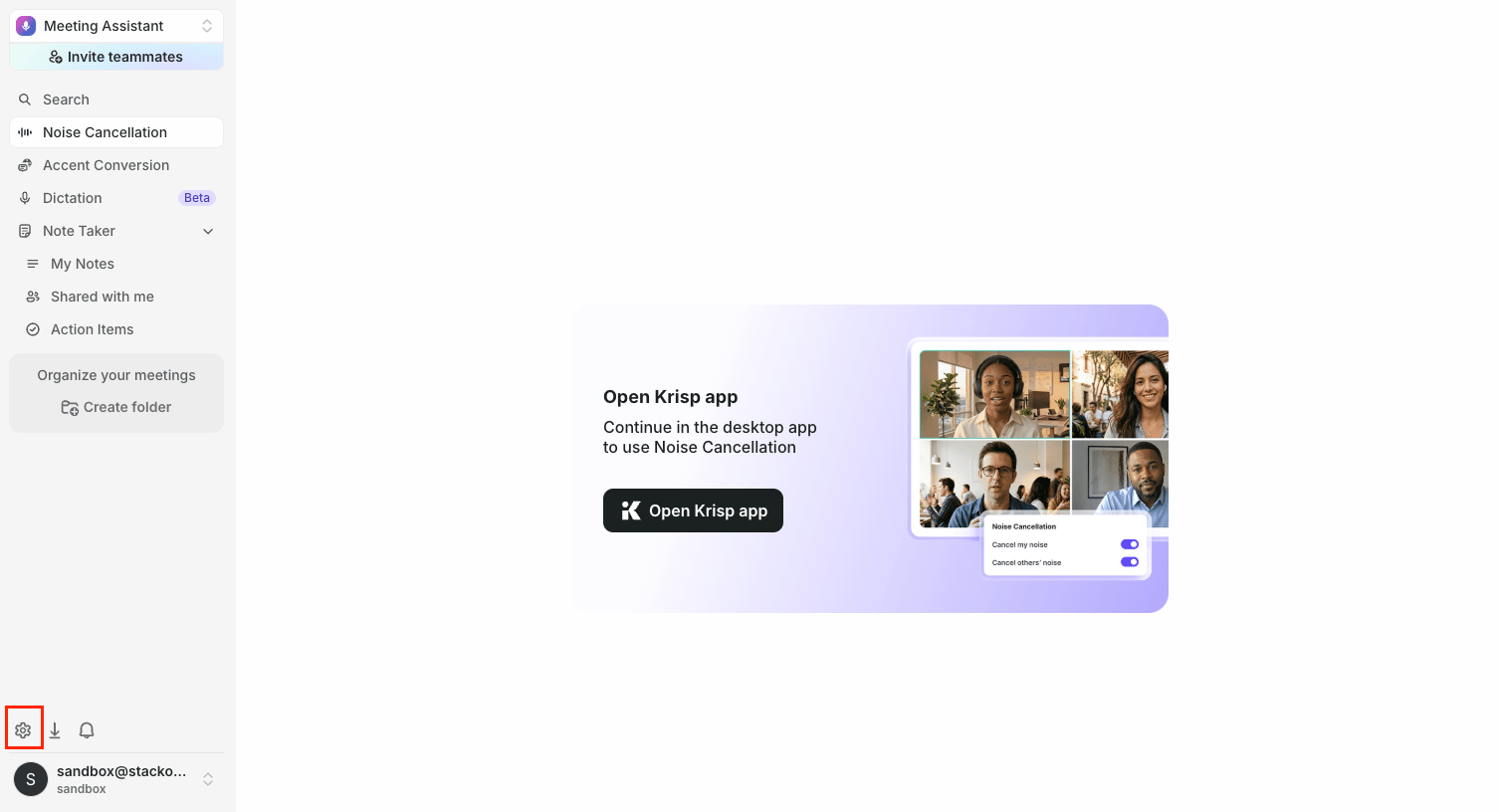
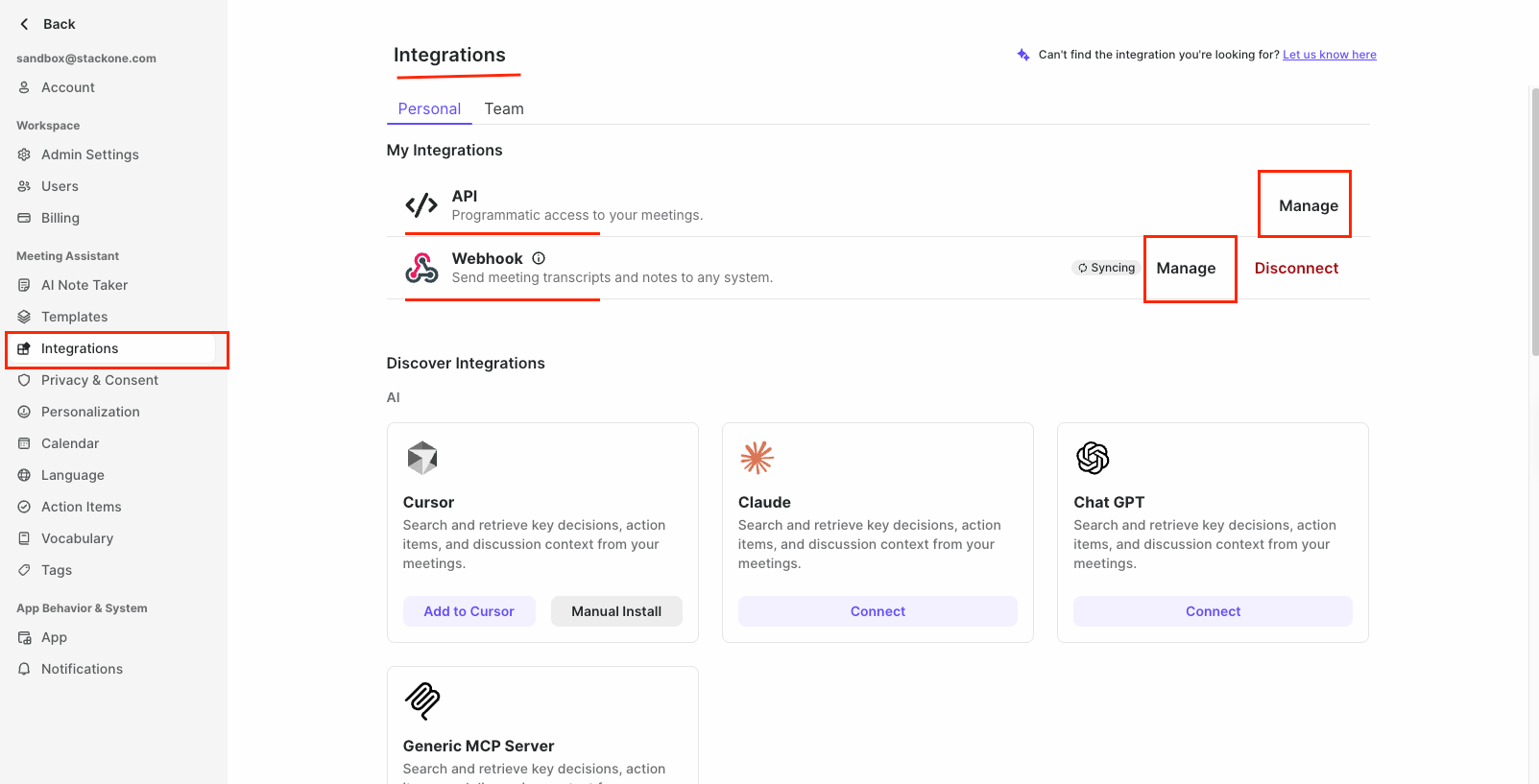
In the settings menu, open Integrations.
- On the Personal or Team tab, find Webhook and click Create.
- If Webhook is already under My Integrations, edit that webhook instead. Krisp allows one webhook per user.
Create the webhook
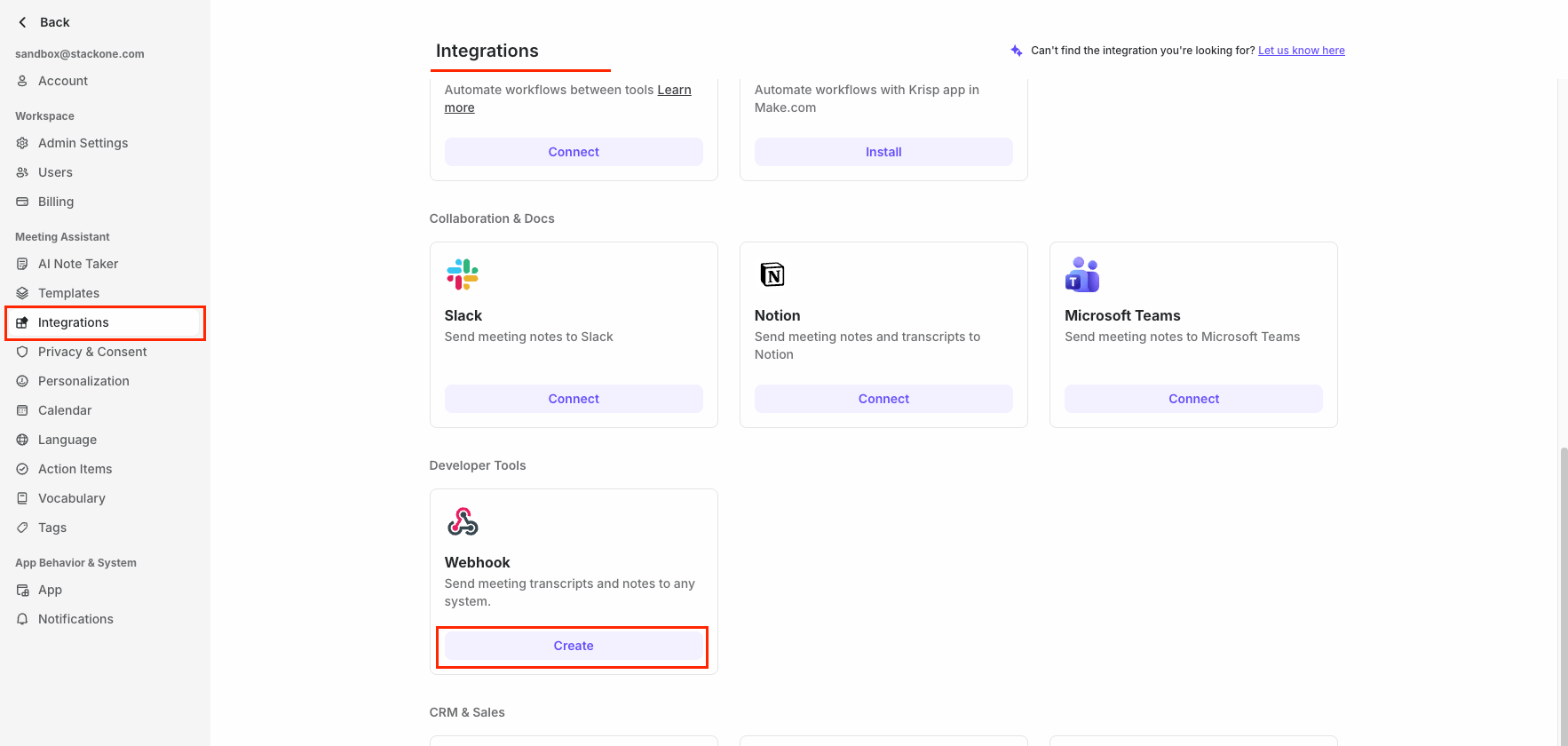
Fill in the Create Webhook dialog.
- Webhook name:
StackOne Events - Webhook URL: the Native Webhook URL you copied from StackOne
- Trigger Events: select the events you enable in StackOne
- Leave the generated Authorization header under Request Headers (Optional) as it is.
- Click Create.
- ”Note generated” covers all sections. Selecting Action items only, Key points only or Outline only as well sends those sections twice.
- Team webhook (Advanced plan admins): open Settings > Integrations > Team and click Create Webhook instead. It applies to every team member’s meetings whose access is “Anyone in your Krisp team” or broader.
Open the existing webhook
If a webhook already exists, point it at StackOne instead of creating another. In Integrations, the Personal tab lists it under My Integrations.
- Click Manage on Webhook.
Edit the webhook
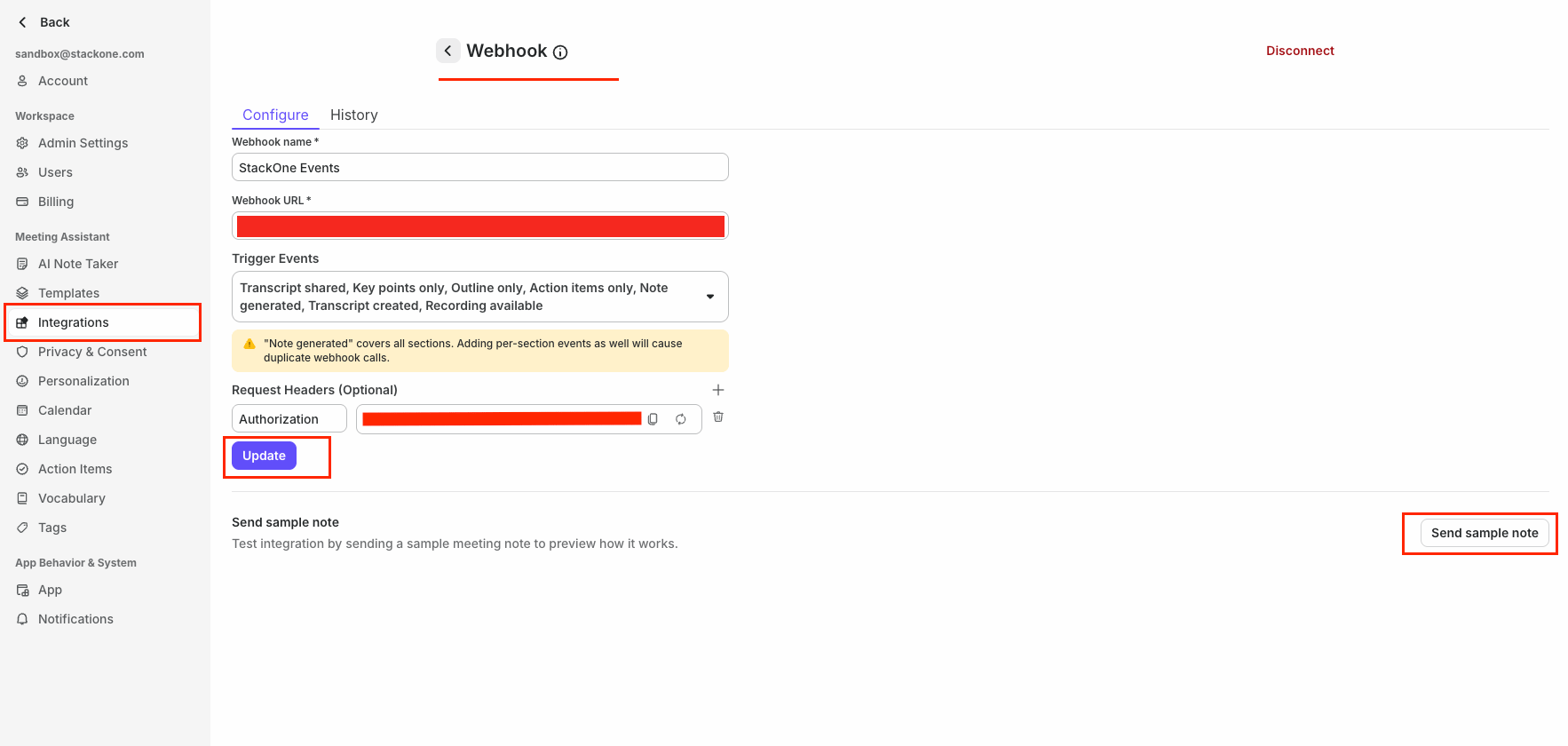
The webhook opens on the Configure tab.
- Replace the Webhook URL with the Native Webhook URL from StackOne.
- Update Trigger Events to match the events you enable in StackOne.
- Click Update.
- Click Send sample note to send a sample Note generated event and check it arrives.
- The History tab lists each delivery with its Trigger event and Status.
Send Krisp Admin Portal alerts to StackOne
Krisp Call Center AI sends security and compliance alerts from the Admin Portal to a SIEM webhook endpoint. Use the Krisp team you linked to StackOne with the Teams Portal — API Key method.
Copy the Native Webhook URL
You can find the Native Webhook URL in the StackOne Hub or on the Linking Account form during account connection or linking.
- Copy the value from the Native Webhook URL field of the Teams Portal account.
Create the SIEM endpoint
Sign in to the Krisp Admin Portal as an admin, then open Integrations > Webhook.
- Click Create new integration.
- Name:
StackOne Events - Team scope: All teams, or the teams whose alerts StackOne should receive
- Integration type: SIEM
- Endpoint URL: the Native Webhook URL you copied from StackOne
- Events: select the alerts you enable in StackOne
- Click Create.
- Krisp shows the Secret key once in a modal. StackOne doesn’t need it.
Test the endpoint
Open the endpoint and click Test next to the Endpoint URL field.
- Krisp sends a test alert in the same format as real alerts, and records it on the endpoint’s History tab.
Available webhook events
The following Krisp events can be enabled. Only events selected in StackOne are delivered, and Krisp sends only the trigger events selected on its webhook.
Meeting events
Events from the Krisp AI Note Taker, sent by the webhook in Krisp Settings.
- Transcript Created (
transcript_created) — Fired when a meeting transcript is ready, including for an imported recording - Recording Available (
recording_ready) — Fired when a meeting’s audio or video recording is available, with a download URL that expires after 7 days - Note Generated (
note_generated) — Fired when Krisp generates the AI meeting note, with its action items, key points and outline - Action Items Generated (
action_items_generated) — Fired when Krisp extracts action items from a meeting - Key Points Generated (
key_points_generated) — Fired when Krisp generates the key points of a meeting - Outline Generated (
summary_generated) — Fired when Krisp generates the meeting outline - Transcript Shared (
transcript_shared) — Fired when a meeting is shared with other users
Admin Portal alerts
Security and compliance alerts from Krisp Call Center AI, sent by a SIEM endpoint in the Admin Portal.
- Deepfake Detected (
deepfake_detected) — Fired when Krisp detects a potential deepfake voice during a call - Fraud Detected (
fraud_detected) — Fired when Krisp detects fraud on a call, for teams with fraud detection - Voice Mismatch (
voice_mismatch) — Fired on an agent voice authentication issue, such as a possible mismatch, a failed enrollment or a rejected consent - Compliance Violation (
compliance_violation) — Fired when Krisp detects a compliance violation during a call - Call Deleted (
call_deleted) — Fired when a call is deleted - Unmapped Skill (
unmapped_skill) — Fired when agent skills are not mapped to a language - Vocabulary Suggestion (
vocabulary_suggestion) — Fired when agents suggest new vocabulary terms for review - Analytics Access Requested (
analytics_access_requested) — Fired when users request access to the team’s analytics - Test Alert (
test_alert) — Fired when an admin clicks Test on the SIEM endpoint