

Prerequisites
The connector should already be set up, with a Connector Profile and a Linked Account. See Getting Started on the Jenkins connector page.Install the Notification plugin
The Notification plugin (by Tikal Knowledge) sends a JSON message for each phase of a build. Install it once on your Jenkins controller.
Open the plugin manager
Sign in to Jenkins as an administrator.
- Click Manage Jenkins (the gear icon in the top-right corner).
- Under System Configuration, click Plugins.
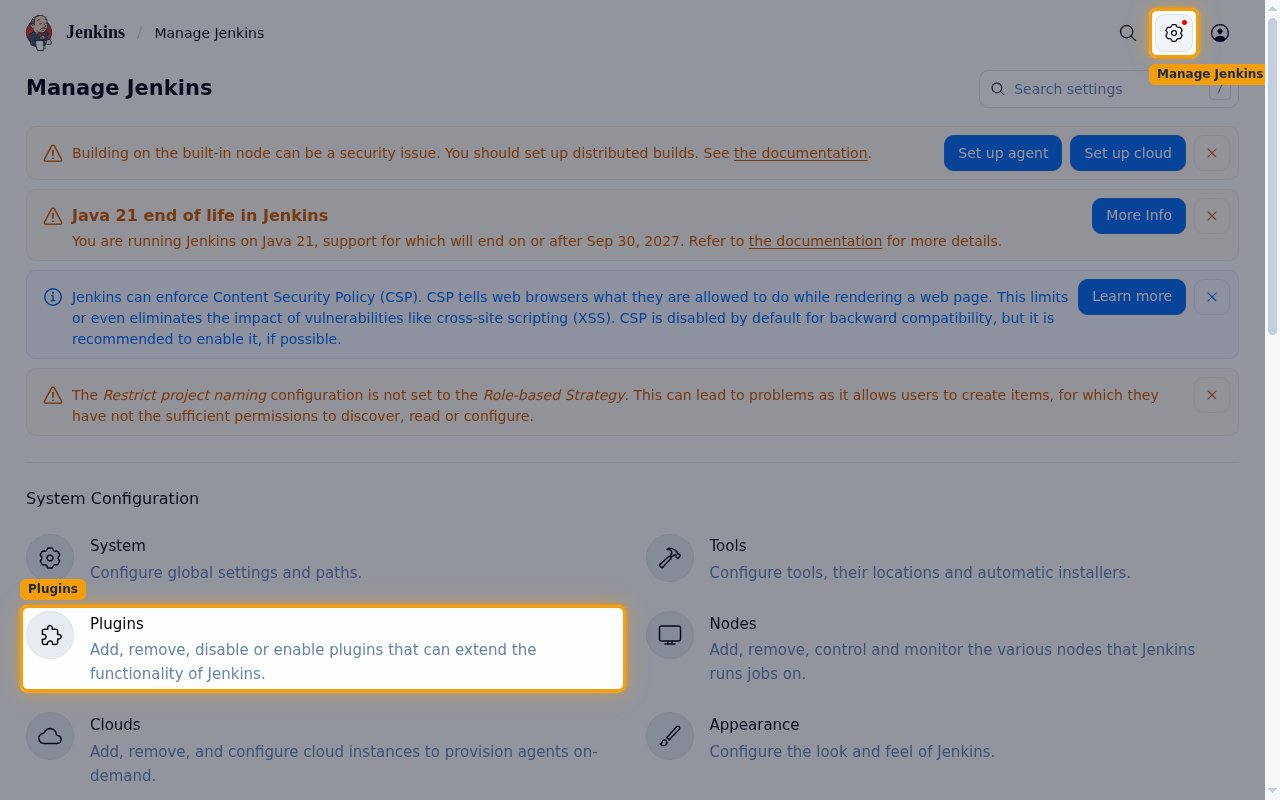
Install the plugin
Install the Notification plugin from the Jenkins plugin catalog. Jenkins loads it without a restart.
- Click Available plugins.
- In Search available plugins, type
notification. - Select the Notification plugin (plugin ID
notification). - Click Install.
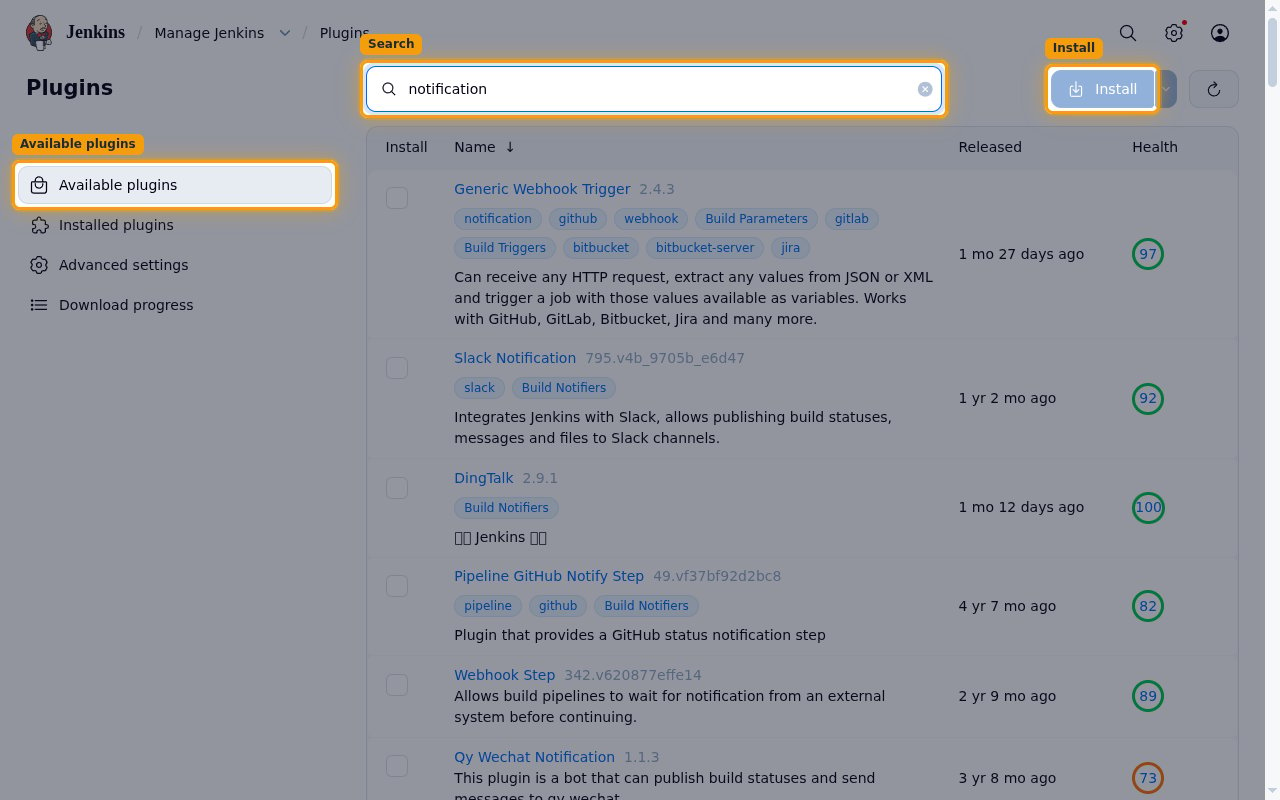
Confirm the plugin is installed
Check that the plugin is active before you configure any job.
- Click Installed plugins.
- Check that Notification plugin is listed and enabled.
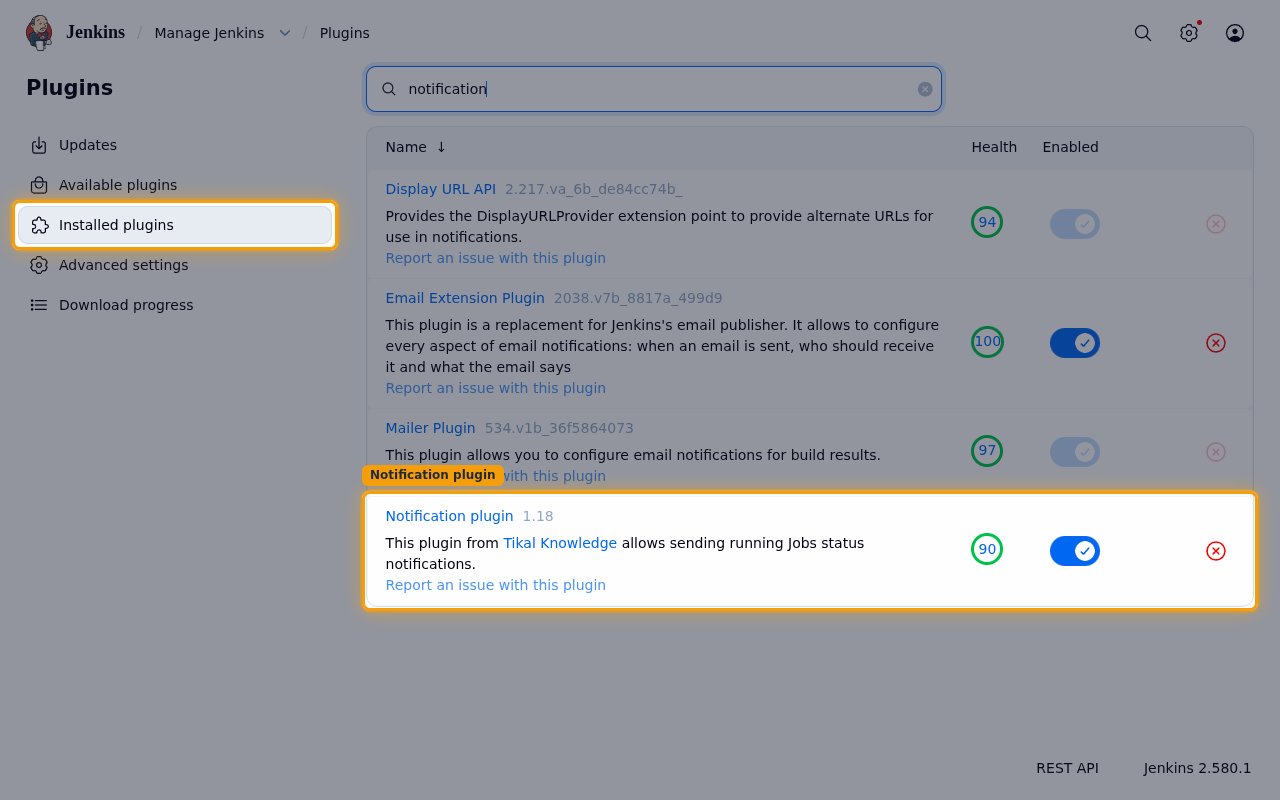
Send build events to StackOne
Add the StackOne Native Webhook URL as a notification endpoint on every job that should send events. Jobs without the endpoint send nothing.
Retrieve StackOne Native Webhook URL
The Native Webhook URL is generated once an account has been linked.
- Open the linked account in StackOne.
- Copy the value from Native Webhook URL.
- The URL contains a secret token that authenticates deliveries, so store it securely and do not share it.
Open the job configuration
Open each job that should send events to StackOne.
- Open the job in Jenkins.
- Click Configure.
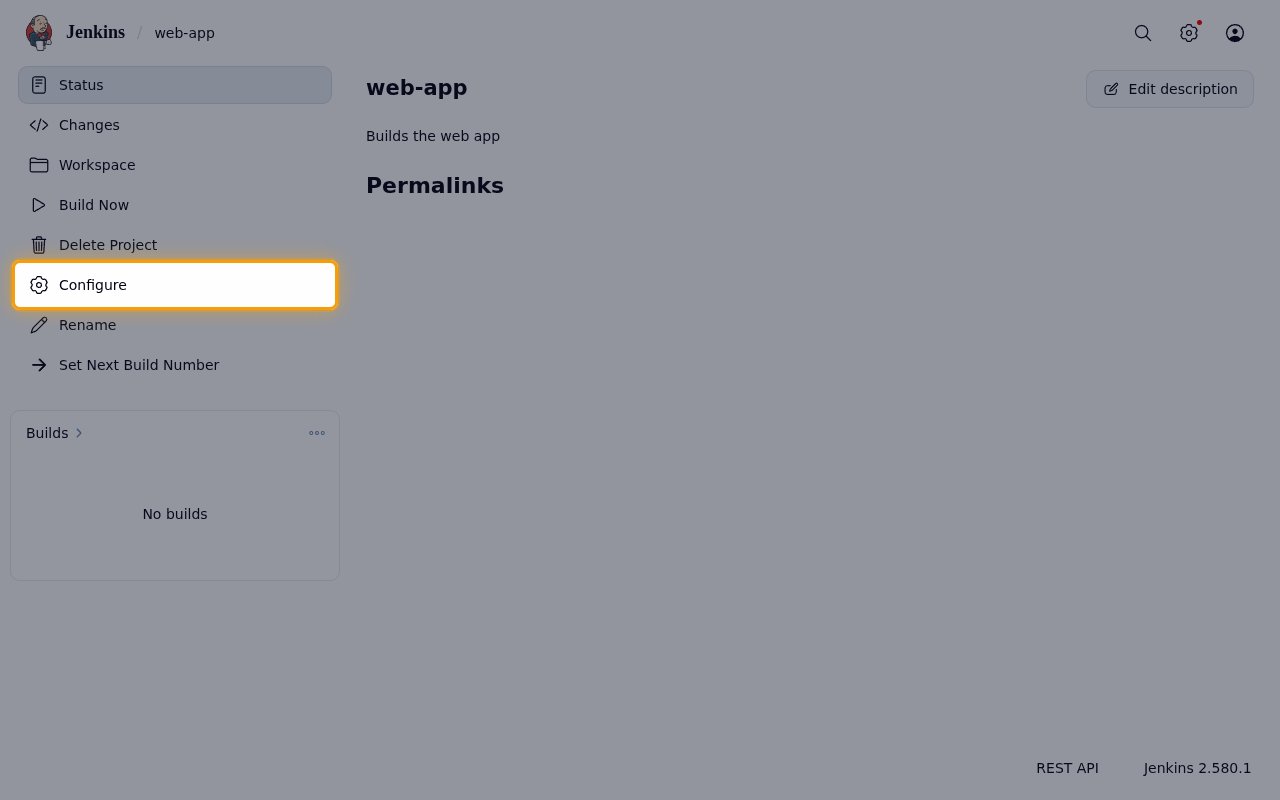
Add a notification endpoint
Add an endpoint to the job’s notification settings.
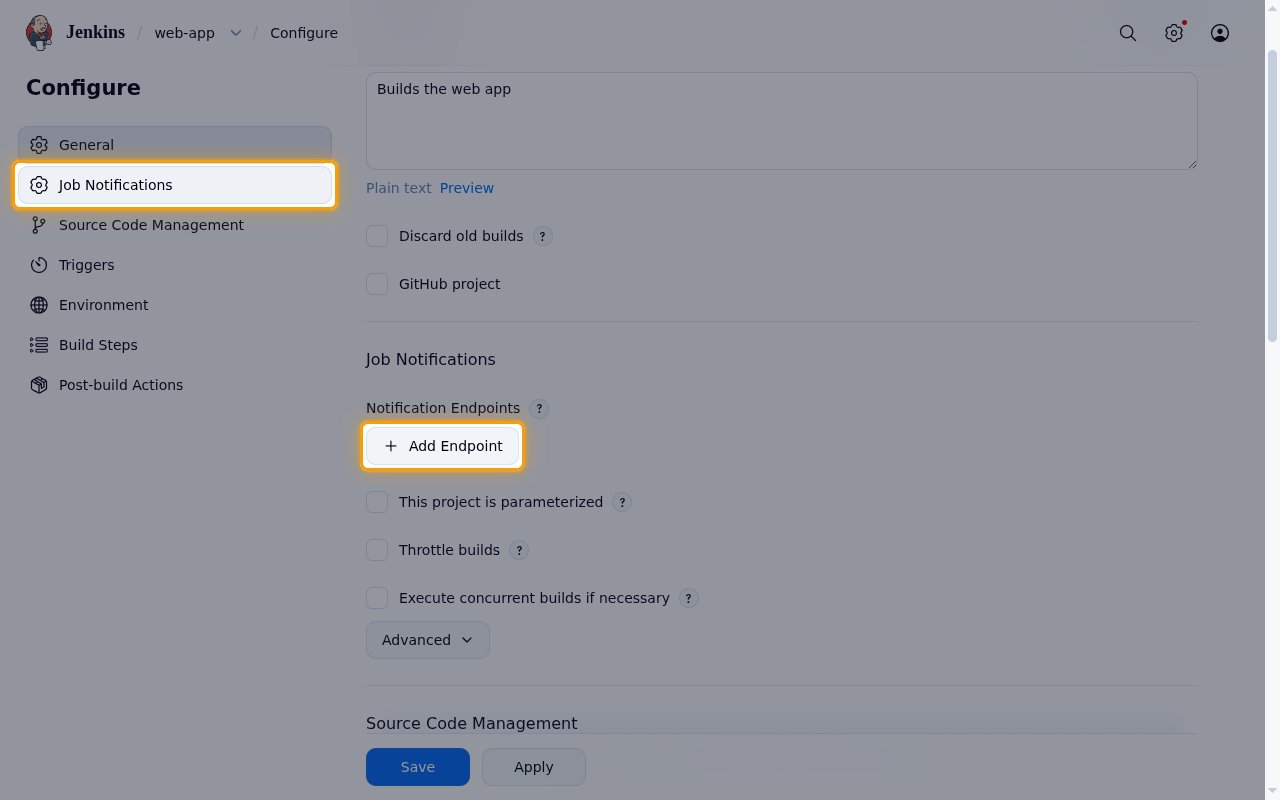
- Click Job Notifications.
- Under Notification Endpoints, click Add Endpoint.
Configure the endpoint
Point the endpoint at StackOne.
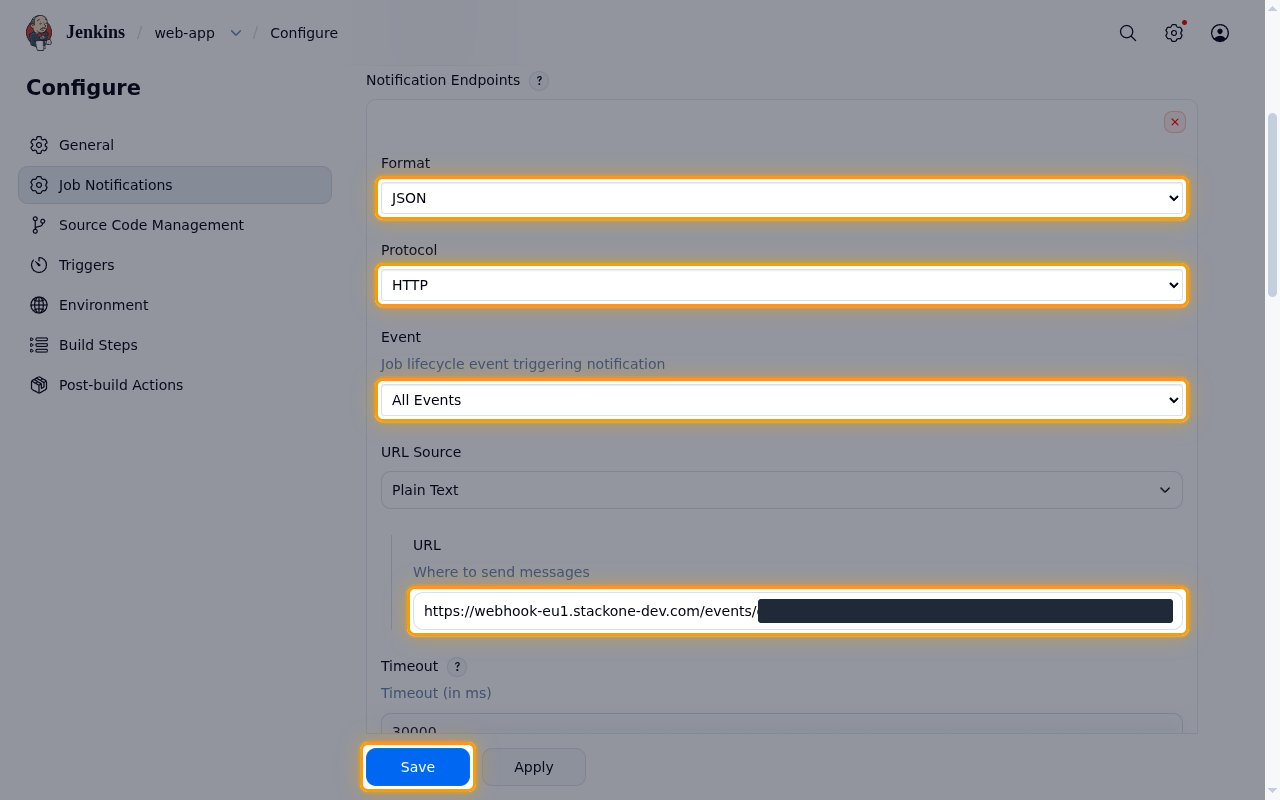
- Set Format to JSON.
- Set Protocol to HTTP.
- Set Event to All Events.
- Leave URL Source as Plain Text and paste the Native Webhook URL into URL.
- Click Save.
- Repeat these steps for each job that should send events.
Available webhook events
The following Jenkins events can be enabled. Only events selected in StackOne are delivered; Jenkins sends every phase to the endpoint and StackOne ignores the ones that are not enabled.
Build events
Events for each phase of a build of a job that has the StackOne endpoint.
- Build Queued (
QUEUED) — Fired when a build starts running, carrying the time it entered the queue. - Build Started (
STARTED) — Fired when a build starts running. - Build Completed (
COMPLETED) — Fired when a build finishes running, with its result (SUCCESS,UNSTABLE,FAILURE,NOT_BUILTorABORTED). - Build Finalized (
FINALIZED) — Fired when Jenkins has fully written the build record after post-build steps, with the final result.
Verification
Lets a Pipeline confirm that a job is connected to StackOne.
- Webhook Verification (
NONE) — Fired when a Pipeline runs thenotifyEndpointsstep with phaseNONE. It is acknowledged and no build event is created.
Delivery format
Details of how the Notification plugin delivers events to StackOne.
One request per build phase
Each build sends a separate JSON request for each phase, so a normal build produces four events. The phase is in build.phase and the result, once known, in build.status. The plugin does not retry failed deliveries unless retries are set on the endpoint, and it ignores the HTTP status that StackOne returns.