

Prerequisites
The connector should already be set up, with a Connector Profile and a Linked Account. See Getting Started on the Iterable connector page.Register the StackOne webhook in Iterable
This connector uses Manual Webhooks. Iterable does not expose an API to create System Webhooks, so you register StackOne’s callback URL yourself in the Iterable dashboard. Iterable begins delivering events immediately after the webhook is saved — there is no verification ping.
Copy the Native Webhook URL from StackOne
After connecting your Iterable account in StackOne, open the linked account in StackOne Hub and copy the value of the Native Webhook URL field. This is the endpoint Iterable will deliver events to. It is only available after the account has been connected.
- The Native Webhook URL is read-only and generated by StackOne — copy it exactly.
Open System Webhooks and create a webhook
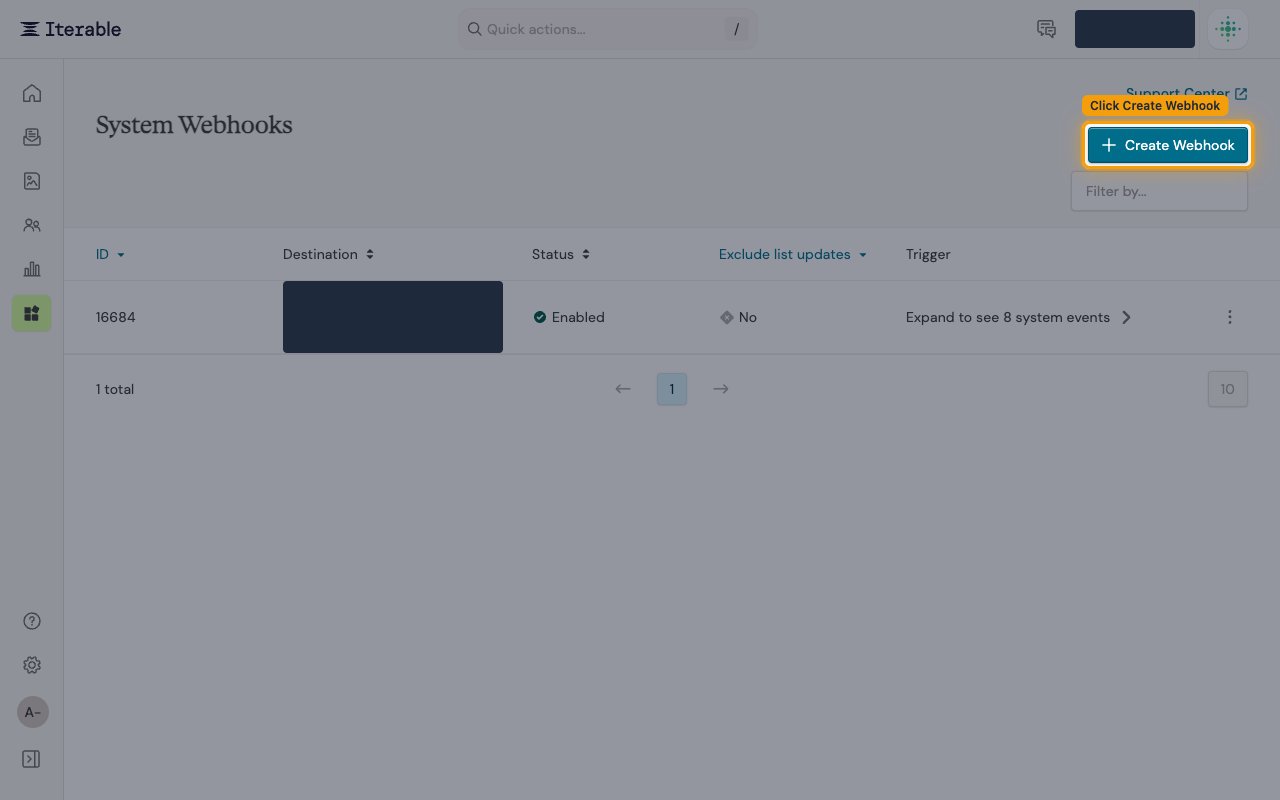
Sign in to the Iterable dashboard for the region your project is in, open Integrations → System Webhooks, then click Create Webhook in the top right.
- United States — Iterable US System Webhooks
- European Union — Iterable EU System Webhooks
- Create the webhook in the same region as the project you connected in StackOne.
Enter the Endpoint URL
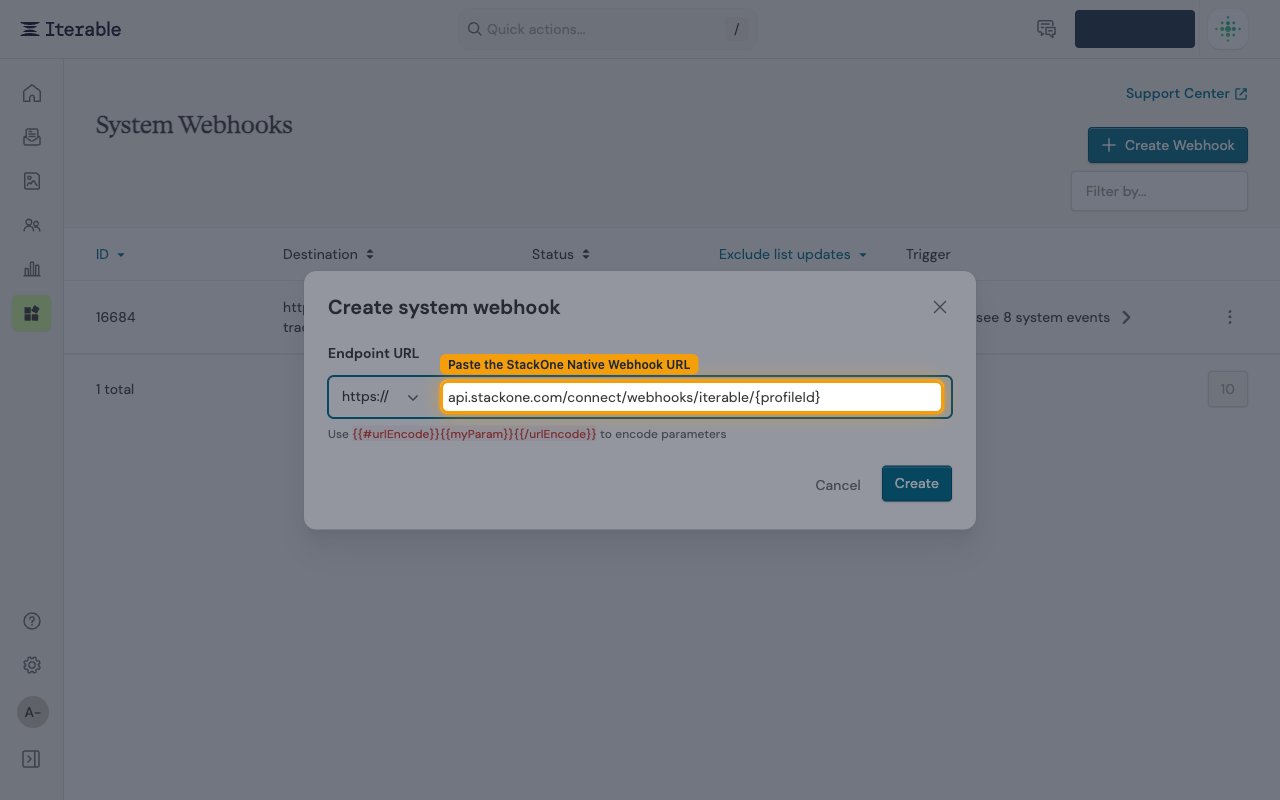
In the Create system webhook dialog, leave the protocol dropdown on its default secure (HTTPS) option and paste the StackOne Native Webhook URL into the Endpoint URL field.
Set the status and authentication
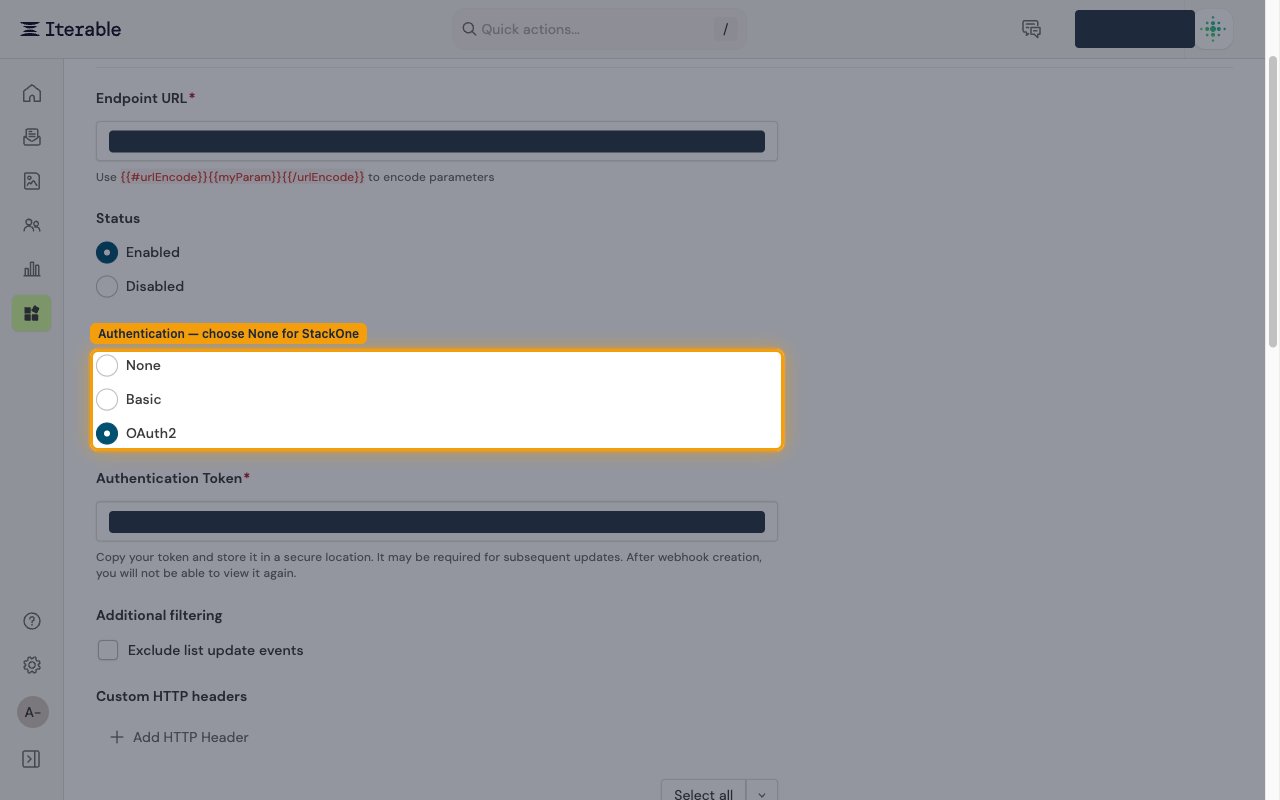
Set Status to Enabled. Under Authentication, choose None — the StackOne Native Webhook URL already carries its own credential, so no additional Basic or OAuth2 authentication is required. Leave Exclude list update events unchecked unless you specifically want to skip list-membership changes, and only add Custom HTTP headers if your setup needs them.
- If you choose Basic or OAuth2 instead of None, Iterable shows the Authentication Token only once when the webhook is created and you will not be able to view it again — copy it and store it securely.
Select the events to deliver and save
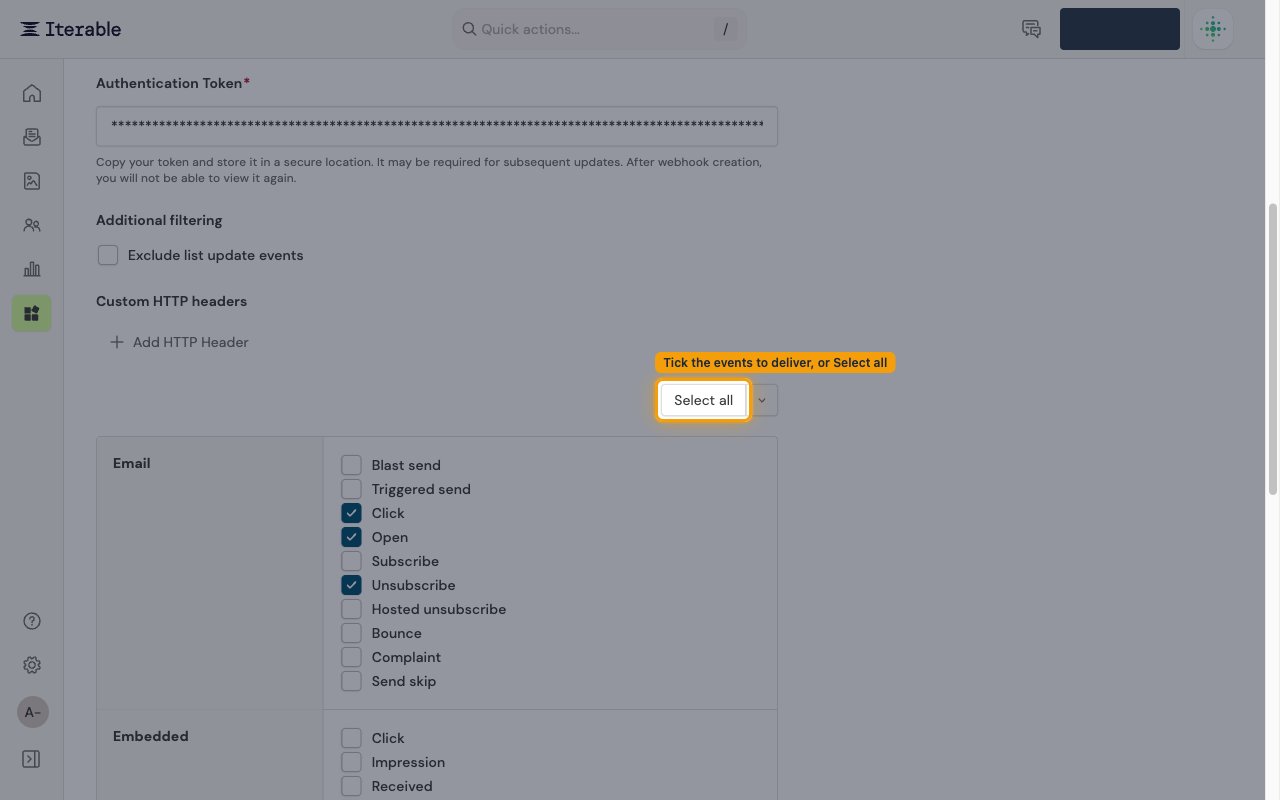
In the events grid, tick each event you want delivered to StackOne — or click Select all — then click Save Webhook. See Available webhook events below for how each Iterable event maps to StackOne. Only the events you tick are delivered; Iterable does not send events you did not subscribe to.
Remove the webhook to stop deliveries
To stop deliveries later, open the System Webhooks page, open the row’s action menu (the ⋮ button) and choose Delete webhook. Disconnecting the account in StackOne does not remove the webhook from Iterable, because Iterable provides no API for StackOne to manage it.
Available webhook events
The following Iterable events can be enabled when you create the System Webhook. Only events you tick in Iterable are delivered — Iterable will not send events that are not subscribed. StackOne routes each delivery by its eventName and passes it through as the event type. In Iterable’s event grid, tick the box shown in parentheses after each event.
Email events
Events related to email messages. In Iterable these appear under the Email group.
- Email Send (
emailSend) — Fired when an email is sent to a user; tick Blast send and/or Triggered send - Email Open (
emailOpen) — Fired when a user opens an email; tick Open - Email Click (
emailClick) — Fired when a user clicks a link in an email; tick Click - Email Bounce (
emailBounce) — Fired when an email bounces (hard or soft); tick Bounce - Email Complaint (
emailComplaint) — Fired when a user marks an email as spam; tick Complaint - Email Send Skip (
emailSendSkip) — Fired when an email send is skipped (suppression, quiet hours, frequency cap); tick Send skip - Email Subscribe (
emailSubscribe) — Fired when a user subscribes to a message type; tick Subscribe - Email Unsubscribe (
emailUnSubscribe) — Fired when a user unsubscribes from a message type; tick Unsubscribe - Hosted Unsubscribe Click (
hostedUnsubscribeClick) — Fired when a user clicks a hosted (one-click) unsubscribe link; tick Hosted unsubscribe
SMS events
Events related to SMS messages. In Iterable these appear under the SMS group.
- SMS Send (
smsSend) — Fired when an SMS is sent to a user; tick Send - SMS Received (
smsReceived) — Fired when an inbound SMS is received from a user; tick Received - SMS Bounce (
smsBounce) — Fired when an SMS fails to be delivered; tick Bounce - SMS Click (
smsClick) — Fired when a user clicks a link in an SMS; tick Click - SMS Send Skip (
smsSendSkip) — Fired when an SMS send is skipped; tick Send skip
Push events
Events related to mobile push notifications. In Iterable these appear under the Push group.
- Push Send (
pushSend) — Fired when a push notification is sent to a device; tick Send - Push Open (
pushOpen) — Fired when a user opens a push notification; tick Open - Push Bounce (
pushBounce) — Fired when a push notification fails to be delivered (e.g. invalid token); tick Bounce - Push Send Skip (
pushSendSkip) — Fired when a push send is skipped; tick Send skip - Push Uninstall (
pushUninstall) — Fired when the app is detected as uninstalled via push-token invalidation; tick Uninstall
In-app events
Events related to in-app messages. In Iterable these appear under the In-app group.
- In-App Send (
inAppSend) — Fired when an in-app message is sent to a user; tick Send - In-App Open (
inAppOpen) — Fired when a user opens an in-app message; tick Open - In-App Click (
inAppClick) — Fired when a user clicks a button or link in an in-app message; tick Click - In-App Close (
inAppClose) — Fired when a user dismisses or closes an in-app message; tick Close - In-App Delivery (
inAppDelivery) — Fired when an in-app message is delivered to a device; tick Delivery - In-App Delete (
inAppDelete) — Fired when an in-app message is deleted from a user’s inbox; tick Delete - In-App Recall (
inAppRecall) — Fired when an in-app message is recalled (withdrawn); tick Recall - In-App Send Skip (
inAppSendSkip) — Fired when an in-app send is skipped; tick Send skip
Embedded events
Events related to embedded messages. In Iterable these appear under the Embedded group.
- Embedded Click (
embeddedClick) — Fired when a user clicks an embedded message; tick Click - Embedded Impression (
embeddedImpression) — Fired when an embedded message is shown to a user; tick Impression - Embedded Received (
embeddedReceived) — Fired when an embedded message is received by the client; tick Received - Embedded Session (
embeddedSession) — Fired when an embedded message session is recorded for a user; tick Session
Web push events
Events related to web push notifications. In Iterable these appear under the Web Push group.
- Web Push Send (
webPushSend) — Fired when a web push notification is sent to a user; tick Send - Web Push Click (
webPushClick) — Fired when a user clicks a web push notification; tick Click - Web Push Send Skip (
webPushSendSkip) — Fired when a web push send is skipped; tick Send skip
Other events
Journey and session events. In Iterable these appear under the Others group.
- Journey Exit (
journeyExit) — Fired when a user exits a journey; the payload carriesworkflowIdandexitReason; tick Journey exit - Unknown Session (
unknownSession) — Fired when anonymous (unknown) user sessions are attributed to a known user; tick Unknown Session
Delivery format
Details of how Iterable delivers events to StackOne.
One event per request
Iterable delivers each event as a separate HTTP POST with Content-Type: application/json — events are not batched. The payload identifies the user via email and/or userId, with event-specific metadata in dataFields (including messageId, campaignId, templateId, and createdAt).
No signature, at-least-once delivery
Iterable does not sign deliveries with an HMAC signature — keep the Native Webhook URL secret, as it is the only credential on the endpoint.
- Delivery is at-least-once — Iterable may retry failed deliveries and can deliver duplicates; dedupe on the message id.
- Iterable expects a 2xx response within roughly 2 seconds, and event ordering is not guaranteed.