

Generate an Iterable Server-Side API Key
Iterable uses API keys to authenticate requests. For a connector integration you need a “Server-side” API key with read/write access to the project’s API endpoints.
Sign in to Iterable
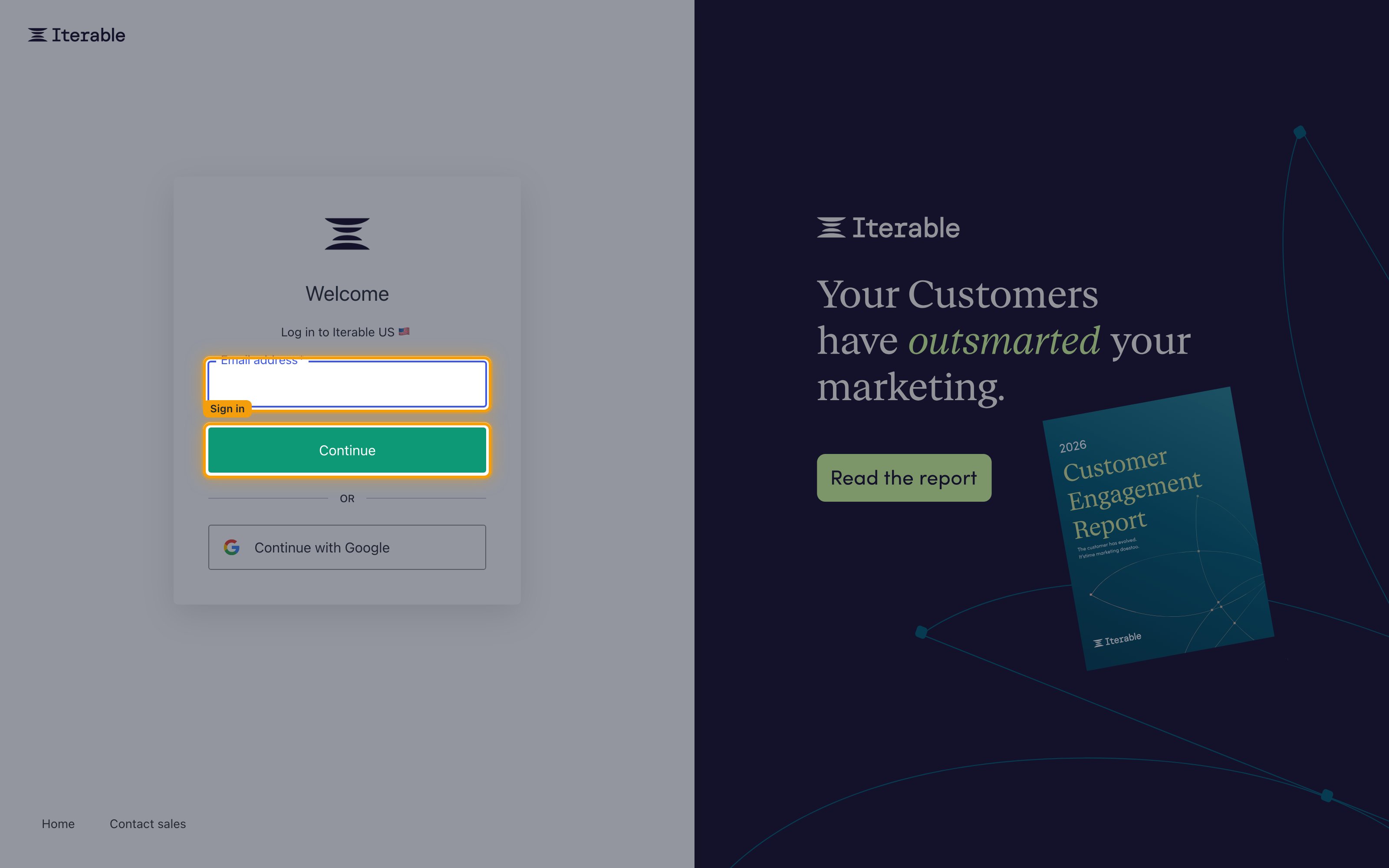
Open your Iterable workspace at app.iterable.com (US) or app.eu.iterable.com (EU) and sign in.
Open the API Keys page
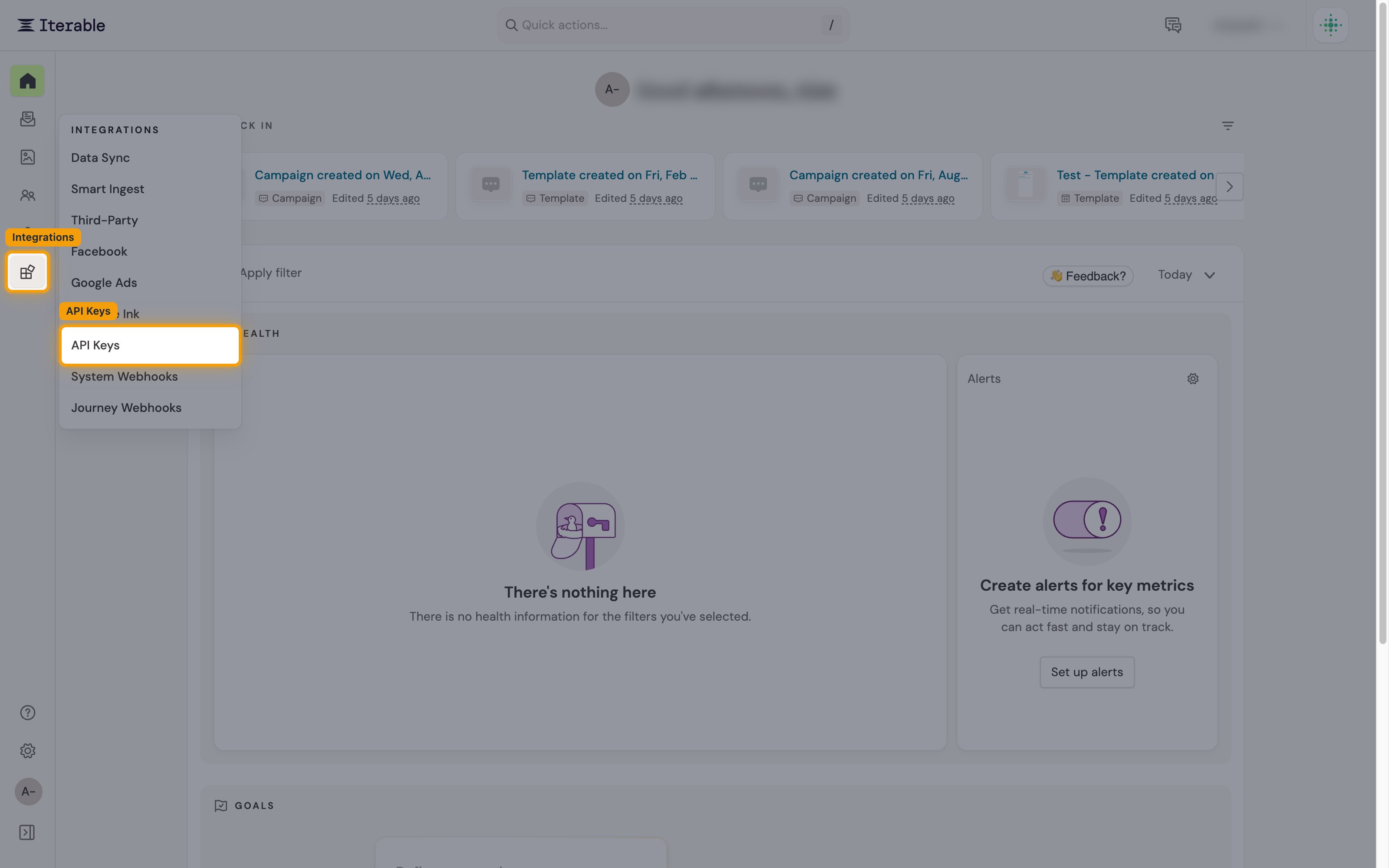
Iterable’s API keys live under the Integrations section of the left sidebar.
- In the left sidebar, click Integrations to expand the section.
- Click API Keys under Integrations.
Open the new API key form
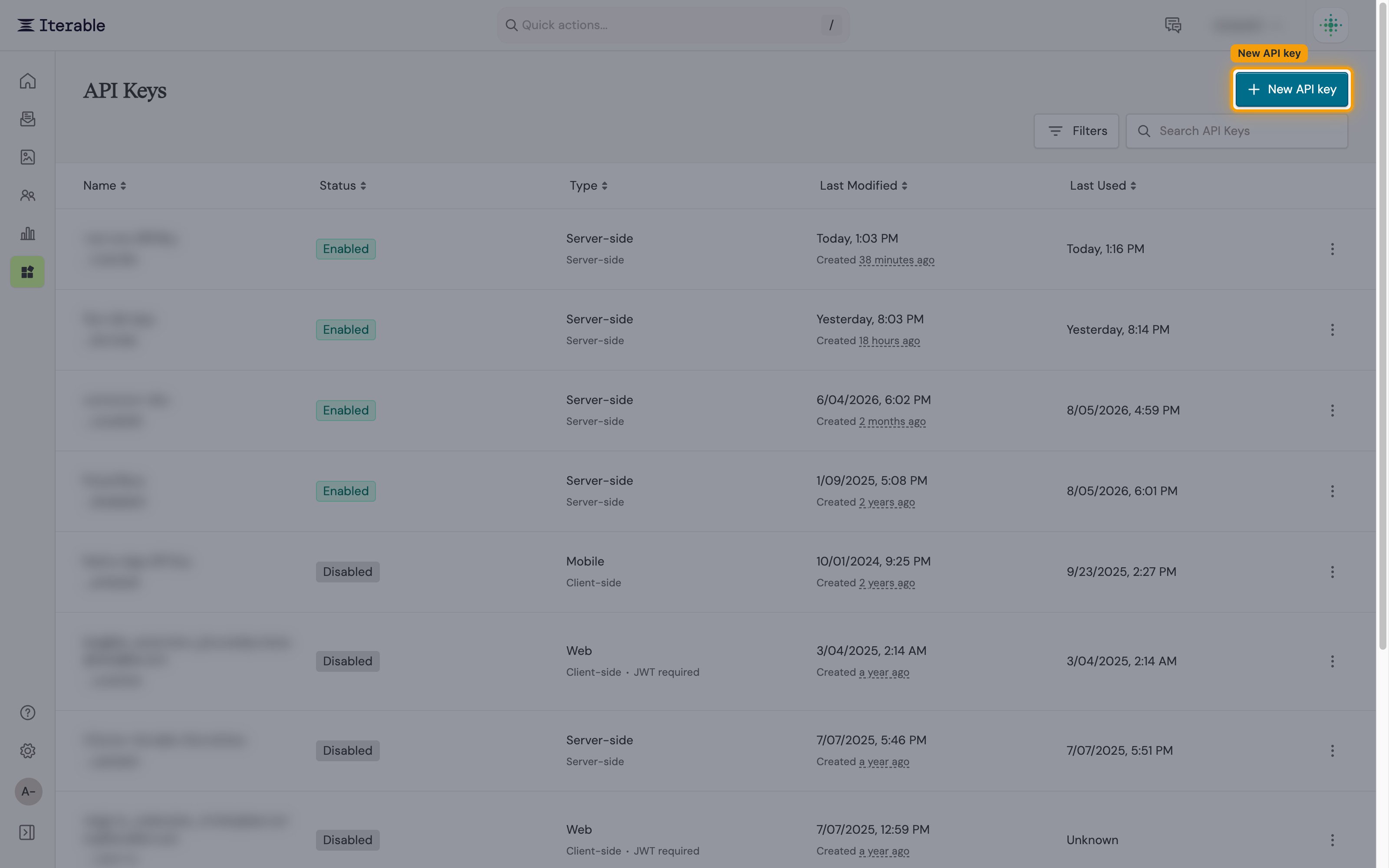
Click + New API key in the top right of the API Keys page.
Enter a name and choose the Server-side type
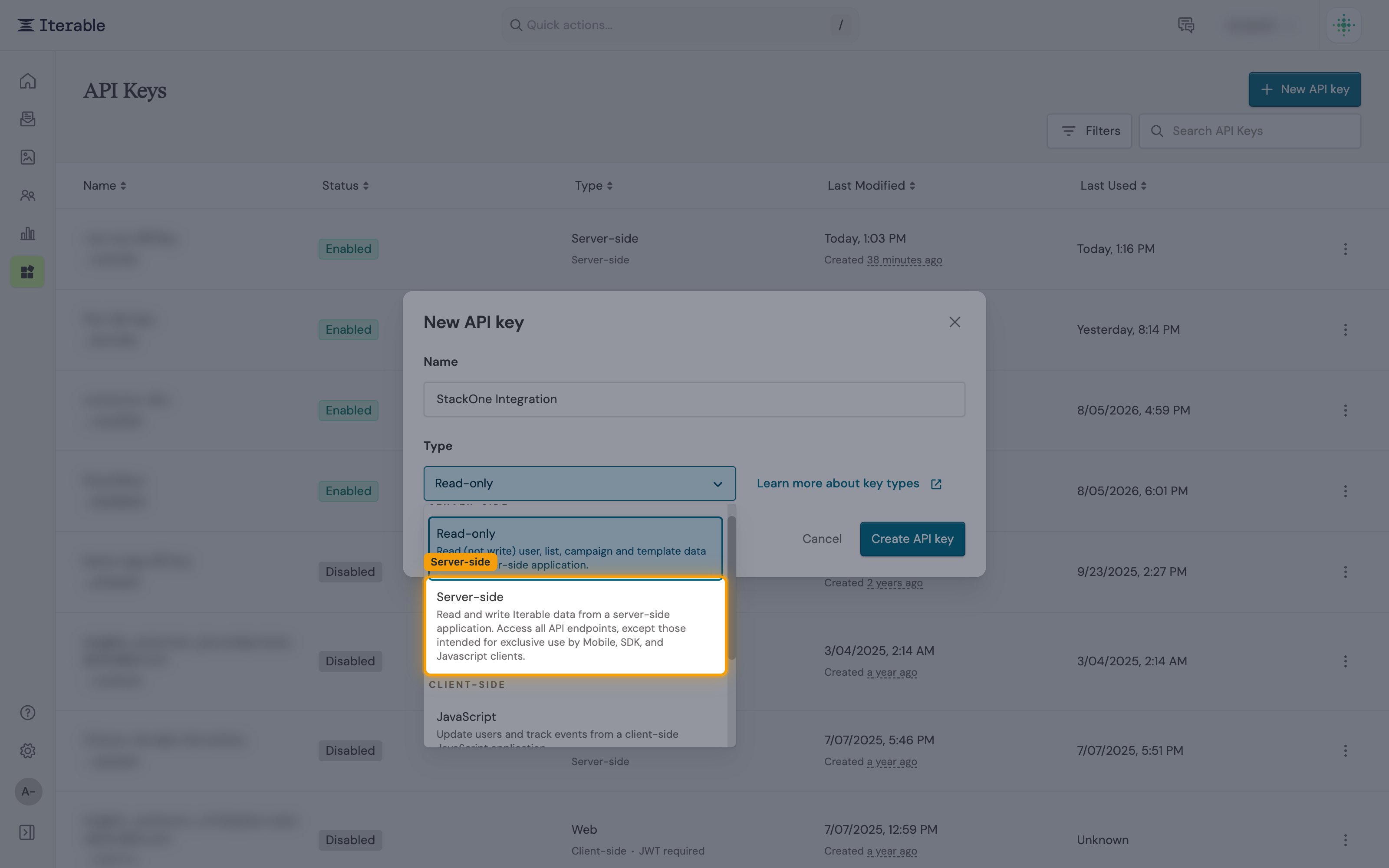
The New API key dialog opens.
- Give the key a descriptive Name (e.g. “StackOne Integration”).
- Open the Type dropdown and choose Server-side (under the SERVER-SIDE heading) — this grants read/write access to all server-side API endpoints.
Create the key and copy its value
Click Create API key. In the Copy your new API key dialog, click the copy button next to the key value and store it securely. After you close this dialog, Iterable only shows the key’s last 8 characters — if you lose the full value you must create a new key.
Identify Your Iterable Region
Iterable runs two regional data centers. Each project is bound to one DC at creation time. Pick the region that matches your project’s URL.
Determine Region from Workspace URL
The workspace URL identifies your data center.
- If your workspace URL begins with
app.iterable.comchoose United States. - If your workspace URL begins with
app.eu.iterable.comchoose European Union.
Linking the Account from the Hub
Navigate to the Hub
Fill out the fields
- API Key
- Region
Connect
- Click Connect
- If applicable, the provider will redirect you to a sign-in or authorization page. Complete the provider’s authorization flow.
- Once authorization is successful, you will see a confirmation popup
If the account linking is successful, you will see the newly linked account in your Accounts page.
Next Steps
Webhooks setup
Configure receiving Events for Iterable into StackOne.