

Prerequisites
The connector should already be set up, with a Connector Profile and a Linked Account. See Getting Started on the Insightly connector page.Send Insightly events to StackOne
Insightly sends webhooks from a Workflow Automation process. Each process carries one Record Type, one trigger, and one endpoint, so create one process per event you want to receive.
Copy the Native Webhook URL from StackOne
On the linked account in StackOne Hub, copy the read-only Native Webhook URL. It contains a secure per-connection key, so treat it like a password.
Open Workflow Automation in Insightly
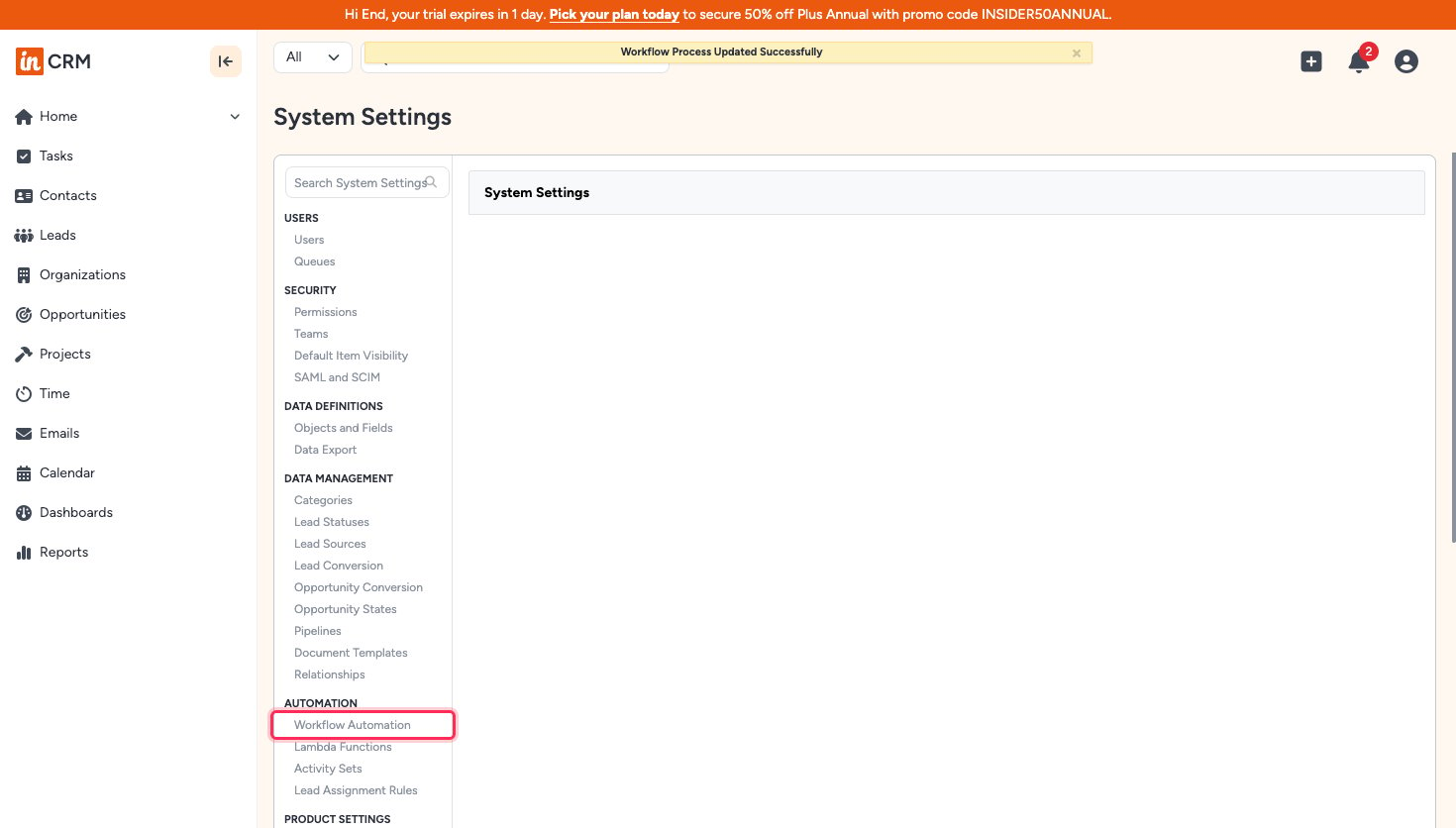
Sign in to your Insightly account as an administrator and open System Settings. Under AUTOMATION in the left panel, click Workflow Automation.
Create a workflow process
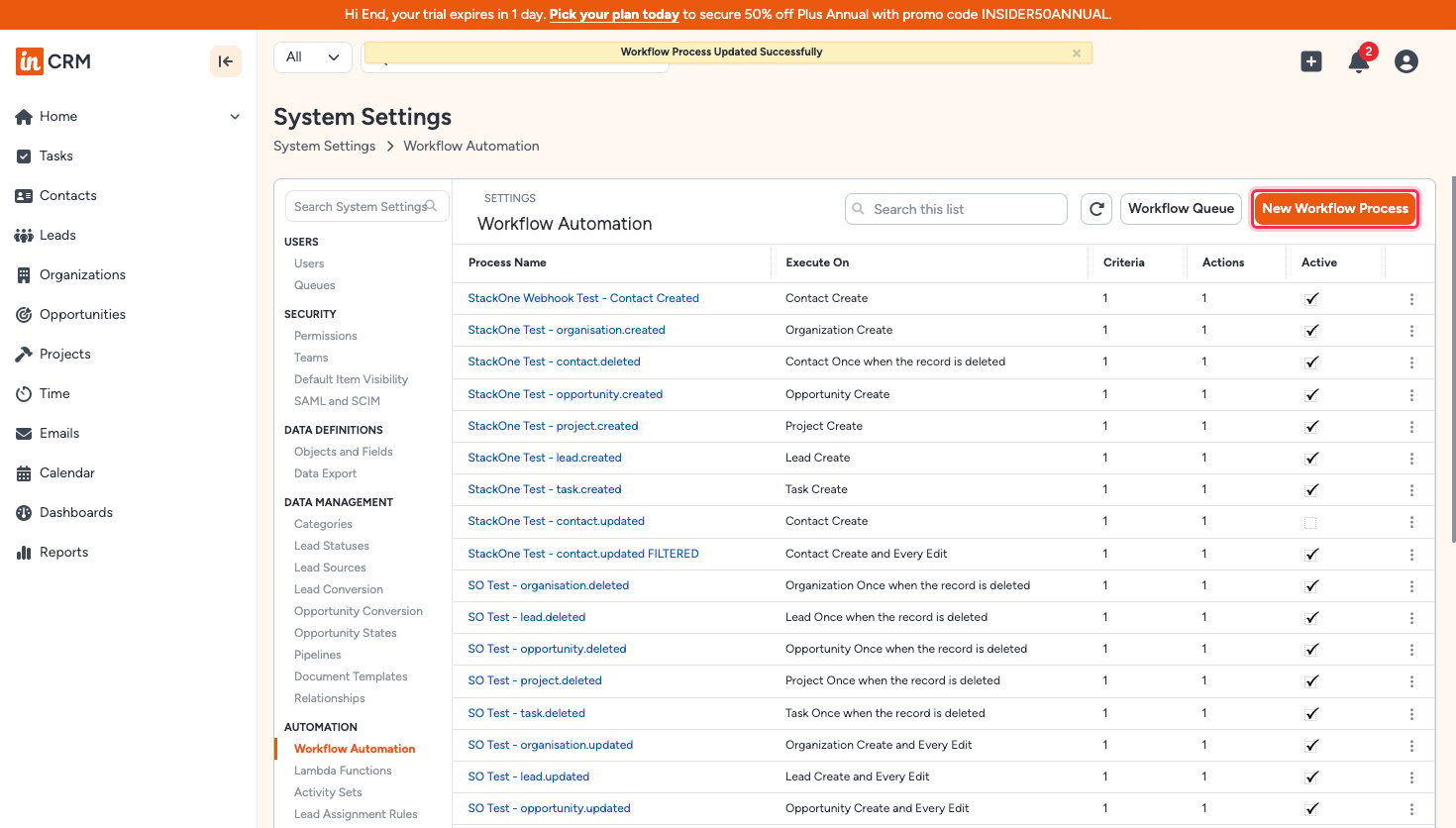
On the Workflow Automation page, click New Workflow Process.
Name the process and choose its trigger
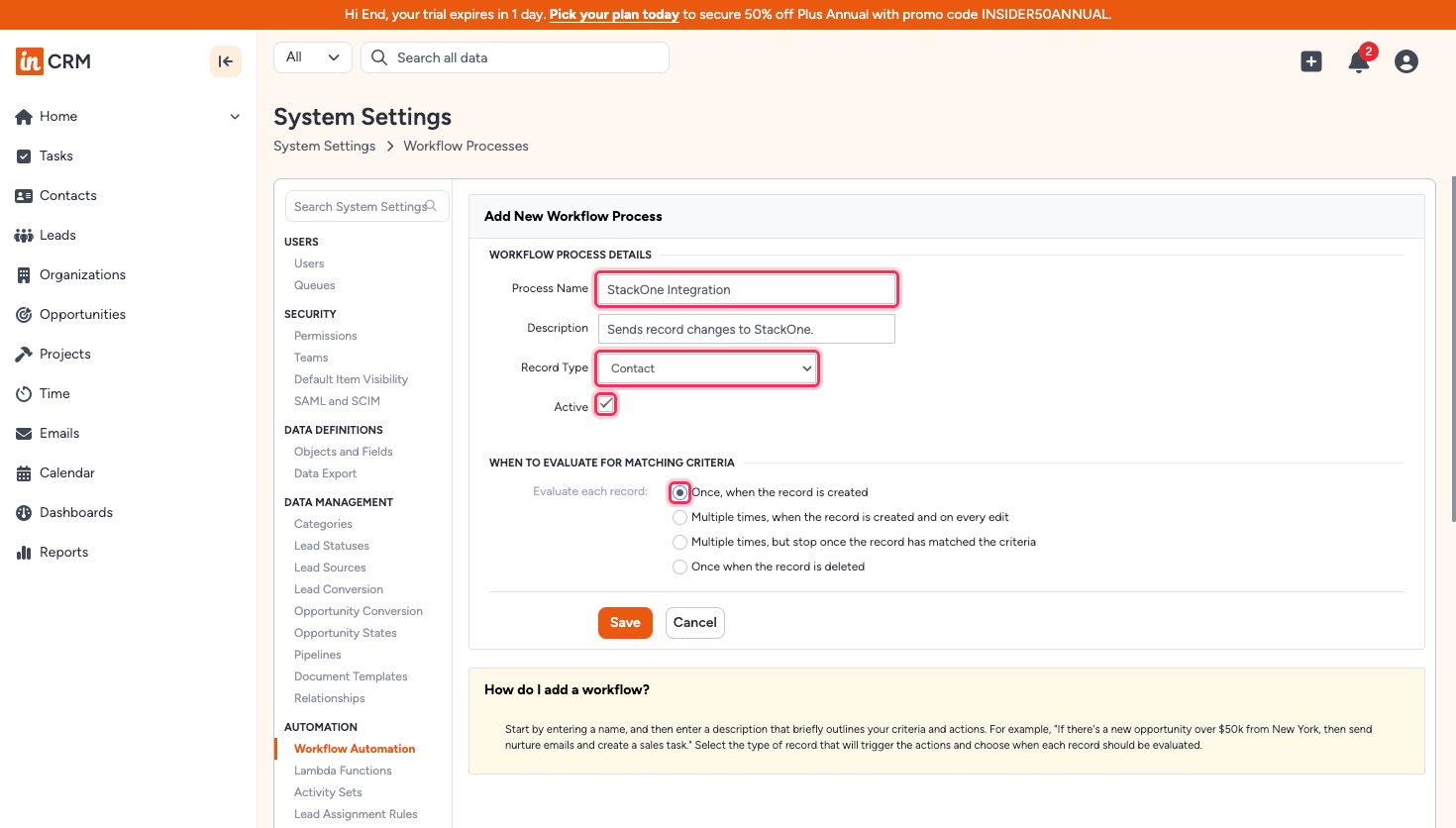
Complete Add New Workflow Process, then click Save.
- Process Name — a name that identifies this integration, for example
StackOne Integration. - Record Type — the object to watch. Choose Contact, Lead, Opportunity, Organization, Project, or Task.
- Active — tick this, or the process never runs.
- Under Evaluate each record:, choose Once, when the record is created, Multiple times, when the record is created and on every edit, or Once when the record is deleted.
Add the criteria
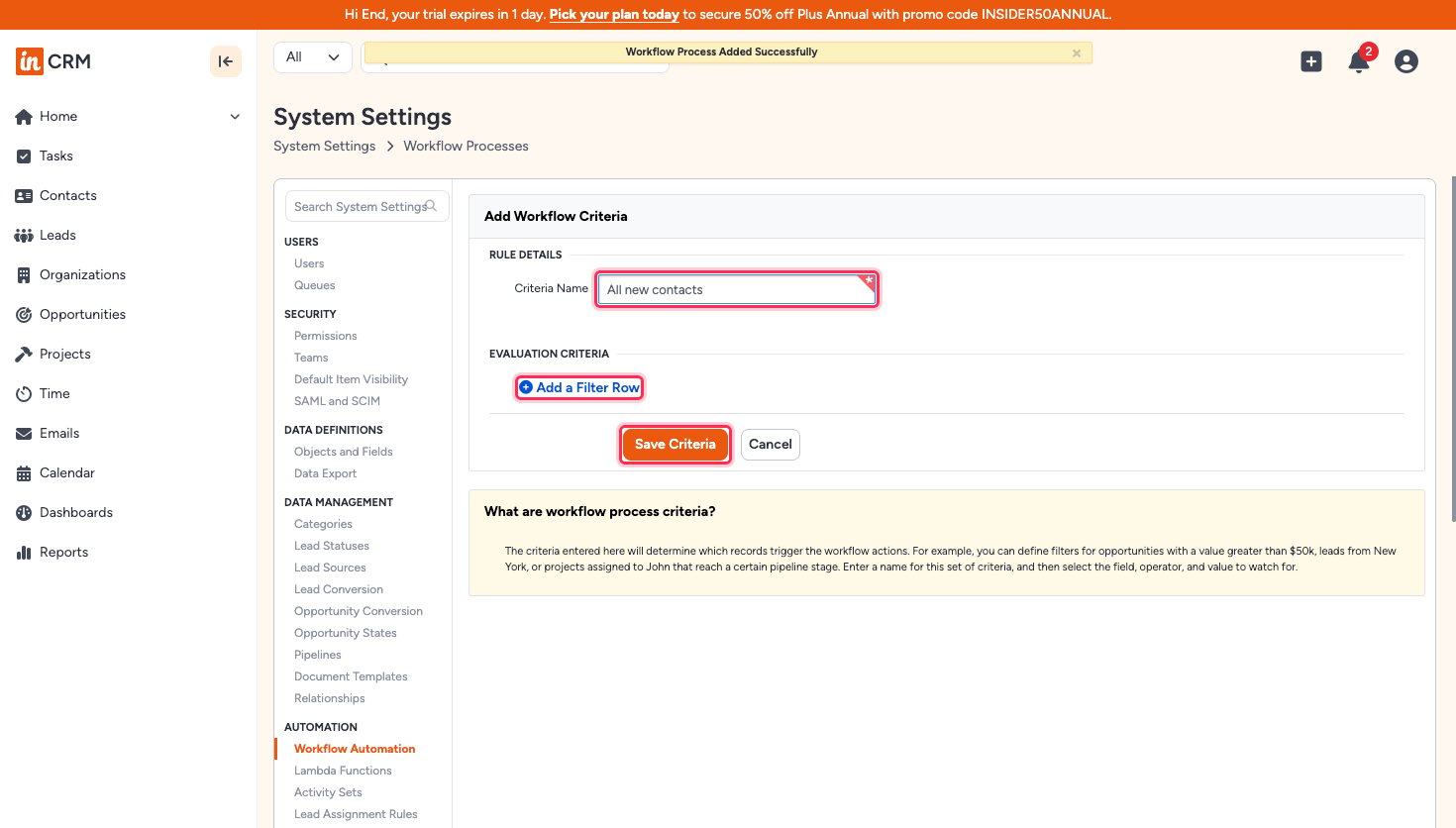
On Add Workflow Criteria, enter a Criteria Name, then click Save Criteria.
- Leave EVALUATION CRITERIA empty to match every record of that Record Type.
- For update events, click Add a Filter Row and add a condition that becomes true on the change you want. An empty criteria only ever fires when a record is created.
Add the webhook action
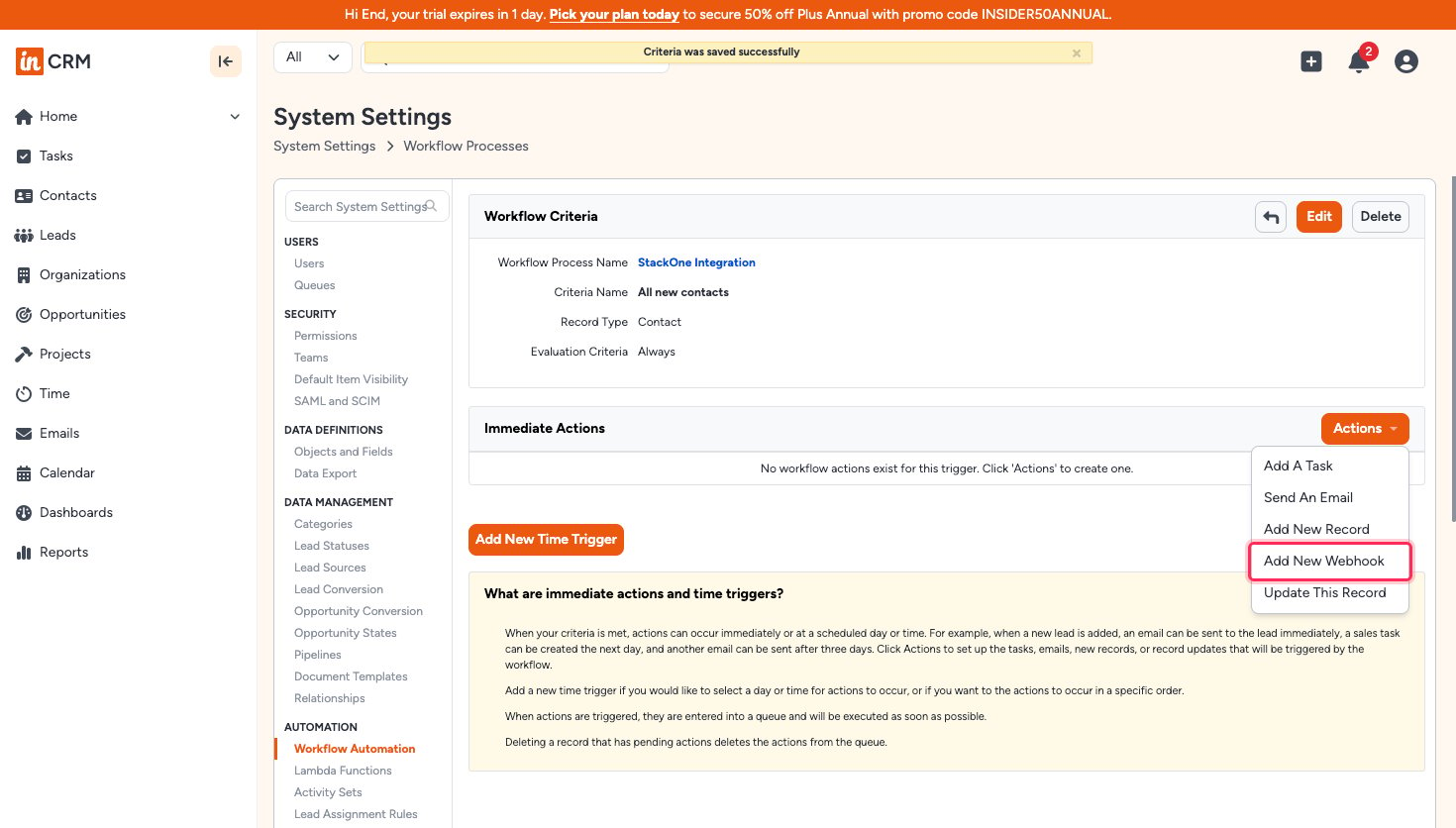
Under Immediate Actions, open Actions and choose Add New Webhook.
Enter the endpoint and save
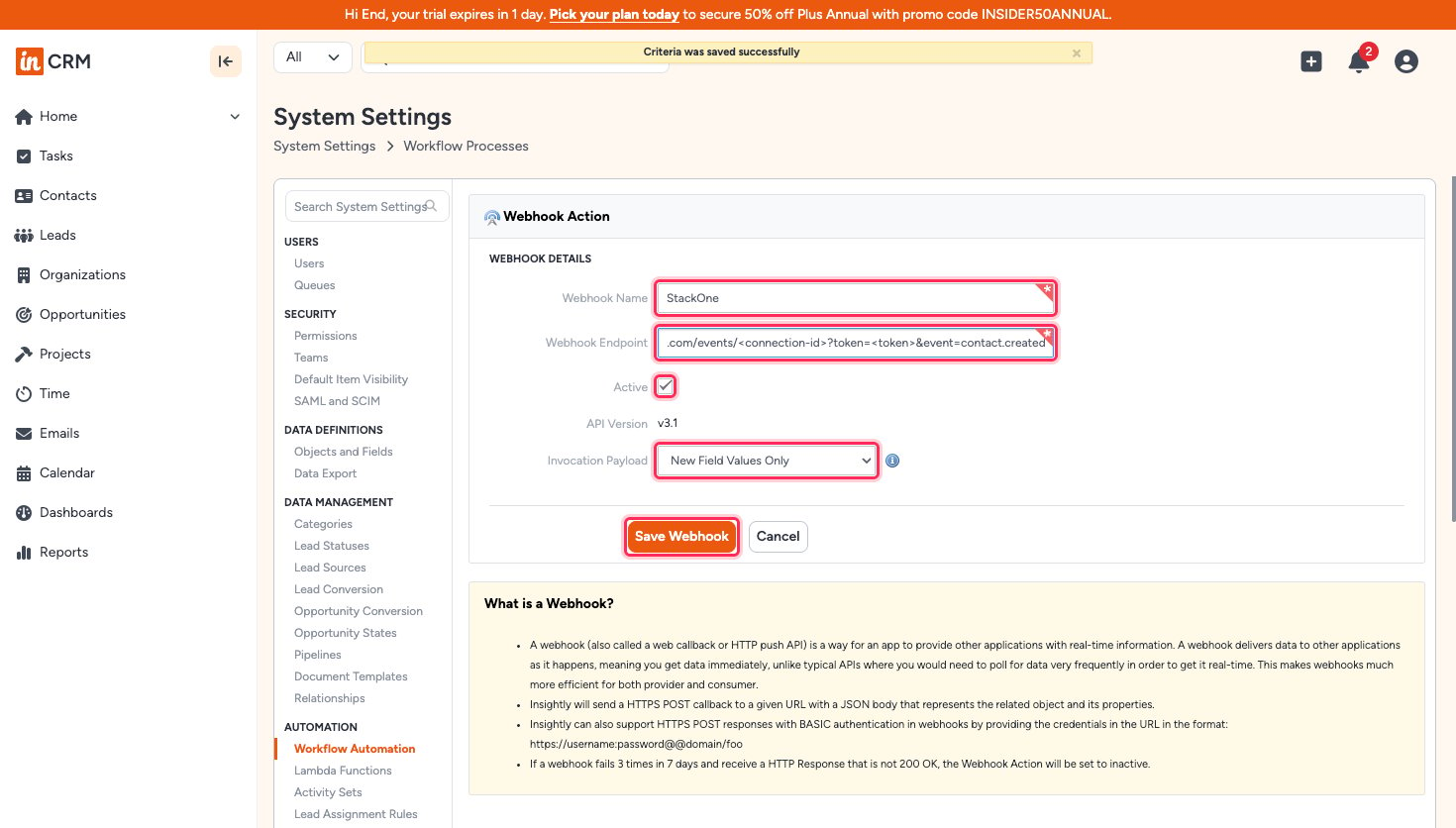
Complete Webhook Action, then click Save Webhook.
- Webhook Name — a name that identifies this integration, for example
StackOne. - Webhook Endpoint — paste the Native Webhook URL, then append
&event=followed by a value from the list below, matching the Record Type and trigger you chose. - Active — tick this, or Insightly sends nothing.
- Invocation Payload — leave this on New Field Values Only.
- If a webhook fails 3 times in 7 days with a response other than 200 OK, Insightly sets the webhook action to inactive.
Available webhook events
Append one of these to the Native Webhook URL as &event=<type>. Only the event you append is delivered, so each workflow process carries exactly one value.
Contact events
Events for contacts.
- Contact Created (
contact.created) — Fired when a contact is created. - Contact Updated (
contact.updated) — Fired when a contact changes. - Contact Deleted (
contact.deleted) — Fired when a contact is deleted.
Organization events
Events for organizations.
- Organization Created (
organisation.created) — Fired when an organization is created. - Organization Updated (
organisation.updated) — Fired when an organization changes. - Organization Deleted (
organisation.deleted) — Fired when an organization is deleted.
Lead events
Events for leads.
- Lead Created (
lead.created) — Fired when a lead is created. - Lead Updated (
lead.updated) — Fired when a lead changes. - Lead Deleted (
lead.deleted) — Fired when a lead is deleted.
Opportunity events
Events for opportunities.
- Opportunity Created (
opportunity.created) — Fired when an opportunity is created. - Opportunity Updated (
opportunity.updated) — Fired when an opportunity changes. - Opportunity Deleted (
opportunity.deleted) — Fired when an opportunity is deleted.
Project events
Events for projects.
- Project Created (
project.created) — Fired when a project is created. - Project Updated (
project.updated) — Fired when a project changes. - Project Deleted (
project.deleted) — Fired when a project is deleted.
Task events
Events for tasks.
- Task Created (
task.created) — Fired when a task is created. - Task Updated (
task.updated) — Fired when a task changes. - Task Deleted (
task.deleted) — Fired when a task is deleted.