

Generating an API key
Insightly issues one API key per user, shown in that user’s own settings. The key inherits the permissions of the user it belongs to.
Sign in to Insightly
Sign in to your Insightly account.
Confirm API access is enabled for the user
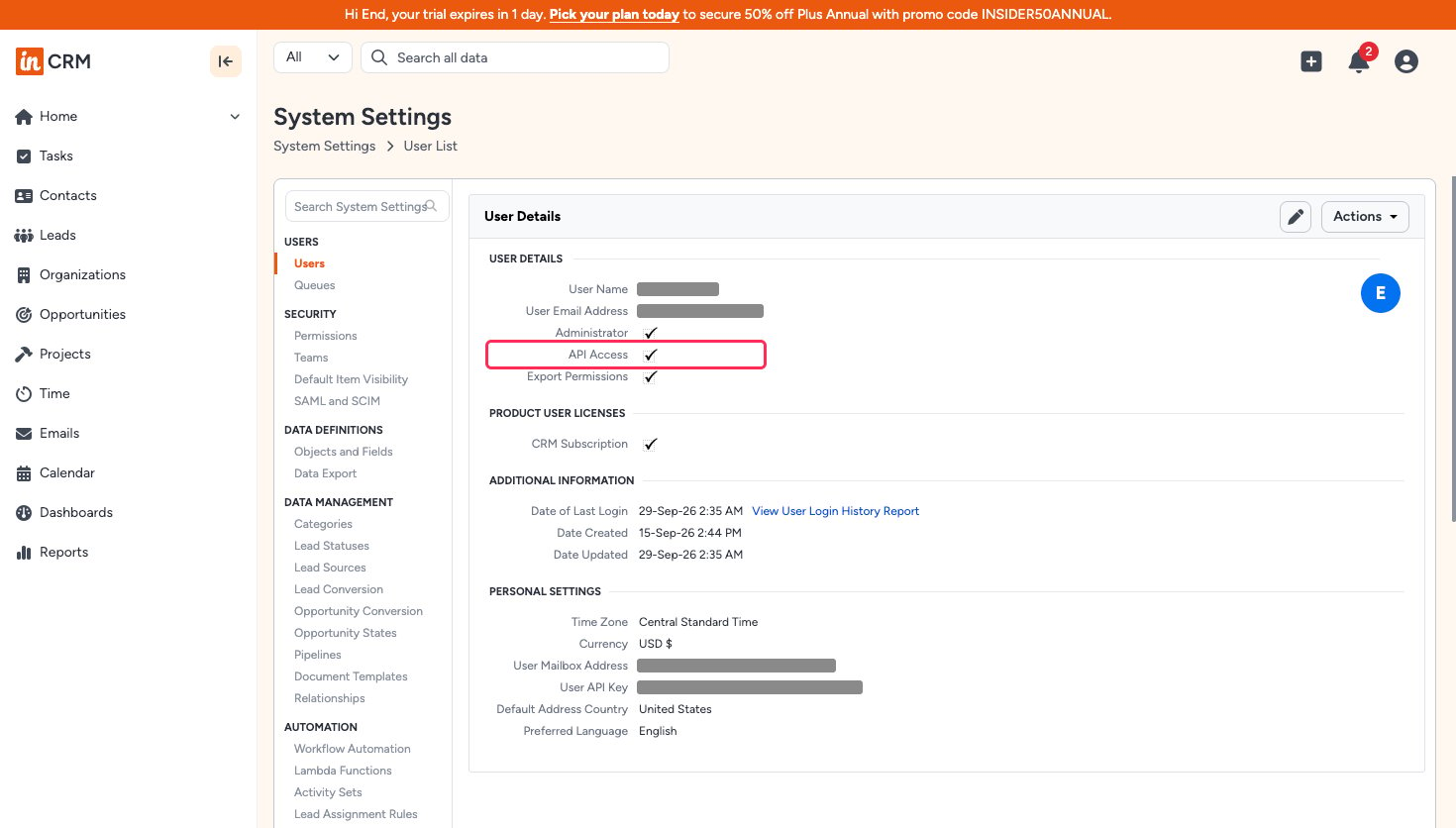
A key only works if its owner has API access. An administrator can check this in System Settings, under USERS click Users, then open the user from the User List and confirm API Access is ticked on User Details. To change it, use Actions > Edit User Settings.
Open User Settings
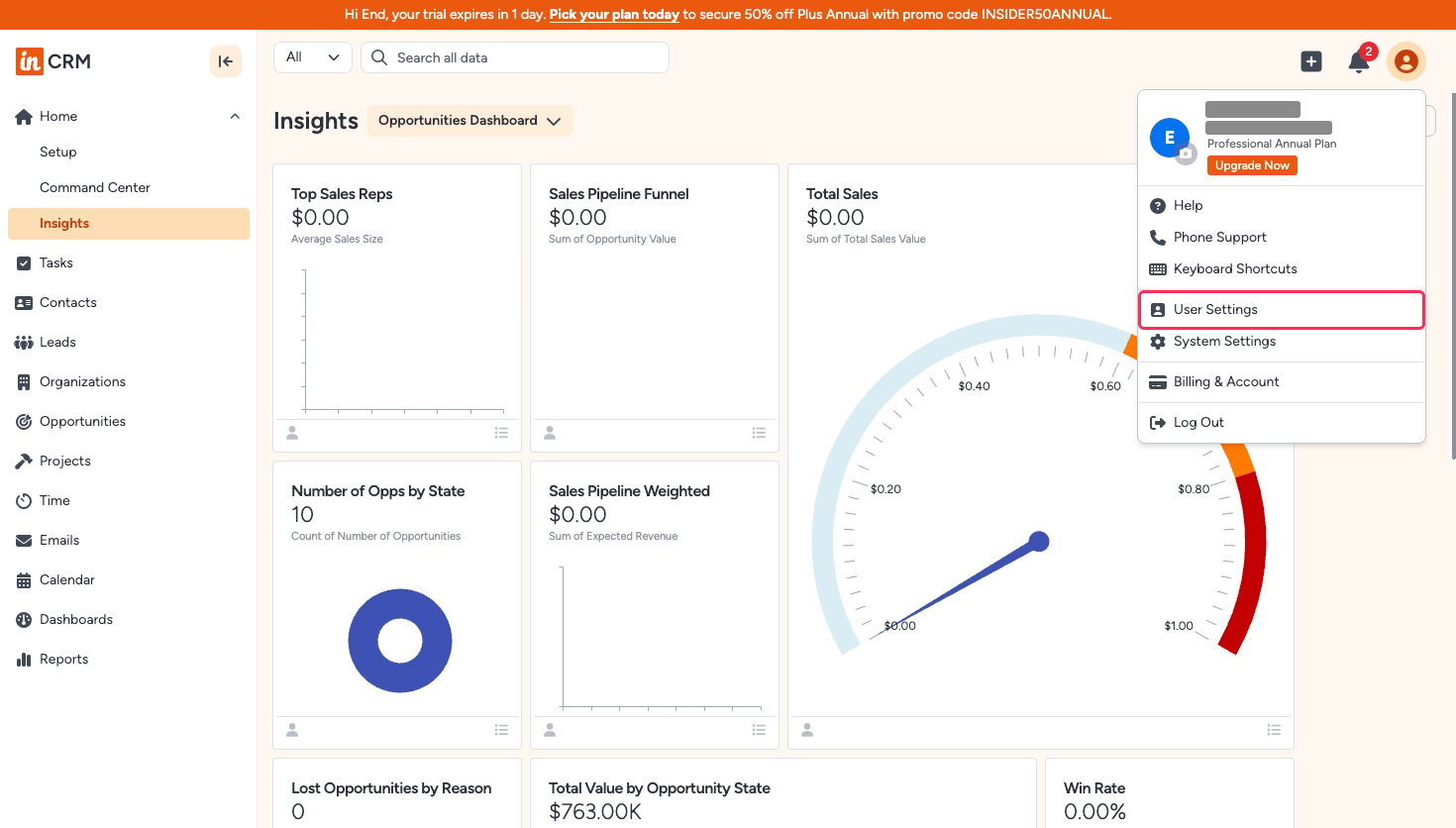
Click your profile icon in the top-right corner, then select User Settings.
Copy your API key
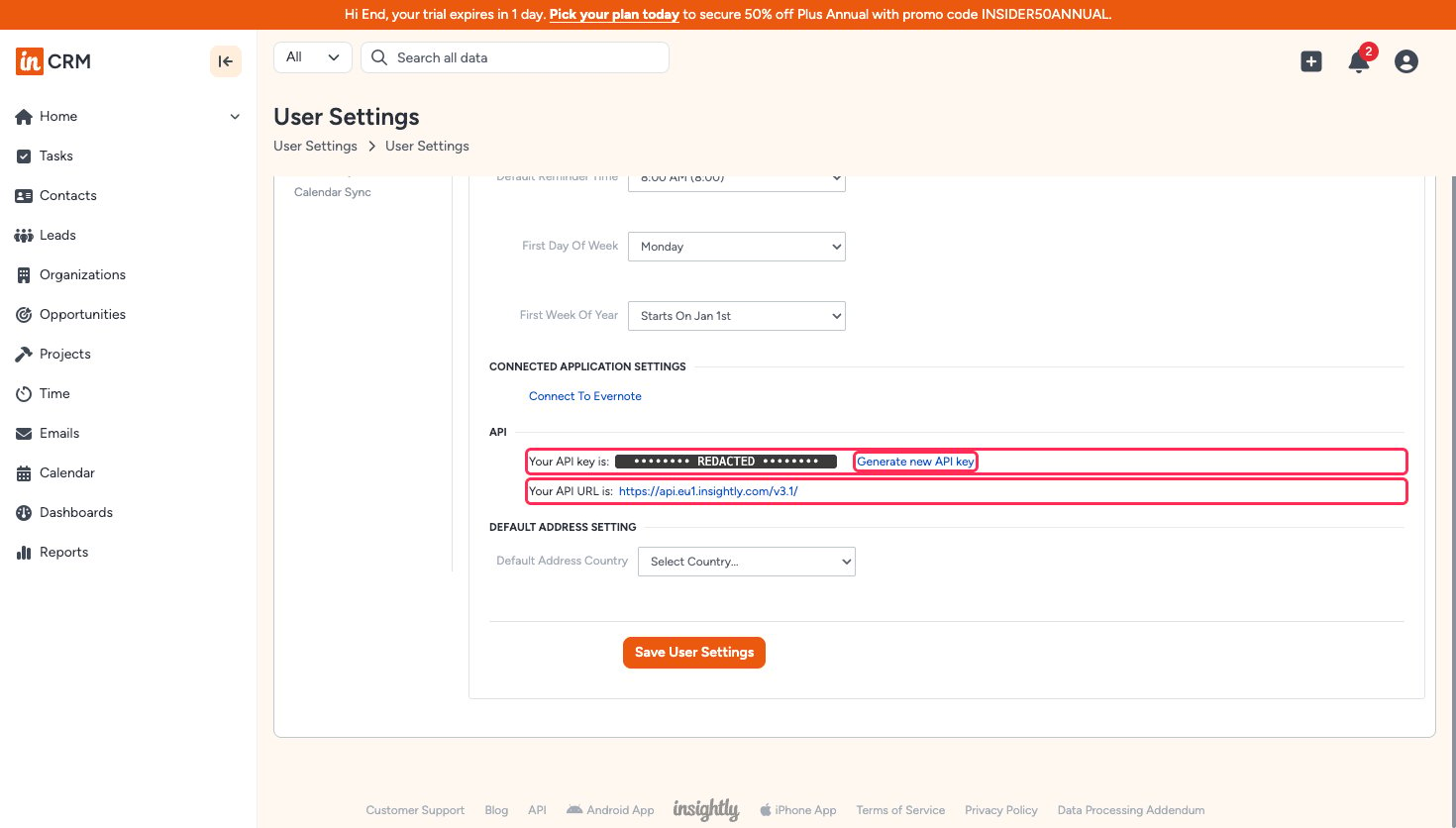
Scroll to the API section and copy the value shown after Your API key is:. Store it securely for use later, then paste it into the API Key field in StackOne Hub.
- The value is displayed as plain text — there is no copy button, so select it and copy it.
- Generate new API key replaces the current key immediately. Anything still using the old key stops working, so only use it if the key has been exposed.
Find your Pod
The Pod is the region segment of your Insightly API URL, shown after Your API URL is: in the same API section. Paste it into the Pod field in StackOne Hub.
- Format:
https://api.{pod}.insightly.com/v3.1/ - Example:
https://api.eu1.insightly.com/v3.1/means the Pod iseu1. - Common values are
na1for North America andeu1for Europe.
Native Webhook URL
Native Webhook URL is generated by StackOne and is read-only, so there is nothing to enter. You only need it if you want Insightly to send events to StackOne.
Link the Account
Connect
- Click Connect.
- If applicable, the provider will redirect you to a sign-in or authorization page. Complete the provider’s authorization flow.
- Once authorization is successful, you will see a confirmation popup.
Use Actions
Next Steps
Webhooks setup
Configure receiving Events for Insightly into StackOne.