

Generating an API key
An Inkbox API key authenticates every request StackOne makes to the Inkbox API on behalf of your organization.
1
Sign in to Inkbox
Sign in to your Inkbox account.
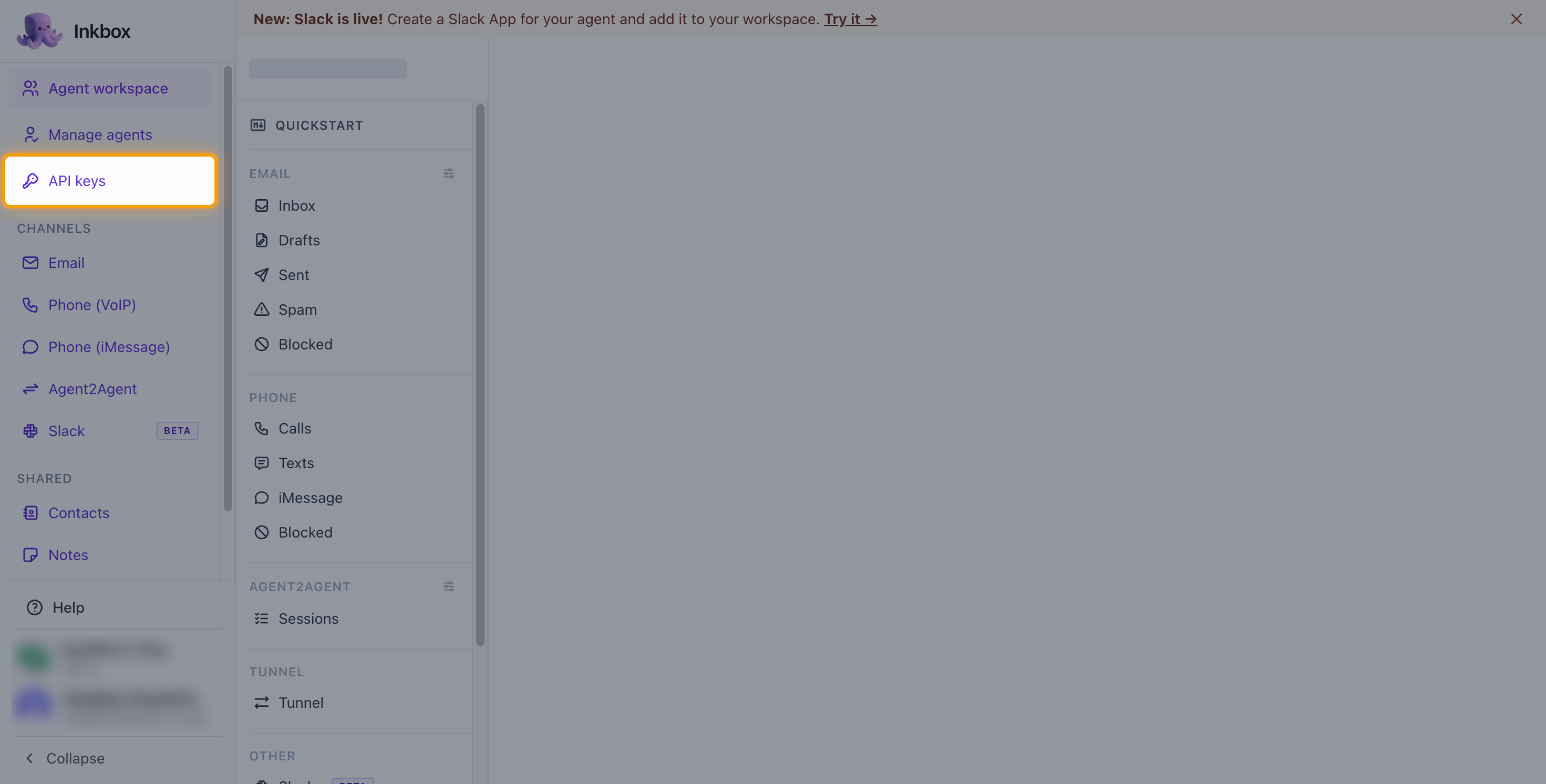
- In the sidebar, click API keys.
- On the API keys page, click + New API key.
2
Create the API key
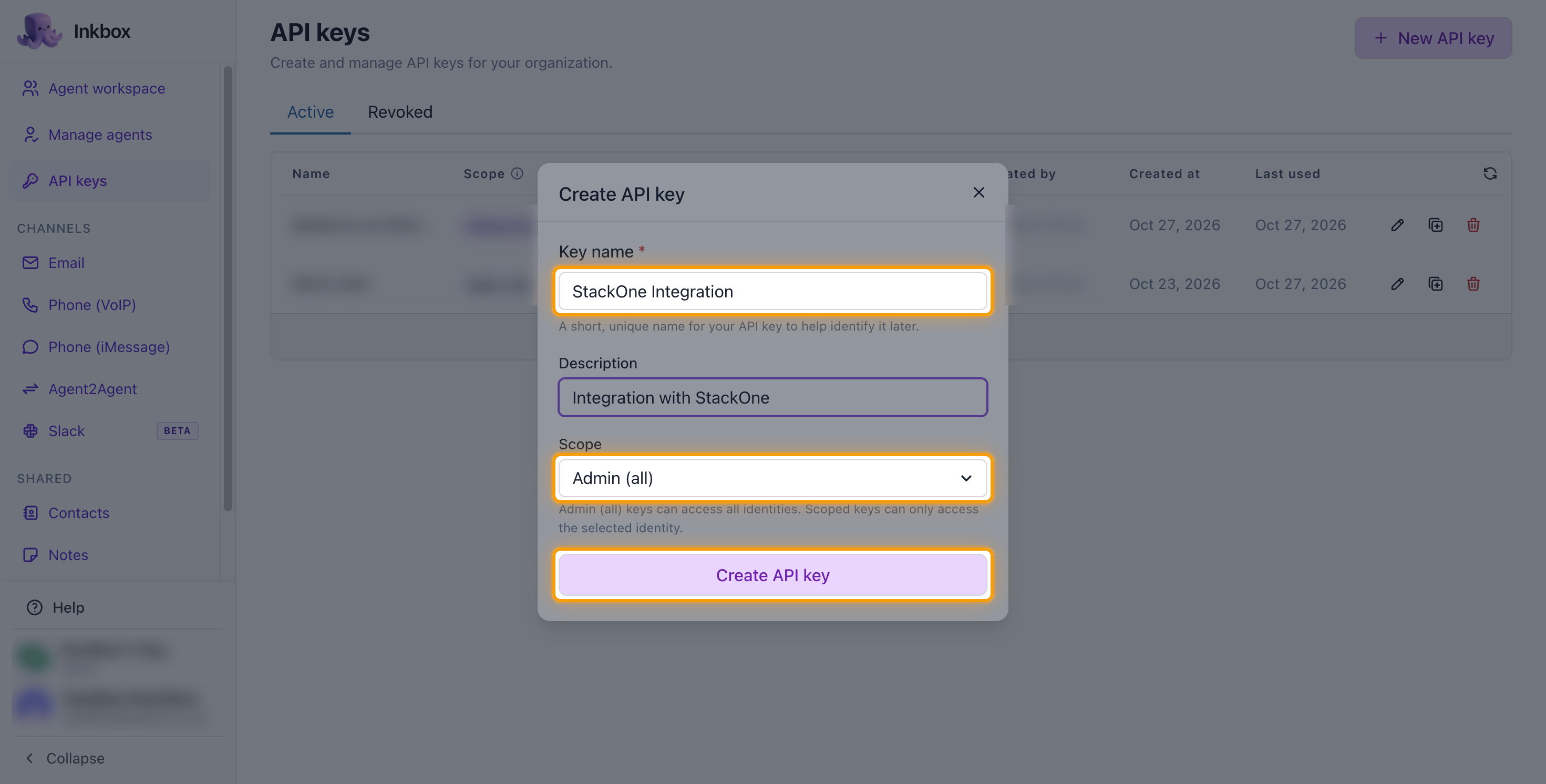
In the Create API key window, fill in the key details.
- Key name:
StackOne Integration - Description:
Integration with StackOne - Under Scope, select Admin (all) so the key can act on every identity in your organization.
- Choose a single agent identity instead only if StackOne should act as that one agent. Scoped keys can only access the selected identity and cannot call admin-only endpoints.
- Click Create API key.
3
Copy the API key
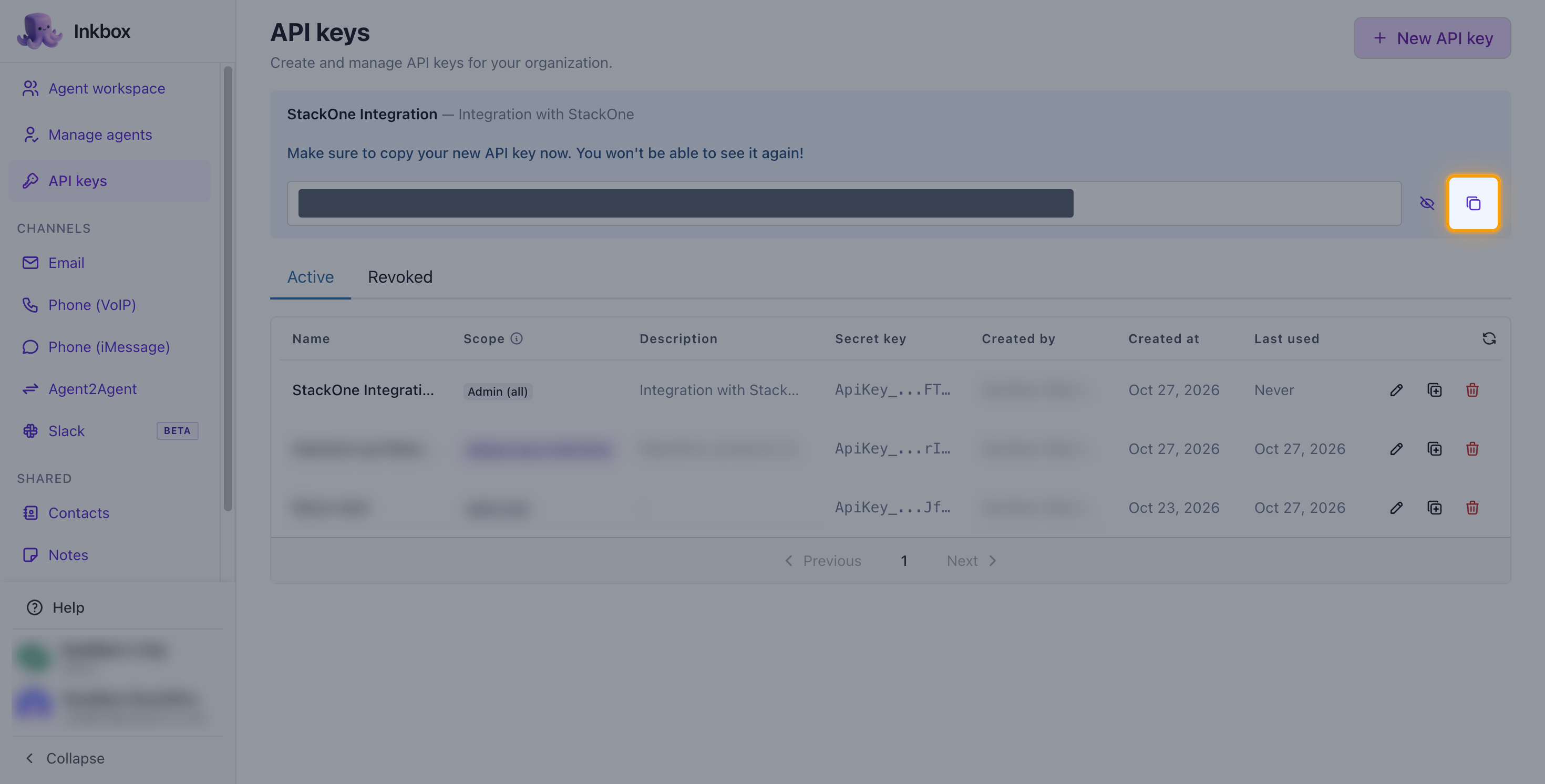
The new key appears at the top of the API keys page. Click the Copy key icon next to the key value and store it securely for use later.
- The API key is shown only once and cannot be retrieved later. Copy it before leaving the page.
- Format:
ApiKey_... - Paste the key into the API Key field in StackOne Hub.
Linking the Account from the Hub
1
Navigate to the Hub
Use one of the three Linking Account Methods to access the Hub.
2
Fill out the fields
Fill out the following fields using details from your provider:
- API Key
- Webhook Agent Handle (Optional)
3
Connect
- Click Connect
- If applicable, the provider will redirect you to a sign-in or authorization page. Complete the provider’s authorization flow.
- Once authorization is successful, you will see a confirmation popup
If the account linking is successful, you will see the newly linked account on your Accounts page.
Next Steps
Webhooks setup
Configure receiving Events for Inkbox into StackOne.