

Create a HubSpot OAuth application
Create a public app in the HubSpot developer portal to enable OAuth authentication.
Sign in to HubSpot
Sign in to your HubSpot account.
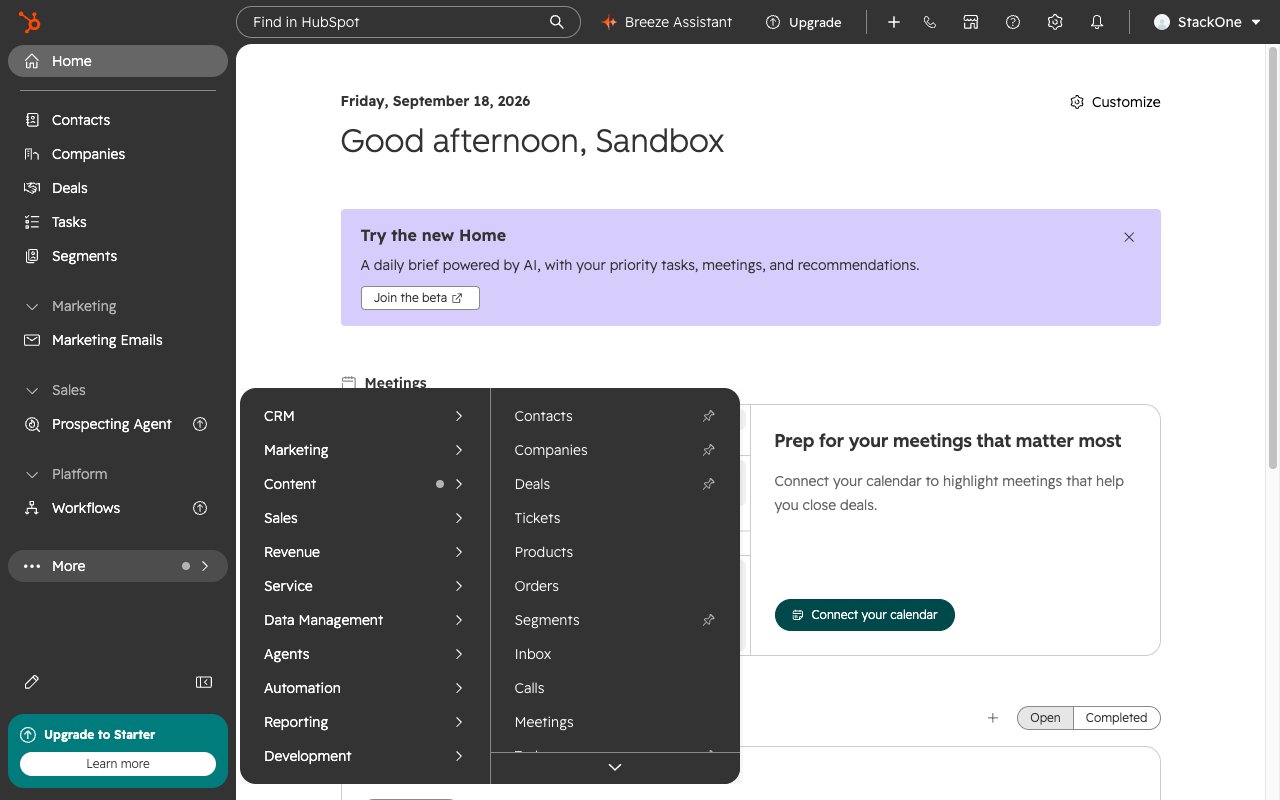
- In the left sidebar, click More, then select Development (it is nested under the More menu, not a top-level item).
- Within the Development section, click Legacy Apps.
Create a new app
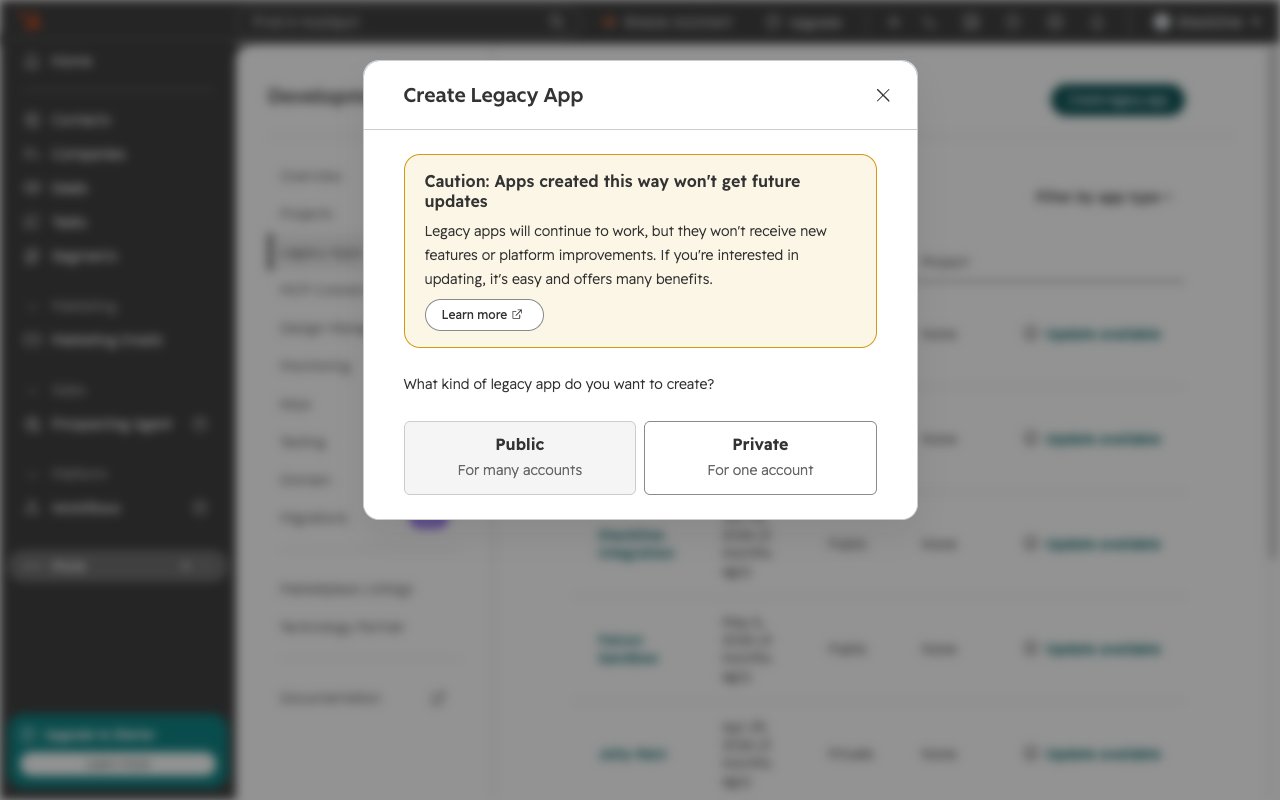
Click Create legacy app in the upper right corner of the Legacy Apps page.
Important — new legacy public apps can no longer be created. In the Create Legacy App dialog (“What kind of legacy app do you want to create?”), the Public (For many accounts) option is now disabled and cannot be selected — HubSpot has stopped issuing new legacy public (OAuth) apps. You have two options (both described below).
- Use an existing legacy public app you created before this change — open it from the Legacy Apps list and continue with the steps below.
- Create a new public app with the HubSpot developer platform via the HubSpot CLI (
hs project create), then configure its OAuth settings. The redirect URI and scope steps below apply to that app’s auth configuration.
Set the redirect URI
Open your public app and navigate to its Auth tab (for a CLI-built app, set this in the app’s auth configuration).
- In the Redirect URL field, enter:
https://api.stackone.com/connect/oauth2/hubspot/callback - Click Save.
Copy credentials
Copy your Client ID and Client Secret from the Auth tab.
- Copy the Client ID value.
- Click Show next to Client Secret to reveal it, then copy.
- Store both securely for use later.
Configure scopes
In the Auth tab, scroll to the Scopes section. HubSpot supports required and optional scopes — at runtime, optional scopes are automatically dropped if the connecting user’s account lacks access. Importantly, every scope listed in the install URL must first be registered on this Scopes page; HubSpot will reject the install (and the account connection will fail) if the URL references a scope you have not added here. See HubSpot scopes documentation for details.
- Mark only
oauthas Required (minimum required scope). - Mark all the following scopes as Optional to support different user permission levels.
- Required to connect successfully — every scope you intend to request must be added here as either Required or Optional. Omitting a scope from this page while still requesting it during connection will cause the OAuth install to fail.
List of optional scopes
Add every scope below as Optional in your HubSpot app. If you register only a subset, you must list the same subset in the StackOne Auth Config’s Optional Scopes field (Step “Create the StackOne Auth Config” below) — otherwise the connection will fail because the install URL will reference scopes that aren’t registered in the app.
Save your configuration
Click Update after configuring all scopes to save your changes. Without this save step, the scopes are not persisted on the app and any connection attempt will fail with an OAuth scope error.
Creating the StackOne Connector Profile
To create the Connector Profile in StackOne for HubSpot:Open the connector
Choose actions and events
- Click Add Profile.
- If the connector offers more than one authentication method, set the Auth Method filter to OAuth 2.0.
- Select the actions, and any events, to enable for this Connector Profile.
- Click Continue.
Set up authentication
- Select Authentication Type as OAuth 2.0.
- Fill out the fields using details retrieved from your provider:
- Client ID
- Client Secret
- Required Scopes (Optional)
- Optional Scopes (Optional)
- Click Create Profile.