

Choosing the HR Cloud user
Basic Auth connects as one HR Cloud user, and every request runs with that user’s access. Most HR Cloud API requests need the HR Admin role.
1
Find the user
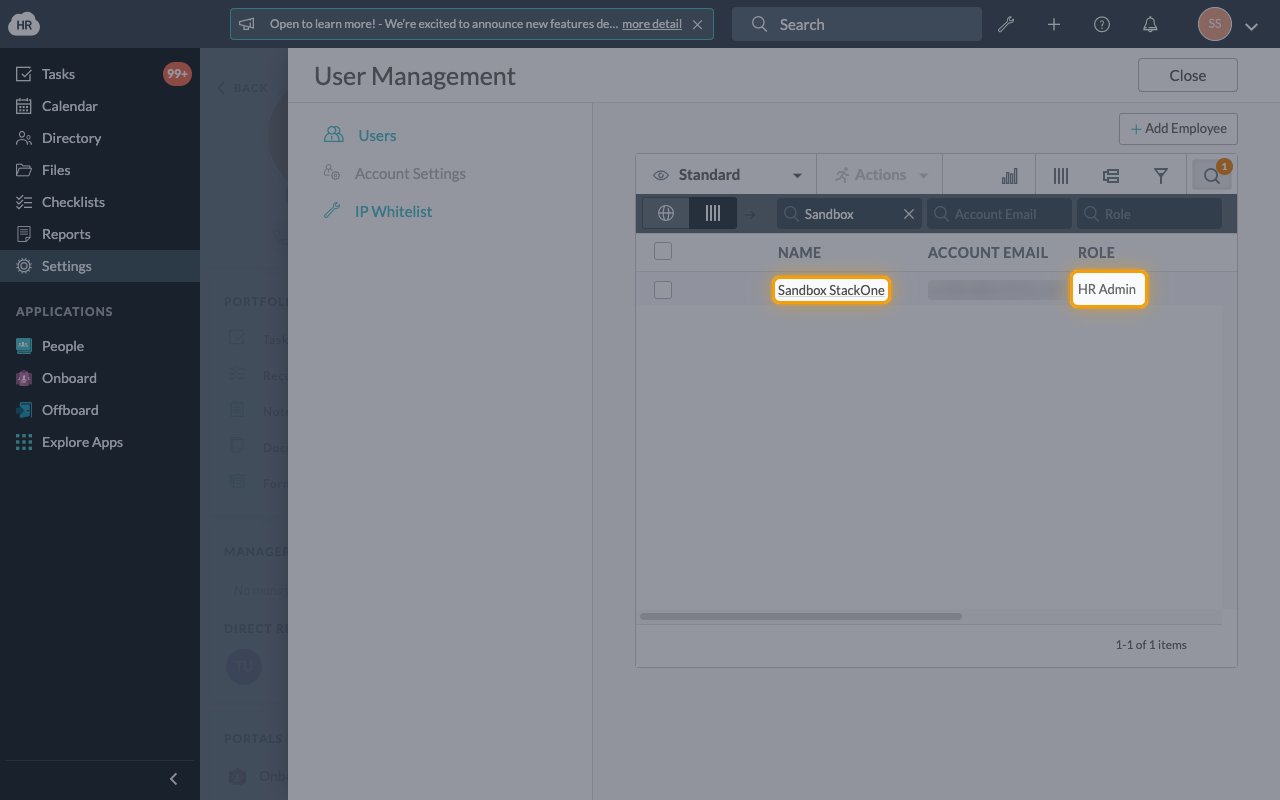
Sign in to your HR Cloud account, then open Settings > User Management > Users.
- Find the user to connect as and check its ROLE.
- Click the user’s NAME to open their profile.
2
Set the security role
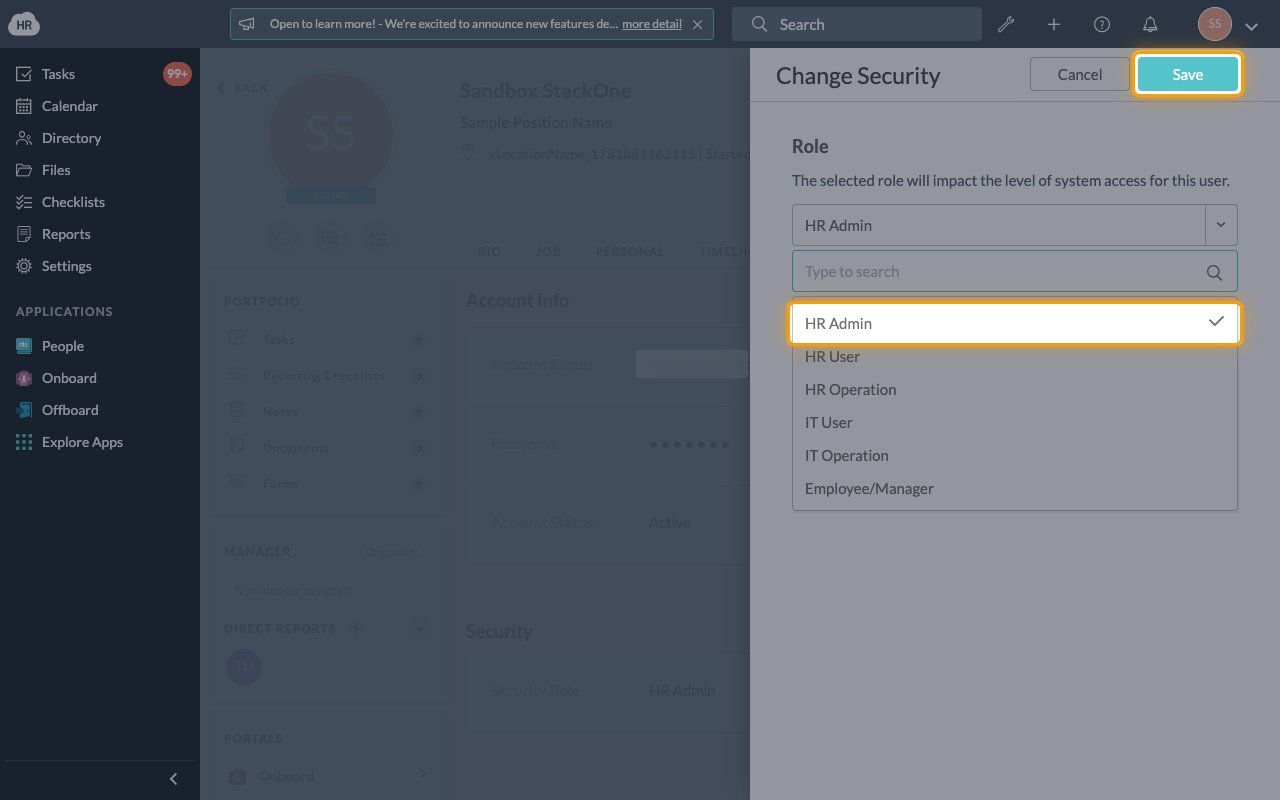
On the ACCOUNT tab, the Security section shows the user’s Security Role. If it isn’t HR Admin, change it.
- Click Change Security.
- Role: HR Admin
- Click Save.
3
Copy the credentials
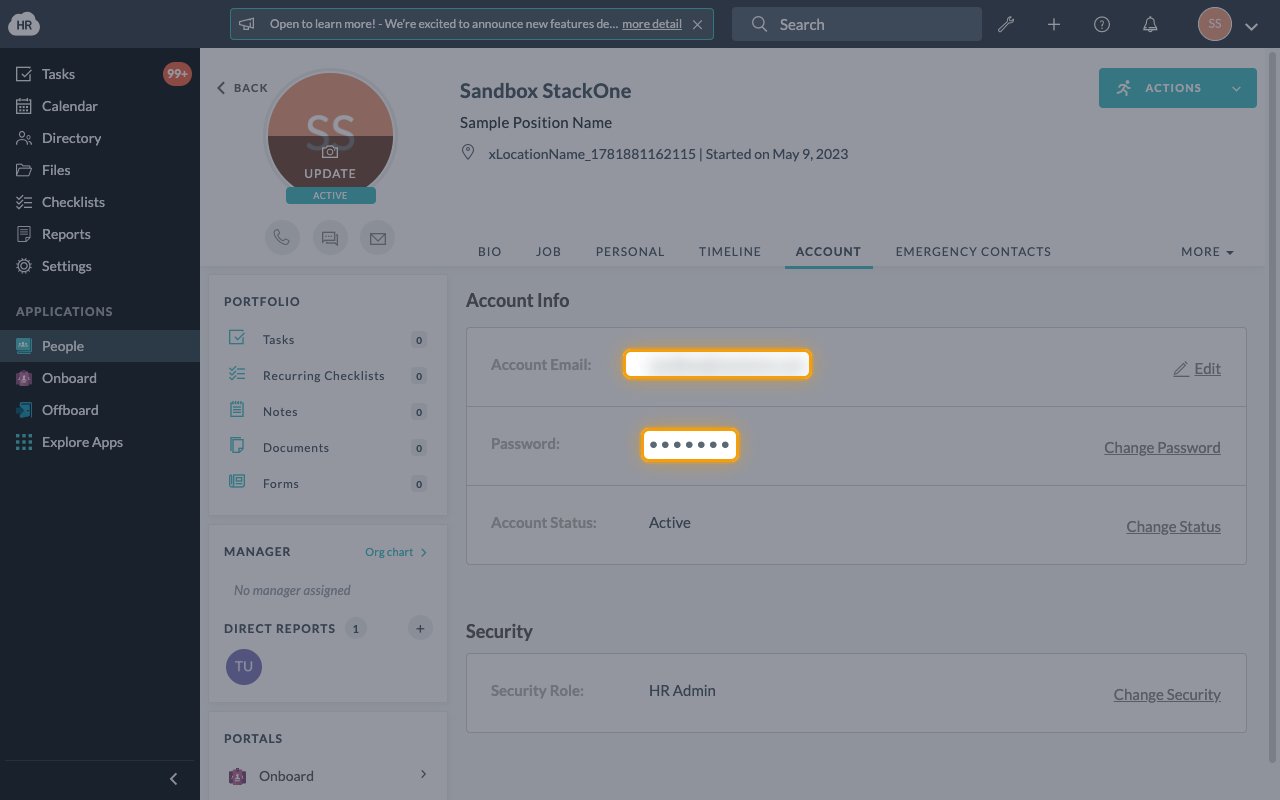
On the ACCOUNT tab, the Account Info section shows the user’s sign-in details.
- Copy the Account Email across to Username.
- Password: the password this user signs in to HR Cloud with
Link the Account
1
Connect
- Click Connect.
- If applicable, the provider will redirect you to a sign-in or authorization page. Complete the provider’s authorization flow.
- Once authorization is successful, you will see a confirmation popup.
2
Use Actions
Connect an AI platform to the linked account’s actions. See AI Platforms.Other ways to call actions are listed in Protocols & SDKs.