

Find your API Key, User ID and Workspace ID
Hive issues a personal API key to every user and shows it, together with your User ID and Workspace ID, on the API info page of your personal settings. All three values are read from that one page.
Sign in to Hive
Sign in to your Hive account.
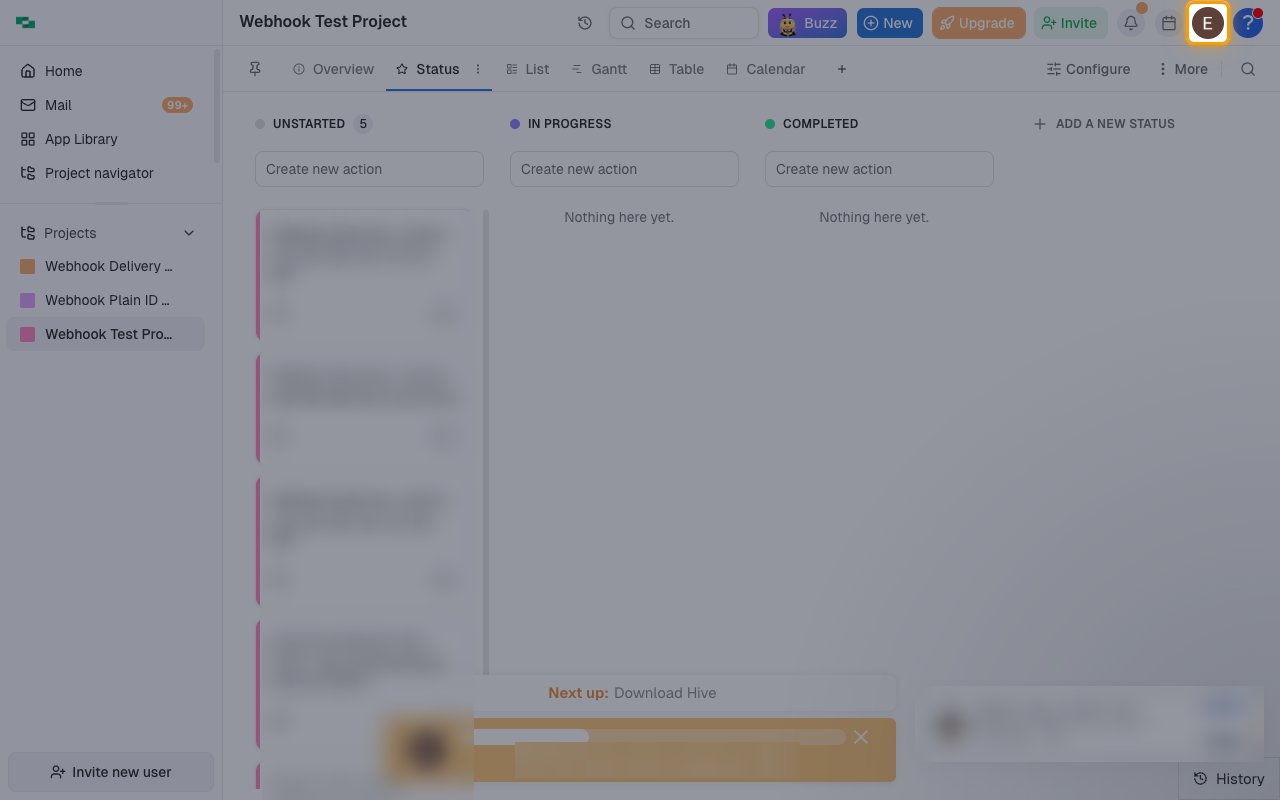
- Click your profile avatar in the top-right corner of the top navigation bar.
- If you belong to more than one workspace and want webhook events, switch to that workspace first. The Workspace ID shown on the API info page belongs to the workspace you have open.
Open your personal settings
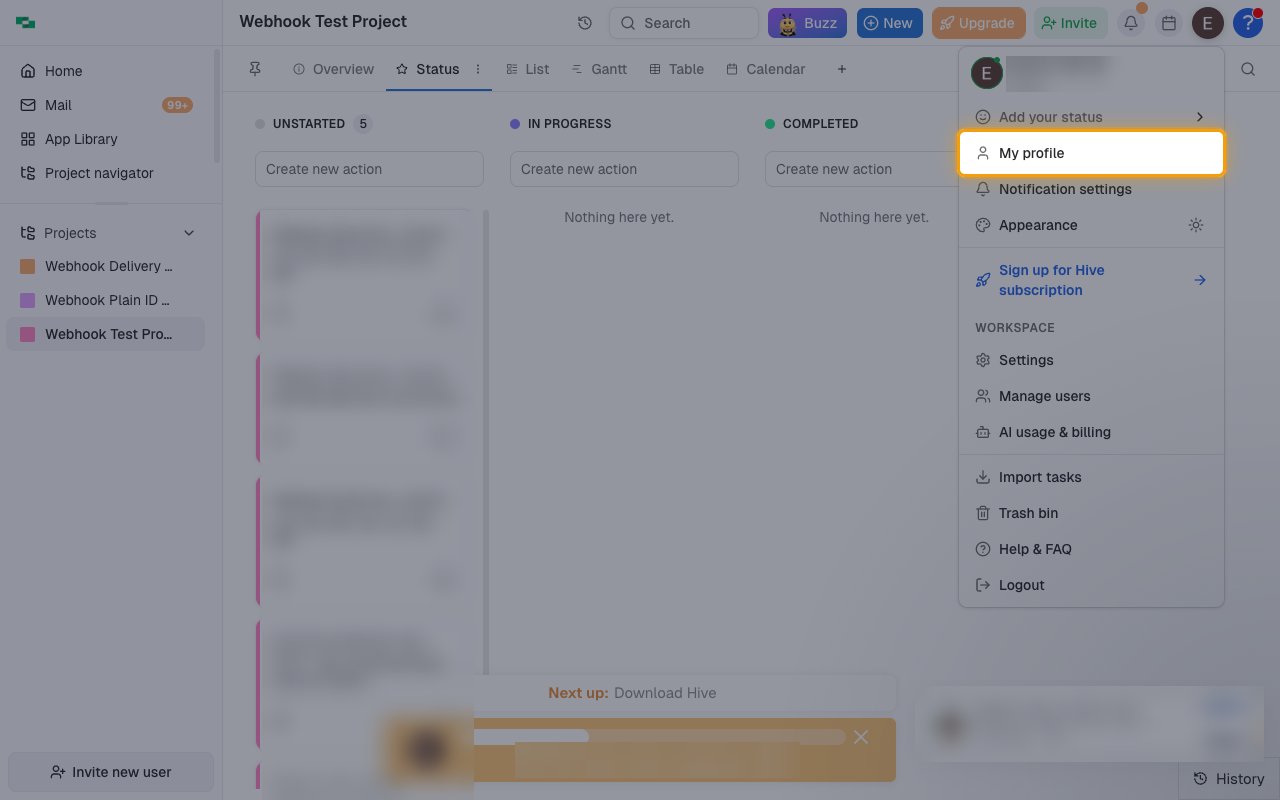
Select My profile from the menu.
- The Settings dialog opens on the Personal tab.
Open the API info page
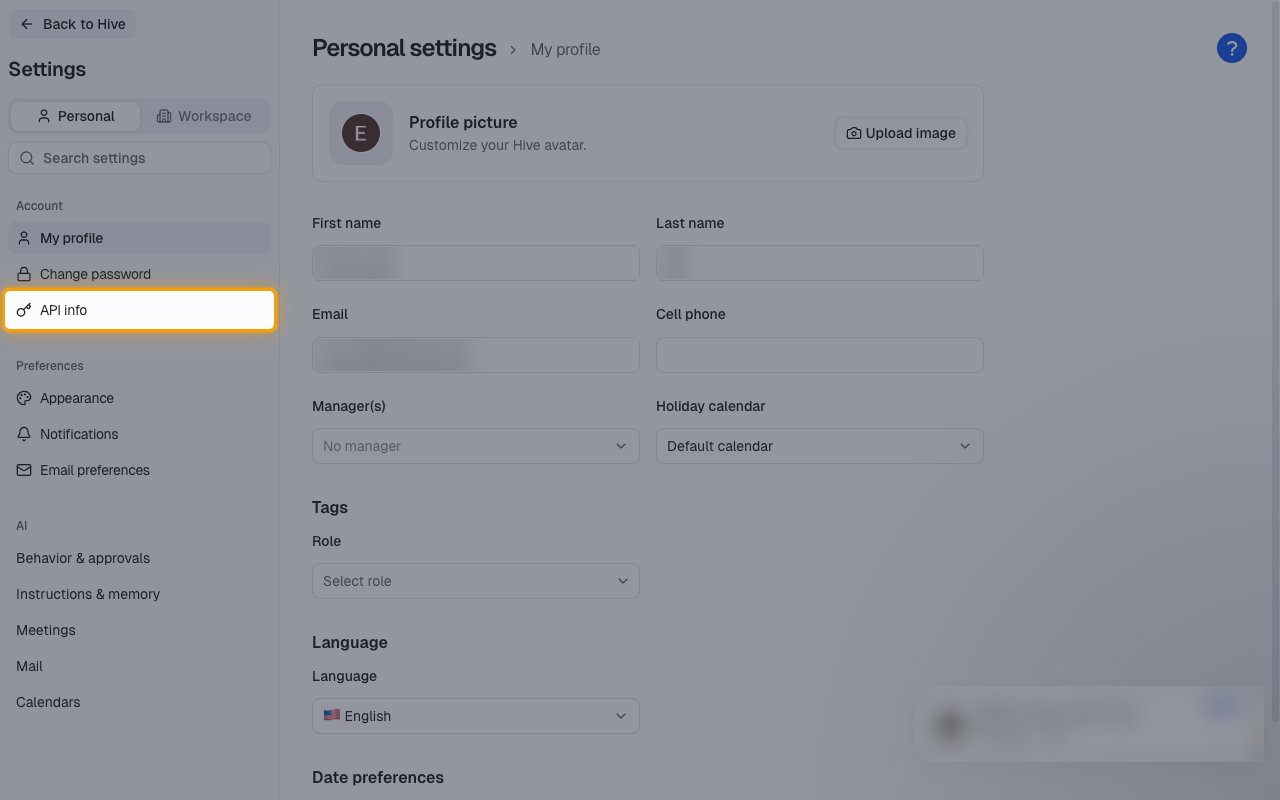
In the Settings sidebar, under Account, click API info.
Copy your API Key, User ID and Workspace ID
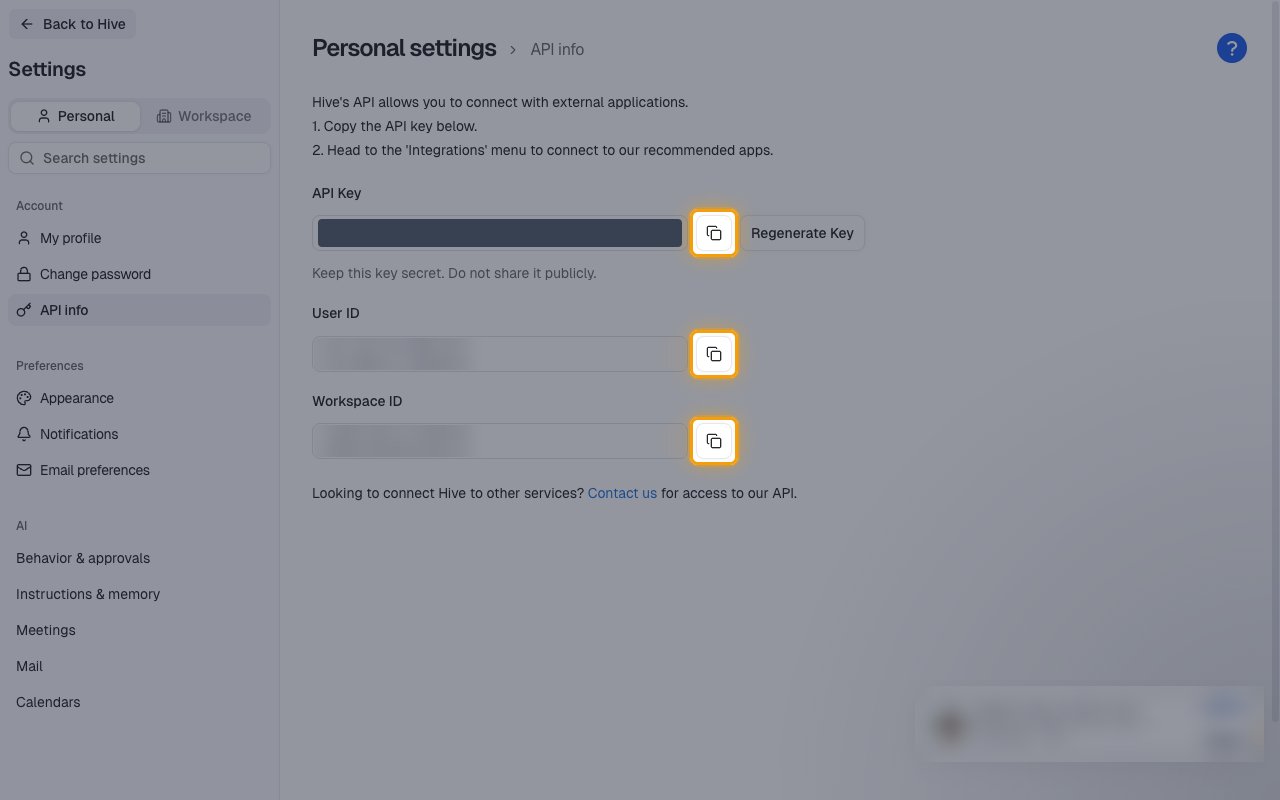
The API info page shows your API Key, User ID and Workspace ID, each with a copy button beside it. The API Key and User ID are required. The Workspace ID is needed only if you want to receive webhook events.
- API Key — your personal key for the Hive API. Copy it and paste it into the API Key field in StackOne Hub. Store it securely, because it grants access to everything your Hive account can reach.
- User ID — the ID of your Hive user, which Hive requires on every API call together with the key. Copy it and paste it into the User ID field in StackOne Hub.
- Workspace ID — the ID of the workspace you have open. Hive webhooks belong to a single workspace, so StackOne uses this ID to know where to create them. Paste it into the Workspace ID field in StackOne Hub if you want webhook events, or leave that field empty if you only use actions.
- Hive warns on this page — Keep this key secret. Do not share it publicly.
- Regenerate Key replaces your API key with a new one and invalidates the current key, which breaks any integration still using it.
Linking the Account from the Hub
Navigate to the Hub
Fill out the fields
- API Key
- User ID
- Workspace ID (Optional)
Connect
- Click Connect
- If applicable, the provider will redirect you to a sign-in or authorization page. Complete the provider’s authorization flow.
- Once authorization is successful, you will see a confirmation popup
If the account linking is successful, you will see the newly linked account in your Accounts page.
Next Steps
Webhooks setup
Configure receiving Events for Hive into StackOne.