

Find your portal domain
Your portal domain is the host name of your Hexnode UEM console. Hexnode hosts portals on more than one domain, so copy it from your own console URL.
- Open your portal URL in a browser, for example
https://yourcompany.hexnodemdm.comorhttps://yourcompany.uem.hexnode.com, and sign in with your Hexnode admin account. If you do not know your portal URL, ask your Hexnode administrator. - If two-factor authentication is on, enter the code Hexnode emails you on the Two-Factor Authentication screen, then click Login.
- Once you are in the Hexnode UEM console, check your browser address bar.
- Format:
{portal}.hexnodemdm.comor{portal}.uem.hexnode.com - Example: if your URL is
https://acme.uem.hexnode.com/config/#/api_settings/, your portal domain isacme.uem.hexnode.com - Enter only the domain, without the protocol or any path.
- Paste it into the Portal Domain field in StackOne Hub.
Copying your API key
The API key authenticates every request to the Hexnode API with full admin-level access to your portal.
1
Open API settings
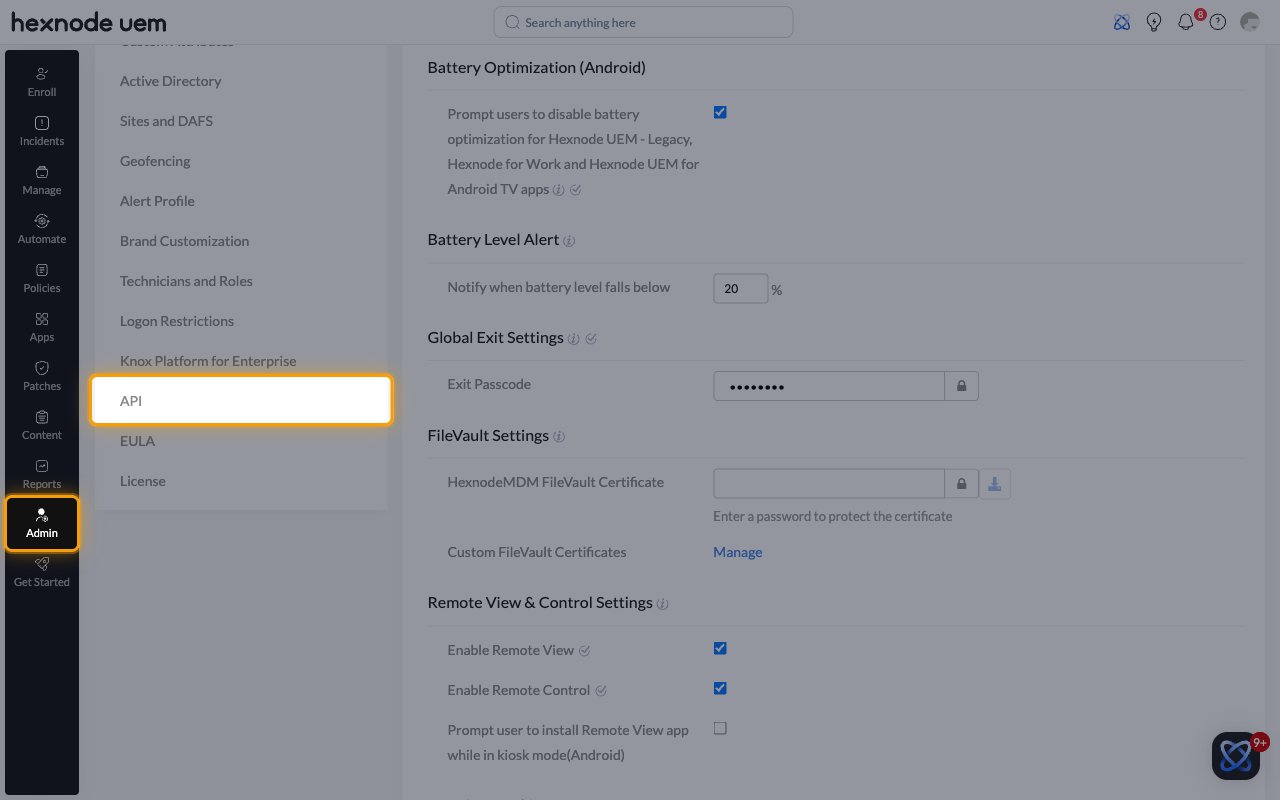
In the left navigation bar, click Admin, then select API from the settings menu.
2
Copy the API key
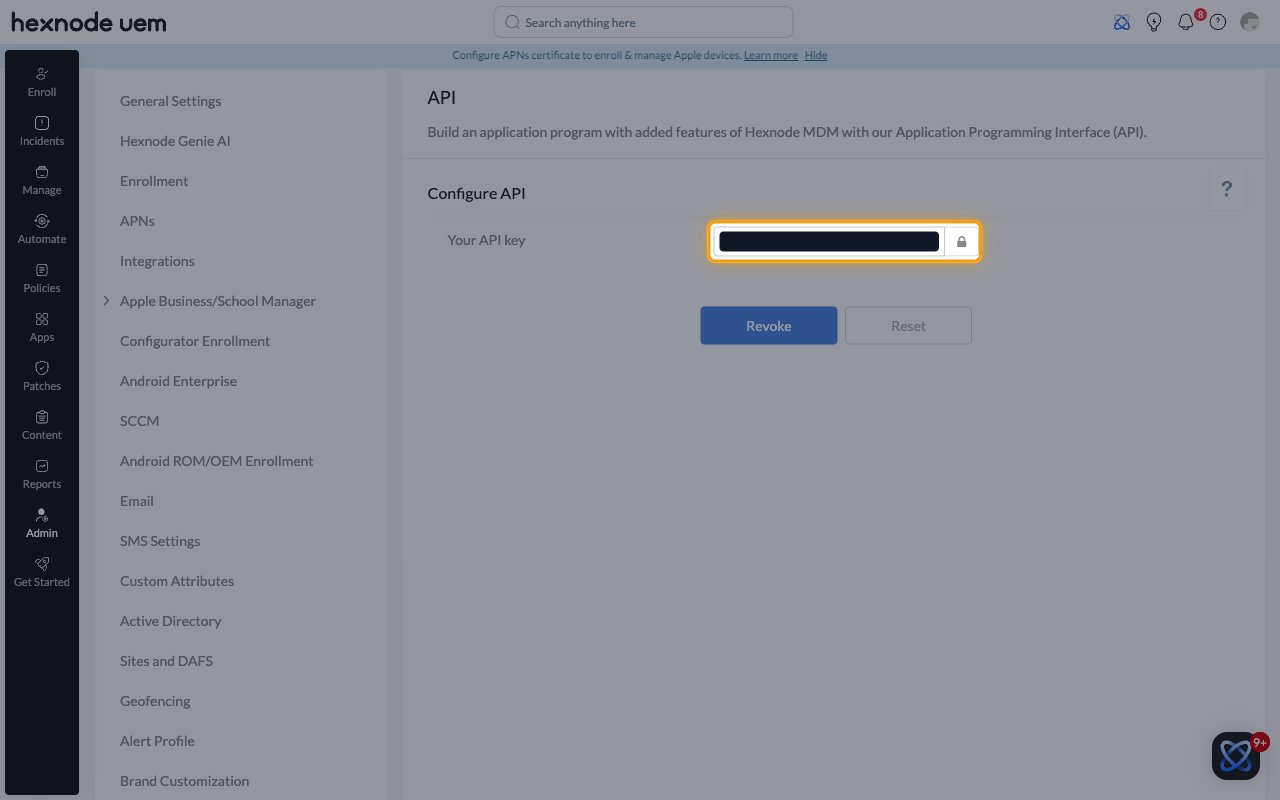
Under Configure API, the Your API key field is masked. Click the padlock icon at the
right of the field to show the key, then copy it.
- Paste it into the API Key field in StackOne Hub.
- Clicking Reset or Revoke invalidates the current key and breaks any connection that uses it.
Linking the Account from the Hub
1
Navigate to the Hub
Use one of the three Linking Account Methods to access the Hub.
2
Fill out the fields
Fill out the following fields using details from your provider:
- Portal Domain
- API Key
3
Connect
- Click Connect
- If applicable, the provider will redirect you to a sign-in or authorization page. Complete the provider’s authorization flow.
- Once authorization is successful, you will see a confirmation popup
If the account linking is successful, you will see the newly linked account on your Accounts page.