

Prerequisites
The connector should already be set up, with a Connector Profile and a Linked Account. See Getting Started on the Help Scout connector page.How StackOne manages the webhook
StackOne creates and manages the Help Scout webhook automatically. When webhook events are enabled for a connected account, StackOne registers one account-wide webhook labeled StackOne, subscribed to the events you select, and deletes it when the account is disconnected. You don’t need to create a webhook or copy a Native Webhook URL in Help Scout.
- Only the events selected in StackOne are delivered. Changing the selection replaces the webhook with a new one for the updated event list.
- The webhook covers every inbox in the Help Scout account.
- Some events are only sent when the matching Help Scout feature is in use. The section below on optional events shows how to turn them on.
Check the webhook in Help Scout
This is optional. Once events are enabled, you can confirm the webhook StackOne created in Help Scout’s Webhooks app.
Open Help Scout settings
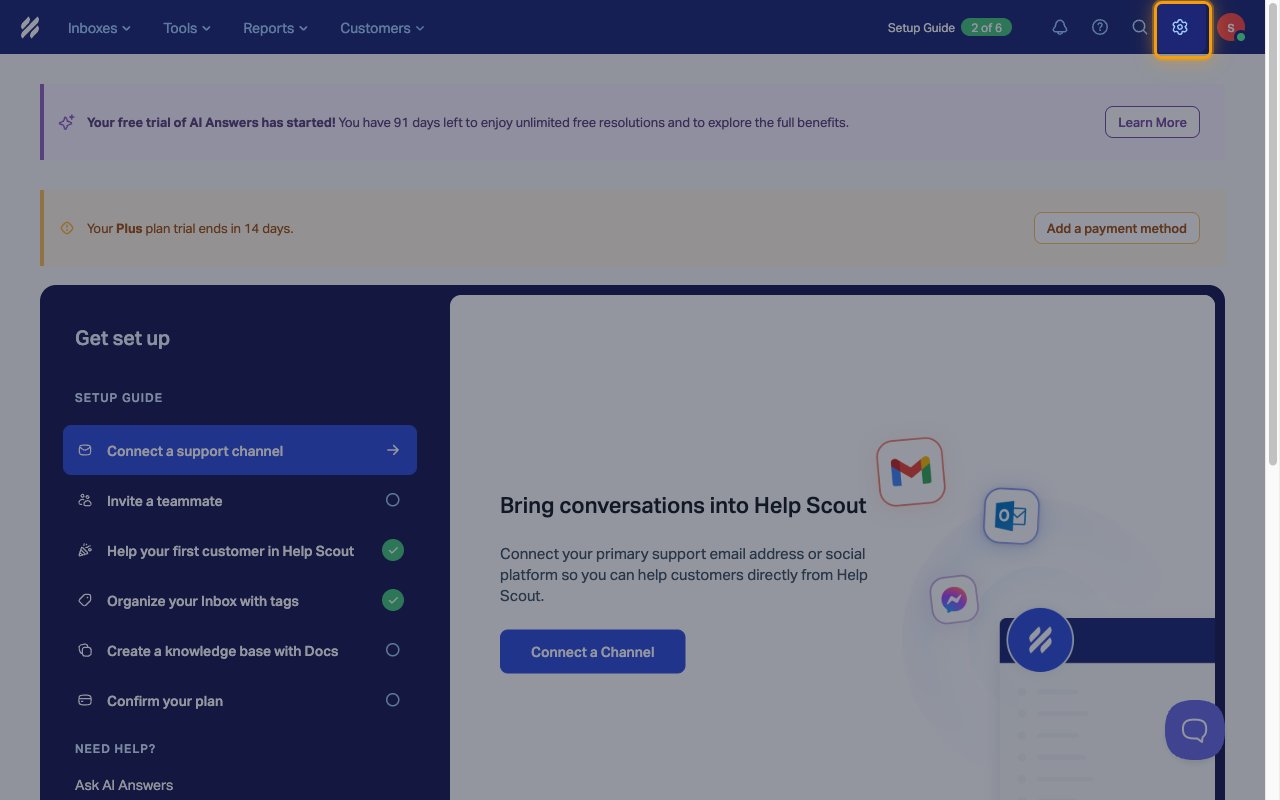
Sign in to your Help Scout account and click the gear icon (Settings) in the top bar.
Open Apps
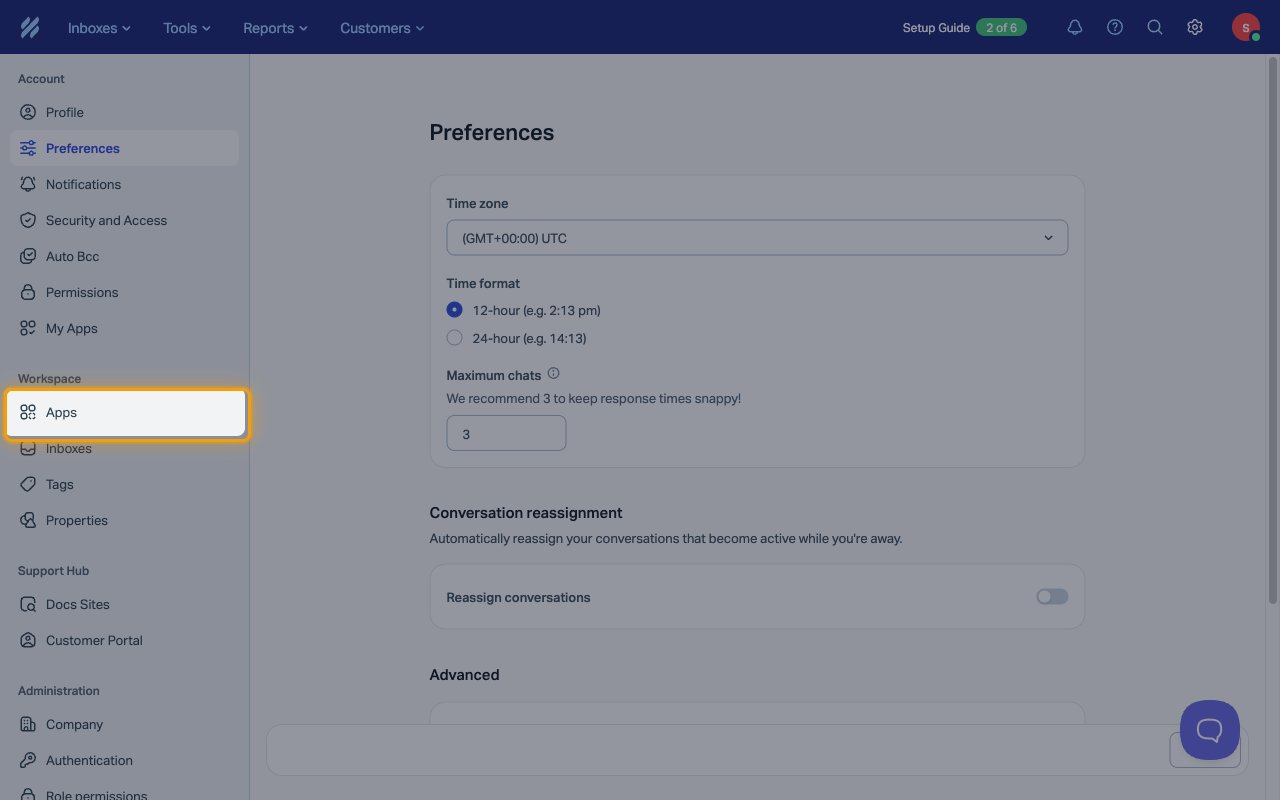
In the settings menu, click Apps under Workspace.
Open the Webhooks app
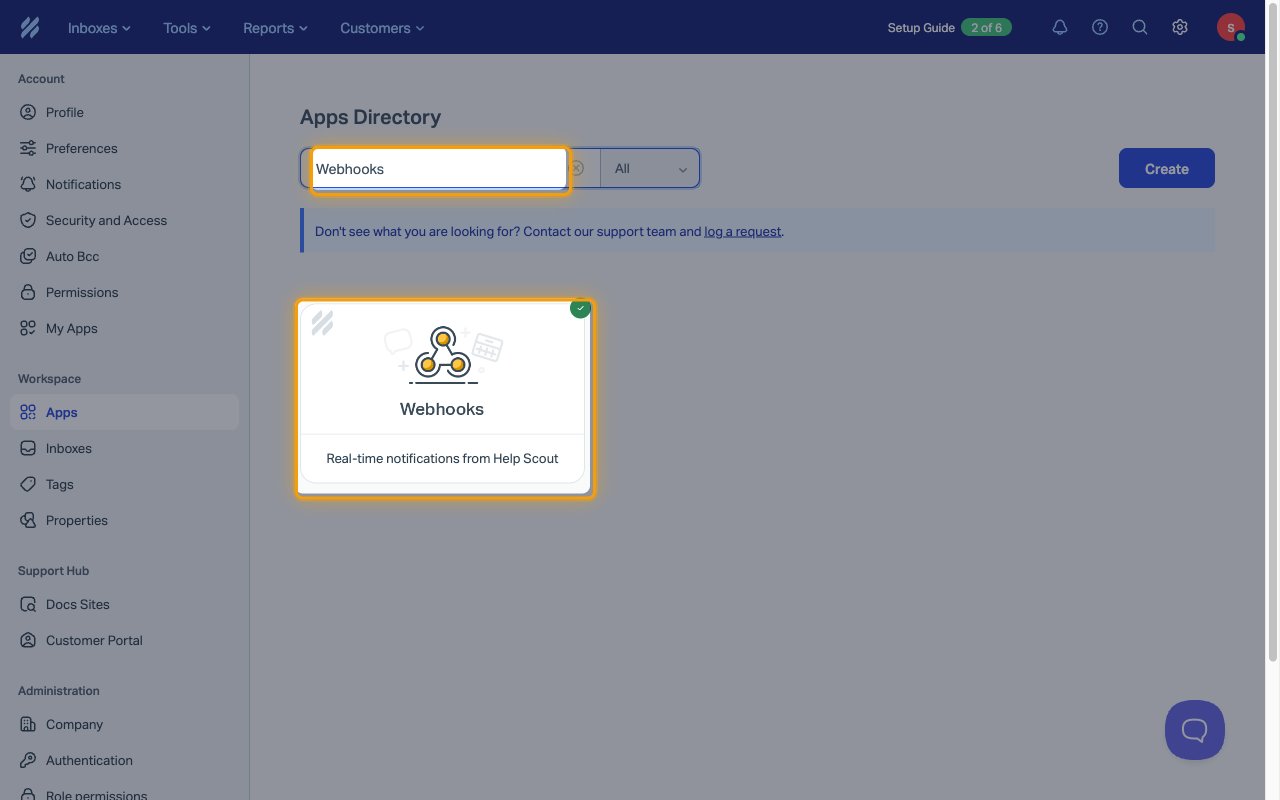
In the Apps Directory, search for Webhooks and click the Webhooks app.
Find the StackOne webhook
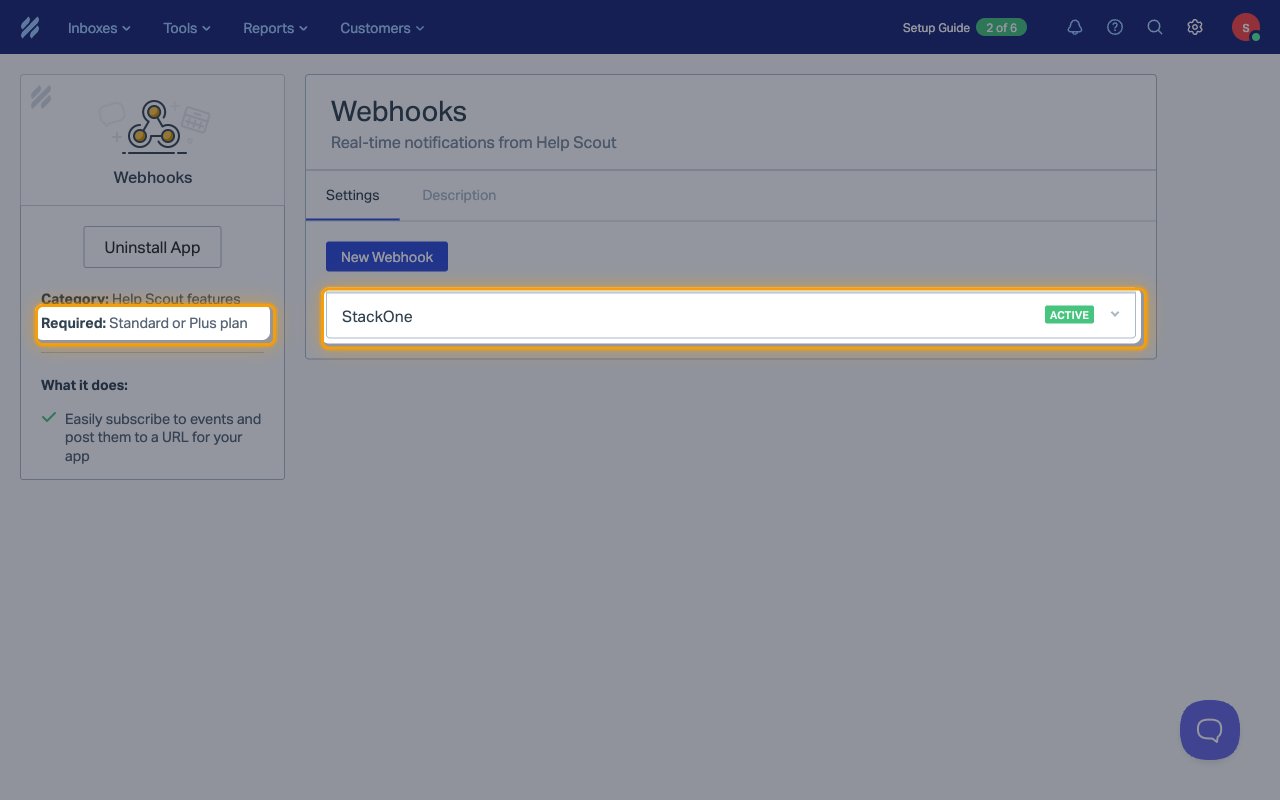
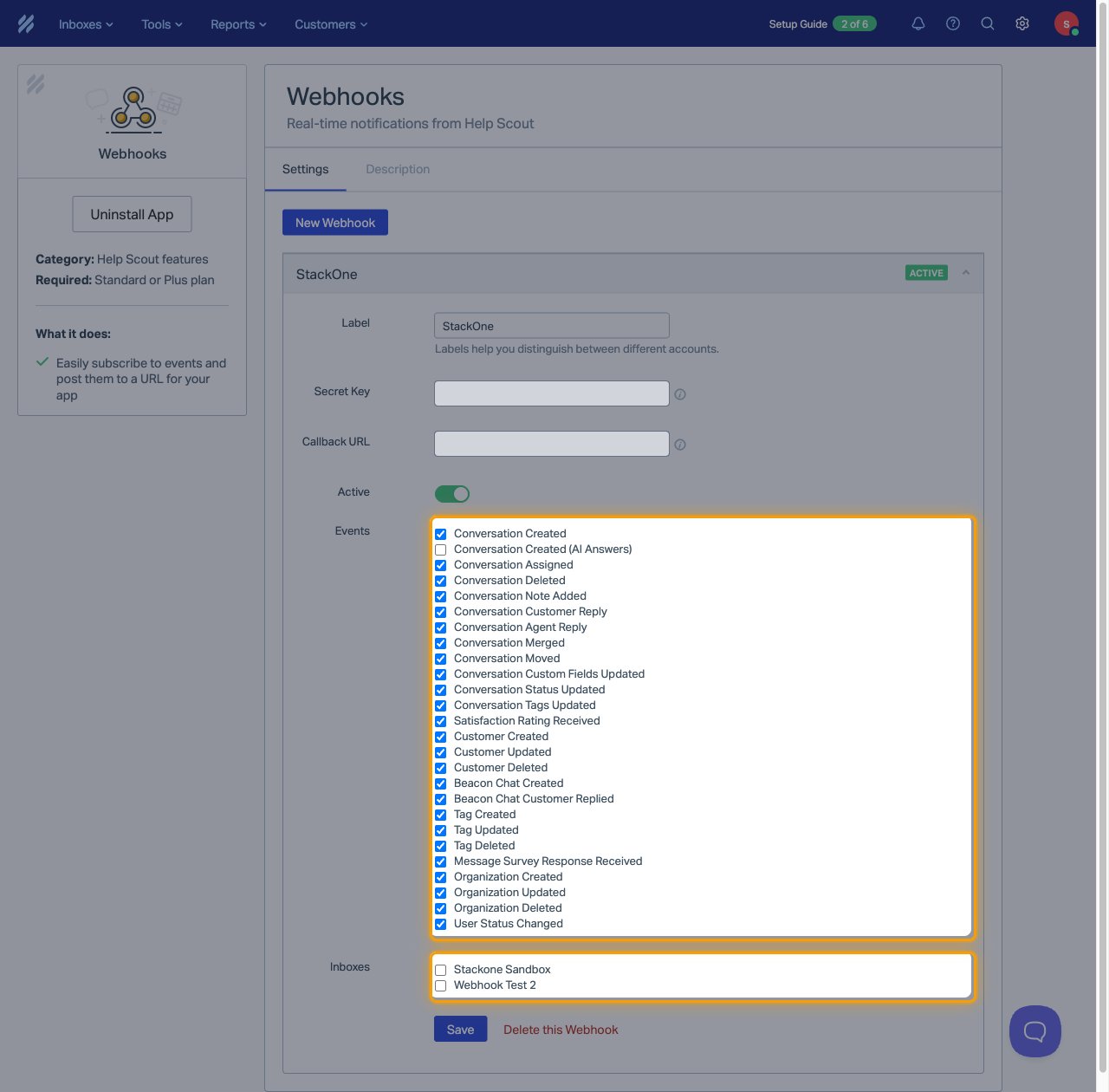
The StackOne webhook is listed with an ACTIVE badge. The app panel on the left shows the plan webhooks need, under Required:.
- Don’t edit or delete this webhook. StackOne manages it, and deleting it stops events from reaching StackOne.
Review the subscribed events
Click StackOne to expand it. Events shows the events StackOne subscribed to, and no Inboxes are selected, so the webhook covers every inbox.
- The Secret Key and Callback URL are set by StackOne. Keep them private.
- The two AI Answers email events aren’t shown in this list, even when they are subscribed.
Turn on Help Scout features for optional events
Most events need nothing beyond the webhook. The events below are only sent when the matching Help Scout feature is turned on, so set up only the ones you plan to use.
Turn on satisfaction ratings
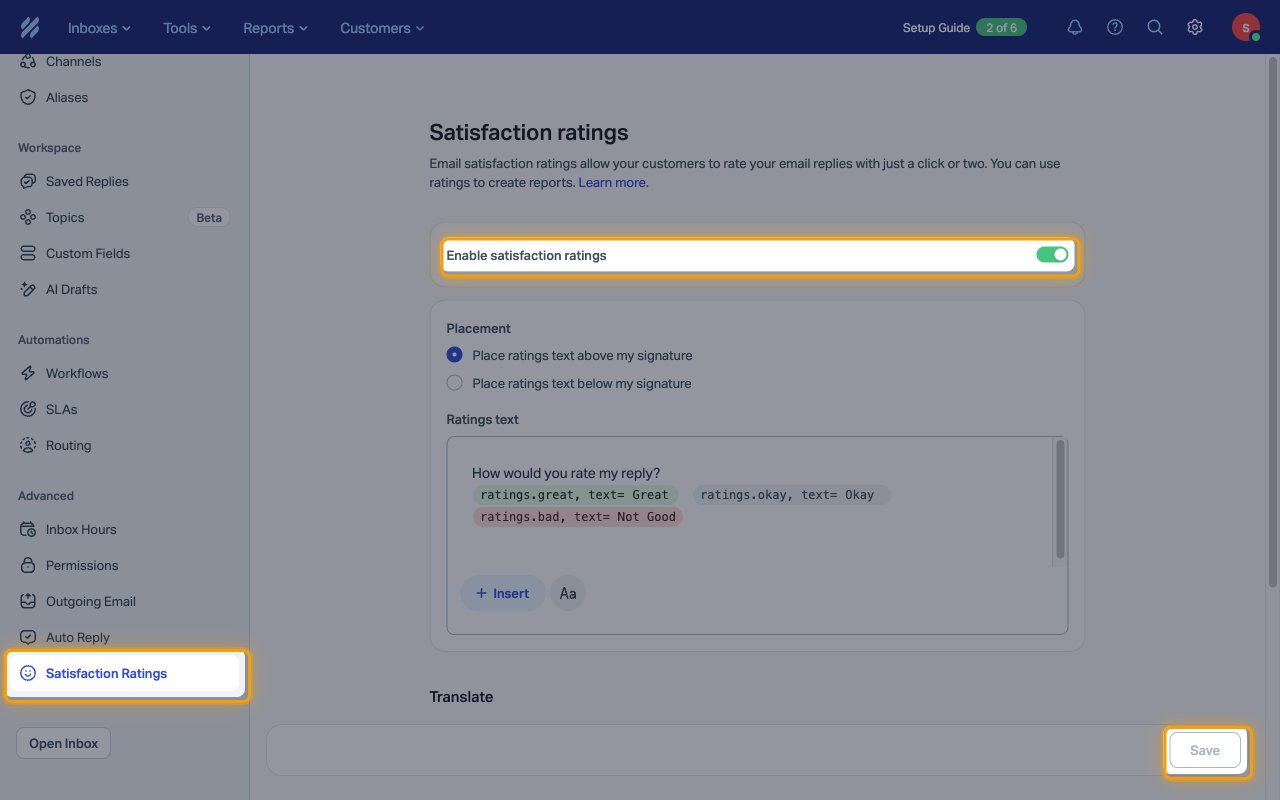
The satisfaction.ratings event needs ratings turned on for the inbox. In Settings, click Inboxes under Workspace and select the inbox. Click Satisfaction Ratings, turn on Enable satisfaction ratings, and click Save.
- Repeat this for every inbox whose replies should collect ratings.
- Help Scout sends the event a few minutes after the customer rates a reply, with the customer’s final rating.
Add custom fields
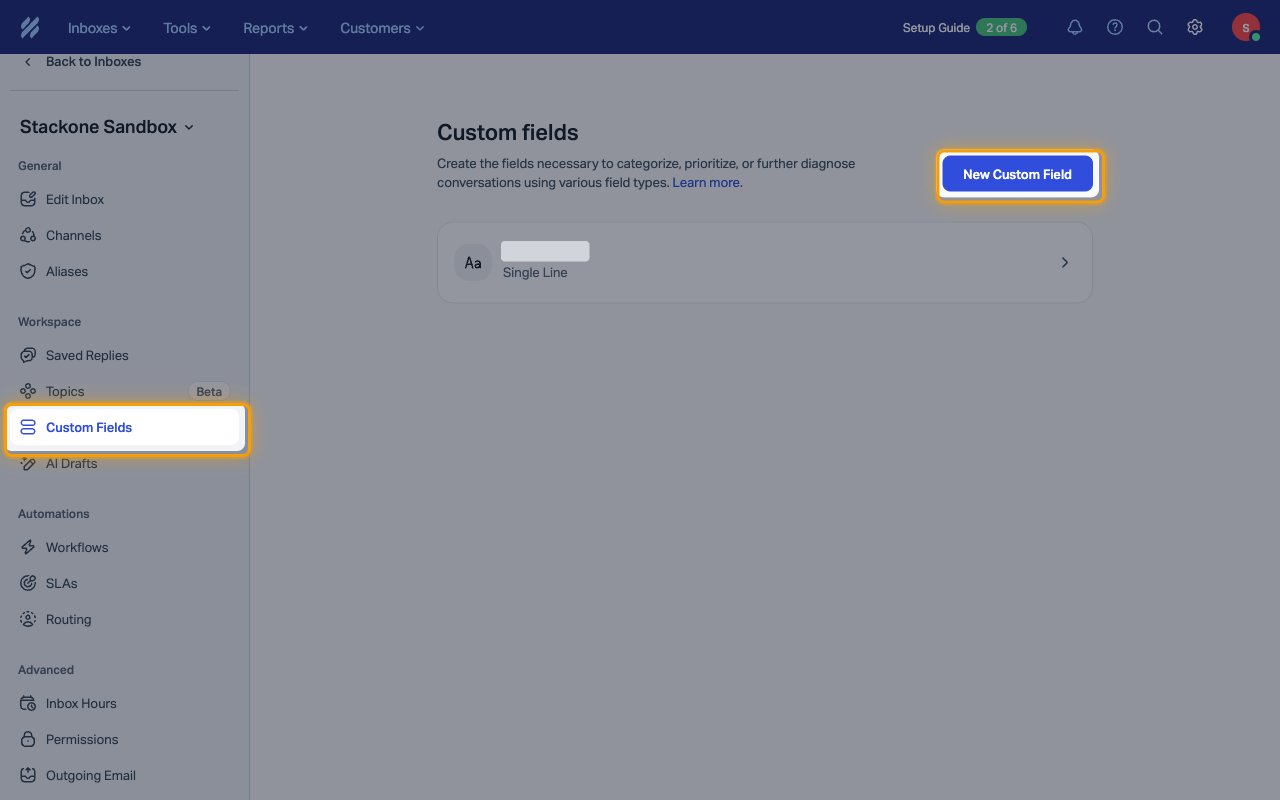
The convo.custom-fields event needs custom fields on the inbox. In the inbox settings, click Custom Fields, then New Custom Field.
Open Beacons or Messages
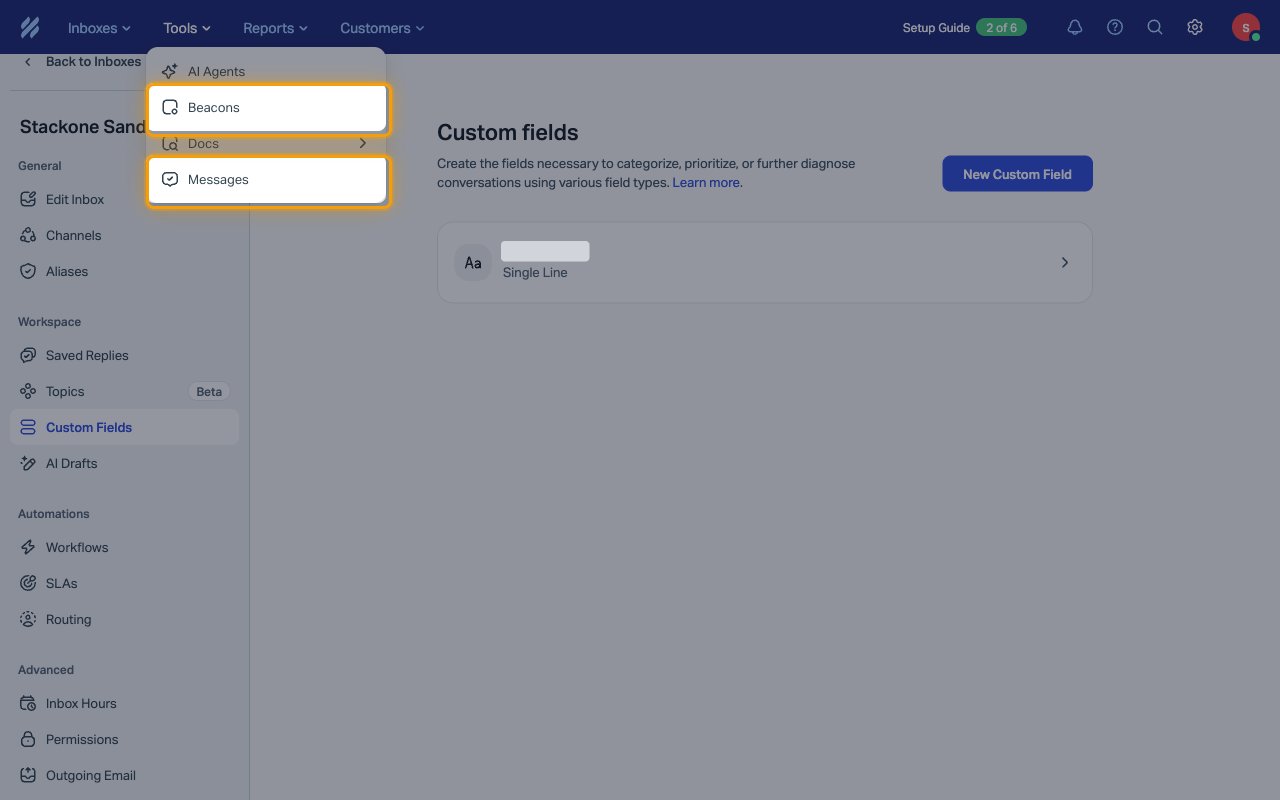
Beacon chat and survey events come from Help Scout Beacon. Click Tools in the top bar, then Beacons for chat or Messages for surveys.
Turn on Beacon chat
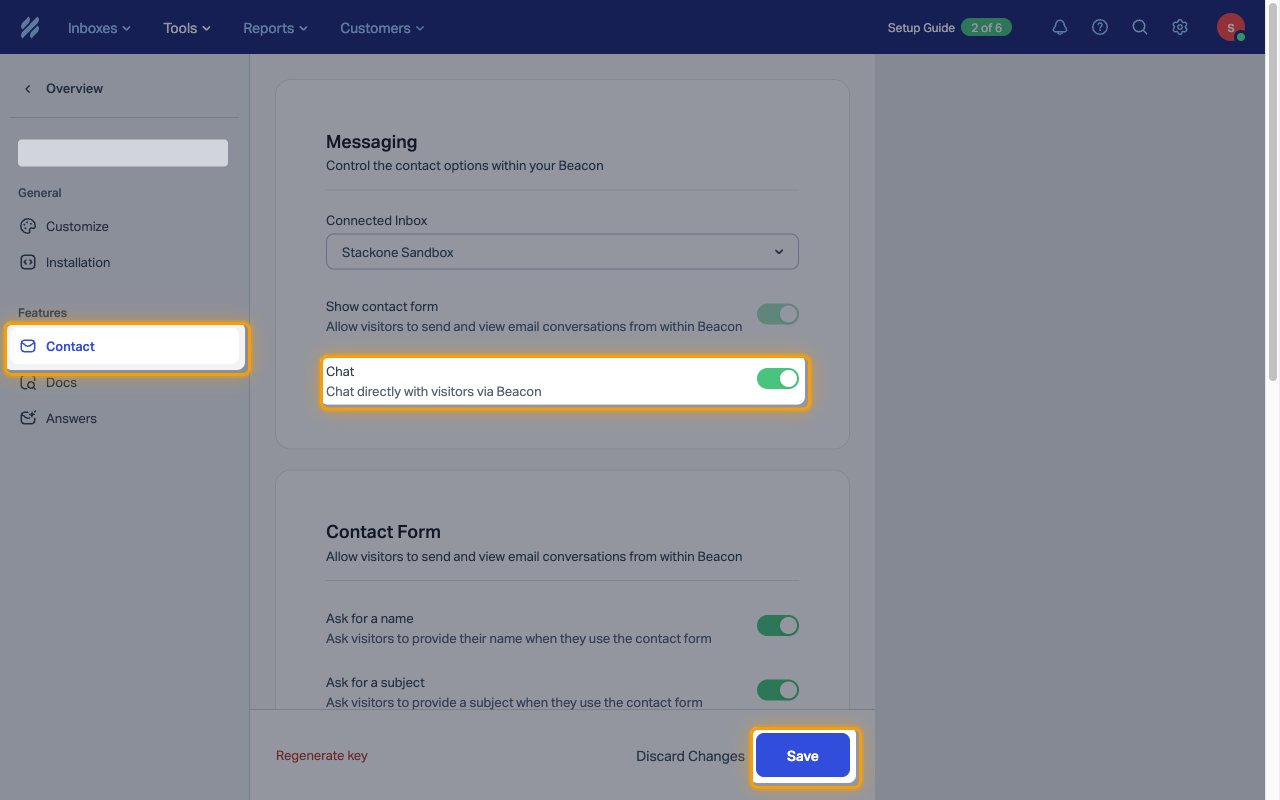
The beacon.chat.created and beacon.chat.customer.replied events need chat turned on for the Beacon. Open the Beacon, click Contact, turn on Chat, and click Save.
- Beacon only offers chat while a Help Scout user is available to chat. When nobody is available, visitors see the email contact form instead and no chat events are sent.
Create a survey message
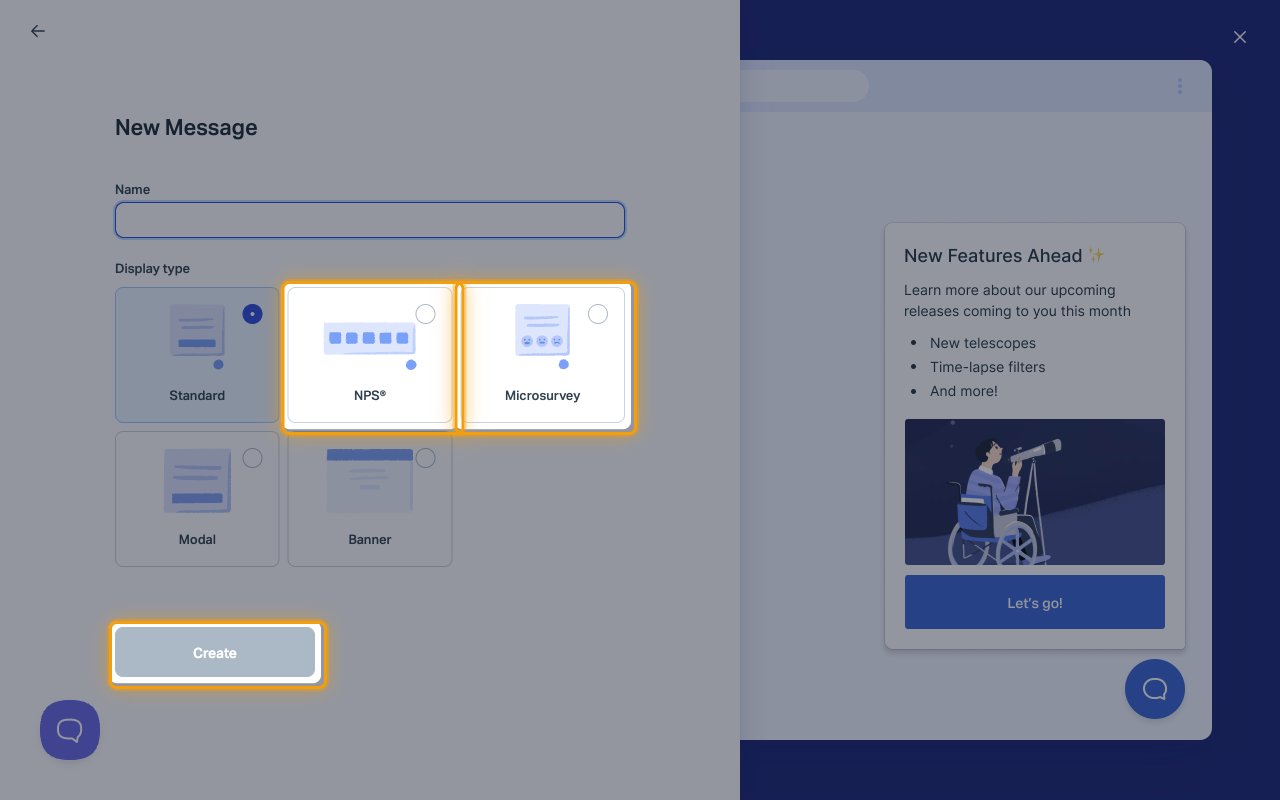
The message.survey.response.received event needs a survey message. On the Messages page, click Create Message, choose the NPS® or Microsurvey display type, and click Create.
- Messages are shown through Beacon, so the survey must run on a Beacon that is installed on your site or app.
Available webhook events
The following Help Scout events can be enabled. Only events selected in StackOne are included in the webhook subscription — Help Scout will not deliver events that are not subscribed.
Conversation events
Events related to the conversation lifecycle, replies, and notes.
- Conversation Created (
convo.created) — Fired when a new conversation is created in a Help Scout inbox - Conversation Assigned (
convo.assigned) — Fired when a Help Scout conversation is assigned to a user - Conversation Moved (
convo.moved) — Fired when a Help Scout conversation is moved to a different inbox - Conversation Status Updated (
convo.status) — Fired when the status of a Help Scout conversation changes (active, pending, closed, or spam) - Conversation Tags Updated (
convo.tags) — Fired when tags are added to or removed from a Help Scout conversation - Conversation Custom Fields Updated (
convo.custom-fields) — Fired when the custom field values on a Help Scout conversation are updated - Conversation Merged (
convo.merged) — Fired when two Help Scout conversations are merged into one - Customer Reply Created (
convo.customer.reply.created) — Fired when a customer adds a reply to a Help Scout conversation - Agent Reply Created (
convo.agent.reply.created) — Fired when a Help Scout user sends a reply on a conversation - Note Created (
convo.note.created) — Fired when a Help Scout user adds an internal note to a conversation - AI Answers Email Reply Created (
convo.ai-answers-email.reply.created) — Fired when Help Scout AI Answers sends an email reply on a conversation - AI Answers Email Resolution (
convo.ai-answers-email.resolution) — Fired when Help Scout AI Answers resolves an email conversation - Conversation Deleted (
convo.deleted) — Fired when a Help Scout conversation is deleted
Customer events
Events related to customer profiles.
- Customer Created (
customer.created) — Fired when a new customer profile is created in Help Scout - Customer Updated (
customer.updated) — Fired when a Help Scout customer profile is updated - Customer Deleted (
customer.deleted) — Fired when a Help Scout customer profile is deleted
Organization events
Events related to customer organizations.
- Organization Created (
organization.created) — Fired when a Help Scout organization is created - Organization Updated (
organization.updated) — Fired when a Help Scout organization is updated - Organization Deleted (
organization.deleted) — Fired when a Help Scout organization is deleted
Tag events
Events related to the account’s tags.
- Tag Created (
tag.created) — Fired when a Help Scout tag is created - Tag Updated (
tag.updated) — Fired when a Help Scout tag is updated - Tag Deleted (
tag.deleted) — Fired when a Help Scout tag is deleted
Rating events
Events related to customer satisfaction ratings on replies.
- Satisfaction Rating Received (
satisfaction.ratings) — Fired when a customer submits a satisfaction rating on a Help Scout reply
Survey events
Events related to Help Scout Messages surveys.
- Survey Response Received (
message.survey.response.received) — Fired when a customer responds to a Help Scout Messages survey
User events
Events related to Help Scout users.
- User Status Changed (
user.status.changed) — Fired when a Help Scout user’s availability status changes
Beacon chat events
Events related to chats started through a Help Scout Beacon.
- Beacon Chat Created (
beacon.chat.created) — Fired when a customer starts a new chat through a Help Scout Beacon - Beacon Chat Customer Replied (
beacon.chat.customer.replied) — Fired when a customer replies in a Help Scout Beacon chat
Delivery format
Details of how Help Scout delivers events to StackOne.
One event per request
Help Scout sends one event per HTTP POST with a JSON body. The event name is carried only in the X-HelpScout-Event header (for example convo.created), and the body is the changed record itself. StackOne uses the ID of that record (conversation, customer, organization, tag, rating, user, or chat) as the event ID. Survey responses have no ID of their own, so the responding customer’s ID is used. Deleted events contain only the ID of the deleted record.
Signatures and retries
Every delivery is signed in the X-HelpScout-Signature header. If a delivery fails, Help Scout retries it up to 10 times with increasing delays, and deactivates the webhook after 10 discarded events.