

Sign In to Heap
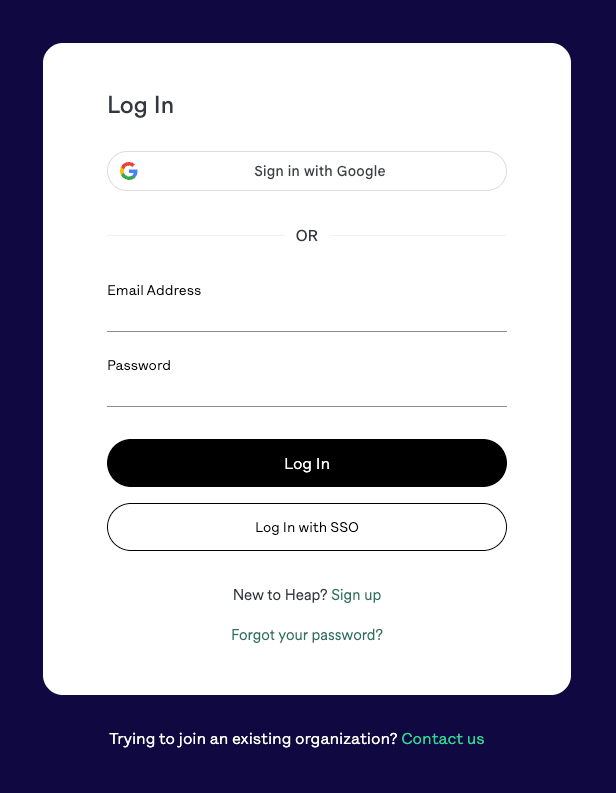
Sign in to your Heap account to locate your App ID, which is required to complete the integration.
Access Heap
Navigate to Heap and sign in with your credentials.
Find Your App ID
The App ID (also called Environment ID) is required to authenticate all Heap server-side API calls.
Locate Your App ID
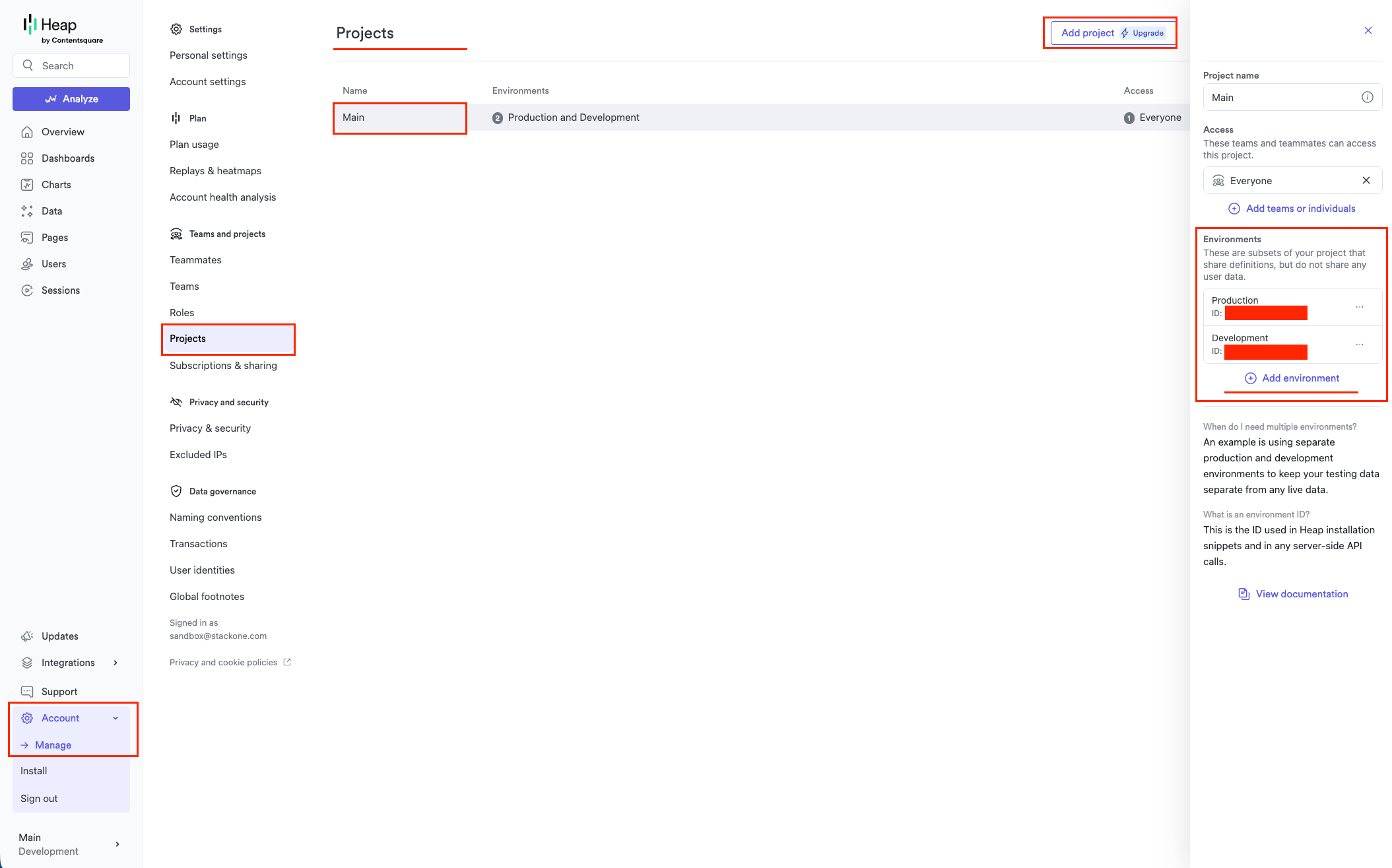
In the left sidebar (bottom), click Account, then select Manage. In the settings panel that opens, find the Teams and projects section and click Projects.
- Click on the default Main project to view its details
- Optional: You can manage access by clicking + Add teams or individuals to select teams
- Optional: Click Add environment to add additional environments (e.g. Development, Staging)
- Each environment has its own unique App ID, displayed as ID just below the environment name
- Copy the App ID for the environment you wish to connect
- Use the Development environment for testing to avoid affecting production data
Select Your Data Region
Choose the region that matches where your Heap data is hosted.
Identify Your Region
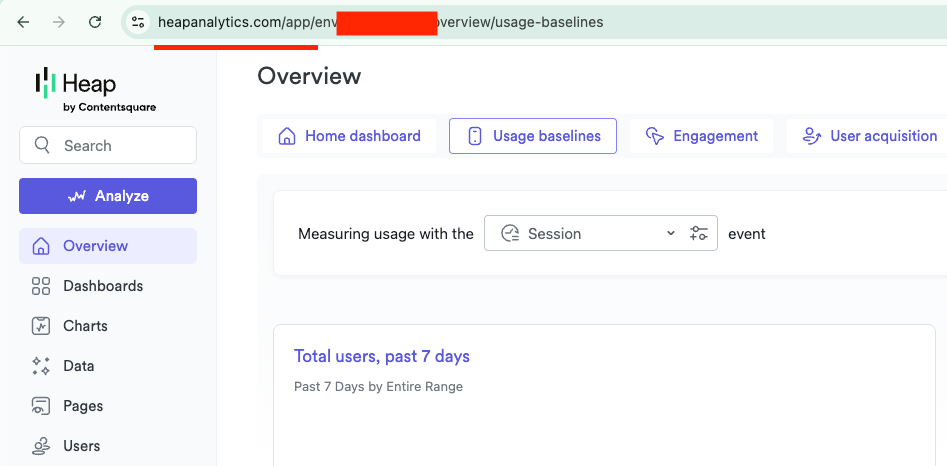
Check the URL in your browser address bar when signed in to Heap to determine your data region.
- US (default) — URL contains
heapanalytics.com. Most accounts use this region - EU — URL contains
c.eu.heap-api.com. Select this if your Heap instance is hosted in the EU data centre
Linking the Account from the Hub
Navigate to the Hub
Fill out the fields
- App ID
- Region
Connect
- Click Connect
- If applicable, the provider will redirect you to a sign-in or authorization page. Complete the provider’s authorization flow.
- Once authorization is successful, you will see a confirmation popup
If the account linking is successful, you will see the newly linked account on your Accounts page.