

Create a service account
A service account is a Harness identity that is not tied to a person, so the connection keeps working when people leave. The token’s access is exactly the roles you bind to this service account.
Open Administrative Settings
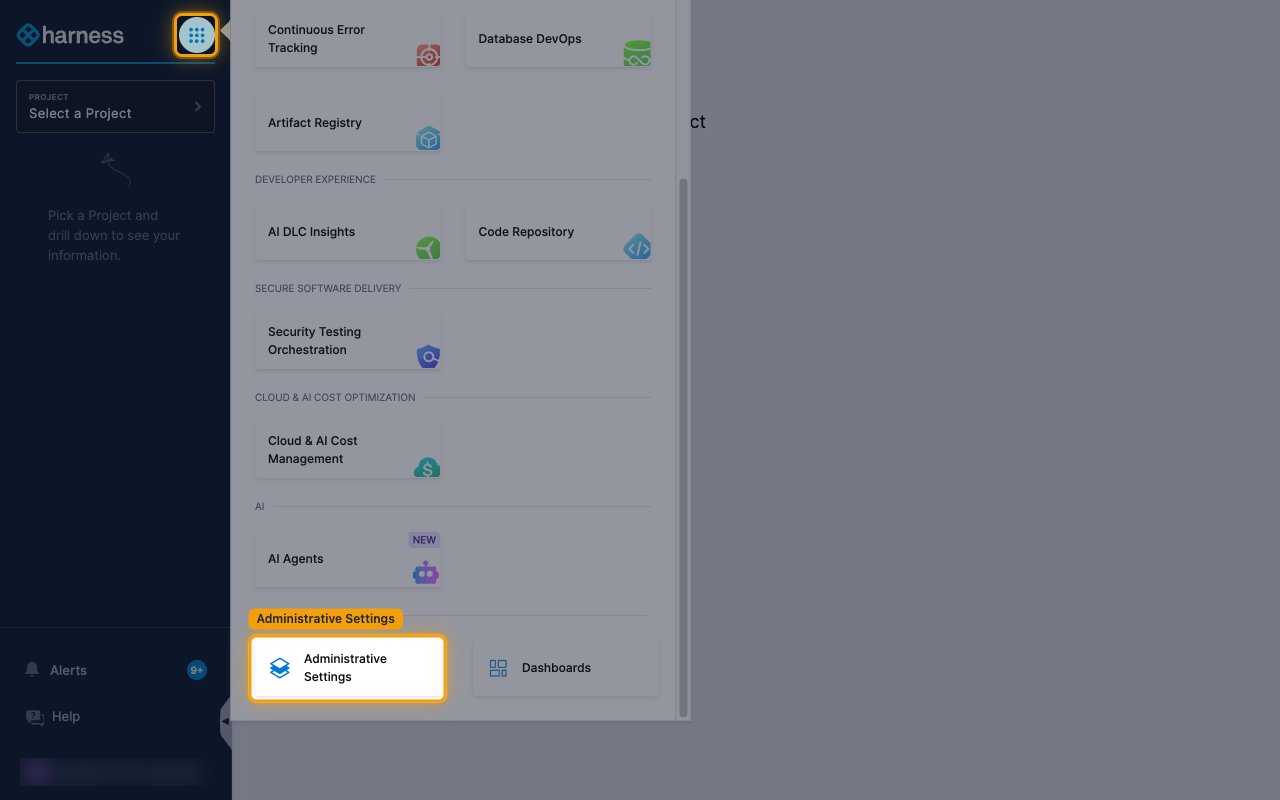
Sign in to your Harness account, then click the module menu icon next to the Harness logo and select Administrative Settings.
Open Account Settings
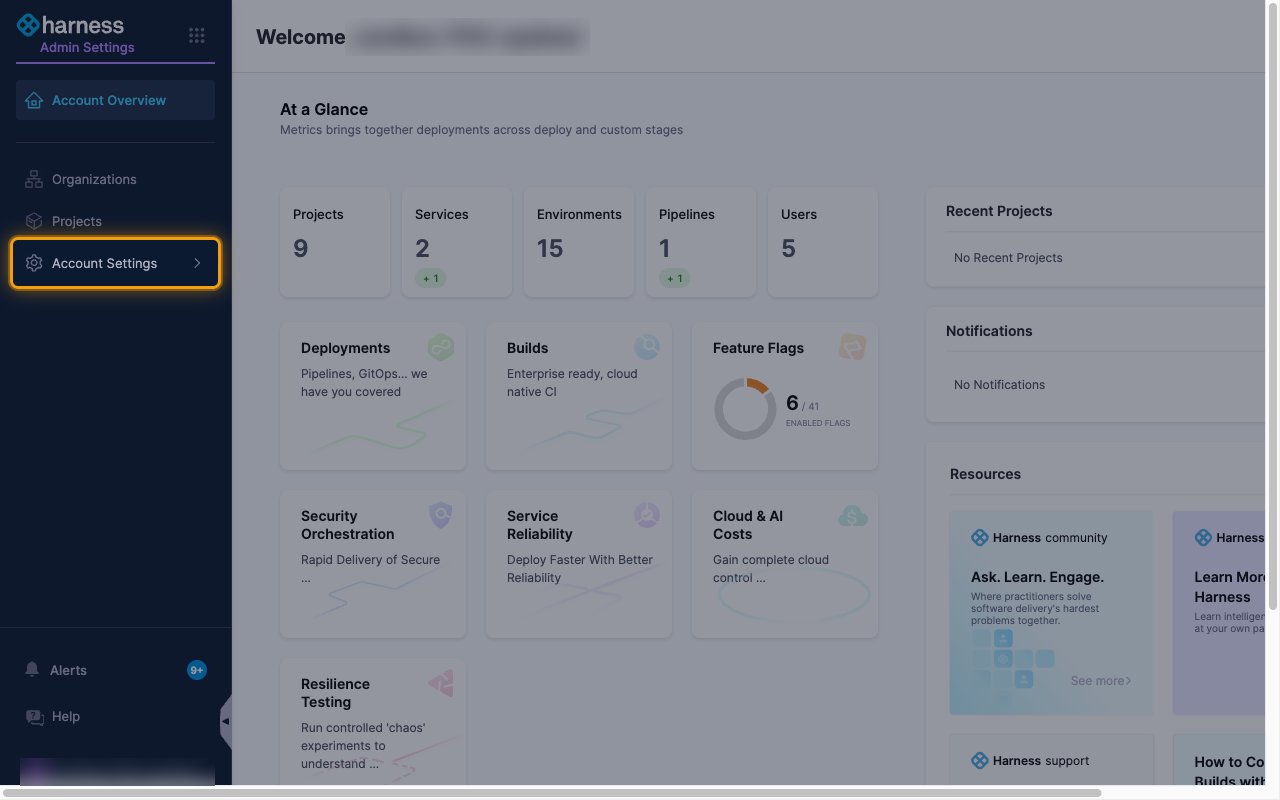
In the left navigation, click Account Settings.
Open Service Accounts
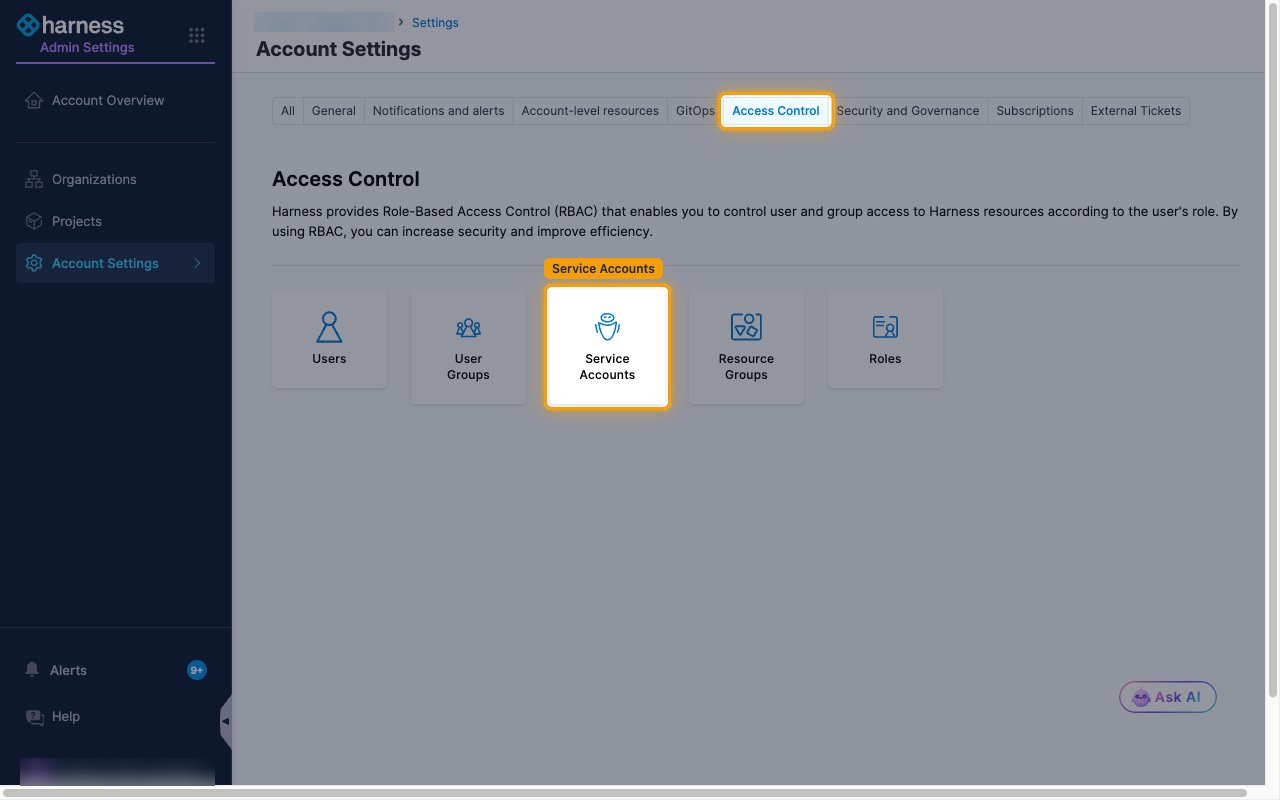
Select the Access Control tab, then click Service Accounts.
Create the service account
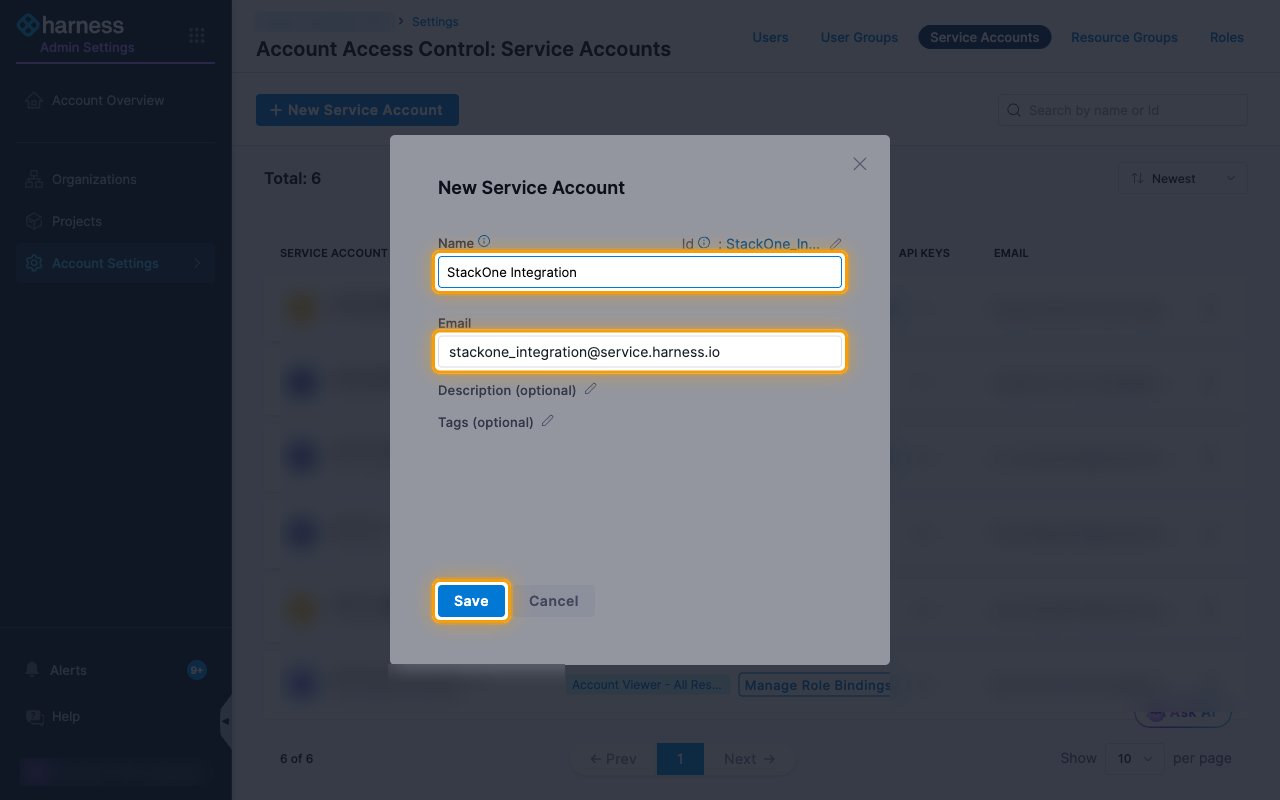
Click New Service Account and fill in the form.
- Name:
StackOne Integration - Harness fills in the Email from the name. Keep it or change it.
- Click Save.
Assign roles
Bind roles that cover the data you want StackOne to read and manage. Without a role binding, the token cannot call any action.
Open role bindings
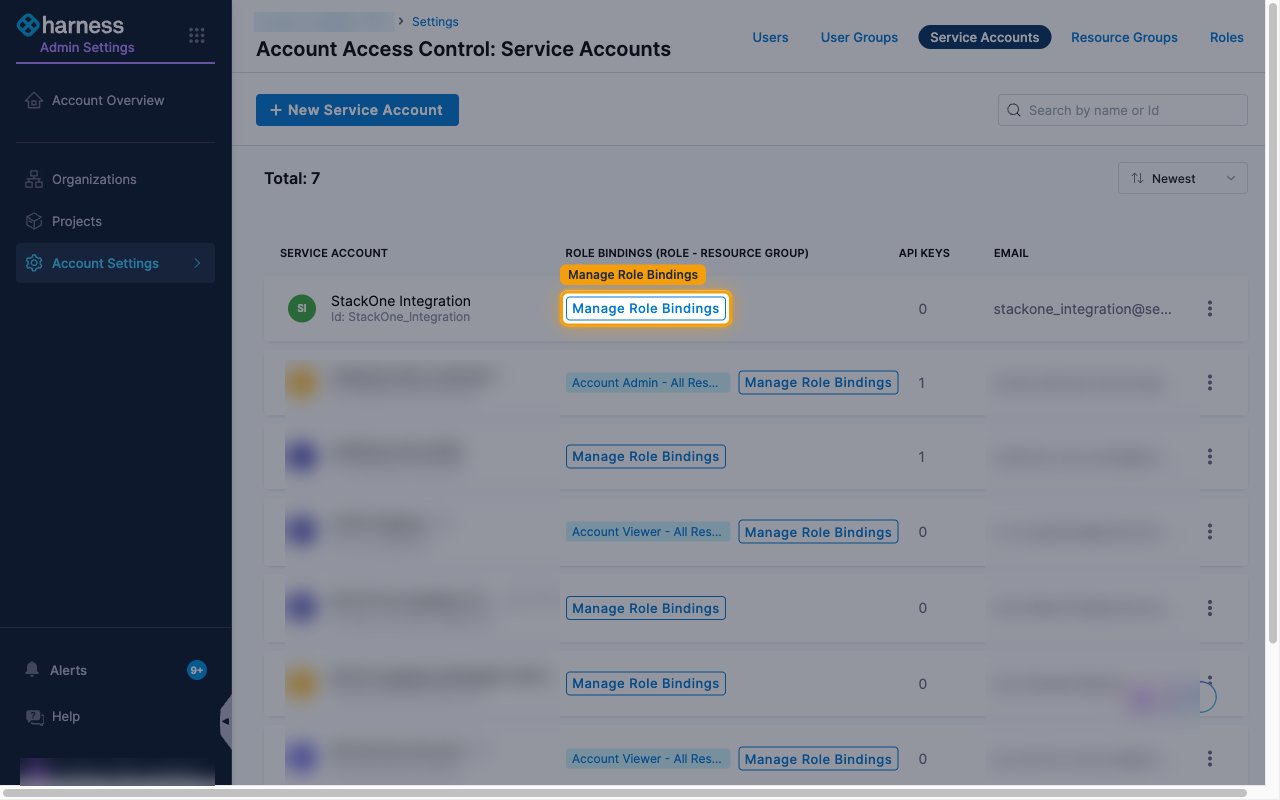
In the service account list, click Manage Role Bindings on the StackOne Integration row.
Add a role and apply
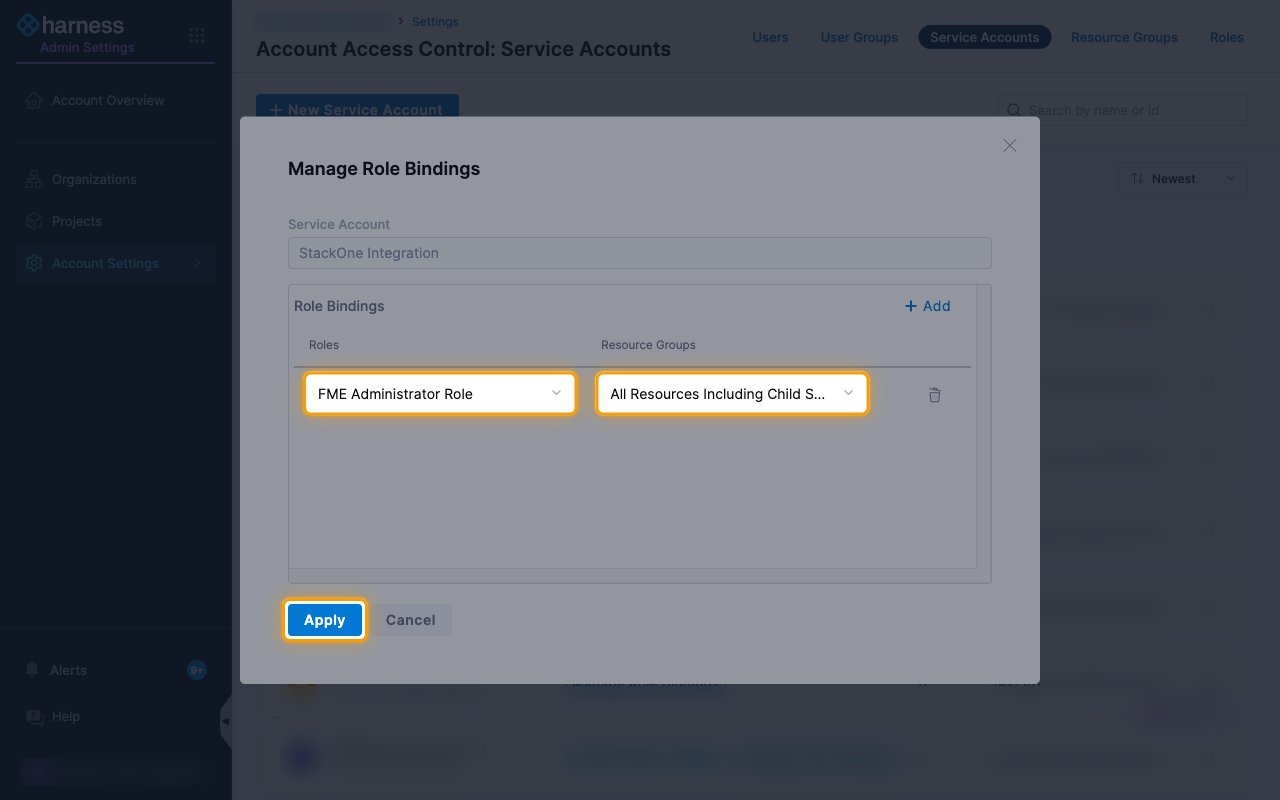
Click Add, then choose a role and a resource group for the new row.
- For Feature Management & Experimentation actions, select FME Administrator Role, or FME Manager Role for narrower access.
- Add more rows if you also use the Harness user, user group, project, organization and invite actions.
- Keep All Resources Including Child Scopes as the resource group unless you want to limit access.
- Click Apply.
Generate the service account token
Tokens belong to an API key on the service account. Create the key, then generate a token from it.
Open the service account
Click StackOne Integration in the service account list to open it.
Create an API key
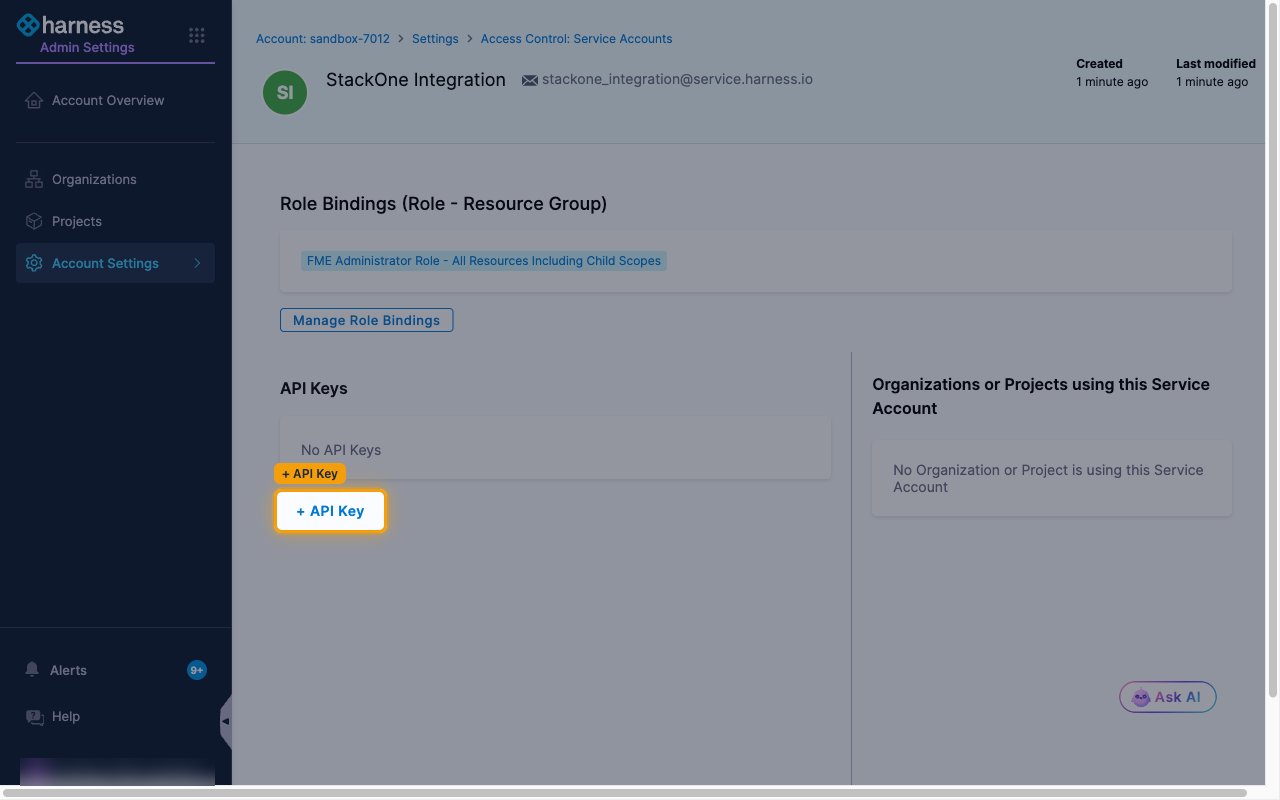
Under API Keys, click + API Key.
- Name:
StackOne Integration - Click Save.
Create a token
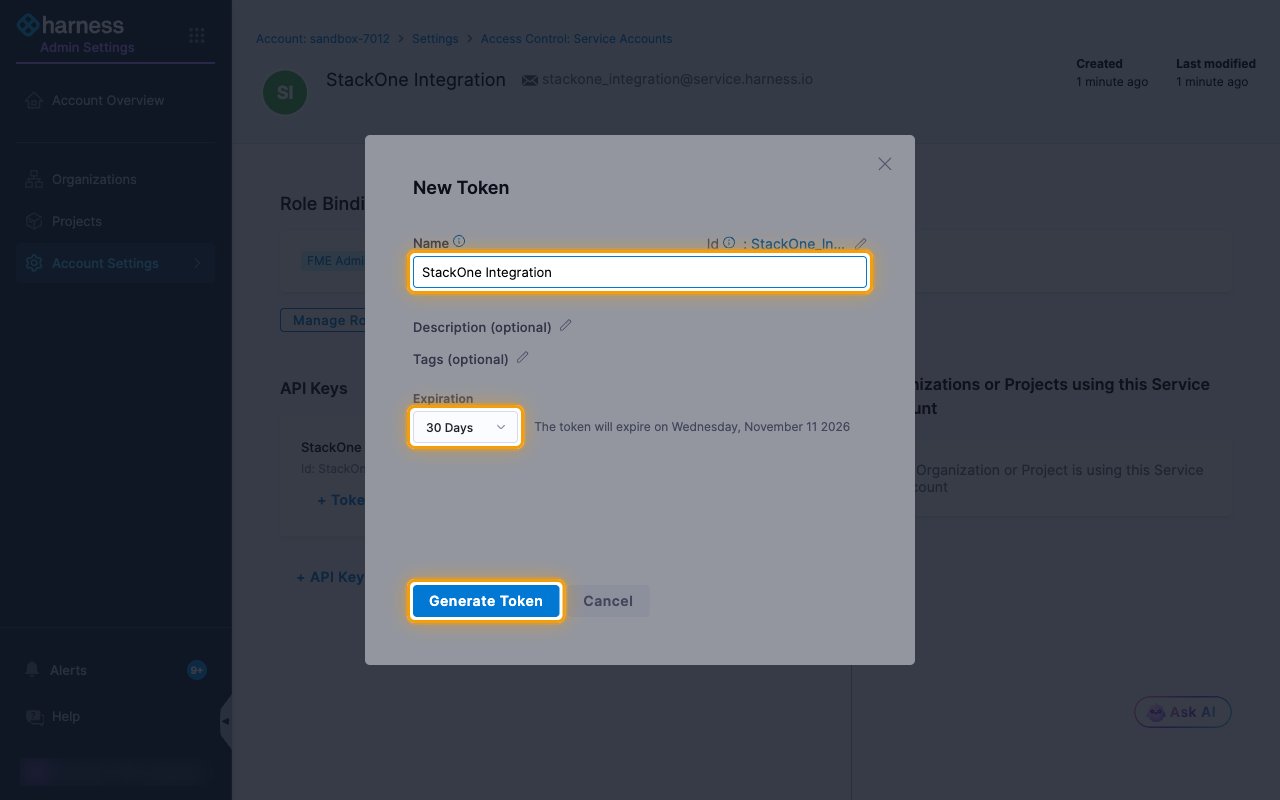
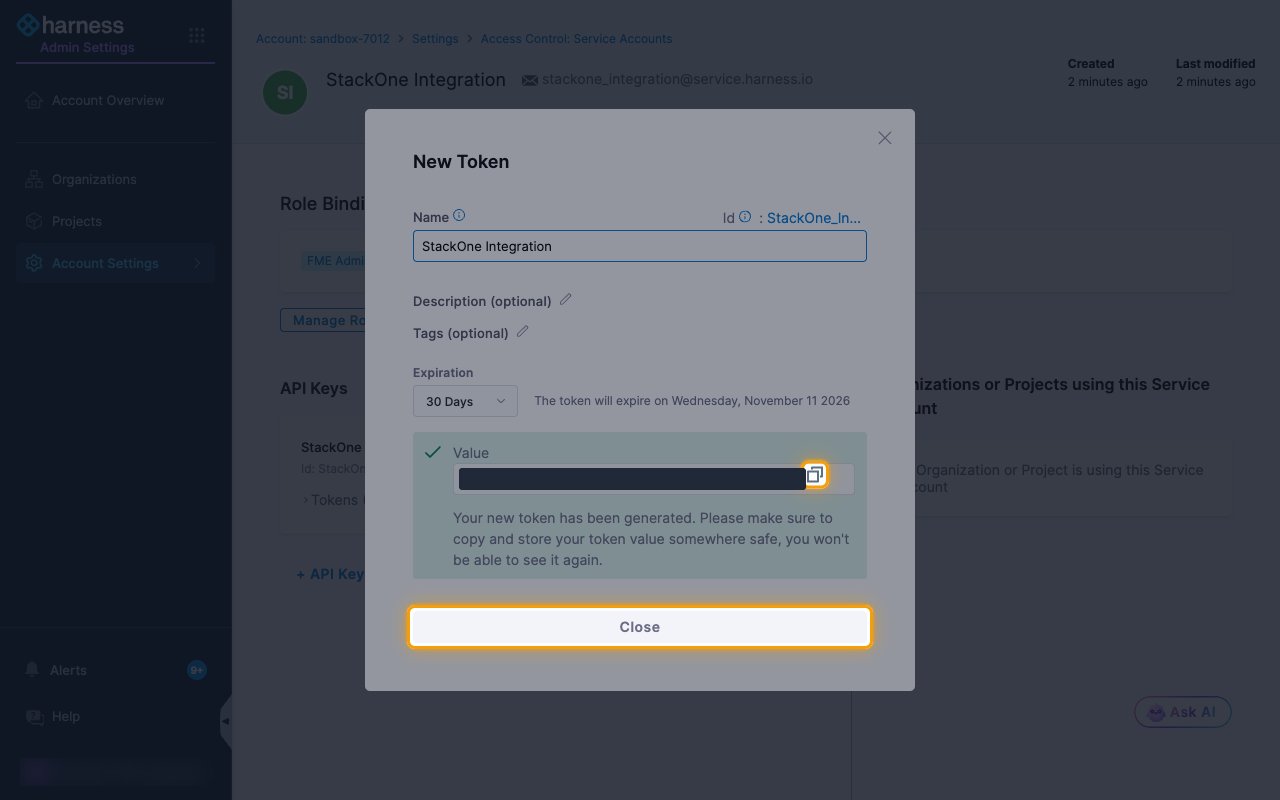
On the new API key, click + Token and fill in the New Token dialog.
- Name:
StackOne Integration - Choose an Expiration. The connection stops working when the token expires, so pick a period that suits you.
- Click Generate Token.
Copy the token
Click the copy icon next to Value to copy the token, then click Close.
- The token starts with
sat.. - The token value is only displayed once and cannot be retrieved later. Store it securely for use later.
- Paste it into the Service Account Token field in StackOne Hub.
Link the Account
Connect
- Click Connect.
- If applicable, the provider will redirect you to a sign-in or authorization page. Complete the provider’s authorization flow.
- Once authorization is successful, you will see a confirmation popup.
Use Actions