

Create an API key
Any Harness user can create personal API keys from their profile.
1
Open your profile
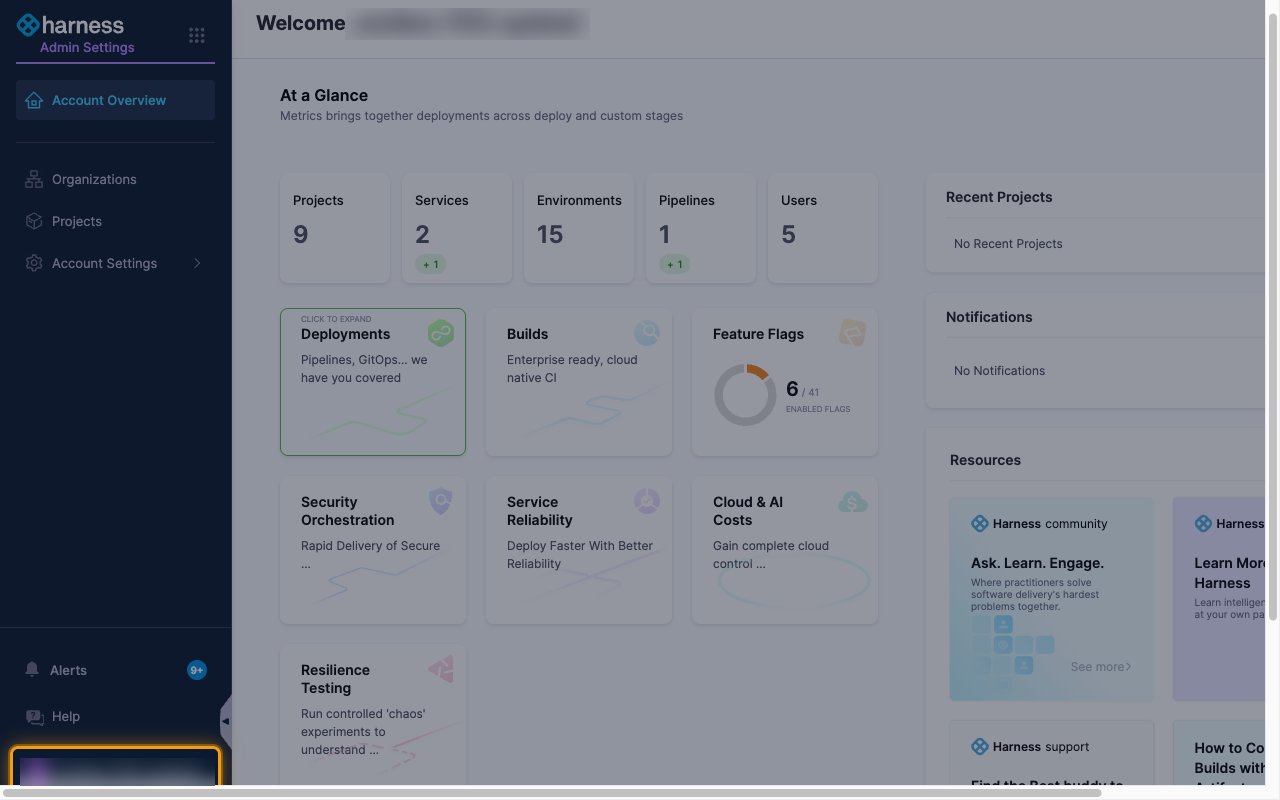
Sign in to your Harness account, then click your name at the bottom of the left navigation.
2
Open API keys
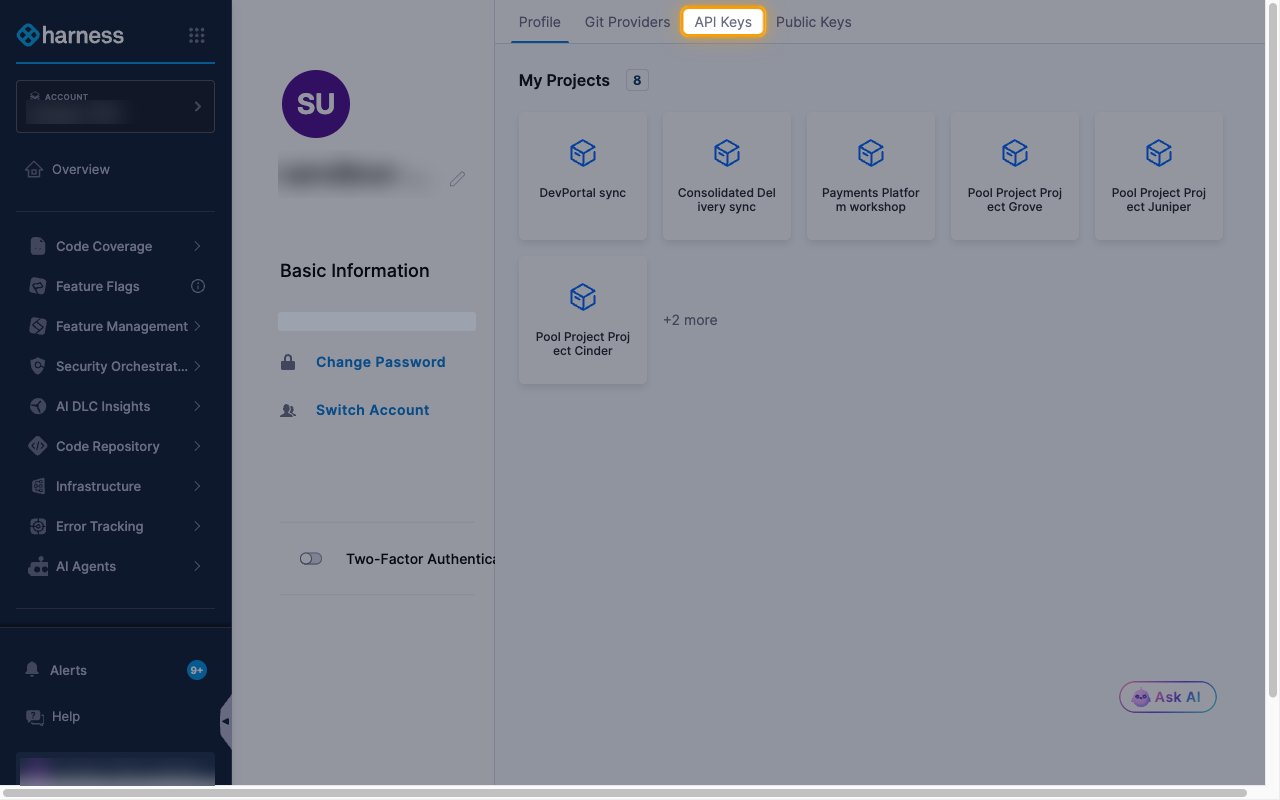
Select the API Keys tab.
3
Add an API key
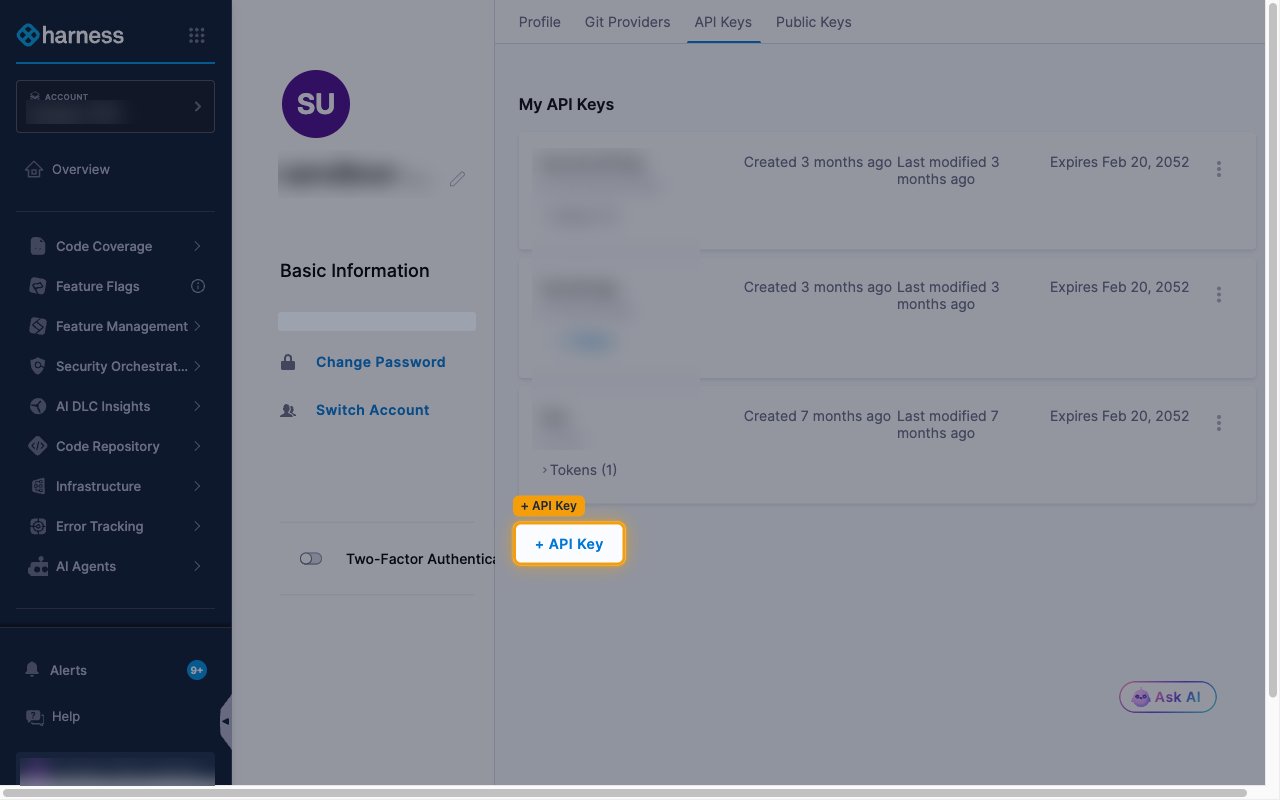
Under My API Keys, click + API Key.
- Name:
StackOne Integration - Click Save.
Generate the personal access token
Tokens belong to an API key. Generate one from the key you just created.
1
Create a token
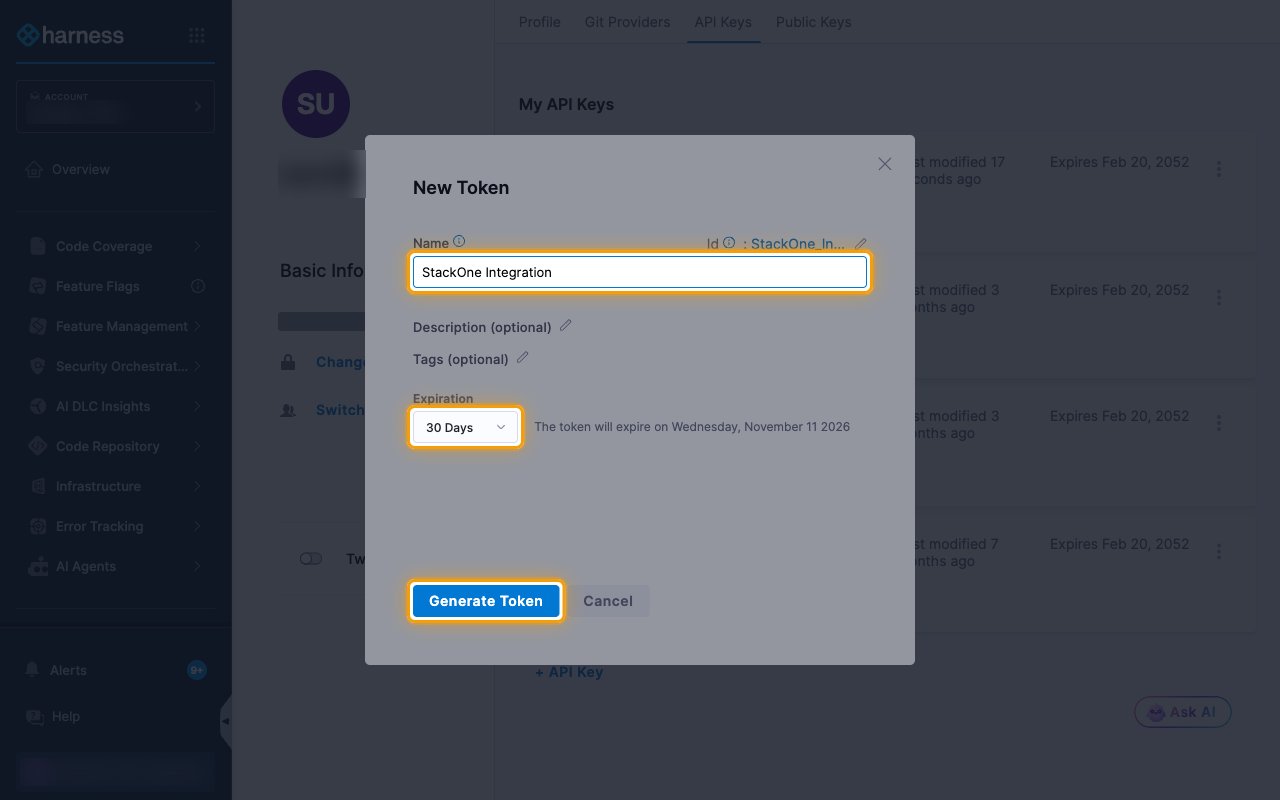
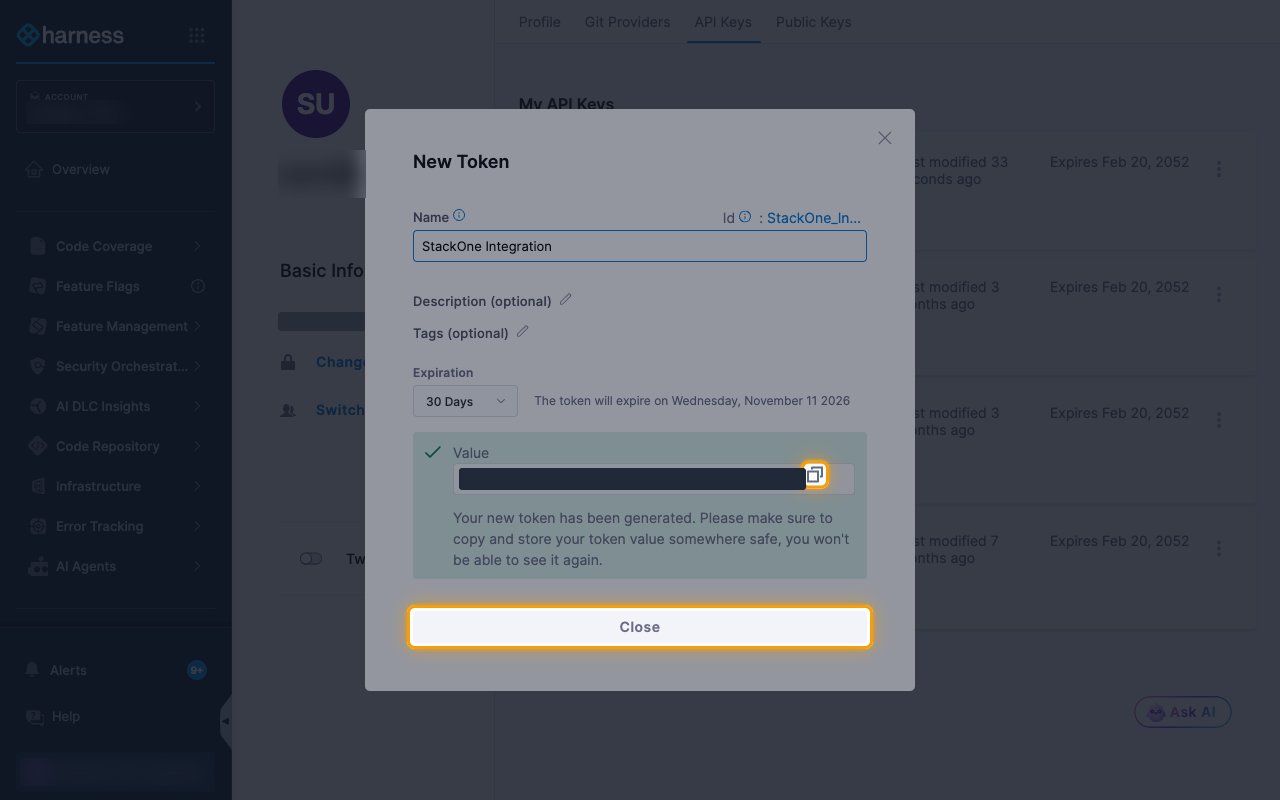
On the StackOne Integration key, click + Token and fill in the New Token dialog.
- Name:
StackOne Integration - Choose an Expiration. The connection stops working when the token expires, so pick a period that suits you.
- Click Generate Token.
2
Copy the token
Click the copy icon next to Value to copy the token, then click Close.
- The token starts with
pat.. - The token value is only displayed once and cannot be retrieved later. Store it securely for use later.
- Paste it into the Personal Access Token field in StackOne Hub.
Link the Account
1
Connect
- Click Connect.
- If applicable, the provider will redirect you to a sign-in or authorization page. Complete the provider’s authorization flow.
- Once authorization is successful, you will see a confirmation popup.
2
Use Actions
Connect an AI platform to the linked account’s actions. See AI Platforms.Other ways to call actions are listed in Protocols & SDKs.