Prerequisites
The connector should already be set up, with a Connector Profile and a Linked Account. See Getting Started on the Hailey HR connector page.Sign in to Hailey HR
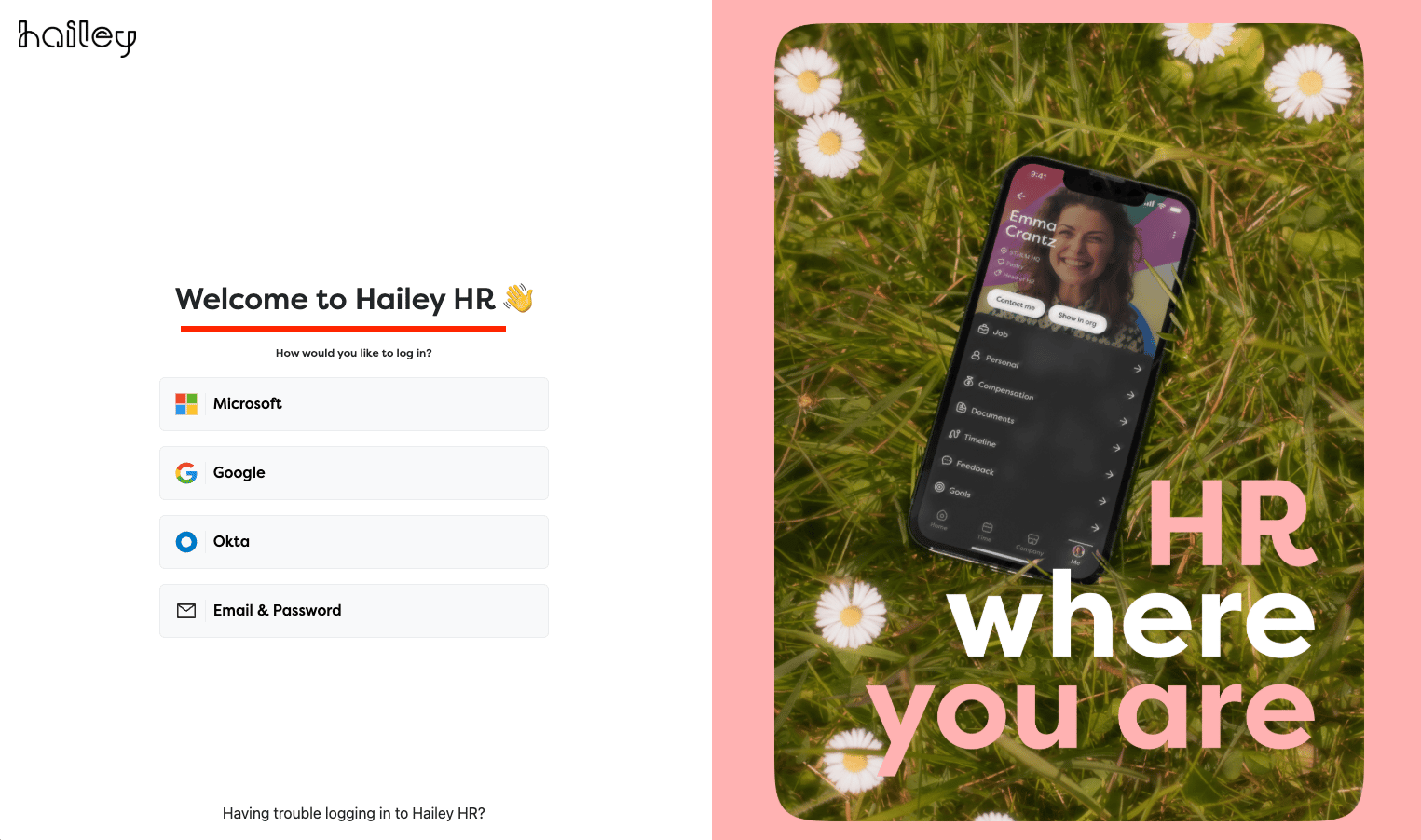
Navigate to the Hailey HR login page and sign in with your credentials.
Enable API Integration
Enable the API integration for your Hailey account.
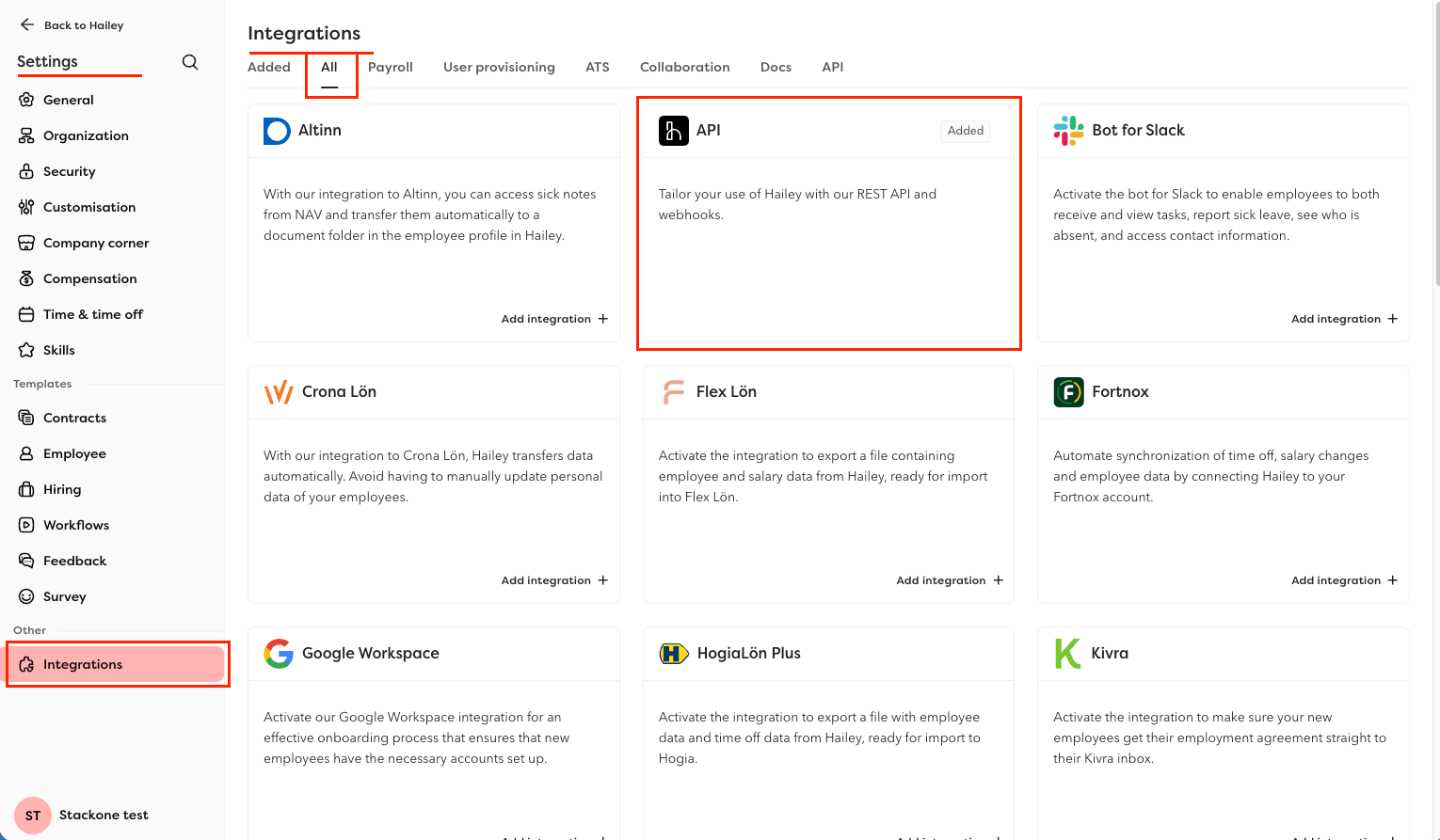
- Navigate to Settings > Integrations > All tab.
- Find API integration and click the Add Integration + button.
- In the side panel that opens, toggle the integration to
Active. - If a list of sub-resources is displayed, ensure you check and include the following: Titles, Company Email, Work Phone, Department, Location.
- Click Save to enable the integration.
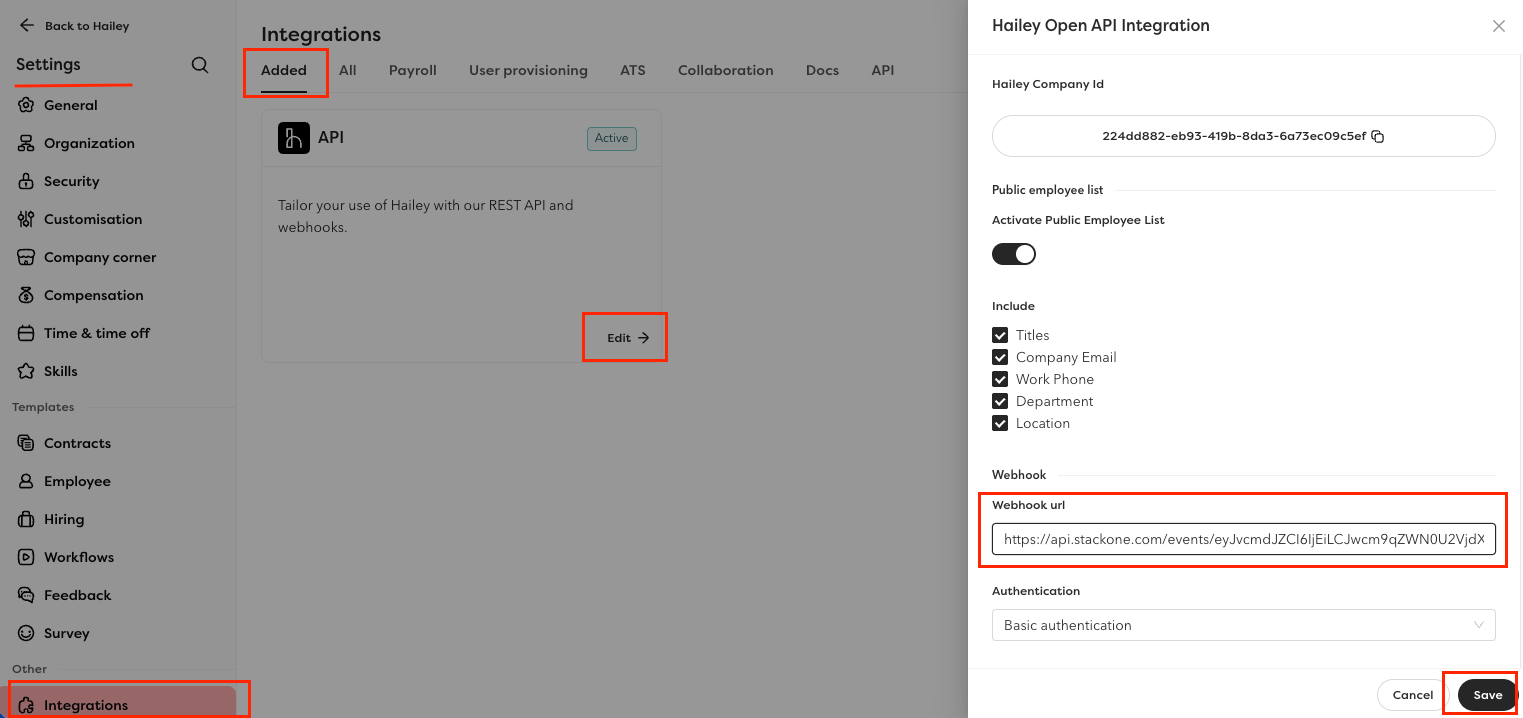
Configure Webhook URL
Set up the webhook endpoint so Hailey HR sends employee and company change notifications.
- Click the Edit button to open the configuration form.
- Paste the Native Webhook URL (copied from StackOne Hub form) into the Webhook URI field.
- Click Save to apply the changes.