

Generate API Credentials
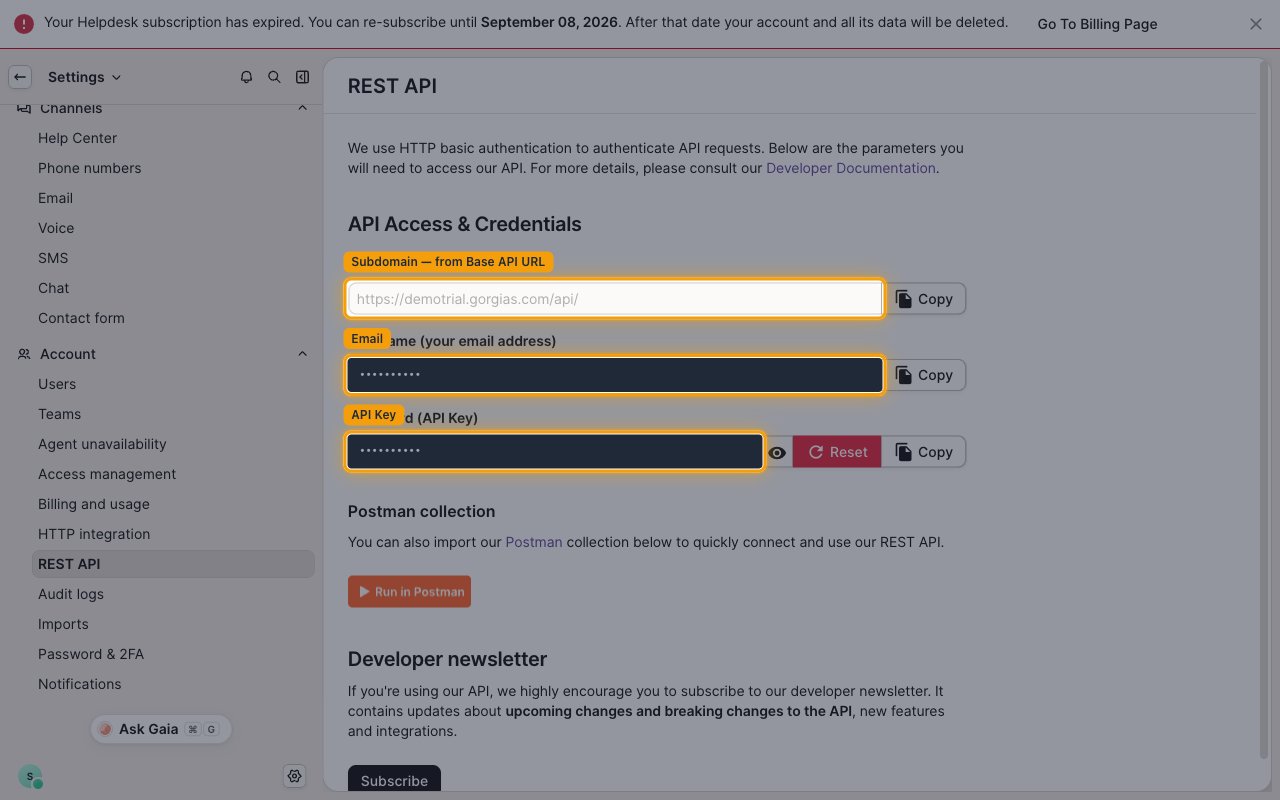
Retrieve your email, API key, and subdomain from the Gorgias REST API settings page. All three values are available on this single page.
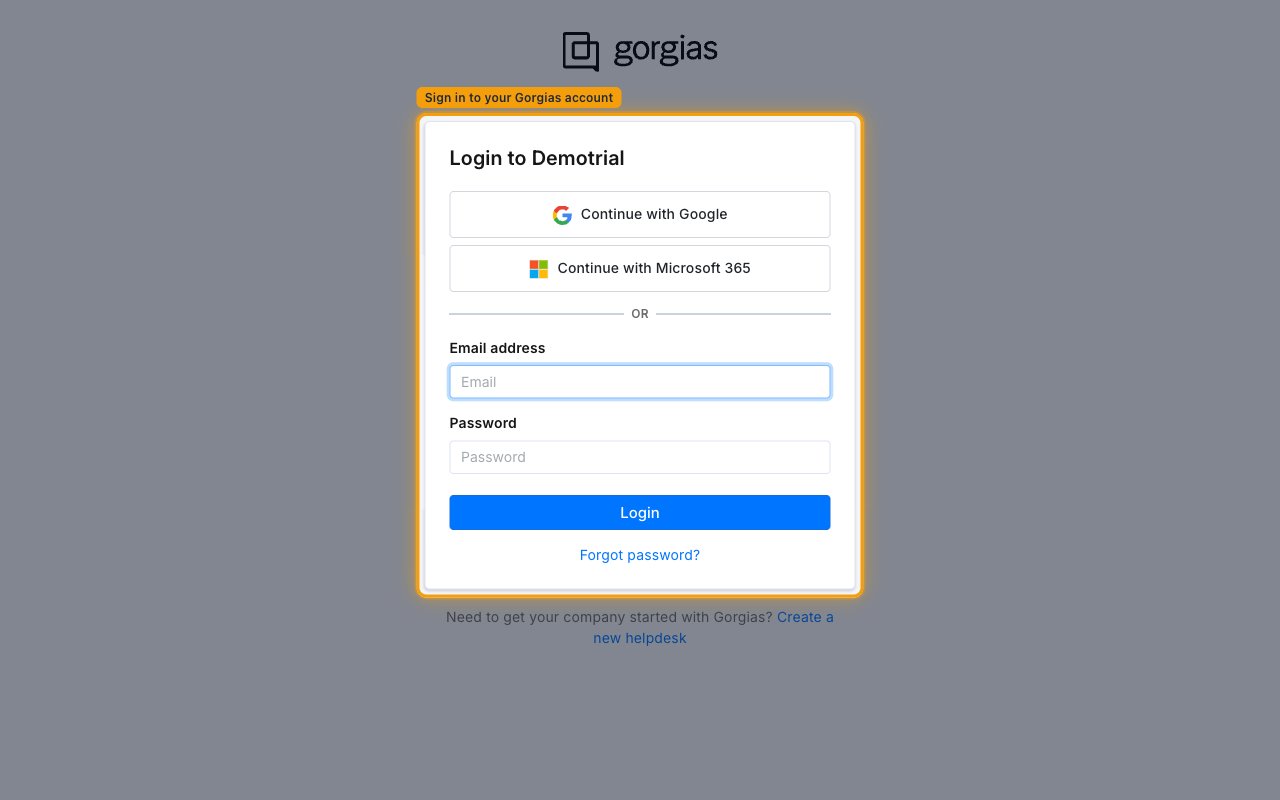
Sign in to Gorgias
Go to your Gorgias account and sign in. You can use Continue with Google, Continue with Microsoft 365, or enter your Email address and Password and click Login.
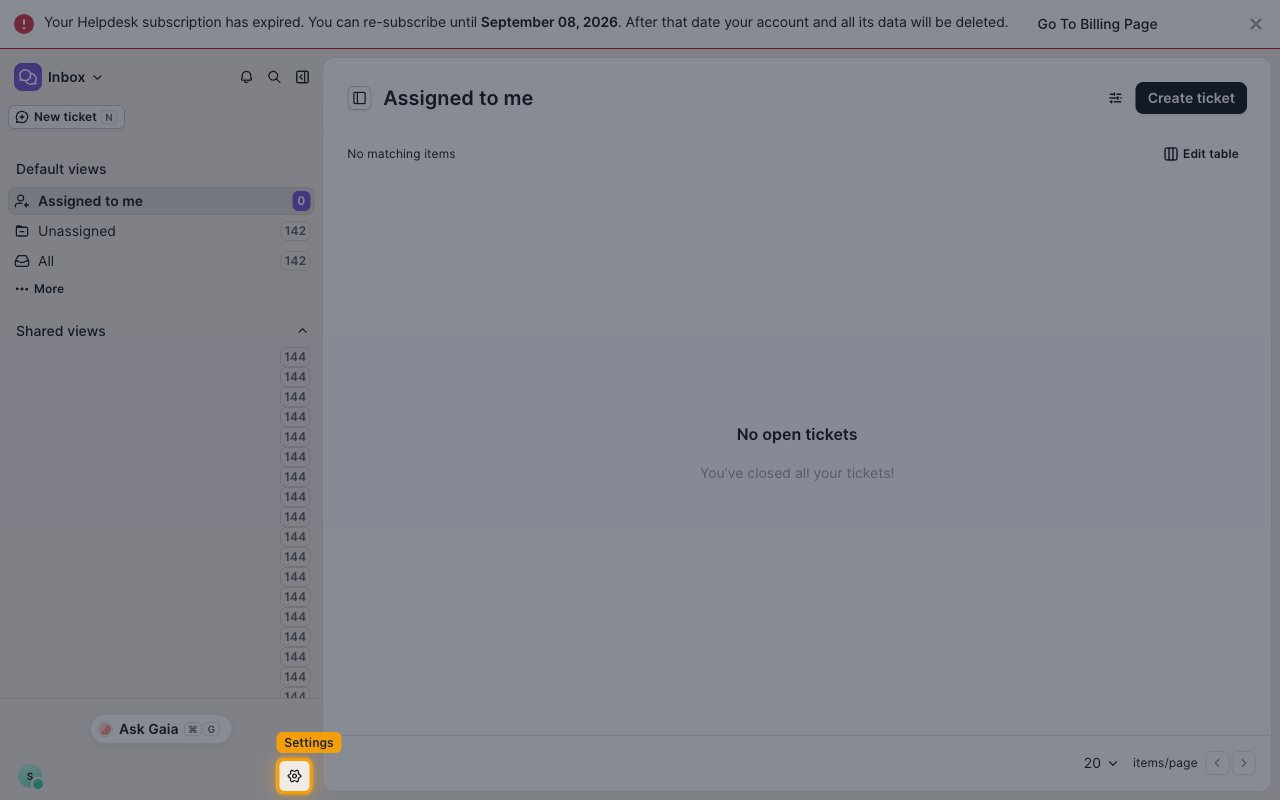
Open Settings
In the bottom-left corner of the Gorgias app, click the ⚙ Settings (gear) icon.
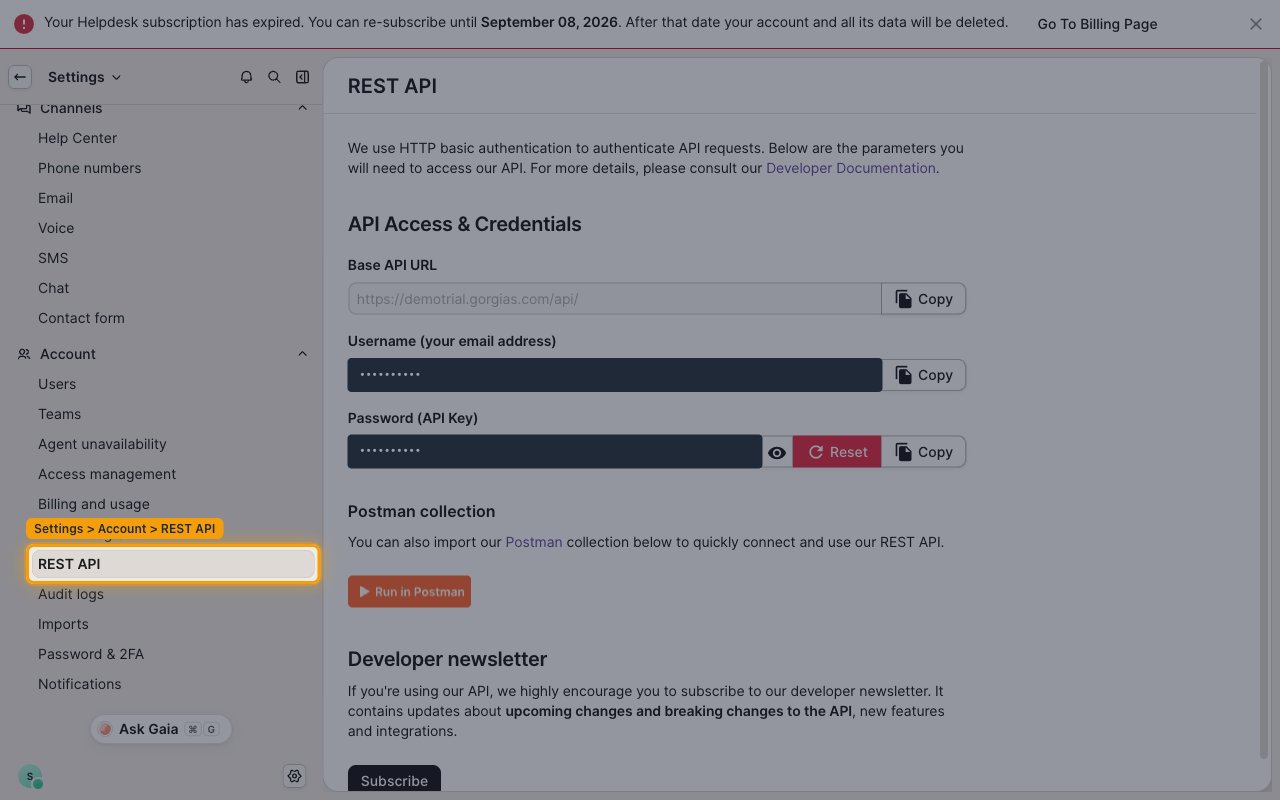
Open the REST API settings
In the Settings sidebar, under Account, click REST API. The API Access & Credentials section lists everything you need.
Copy your email address
In the API Access & Credentials section, your email address is shown in the field labeled Username (your email address) — your Gorgias Username is your email address. Click Copy and paste it into the Email field in StackOne Hub.
Copy your API key
Your API key is shown in the Password (API Key) field. Click the eye (visibility) icon to reveal it if needed, then click Copy and paste it into the API Key field in StackOne Hub.
- Clicking Reset generates a new API key and immediately invalidates the previous one, so only reset if you intend to replace it.
Copy your subdomain
Your subdomain is the first part of the Base API URL shown on this page. Copy it into the Subdomain field in StackOne Hub.
- Format:
https://{subdomain}.gorgias.com/api/ - Example: for
https://mycompany.gorgias.com/api/, the subdomain ismycompany
Linking the Account from the Hub
Navigate to the Hub
Fill out the fields
- Subdomain
- API Key
Connect
- Click Connect
- If applicable, the provider will redirect you to a sign-in or authorization page. Complete the provider’s authorization flow.
- Once authorization is successful, you will see a confirmation popup
If the account linking is successful, you will see the newly linked account in your Accounts page.
Next Steps
Webhooks setup
Configure receiving Events for Gorgias into StackOne.