

Find your GCP project number
StackOne connects to a single Google Cloud project, the one your OAuth client was created in. Enter its Project number in the GCP Project Number field.
1
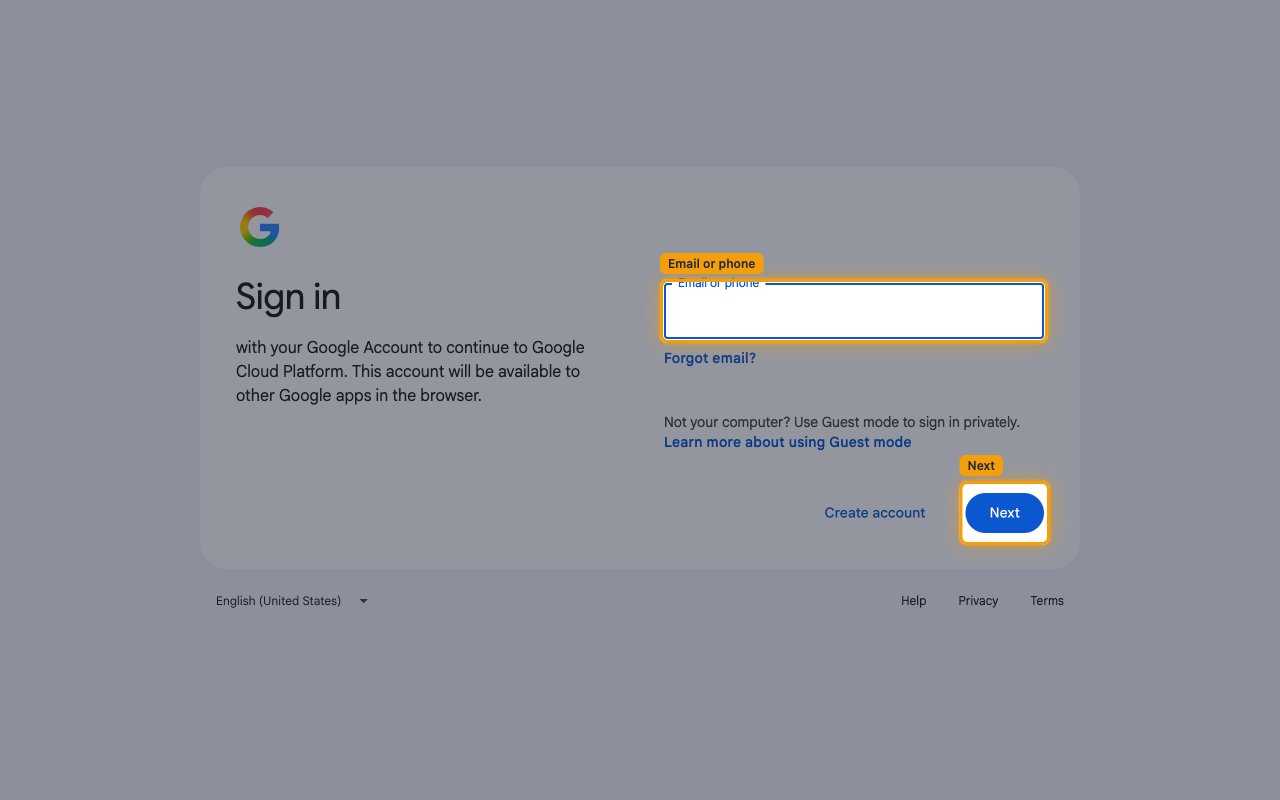
Sign in to Google Cloud
Sign in to your Google Cloud Console.
2
Open the project picker
Click the project picker in the top navigation bar and select the project that has the Cloud Text-to-Speech API enabled.
3
Copy the project number
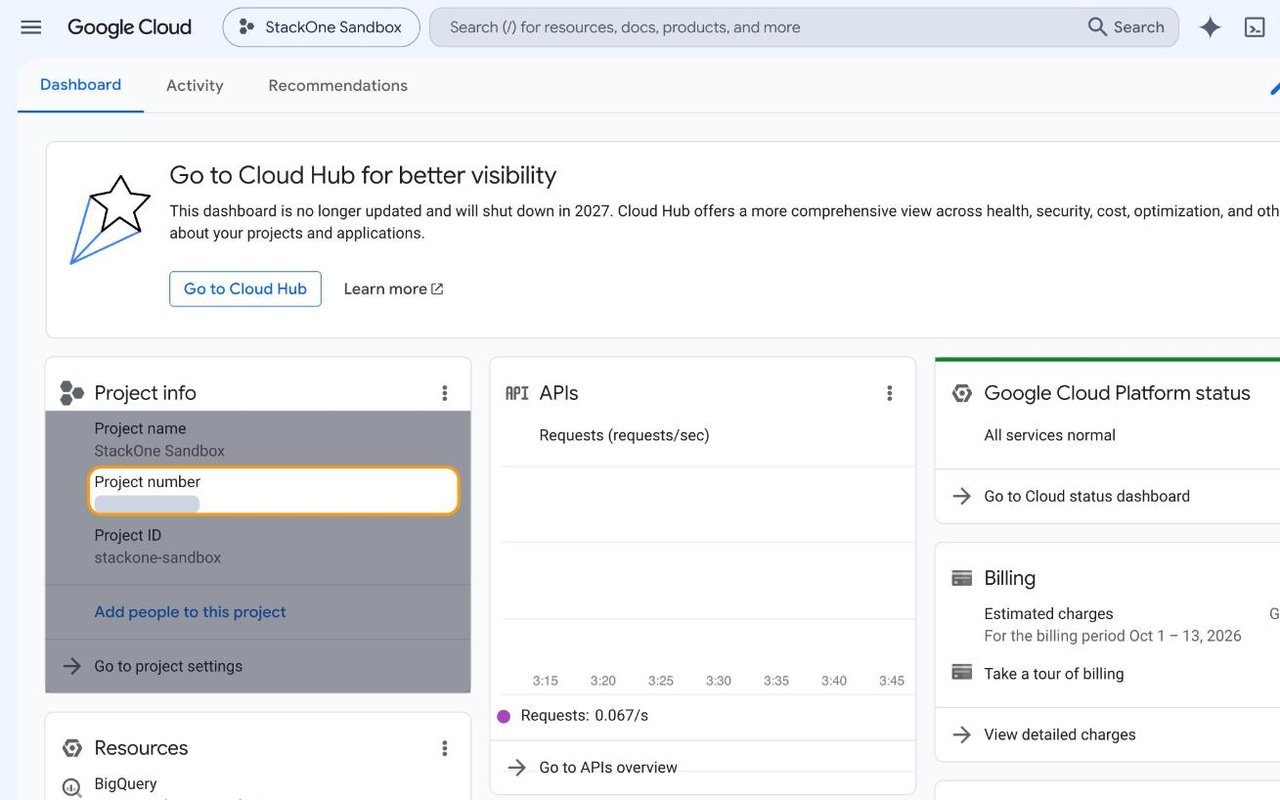
Open the Google Cloud dashboard. The Project info card shows the Project number for your project. Copy it and paste it into the GCP Project Number field in StackOne Hub.
- Example:
123456789012
Linking the Account from the Hub
1
Navigate to the Hub
Use one of the three Linking Account Methods to access the Hub.
2
Fill out the fields
Fill out the following fields using details from your provider:
- GCP Project Number
3
Connect
- Click Connect
- If applicable, the provider will redirect you to a sign-in or authorization page. Complete the provider’s authorization flow.
- Once authorization is successful, you will see a confirmation popup
If the account linking is successful, you will see the newly linked account on your Accounts page.