

Creating a service account key
Work in the Google Cloud project you are connecting. Google Maps Platform bills every call, so the project needs billing enabled as well as the APIs below.
Enable the required APIs
Sign in to the Google Cloud Console and select the project. Turn on each Google Maps Platform API this connection uses. The APIs that accept an OAuth token are the Address Validation API, Aerial View API, Air Quality API, Map Tiles API, Places API (New), Places Insights API, Pollen API, Routes API, Solar API and Weather API.
- For each API, search for it in Search (/) for resources, docs, products, and more and open it.
- Click Enable.
- If the page shows Manage and API Enabled, the API is already on.
Create the service account
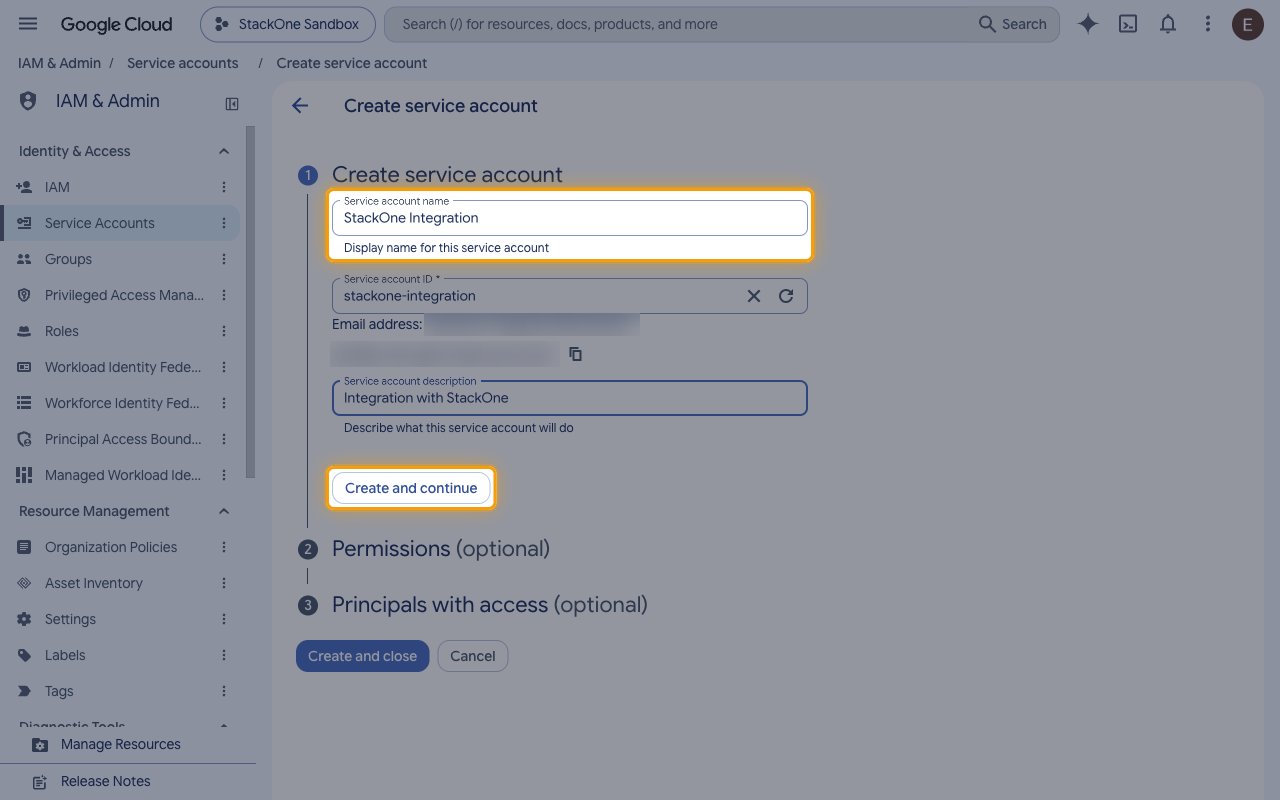
Open IAM & Admin > Service Accounts.
- Click Create service account.
- Service account name:
StackOne Integration - Click Create and continue.
Grant the roles
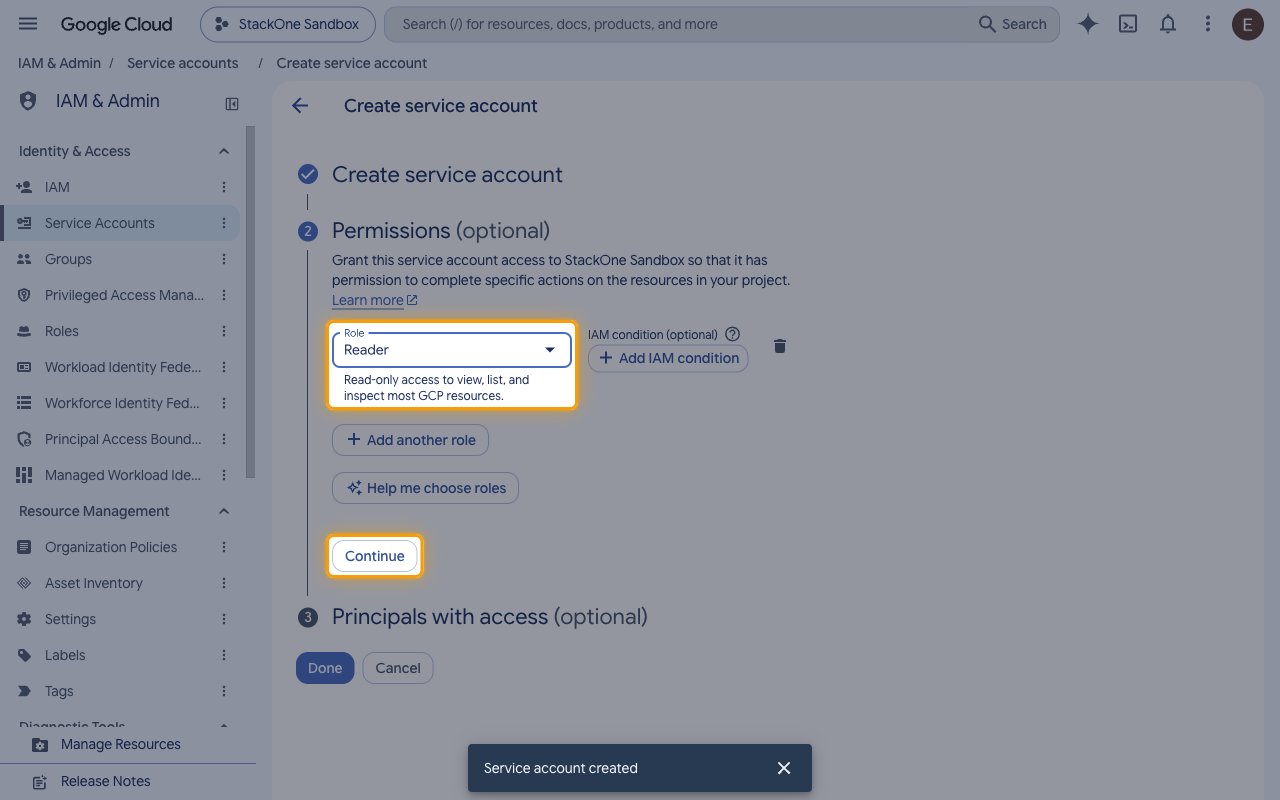
Under Permissions (optional), add a role for each kind of action you plan to use.
- Click Select a role.
- Search for
Service Usage Consumer. - Select Service Usage Consumer so the service account can call the APIs enabled on the project and have the calls billed to it.
- For each kind of resource you create, change or delete, click Add another role and add its role.
- Google Maps Platform grants no further access through IAM. What a call may do is decided by which APIs are enabled on the project.
- Click Continue.
- Click Done.
- New roles can take a few minutes to become active.
Create the JSON key
In Service Accounts, click the email of the new service account and open the Keys tab.
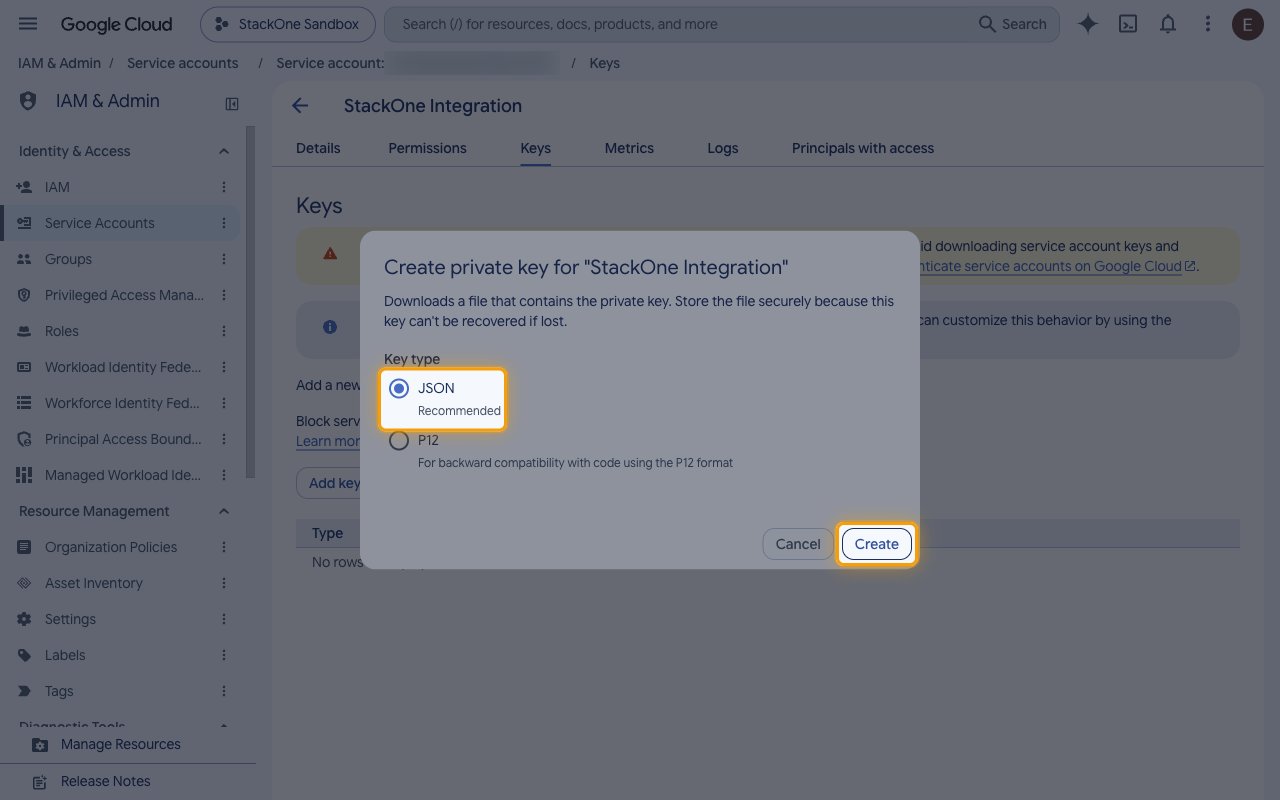
- Click Add key.
- Select Create new key.
- Key type: JSON
- Click Create. The key file downloads once, and Google can’t recover it if it is lost.
- If your organization blocks key creation with an organization policy, ask an organization policy administrator to allow it for this project.
Entering the key
Open the downloaded .json key file in a text editor. The whole file, including the outer braces, is the key.
- Copy the Service Account Key (JSON) across.
- Copy the
project_idvalue across to GCP Project ID. It is sent as theX-Goog-User-Projectheader, which is the project the calls are billed to.
Link the Account
Connect
- Click Connect.
- If applicable, the provider will redirect you to a sign-in or authorization page. Complete the provider’s authorization flow.
- Once authorization is successful, you will see a confirmation popup.
Use Actions