

Create a Google Maps Platform API key
Generate an API key in the Google Cloud console and restrict it to only the Google Maps Platform APIs this connector uses.
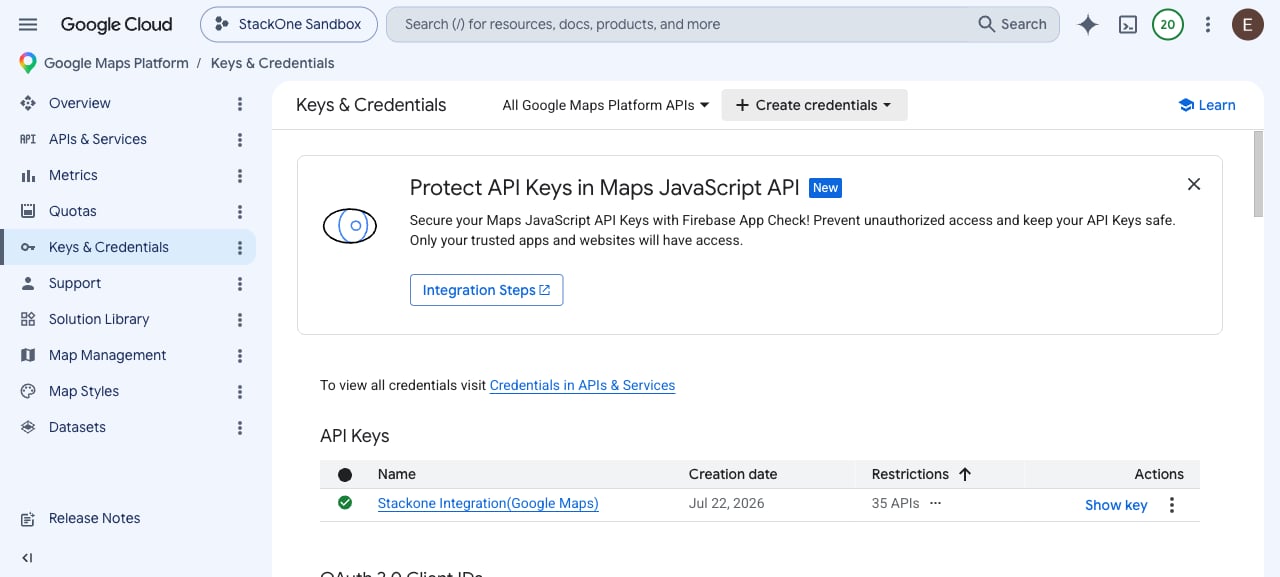
Open Keys & Credentials in the Google Cloud console
Sign in to the Google Cloud console, select the Cloud project you want to use in the top bar, then open Keys & Credentials in the left menu under Google Maps Platform.
Create the API key
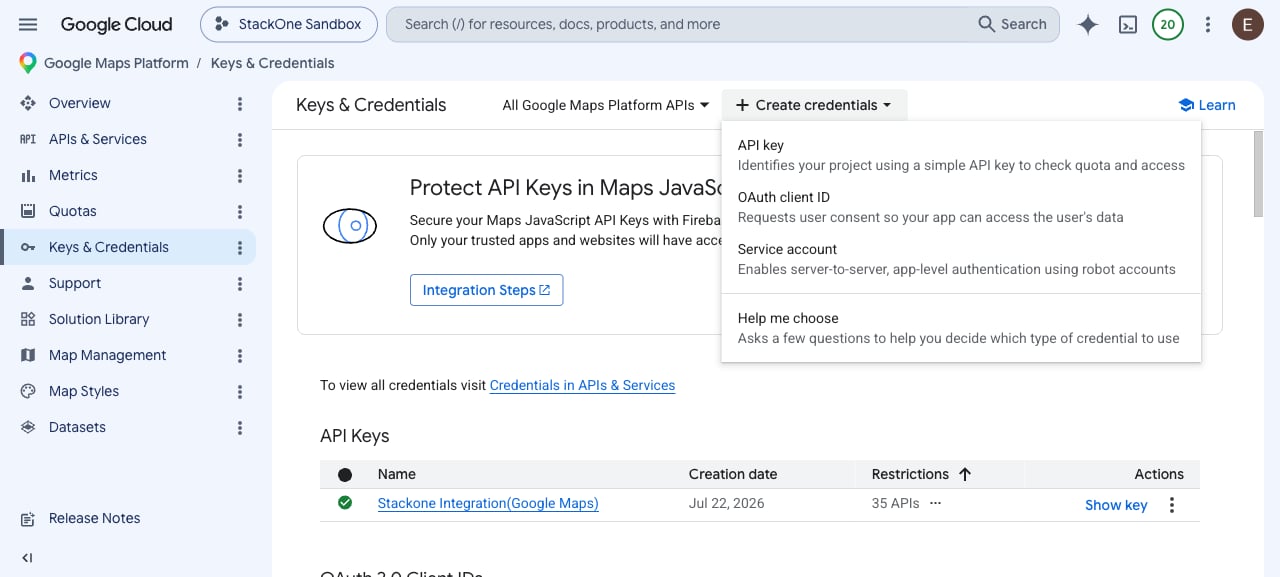
Click Create credentials at the top of the page, then choose API key (Identifies your project using a simple API key to check quota and access).
Name the key and open its API restrictions
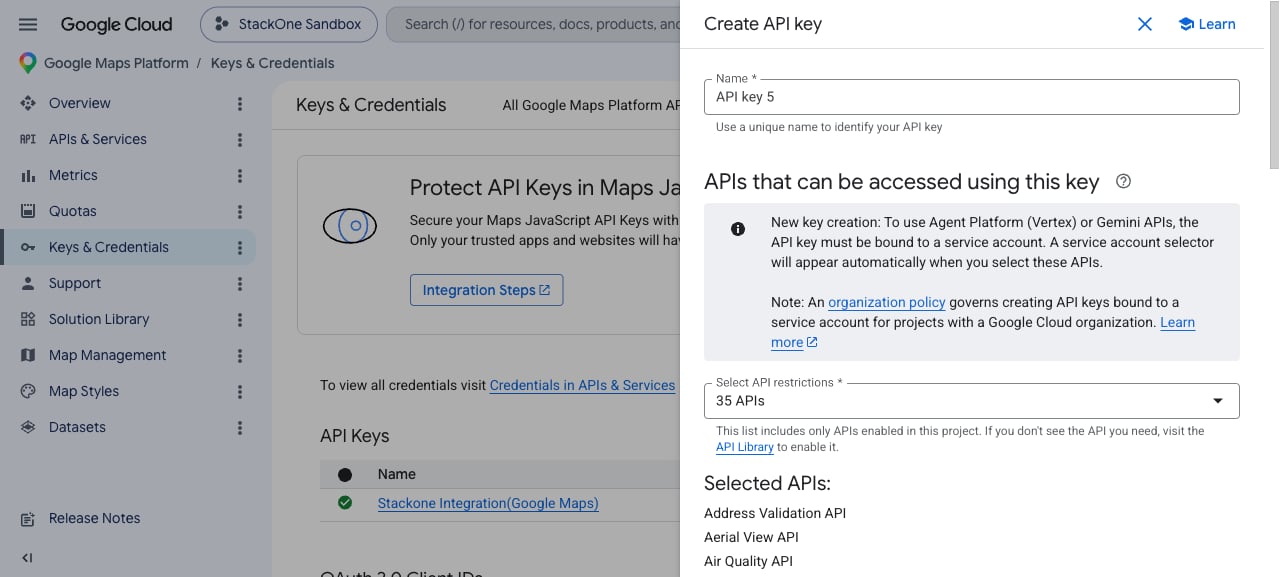
In the Create API key panel, enter a Name for the key (for example, StackOne Google Maps), then open the Select API restrictions dropdown.
Restrict the key to only the APIs this connector uses
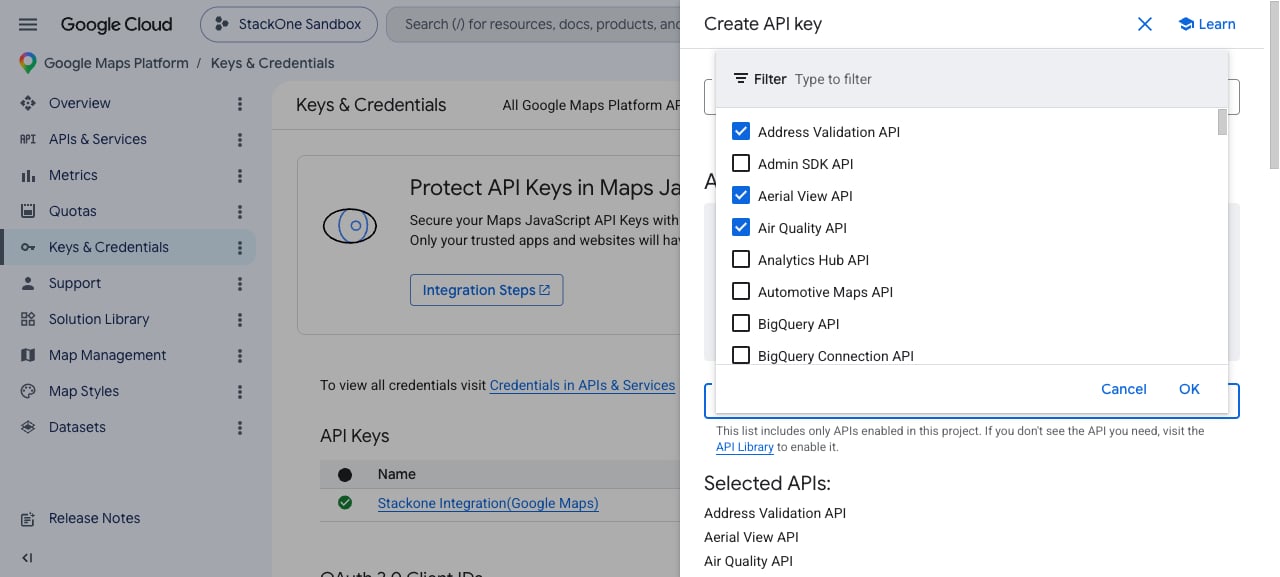
In the Select API restrictions list, check ONLY the APIs listed in the next section and uncheck all others, then click OK. Use the Filter box to find each API quickly.
Set application restrictions and create the key
Under Application restrictions, choose None for server-side use, or IP addresses to lock the key to your server IPs, then click Create.
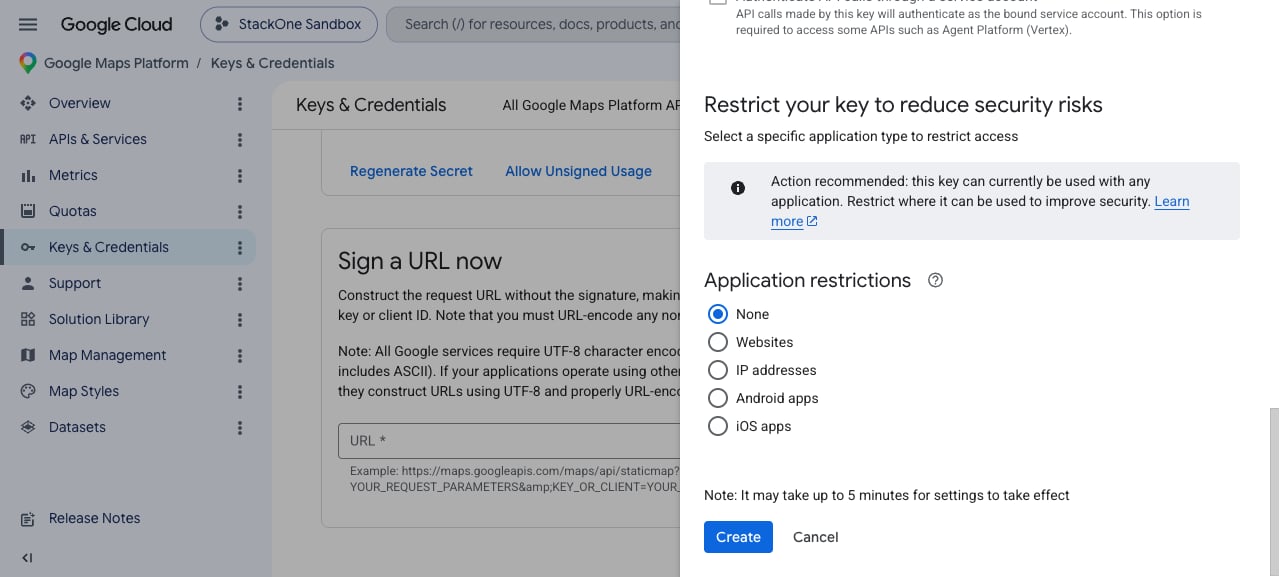
Copy the API key
Copy the generated key from the dialog and paste it into the API Key field below. You can retrieve it again later with Show key in the API Keys table on the Keys & Credentials page.
Enable the APIs this connector uses
This connector calls 17 Google Maps Platform APIs. Each must be enabled for your Cloud project before it will respond — a request to a disabled API is rejected with REQUEST_DENIED / HTTP 403. If you also restricted the key, select the same APIs under Select API restrictions.
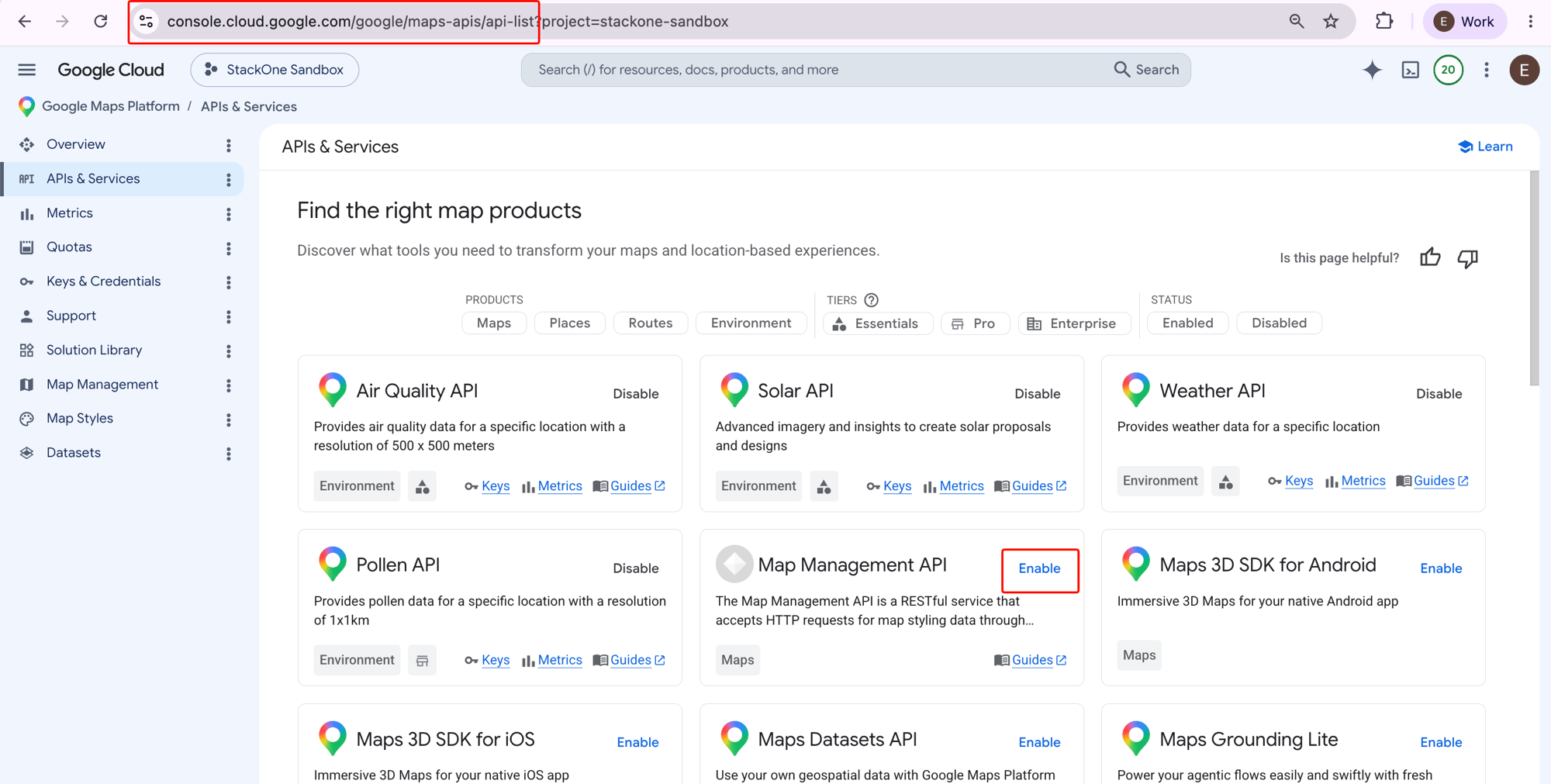
Open APIs & Services and enable each required API
Go to APIs & Services (API Library) and click Enable on each API listed below. A card that shows Disable is already enabled — leave it as is. Some environment APIs (Air Quality, Pollen, Solar, Weather, Aerial View) may require additional access or billing approval from Google.
- Address Validation API
- Aerial View API
- Air Quality API
- Elevation API
- Geocoding API
- Geolocation API
- Map Tiles API
- Maps Static API
- Places API (New)
- Places Aggregate API
- Pollen API
- Roads API
- Routes API
- Solar API
- Street View Static API
- Time Zone API
- Weather API
Link the Account
Connect
- Click Connect.
- If applicable, the provider will redirect you to a sign-in or authorization page. Complete the provider’s authorization flow.
- Once authorization is successful, you will see a confirmation popup.
Use Actions